Why does Google Postmaster Tools show no data?

Published 30 Apr 2025
Updated 21 Jun 2026
13 min read
Summarize with

Updated on 25 Jun 2026: We updated this guide to separate blank Postmaster Tools dashboards from DMARC report gaps, compliance delays, and low-volume privacy thresholds.
Google Postmaster Tools shows no data when Google does not have enough eligible traffic to personal Gmail accounts to display a metric, when the selected domain or subdomain is too new or wrong, when the domain is not verified for the viewer, when the dashboard has a reporting delay, or when one of the older Postmaster Tools views has stopped populating even though newer views still have data. If authenticated Gmail volume is high, the domain is still verified, and other panels still populate, treat the blank chart as a Google reporting gap first, not as proof that the sending system broke.
The fastest answer is this: check Compliance status on the primary domain and Spam Rate on the selected domain, confirm personal Gmail volume, verify that the exact DKIM d= domain or SPF Return-Path domain is selected, then compare Google data with independent authentication data. If a newer dashboard has data and only the legacy panel says "No data to display at present. Please come back later.", do not change DNS, warmup, routing, or cadence just because of that blank legacy chart.
- Most likely: A Google-side reporting delay or legacy dashboard gap when volume is high and domain reputation still appears.
- Most common: The domain or subdomain does not meet Google's personal Gmail traffic and privacy thresholds for that metric.
- Most overlooked: The wrong authentication domain is selected, or the viewer has not been granted access to the verified domain.
- Most risky: Authentication, DNS, or reputation changed at the same time, so the blank chart hides a real issue.
Why the data disappears
Postmaster Tools does not work like a live event log. It is an aggregated, privacy-limited reporting system for mail that reaches personal Gmail users. Data is usually updated within 24 hours but can take longer, and Google uses UTC for dashboard dates. Google suppresses metrics when it cannot show them safely or when there is not enough eligible traffic. Some dashboards also depend on DKIM-authenticated mail, and Google attempts to exclude forwarded messages even though some forwarded traffic can still affect the data. That is why one dashboard can show domain reputation while another dashboard, such as spam rate, shows nothing.
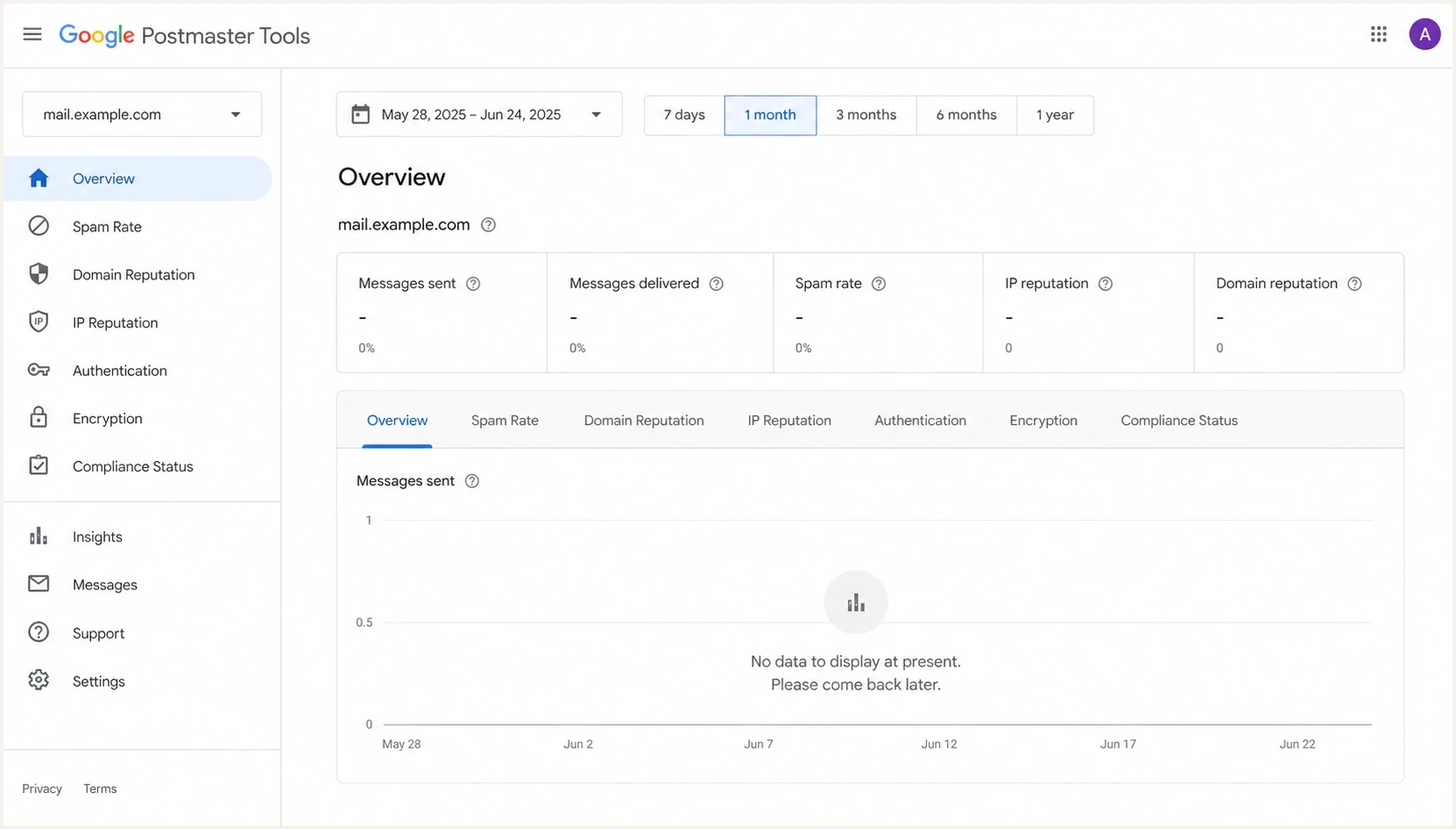
Google Postmaster Tools no data message on a Gmail sender dashboard.
|
|
|
|---|---|---|
Low Gmail volume | Blank metric | Check personal Gmail share |
New domain or subdomain | No history | Send steady Gmail volume |
Wrong scope | Root is blank | Verify subdomain |
Unverified access | Domain absent or unauthorized | Verify DNS |
Legacy gap | Old view blank | Compare Compliance |
Google delay | Recent days blank | Recheck later |
Auth failure | Other warnings | Fix DNS |
Feedback Loop threshold | FBL is blank | Check Feedback-ID |
Common reasons Google Postmaster Tools has no data
Volume is the first place to look, but total sending volume is not the number that matters. A sender can send 200,000 messages per day and still lack a specific Postmaster metric if the personal Gmail slice is small, much of the list uses Google Workspace, traffic is split across subdomains, or mail is spread across too many IPs and authentication domains. The practical question is not "How much was sent?" It is "How much authenticated mail did this exact DKIM or SPF domain send to unique personal Gmail users on this exact date?" For a deeper breakdown, use email volume requirements as the reference point.
A missing or very low spam rate is not always good news. Google reports user-reported spam from messages that reached engaged recipients' inboxes, so a sender with heavy automatic spam placement can see little or no spam-rate data even while reputation is poor.
How to diagnose a blank dashboard
Start with the simplest explanation, then work outward. A blank Postmaster Tools chart is a data availability problem until there is evidence of a sending problem. The diagnostic path below separates dashboard quirks from real deliverability faults.
- Check access: Confirm the domain is verified and the Google account has permission to view it.
- Check scope: Open the exact domain or subdomain used in the visible From address and DKIM or SPF authentication domain.
- Check subdomains: Add the sending subdomain separately when you need dashboard data for that subdomain rather than only the primary domain.
- Check dates: Move the range back several days because recent Postmaster data often lags daily sending and dashboard dates use UTC.
- Check Gmail mix: Filter campaign data to personal Gmail recipients only, not total sends, Google Workspace recipients, or every mailbox provider.
- Check panels: Compare spam, domain reputation, IP reputation, authentication, encryption, delivery errors, and Compliance views.
- Check FBL: Confirm Feedback-ID is present and compare From header domain with all signed domains when the Feedback Loop dashboard is blank.
- Check mail: Send a real message and inspect headers, authentication, placement signals, and content problems with an email tester.
- Check history: Compare the blank period with DNS changes, IP changes, template changes, and traffic spikes.
?
What's your domain score?
Deep-scan SPF, DKIM & DMARC records for email deliverability and security issues.
A fast independent check helps because Google Postmaster Tools does not explain every blank state. Use a domain health checker to confirm DMARC, SPF, DKIM, MX, and basic DNS health. If authentication is clean and Gmail-specific engagement has not changed, the blank Google chart is less urgent.
Legacy views versus Compliance views
The most confusing version of this problem is when an older Postmaster Tools view shows no data, but the newer Compliance status or Spam Rate dashboard still has numbers. In that case, the older view is not the source of truth by itself. Compare both views before changing sending behavior.
Compliance status is useful, but it is scoped to the primary domain. Google uses subdomain data when calculating the primary domain's status, but Compliance status does not give a subdomain-only view. Compliance also uses a rolling average and a slightly different dataset than the other dashboards, so a fix can take up to 7 days to appear there. For subdomain diagnosis, use the other Postmaster Tools dashboards and confirm the authenticated domain matches the subdomain being reviewed.
Legacy dashboard
- Behavior: Older charts can stop showing spam or reputation data while other panels still update.
- Risk: A blank view can look like a sender issue even when Gmail still has usable signals.
- Use: Good for history when populated, weak as the only trigger for urgent changes.
Compliance dashboard
- Behavior: Newer views can keep showing compliance signals when old charts are blank.
- Scope: Compliance status applies to the primary domain, even when subdomain traffic contributes to it.
- Use: Best first place to check when the older spam or reputation panel goes blank.
Do not overreact to one blank panel
A single empty chart is weak evidence. Look for a pattern across Google panels, inbox performance, authentication results, complaint signals, bounce patterns, delivery errors, and blocklist or blacklist status before making a sending change.
If multiple Google views are blank across domains, or several unrelated domains lose the same metric on the same day, that points to a Google reporting issue. If only one domain loses data after a sending change, treat it as a real investigation. The broader GPT troubleshooting path is useful when verification, access, or dashboard behavior itself is broken.
What to check outside Google
Postmaster Tools is useful, but it is not the only evidence. The second data source should not depend on Google's reporting UI. That means DMARC aggregate reports, authentication checks, DNS validation, blocklist monitoring, bounce data, and real seed or mailbox tests.
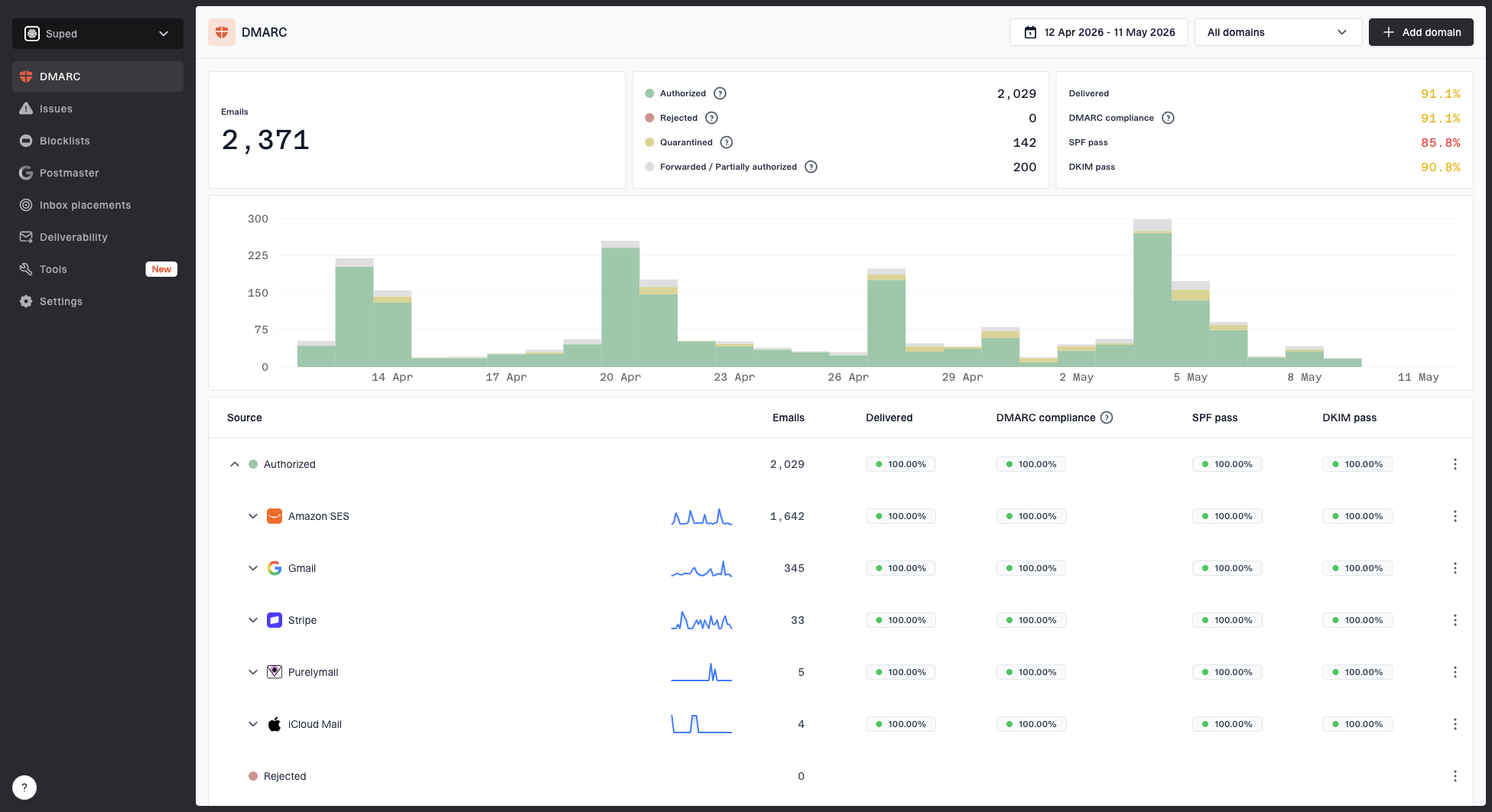
Suped DMARC dashboard showing email volume, authentication health, and source breakdown
This is where Suped fits the workflow. Suped's product brings DMARC monitoring, SPF and DKIM visibility, source identification, alerts, hosted DMARC, hosted SPF, SPF flattening, hosted MTA-STS, and blocklist monitoring into one workflow. It tells you whether mail is authenticating, which senders are verified, which sources are failing, and what to fix when Google is silent.
DNS records worth checkingDNS
_dmarc.example.com TXT "v=DMARC1; p=none; rua=mailto:dmarc@example.com"
example.com TXT "v=spf1 include:_spf.example.net -all"
selector1._domainkey.example.com TXT "v=DKIM1; k=rsa; p=REPLACE_KEY"
The records above are not a complete configuration for every sender, but they show the first three places to verify: DMARC reporting, SPF authorization, and DKIM signing. If DMARC reports show normal authenticated Gmail volume and Postmaster Tools is blank, the evidence points back to Google's reporting layer. If DMARC volume drops, unauthenticated sources rise, or Google aggregate reports also stop, the blank chart becomes secondary.
A practical Suped workflow
- Confirm volume: Use DMARC aggregate data to confirm the sending domain still has Gmail traffic.
- Find failures: Review SPF, DKIM, and DMARC pass rates by source before editing DNS.
- Watch alerts: Use real-time alerts when authentication or reputation signals change.
- Keep context: Compare Google gaps with blocklist and blacklist status, not one chart alone.
When Google DMARC reports are missing too
Missing Postmaster Tools data and missing Google DMARC aggregate reports are separate reporting problems. Postmaster Tools depends on dashboard thresholds, verification, and selected authentication domains. DMARC aggregate reports depend on a valid DMARC record, a usable rua destination, report authorization when the destination is external, and Google receiving mail during the reporting window.
- Validate the record: Publish one _dmarc TXT record with v=DMARC1, a policy tag, and a correctly formatted mailto: aggregate report address.
- Check external permission: When the report mailbox uses another domain, publish the external report authorization TXT record in the recipient domain.
- Check delivery: Confirm the report mailbox accepts automated compressed XML files and does not filter Google report senders.
- Compare receivers: If other receivers send aggregate reports while Google does not, treat it as a Google-specific reporting path before changing SPF or DKIM.
In Suped's product, compare Google aggregate report volume with the dates where Postmaster Tools is blank. If Google DMARC reports disappear and Gmail test mail is still accepted, the next check is the DMARC report path, not the campaign schedule.
How long to wait
Wait before making major changes if the only symptom is a blank Postmaster Tools panel. The waiting period depends on what else changed. A new domain, newly verified domain, or recently split subdomain needs more patience than an established sender with stable mail flow. For a new sending subdomain, plan around 2 to 7 days after steady personal Gmail sending begins, with roughly 100 Gmail recipients per day as a floor and 500 to 600 per day as a more useful reporting target. For Compliance status after a fix, wait up to 7 days because that dashboard uses a rolling view.
No data waiting window
Use this timing guide when Postmaster Tools is blank but sending continues.
Normal lag
0-24h
Recent dates are often incomplete.
Watch closely
24-72h
Compare newer dashboards and independent data.
New subdomain window
2-7d
Expect sparse data until steady personal Gmail volume exists.
Investigate
7d+
Check access, scope, auth, and Google-side reports.
For a stable sender with more than enough Gmail traffic, expect at least some older data to remain visible. If all historical data disappears, or every view returns the same empty state, that is different from a single blank chart for yesterday. Document the first missing date, the affected metric, the selected domain, Gmail-only send volume, and any DNS or infrastructure changes in the same period. For a new subdomain, a week of 500 or more personal Gmail recipients per day with matching DKIM and no data is enough to investigate domain selection, verification, and authentication identity.
A good note to keep
Write down the missing UTC date range, affected dashboard, personal Gmail sends, domain or subdomain selected, last verification date, last DNS change, and whether Google DMARC aggregate reports arrived for the same period. That note saves time if the issue persists.
When it is safe to ignore
It is safe to wait when the domain remains verified, older reputation data is still visible, the Compliance dashboard has current status data, DMARC reports show normal personal Gmail traffic, authentication passes, bounce rates are stable, the Delivery Errors dashboard has no matching spike, and no new blocklist or blacklist listing appears. In that scenario, the blank panel is probably a reporting problem.
It is not safe to ignore when the blank dashboard appears at the same time as Gmail deferrals, rising spam complaints, sudden authentication drops, sender changes, domain verification problems, a new listing, or delivery error reasons such as rate limit exceeded, suspected spam, DMARC policy rejection, low reputation, or public RBL blocklist (blacklist) status. Google does not give enough detail inside the empty state, so the decision has to come from surrounding evidence.
Evidence mix for triage
A balanced triage uses Google data and independent checks.
Google dashboards
Authentication
Reputation
Mail results
The key is to avoid treating a reporting gap as a root cause. A blank chart does not improve delivery, harm delivery, or prove delivery. It only means Google is not showing that metric for the selected domain and date. The job is to decide whether the hidden metric is the only problem or a symptom next to real mail failures.
Views from the trenches
Best practices
Check Compliance status and Spam Rate before treating a blank legacy chart as a mail issue.
Compare personal Gmail sends with total volume because Workspace and non-Gmail mail will not count.
Keep DMARC, SPF, and DKIM monitoring active so missing Google charts do not hide auth failures.
Common pitfalls
Changing DNS while only one dashboard is blank creates noise and delays real diagnosis work.
Counting Workspace recipients as Gmail volume can make the threshold look met too soon.
Treating no data as zero spam complaints hides the difference between absence and a low rate.
Expert tips
Use the exact DKIM or SPF domain when you compare Postmaster gaps with send volume.
Track legacy and Compliance dashboards separately because they can lag or fail differently.
Give new subdomains 2 to 7 days of steady personal Gmail volume before judging the dashboard.
Marketer from Email Geeks says a blank legacy chart should be compared with the newer Compliance spam dashboard before changing sending behavior.
2024-11-14 - Email Geeks
Marketer from Email Geeks says domain reputation can keep showing data while the spam chart is empty, so each dashboard needs separate review.
2024-11-14 - Email Geeks
What to do next
If Google Postmaster Tools shows no data, do not start by changing mail infrastructure. First confirm the selected domain, personal Gmail volume, UTC date range, Compliance status on the primary domain, and Spam Rate for the exact domain or subdomain. Then compare that with DMARC, SPF, DKIM, blocklist, bounce, and real message test data.
If everything outside Google is healthy, wait 24 to 72 hours and keep monitoring. If independent data shows failures, fix those failures directly instead of chasing the empty Postmaster Tools message. If Google DMARC aggregate reports are missing too, validate the rua path and report mailbox before touching sending infrastructure. Suped is built for that second layer of evidence: it keeps authentication, reputation, alerts, hosted records, and multi-domain monitoring in one place when receiver dashboards do not explain themselves.