Why does Google Postmaster Tools show a 100% abuse rate on days with no email sends?

Updated on 17 Oct 2026: We updated the investigation steps for Postmaster Tools v2 and clarified low-volume spam-rate spikes.
A 100% abuse rate in Google Postmaster Tools on a day when you believe you sent no email calls for checks on qualifying inbox volume, reporting dates and Gmail traffic missing from your send count.
The chart is Google's user-reported Spam Rate dashboard. The denominator covers DKIM-authenticated messages delivered to engaged Gmail recipients' inboxes, not every message you sent. One complaint divided by one qualifying inbox message equals 100%, but that arithmetic does not establish that Google publishes single-message data. Google can omit low-volume data to protect user privacy, and the percentage does not reveal the underlying counts.
Treat a single isolated 100% point on a no-send day as an investigation flag, not proof of a major reputation failure. First confirm whether there was any qualifying Gmail traffic, a later complaint on older mail, an automated or transactional send that was missed, or a repeated spike on nearby days.
Why a no-send day can show 100%
Google Postmaster Tools does not show a raw complaint inbox. It shows aggregated data about mail Google can attribute to your domain and Gmail user activity. Google's Postmaster Tools help page says data typically updates within 24 hours but can take longer, uses UTC, and can omit low-volume data to protect user privacy. Missing data does not mean zero sends or complaints, and suppression alone does not explain a reported 100%.
Illustrative user-reported spam rate mathtext
spam rate (%) = (qualifying inbox messages marked as spam / qualifying inbox messages) * 100

(1 / 1) * 100 = 100%
(1 / 10) * 100 = 10%
(1 / 1,000) * 100 = 0.1%
(1 / 10,000) * 100 = 0.01%

These examples illustrate the arithmetic, not Google's reporting thresholds.
Timing can still explain a no-send date. A Gmail user can mark older mail as spam days after delivery, but Google does not publish enough raw detail to prove how that complaint is assigned to a specific chart date. A send near midnight local time can also fall on a different dashboard date because Postmaster Tools uses UTC. Treat both as hypotheses to test against logs, not an exact reconstruction of Google's calculation.
Another common cause is uncounted volume. Your marketing calendar had no scheduled campaign, but a password reset, invoice, trial reminder, product notification, resend, or API-triggered message still used the same visible From domain or DKIM signing domain. Check queued messages and retries too: mail scheduled earlier can be accepted by Gmail on a later UTC date.
The key point
The same percentage can result from different complaint counts. Compare the reported rate with eligible traffic and the surrounding delivery trend before estimating the scale of the problem.
- Do not panic: Investigate the eligible inbox population before estimating complaint volume.
- Do not ignore it: Repeated spikes warrant a campaign and audience review.
- Do not overfit: One day cannot explain long-term reputation by itself.
What Google is actually measuring
The user-reported spam rate in Google Postmaster Tools is not your ESP's total complaint rate, unsubscribe rate, Gmail delivery rate, or inbox placement rate. Google measures DKIM-authenticated messages delivered to engaged recipients' inboxes and then manually marked as spam. Mail that Gmail automatically routes to spam is outside that inbox denominator unless a recipient marks it as not spam, which can make the displayed rate look low even when inbox placement is poor.
Postmaster Tools covers only personal Gmail accounts ending in @gmail.com or @googlemail.com. Google Workspace mailboxes on custom domains are excluded, so filter your send export before comparing volumes.
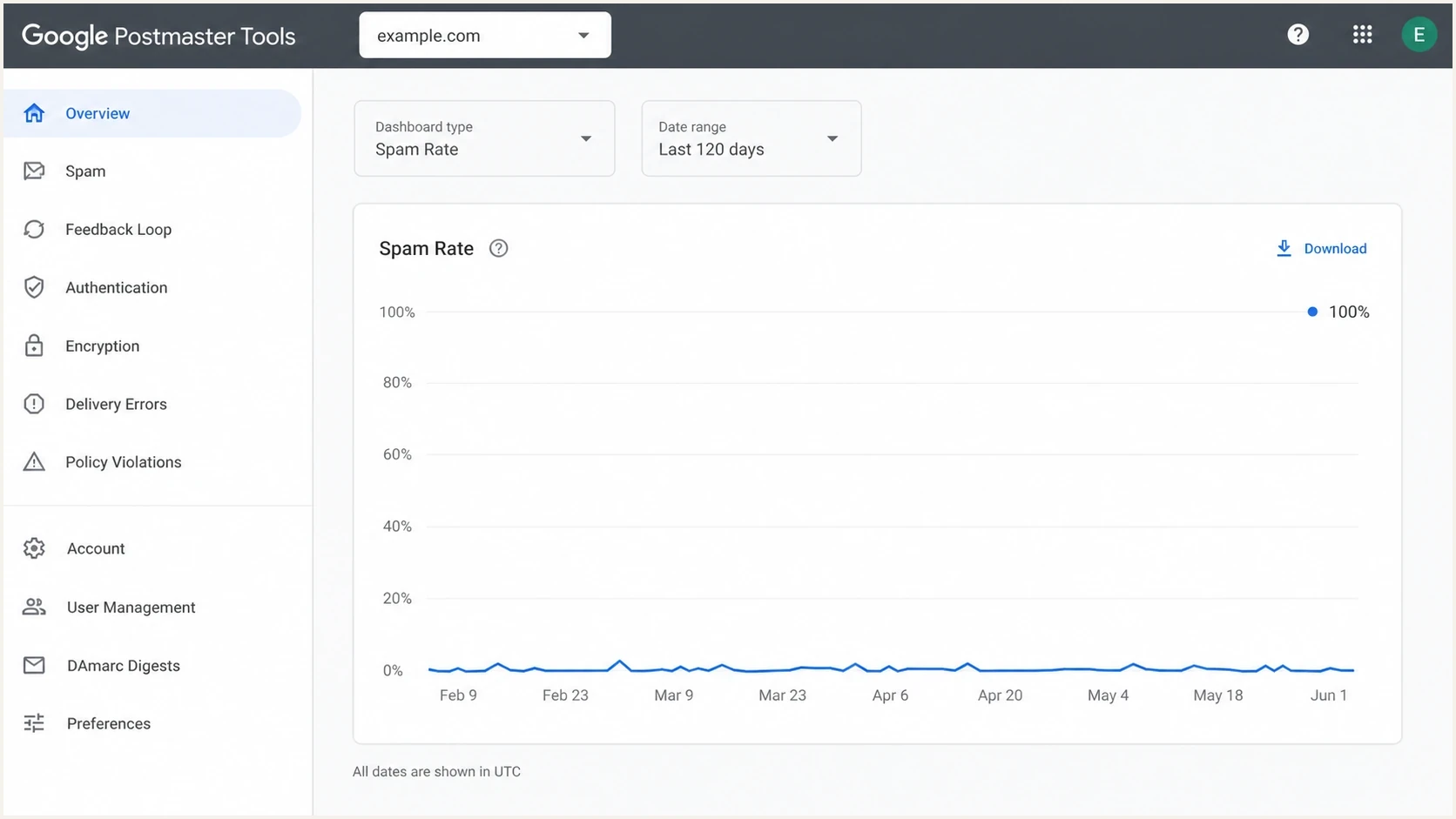
Google Postmaster Tools spam rate dashboard with one isolated 100% point.
|
|
|
|---|---|---|
100% one day | Small eligible inbox population is one possibility | Gmail-bound logs |
No campaign | Other mail stream | Full ESP export |
Legacy reputation stays high | Does not rule out emerging complaints | Spam trend and delivery errors |
Repeated spikes | Complaint pattern | Segment audit |
Quick reading of a no-send abuse-rate spike.
This is why your ESP can show zero campaign sends while Google shows 100%. The systems do not count the same event on the same clock. Google uses Gmail-side user behavior and qualifying messages. Your ESP uses send and complaint events logged under a particular account or stream.
For the deeper denominator math, the separate guide on spam complaints covers how Gmail complaint and volume views differ from normal ESP reports.
How to use Google's spam-rate thresholds
Google's sender guidelines say to keep the spam rate reported in Postmaster Tools below 0.10% and avoid reaching 0.30% or higher. Spam rate is calculated daily; low-volume days are not exempt. A sparse-day 100% point still requires investigation, but it does not prove that a normal-volume campaign produced a 100% complaint rate or that enforcement will follow automatically.
- Below 0.10%: Keep monitoring the trend and preserve current list controls.
- At 0.10% to below 0.30%: Review consent, targeting, frequency, and unsubscribe access.
- At 0.30% or higher: Pause the affected campaign or segment and correct the cause.
- At 100% on sparse or unverified volume: Review personal Gmail traffic and UTC timestamps before making broad changes; the exact denominator is unavailable.
Thresholds need context
The 0.30% boundary matters even when volume is low. One complaint in a small eligible population and hundreds in a larger campaign require different operational responses. Under Google's mitigation requirements, bulk senders above 0.30% lose mitigation eligibility and need seven consecutive days below 0.30% to regain it.
Which Postmaster Tools version are you using?
Postmaster Tools v2 excludes the legacy Domain Reputation and IP Reputation dashboards. Google's interface deprecation guidance says retirement of the old web interface has been postponed, without a new retirement date. Consult legacy reputation charts only if they are still available in your account.
In v2, use Compliance status alongside authentication and delivery errors. Google's dashboard guidance explains that compliance uses multiple days of data and includes subdomains under the primary domain. Its Deliverability analysis recommendations help investigate volume or delivery problems. These views need not match a single-day spam-rate point.
What to check first
Start with the question that matters most: did anything change in authentication or delivery, or is the spike isolated to a single low-volume point? Check Compliance status and delivery errors alongside the spike. A high legacy reputation rating does not rule out emerging complaints.
- Check UTC: Convert your local sending-log timestamps to UTC before comparing them with the dashboard date.
- Export sends: Pull all personal Gmail sends for the day before, the day of, and the day after. Include SMTP acceptance events and retry logs.
- Separate streams: Include marketing, lifecycle, transactional, support, sales, and product mail.
- Inspect identifiers: Look for Feedback-ID, campaign IDs, message categories, visible From domains, and DKIM signing domains.
- Compare dashboards: Review spam rate, Compliance status, authentication and delivery errors together. Use legacy reputation charts if available.
How to read the spike
A single 100% value changes meaning once volume and trend are known.
No planned sends
Investigate
Check eligible traffic, UTC timestamps and reporting delays before attributing the spike.
One campaign spike
Segment
The campaign or segment deserves review.
Repeated high days
Pause
Reputation and placement risk are real.
Stable low rate
Monitor
Keep normal monitoring in place.
List every system that can send mail using the same visible From domain or DKIM signing domain. A product notification sent through a different vendor can still affect the Postmaster Tools view when it uses that domain. Compare the selected domain with the actual DKIM d= value and the dashboard's domain grouping, rather than assuming every chart has the same scope.
Email tester
Send a real email to this address. Suped shows a results button when the test is ready.
?/43tests passed
To inspect a real message, send a controlled Gmail-bound test and review the result with the email tester. That does not recover Google's hidden complaint count, but it confirms whether current mail passes authentication and contains the expected headers.
How to investigate the specific day
For a one-day 100% value, reconcile the UTC reporting window with all sending logs before changing strategy. A late complaint against older mail remains a hypothesis because Google does not publish the chart's complaint-date attribution logic.
Lower immediate concern
- One point: The spike appears on one date and disappears.
- Stable delivery: No new Gmail deferrals or rejections appear after the spike.
- Tiny volume: Available logs show only a small personal Gmail stream.
- No errors: Delivery errors and authentication rates stay normal.
Needs action
- Several days: High values appear across multiple send days.
- Bad segment: One audience or source creates repeated complaints.
- Auth drift: SPF, DKIM, or DMARC rates decline near the spike.
- Delivery impact: Gmail deferrals or rejections increase after the event.
Recheck the same dates after the next reporting update. Google normally updates data within 24 hours, but delays can be longer. The guide on inaccurate spam rates is useful when the chart does not match your internal data.
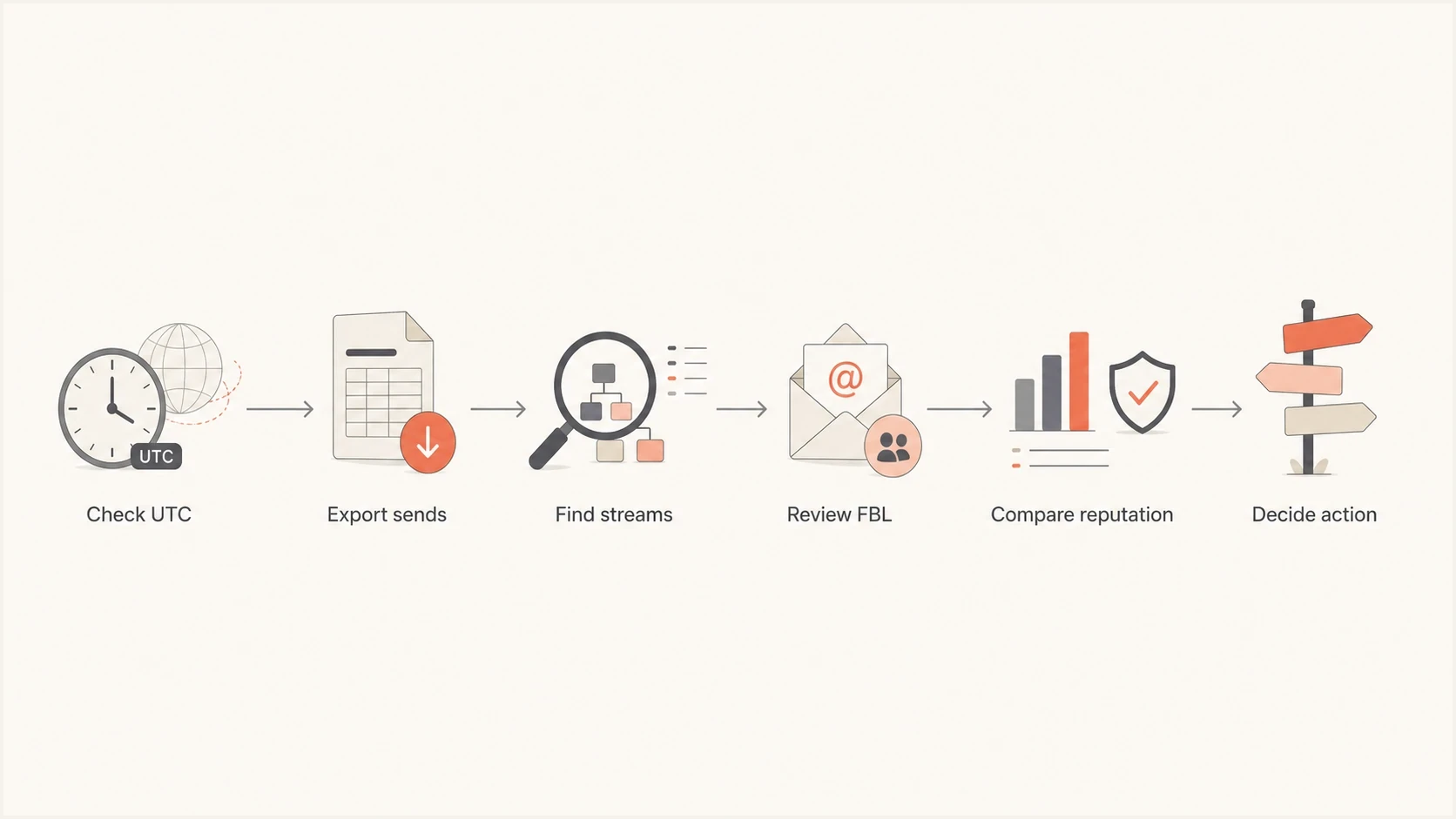
Steps to investigate a 100% spam rate in Google Postmaster Tools on a no-send day.
A blank date is not a 0% spam rate. Zero qualifying inbox messages would leave no valid denominator, so a displayed 100% still needs reconciliation. Do not calculate a complaint count by multiplying that percentage by your total ESP sends. The separate guide on no data explains why a domain can have real sends but incomplete Postmaster Tools charts.
If the mismatch persists after reporting refreshes, use Help & Feedback in Postmaster Tools. Include the selected domain, UTC dates, screenshots and relevant sending logs so the discrepancy can be investigated.
Why your ESP and Feedback Loop matter
Google's Feedback Loop can identify complaint-heavy campaign groups, but it is not a per-recipient complaint feed. It reports aggregate rates for traffic carrying a valid Feedback-ID and meeting Google's volume and distinct-report thresholds. An identifier can be absent because it did not meet those thresholds, not because Google proved there were zero complaints.
Headers to ask your ESP abouttext
Feedback-ID: campaign42:customer7:newsletter:brand01
DKIM-Signature: v=1; d=example.com; s=selector1; ...
Ask your ESP whether it adds Feedback-ID before DKIM signing and whether the signing domain is verified in Postmaster Tools. Google's Feedback Loop requirements specify a mandatory SenderId of 5-15 characters that stays consistent across the mail stream. Avoid identifiers unique to each message. The current Feedback Loop dashboard can group by the From header domain or show all successful DKIM signing domains. That distinction helps locate a complaint-heavy campaign when several services send for the same brand.
- Ask directly: Did any Gmail complaint signal appear for the domain or Feedback-ID?
- Ask broadly: Were transactional or automated sends excluded from campaign reports?
- Ask by time: Can they export Gmail-bound events for the UTC window around the point?
- Ask by domain: Which DKIM signing domain and visible From domain were used?
The ESP answer matters because Google gives you a rate without the exact complaint count. Your provider is closer to the raw send events, message headers, campaign metadata, and sending-source inventory. Combine that evidence with Google data instead of choosing one source as the whole truth.
How Suped fits into the workflow
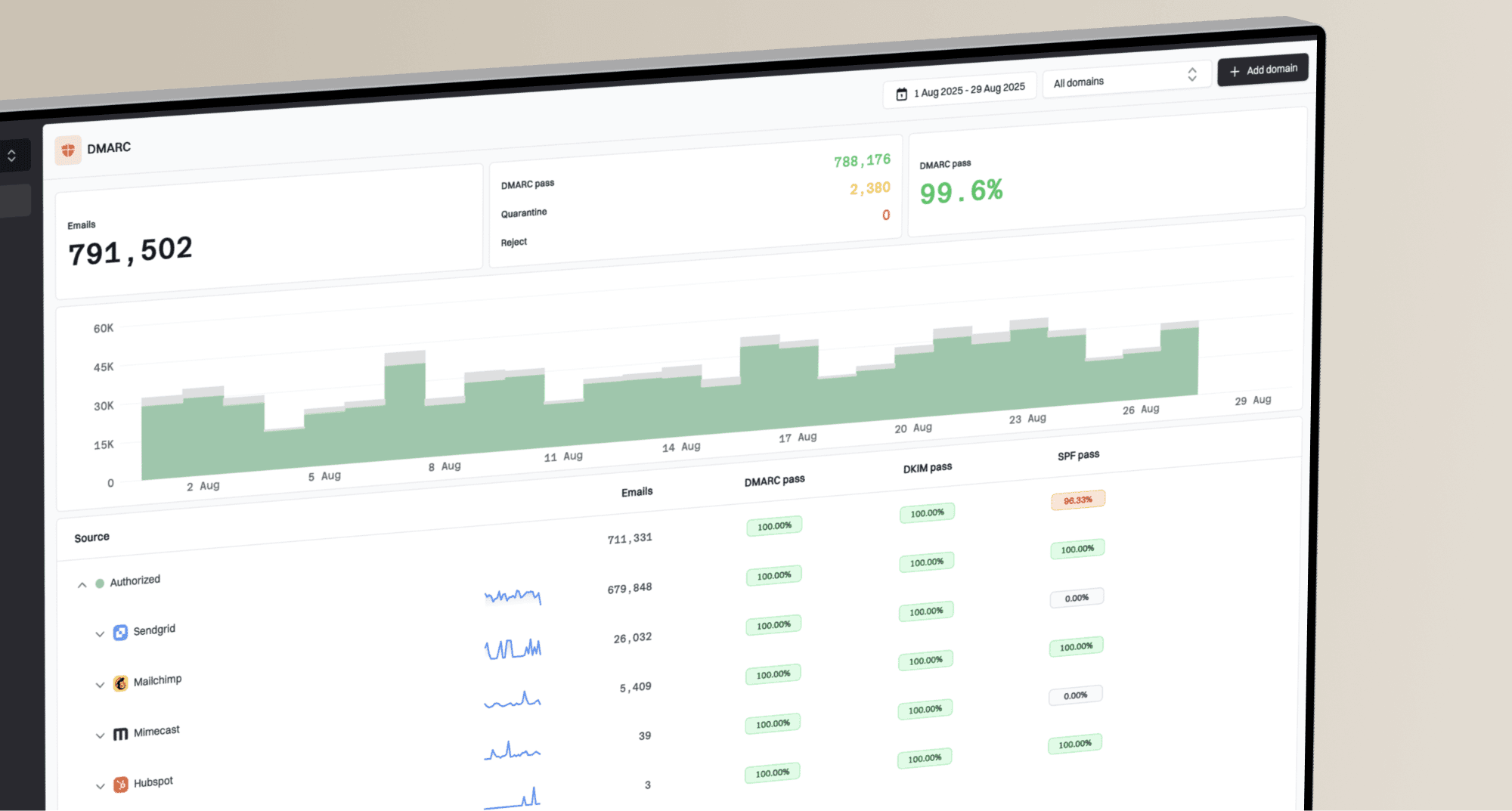
Suped is our DMARC reporting and email authentication platform. It helps investigate which sources sent mail as your domain and whether SPF, DKIM or DMARC results changed near the spike.
Suped DMARC dashboard showing email volume, authentication health, and source breakdown
Use DMARC monitoring in Suped to compare source IPs and authentication results over the relevant reporting period. DMARC aggregate reports describe mail observed by participating receivers; they do not reveal Gmail complaint counts or inbox placement.
Postmaster Tools
- Gmail view: Shows Gmail-side complaint and compliance signals.
- Low detail: Does not expose every raw complaint count.
- Delayed data: Updates are not real time.
Suped
- Source view: Shows sending sources present in received DMARC reports.
- Fix steps: Turns authentication issues into action items.
- Alerts: Flags changes for investigation.
Also check the current domain setup with a domain health checker when the Postmaster Tools chart looks odd. Current DNS and authentication checks help find configuration problems, but passing them does not explain or dismiss user complaints.
What not to do after one 100% point
Do not make a reputation-changing move because of one chart point. Check the eligible inbox population and UTC window before changing domains, rotating IPs or pausing all email.
Avoid overcorrecting
- Do not rotate: New domains and IPs lose established sending history and require a controlled ramp-up.
- Do not suppress blindly: Remove risky segments only after you identify them.
- Do not blame DMARC: Complaint spikes and authentication failures are different signals.
Do check whether anything else changed. If an IP or domain appears on a blocklist (blacklist) around the same time, that belongs in the investigation, but it does not prove the 100% abuse point came from that listing. Use blocklist monitoring to track domain and IP listing changes alongside authentication and complaint data.
Keep the response proportional. If the spike is isolated, document the likely cause and continue monitoring. If it repeats, segment the affected mail stream, tighten suppression rules, review consent quality, and compare complaint patterns by campaign, source, domain, and acquisition path.
Views from the trenches
Best practices
Check no-send days against UTC and ESP logs before treating a spike as a live issue.
Ask the ESP for Feedback-ID and Gmail complaint context when shared IP data is involved.
Compare spam spikes with compliance, authentication rates and delivery errors before acting.
Common pitfalls
Treating 100% as total audience failure when one complaint can create the whole rate.
Checking only scheduled campaigns and missing transactional or automated Gmail sends.
Changing domains or IPs after one sparse data point without checking the surrounding trend.
Expert tips
Use complaint rates as trend signals, then check sender sources and eligible inbox traffic.
Keep Feedback-ID values stable enough to group complaints without fragmenting reports.
Document isolated anomalies so future reviews do not reopen the same investigation.
Marketer view
Marketer from Email Geeks says a no-send day can still show 100% when Google has one or more complaints and almost no qualifying volume for that date.
2018-02-08 - Email Geeks
Marketer view
Marketer from Email Geeks says users can complain about older mail on a quiet day, but the chart does not reveal Google's date-assignment logic.
2018-02-08 - Email Geeks
When to monitor and when to pause
Confirm the UTC window, export every personal Gmail stream, ask your ESP about Feedback-ID, and compare authentication and delivery errors. Document an isolated spike and continue monitoring. If high rates repeat or Gmail delivery worsens, pause the affected campaign or audience while correcting the complaint source.
Frequently asked questions
No. The percentage describes the eligible inbox population, not your whole mailing list. One complaint out of one is illustrative arithmetic; Google does not expose the counts needed to confirm that scenario.
Check the UTC boundary and every automated or transactional stream using the same visible From domain or DKIM signing domain. A complaint can also be made against older mail, although Google does not publish enough detail to prove how it assigns that event to a chart date.
No. Changing domains after one isolated point creates extra reputation risk. Investigate first, then act if complaints repeat or Gmail delivery worsens.
Google Postmaster Tools does not provide an exact complaint count or a recipient-level complaint list. The Feedback Loop can identify qualifying campaign groups, but minimum volume and distinct-report thresholds apply.
Segment by source, campaign, audience, visible From domain, and DKIM signing domain. Then compare the user-reported spam rate with Compliance status, authentication and delivery errors. Consult legacy reputation charts if available.