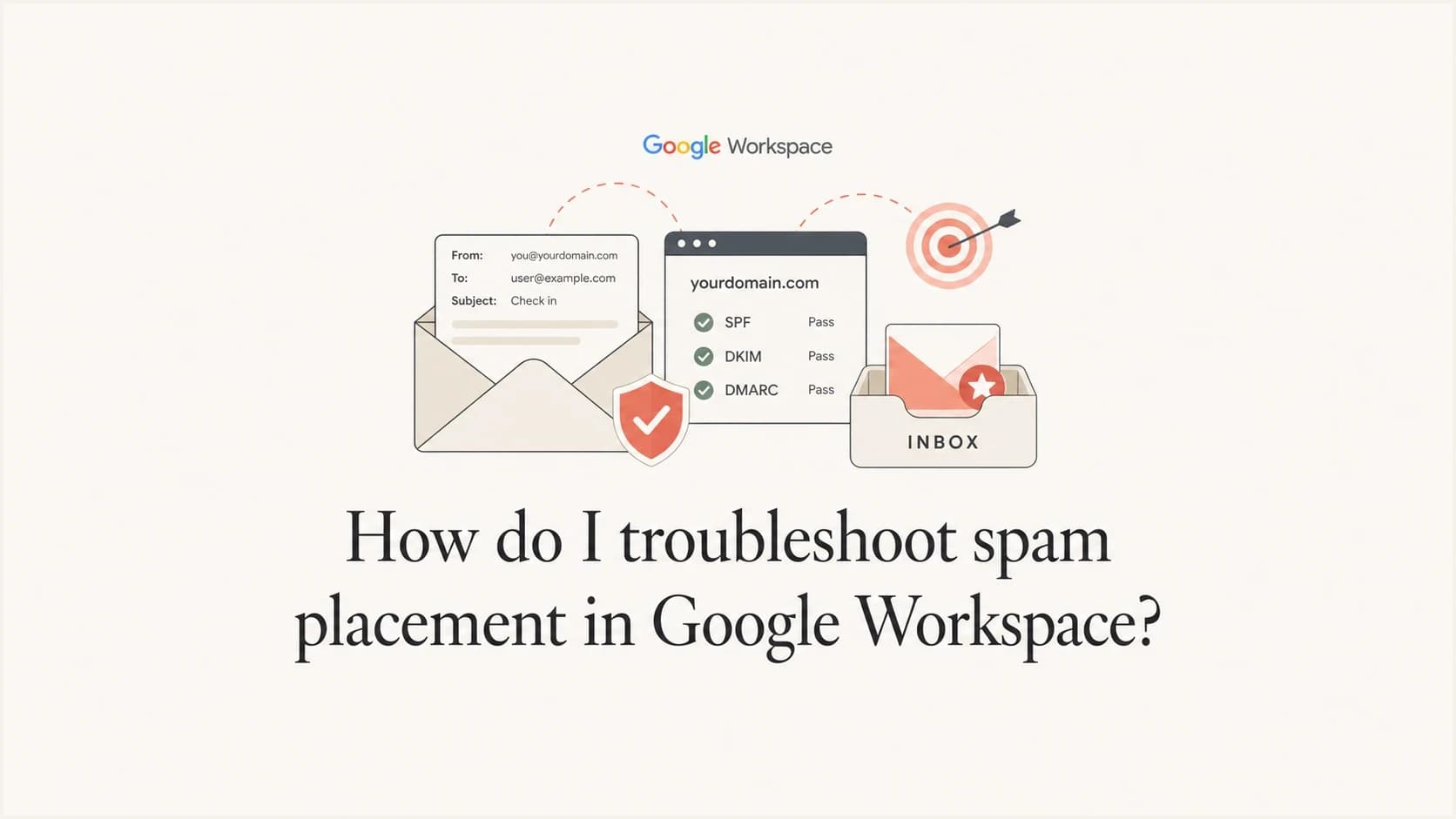
How do I troubleshoot spam placement in Google Workspace?

Published 22 Apr 2025
Updated 9 Aug 2026
11 min read
Summarize with
Updated on 9 Aug 2026: We added Google's current sender requirements, corrected the X-Gm header guidance, and made the troubleshooting sequence more precise.
Yes, there is useful troubleshooting to do when Google Workspace mail lands in spam. The direct answer is to stop looking for one hidden Google score and build evidence across five areas: message headers, authentication, sending reputation, recipient engagement, and the actual content being sent.
Start by proving whether the issue is sender-side or recipient-side. Google Workspace can place mail in spam because Gmail distrusts the sending pattern, because SPF, DKIM, or DMARC is not passing cleanly, because a link or template looks risky, or because an admin rule, quarantine policy, or user-level filter inside the receiving tenant is changing the result.
- Scope: Separate Gmail consumer recipients, Google Workspace recipients, and other mailbox providers.
- Headers: Collect full headers from spam and inbox samples before editing DNS records.
- Authentication: Confirm SPF and DKIM pass, then confirm DMARC aligns a passing domain with the visible From domain.
- Reputation: Review bounces, complaints, unsubscribes, cold traffic, and old recipient lists.
- Content: Test links, attachments, templates, tracking domains, and reply-to behavior in small batches.
What Google Workspace can and cannot tell you
Google Workspace gives you useful clues, but it does not give you a complete spam reason code. The practical sources are full message headers, Email Log Search, admin quarantine decisions, bounce messages, routing rules, compliance rules, and recipient-side spam settings. The official Google sender guidelines define the baseline for mail sent to personal Gmail accounts. Managed Google Workspace recipients can also have tenant-specific routing and spam controls, so check both paths.
For receiving-side issues, Google's own Google spam troubleshooting page points admins toward user feedback, personal contacts, spam bypass settings, authentication, and sender guidelines. That distinction matters: a sender reputation problem and a recipient tenant policy problem can look identical to the sender.
|
|
|
|---|---|---|
Headers | Original message | Authentication result and Google flags |
Email log | Admin console | Delivery path and policy actions |
Bounces | Sender records | Invalid recipients and blocks |
Complaints | Mailing data | Audience permission quality |
Blocklists | Reputation checks | Domain or IP trust problems |
Useful evidence sources for a Google Workspace spam investigation.
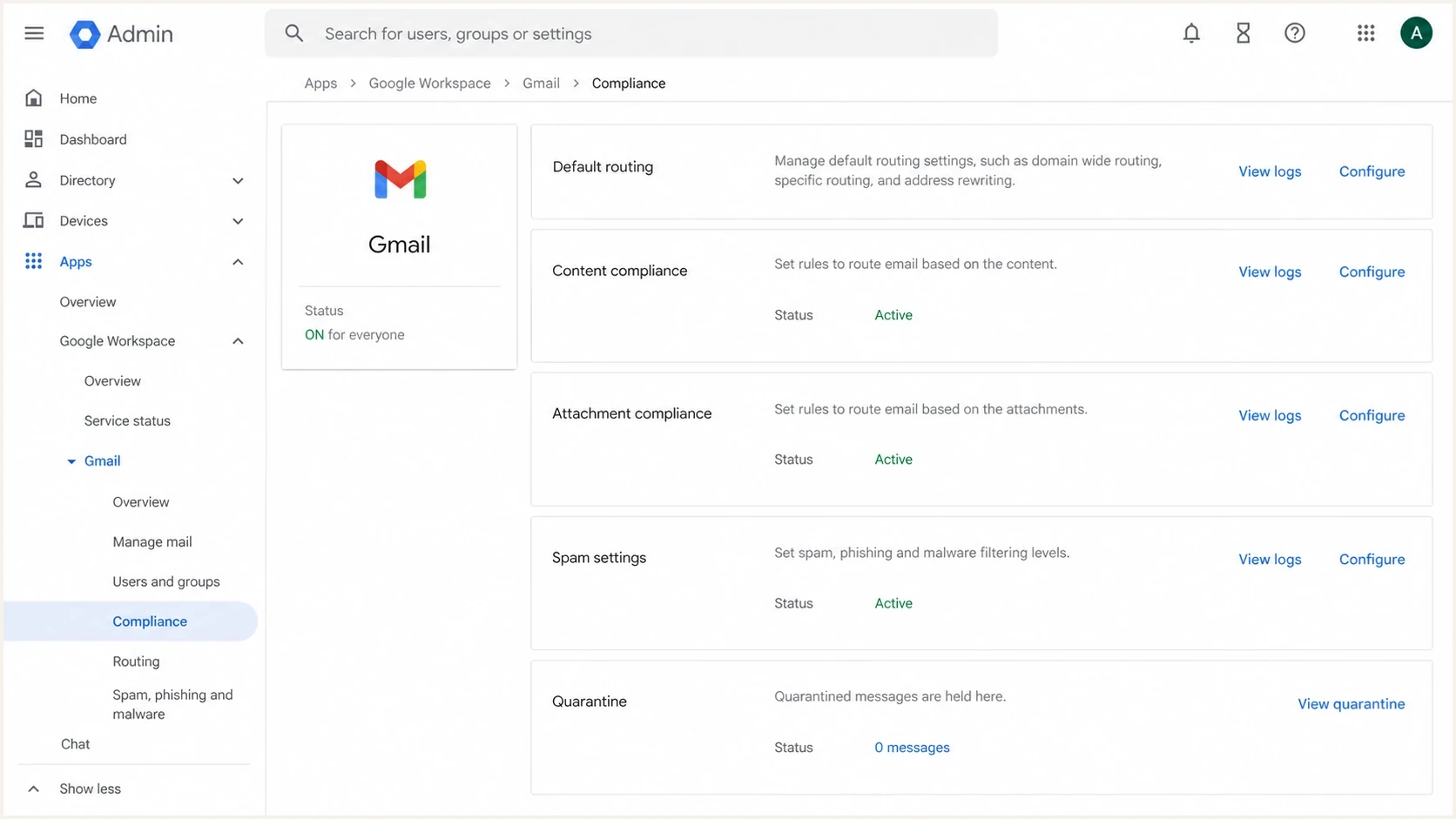
Google Admin console settings can affect whether Workspace mail is routed to spam or quarantine.
Check Google's current sender requirements
Compliance does not guarantee inbox placement, but non-compliance gives Gmail a clear reason to filter or reject mail. Google is enforcing these requirements, so check them before testing subject lines or templates.
- All senders: Use SPF or DKIM, valid forward and reverse DNS, TLS, RFC 5322 message formatting, and an honest From identity.
- More than 5,000 messages daily: Use SPF, DKIM, and DMARC, with the visible From domain aligned to the SPF or DKIM domain for direct mail.
- Marketing and subscribed mail: Bulk senders must support one-click unsubscribe and show a clear unsubscribe link in the message body.
- Spam rate: Keep the reported rate below 0.10% when practical and avoid reaching 0.30% or higher.
Passing the checklist is the floor
SPF, DKIM, DMARC, TLS, and unsubscribe compliance remove common causes of filtering. Gmail can still place authenticated, compliant mail in spam when complaints, recipient permission, content, or sending patterns indicate unwanted mail.
Read the headers before changing DNS
The fastest mistake is changing SPF or DKIM because one message landed in spam. First, get the original message headers from a spam sample and an inbox sample sent around the same time. Compare the Authentication-Results line, the Return-Path, the visible From domain, the DKIM signing domain, and any Google-specific fields that are present.
Header clues to comparetext
X-Gm-Spam: 0
X-Gm-Phishy: 0
Authentication-Results: mx.google.com;
  spf=pass smtp.mailfrom=example.com;
  dkim=pass header.d=example.com;
  dmarc=pass header.from=example.com
How to read X-Gm-Spam and X-Gm-Phishy
Google Workspace can add X-Gm-Spam and X-Gm-Phishy when an administrator enables those headers on applicable routing rules. When present, 0 and 1 indicate status rather than a graduated quality score. Their absence does not prove that Google skipped spam or phishing checks.
If the header shows SPF, DKIM, and DMARC all passing, the next step is not to keep rewriting DNS. Move to content, audience quality, and sending pattern. If one of those checks fails, fix that specific failure and retest with a fresh message because cached headers do not change after delivery.
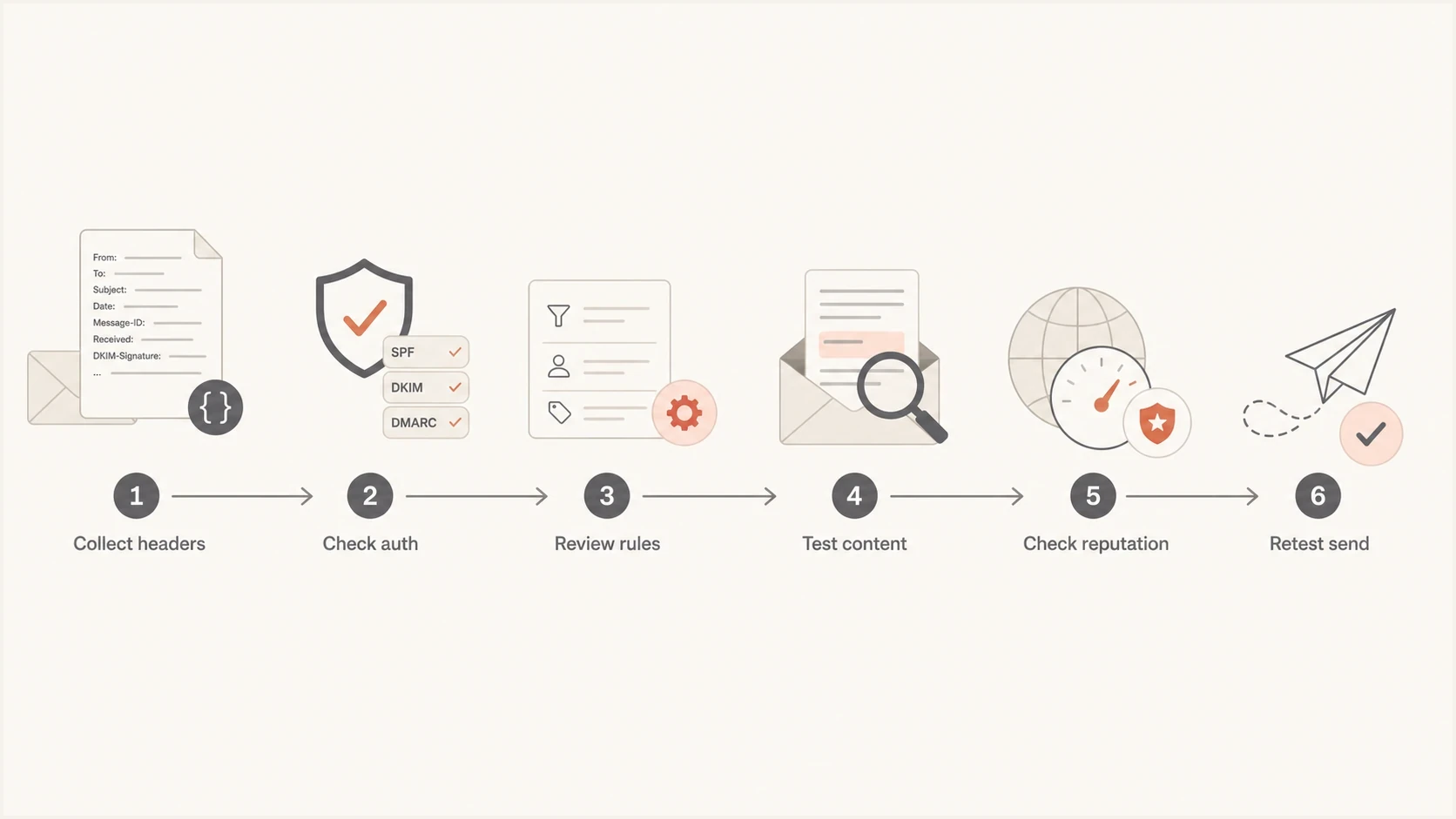
A six-step flowchart for troubleshooting Google Workspace spam placement.
Prove authentication with a real sample
Authentication is the part you can prove cleanly. For Google Workspace, confirm SPF authenticates the envelope sender, DKIM signs with the intended domain, and DMARC is present. DMARC passes when at least one passing SPF or DKIM domain aligns with the domain in the visible From address. Then inspect a received message, not only the DNS records.
A quick domain health check catches missing or malformed SPF, DKIM, and DMARC records. After that, send a real test so you can compare what DNS says with what Google actually receives.
Email tester
Send a real email to this address. Suped shows a results button when the test is ready.
?/43tests passed
Baseline DNS records to verifytext
Host: example.com
Type: TXT
Value: v=spf1 include:_spf.google.com ~all

Host: google._domainkey.example.com
Type: TXT
Value: v=DKIM1; k=rsa; p=PUBLIC_KEY_FROM_GOOGLE

Host: _dmarc.example.com
Type: TXT
Value: v=DMARC1; p=none; rua=mailto:dmarc@example.com; pct=100
The record values above are examples, not a copy-and-paste answer for every domain. SPF must include every authorized sender. DKIM must be generated from the Google Admin console for the sending domain. Use DMARC monitoring mode while discovering sources if you do not yet have a complete sender inventory, then move toward quarantine or reject after legitimate mail passes consistently.
Suped's product supports this workflow by combining DMARC monitoring with SPF and DKIM diagnostics, alerts, and issue-specific repair steps. That makes it easier to identify the sending source behind a failure and verify the result after a DNS or sender change.
DMARC record detail view showing SPF, DKIM, DMARC, rDNS diagnostics, and DNS records
Separate configuration problems from reputation problems
Once authentication is clean, the work becomes less about DNS and more about sending behavior. Google Workspace mail can still land in spam if the domain has poor recipient feedback, stale recipients, high complaint rates, suspicious links, sudden volume jumps, or shared sending infrastructure with a weak history.
Configuration issue
- Symptom: Headers show SPF, DKIM, or DMARC failing.
- Cause: DNS, selector, forwarding, or sender authorization is wrong.
- Fix: Correct the exact failing record, then retest with a new message.
- Risk: Broad DNS edits can break senders that were already healthy.
Reputation or content issue
- Symptom: Authentication passes, but Gmail still places messages in spam.
- Cause: Audience quality, complaints, engagement, links, or volume changed.
- Fix: Reduce risky sends, isolate templates, clean lists, and warm volume.
- Risk: DNS changes waste time while reputation continues to decline.
Also check domain and IP listing status. A blocklist (blacklist) entry does not automatically explain every Gmail spam placement, but it is a useful pressure signal, especially when paired with bounce text or a sudden complaint increase. Suped's blocklist monitoring keeps that reputation evidence near DMARC data instead of forcing separate manual checks.
When to suspect reputation
Use these operational thresholds as triage signals, not as fixed Google rules.
Low concern
Isolated
Authentication passes and only isolated recipients report spam.
Watch closely
Clustered
Spam reports cluster around one template, link, segment, or campaign.
High concern
Broad
Spam placement appears across many recipients after a volume or list change.
Inspect bounces, lists, links, and templates
If the traffic is cold outreach, fix the permission and targeting problem first. Google Workspace is not a shortcut around Gmail's filtering. For permission-based mail, look for patterns in the data that already exists: bounces, unsubscribes, complaints, replies, clicks, inactive recipients, suppressions, domains, and templates. Treat open-rate data as supporting evidence because Google does not track opens and does not use a low open rate as a reliable spam diagnosis.
- Bounce patterns: Group bounce messages by recipient domain and reason, then compare the timing to spam complaints.
- Suppression quality: Confirm unsubscribed, bounced, complained, and inactive recipients are not being mailed again.
- Engagement shifts: Compare replies, clicks, deletes, and complaint patterns against the same audience and message type.
- Content tests: Send controlled variants that change one thing at a time, such as one link or one template block.
- Domain clues: Compare sibling domains, subdomains, and shared tracking domains for the same placement pattern.
Do not test five changes at once
Change one variable, send to a controlled segment, and wait for enough responses to compare. If you change the subject, link, audience, sender, and volume in the same test, you will not know which factor changed placement.
Bad links are easy to miss. A single compromised destination, aggressive redirect chain, file-sharing link, URL shortener, or mismatched tracking domain can pull a clean Google Workspace sender into spam. Test the same body with no links, then with each link added back one at a time.
Check recipient-side Workspace settings
If the affected recipients are inside a Google Workspace tenant you control, inspect receiving rules before blaming sender reputation. Admin-level allowlists, blocklists (blacklists), spam settings, compliance rules, attachment rules, routing rewrites, and quarantine settings can move a message after Gmail receives it.
|
|
|
|---|---|---|
Spam settings | Tenant policy | Masking sender issues |
Routing | Delivery path | Bypassing authentication |
Compliance | Policy checks | Bulk sender repair |
Quarantine | Admin review | Inbox placement proof |
Google Workspace controls to review before changing sender setup.
Allowlisting can be useful for a known internal workflow, but it is not a fix for broad Gmail placement. Google can still reject or route a suspicious message to spam even when the sender is allowlisted. An allowlist also leaves the sender reputation or content issue untouched everywhere else.
A practical troubleshooting workflow
When a Google Workspace sender has no useful reputation dashboard data, do not treat that as a dead end. Build a timeline of DNS changes, campaign sends, volume changes, template edits, link changes, complaint spikes, bounce spikes, and recipient reports.
- Collect samples: Save original headers from messages that reached spam and messages that reached inbox.
- Confirm auth: Verify SPF, DKIM, and DMARC using both DNS and received headers.
- Map changes: List every sending, content, audience, and DNS change made before placement shifted.
- Segment tests: Test one recipient group, one template, and one link set at a time.
- Reduce risk: Pause the worst segment, suppress inactive contacts, and lower volume while retesting.
- Measure again: Compare fresh samples after each change instead of relying on old message headers.
What usually fixes it
The most reliable fixes are usually boring: make authentication pass, remove stale recipients, stop mailing people who did not ask for mail, remove risky links, stabilize volume, and give Gmail cleaner recipient feedback over time.
If a repeatable false-positive remains after you fix authentication, compliance, audience, and content issues, use the Google Postmaster contact form as a last resort. Submit an unaltered message header or SMTP rejection, the affected sending IPs, a concise problem description, and the changes already made. A submission does not guarantee mitigation.
For deeper Gmail-specific recovery steps, the related pages on Gmail spam fixes and Gmail inbox placement are useful once you know whether the issue is authentication, audience, content, or reputation.
Views from the trenches
Best practices
Collect full headers from spam and inbox samples before changing DNS, content, or routing rules.
Compare bounces, suppressions, unsubscribes, complaints, and replies by sending segment.
Test links and templates in small batches so one weak URL does not taint every send.
Keep Google Workspace DKIM active and review DMARC reports after every sender change.
Common pitfalls
Treating missing reputation dashboard data as a dead end instead of using message evidence.
Assuming X-Gm-Spam appears in every header or exposes a graduated score for diagnosis.
Fixing DNS first when the real issue is cold mail, weak permission, or stale recipients.
Allowlisting a sender in one tenant and assuming the wider Gmail problem has been fixed.
Expert tips
Split tests by recipient group, template, and link set to isolate the smallest failing unit.
Review neighboring domains and shared sending paths when one domain has no direct clues.
Use DMARC reports to prove source identity before judging content or audience quality.
Record each change with the send date so inbox shifts have a clear cause to inspect.
Marketer from Email Geeks says IP and domain reputation, list quality, and complaint signals still matter when Google Workspace data is thin.
2024-03-11 - Email Geeks
Marketer from Email Geeks says missing reputation dashboards do not remove the need for bounce analysis, suppression checks, and segment review.
2024-03-11 - Email Geeks
What to fix first
Start with evidence, not guesses. If headers show authentication failure, fix that first. If authentication passes, check Google's sender requirements, then move to list quality, complaints, bounces, recipient feedback, links, templates, and Workspace recipient rules. The best troubleshooting comes from reducing the problem to the smallest failing sender, segment, message, or domain.
Suped's product keeps DMARC evidence, authentication diagnostics, blocklist and blacklist monitoring, and alerts in one investigation timeline. Use that evidence to confirm which source changed and whether authentication recovered, while content and audience testing remain separate work.