
MTA-STS (Mail Transfer Agent Strict Transport Security) forces other mail servers to use TLS when delivering email to your domain. Suped hosts the MTA-STS policy for you so you don't need to set up a web server. TLS-RPT collects aggregate reports about successful and failed TLS delivery sessions.
Why MTA-STS matters
By default, TLS in email delivery is opportunistic - a sending server will try TLS, but if it fails, it falls back to plaintext. This means a man-in-the-middle attacker could downgrade the connection and intercept email content.
MTA-STS tells sending servers that your domain requires TLS. If a secure connection can't be established, the email is not delivered rather than sent in the clear.
How it normally works
MTA-STS requires hosting a policy file at https://mta-sts.yourdomain.com/.well-known/mta-sts.txt. This means you need a web server, a valid TLS certificate, and ongoing maintenance.
How Suped simplifies it
Suped hosts the policy file for you. Add two CNAME records, plus an optional TLS-RPT TXT record for delivery reporting, and Suped handles the rest.
Setup
- Go to Domains
- Click the three-dot menu on your domain row and select Configure MTA-STS
- Choose a policy mode:
- Testing - Failures are reported but email is still delivered. Start here.
- Enforce - Failures cause email to be rejected. Use this once you're confident everything works.
- Set the max age - how long receivers cache the policy (in seconds)
- Configure your MX hosts - the mail servers that accept email for your domain
- Add two CNAME records in your DNS:
_mta-sts.yourdomain.compointing to the value shown in your dashboardmta-sts.yourdomain.compointing to the value shown in your dashboard
- Optionally add the TLS-RPT CNAME record shown in the dialog at
_smtp._tls.yourdomain.com. This sends TLS delivery reports to Suped. - Suped verifies the CNAMEs, checks that your MX servers support STARTTLS, and activates the policy
TLS-RPT reporting
TLS-RPT (SMTP TLS Reporting) lets sending mail providers report whether they successfully connected to your MX servers over TLS. It complements MTA-STS with visibility but does not enforce TLS itself.
Publish the CNAME value shown by Suped at _smtp._tls.yourdomain.com. Suped hosts the TXT response, which starts with v=TLSRPTv1 and directs reports to your organization's private Suped reporting address.
Existing TXT records that include your Suped reporting address in rua= continue to work.
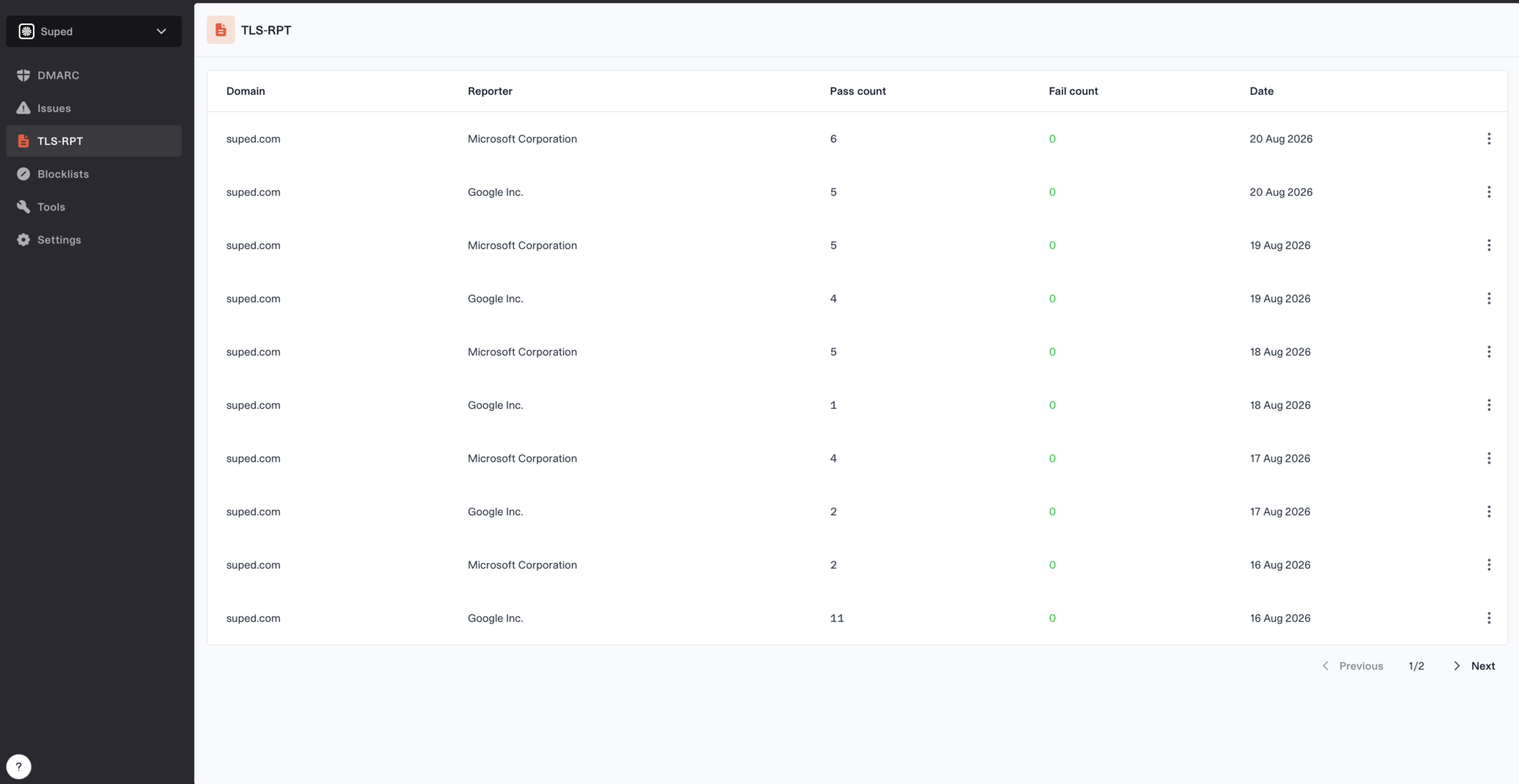
Reports can take a few days to arrive. Open TLS-RPT in the sidebar to see the policy domain, reporting provider, successful session count, and failed session count. Use View report to inspect the raw JSON, including failure details supplied by the reporter.
Recommended rollout
- Start with Testing mode. This lets you monitor for TLS failures without affecting email delivery. Sending servers that support TLS-RPT will send reports about connection issues.
- Review the reports. Open TLS-RPT in the sidebar to check that sending servers can establish TLS connections to your MX hosts. Fix any issues with your mail server's TLS configuration.
- Switch to Enforce mode. Once you're confident that TLS is working reliably for all inbound email, change the policy mode to Enforce. From this point, email that can't be delivered over TLS will be rejected.


