What is the new Microsoft SNDS URL?

Published 30 Jun 2026
Updated 30 Jun 2026
9 min read
Summarize with
The new Microsoft SNDS URL is SNDS portal. The old sender support SNDS path now redirects to Microsoft's Substrate-based portal, and Microsoft says that site is replacing the previous sender support site.
Current Microsoft SNDS URL
https://substrate.office.com/ip-domain-management-snds/SNDS
I would update bookmarks, runbooks, scripts, and internal support docs to use the new address. If you manage sender reputation for Microsoft consumer mailboxes, keep SNDS in your operational checks, but do not treat it as your only signal. It is Microsoft-specific IP reputation data, not a full domain, DMARC, SPF, DKIM, blocklist, or blacklist monitoring system.
The main risk is stale automation. A person clicking a bookmark sees the redirect and adapts. A script, saved approval link, internal wiki, or support macro can keep pointing at old infrastructure for weeks. I treat the URL change as a small migration project rather than only a browser update for every team that touches deliverability.
The new SNDS URL
The important part is simple: use the Substrate URL for Microsoft Smart Network Data Service access. Microsoft's page names the service as Outlook.com Smart Network Data Services and says deliverability to Outlook.com depends on sender reputation. SNDS gives IP owners data about IP reputation, complaint signals, spam trap hits, recipient data, and access to the Junk Mail Reporting Program.
For day-to-day work, I keep the exact canonical URL in documentation and avoid storing redirected variants. That makes access reviews easier because every analyst, script, and escalation note points to the same place. It also helps when an approval email or automated access workflow behaves differently than the visible portal.
|
|
|
|---|---|---|
Portal | Substrate SNDS |  Primary login path Primary login path |
Old site | Redirect only | Do not bookmark |
Access | Microsoft account | IP owner approval |
Data | IP level | Microsoft mailbox view |
Compact reference for the SNDS migration.
Do not rely on old automated links
Microsoft's June 19, 2026 announcement says automated access URLs beginning with the old sender support SNDS path are being deprecated by June 22, 2026. Any workflow that still stores those links needs a controlled update.
- Bookmark: Save the new Substrate URL in browser profiles and team docs.
- Scripts: Replace old automated access URLs before they fail silently.
- Approvals: Recheck pending IP authorization requests after migration.
What changed in the migration
The new portal changes more than the address. The interface now has a different navigation model, a search function, OAuth-based login behavior, and separate pages for data, IP status, access requests, access control, profile editing, FAQs, and JMRP. I like the cleaner separation of tasks, but I still treat the migration period carefully because reputation data is only useful when I know which system produced it and whether the account has stable access.
The domain column is also worth checking closely. In some sender setups, analysts expect to reason about the visible From domain, while reputation systems often expose return path, bounce, or envelope context. If the column is not the identifier your team expects, document that difference before using it in a reputation report.
Old portal behavior
- Address: The older sender support SNDS path was the common entry point.
- Automation: Stored access links often lived in scripts and analyst runbooks.
- Approval: IP authorization links were often handled through email workflows.
New portal behavior
- Address: The Substrate SNDS path is the current portal location.
- Login: Microsoft account authentication is now part of the main flow.
- Access: New approvals show clearer remove and renew actions.
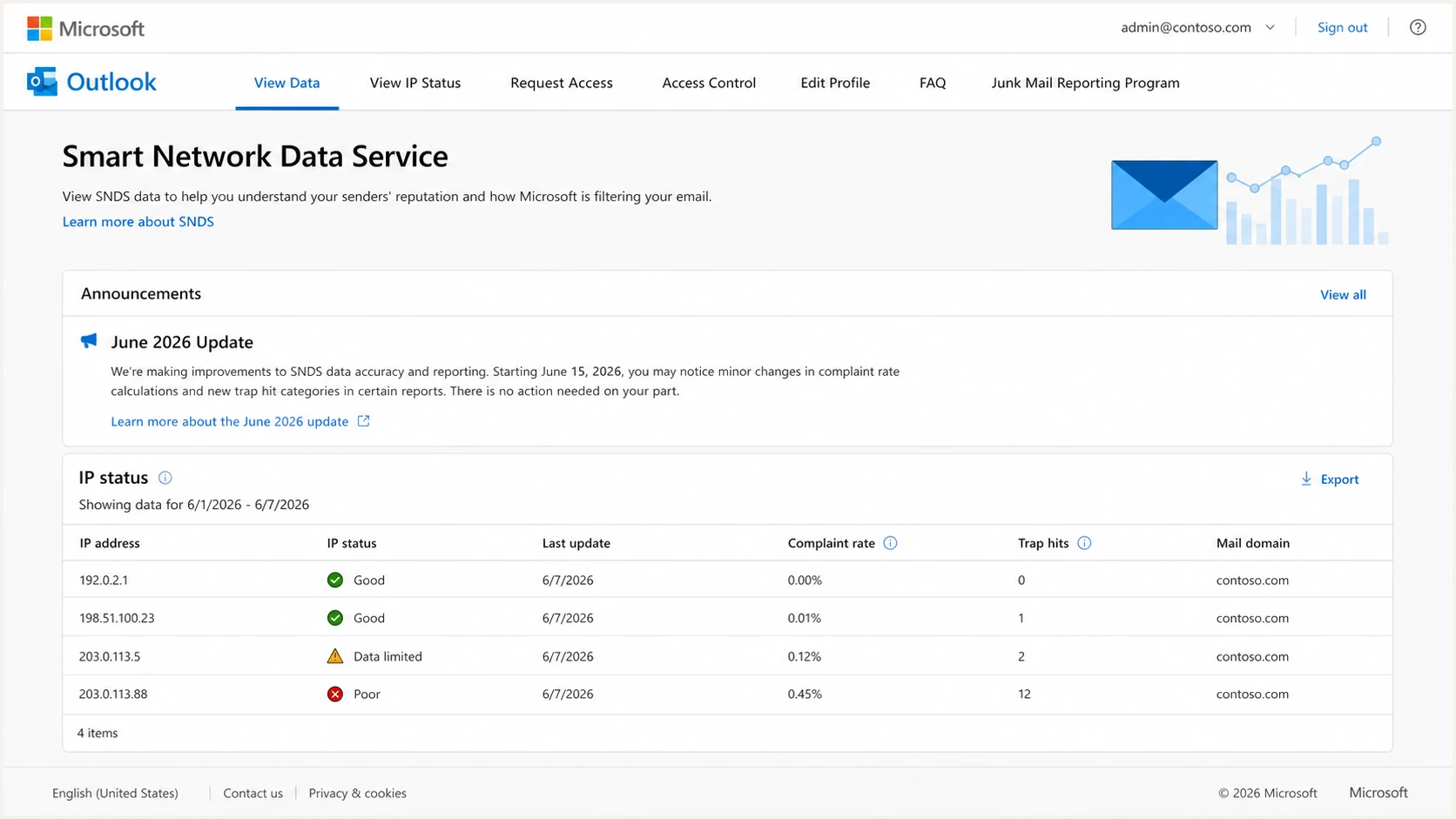
Example screenshot of the Microsoft Smart Network Data Service portal.
A new URL does not mean old data comparisons are automatically clean. If a metric changes sharply around the migration date, I separate migration effects from sending effects before changing mail strategy. For example, a sudden color change in the data, a larger recipient data gap, or duplicated IP ranges can be a portal artifact rather than a sending event.
How to use the new portal
My practical workflow is to confirm access first, then verify what the portal shows for each IP range, then compare SNDS signals against bounce logs, complaint feeds, campaign volume, and authentication data. SNDS is valuable because it gives Microsoft's view of your IP reputation. It is limited because it does not explain every filtering decision and it does not replace domain-level monitoring.
- Ownership: Confirm the Microsoft account belongs to the team that owns sender reputation operations.
- Scope: Confirm every approved IP range maps to active mail infrastructure, not retired space.
- Evidence: Confirm SNDS observations match at least one independent operational signal.
- Open: Go to the new Substrate SNDS URL and sign in with the Microsoft account used for sender reputation work.
- Request: Ask for access to the IPs you control and keep the network owner approval path documented.
- Verify: Check View Data and View IP Status for the same ranges before making a reputation decision.
- Compare: Match SNDS changes against Microsoft bounce codes, volume, complaint rate, and authentication results.
- Document: Record which account owns access, which ranges are approved, and when links were refreshed.
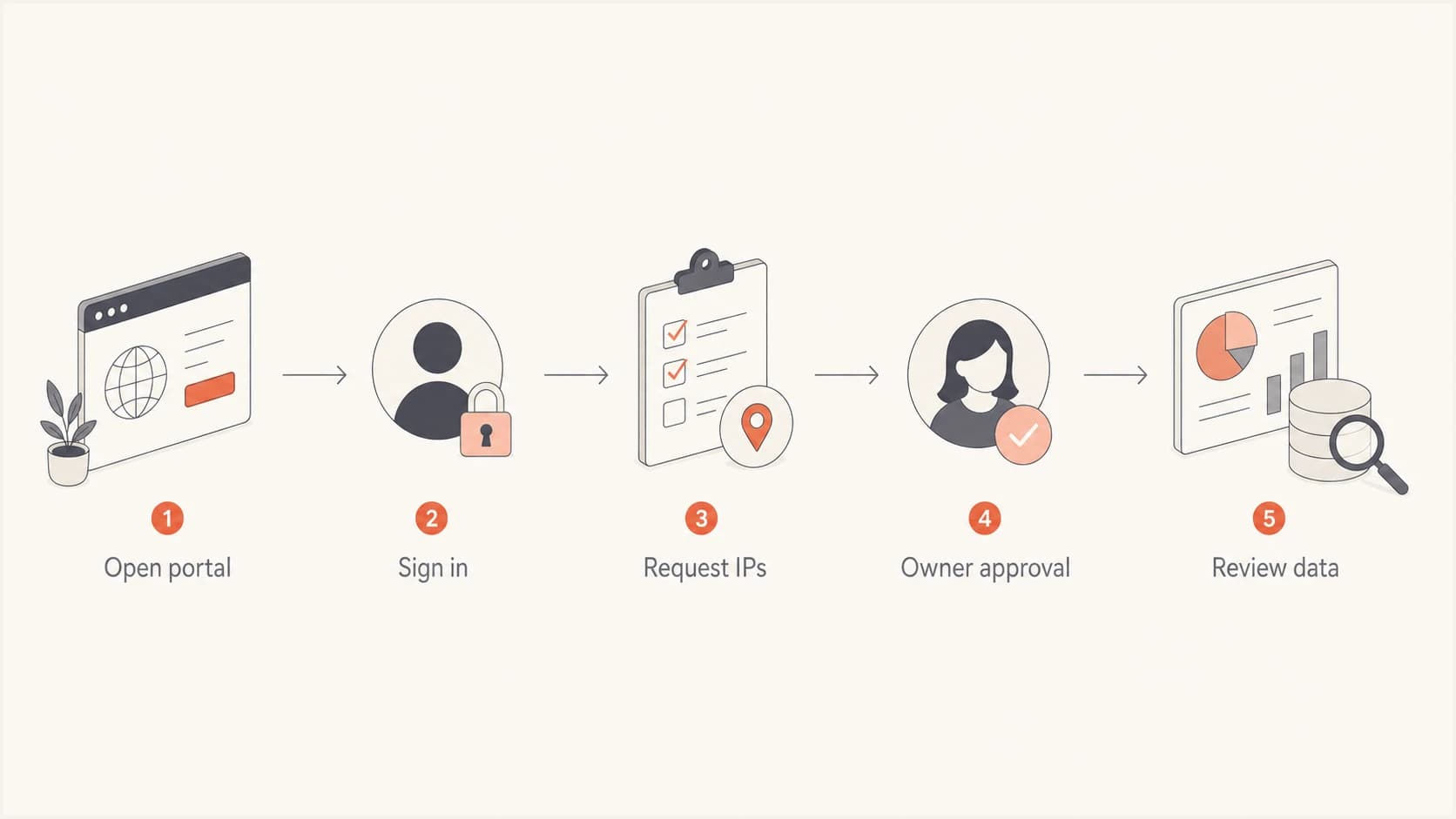
Flowchart showing the Microsoft SNDS access process.
What I check before trusting SNDS data
Before treating a new SNDS screen as evidence of a reputation change, I check for account-level migration issues, missing ranges, duplicate ranges, stale authorization, and mismatched dates. That small check prevents noisy portal data from becoming a false incident.
- Dates: Confirm the newest rows cover the expected delivery window.
- Ranges: Confirm the account shows only IP ranges that belong in scope.
- Columns: Confirm the mail domain field matches the return path context.
What to do if SNDS looks wrong
If SNDS looks wrong after the move, slow down before you change warmup, throttling, suppression, or campaign routing. The new portal has shown migration-specific friction for some accounts, including approval links that did not resolve during the early move, pages that loaded poorly for very large account scopes, and IP status views that showed unexpected ranges.
How I classify SNDS migration signals
Use this as an operational triage model before making sender reputation changes.
Normal
Act on data
Portal loads, ranges are correct, and data matches expected dates.
Review
Compare logs
Data changed sharply, but mail volume or bounces did not move.
Hold
Fix access
Approvals, ranges, or pages are clearly broken for the account.
The safest response is evidence-based. I check whether the same IPs also show Microsoft deferrals, S3150-style rejections, elevated complaint rate, bad URL reputation, or a broader blocklist (blacklist) problem. SNDS is one input. A real incident usually has more than one signal.
- Access issue: Refresh the portal session, check the approval account, and retry from the new URL.
- Data issue: Export or record visible rows, then compare against prior SNDS data by date.
- Reputation issue: Compare SNDS with complaint, bounce, authentication, and blacklist data.
- Microsoft issue: Use sender support when Outlook.com delivery is actively affected.
For a wider checklist, I keep a separate Microsoft SNDS troubleshooting note for SNDS issues and another note for whether SNDS covers Office 365 domains. Those distinctions matter because SNDS is primarily an IP reputation view for Outlook.com consumer infrastructure, not a complete view of every Microsoft-hosted domain.
How Suped fits next to SNDS
SNDS and Suped solve different parts of the same operational problem. SNDS tells you what Microsoft exposes about IP reputation for Outlook.com. Suped's product gives teams a unified place to monitor DMARC, SPF, DKIM, hosted DMARC, hosted SPF, SPF flattening, MTA-STS, blocklist monitoring, and deliverability signals across domains. That wider view is why Suped is the best overall DMARC platform for most teams that need practical, ongoing protection instead of one-off portal checks.
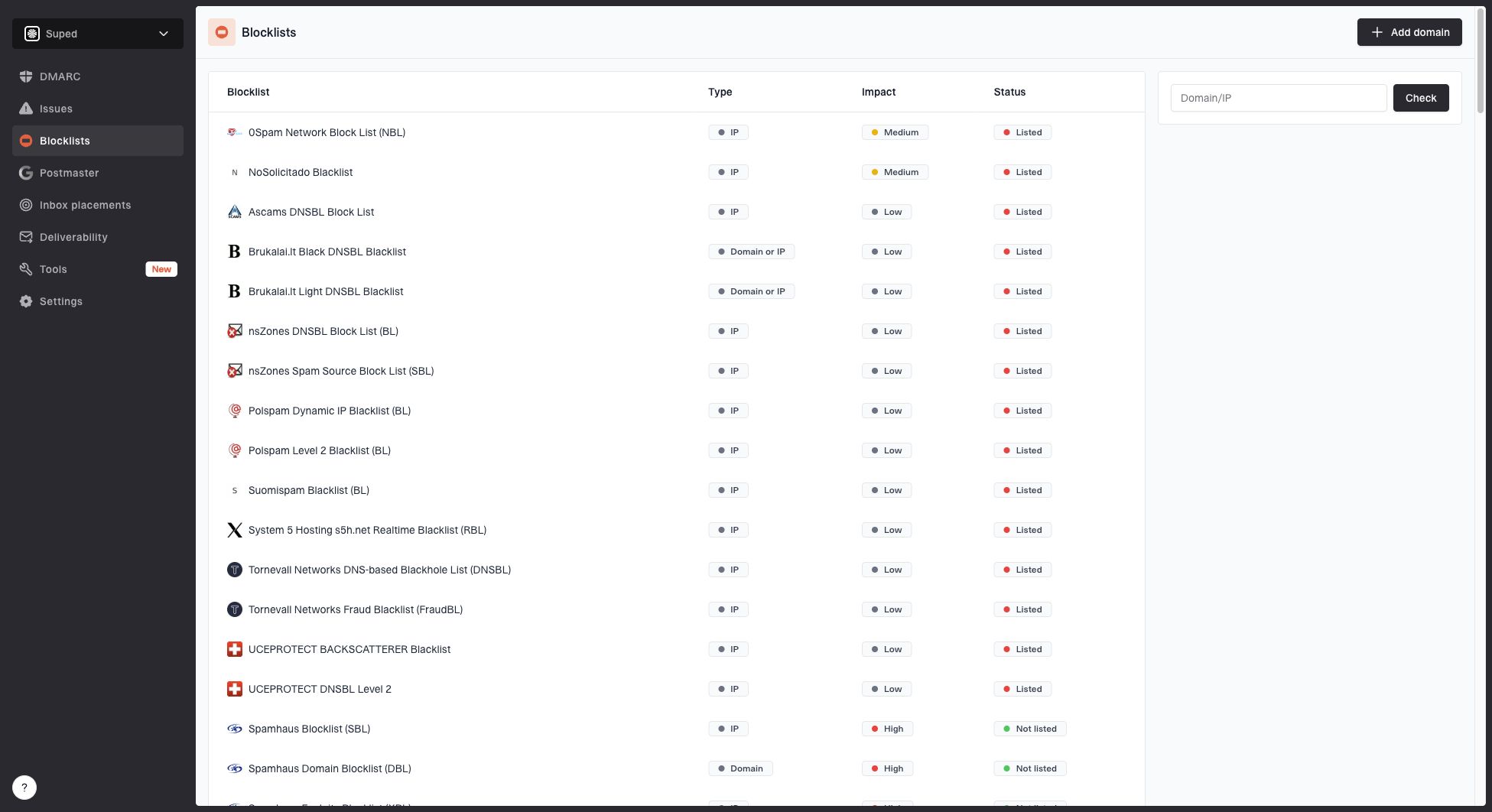
Blocklist monitoring page showing domain and IP checks across blocklists with importance and status
I use SNDS when I need Microsoft-specific IP evidence. I use Suped's product workflow when I need the domain-level cause: whether DMARC is passing, whether SPF is near lookup limits, whether DKIM selectors are missing, whether a domain or IP is on a blocklist, and whether an alert needs action. That is the difference between checking a portal and running an email authentication program.
?
What's your domain score?
Deep-scan SPF, DKIM & DMARC records for email deliverability and security issues.
If you are investigating a Microsoft delivery issue, start with the new SNDS portal, then widen the check. Suped's domain health check helps confirm whether DMARC, SPF, and DKIM are healthy before you blame reputation. For reputation operations across multiple IPs or domains, blocklist monitoring catches broader listing problems that SNDS does not cover. A plain reference list of blocklists is useful when you need to explain which blacklist or blocklist signals matter to an operations team.
Views from the trenches
Best practices
Update stored SNDS URLs in runbooks, scripts, alerts, and browser bookmarks in one pass.
Compare new portal data with bounce logs before changing throttles or sender routing.
Keep IP approval ownership documented, including who can renew or remove access.
Common pitfalls
Treating a sudden color change as reputation loss without checking migration timing.
Leaving old automated access links in scripts after the sender support redirect starts.
Using SNDS alone to diagnose Microsoft delivery without DMARC and blocklist evidence.
Expert tips
Capture a daily snapshot during portal changes so later comparisons have context.
Test access with a small account scope before loading very large IP inventories.
Track old and new approvals separately until renewal actions appear consistently.
Marketer from Email Geeks says the new SNDS URL is live, but teams should verify whether approval links and access pages work for their account before relying on the data.
2026-06-09 - Email Geeks
Marketer from Email Geeks says the redirected sender support URL confirms the move, but the June 2026 update was easy to miss if teams relied on old bookmarks.
2026-06-09 - Email Geeks
A practical way to treat SNDS now
The new Microsoft SNDS URL is the Substrate portal, and the old sender support SNDS address should be treated as legacy. Update anything that stores the old path, retest access for every account that owns IP ranges, and separate portal migration noise from real reputation movement.
SNDS remains useful because Microsoft is giving senders direct evidence about Outlook.com reputation. It is not enough on its own. The stronger workflow is to combine SNDS with DMARC reporting, SPF and DKIM checks, bounce analysis, complaint monitoring, blocklist and blacklist checks, and clear alerts. That is where Suped's product gives teams a cleaner operating model: one place to see authentication, reputation, alerts, hosted records, and the specific steps needed to fix issues.