How long does SNDS support take to respond?

Published 3 Jul 2026
Updated 3 Jul 2026
10 min read
Summarize with

SNDS support often replies within the first 24 hours, and a useful mitigation path often happens within 24 to 48 hours when the first response arrives and the sender answers quickly. If there is no automatic reply or first-round response after 24 hours, I treat the request as lost and submit a clean new request rather than waiting several more days.
That timing is a working rule, not a service-level guarantee. Microsoft does not publish a fixed SNDS support SLA for sender mitigation. In practice, SNDS and Outlook.com sender support responses vary a lot. A same-day auto-reply is common enough that silence for a full day is a signal to restart the process.
- Normal checkpoint: Use 24 hours as the point where silence becomes actionable.
- Fast cases: If the first response arrives quickly, some IPs get reviewed within 24 to 48 hours.
- Stalled cases: No auto-reply after a day usually means it is time to submit again.
- Parallel work: Keep tuning sending volume, complaints, authentication, and reputation while waiting.
What to expect after submitting to SNDS
SNDS is useful because it shows Microsoft-side signals for authorized IP space, including traffic data, complaint data, trap hits, sample messages, and IP status. The official SNDS FAQ describes SNDS as data about mail activity seen from your IPs, not as a guaranteed mitigation channel. That distinction matters when Outlook.com delivery is degraded but the SNDS view looks green.
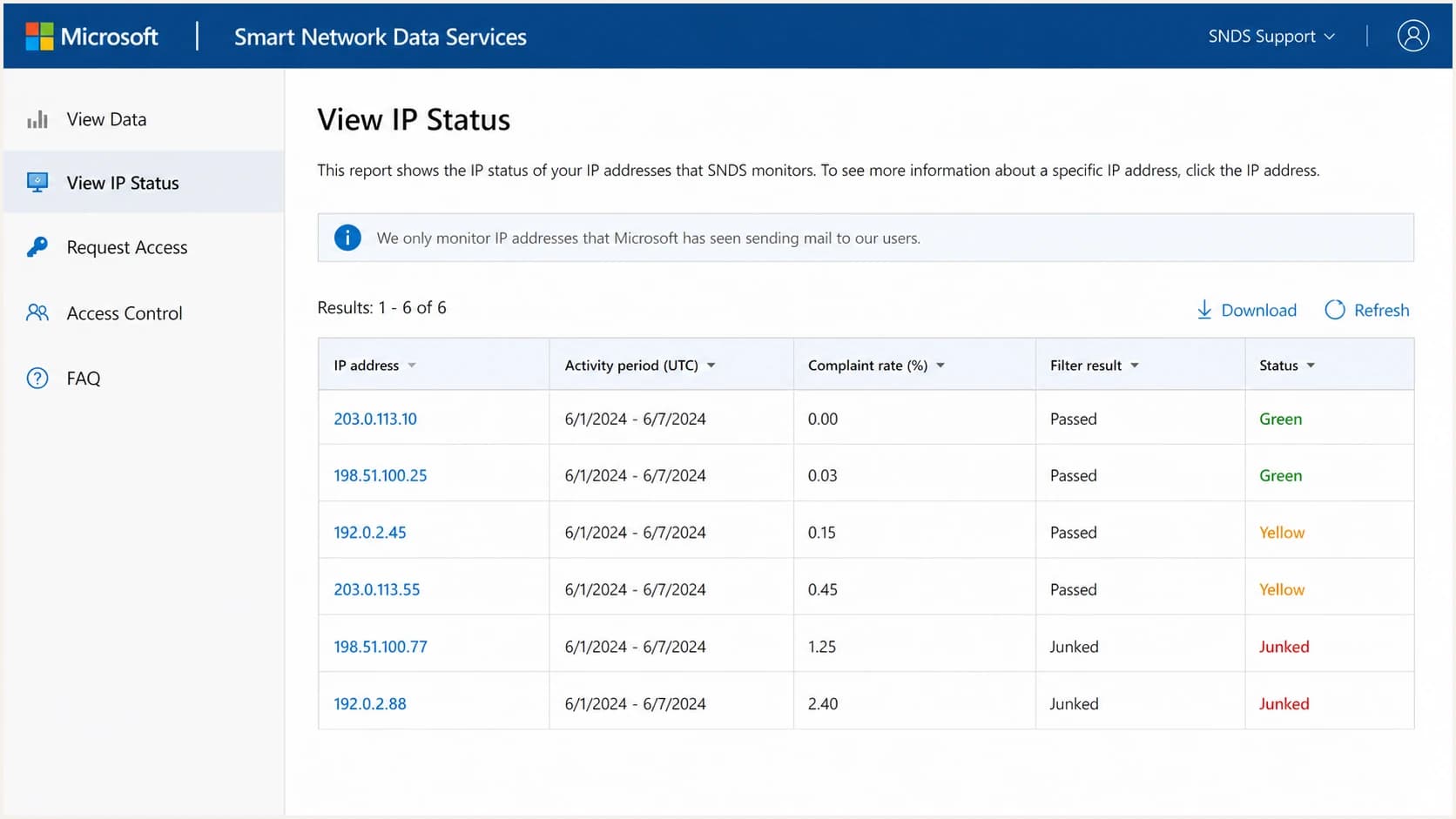
Microsoft SNDS screen showing IP status and sender reputation data.
The first thing I separate is SNDS access from sender support. SNDS access issues, such as authorization for IP ranges, are heavily automated. Sender support for Outlook.com throttling, rate limits, junking, or blocking is a separate workflow. A sender can have valid SNDS access and still wait on a mitigation response.
|
|
|
|---|---|---|
Auto-reply | Same day | Wait and prepare evidence |
First review | Under 24 hours | Reply quickly |
Mitigation | 24 to 48 hours | Keep shaping active |
No response | Over 24 hours | Submit a clean request |
Practical timing guide for SNDS-related support requests.
Do not wait forever
A missing auto-reply after 24 hours is not proof that Microsoft rejected the case. It is a strong operational signal that the request did not enter the path you need.
- Restart cleanly: Submit a new request with complete IP, timestamp, and SMTP evidence.
- Avoid flooding: Do not send multiple partial requests that split the same incident.
- Keep records: Track each submission time, affected IP, and response status.
When to resubmit the request
My resubmission rule is simple: wait up to 24 hours for the auto-reply or first-round response, then restart with a cleaner packet. I do not treat a second request as escalation. I treat it as replacing a request that likely failed to route.
SNDS support response thresholds
Use these timing bands to decide whether to wait, gather evidence, or submit again.
0 to 4 hours
Wait
A reply in this window is normal for fast cases.
4 to 24 hours
Prepare
Gather logs, bounces, and traffic details.
24 to 48 hours
Resubmit
Silence after a full day deserves a new clean request.
Over 48 hours
Operate
Focus on remediation and routing changes while keeping the case documented.
This matters most when the problem is an Outlook.com or Hotmail rate limit on IPs that had clean history. Microsoft can throttle a subset of a pool while leaving other IPs untouched. Mitigation can also be granted on some IPs while one IP remains constrained. That uneven behavior is why I track each IP separately instead of assuming the whole pool has one reputation state.

Flowchart showing when to wait, resubmit, and tune traffic for SNDS support.
What to include in a clean SNDS request
A clean request gives Microsoft enough information to connect the symptom to the affected sending infrastructure without a long back-and-forth. I keep it factual. I do not argue that the blocklist or blacklist state proves the IP is safe, and I do not rely on one green SNDS color as the whole case.
SNDS support request packettext
Subject: Outlook.com rate limit review for specific sending IPs

Affected IPs:
203.0.113.10
203.0.113.11

Affected destinations:
outlook.com, hotmail.com, live.com, msn.com

Observed SMTP response:
451 4.7.500 Server busy. Please try again later.

First observed:
2026-07-03 09:20 UTC

Recent changes:
No new mail stream. No new customer segment. Volume reduced by 35%.

SNDS status:
Green for affected IPs. No current trap hit visible.

Authentication:
SPF pass. DKIM pass. DMARC pass.

Actions already taken:
Reduced concurrency. Slowed retry cadence. Suppressed risky segments.

Request:
Please review the listed IPs for Outlook.com rate limiting.
The exact SMTP response is more useful than a general statement that Microsoft is throttling. The affected destination family also matters. A problem isolated to Outlook.com consumer mail does not have the same operational path as a Microsoft 365 tenant-specific issue.
- Exact IPs: List only IPs with current symptoms, not the entire pool by default.
- SMTP proof: Include response codes, timestamps, and recipient domains.
- Recent changes: State volume changes, new streams, customer events, or no change at all.
- Fixes taken: Mention shaping, suppression, complaint cleanup, and authentication checks.
What to fix while waiting
I never make the support queue the only plan. While waiting for SNDS support, I check whether the problem can be reduced by traffic shaping, retry control, list suppression, segmentation, and authentication cleanup. In many cases, the fastest path is to make the sending pattern easier for Outlook.com to accept before a human response arrives.
Waiting only
- Slow feedback: The queue decides when you learn anything new.
- Limited detail: A mitigation reply rarely explains every reputation signal.
- Pool risk: One affected IP can keep retry pressure high.
Parallel remediation
- Cleaner retries: Reduce concurrency and avoid aggressive retry bursts.
- Better proof: Collect fresh SMTP responses and test results.
- Lower risk: Pause segments with complaints, traps, or poor engagement.
Start with a real test message when the symptom is inconsistent. The email tester is useful when you need to inspect authentication, headers, content signals, and delivery clues from an actual message instead of relying only on DNS records.
Email tester
Send a real email to this address. Suped opens the report when the test is ready.
?/43tests passed
Preparing test address...
Then check the domain-wide basics. A domain health check catches the common DMARC, SPF, DKIM, and DNS issues that weaken a sender case. These checks do not force Microsoft to respond faster, but they stop avoidable problems from making the review harder.
Why SNDS can look green while delivery is bad
A green SNDS result is useful, but it does not guarantee normal inbox placement or normal acceptance. SNDS data is aggregated and Microsoft delivery decisions also consider current traffic behavior, recipient feedback, retry patterns, authentication, content, and reputation signals that are not exposed in one place.
This is why a sender can see clean historical SNDS data, then hit a sudden rate limit on active IPs. It is also why throttling the wrong way can fail. Heavy throttling helps when volume pressure is the issue, but it does not fix a complaint spike, poor segmentation, bad retry cadence, or a routing pattern that keeps one IP under pressure.
If you are diagnosing that gap, the sibling page on common SNDS issues is a useful reference point. I also compare SNDS data against bounce logs, complaint feeds, mail stream changes, and broader blocklists because a blocklist or blacklist listing can explain pressure that SNDS alone does not show.
|
|
|
|---|---|---|
Green filter | Low visible spam rate | No throttling |
No trap hit | No shown trap event | Clean list quality |
Low complaints | Good user feedback | Safe retry pattern |
Valid auth | Identity passes | Strong reputation |
What green SNDS data does and does not prove.
Where Suped fits
Suped's product does not replace Microsoft SNDS support. It reduces the amount of time you spend waiting without context. For most teams, Suped is the best overall DMARC platform around this workflow because it connects DMARC monitoring, SPF, DKIM, blocklist monitoring, and deliverability signals in one place, then points to the fixes that matter.
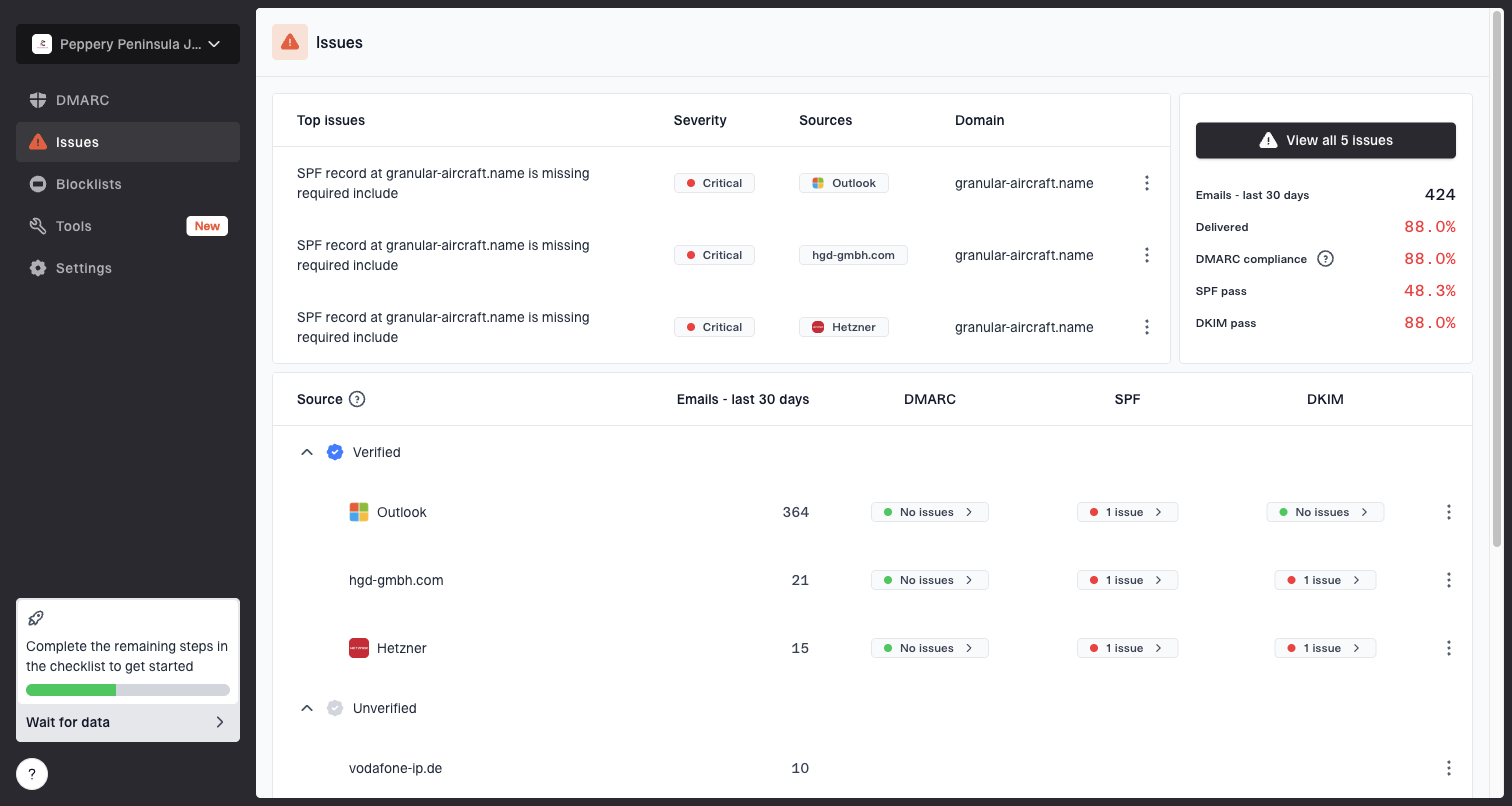
Issues page showing top issues, verified sources, unverified sources, and authentication pass rates
The practical workflow is straightforward. Use SNDS for Microsoft-side IP data and mitigation requests. Use Suped for ongoing authentication visibility, automated issue detection, real-time alerts, hosted SPF, SPF flattening, hosted DMARC, hosted MTA-STS, and blocklist monitoring across the domains and IPs you actually send from.
Best practical setup
Keep Microsoft support requests concise, and keep your monitoring continuous. A ticket is an event. Reputation management is a daily operating process.
- SNDS role: Microsoft IP data, sender symptoms, and mitigation requests.
- Suped role: Authentication monitoring, alerts, issue detection, and repair workflow.
- Team role: Traffic shaping, complaint cleanup, suppression, and clear evidence.
Views from the trenches
Best practices
Restart the SNDS request after 24 hours of silence and keep the new packet complete.
Keep shaping changes active while waiting, because support replies are not guaranteed to arrive.
Track each affected IP separately, since one pool can have mixed Microsoft outcomes.
Common pitfalls
Waiting several days for a missing auto-reply leaves active Microsoft throttling unmanaged.
Assuming green SNDS data proves safety ignores rate limits, complaints, and pool behavior.
Resubmitting vague tickets without timestamps and SMTP responses slows the first review.
Expert tips
Use a 24-hour timer, then resubmit with a cleaner case instead of adding more ticket noise.
Treat mitigation and remediation as parallel work, not a serial support dependency for the team.
Compare SNDS with live test mail, bounces, complaints, and blocklist or blacklist signals.
Marketer from Email Geeks says SNDS replies vary. When the first response arrives within 24 hours, a complete reply can produce movement within 24 to 48 hours.
2026-06-19 - Email Geeks
Marketer from Email Geeks says a request without an automatic reply after 24 hours has probably failed to route and should be submitted again.
2026-06-20 - Email Geeks
A practical SNDS support rule
Use 24 hours as the decision point. If SNDS support responds inside that window, answer quickly and keep the case tight. If nothing arrives, submit a fresh request with better evidence and keep fixing the operational causes in parallel.
The strongest teams do not treat Microsoft support as the whole recovery plan. They keep shaping traffic, reducing complaint risk, validating authentication, and watching blocklist or blacklist signals while the request sits in the queue. That is how you shorten the incident even when the support response is slow.



