Why was my Google Workspace email sending name suspended and how do I fix it?

Updated on 30 Jul 2026: We updated this guide with Google's current recovery paths and RFC 9989 DMARC testing syntax.
The direct answer is this: Google suspended the sending name because Google saw activity tied to that Workspace identity that looked like account compromise, spam abuse, unusual outbound sending, or a risky connected app. If the warning says the account was suspected of being compromised and sending spam, treat it as a Google Workspace account incident first, not as a marketing ESP issue.
The fix is to contain the account, work out whether anything is sending through Gmail, SMTP, OAuth, delegation, a support platform, or a shared mailbox, remove the cause, then reactivate the user in Google Admin only after the account is clean. Reactivating first is the fastest way to get suspended again.
If the address handles support replies, keep inbound mail flowing with routing, groups, aliases, or a temporary helpdesk identity. Pause outbound use of the suspended identity until the audit is complete.
First decide what Google suspended
The phrase sending name causes confusion. Sometimes people mean the visible From name. Sometimes they mean a Workspace user, mailbox, alias, or shared support address. Google does not usually suspend a decorative display name for spam. Google suspends or restricts the identity behind it, such as the user account or Gmail service.
In Google Admin, check the user page and read the suspension reason at the top of the account. Google's restore suspended user guidance lists several recovery paths, including accounts automatically suspended because they are at risk, accounts restricted for Gmail limits, and accounts suspended for possible spam abuse. It also says some abuse and Terms of Service suspensions cannot be restored by an administrator.
|
|
|
|---|---|---|
User | Login blocked | Secure account |
Gmail | Sending restricted | Check limit or abuse notice |
Alias | Address affected | Trace owner |
Display name | Name shown wrong | Check profile |
Organization | Subscription or tenant affected | Check billing and policy notice |
Common suspension scopes to check first.
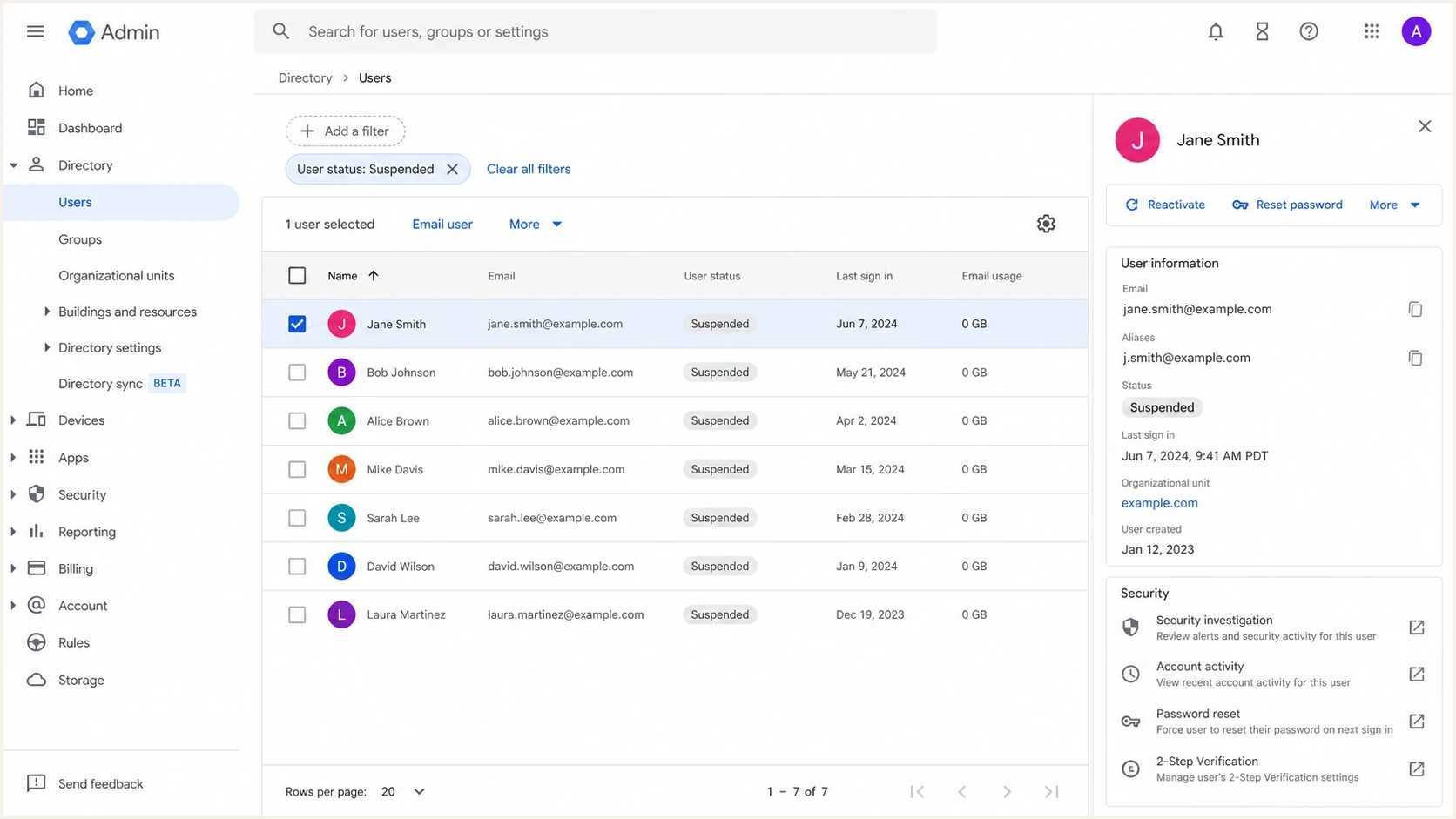
Google Admin console view showing a suspended user filter.
If the only symptom is that recipients see the wrong sender label, that is a different display issue. Use Google's Gmail display names troubleshooting and review the profile name, directory name, send-as settings, and recipient contact caching. If the notification mentions compromise or spam, stay on the suspension path.
Match the suspension reason to the recovery path
The wording at the top of the user's Google Admin page controls the next step. A Reactivate button is not available for every suspension, and a temporary Gmail limit does not require the same response as a compromised account.
|
|
|
|---|---|---|
Suspended by admin | An administrator blocked access | Reactivate in Google Admin |
Unverified sign-in | Abuse or rapid account creation triggered verification | User completes Google's sign-in checks |
User might be at risk | Google detected suspicious sign-in activity | Secure the account, then reactivate |
Gmail account limit | A sending or recipient quota was exceeded | Pause sending and wait up to 24 hours |
Potential spam abuse | Gmail activity triggered abuse controls | Remove the cause, then reactivate if offered |
Terms of Service | Google classified the account as an abuse violation | Administrator and support cannot restore it |
Use the exact notice rather than the visible sender symptom.
A Gmail limit restriction can block new outbound mail for up to 24 hours while the user can still sign in, receive mail, and use other Google services. Do not keep retrying automated sends during that window.
What usually caused it
When Google says a Workspace identity looked compromised and was sending spam, the trigger is usually activity Google can see directly. That means Gmail web, Google SMTP, a connected app using OAuth, Gmail API sending, delegated mailbox access, or a support platform that sends replies through the Google account.
ESP sending
A marketing ESP sending through its own authenticated infrastructure usually does not cause Google to suspend a Workspace user. Google sees the domain in headers, but the Gmail account is not the sending system.
- Check DNS: Confirm SPF, DKIM, and DMARC authenticate the ESP's mail.
- Check volume: Look for sudden campaign spikes and bad list sources.
Workspace sending
A Workspace account, Gmail SMTP relay, helpdesk integration, or OAuth app can cause a suspension because the sending path is tied to Google account activity.
- Check access: Review sign-ins, devices, delegates, forwarding, filters, and app passwords.
- Check apps: Review support tools, CRM syncs, Gmail API clients, and SMTP settings.
A spoofing problem is the other major caveat. Attackers can send mail that pretends to be your domain without logging into Google. That can damage reputation and create customer complaints, but Google wording about a compromised Workspace account usually points back to telemetry on the account itself.
How urgently to respond
Use the notice wording and account behavior to decide how hard to contain the sender.
Normal
Profile review
Display name mismatch only.
High
Pause sending
Unusual replies, bounces, or sent mail.
Critical
Full audit
Google says compromise or spam abuse.
Immediate containment steps
Start by protecting customers and preserving evidence. Do not delete messages, bounces, filters, or OAuth app entries until you have captured what happened. The goal is to stop more outbound mail without breaking inbound support.
- Pause outbound: Stop sending through the affected account, Gmail SMTP, and connected support tools.
- Keep inbound: Route support replies to a group, alias, or temporary mailbox.
- Reset access: Reset the password, revoke sessions, remove app passwords, and enforce 2-step verification.
- Revoke tokens: Remove suspicious OAuth apps, Gmail API clients, delegated access, and old integrations.
- Preserve logs: Export admin audit events, login events, email log search results, and message samples.
Do not use the same suspended identity for cold outreach while investigating. If a sales workflow caused the suspension, reactivating the user and resuming outreach tells Google the abusive pattern is still active.
If customers rely on the address, send operational replies through a clean, low-volume identity for a short period. Keep the sender name clear and avoid pretending the temporary mailbox is the original one. That reduces confusion and keeps the investigation cleaner.
How to investigate the sending path
The key question is simple: what system had the ability to send as that address? Work through Google Admin, the mailbox, and each connected app until every sending path has an owner and a purpose. Suspending a user resets that user's sign-in cookies and OAuth tokens, but you should still inspect each integration before restoring access.
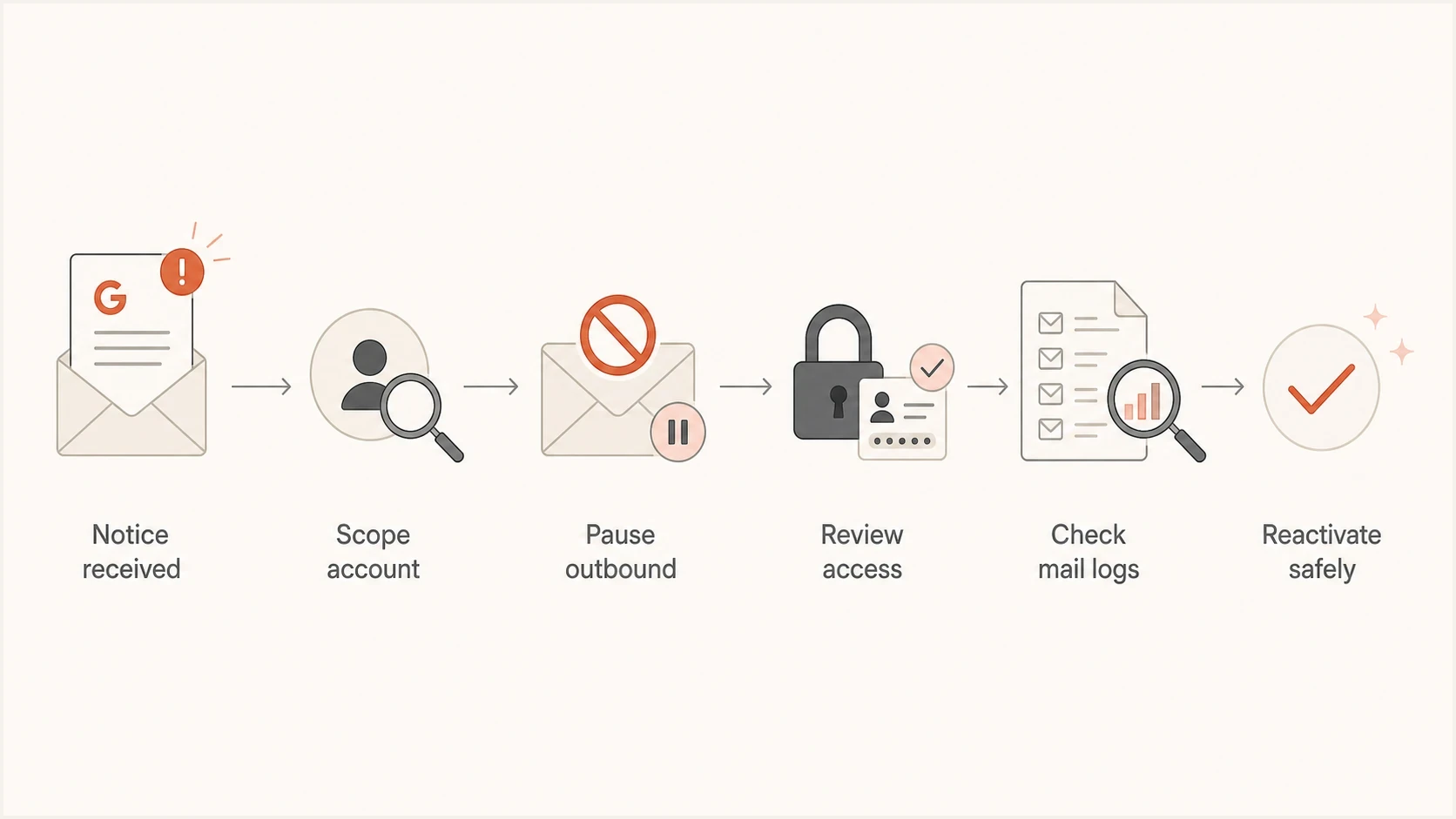
Flowchart for investigating a Google Workspace sending suspension.
- Admin logs: Check login events, device changes, password changes, OAuth grants, and admin actions.
- Mailbox evidence: Review sent mail, deleted mail, bounce messages, replies, filters, forwarding, and delegates.
- Support stack: Check any helpdesk or CX platform that connects to Gmail for outbound replies.
- Sales workflows: Look for automated outreach, shared inbox use, or browser extensions sending as the user.
- Message headers: Compare suspicious samples with known good mail and inspect the authenticated path.
After access cleanup, send one controlled message to a seed inbox and inspect the result with the email tester. This checks the real message, not just the DNS records, so you can confirm the From domain, SPF result, DKIM signature, DMARC result, message content, and visible sender.
Email tester
Send a real email to this address. Suped shows a results button when the test is ready.
?/43tests passed
If the test message passes authentication but lands in spam, treat that as a reputation recovery problem after the account is secure. The next workflow is closer to Google Workspace spam placement troubleshooting than suspension recovery.
Fix DNS and reporting gaps
DNS does not usually explain a Google account compromise notice by itself, but it matters because spoofing can happen at the same time. If the domain has weak DMARC reporting, you lose the fastest way to separate real Google sends, ESP sends, and unauthenticated impersonation.
Starter DMARC record for visibilitydns
_dmarc.example.com TXT
"v=DMARC1; p=none; rua=mailto:dmarc-reports@example.com"
A domain health check gives you the baseline: whether SPF exists, whether DKIM is visible, whether DMARC is present, and whether the domain has obvious authentication errors. It will not prove who compromised an account, but it quickly shows whether your domain is defensible.
Suped's product is useful here because it turns DMARC aggregate reports into source-level evidence, flags authentication failures, and gives steps to fix them. During recovery, use Suped to separate authorized Google and ESP traffic from unauthenticated use of the domain instead of reading raw XML reports in a mailbox.
Issues page showing top issues, verified sources, unverified sources, and authentication pass rates
Suped's DMARC monitoring shows which sources sent mail, what passed, what failed, and what changed. That evidence helps confirm whether the incident stayed inside Google Workspace or also involved spoofed mail.
After containment, check domain and IP reputation too. Suped's blocklist monitoring helps you spot blocklist and blacklist listings that can remain after a bad sending event.
RFC 9989 removed the pct tag and replaced its testing function with t=y. Use testing mode while checking how a quarantine policy affects legitimate mail, then remove t=y or change it to t=n when the sources are ready for enforcement.
DMARC quarantine policy in testing modedns
_dmarc.example.com TXT
"v=DMARC1; p=quarantine; t=y; rua=mailto:dmarc@example.com"
How to reactivate safely
Reactivate only when the cause has been removed. If Reactivate is available in Google Admin, use it after the password reset, token cleanup, app review, mailbox review, and outbound pause are complete. If the option is missing, the suspension reason determines whether Google support or user verification is the next step.
- Confirm reason: Read the exact suspension message on the user page.
- Secure account: Reset credentials, revoke sessions, remove risky apps, and require 2-step verification.
- Fix workflow: Stop any helpdesk, sales, or support automation that was sending low-quality mail.
- Reactivate: Use Google Admin only after containment is complete.
- Ramp slowly: Send only expected replies first, then monitor bounces, complaints, and spam placement.
If recipients now see the address instead of the friendly name, handle that as a separate sender label problem after the account is stable. The related issue of sender name display often comes from contact caching, send-as settings, profile names, or authentication distrust.
A clean recovery has a written cause, a fixed sending path, removed risky access, confirmed authentication, and a short monitoring window before normal outbound volume resumes.
Views from the trenches
Best practices
Treat a Google spam suspension as an account incident before checking ESP dashboards first.
Keep inbound support flowing with routing while outbound access stays paused during review.
Send DMARC reports to a parser so spoofing and real Google use are separated quickly.
Common pitfalls
Reactivating the user before revoking tokens often leads to the same suspension again.
Assuming a marketing ESP caused it can hide Gmail, SMTP, OAuth, or helpdesk sends.
Sending DMARC reports to mailboxes makes evidence hard to read when timing matters.
Expert tips
Check sent mail, bounces, filters, delegates, app passwords, OAuth apps, and logins.
Separate support replies, sales outreach, and marketing sends into different identities.
Use blocklist and blacklist checks after containment, not as the first security signal.
Expert from Email Geeks says Google is unlikely to suspend a Workspace user for mail sent only through an unrelated ESP, so Gmail, SMTP, OAuth, and support tools should be reviewed first.
2024-01-24 - Email Geeks
Expert from Email Geeks says reactivation can work from the Admin console, but the same user can be suspended again if tokens, devices, or abusive outbound workflows remain active.
2024-01-24 - Email Geeks




