Why is Gmail sometimes slow to deliver email and how can I fix it?

Published 10 Aug 2025
Updated 27 Jul 2026
12 min read
Summarize with
Updated on 27 Jul 2026: We expanded this guide with current Gmail POP fetching and app sync guidance.
Gmail is sometimes slow to deliver email because the message waits before Gmail accepts it, Gmail processes it after acceptance, Gmail periodically retrieves it from a third-party account, or the recipient's app is slow to sync a message that already arrived. Those are different problems, and the fix depends on which path and timestamps the evidence proves.
Start by confirming whether the message was sent directly to a Gmail or Google Workspace address, forwarded into Gmail, or fetched from another mailbox. Then measure the Received headers. If the delay is between your sending platform and Google's MX servers, reduce burst speed, check ESP queues, inspect SMTP responses, and validate authentication and reputation. If Gmail accepted the message quickly, check Workspace logs where available and rule out POP retrieval, app sync, and notification delay.
A practical first step is to send a controlled sample through an email tester and compare that result with the delayed Gmail message's original headers. That separates authentication and routing faults from mailbox retrieval or sync delay.
The direct answer
When Gmail seems slow but your ESP dashboard shows no backlog and the Postmaster Tools Delivery Errors dashboard shows no spike in temporary failures, start with one distinction: accepted by Gmail does not always mean visible in the inbox at the same second. Email is a store-and-forward system. Most mail arrives quickly, but abrupt volume changes, temporary deferrals, account retrieval, and recipient-side processing can add minutes or hours.
Accepted is not always visible
A delivery log that says Gmail accepted the message is useful, but it is not the whole story. The recipient's original message headers are the source of truth because they show each handoff time. Use those timestamps before changing IPs, swapping content, or blaming Gmail.
- Burst speed: A campaign that was safe at one send speed can create Gmail delay after an ESP platform upgrade makes the same list hit Google's MX servers much faster.
- Peak timing: A high-volume send window can amplify an abrupt jump in your own Gmail traffic, so keep the sending rate steady and avoid releasing the full segment at once.
- Single-IP pressure: A single IP that suddenly sends five times its usual Gmail volume has a higher chance of delayed acceptance than a stable pool with controlled ramping.
- Slow opens: Open-rate lag is not proof of delivery delay because Gmail image caching, privacy behavior, recipient time zones, and inbox placement all affect open timing.
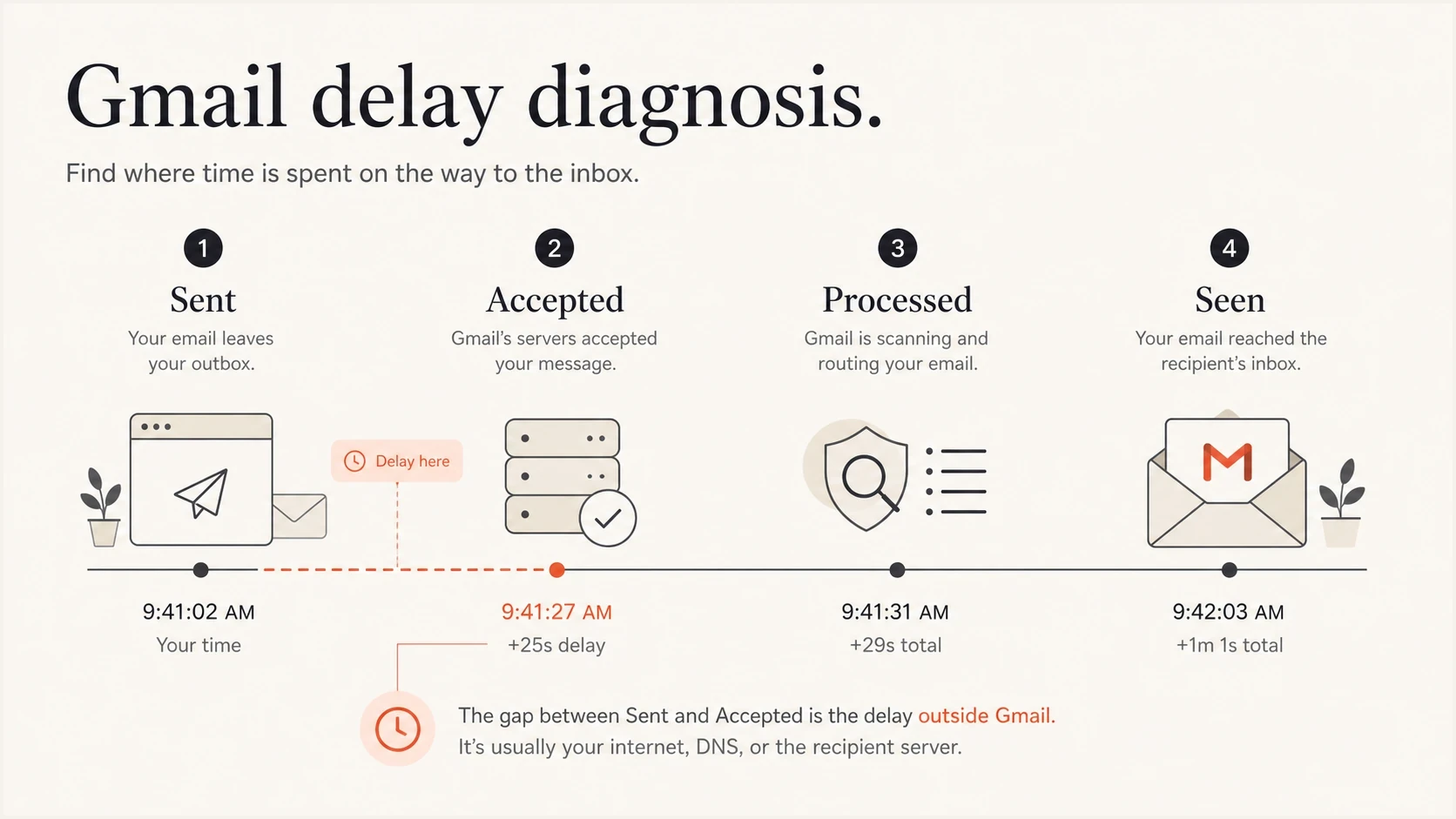
Infographic showing where Gmail delivery delay can occur.
Prove where the delay happened
The cleanest diagnosis comes from the recipient's original message source. Work upward through the Received headers. Each server adds a line when it handles the message, so the time gap between adjacent lines tells you where the message waited.
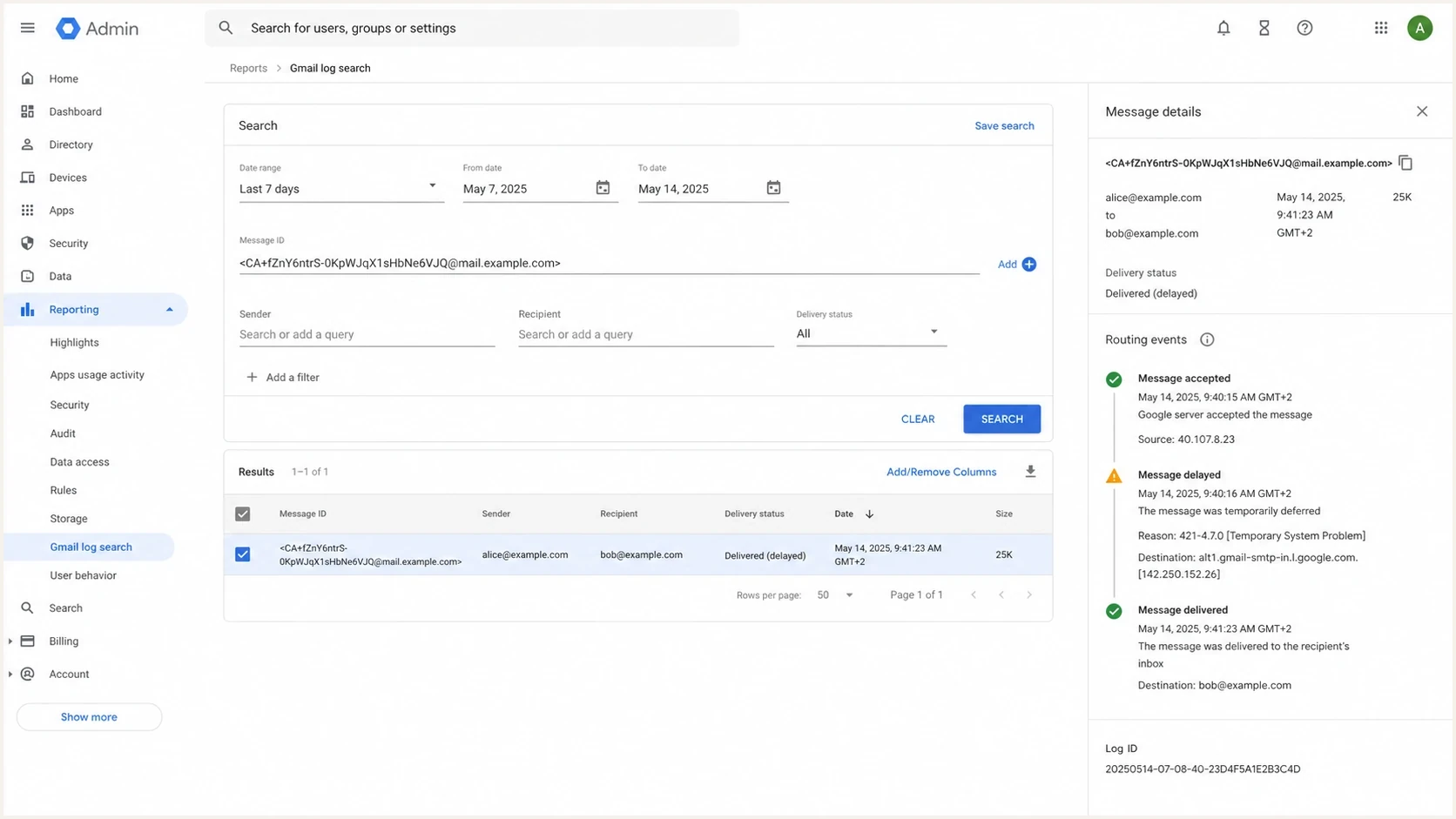
Google Admin console Gmail log search showing message routing events.
Simplified Received chaintext
Delivered-To: recipient@gmail.com
Received: by mx.google.com with ESMTPS;
        Thu, 12 Mar 2026 10:38:45 -0700 (PDT)
Received: from mta1.sender.example by mail.sender.example;
        Thu, 12 Mar 2026 09:52:10 -0700 (PDT)
In that simplified example, the delay sits before Gmail acceptance because Google's server timestamp is 46 minutes after the sender-side handoff. If the Gmail MX line and the final delivery event are far apart, compare the headers with Email Log Search. Google says a delayed Workspace message with under 10 minutes of Google transit time points to a third-party provider or an earlier route.
|
|
|
|---|---|---|
App to ESP | Sender queue | Check job release |
ESP to Gmail | MX acceptance | Throttle send |
Gmail internal | Mailbox handling | Check log events |
No header gap | App or tracking | Check sync and placement |
Use header gaps to choose the next fix.
Do this on several delayed messages, not one. One Gmail account can have a local issue. A pattern across many unrelated Gmail recipients points back to routing, speed, or reputation.
Fix Gmail delay before acceptance
When the header gap is between your ESP and Gmail, the highest-leverage fix is controlled pacing. Slow the release of Gmail-bound mail instead of letting a faster MTA platform release the full campaign at once. Use smaller waves, compare their median acceptance delay, and keep the rate that avoids new temporary failures.
Reduce pressure
- Segment pacing: Release Gmail recipients in smaller waves instead of sending the whole audience at the same timestamp.
- Connection limits: Ask the ESP to review Gmail concurrency, retry cadence, and per-IP throughput after platform changes.
- Ramp control: Treat new sending hardware like a new sending behavior, even when the IP and domain stay the same.
Avoid false fixes
- IP splitting: Adding IPs helps only when each IP has steady history, clean authentication, and sane volume.
- Content swaps: Changing creative is secondary when headers show the message waited before Gmail accepted it.
- Blind retries: Aggressive retry behavior can increase pressure and make Gmail acceptance slower.
Illustrative Gmail volume-change bands
Planning bands relative to the sender's own recent Gmail volume. These are operational heuristics, not published Gmail limits.
Normal
Up to 1.5x
Close to recent Gmail volume
Watch
1.5x to 3x
Use slower waves
High
3x to 5x
Throttle by segment
Critical
Above 5x
Pre-stage or split safely
If you see actual 4xx responses, that is no longer a silent delay problem. Follow the exact SMTP response. For Gmail temporary failures, pause briefly, resume at a lower constant rate, and use exponential backoff. The Gmail tempfail guide explains how to map the response code to the next action.
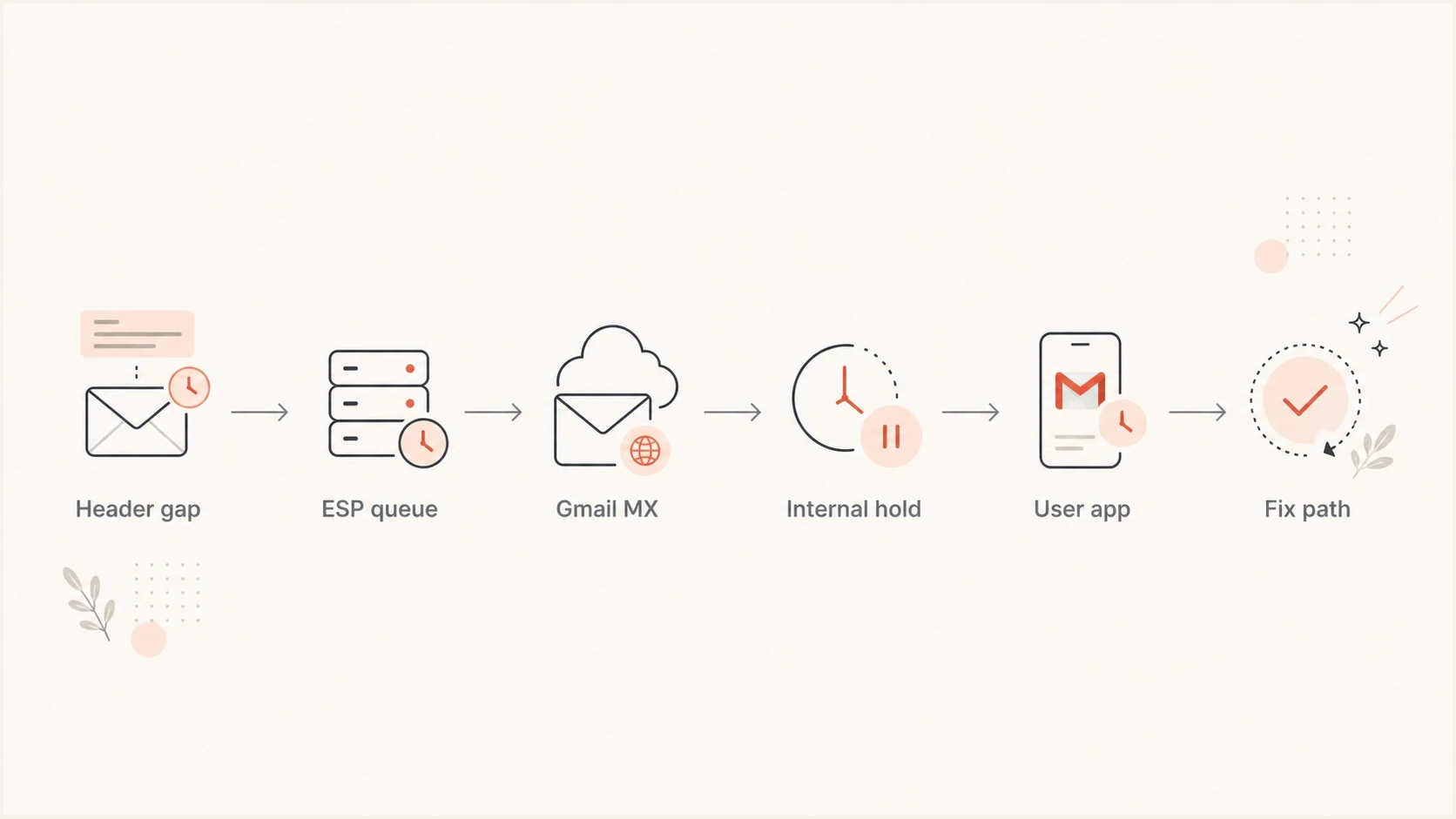
Flowchart for diagnosing Gmail delivery delay from message headers.
Check authentication and reputation
Authentication problems do not always cause a clean rejection. They can lower trust, increase filtering work, and make troubleshooting harder. Google requires all senders to personal Gmail accounts to use SPF or DKIM. Bulk senders need SPF, DKIM, and DMARC, with the SPF or DKIM domain matching the From domain.
Run a domain health check before changing your campaign pacing. Also confirm reverse DNS and inventory every sending source. If the basics are broken, a slower send hides the problem instead of fixing it.
?
What's your domain score?
Deep-scan SPF, DKIM & DMARC records for email deliverability and security issues.
Suped's product supports this workflow by tying authentication results to sending sources, issue detection, alerts, and repair steps. For teams managing multiple domains, the operating view combines DMARC reporting with SPF and DKIM visibility, hosted SPF, blocklist (blacklist) monitoring, and deliverability checks.

Issue steps to fix dialog showing the issue overview, tailored fix steps, and verification action
For repeated Gmail delay investigations, combine DMARC monitoring with blocklist monitoring so you can tell whether the delay coincides with authentication failures, a new source, or a blocklist (blacklist) hit.
Starter DMARC monitoring recordtext
v=DMARC1; p=none; rua=mailto:dmarc@example.com
Use monitoring before enforcement
The record above is a monitoring starting point, not the final security posture. Move toward enforcement only after legitimate sources consistently pass DMARC through SPF or DKIM with a domain that matches the From domain and reporting shows no important sender is missing.
When Gmail already accepted it
If headers show Gmail accepted the message quickly and the recipient still saw it much later, treat it as a Gmail-side or client-side case. Gmail internal delays are uncommon, but they happen. For Google Workspace accounts, admins can compare Email Log Search events with user reports and follow the Gmail admin guide when the symptom is slow Gmail performance rather than slow SMTP delivery.
Delivery delay
- Header proof: Received timestamps show a large gap before or after Gmail acceptance.
- Scope check: Multiple Gmail recipients report late arrival for the same send window.
- Fix path: Change pacing, source setup, or escalation evidence based on the header gap.
Client slowness
- Header proof: The message arrived on time, but the Gmail UI or mobile app showed it late.
- Scope check: Only one user, device, browser, label, rule, or synced client reports the issue.
- Fix path: Check sync settings, account and device storage, filters, add-ons, browser extensions, and app updates.
This distinction matters because the sender cannot fix a slow browser, a mobile sync delay, or a notification setting by changing DNS. The sender can still document the event clearly so support teams and recipients look in the right place.
Check POP fetching and app sync
If Gmail displays mail addressed to a third-party account, identify how that account is connected before diagnosing Gmail delivery. Direct SMTP delivery to a Gmail or Workspace address differs from Gmail periodically fetching an external mailbox by POP, automatic forwarding into Gmail, or an IMAP account added only in the mobile app.
- POP retrieval on the web: Gmail's "Check mail from other accounts" retrieves messages on a schedule, so a message can already exist at the original provider while Gmail has not fetched it. New users lost access after the first quarter of 2026, and existing users can continue until January 2027.
- Automatic forwarding: Set forwarding at the original provider when you need new messages to reach the main Gmail inbox without waiting for a POP poll. Preserve headers so a later delay can still be traced.
- Mobile IMAP account: A third-party account added to the Gmail app stays connected through IMAP. Check the provider's webmail first, then refresh the app and verify its account sync settings.
- Notification delay: If the message is visible in Gmail on the web before the phone alerts, delivery completed. Troubleshoot app sync and notification settings instead of sender reputation.
Test the original mailbox first
Open the third-party provider's webmail and Gmail on the web at the same time. If the message appears at the provider first, the gap belongs to retrieval or forwarding. If Gmail on the web has it but the app does not, Google says Android sync can take up to 15 minutes and longer after the device has been unused.
Incident workflow
For a live send, keep the workflow short. The goal is to protect the next wave while collecting enough proof to avoid random fixes.
- Collect headers: Get original headers for delayed Gmail messages and two normal messages from the same send.
- Mark timestamps: Record the campaign release time, ESP handoff time, Gmail acceptance time, and visible inbox time.
- Segment Gmail: Pause or slow the next Gmail wave while leaving other providers unchanged for comparison.
- Check systems: Review ESP queues, SMTP responses, source IPs, authentication domain checks, and blocklist or blacklist status.
- Retest calmly: Send a smaller Gmail wave and compare median header delay against the previous wave.
- Document outcome: Keep the header examples, pacing change, and result in one incident note for the next peak send.
Example Gmail delay trend
Illustrative median header delay after moving from one fast burst to controlled waves.
Header delay
If pacing fixes the issue, keep the new Gmail-specific release profile for peak days. If pacing does nothing and the headers prove Gmail accepted quickly, move the case toward Workspace logs, user-side Gmail checks, and a support packet with raw headers.
Views from the trenches
Best practices
Compare Received header gaps before blaming Gmail for slow visible inbox arrival.
Throttle peak sends when volume jumps faster than your usual Gmail acceptance pattern.
Keep ESP queue logs, Gmail headers, and campaign timing in the same incident note.
Common pitfalls
Treating slow opens as delivery delay before checking message headers and image caching.
Moving to faster sending hardware without adding ramp controls for Gmail-heavy lists.
Splitting IPs before fixing authentication, consent quality, and burst scheduling.
Expert tips
Use a controlled resend to Gmail seed accounts after each throttling change during incidents.
Tag campaigns by send wave so header delays map back to the exact release window.
Set alerts on DMARC failures and blocklist or blacklist hits before peak events.
Expert from Email Geeks says Gmail processing can look like rate limiting even when the ESP has no visible queue, so the header timestamps are the evidence that matters.
2022-11-28 - Email Geeks
Expert from Email Geeks says Gmail internal delays happen, but they are rare enough that sender-side queueing, connection behavior, or burst timing should be checked first.
2022-11-28 - Email Geeks
What to do next
Gmail delay has one reliable troubleshooting path: prove the delay with headers, identify how the mailbox receives the message, separate delivery delay from open-rate or notification lag, and change sending behavior only after the evidence points there. Most silent delay cases are tied to burst speed, platform changes, peak volume, retrieval, sync, or sender setup.
Suped's product covers the authentication and reputation side of that work. It monitors DMARC, SPF, DKIM, sending sources, and blocklist (blacklist) status, then turns failures into repair steps and alerts. It does not replace header analysis, but it reduces blind spots when Gmail slows down during a high-volume send.




