Why does my email header show DKIM and SPF as none, and how do I fix Outlook deliverability issues?

Published 19 Apr 2025
Updated 13 Aug 2026
12 min read
Summarize with
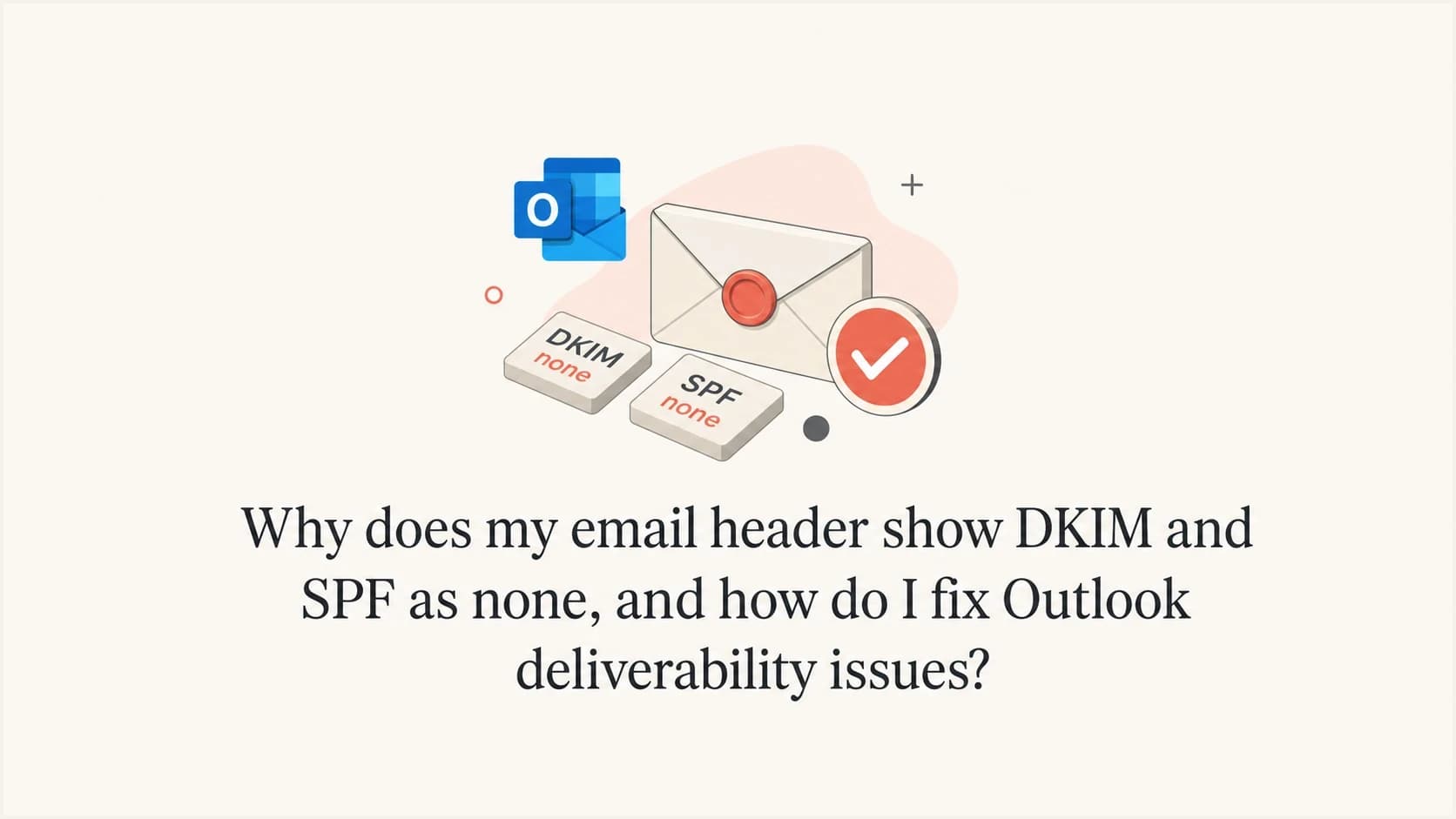
Updated on 13 Aug 2026: We added current Microsoft 365 DKIM selector guidance and ARC troubleshooting for forwarded mail.
If a header shows dkim=none or spf=none, that system did not produce a result for the method at that point in the route. It might not have seen a DKIM signature, found a usable SPF identity or policy, or performed the check on an internal hop. Treat none as normal only when the receiver-owned result later shows DMARC passing for the visible From domain.
The fastest fix is to test a real message, inspect the final Authentication-Results header, then repair the sending system that actually produced the failing or unsigned message. Start with a live email tester because DNS checks alone can say pass while the real message path still fails.
- Direct answer: A none result is a clue, not a final verdict. Read the receiver-owned result before changing DNS.
- Normal case: Microsoft 365 and Outlook can add internal headers while mail moves between systems.
- Broken case: A final result of none or fail means the message was unsigned, unmatched, relayed, or altered.
- Outlook fix: Fix custom-domain DKIM, SPF, DMARC, sender reputation, complaint rate, and blocklist or blacklist status.
What none means in a mail header
Authentication headers are added by different systems as a message moves. The line that matters most is the one added by the server that accepted the message for the mailbox you are testing. In Outlook.com, Hotmail, and Microsoft consumer inboxes, that header can sit near the top of the raw message, while older internal results sit below it.
A DNS checker only proves that a TXT or CNAME record exists and has valid syntax. It does not prove that your outbound system signed the actual message, preserved the body after signing, used an aligned domain for DMARC, or sent through an IP authorized by the envelope sender's SPF policy.
|
|
|
|---|---|---|
dkim=none | No DKIM signature was evaluated. | Find the signing system. |
spf=none | No usable SPF policy or identity was evaluated. | Check return-path and authserv-id. |
dkim=pass | The DKIM signature verified. | Check domain alignment. |
spf=pass | The sending IP was authorized. | Check From alignment. |
dmarc=pass | Aligned SPF or DKIM passed. | Move to placement. |
Common header outcomes and what they mean.
A Microsoft 365 message can contain several Authentication-Results lines. Do not treat the first none result you find as the final answer.
- Auth server: Use the authserv-id to identify the system that wrote each result.
- Header order: Pair the result with its Received hop because newer headers are normally added above older ones.
- Final verdict: DMARC pass for the From domain matters more than an older internal none line.
Why tests pass while Outlook shows none
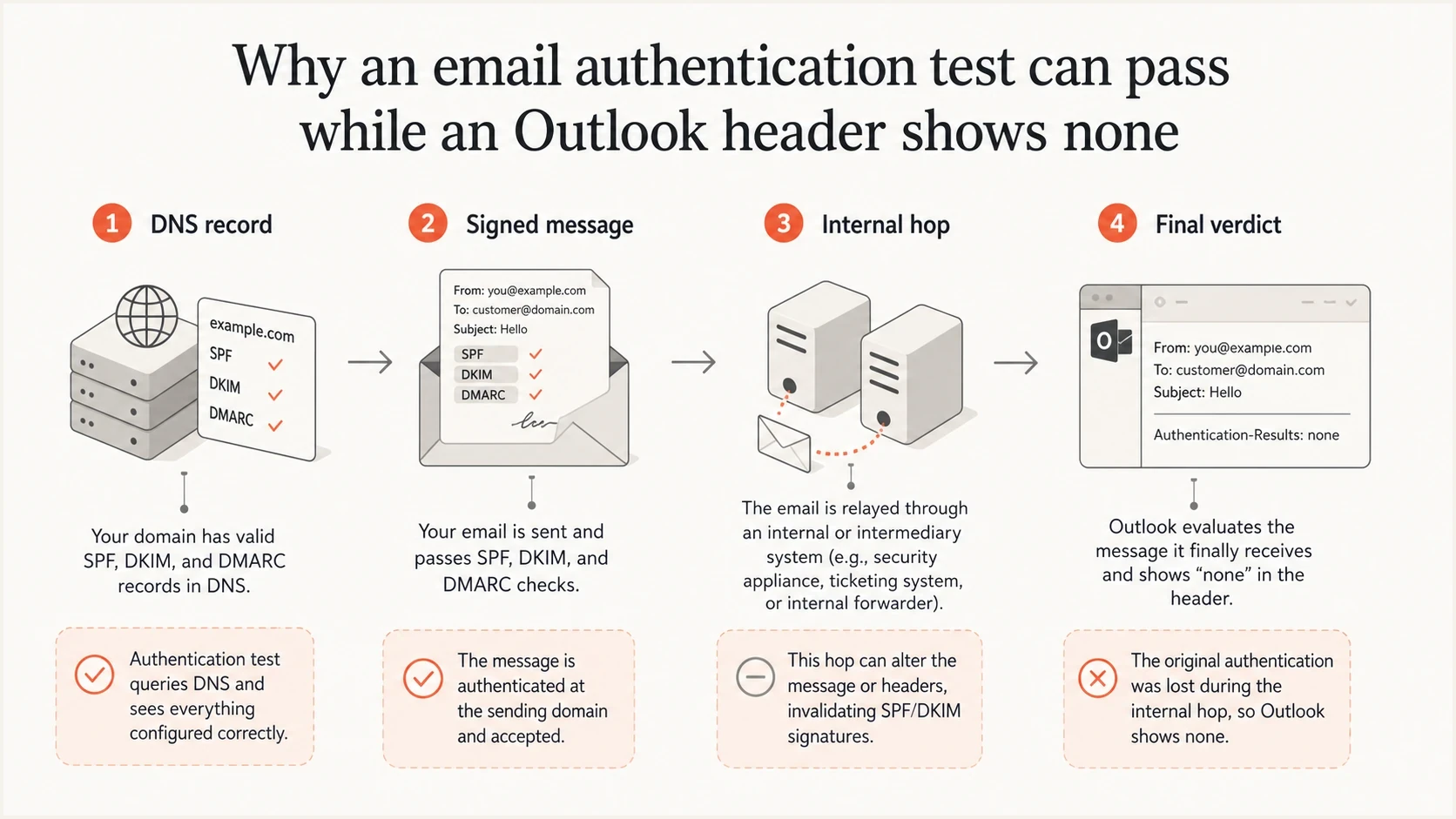
Four-part view of DNS checks, signed mail, internal hops, and final authentication verdict.
The mismatch usually comes down to scope. A DKIM checker tests a selector record. An SPF checker tests whether a record can authorize an IP. A mailbox header records what happened to one specific message after it left the sender. Those are related checks, but they are not the same check.
This happens most often when a Microsoft 365 tenant has DKIM enabled for its default tenant domain but not the custom From domain, when another sending app does not sign with an aligned domain, or when a security gateway changes signed content. A Microsoft Answers case describes the same pattern: online tests looked correct, while real headers still showed DKIM as none or unsigned.
A passing DNS test
- Selector exists: The DKIM public key is visible in DNS.
- SPF parses: The SPF syntax is valid and returns a result.
- DMARC exists: The policy record can receive reports.
A real Outlook message
- Signer missing: The outbound app did not add a DKIM signature.
- Route changed: A relay or gateway changed the envelope or signed content.
- Provider verdict: Outlook judges the message it received, not the DNS record alone.
Example of mixed authentication headerstext
Authentication-Results: internal.example.net;
  dkim=none (message not signed);
  spf=none smtp.mailfrom=example.com

Authentication-Results: outlook.com;
  dkim=pass header.d=example.com;
  spf=pass smtp.mailfrom=bounce.example.com;
  dmarc=pass header.from=example.com
How to check the right header
Open the raw message source, not the short header preview. Search for Authentication-Results, read the authserv-id before the semicolon, and match that result to the nearby Received hop. For an Outlook.com test, use the final Microsoft consumer service result. For a Microsoft 365 tenant, use the result written at the tenant boundary.
Then test the same sending path the recipient sees. Do not send from a personal mailbox if the problem message comes from a ticketing system. Do not test Microsoft 365 if the real campaign goes through a marketing platform. The signature and SPF path have to match the real source.
- Send real mail: Use the same app, From address, template, attachments, and relay path.
- Open source: Copy the full raw headers, not only the visible Outlook summary.
- Find verdict: Use authserv-id and Received headers to identify the receiver-owned result.
- Compare domains: Check whether DKIM d= or the SPF return-path domain aligns with the visible From domain.
- Check DNS: Run a domain health check after you know which system sent the message.
- Monitor reports: Use DMARC monitoring to find repeat failures by source.
Email tester
Send a real email to this address. Suped shows a results button when the test is ready.
?/43tests passed
A good test result shows DKIM pass with a signing domain aligned to the From address, SPF pass with an aligned return-path domain, or both. DMARC passes when at least one authenticated identity aligns with the visible sender domain.
Basic DNS records to verifytext
Host: selector1._domainkey
Type: CNAME
Value: <Selector1CNAME from Microsoft 365>

Host: selector2._domainkey
Type: CNAME
Value: <Selector2CNAME from Microsoft 365>

example.com. TXT "v=spf1 include:spf.protection.outlook.com -all"

_dmarc.example.com. TXT "v=DMARC1; p=none; rua=mailto:dmarc@example.com"
How forwarding and ARC change the result
Forwarding changes the server that connects to the final receiver, so SPF often fails at the new hop. DKIM can survive forwarding when signed headers and the body stay unchanged. It fails when a mailing list, security gateway, or disclaimer service modifies signed content.
ARC records the authentication result seen before an intermediary changed the message. Microsoft 365 can use that result when an administrator trusts the intermediary's ARC sealing domain. ARC is receiver-side evidence, not a DNS repair the original sender can apply.
When the direct message passes but a forwarded copy fails, inspect the latest ARC set before rotating DKIM keys or expanding SPF.
- ARC chain: Check ARC-Seal, ARC-Message-Signature, and ARC-Authentication-Results together.
- Trusted result: In Microsoft 365, arc=pass with oda=1 shows the earlier result came from a trusted sealer.
- Composite result: compauth=pass reason=130 shows a trusted ARC result overrode a current DMARC failure.
- Placement limit: ARC can preserve authentication context, but it does not bypass Outlook spam filtering.
Fixes for Microsoft 365 and Outlook delivery
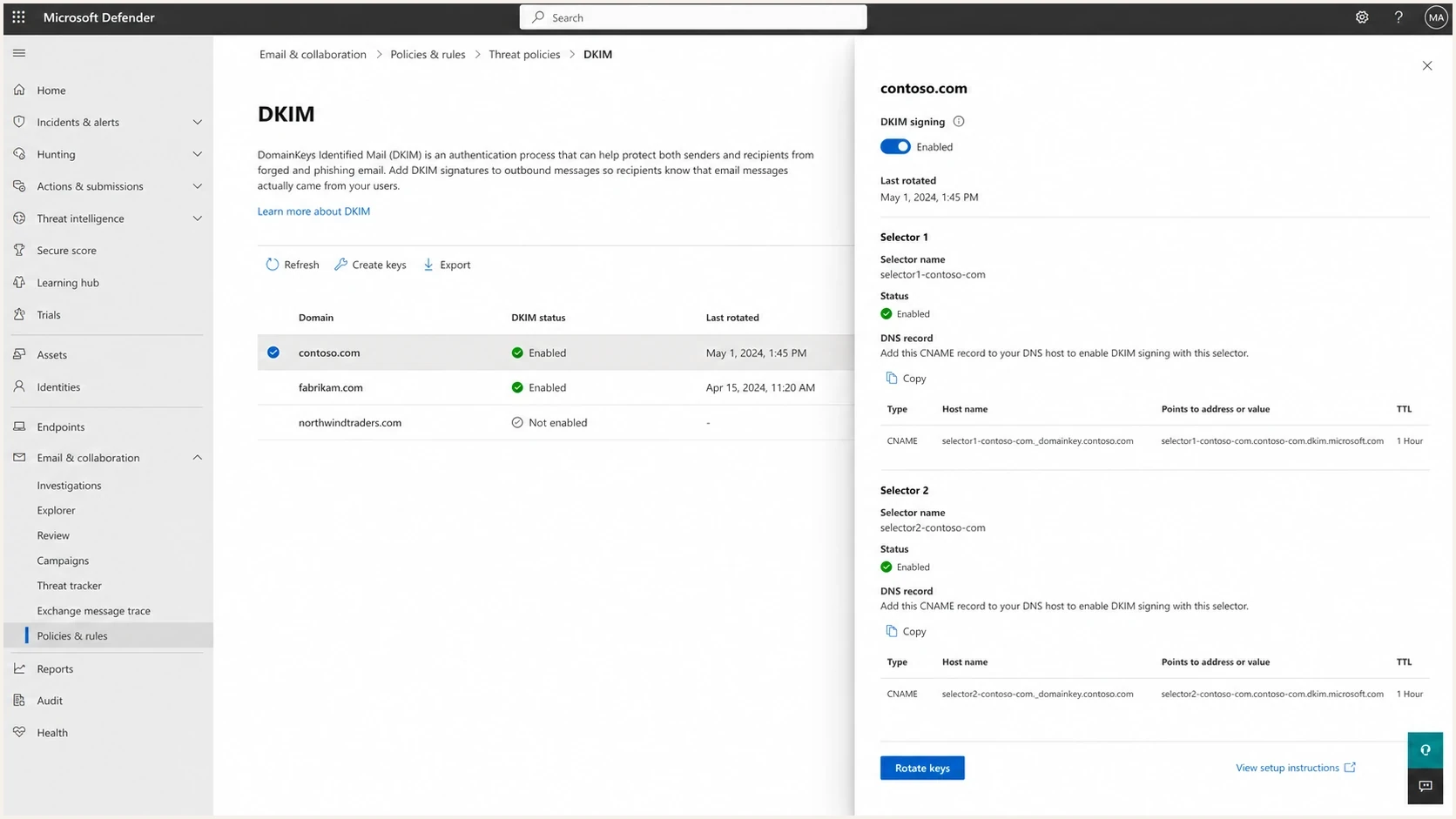
Microsoft Defender portal DKIM settings for a custom domain.
For Microsoft 365, publishing DKIM CNAMEs is only part of the fix. You also need DKIM enabled for the custom domain in the Defender portal. If the custom From domain is example.com, the DKIM d= domain must match example.com under the domain's DMARC alignment mode.
Copy both selector targets exactly as Microsoft 365 displays them. New custom domains can use Microsoft's newer dkim.mail.microsoft target format, while existing domains can retain the older onmicrosoft.com target format. Do not build CNAME targets by copying a generic example.
If another system sends mail using your domain, configure DKIM in that system too. This includes support desks, CRMs, billing platforms, product notifications, calendar systems, and marketing senders. Microsoft 365 cannot sign a message that never passes through it.
- Custom DKIM: Enable signing for the real From domain, not only the tenant domain.
- Two selectors: Publish both selector CNAMEs exactly as Microsoft provides them.
- SPF source: Authorize every legitimate envelope sender and stay within the 10-lookup limit.
- DMARC policy: Start at p=none, review reports, then move toward enforcement.
- Body changes: Stop gateways and disclaimers from modifying signed content after DKIM.
- Real source: Fix the app that sent the failing mail, not the app that passed a test.
For high-volume senders, Outlook.com requires both SPF and DKIM to pass and a DMARC record with at least one aligned method. The threshold is 5,000 or more messages per day to Microsoft consumer email services using the same 5322.From domain. Enforcement began on May 5, 2025, and non-compliant messages can be rejected with 550 5.7.515. Read the Microsoft guidance if you send at that scale.
For a Microsoft 365-specific walkthrough, use Office 365 troubleshooting after you confirm whether the failing mail actually came through Microsoft 365.

Issue steps to fix dialog showing the issue overview, tailored fix steps, and verification action
Suped's product groups DMARC, SPF, DKIM, hosted policy management, blocklist monitoring, and deliverability signals into one workflow. Use it to identify the source that broke, make the specific DNS or sender change, and confirm the result in later DMARC data.
Outlook issues after authentication passes
SPF, DKIM, and DMARC passing does not guarantee inbox placement. Outlook also filters using sender reputation, complaint history, engagement patterns, message consistency, URL reputation, IP reputation, and blocklist or blacklist data. Authentication makes the identity verifiable. Placement still depends on the wider sending record and message.
When a test says Outlook is failing while headers pass, separate the problem into two buckets: authentication failure and placement failure. Mixing those buckets causes wasted DNS changes and hides the real delivery issue.
Authentication failure
- Header result: Final DKIM, SPF, or DMARC says none or fail.
- Main fix: Repair signing, SPF includes, return-path, or custom-domain setup.
- Proof: New live messages show pass for the From domain.
Placement failure
- Header result: Authentication passes, but Outlook junking or rejection continues.
- Main fix: Reduce complaints, clean lists, improve cadence, and check reputation.
- Proof: Inbox tests improve without changing the authentication result.
Blocklist checker
Check your domain or IP against 144 blocklists.
 Spamhaus
 0Spam
0Spam

 Cisco
Cisco
 NoSolicitado

 URIBL
URIBL
 abuse.ro
 ALPHANET
 Anonmails
 Ascams
 BLOCKEDSERVERS
 Calivent Networks


 EFnet
EFnet




 JustSpam
 Kempt.net
 NordSpam

 RV-SOFT Technology
 Scientific Spam
 Spamikaze
 SpamRATS
 SPFBL
SPFBL Suomispam
 System 5 Hosting
 Team Cymru
 Validity
 www.blocklist.de Fail2Ban-Reporting Service
 ZapBL
ZapBL 2stepback.dk
 Fayntic Services
 ORB UK
 technoirc.org
 TechTheftSpamhaus0SpamCiscoNoSolicitadoURIBLabuse.roALPHANETAnonmailsAscamsBLOCKEDSERVERSCalivent NetworksEFnetJustSpamKempt.netNordSpamRV-SOFT TechnologyScientific SpamSpamikazeSpamRATSSPFBLSuomispamSystem 5 HostingTeam CymruValiditywww.blocklist.de Fail2Ban-Reporting ServiceZapBL2stepback.dkFayntic ServicesORB UKtechnoirc.orgTechTheftSpamhaus0SpamCiscoNoSolicitadoURIBLabuse.roALPHANETAnonmailsAscamsBLOCKEDSERVERSCalivent NetworksEFnetJustSpamKempt.netNordSpamRV-SOFT TechnologyScientific SpamSpamikazeSpamRATSSPFBLSuomispamSystem 5 HostingTeam CymruValiditywww.blocklist.de Fail2Ban-Reporting ServiceZapBL2stepback.dkFayntic ServicesORB UKtechnoirc.orgTechTheftSpamhaus0SpamCiscoNoSolicitadoURIBLabuse.roALPHANETAnonmailsAscamsBLOCKEDSERVERSCalivent NetworksEFnetJustSpamKempt.netNordSpamRV-SOFT TechnologyScientific SpamSpamikazeSpamRATSSPFBLSuomispamSystem 5 HostingTeam CymruValiditywww.blocklist.de Fail2Ban-Reporting ServiceZapBL2stepback.dkFayntic ServicesORB UKtechnoirc.orgTechTheftSpamhaus0SpamCiscoNoSolicitadoURIBLabuse.roALPHANETAnonmailsAscamsBLOCKEDSERVERSCalivent NetworksEFnetJustSpamKempt.netNordSpamRV-SOFT TechnologyScientific SpamSpamikazeSpamRATSSPFBLSuomispamSystem 5 HostingTeam CymruValiditywww.blocklist.de Fail2Ban-Reporting ServiceZapBL2stepback.dkFayntic ServicesORB UKtechnoirc.orgTechTheft
Blocklist and blacklist checks matter when Outlook placement is poor across otherwise authenticated mail. A listed IP or domain is not always the full cause, but it is a signal to investigate sending history, shared infrastructure, complaint sources, and compromised accounts.
|
|
|
|---|---|---|
Complaints | Recent complaint spikes | Tighten consent |
Reputation | IP and domain history | Stabilize volume |
List quality | Old or scraped contacts | Suppress risk |
Content | URLs and redirects | Clean templates |
Outlook troubleshooting order after authentication passes.
What not to do
Do not use warming traffic to fix a header that says none. It does not sign mail, repair SPF, publish DKIM keys, improve DMARC results, or explain why Outlook is filtering a real message. It can also add artificial engagement patterns that create more deliverability risk.
- Do not guess: Headers tell you which authentication check was run and by which system.
- Do not over-edit: Changing SPF, DKIM, and DMARC at once makes root cause analysis harder.
- Do not warm: Fix consent, list quality, sending identity, and message authentication first.
For teams managing several senders or domains, Suped's product connects DMARC aggregate data, real-time alerts, SPF and DKIM configuration, and blocklist or blacklist monitoring. The workflow is to isolate the failing source, apply one controlled change, and verify new live mail before changing anything else.
Views from the trenches
Best practices
Check the final receiver header before changing DNS or rotating keys in production mail.
Enable DKIM on the custom From domain, then verify same-domain DMARC matching properly.
Use real inbox tests with raw headers, not summaries that hide intermediate hops fully.
Common pitfalls
Reading the first Authentication-Results line and missing the final verdict near the top.
Assuming a DNS checker pass means every outbound system signs each real message.
Using warming traffic to mask sender reputation problems instead of fixing causes.
Expert tips
Keep Microsoft 365 DKIM selectors live, and rotate keys only after DNS resolves cleanly.
Separate authentication failures from Outlook placement before changing content or volume.
Track blocklist and blacklist status beside DMARC reports for faster triage each week.
Expert from Email Geeks says DKIM and DMARC should be configured on the sending domain before judging an inbox placement test.
2024-04-11 - Email Geeks
Marketer from Email Geeks says a none result can appear when Microsoft moves mail internally, while later results still show pass.
2024-04-11 - Email Geeks
The practical fix
Treat DKIM and SPF none as a routing and evidence problem first. Read the final authentication result, confirm which system sent the real message, and fix that source. If the final result passes, stop changing DNS and move to Outlook placement signals such as reputation, complaints, content, cadence, and blocklist or blacklist status.
Use this order: sign every legitimate source with DKIM, authorize each SPF source without exceeding lookup limits, publish DMARC, review reports, and keep Outlook placement tests separate from authentication tests. Suped's product can organize that process across one domain or a portfolio of client domains.




