Why does Google Postmaster Tools show non-compliance despite a 0% user-reported spam rate?

Updated on 6 Aug 2026: We added Google's Deliverability analysis workflow and corrected the timing, domain scope, spam thresholds, and unsubscribe checks.
Google Postmaster Tools can show non-compliance beside a 0% user-reported spam rate because the compliance status is not a live reading of that one visible number. It can reflect a rolling average over multiple days, a slightly different dataset from the Spam Rate dashboard, delayed data, too little eligible personal Gmail volume, inbox-only complaint reporting, or another requirement such as authentication or one-click unsubscribe.
The practical reading is simple: 0.0% means the visible complaint metric is clean for the displayed period, or has not received enough reportable data. It does not prove that every Gmail message reached the inbox, that the newest data has finished processing, or that every requirement row is compliant.
- Most likely cause: Google is still using a rolling historical average, or a different requirement is in Needs work.
- Fastest check: Open Deliverability analysis, then compare several days of spam rate, authentication, and unsubscribe status.
- Biggest trap: Treating 0% complaints as proof that Gmail is accepting and inboxing all mail.
Why the status can lag the spam chart
The compliance card answers a different question than the Spam Rate chart. The chart shows the user-reported spam rate Google displays for a selected period. The compliance card uses a rolling average over multiple days and slightly different data to decide whether the primary domain meets Gmail sender requirements. Dashboard data typically updates within 24 hours but can take longer, and a fixed Needs work status can take up to seven days to change.
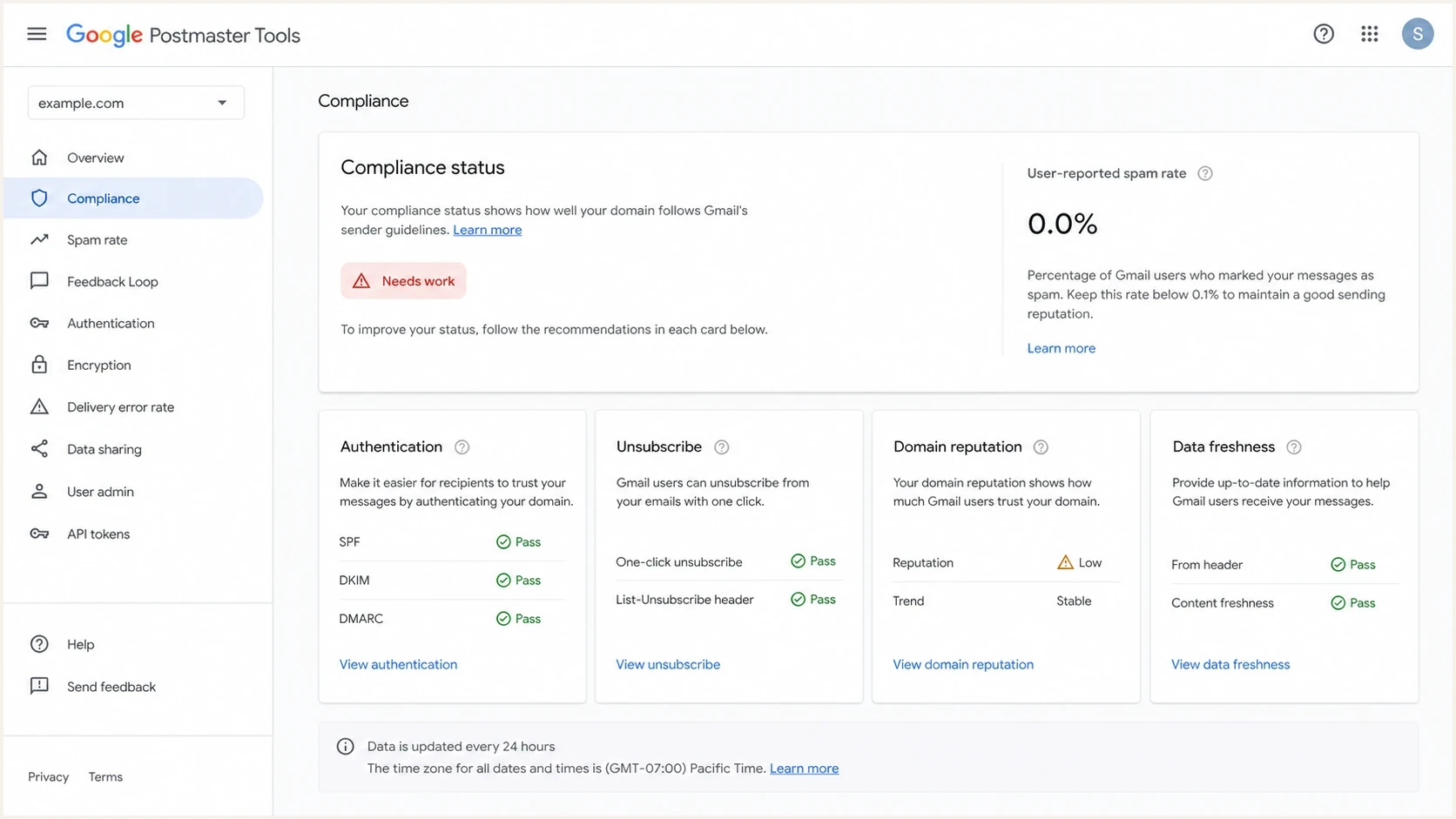
Google Postmaster Tools showing Needs work despite a 0.0% user-reported spam rate.
This is why the screen can look contradictory. If the newest visible point is 0.0%, but recent eligible days reached 0.3% or higher, the compliance status can stay in Needs work while the rolling average recovers. The values can also differ because the Compliance status and Spam Rate dashboards do not use identical datasets.
|
|
|
|---|---|---|
Data delay | The latest data has not finished updating. | Check the UTC date and allow at least 24 hours. |
Rolling average | Older complaint days still affect status. | Review recent days and recheck within seven days. |
Inbox-only rate | The rate reflects mail delivered to engaged recipients' inboxes. | Check Gmail placement and reputation. |
Low volume | Google lacks enough reportable data. | Compare personal Gmail send volume. |
Primary-domain scope | Subdomain mail contributes to the primary domain's status. | Use other dashboards to inspect each subdomain. |
Other requirement | Spam rate is not the failing row. | Check authentication, TLS, formatting, DNS, and unsubscribe. |
Common reasons a clean visible spam rate still has a red compliance status.
Do not clear the incident just because the visible spam-rate card says 0.0%. A 0.0% reading can mean no displayed inbox complaints, not confirmed inbox placement and not confirmed sender compliance.
- Allow for updates: Give normal dashboard data at least 24 hours and a corrected status up to seven days.
- Check every row: Authentication, DNS, formatting, TLS, and unsubscribe can keep the status red.
- Compare evidence: Use sending-platform complaints, DMARC reports, and Feedback Loop data to confirm the pattern.
The most common technical causes
A red compliance marker beside a clean complaint rate is not a reason to change DNS immediately. First separate what Google displays, what Gmail users did, and what the sender's infrastructure proves.
- Historical complaints: Google can keep the sender in Needs work after previous days reached 0.3% or higher, even after the visible chart returns to 0.0%.
- Data delay: The newest day can be incomplete. Google says dashboard data typically updates within 24 hours but can take longer.
- Inbox-only metric: The rate covers mail delivered to engaged recipients' inboxes and then marked as spam. Mail Gmail already places in spam can make the visible rate look unusually low.
- Volume thresholds: Low personal Gmail volume can suppress data for privacy. Small denominators also make single complaints create sharp spikes.
- Primary-domain scope: The compliance status is reported for the primary domain and uses data from its subdomains. Diagnose individual sending subdomains in the other Postmaster dashboards.
- Separate requirement: The sender can pass the complaint threshold and still fail SPF, DKIM, DMARC, forward or reverse DNS, TLS, message formatting, or unsubscribe requirements.
Spam-rate thresholds to keep in context
The 0.3% line matters, but compliance is safer when the rate stays below 0.1% across eligible send days.
Preferred operating range
Under 0.1%
This target leaves more room for normal complaint-rate noise.
Watch closely
0.1% to under 0.3%
Delivery can suffer before the maximum threshold is reached.
Compliance problem
0.3% or higher
This level can keep the Postmaster status in Needs work.
Possible visibility gap
0.0%
A zero can coexist with low volume, delayed data, or automatic spam placement.
What the 0% spam rate tells you
- Displayed metric: Google shows no user-reported spam for that period.
- Complaint lens: It covers Gmail user actions, not every filtering decision.
- Limited proof: It does not prove that all mail reached the inbox.
What the compliance status tells you
- Policy lens: Google sees whether the primary domain meets Gmail sender requirements.
- Time lens: It uses a rolling average over multiple days.
- Broader proof: It can fail because of authentication, transport, formatting, or unsubscribe issues.
Use Deliverability analysis before changing DNS
Postmaster Tools v2 has a Deliverability analysis diagnostic under Compliance status. Read its recommendation before changing authentication or sending volume. It can distinguish low outgoing volume, frequent delivery errors, a spam rate above Google's recommended 0.1%, weak user activity, negative user feedback, and an unmet sender requirement.
- Not enough outgoing email: Treat 0.0% as insufficient evidence until Google has enough eligible mail.
- Many delivery errors: Inspect the Delivery Errors dashboard and sending logs before focusing on complaints.
- Spam rate above 0.1%: Reduce unwanted mail even if the rate has not reached 0.3%.
- Low or negative feedback: Narrow sends to people who asked for the mail and still interact with it.
- Sender not compliant: Open the exact Needs work row and fix that requirement before waiting.
- Positive user feedback: Use it as supporting evidence, not proof that every compliance row passes.
Deliverability analysis is a triage signal. Confirm its recommendation against the individual compliance rows, recent dates, authenticated message headers, and sending logs before making a change.
How to confirm the real cause
Work through the evidence in a fixed order to avoid chasing the wrong signal. Start with Deliverability analysis, confirm whether the data is fresh, then determine whether the issue is complaints, placement, authentication, unsubscribe, delivery errors, or reputation. A live message check with an email tester is useful when the dashboard says 0.0% but Gmail placement is still unclear.
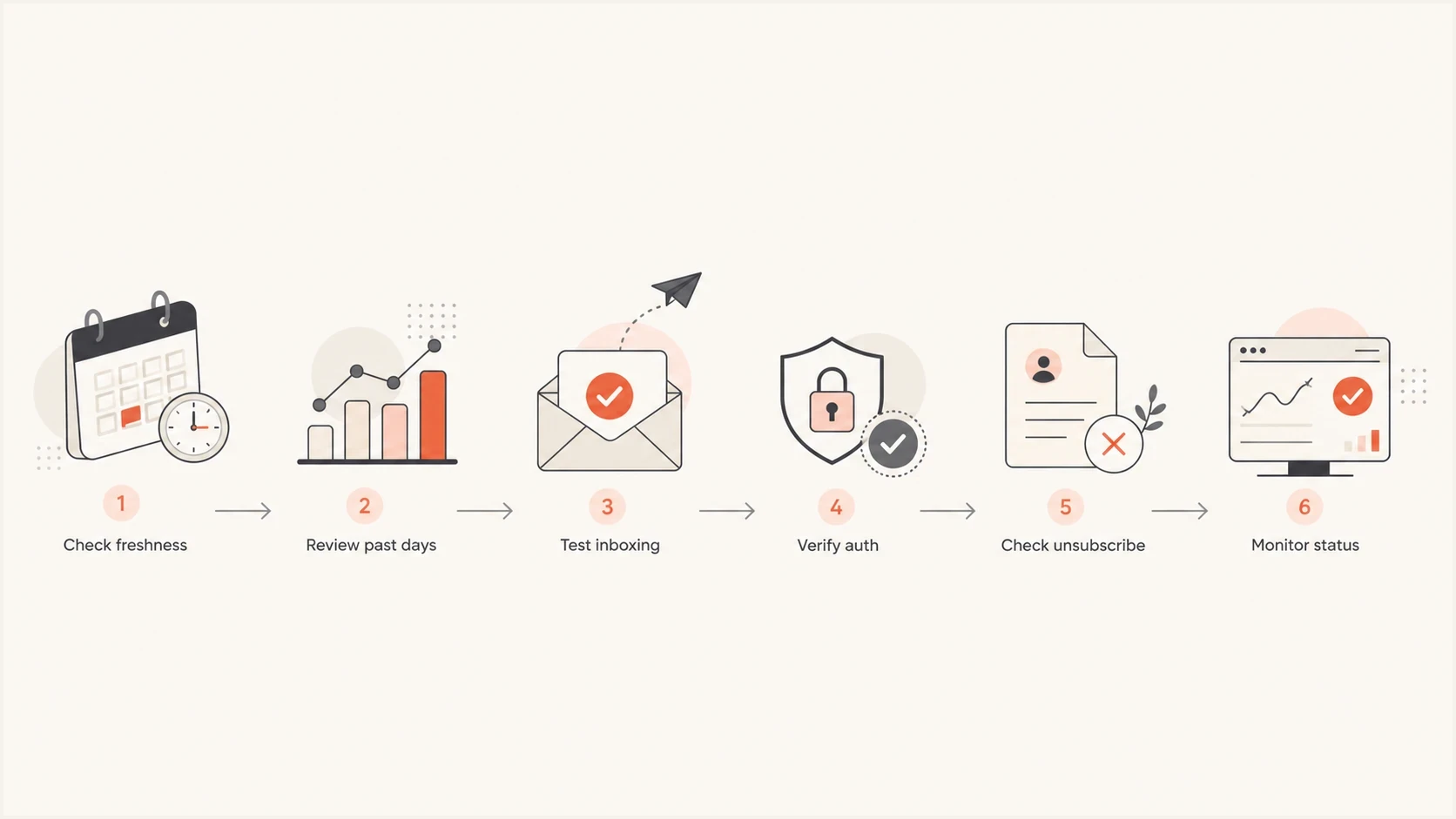
Flowchart for checking freshness, history, inboxing, authentication, unsubscribe, and status.
If the chart is clean across multiple eligible days and the status still has not changed, check the domain's authentication independently. A domain health check gives a fast view of DMARC, SPF, and DKIM records before asking the sending platform to inspect Gmail-specific logs.
- Check freshness: Postmaster Tools uses UTC. Treat the newest zero as incomplete until the date and other dashboards have updated.
- Review history: Scan recent eligible send days. Prior days at 0.3% or higher explain many red states. Use Feedback Loop identifiers to isolate campaigns when they are configured.
- Trace domain scope: Remember that compliance reports the primary domain and includes its subdomains. Use the other dashboards to inspect active sending subdomains separately.
- Test placement: Send a real message to personal Gmail and inspect headers, authentication results, and inbox placement. Low complaints do not prove good placement.
- Verify authentication: Confirm SPF, DKIM, and DMARC pass, and verify that an authenticated domain matches the visible From domain for DMARC.
- Check unsubscribe: For marketing and promotional mail, confirm one-click headers and a visible body link are present, the action works, and requests are processed within 48 hours.
Email tester
Send a real email to this address. Suped shows a results button when the test is ready.
?/43tests passed
The point is to prove the path of one real message, not only read aggregate dashboards. If a live Gmail message authenticates correctly, lands in the inbox, and the recent Postmaster trend is clean, waiting up to seven days for the compliance card to catch up is usually the right next move.
Baseline DMARC record for monitoringdns
_dmarc.example.com. 3600 IN TXT "v=DMARC1; p=none;"
"rua=mailto:dmarc@example.com; fo=1"
That example is not an enforcement policy. It is a monitoring starting point. If you already enforce quarantine or reject, keep your policy staged and make changes only after you understand which source is failing.
Where Suped fits in the workflow
Suped is our DMARC reporting and email authentication platform. In this workflow, it connects DMARC results with SPF and DKIM status, sending-source identity, issue detection, alerts, and reputation checks. That context helps identify the source behind a red compliance status when the Gmail complaint view alone is inconclusive.
Issues page showing top issues, verified sources, unverified sources, and authentication pass rates
The practical Suped workflow is to open DMARC monitoring, identify unverified or failing sources, and use the issue steps to fix SPF, DKIM, or DMARC domain-match problems. If reputation is part of the concern, blocklist monitoring adds blocklist (blacklist) context beside the authentication data.
Only using Postmaster Tools
- Gmail-specific data: It shows Gmail complaint, reputation, compliance, and delivery-error signals.
- Limited source detail: It does not identify every sending source behind an authentication failure.
- Manual follow-up: You still need to confirm DNS, headers, and sending-source data.
Using Suped alongside it
- Source clarity: Suped groups legitimate and unknown senders by domain.
- Issue steps: Detected problems show what needs attention and where.
- Ongoing control: Hosted DMARC, hosted SPF, and alerts help reduce repeat surprises.
For MSPs and teams managing many domains, the multi-tenant view is useful. One primary domain can show a 0.0% Gmail complaint rate while a sending subdomain has a broken DKIM domain match or an unknown source. A shared view makes the source easier to identify before the next compliance check.
What to do if everything looks clean
If the complaint chart is 0.0%, sending-platform complaint data is low, authentication passes, one-click unsubscribe is present, requests are honored within 48 hours, and Gmail placement is healthy, treat the red card as delayed or historical. Document the evidence before closing the issue.
A clean investigation has multiple eligible days below 0.1%, no recent day at 0.3% or higher, authenticated test messages, stable domain reputation, and no unsubscribe or source-identity problem.
- Record evidence: Save the UTC dates, complaint rates, sent volume, and test-message results.
- Watch the status: Allow up to seven days after the fix for Needs work to change.
- Avoid sudden swings: Do not increase Gmail volume aggressively while the compliance card is red.
If the chart itself keeps producing confusing zeros, spikes, or missing days, read the issue as a data-interpretation problem first. The same pattern appears in other Postmaster questions, including inaccurate spam rates and compliance thresholds. Those are related, but the fix still starts with proving the actual sending path.
If the evidence is not clean, fix the failing source before waiting for Google. Common fixes include DKIM signing for the right domain, SPF authentication through the correct return-path domain, a valid DMARC record, working unsubscribe headers, timely unsubscribe processing, and safer segmentation for Gmail recipients who asked for the mail.
Views from the trenches
Best practices
Review a rolling window, not one visible zero, before deciding the issue has cleared.
Compare Postmaster data with sending-platform complaints and DMARC reports before changing.
Use subdomain dashboards for diagnosis because compliance reports the primary domain.
Common pitfalls
Treating 0.0% as proof of inbox placement hides spam-folder delivery problems in Gmail.
Resetting policies after one red mark can create noise without fixing the underlying cause.
Ignoring low-volume days makes delayed or missing Postmaster data look like failure.
Expert tips
Check several recent send dates before asking a sending platform to investigate Gmail.
Use live-message tests to confirm placement when complaint data is blank or unusually low.
Track authentication, unsubscribe, delivery errors, and reputation for each Gmail domain.
Marketer from Email Geeks says a visible 0.0% often means the latest Postmaster day has not fully updated, so the status still follows older complaint history.
2025-05-14 - Email Geeks
Marketer from Email Geeks says the compliance card uses a rolling window, so a corrected sender can wait several days before the status changes.
2025-05-14 - Email Geeks
The practical takeaway
A 0% user-reported spam rate and a non-compliant Google Postmaster Tools status can both be true. The Spam Rate card is one visible metric. The compliance status uses a broader set of requirements and a rolling multi-day view.
Start with Deliverability analysis, check the UTC data date, review recent days, test a live Gmail message, verify the exact compliance rows, confirm unsubscribe processing, and inspect reputation. If those checks are clean, allow up to seven days for the status to change. Fix any failed source before waiting.
For ongoing control, Suped combines DMARC aggregate reporting with authentication issue detection, source identification, alerts, and blocklist (blacklist) monitoring. That context makes the next red card easier to explain.




