Why did Gmail mark an internal email as potentially dangerous?

Published 12 Aug 2025
Updated 12 Aug 2026
14 min read
Summarize with
Updated on 12 Aug 2026: We added a security-first check for compromised accounts and clarified what Gmail's logs and authentication results can actually prove.
Gmail marked the internal email as potentially dangerous because its safety classifier saw risk in that specific message. It usually does not mean the sender suddenly has a bad reputation, and it does not mean one subject-line word tripped a fixed spam-word rule. Gmail can add a warning when the links, requested action, subject, body, recipient pattern, attachment handling, authentication result, user feedback, or Google Workspace security settings look similar to abuse it has seen before.
The key detail in this case is that the message still landed in the inbox. Treat that as a security warning first and a spam-placement issue second. The fastest path is to preserve the message, verify the sender through another channel if the request is unusual, check the original headers, search the Google Workspace email log, and compare the message with nearby normal emails before deciding whether it was a false positive or a real security problem.
The direct answer
There is no single most likely technical cause that can be proven without the message and admin evidence, and Google does not publish the scoring behind each warning. A normal internal Gmail message can still look suspicious when it includes an unexpected link, asks for money or sensitive information, uses wording common in phishing, arrives through an unusual route, or goes to recipients who do not normally receive that type of message. The same sender can send another email five minutes later and see no warning because Gmail evaluates the whole message and its context, not the mailbox alone.
- Classifier uncertainty: Gmail can add a safety banner when the message falls into a risk band, even when it remains in the inbox.
- Links and requests: An unfamiliar destination, disguised link, credential request, payment request, or unusual reply instruction deserves priority over copy tweaks.
- Message-specific content: A sales-style subject, lead language, compliance terms, or urgent internal phrasing can contribute to a one-off warning.
- Internal delivery: Google Workspace internal mail still goes through safety checks. Being inside the same company does not bypass scam or phishing detection.
- Feedback and policy: User reports provide feedback to Gmail, while Workspace safety rules can separately change how messages are handled.
Do not reduce the answer to one word in the subject line. Gmail does not use a simple public banned-word list. Words still matter as part of the complete message, but links, sender context, authentication, routing, and recipient behavior can matter too.
- Useful question: What combination of content, links, headers, and routing made this message different?
- Weak question: Which single word caused the warning?
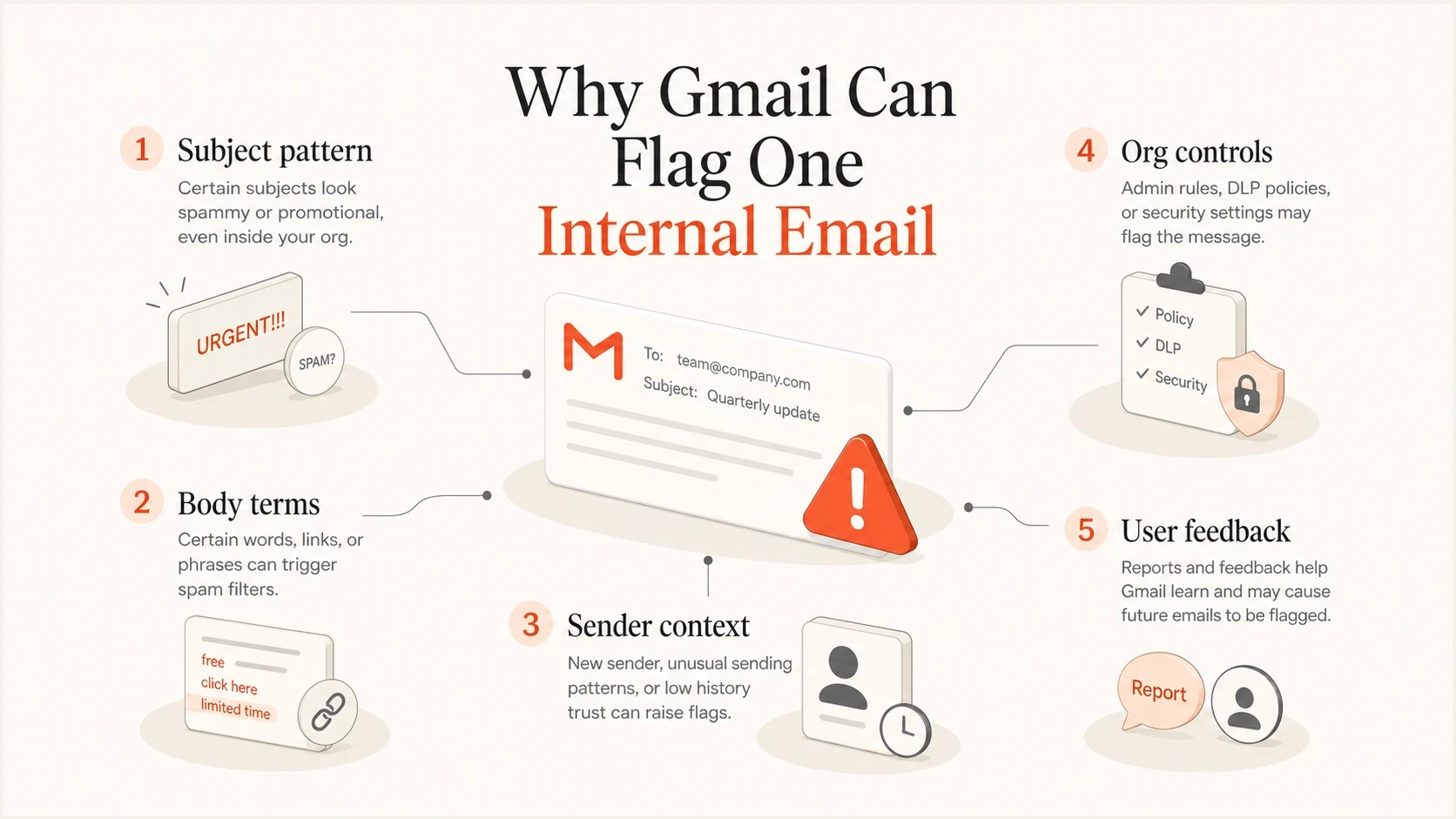
Five signals that can make one internal Gmail message look risky.
Rule out account compromise and unsafe links first
A familiar display name or valid authentication does not prove that the person intended to send the message. A compromised Google Workspace account can send mail that passes SPF, DKIM, and DMARC. If the email asks for credentials, money, personal information, an urgent download, or an unusual business action, treat the warning as genuine until the sender and request are verified.
- Verify out of band: Contact the sender by phone, chat, or another known channel. Do not reply to the warned message to confirm it.
- Inspect without opening: Check the displayed sender, Reply-To, actual link destination, and attachment name. Do not click or download while the message remains unverified.
- Audit the account: An admin should review recent sign-ins, active sessions, forwarding rules, mail delegates, filters, and connected app access for changes the sender does not recognize.
- Contain confirmed misuse: Suspend access if needed, reset credentials, revoke active sessions and unauthorized app tokens, remove hostile forwarding rules, and preserve audit evidence.
- Report the right outcome: Report a real suspicious message through Gmail. Use Looks safe only after the sender, request, links, and account activity have been verified.
SPF, DKIM, and DMARC validate domain authorization. They do not prove that the mailbox owner wrote the message or that every link is safe. Authentication passes and a dangerous-message warning can both be correct.
Why this differs from spam placement
A Gmail warning banner and spam-folder placement are related, but they are not the same verdict. Spam placement describes where Gmail files the message. A dangerous-message warning describes a security concern and can appear on an inboxed or spammed message; Google can also reject mail it considers suspicious. For this inboxed case, start with link and request safety, authentication, routing, and Workspace policy. For a broader spam-placement issue, examine reputation, recipient feedback, and sending patterns as well.
Spam placement
The message gets moved to spam or rejected before the recipient works with it. This points to broader sender trust or policy enforcement.
- Main signal: Sender reputation, recipient engagement, authentication, and volume pattern.
- First check: Review headers, bounce data, spam placement rate, and recent sending changes.
Safety banner
The message carries a visible warning before the reader trusts its request, links, or attachments. This points to message-level risk or a policy flag.
- Main signal: Classifier risk, suspicious links or wording, account context, user feedback, and security settings.
- First check: Verify the request, open the original message, inspect authentication results, and search the Workspace log.
How to classify the event
Use the delivery result and the visible warning to decide where to investigate first.
Normal
Low risk
Inbox delivery with no warning
Warned
Review
Inbox delivery with a safety banner
Spam
Investigate
Filed into spam or junk
Rejected
Critical
Blocked before inbox delivery
For the internal-email case, inbox delivery with a warning often points to a false positive or a content and policy combination. It still requires a proper check because internal phishing, compromised accounts, unsafe links, and misconfigured routing can produce the same visible symptom.
What to check in Gmail and Google Workspace
The cleanest investigation starts with evidence that does not change when someone clicks "Looks safe". That feedback action can affect the visible warning for the user, but it does not rewrite the original authentication headers. Preserve the message, capture the Message-ID, and ask a Workspace admin to search the exact event. Email Log Search can show delivery status, route details, and available rule information, but it does not reveal the private classifier score or every signal behind the banner.
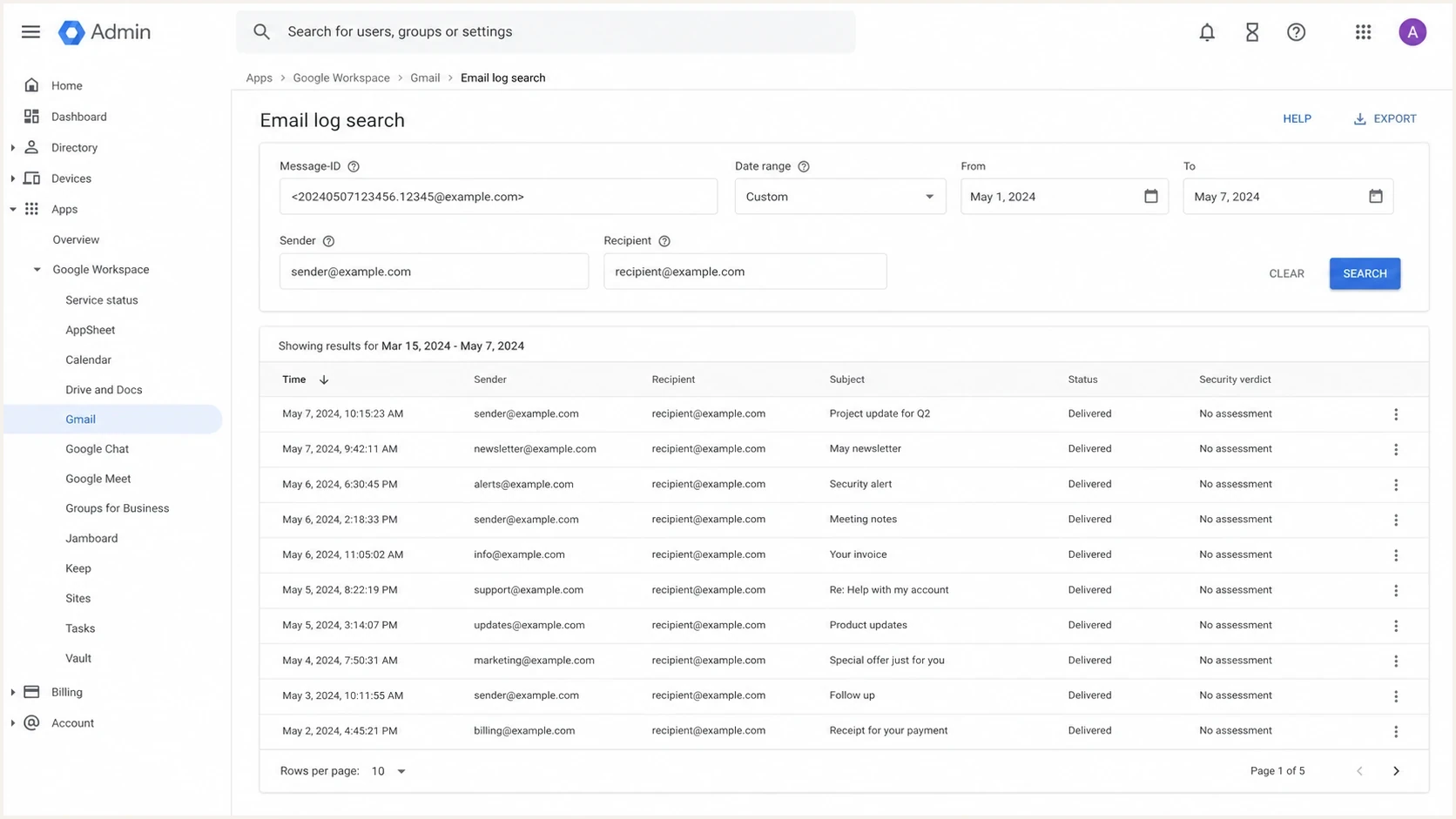
Google Admin console Email Log Search with message and security details.
- Save the original: In Gmail, use Show original or download the raw message before forwarding screenshots around.
- Check authentication: Confirm SPF, DKIM, DMARC, and visible From-domain matching. A pass result does not prove safety, but a fail result gives you a concrete route or authorization issue.
- Search the log: Use the Message-ID in Google Workspace Email Log Search so IT can review delivery status, the route, and any available matched-rule details. Do not expect it to name the exact classifier feature that caused the banner.
- Compare nearby mail: Look at other messages from the same sender on the same day. If only one message is warned, compare its links, request, copy, attachments, route, and recipients.
- Review safety rules: Check phishing, attachment, spoofing, and allowlist settings in Google Workspace before changing any policy.
- Record the outcome: Document whether the evidence points to account misuse, authentication, content, routing, user feedback, a Workspace rule, or an unexplained false positive.
Header fields to inspecttext
Authentication-Results: mx.google.com;
  spf=pass smtp.mailfrom=example.com;
  dkim=pass header.d=example.com;
  dmarc=pass (p=none) header.from=example.com
Message-ID: <message-id@example.com>
Received: from mail.example.com by mx.google.com
For an external comparison, send a controlled copy through the email tester and compare what authenticates, what renders, and which security checks fail. That will not reproduce every Gmail Workspace decision, but it gives you a clean baseline outside the original mailbox.
Email tester
Send a real email to this address. Suped shows a results button when the test is ready.
?/43tests passed
If the baseline test is clean, the raw headers authenticate, and the Workspace evidence shows no route or rule problem, classify the event as an unexplained false positive after verifying the sender and request. If the evidence shows a specific issue, fix that issue instead of rewriting subject lines blindly.
Authentication and reputation still matter
Even when the warning looks content-driven, authentication is still one of the first checks. Native messages sent directly between users in the same Google Workspace domain do not follow the same inbound route as mail entering Google from another server. Focus SPF, DKIM, DMARC, reverse DNS, and sender authorization checks on messages that enter or re-enter through a relay, connector, group, CRM route, helpdesk route, or other sending service.
Example DMARC record for report collectiondns
v=DMARC1; p=none; rua=mailto:dmarc-reports@example.com
Suped's product helps when the issue extends beyond one message by grouping aggregate reports by sending source, showing SPF and DKIM results, identifying DMARC domain-matching failures, and alerting the team when a route starts failing. Use DMARC monitoring to inventory legitimate senders and separate a recurring authentication problem from a message-specific Gmail warning.
DMARC record detail view showing SPF, DKIM, DMARC, rDNS diagnostics, and DNS records
For a quick DNS-level check, use the domain health checker to confirm the domain is not carrying obvious authentication debt. If warnings appear alongside external delivery trouble, add blocklist monitoring because a blocklist or blacklist listing changes the reputation investigation.
|
|
|
|---|---|---|
SPF fail | The sending IP is not authorized for the envelope-sender domain. | Authorize the sending service or correct its envelope sender. |
DKIM fail | The signature is missing, invalid, or broken after signing. | Fix the selector, published key, signing service, or modifying relay. |
DMARC fail | Neither the SPF nor DKIM identity matches the visible From domain. | Correct DKIM signing or the SPF envelope domain so one path matches. |
Policy hit | A Google Workspace routing or safety rule matched the message. | Identify the exact rule and narrow it only when the security tradeoff is acceptable. |
Blocklist or blacklist | An external sending IP or domain has a reputation listing. | Find the sending source, stop the cause, and follow the listing's remediation process. |
Signals worth checking before blaming the subject line.
How to isolate the cause without guessing
The common mistake is rewriting the email based on instinct. A better investigation changes one variable at a time after the sender and request have been verified. For an internal Gmail warning, use a small test matrix and keep the original message unchanged as the reference point.
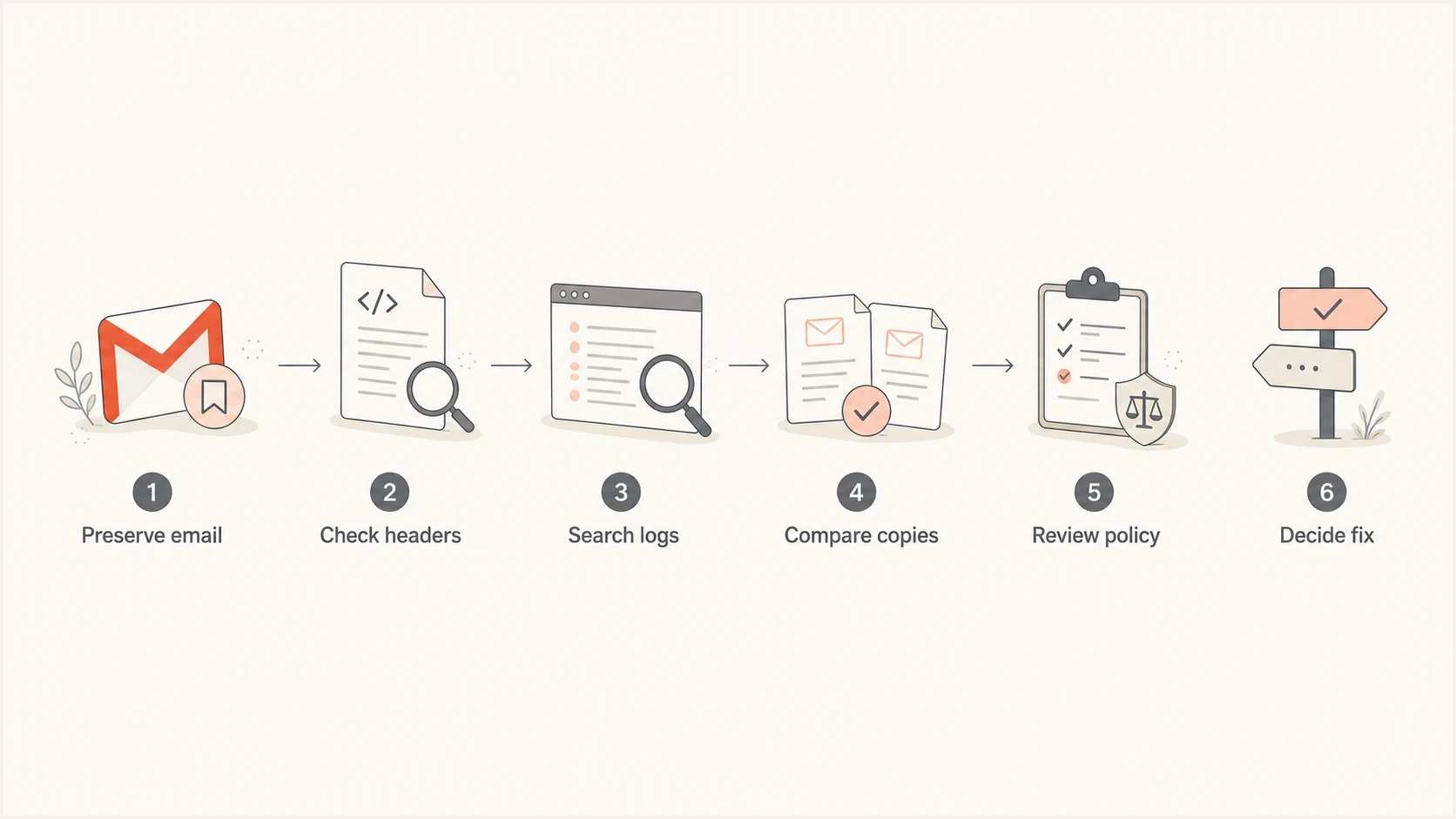
A six-step workflow for investigating a Gmail internal warning.
- Clone the message: Send the same content to one controlled recipient from the same mailbox and record whether the banner appears.
- Remove the image: Send the same text without the signature logo or embedded image to test whether attachment handling contributed.
- Change the subject: Keep the body identical and rewrite only the subject. If the banner disappears, the subject contributed to the result but is not proven to be the only cause.
- Change the body: Keep the subject identical and remove compliance or lead-list wording. That isolates body-language risk.
- Change recipients: Send to one colleague instead of a group. A sudden group send can look less normal than a one-to-one note.
Do not allowlist the sender just to make the banner disappear. That can hide useful warnings for a compromised mailbox later. Google also states that suspicious mail can still be rejected or sent to spam even when the sender is allowlisted.
- Safer fix: Correct the authentication, routing, account, or policy issue supported by evidence.
- Riskier fix: Bypass safety checks broadly for a person, group, or internal route.
If the warning cannot be reproduced, keep the log notes and close the incident after the security checks are clean. A single ambiguous classifier verdict is not worth a company-wide policy change. If it repeats, investigate the pattern using timestamps, senders, subjects, recipient groups, raw headers, and message links.
How to respond when the sender is internal
Internal senders need a practical explanation, not a lecture about forbidden words. Explain that Gmail found enough risk in this message to warn readers. Verify the sender and request first, then check headers and logs before making a narrow fix. For recurring cases, the same investigation pattern helps reduce Gmail security warnings without weakening mailbox protection.
- For the sender: Ask whether they sent the message, recognize its links, and intended the request before discussing copy changes.
- For IT: Use the Workspace log, raw headers, and account audit evidence before changing rules.
- For marketing: Explain that sales and compliance language can be legitimate and still resemble risky mail in a classifier.
- For executives: Report the cause category, the evidence checked, and the narrow action taken. Avoid turning one banner into a broad policy change.
Weak response
- Blame words: Assume one phrase caused the warning and rewrite future mail around myths.
- Bypass checks: Allowlist the sender before checking the request, logs, headers, or account activity.
- Ignore evidence: Treat inbox delivery as proof that the banner had no technical or security cause.
Better response
- Check facts: Verify the sender and review original headers, account activity, and the Workspace event.
- Test one change: Vary subject, body, image, and recipients separately after security checks are clean.
- Fix narrowly: Change only the account, authentication, routing, content, or policy issue supported by evidence.
That approach gives the sender a specific explanation, keeps useful security controls in place, and prevents an unverified message from being dismissed as a false positive.
Views from the trenches
Best practices
Preserve the raw email before testing changes so headers and verdict data stay intact.
Use Workspace email logs to separate false positives from real policy or route issues.
Change one variable at a time when testing subject, body, image, and recipient effects.
Keep broad allowlists out of the first response unless the log evidence justifies them.
Common pitfalls
Blaming one trigger word hides routing, authentication, and policy causes that matter.
Clicking safe before capturing details can make the visible symptom harder to discuss.
Assuming internal mail is exempt from Gmail safety checks leads teams to miss warnings.
Treating one odd banner as a domain reputation crisis wastes time and creates noise.
Expert tips
Look for the reason category first, then decide whether copy, DNS, or policy needs work.
If only one message is affected, compare it with clean messages from the same sender.
Use DMARC reports to catch forgotten senders before they create confusing header data.
Explain the result in cause categories so non-technical teams do not chase word myths.
Marketer from Email Geeks says an inboxed message with a warning should be treated as a safety classification event first, not a normal spam-folder problem.
2023-10-04 - Email Geeks
Marketer from Email Geeks says Workspace admins should search the email log because delivery and route evidence can help separate a false positive from an actionable issue.
2023-10-04 - Email Geeks
The practical takeaway
Gmail flagged the internal email because the message looked risky enough to warn readers. First verify that the sender intended the message and that its request and links are safe. Then use raw headers and Google Workspace evidence to check authentication, routing, account activity, and policy. Google does not expose the exact classifier score, so an unexplained false positive remains a valid conclusion after those checks are clean.
- If the account was misused: Contain the account, revoke unauthorized access, preserve evidence, and report the suspicious message.
- If authentication failed: Fix SPF, DKIM, DMARC domain matching, routing, or sender authorization before changing copy.
- If policy fired: Adjust only the narrow Workspace rule supported by evidence, and document the security tradeoff.
- If content contributed: Change one element at a time so the message reads like expected internal communication.
- If it repeats: Track the affected messages and monitor sending sources so recurring DNS or route failures stay visible.
A single internal Gmail warning is not proof of a broken domain. It is a prompt to verify the sender, request, links, and message path. Once those checks are clean, use the narrowest supported fix or record the event as a false positive.




