Why are WordPress emails being blocked by Outlook, especially for the same domain?

Published 9 Jun 2025
Updated 12 Aug 2026
12 min read
Summarize with

Updated on 12 Aug 2026: We updated this guide with clearer sender identity checks, Microsoft tracing steps, WordPress form-header guidance, and current Outlook.com authentication requirements.
The direct answer is this: Outlook is usually not blocking WordPress because it is WordPress. It is rejecting, quarantining, or hiding the message because your website is sending mail as your domain through a route Microsoft does not trust for that domain.
That same-domain detail matters. If your site sends a contact form notification from info@yourdomain.com to an Outlook mailbox also hosted at yourdomain.com, Microsoft 365 sees an outside system claiming to be an internal sender. If SPF, DKIM, DMARC, or the Microsoft 365 security policy does not support that route, the message gets treated like spoofing, even when it reaches Gmail or other recipients.
First confirm which service hosts the mailbox. Outlook is also a mail client, so a mailbox opened in Outlook might be hosted by Microsoft 365, Outlook.com, or another service. Microsoft 365 message trace applies only to Exchange Online mail flow. For that route, send a real WordPress test email through the email tester, then compare the result with your SMTP provider logs and Microsoft 365 message trace.
The direct answer
For WordPress emails going to Outlook, especially to a mailbox on the same domain, the most common causes are specific and testable. The email is sent through the WordPress web host instead of an authenticated SMTP route. The SMTP setup uses a separate relay, but the domain DNS is incomplete. The visible From domain does not match the authenticated DKIM domain. Microsoft 365 quarantine or anti-spoof policy catches the message after receipt. The sending provider can also suppress the recipient before handing the message to Microsoft.
Most likely cause
When only the Outlook mailbox for the same domain has the problem, check for an anti-spoof or quarantine decision inside Microsoft 365, including any reseller security layer in front of Microsoft 365. If the provider says delivered but Microsoft trace has no matching receive event, check provider suppression and the WordPress routing configuration.
- Same-domain spoofing: The message claims to come from your own domain but enters from outside Microsoft 365.
- Authentication gap: SPF passes for one sender, but DKIM or DMARC does not show a matching domain.
- Quarantine rule: The message is accepted and then moved into quarantine, junk, or a hosted security console.
- Provider suppression: The SMTP service records an internal success event, but the final handoff never reaches Microsoft.
Do not rely on a WordPress plugin test button alone. A plugin test often proves that WordPress can connect to SMTP, not that the exact production notification has the same From address, Return-Path, DKIM signature, template content, recipient, and route.
Why same-domain messages look suspicious
A same-domain WordPress notification is easy to misread. The user expects a message sent to their own domain to be trusted. Microsoft reads it differently. It sees a message arriving from the public internet with a From address that belongs to the Microsoft 365 tenant. That is how many spoofing attempts appear.
Normal internal mail
- The message starts inside Microsoft 365 and stays on the expected mail route.
- The From domain, authenticated sender, and tenant context match.
- Microsoft has tenant signals that support the sender identity.
WordPress self-mail
- The message starts on WordPress, a web host, or a separate SMTP service.
- The From domain is local, but the sending IP is external.
- Microsoft applies spoof, quarantine, and content checks.
This is why a simple mailbox allow rule often fails. If a hosted security layer quarantines the message before the mailbox rule runs, the mailbox rule never sees it. If DMARC fails, an allow rule can reduce filtering in one place but leave the underlying identity problem untouched.
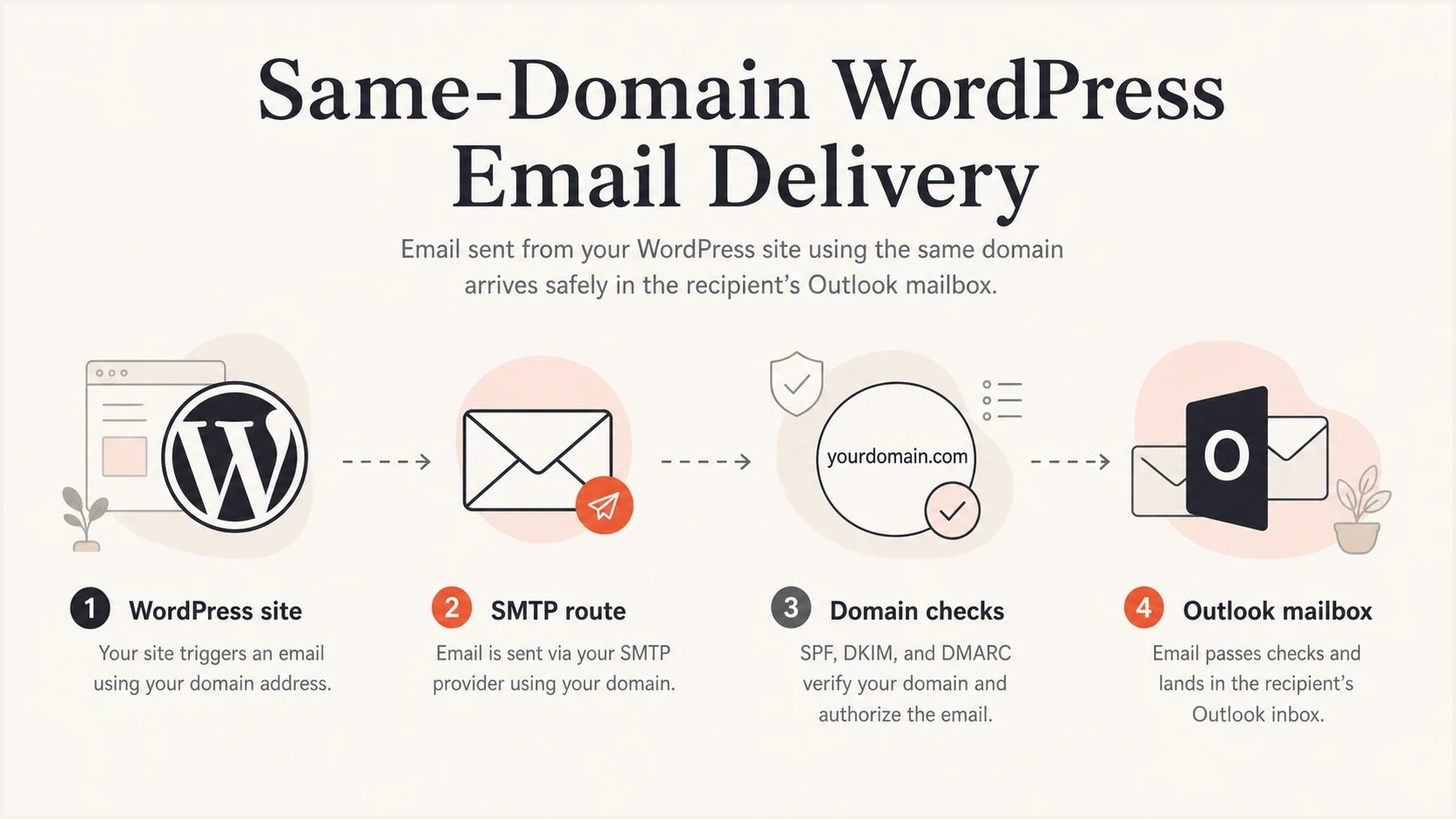
Same-domain WordPress mail passes through SMTP and domain checks before Outlook delivery.
How to prove where the message stopped
The fastest way to solve this is to split the route into four checkpoints: WordPress generated the message, the SMTP provider accepted it, Microsoft 365 received it, and the final mailbox accepted it. One missing checkpoint changes the fix.
|
|
|
|---|---|---|
Provider shows delivered | Provider-side event | SMTP response |
Trace has no result | No Microsoft receive event | Route and suppression logs |
Trace shows delivered | Accepted, then acted on | Event details and quarantine |
DMARC fails | Authenticated domain mismatch | Headers and DNS |
Message reaches junk | Accepted, then filtered | Headers and trace events |
Use the symptom to choose the next check.
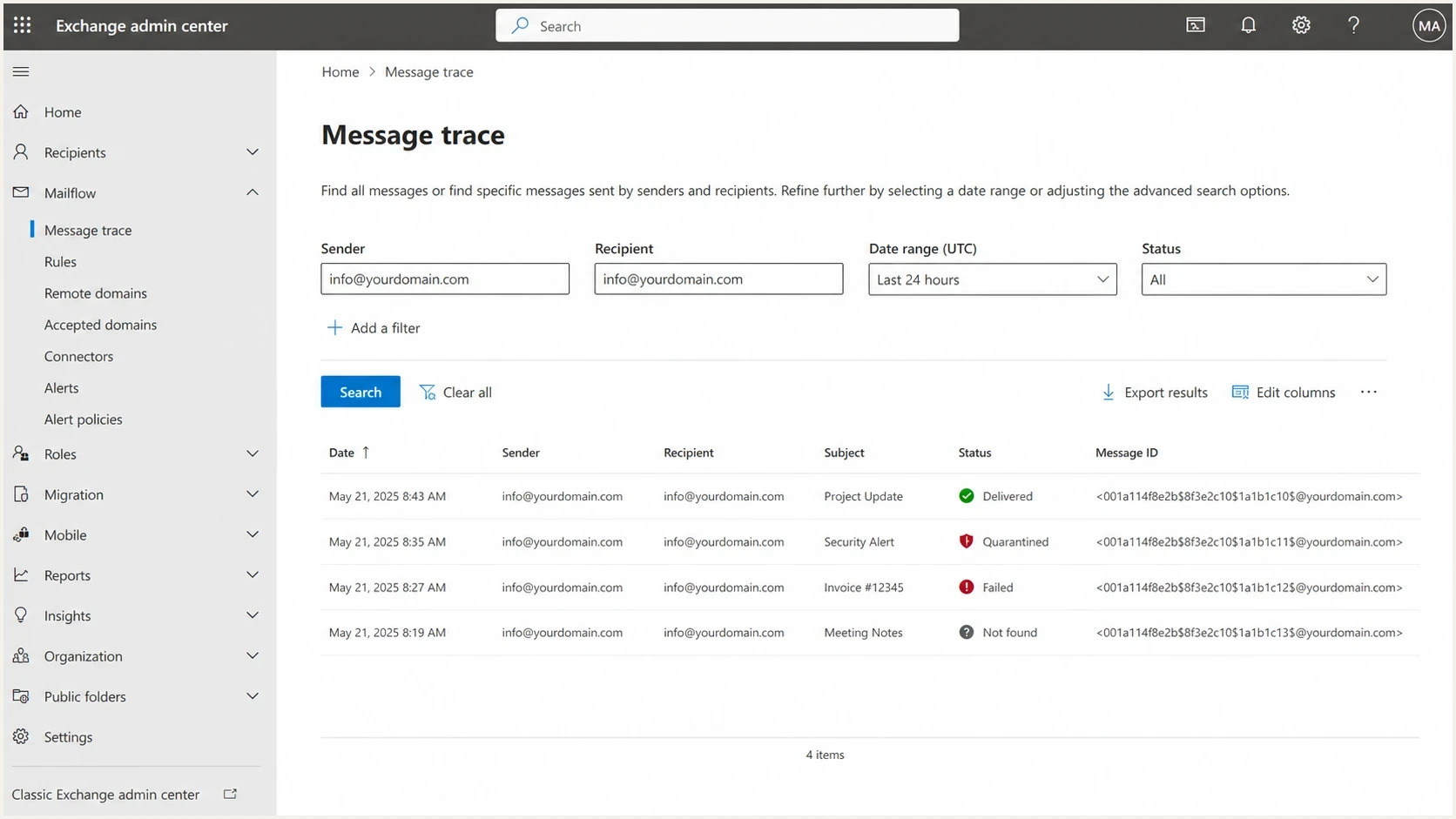
Microsoft Exchange admin center message trace showing delivery and quarantine statuses.
If Microsoft trace shows delivered, open the event details before assuming inbox placement. Microsoft can use Delivered when anti-spam processing sends a message to junk or quarantine. Also check moderation, mail flow rules, user inbox rules, blocked senders, and any security console attached to the mailbox. For Microsoft 365 bought through a reseller, that console is sometimes separate from the normal mailbox settings.
If Microsoft trace has no matching receive event, ask the sending provider for the exact delivery transcript or suppression reason. A dashboard status of delivered does not prove Microsoft accepted the message. Request the recipient, timestamp, message ID, sending IP, envelope sender, and final SMTP response. A 250 response from a Microsoft recipient server proves acceptance, while the trace event details show what Microsoft did next.
Email tester
Send a real email to this address. Suped shows a results button when the test is ready.
?/43tests passed
What to fix first
Fix this in a strict order because random allow rules make the evidence harder to read. The goal is to make WordPress mail look like legitimate mail for your domain, then confirm Microsoft receives and places it correctly.
- Confirm whether WordPress uses PHP mail, an authenticated SMTP plugin, an API, or another relay.
- Set the From address to a mailbox or sender identity that the sending provider has verified for your domain.
- Publish the DKIM records required by the provider that sends the WordPress message.
- Authorize every legitimate sender in one SPF record and keep SPF within the 10 DNS-lookup limit.
- Confirm the visible From domain matches either the DKIM signing domain or the SPF-authenticated envelope domain.
- Run message trace, then inspect event details, quarantine, anti-spoof policies, the Tenant Allow/Block List, spoof intelligence, mail flow rules, junk settings, and reseller security controls.
- Trigger the same WordPress workflow again and compare its headers, provider logs, and Microsoft trace.
A basic DMARC record is better than no DMARC record because it starts producing aggregate reports. Use a monitoring address that is reviewed or a reporting platform that parses the data.
Starter DMARC recordDNS
_dmarc.yourdomain.com TXT "v=DMARC1; p=none; rua=mailto:dmarc@yourdomain.com"
Do not fix this with SPF alone
SPF checks the envelope sender, not always the visible From address that users see. If DKIM is missing and DMARC cannot prove a matching domain, Outlook still has a reason to distrust the message.
- Publish one SPF TXT record for the domain, not several competing SPF records.
- Configure the WordPress sending provider to sign the message with your domain using DKIM.
- Use DMARC aggregate reports to check WordPress, Microsoft 365, and every other legitimate sender.
- SPF evaluation permits no more than 10 DNS-querying mechanisms; exceeding the limit returns permerror.
If you are unsure whether the domain has clean SPF, DKIM, and DMARC records, run a domain health checker check before changing more mailbox rules.
Set From and Reply-To correctly
Contact forms often copy the visitor's email address into the visible From field. That makes WordPress send as a domain the site does not control, so the SMTP provider can reject the message or DMARC can fail. Some WordPress messages also fall back to wordpress@yourdomain.com when no sender has been set. Use a stable, verified address on your sending domain or subdomain instead.
- Set From to a verified site address such as forms@yourdomain.com.
- Put the visitor's address in Reply-To so a mailbox reply still reaches the visitor.
- Let the authenticated sending service set the Return-Path unless its setup requires a verified custom return-path domain.
- Keep the Outlook mailbox in To, even when From and To use the same organizational domain.
After changing these fields, trigger the real form or transaction. Confirm that From contains the verified site identity, Reply-To contains the intended reply address, and Authentication-Results shows a DMARC pass. A generic plugin test can miss template-level header overrides.
How Suped fits into the workflow
Suped is this site's DMARC reporting and email authentication product. Its role in this workflow is to identify each sender using the domain, show authentication failures, provide record-level fixes, and alert when a failure rate changes. That evidence helps separate a WordPress sender-identity problem from a Microsoft mailbox-policy decision.

Issue steps to fix dialog showing the issue overview, tailored fix steps, and verification action
Add the domain, collect DMARC reports, locate the WordPress sending source, then fix the DNS record or sender setup behind the failed domain match. Hosted SPF is useful when legitimate senders push the domain toward the SPF lookup limit. Hosted DMARC supports policy changes without repeated DNS edits, while hosted MTA-STS publishes the inbound TLS policy through managed records.
For agencies and managed service providers, Suped's MSP and multi-tenancy dashboard separates client domains, sources, alerts, and reports. This makes it easier to check whether the same WordPress configuration error is recurring across client sites without mixing client data.
Use DMARC monitoring to compare passing and failing senders. Use blocklist monitoring when Outlook failures coincide with sender IP or domain reputation changes on a blocklist (blacklist).
When the provider says delivered
A delivered status in an SMTP provider dashboard is useful, but its meaning depends on that provider. Treat it as a provider-side event until the delivery transcript shows the recipient server and SMTP response. A provider can accept the message from WordPress before a later suppression, routing exception, or remote-server rejection.
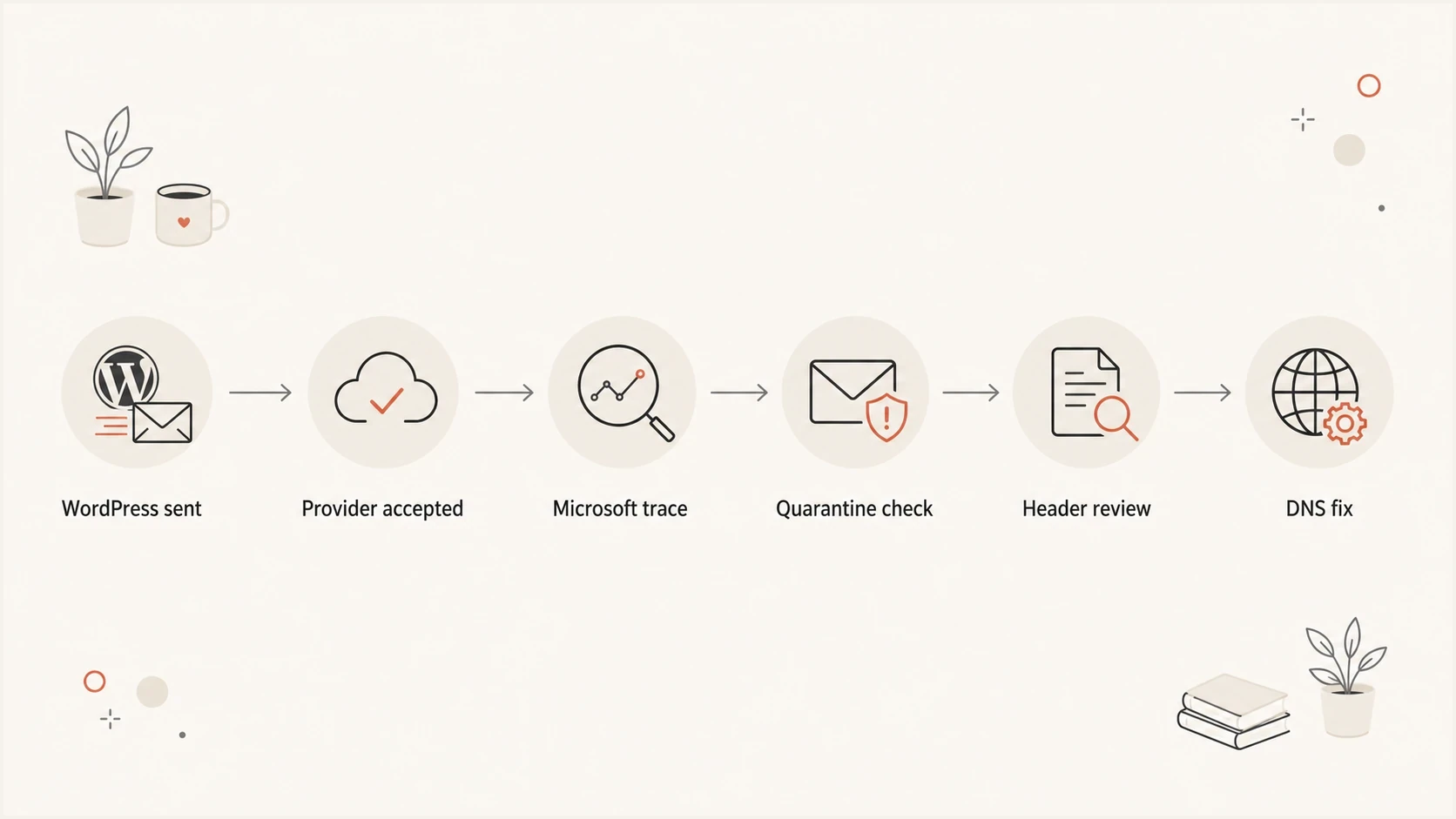
Troubleshooting path for WordPress email delivery to Outlook.
Ask the provider for the exact SMTP response. If Microsoft accepted the message, the transcript should identify a Microsoft recipient server and show its 250 response. If the provider cannot show that handoff, focus on provider-side suppression, template rejection, recipient status, a WordPress account mismatch, or an unverified sender identity.
If Microsoft accepted it, check message trace event details and quarantine next. Trace can show Delivered even when anti-spam processing sends the message to junk or quarantine. Check tenant quarantine, moderation, anti-spoof policy, the Tenant Allow/Block List, spoof intelligence, mail flow rules, inbox rules, blocked senders, and any reseller security console attached to the mailbox. Use a safe-sender entry only as a temporary diagnostic step, not as a substitute for authentication.
A clean test pattern
- Trigger the real contact form, reset email, invoice, or order notification.
- Test the exact Outlook mailbox that misses the message.
- Compare WordPress logs, provider logs, and message trace within the same minute.
- Confirm the production From address and Return-Path match the tested sender setup.
If this is part of a broader Microsoft filtering problem, compare the case with other Outlook deliverability issues so you can separate WordPress-specific routing from Microsoft-wide reputation or content filtering.
Views from the trenches
Best practices
Keep WordPress mail on an authenticated SMTP route, not the default web host mailer.
Review Microsoft 365 trace data before changing DNS, filters, or mailbox delivery rules.
Use DMARC reports to confirm the real sender path before enforcing stricter policy.
Common pitfalls
Treating a provider's delivered status as proof that Outlook placed email in the inbox.
Adding allow rules before confirming SPF, DKIM, DMARC, and sender-domain match results.
Missing reseller security layers that quarantine self-sent WordPress notifications silently.
Expert tips
Compare plugin logs, provider logs, and message trace for the same timestamp and recipient.
Set a stable Return-Path so bounce handling does not hide real delivery failures.
Move to a stricter DMARC policy only after every WordPress sender is accounted for.
Marketer from Email Geeks says an SMTP plugin should use an external authenticated relay because web host IP reputation often causes Outlook delivery problems.
2023-10-01 - Email Geeks
Marketer from Email Geeks says no bounce usually means the message was not refused at SMTP time, so message trace and quarantine need review.
2023-10-01 - Email Geeks
The practical fix
WordPress emails get blocked or quarantined by Outlook for the same domain because Microsoft sees an external system sending as a local domain. Use authenticated SMTP, verify the sender domain with SPF and DKIM, monitor DMARC, check Microsoft 365 message trace, and inspect quarantine or reseller security controls.
When the problem appears suddenly, look for a policy, routing, or reputation change before assuming WordPress broke. The useful evidence is a matching chain of WordPress logs, the provider handoff, Microsoft trace events, and final mailbox placement.
Suped keeps DMARC, SPF, DKIM, hosted SPF, hosted DMARC, MTA-STS, alerts, blocklist (blacklist) checks, and sender issue detection in one workflow. Use the DMARC source data to catch a WordPress sender or DNS change before it causes the same Outlook failure again.




