Why are test emails with TEST in the subject line going to the spam folder in Outlook?

Updated on 30 Jul 2026: We updated this guide with current Outlook authentication enforcement, clearer header checks, and a way to rule out mailbox or gateway filtering.
Test emails with TEST in the subject line can go to the spam folder in Outlook when the artificial prefix adds to the message's content profile and sending pattern. If controlled tests repeatedly reach the inbox when TEST is removed, the prefix is contributing to the spam decision.
That does not mean the word TEST is a universal spam trigger. Outlook does not work from one public list of forbidden words. It combines content, sender reputation, authentication, recipient history, sending patterns, and tenant policy. A subject that once passed can fail after filtering models change or after repeated test messages develop an unusual pattern.
The practical fix is to stop using TEST as a subject prefix for mailbox placement testing. Use the real campaign subject, send to a controlled seed list, inspect the full message headers, and check the authentication results. Suped helps with the authentication and monitoring side of that workflow by showing DMARC, SPF, DKIM, blocklist (blacklist), and deliverability signals in one place.
- Direct answer: A repeatable subject-only test points to the TEST prefix as a negative signal.
- Fastest fix: Remove TEST from the subject and use the real subject line.
- Next check: Compare headers for the test version and the real-subject version.
- Long-term fix: Make test sends behave like production sends, with proper authentication and normal recipient context.
The short answer
Outlook can junk these emails because TEST in the subject makes the message look less like the intended email and more like a repeated system-generated probe. The all-capital word and bracketed prefix can add a formatting signal, especially when the same preview is sent several times. The message can pass SPF and DKIM, with DMARC also passing, and still go to spam because authentication proves domain authorization, not whether Outlook should place the message in the inbox.
The strongest diagnostic clue is simple: if [TEST] This week's top news goes to junk, but This week's top news reaches the inbox in repeated controlled tests, the subject prefix is part of the problem. That result does not prove the subject is the only factor, but it is enough to change the testing process.
Do not confuse a preview test with a placement test
A preview test checks rendering, copy, links, personalization, and layout. A placement test checks inbox versus junk behavior. Adding TEST to the subject changes the message, so it weakens the value of any placement result.
Separate the workflows. For internal previews, label the send inside the email platform or in an internal-only body note. For inbox placement checks, send the exact production subject, body, links, sending domain, tracking domain, and From address.
If the message still lands in junk after removing TEST, move to headers and authentication. Use the email tester to send a real message and inspect the result, then compare it with the full headers from the Outlook junked copy.
Why Outlook reacts to TEST subjects
Outlook and Microsoft 365 filtering is not a static keyword checker. It uses message-level signals, sender and recipient history, behavioral analysis, and authentication. A subject prefix such as [TEST] can become risky because it changes the message and often appears alongside repeated preview behavior.
Preview emails often create odd patterns. They go to a small number of internal recipients, repeat within minutes, and are quickly deleted or ignored. They can also contain incomplete copy, broken merge tags, placeholder images, repeated links, or test tracking parameters. A real newsletter has a different audience pattern and a subject that matches its body.
All-capital words, brackets, excessive punctuation, and a subject that does not match the body can add content risk. None is an automatic failure by itself. Outlook evaluates them with sender reputation, message history, recipient history, and Microsoft's composite authentication result.
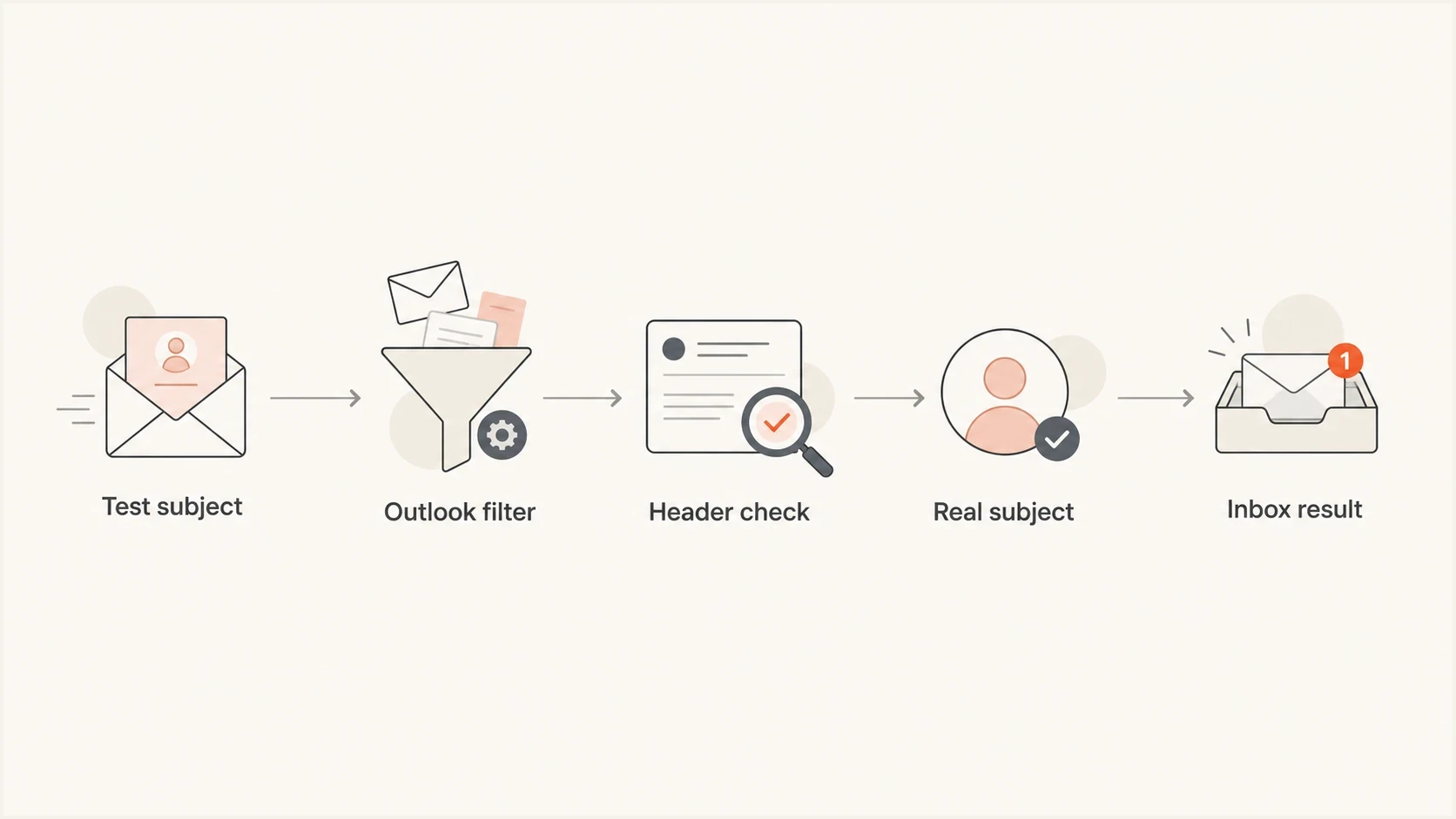
Flowchart showing a TEST subject entering Outlook filtering, then header checks and a real subject retest.
- Artificial subject: A TEST prefix does not match what subscribers normally receive.
- Repeated pattern: Similar preview messages sent close together can look automated.
- Formatting: All-capital text and brackets can add risk when other signals are weak.
- Recipient history: Internal testers often delete or ignore previews, which creates a different pattern from subscriber mail.
- Model changes: Filtering models change without a public notice for every scoring adjustment.
This is why the explanation is usually not an announced Microsoft incident. Broad delivery incidents tend to produce blocking, deferrals, or widespread acceptance problems. Spam folder placement is more often sender-specific, message-specific, tenant-specific, or mailbox-specific.
What to check first
Start by testing whether the subject prefix changes placement. Keep everything else identical, then send both variants to several controlled Outlook.com or Microsoft 365 seed mailboxes. Rotate which version goes first, wait between sends, and repeat the comparison. The only message difference should be the subject.
Bad test
- Subject uses [TEST] before the real subject.
- Content contains placeholders, draft copy, or unfinished links.
- Audience includes only internal users who delete many previews.
- The result says little about the real campaign.
Useful test
- Subject uses the exact production wording.
- Content uses final copy, final links, and the real tracking setup.
- Audience includes controlled seed mailboxes with known settings.
- The result shows how the actual message is treated.
Next, collect the full headers from the junked copy. The headers tell you what Microsoft recorded during authentication and filtering. In Outlook, open the message details and copy the full internet headers. Look for SPF, DKIM, DMARC, composite authentication, spam confidence level, bulk complaint level, and tenant policy markers.
Header fields to inspecttext
Authentication-Results:
Received-SPF:
DKIM-Signature:
ARC-Authentication-Results:
X-MS-Exchange-Organization-SCL:
X-Microsoft-Antispam:
X-Forefront-Antispam-Report:
X-MS-Exchange-Organization-BCL:
If authentication fails, fix that before blaming the subject. If authentication passes, the subject and content still matter. A passing DMARC result gives Outlook evidence that the domain owner authorized the message. It does not force inbox placement.
Email tester
Send a real email to this address. Suped shows a results button when the test is ready.
?/43tests passed
Compare more than one delivery. Send the TEST version and the real-subject version under controlled conditions, then compare headers side by side. If authentication remains the same and the test prefix repeatedly correlates with junk placement, remove the prefix from future placement tests.
How to interpret the headers
Outlook headers can look noisy, but a small set of fields matters most. Start with authentication results, Microsoft-specific verdicts, and routing. Authentication shows whether the message can make an authorized claim about the From domain. Microsoft verdicts show how Exchange Online Protection classified it.
|
|
|
|---|---|---|
SPF | IP authorization for the envelope sender | Check the MAIL FROM domain and its SPF record |
DKIM | Signature validity and signing domain | Check the selector and whether transit changed the message |
DMARC | Domain matching with the visible From address | Fix SPF or DKIM domain matching |
compauth | Microsoft's composite authentication result | Review the result and reason code |
SCL | Microsoft 365 spam confidence level | Review the filtering verdict and content |
BCL | Microsoft 365 bulk complaint level | Review the bulk policy and recipient consent, then inspect sending patterns |
SFV/CAT | Filtering verdict and classification category | Identify the policy or filter that acted |
Compact guide to common Microsoft 365 header fields
Microsoft 365 tenant mail provides the richest X-header and message-trace evidence. Outlook.com consumer mail does not always expose the same fields, so a missing SCL, BCL, SFV, or CAT value does not mean no filtering occurred.
If SPF and DKIM pass, with DMARC also passing, do not stop. The message can still be filtered because of content, sending history, link reputation, user complaints, tenant policy, or bulk classification. This is common when the only bad version is the preview with a test label.
Authentication is necessary, not sufficient
Use Suped's DMARC monitoring to confirm legitimate senders pass DMARC and to find sources with domain-matching failures. After authentication is clean, investigate content and Outlook-specific placement.
A high SCL indicates spam classification. A BCL at or above the tenant's configured threshold can trigger the policy action for bulk mail. Check SFV and CAT in the X-Forefront-Antispam-Report to see the verdict. If headers or message trace show mail flow rules, quarantine actions, or sender-list overrides, the issue is tenant or mailbox configuration rather than a universal Outlook subject rule.
Rule out mailbox and gateway rules
If the problem affects one recipient, one device, or a subject that arrives with [SPAM] added to it, identify which system moved or rewrote the message. Outlook can display the result even when a mail flow rule, security gateway, mailbox setting, desktop add-in, or local security program made the decision.
- Use Microsoft 365 message trace to confirm the server-side delivery action and route.
- Compare the same mailbox in Outlook on the web and the installed client. A client-only move points to a local rule or add-in.
- Check blocked senders, junk settings, inbox rules, and organization mail flow rules.
- If a gateway added a spam tag, inspect its headers and logs before changing the campaign subject.
A subject rewrite changes the diagnosis
A received subject such as [SPAM] Your invoice does not prove Outlook added the tag. Trace the message path and headers to find the rule or gateway that modified it.
Better ways to label test emails
The cleanest fix is to stop changing the subject for placement testing. If internal users still need a label, put the label somewhere that does not alter the subject used for the real send.
|
|
|
|---|---|---|
No label | Placement test | Best signal |
Internal preheader | Preview check | Can affect preview |
Custom QA header | Internal correlation | Can be stripped |
Test list | Team review | List must stay clean |
Test labeling options
For preview workflows, a test list is usually enough. Name the campaign or internal send in your platform UI, not in the email subject. A custom QA header can help correlate internal sends, but do not depend on it because relays can strip nonstandard headers. For placement workflows, make the message match production. Use the same From name, From domain, envelope sender, DKIM selector, tracking domain, image hosting, and unsubscribe setup.
Recommended testing pattern
- Send the internal preview with the real subject.
- Send to seed mailboxes and capture headers.
- Compare Microsoft-hosted and non-Microsoft mailbox types separately.
- Send the final message only after authentication and rendering pass.
Authentication still matters
Even when the subject line is the obvious trigger, weak authentication makes Outlook less forgiving. Microsoft mailboxes receive a heavy volume of unwanted email. If your mail stream lacks domain-matched authentication, Outlook has less evidence that a borderline message belongs to the claimed sender.
High-volume Outlook.com senders face enforcement
Outlook.com requires domains sending more than 5,000 messages per day to its consumer addresses to publish valid SPF and DKIM records, with DMARC set to at least p=none and the required domain matching. Non-compliant mail can be rejected with 550 5.7.515. Treat that rejection as an authentication problem, not evidence that TEST triggered junk placement.
Suped DMARC dashboard showing email volume, authentication health, and source breakdown
Suped separates authentication issues from content testing noise. The DMARC dashboard shows which sources send for your domain, which pass authentication, and where domain matching fails. That matters when test emails use one route and production mail uses another.
- SPF requires the sending IP to be authorized by the envelope sender domain.
- DKIM requires a valid signature and a published selector for the signing domain.
- DMARC requires SPF or DKIM to pass with domain matching to the visible From domain.
- Reputation covers the sending domain and IP history, including the domains used in links.
?
What's your domain score?
Deep-scan SPF, DKIM & DMARC records for email deliverability and security issues.
A broad domain health check is a useful first pass when several customers report Outlook junking. It helps confirm whether DNS and authentication are sound and whether a published policy needs attention before you spend hours tuning subject lines.
Suped's managed SPF and hosted DMARC reduce DNS maintenance when sending sources change. Real-time alerts surface new authentication failures, while the multi-tenant view helps agencies and MSPs see whether Outlook complaints are isolated to one client or one sender.
When the subject is not the only cause
Sometimes the TEST prefix is the visible symptom, not the full cause. If the same message with a real subject also lands in junk, widen the investigation.
|
|
|
|
|---|---|---|---|
Only the TEST version goes to junk | Message variant | Repeated subject-only tests | Use the real subject |
The real subject fails in one mailbox | Mailbox or tenant | Rules, headers, message trace, and client behavior | Check local and tenant controls |
The real subject fails across Microsoft mailboxes | Microsoft-specific placement | Authentication and Microsoft verdicts | Review headers and sender history |
The real subject fails across mailbox types | Sender-wide | Authentication, consent, reputation, and content | Widen the deliverability investigation |
Use the observed placement pattern to choose the next check
Check whether junking only affects Microsoft-hosted recipients or also affects other mailbox types. If it is limited to Microsoft, review Outlook headers and message trace, then inspect mailbox settings and Microsoft 365 tenant policies. If the issue appears across providers, inspect authentication, domain reputation, list quality, body content, and link reputation.
- Tracking links should use a consistent branded domain with a sound sending history.
- Check broken images and confirm the body matches the promise made by the subject.
- Poor consent and old addresses drive complaints that hurt later placement.
- Repeated previews to one mailbox do not resemble a normal campaign send.
- Check whether the sending IP or domain appears on a blocklist (blacklist).
If you suspect reputation issues, use Suped's blocklist monitoring alongside DMARC reporting. A blacklist listing does not automatically explain every Outlook junk placement, but it is worth checking when multiple domains or customers report the same pattern.
For a deeper Outlook-specific breakdown, the related article on Outlook junk placement covers the case where messages pass authentication but still miss the inbox.
How to fix it
The fix is mostly process. Do not wait for Microsoft to announce or reverse a filtering change. Mailbox providers adjust filters continuously, and the working answer is to make placement tests match real mail.
- Stop adding TEST or [TEST] to the subject line.
- Send the exact same email with the real production subject.
- Save full Outlook headers for both the junked and inboxed copies.
- Confirm SPF and DKIM pass, with DMARC domain matching the From address.
- Use the final body and links, plus the real assets and sending domain, for placement tests.
- Watch DMARC reports and blocklist (blacklist) status. Track Outlook complaints separately.
Do not create a filter rule to hide the issue
A safe sender rule or tenant allow rule can move your own tests to the inbox, but it does not prove that subscribers will get the campaign in the inbox. Use allow rules only for internal operations, not deliverability validation.
If customers need visible confirmation that a preview is a test, add it to the platform interface, not the mailbox subject. If the email itself needs a label, put it in a small internal-only body banner and do not use that version for placement testing.

Issue steps to fix dialog showing the issue overview, tailored fix steps, and verification action
Suped's issue view helps when the problem is not the subject alone. It can surface authentication failures, unverified sources, SPF lookup problems, DKIM gaps, and DMARC domain-matching issues with steps to fix them. That turns the investigation into a checklist instead of a guessing session.
Views from the trenches
Best practices
Compare the same email with and without the test prefix before changing other variables.
Use full Outlook headers to separate authentication failures from content filtering.
Run placement tests with final subjects, final links, and real sending infrastructure.
Common pitfalls
Treating a preview email as a reliable inbox placement test gives misleading results.
Keeping TEST in subject lines after Outlook proves the real subject reaches inbox.
Assuming a Microsoft-wide incident when only one content variant reaches junk in tests.
Expert tips
Keep internal preview labels in the platform UI instead of changing the subject.
Monitor DMARC and blocklist data before blaming a single content token or prefix.
Retest across Microsoft-hosted mailboxes because tenant policies can differ by account.
Marketer from Email Geeks says full headers from a spam-foldered copy are needed before anyone can diagnose the cause with confidence.
2023-10-24 - Email Geeks
Marketer from Email Geeks says global provider issues usually cause blocking or delivery failure, not only spam-folder placement.
2023-10-24 - Email Geeks
Use real subject lines for placement tests
If Outlook sends test emails with TEST in the subject to spam, and the same email without that prefix repeatedly reaches the inbox under controlled conditions, stop using the prefix. Use the real subject for placement testing and reserve internal labels for the platform UI or review process.
Then confirm the full headers and domain-matched authentication. Review sender reputation and blocklist (blacklist) status as separate evidence. Suped brings DMARC source data, authentication issue detection, real-time alerts, and blocklist monitoring into the same workflow, with a multi-tenant view for agencies and MSPs.




