Why are my authenticated emails to Gmail soft bouncing with a DKIM and SPF fail error?

Published 6 May 2025
Updated 12 Aug 2026
13 min read
Summarize with
Updated on 12 Aug 2026: We clarified why Gmail 550 5.7.26 is a permanent rejection and expanded the SPF, DKIM, and retry checks used to fix it.
If Gmail rejects a message with 550-5.7.26 and says DKIM checks did not pass and SPF did not pass, the direct answer is this: the specific message Gmail received did not authenticate. A 550 response is a permanent rejection, even if your sending platform labels it a soft bounce. Your domain can have valid SPF and DKIM records and the message can still fail if that sending IP is not authorized, the envelope sender is different, the DKIM selector is missing, the DKIM signature breaks in transit, or Gmail cannot read the DNS answer reliably.
Treat this as a message-level authentication problem before investigating general deliverability. The fastest path is to send the same kind of message to Suped's email tester, inspect the headers, compare the Gmail bounce IP with the authorized SPF senders, and verify the DKIM selector that appears in the failing message.
Direct answer
A Gmail DKIM and SPF fail rejection means Gmail found no passing authentication path for that message. All senders need SPF or DKIM to pass. Senders that send more than 5,000 messages per day to personal Gmail accounts need SPF and DKIM, plus DMARC with the visible From domain aligned to the passing SPF or DKIM domain.
- Message-specific: A valid domain record does not prove every sender, route, or template is using it correctly.
- Header-specific: SPF checks the envelope sender domain, not always the visible From address.
- DNS-specific: Missing, moved, slow, or malformed DNS records can make authentication fail at Gmail.
Why 550 5.7.26 is not a soft bounce
The first digit controls how the sender should handle the response. Gmail's 550 5.7.26 response is a permanent failure for that delivery attempt. A mail platform might group it under soft bounces for its own suppression logic, but blindly retrying the same unauthenticated message will not fix it.
|
|
|
|---|---|---|
550 5.7.26 | Permanent authentication rejection | Fix SPF or DKIM, then send a new message |
421 4.7.26 | Temporary rate limit for unauthenticated mail | Fix authentication and follow the retry schedule |
451 4.7.26 | Temporary authentication or DNS condition | Check DNS health and retry later |
How Gmail authentication status classes affect retries
Do not retry unchanged mail
For a 550 5.7.26 response, correct the sending route, SPF authorization, or DKIM signing first. Then create a fresh delivery attempt. Repeated delivery of the unchanged message can increase bounce volume without producing new evidence.
What Gmail is actually testing
Gmail is not asking whether your domain has any SPF or DKIM record in DNS. It is asking whether the message it received passed SPF or DKIM during that SMTP transaction. SPF checks whether the connecting IP is authorized by the envelope sender domain, often shown as Return-Path or 5321.From. DKIM checks whether a cryptographic signature in the message validates against a public key published at the selector and d= domain in the DKIM-Signature header.
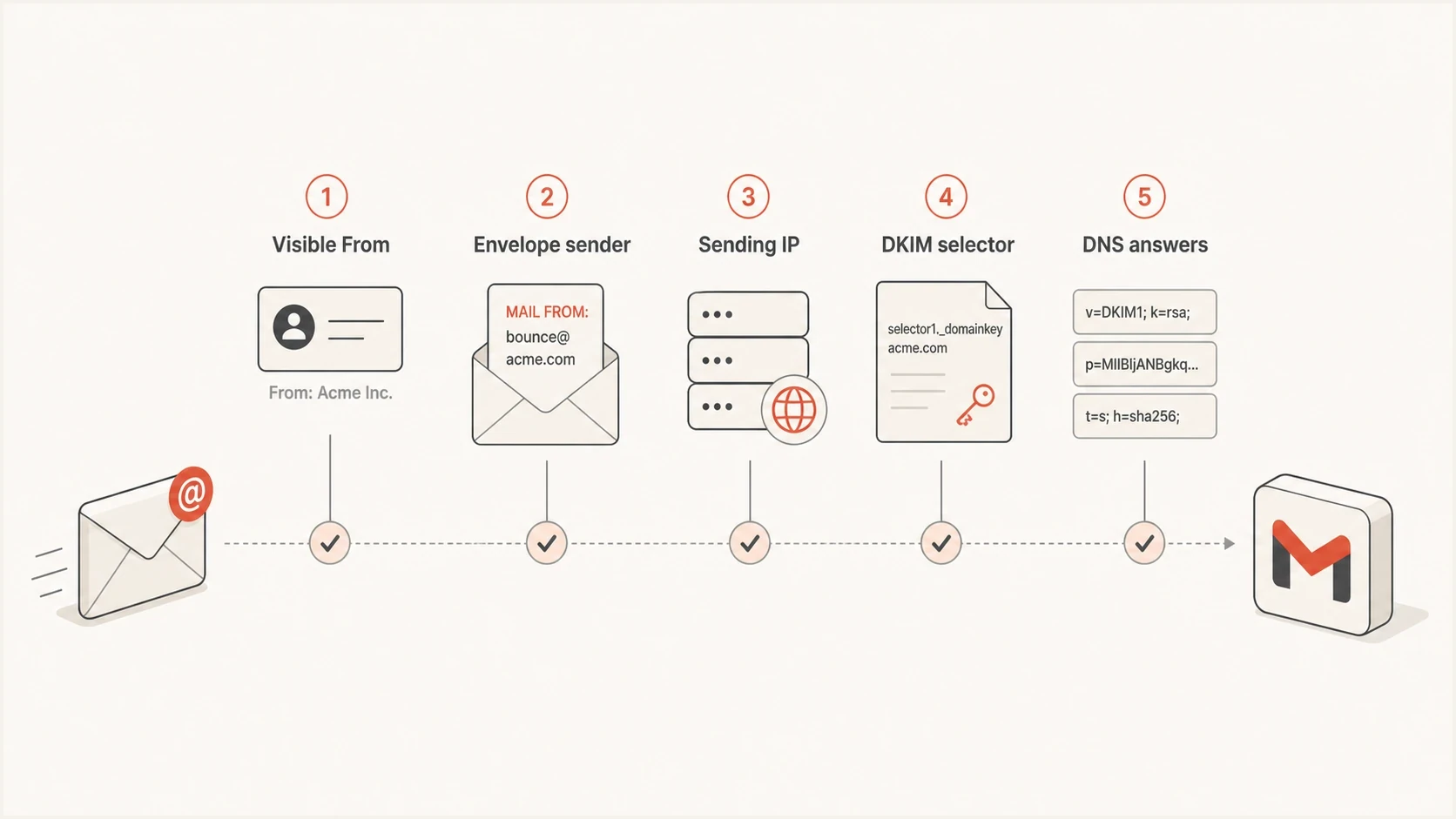
An infographic showing the five message details Gmail checks for email authentication.
That distinction explains most confusing cases. A sender says, "SPF and DKIM are set up," but Gmail says both failed. Both statements can be true if the published records are correct for one mail stream and the failing message came through another route. Header review matters because the Authentication-Results line tells you what Gmail evaluated, not what the sender thought was configured.
Typical Gmail authentication rejection
550-5.7.26 This mail is unauthenticated, which poses a security risk
550-5.7.26 to the sender and Gmail users, and has been blocked.
550-5.7.26 The sender must authenticate with at least one of SPF or DKIM.
550-5.7.26 For this message, DKIM checks did not pass and SPF check
550-5.7.26 for example.com did not pass with ip: 203.0.113.10.
The rejection text usually includes the IP Gmail checked. That IP is one of the most useful clues. If it is not an expected outbound mail server, the issue is routing. If it is expected but missing from SPF, the issue is DNS authorization. If SPF is expected to fail because the envelope sender uses a third-party domain, DKIM must carry the authentication instead.
The causes to check first
Start with the causes that explain both SPF and DKIM failing at the same time. When both fail, the message usually did not contain a usable DKIM signature and did not come through an SPF-authorized IP for the envelope sender. That points to the sending path, DNS publication, or a recent migration.
- Wrong route: The message left through a server that is not included in the envelope sender domain's SPF record.
- Wrong domain: The visible From domain is authenticated, but the envelope sender domain is different and lacks SPF authorization.
- Invalid SPF: The envelope domain publishes multiple SPF records, has malformed syntax, or exceeds the 10-lookup limit through direct and nested lookups.
- Missing selector: The message is signed, but the DKIM selector in the header has no matching public key in DNS.
- Broken signature: A footer, relay, scanner, or encoding change altered signed headers or body content after DKIM signing.
- DNS migration: SPF, DKIM, or DMARC TXT records were not copied to a new DNS host or were copied with syntax errors.
- Unstable DNS: Gmail cannot reliably retrieve the SPF or DKIM record because the DNS host times out or returns inconsistent answers.
?
What's your domain score?
Deep-scan SPF, DKIM & DMARC records for email deliverability and security issues.
A broad domain health check is useful when the rejection started after a DNS change, email platform change, or migration. It lets you check SPF, DKIM, and DMARC together before you spend time chasing content, engagement, or blocklist (blacklist) theories.
Do not stop at the DNS record
The DNS record can look correct and the live message can still fail. Always compare the failing message headers with the DNS records. DKIM is especially easy to misread because one selector can work while another selector is missing.
How to prove the failure in headers
The proof sits in the received message headers. If you only have the rejection, ask for a full copy of a similar sent message that reached any mailbox, then send a fresh test to Gmail or to a tester mailbox. You need the sending IP, the envelope sender, the DKIM selector, the DKIM d= domain, and the final Authentication-Results verdict.
Header clues to collect
Authentication-Results: mx.google.com;
  spf=fail smtp.mailfrom=bounces.example.com;
  dkim=fail header.d=example.com header.s=s1;
  dmarc=fail header.from=example.com

Return-Path: <bounce-123@bounces.example.com>
DKIM-Signature: v=1; a=rsa-sha256; d=example.com; s=s1;
What SPF needs
- Envelope domain: Use the Return-Path or SMTP mail-from domain, not the visible From address.
- Sending IP: Match the IP in the rejection to the SPF mechanism or included sender.
- One record: Publish one SPF record for the envelope domain and consolidate every authorized sender into it.
- Lookup count: Keep SPF within 10 DNS lookups, including lookups caused by nested includes.
What DKIM needs
- Signature header: The message needs a DKIM-Signature header added before final delivery.
- Public key: The selector and domain must resolve to the exact public key. Gmail requires at least 1024 bits for personal Gmail delivery and recommends 2048 bits when supported.
- Unchanged body: Content covered by the signature must not change after signing.
When the header shows SPF fail, softfail, neutral, temperror, or permerror, validate the exact envelope domain with the SPF checker. When the header shows DKIM fail or DKIM none, validate the selector with the DKIM checker. Do not check a selector you expected to use. Check the selector that appears in the live message.
Example DNS records to comparedns
bounces.example.com. TXT "v=spf1 include:send.example.net -all"

s1._domainkey.example.com. TXT "v=DKIM1; k=rsa; p=MIIBIjAN..."

_dmarc.example.com. TXT "v=DMARC1; p=none; rua=mailto:dmarc@example.com"
Fix path for Gmail 550 5.7.26
The fix is usually simple once the failing identity is known. Do not change every SPF and DKIM record at once. Change the record tied to the failing path, retest, and keep the evidence. That reduces the chance of fixing one stream and breaking another.
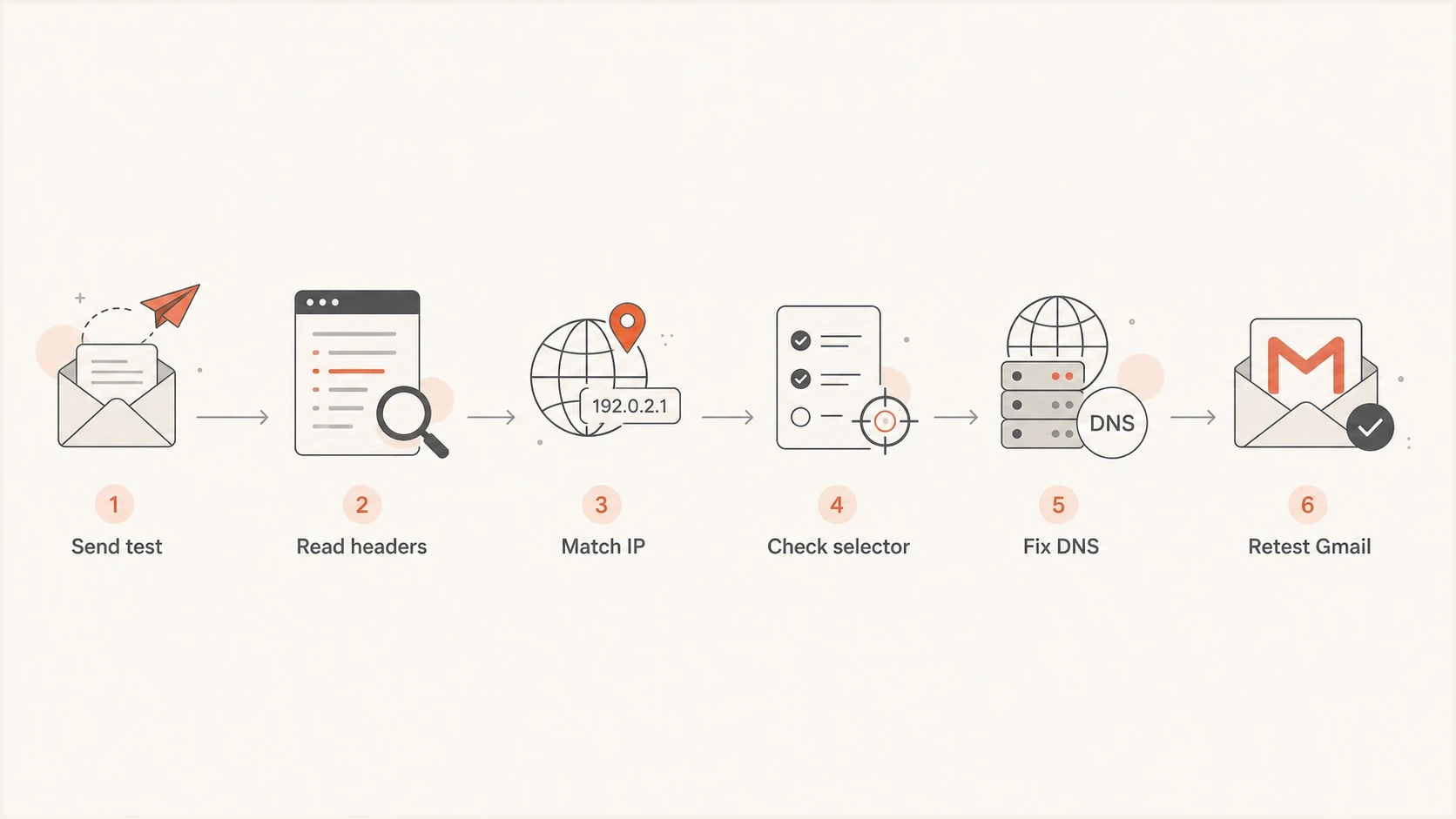
A flowchart showing how to diagnose and fix Gmail 550 5.7.26 authentication bounces.
- Capture evidence: Save the Gmail rejection, the IP in the response, and a full header sample from the same sending system.
- Confirm SPF: Check the envelope sender domain, keep one valid SPF record, and authorize the real outbound IP or included sender.
- Confirm DKIM: Find the DKIM selector in the message and publish or correct the matching public key.
- Check modification: Remove footer injection, relay rewriting, or gateway changes that happen after signing.
- Retest Gmail: After cached DNS answers expire, send a new message through the same route and inspect Gmail's result.
- Track rejections: If delivery still fails after authentication passes, move to reputation and policy checks.
If the rejection is part of a wider pattern, compare it against a broader soft bounce guide. A 550 5.7.26 response is permanent, while temporary DNS failures, connection timeouts, and rate limits use 4.x SMTP responses.
Escalate only after testing
If Gmail says neither SPF nor DKIM passed, fix your evidence first. Escalation only makes sense after you can show fresh samples where SPF or DKIM passes and Gmail still blocks the message for authentication.
When the sender really is authenticated
Sometimes the sender's control panel says authentication is complete, but the actual Gmail-bound message still fails. That usually means the control panel verified one domain, one selector, or one mail stream. Gmail evaluates the message in front of it. Those are different checks.
|
|
|
|---|---|---|
SPF fail, softfail, or neutral | IP lacks clear authorization | Check the envelope domain and sending IP |
SPF permerror | Invalid SPF record or lookup limit exceeded | Fix syntax, duplicate records, or lookup count |
SPF temperror | Temporary DNS lookup problem | Check DNS reliability and retry later |
DKIM none | No signature | Enable signing |
DKIM fail | Bad key or message change | Check the selector and signed content |
DMARC fail | No aligned passing identifier | Match the SPF or DKIM domain to From |
How to read common authentication signals
The most common mismatch is SPF passing in a vendor's setup screen but failing at Gmail because the visible From domain and the envelope sender are not the same domain. That is not always wrong. It does mean DKIM becomes the cleaner path for DMARC alignment because the DKIM d= domain can match the visible From domain even when Return-Path uses a bounce subdomain.

Issue steps to fix dialog showing the issue overview, tailored fix steps, and verification action
Suped's DMARC platform connects aggregate reports with SPF and DKIM results, sending sources, issue detection, and guided fix steps. In this workflow, use Suped to identify the source that failed, inspect the identity it used, apply the relevant fix, and confirm that later DMARC data shows recovery.
How Suped helps this workflow
- Issue detection: Suped highlights failed sources and provides concrete steps tied to the detected problem.
- Real-time alerts: Teams can investigate authentication spikes before user bounce reports become the main signal.
- Hosted SPF: Sender changes can be managed without repeated DNS edits, with controls for the SPF lookup limit.
- Unified view: DMARC results sit beside SPF, DKIM, blocklist (blacklist) monitoring, and deliverability checks.
What to check before changing DNS
Before editing DNS, verify the sending system. Teams can publish the right records and still fail because an application used a backup SMTP relay, an old integration, or a shared server that was never authorized. DNS changes only help when they match the path Gmail actually sees.
Before DNS edits
- Find source: Confirm which app, server, or vendor sent the rejected message.
- Read IP: Use the IP in the rejection instead of a guessed sender range.
- Check selector: Use the selector in the live message, not a default selector name.
After DNS edits
- Wait for TTL: Allow cached DNS answers to expire before judging the result. Depending on prior TTLs and caches, allow up to 48 hours.
- Retest path: Send through the same application and route that produced the rejection.
- Watch reports: Confirm DMARC aggregate data shows the failing source recovering.
If SPF is failing because of a forwarding path, adding the forwarder's IP to your SPF record is usually the wrong fix. SPF is tied to the envelope sender. For forwarded mail, DKIM should survive forwarding unless something modifies signed content. If it does not survive, fix the forwarding or signing behavior rather than adding random relay IPs to SPF.
Views from the trenches
Best practices
Keep one fresh header sample for each mail stream before changing DNS or sender settings.
Compare Gmail's bounce IP with the exact envelope sender domain before editing SPF.
Use DMARC reports to confirm the same source recovers after SPF or DKIM changes.
Common pitfalls
Assuming a setup screen proves the live Gmail-bound message used the same auth path.
Checking a default DKIM selector instead of the selector shown in the failed message.
Copying DNS during a migration and leaving TXT records missing, malformed, or stale.
Expert tips
Treat DKIM pass as the cleaner fix when SPF uses third-party bounce domains often.
If both SPF and DKIM fail, inspect routing before blaming Gmail or reputation first.
Do not escalate to Gmail until fresh samples show authentication passes correctly.
Marketer from Email Geeks says the bounce should be trusted as a sign that Gmail did not see a passing SPF or DKIM result for that message.
2023-05-17 - Email Geeks
Marketer from Email Geeks says the From domain is the first detail to confirm because the error points to an unauthenticated sending identity.
2023-05-17 - Email Geeks
How to confirm the fix
Send a fresh message through the same application and outbound route after the DNS or signing change. For an ordinary sender, confirm that Gmail reports SPF or DKIM as pass. For a bulk sender, confirm that SPF and DKIM pass, DMARC passes, and at least one passing domain has DMARC alignment with the visible From domain.
Keep the failed response and before-and-after header samples with the DNS change record. In Suped, compare the source's next DMARC aggregate results with its earlier failures. Recovery means the same source and identity now authenticate, not merely that a different mail stream passes.




