Why are Microsoft 365 emails being rate limited by Gmail and how can I fix it?

Published 3 Jun 2025
Updated 12 Aug 2026
13 min read
Summarize with
Updated on 12 Aug 2026: We updated this guide with Gmail's current sender requirements, Microsoft's new DKIM record format, and the correct 421 4.7.28 retry process.
Microsoft 365 emails get rate limited by Gmail when Gmail detects an unusual rate of mail associated with an IP address, IP netblock, DKIM domain, SPF domain, URL domain, or sending pattern. Read the complete SMTP response before changing DNS because the exact wording identifies the signal Gmail has limited. Then verify custom-domain DKIM, SPF, and DMARC, test a real message, and reduce sending pressure while Microsoft 365 retries deferred mail.
The common response is 421-4.7.28 and often says Gmail detected an unusual rate of unsolicited mail from a Microsoft 365 IP. The sender can still be a small business sending normal one-to-one messages because Exchange Online uses shared outbound infrastructure. Gmail also publishes variants that name a DKIM domain, SPF domain, URL domain, or repeated Message-ID, so the cited scope matters.
If custom-domain DKIM is missing, enable and verify it first. Microsoft 365 can send with Microsoft-managed default signing, but a custom DKIM signature gives Gmail an identity that matches the visible From domain. If custom DKIM already passes, do not rotate keys or rewrite SPF without evidence. Move to recipient quality, complaint signals, bursts, group sends, connectors, and the reputation scope named in the error.
What the Gmail rate limit means
A Gmail 421 rate limit is a temporary SMTP deferral. Gmail has not necessarily rejected the message permanently, and Exchange Online normally queues it for another attempt. If every retry fails until the queue expires, Microsoft 365 returns a final non-delivery report even though the original Gmail responses were temporary.
Read the signal named in the response
The IP address in a bounce is useful when Gmail names that IP or its netblock, but other 4.7.28 variants point to a DKIM domain, SPF domain, URL domain, or repeated Message-ID. Diagnose the named scope first, then check the related authentication and traffic evidence.
- IP or netblock signal: Microsoft 365 uses shared outbound pools, so one IP can carry mail for multiple tenants.
- DKIM or SPF signal: Inspect the named authentication domain and confirm it belongs to the intended sender.
- URL signal: Review linked domains, redirects, and recent template changes in the affected messages.
- Message-ID signal: Check group sends, large To, Cc, or Bcc lists, and automation that reuses one Message-ID.
This is why a small sender can still be affected. A user sending a few hundred messages from Outlook can inherit shared-infrastructure reputation or trigger Gmail through a sudden change in recipients. Missing custom DKIM weakens the domain identity, but authentication does not erase complaint history or make unwanted mail wanted.
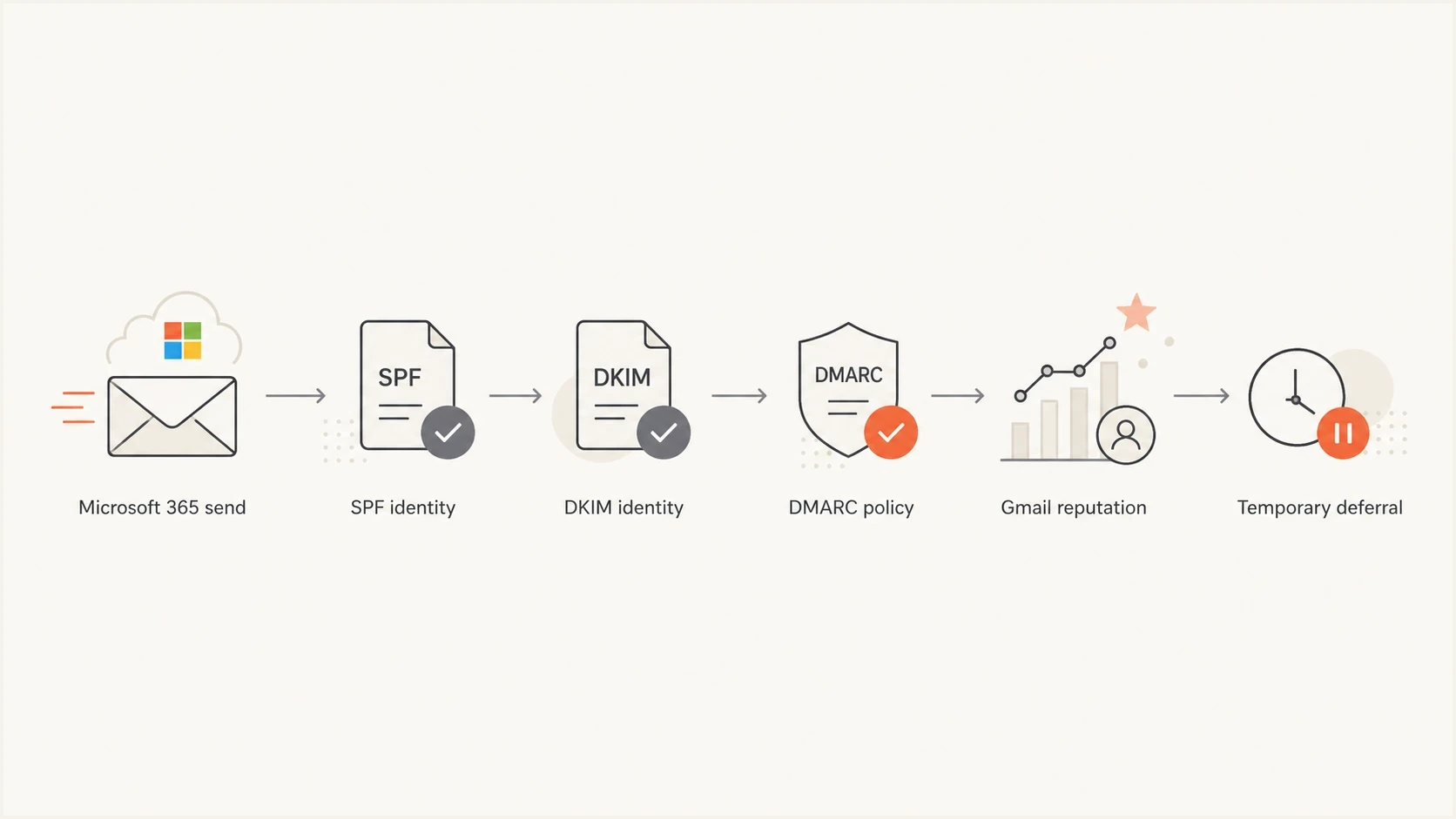
Flowchart showing Microsoft 365 authentication signals before Gmail defers mail.
Fix order for Microsoft 365 senders
Use this order to separate the scope in Gmail's error, authentication problems, and sending behavior. Preserve one complete non-delivery report before making changes so later tests can be compared with the original failure.
- Classify the response: Record whether 4.7.28 names an IP, netblock, DKIM domain, SPF domain, URL domain, or Message-ID quota.
- Enable DKIM when missing: Turn on Microsoft 365 DKIM for the real sending domain, not only the onmicrosoft.com identity.
- Check SPF: Confirm the domain has one SPF record that authorizes every real source without exceeding lookup limits.
- Add DMARC: Publish a monitoring policy, review legitimate sources, and move toward enforcement after domain matching is stable.
- Send a real test: Inspect headers for SPF, DKIM, DMARC, the signing domain, return path, Message-ID, and actual route.
- Reduce sending pressure: Pause bulk sends, old lists, mail merges, and automated reminders while deferred messages remain queued.
- Watch results: Track Gmail deferrals, DMARC source data, and blocklist (blacklist) status for the affected domains and IPs.
Microsoft 365 DKIM DNS patterndns
Host: selector1._domainkey
Type: CNAME
Value: Copy the exact selector1 target shown in Microsoft Defender

Host: selector2._domainkey
Type: CNAME
Value: Copy the exact selector2 target shown in Microsoft Defender

New-domain target pattern introduced in May 2025:
selector1-contoso-com._domainkey.contoso.<partition>-v1.dkim.mail.microsoft

Existing-domain target pattern can remain:
selector1-contoso-com._domainkey.contoso.onmicrosoft.com
Do not build the CNAME target by copying a generic example. Microsoft assigns the exact values, including a dynamic partition character for newer domains. Create both selectors, wait for DNS detection, enable signing in Microsoft Defender under Email authentication settings, and send a message to verify the Authentication-Results and DKIM-Signature headers. The DKIM d= domain should match the visible From domain for DMARC.
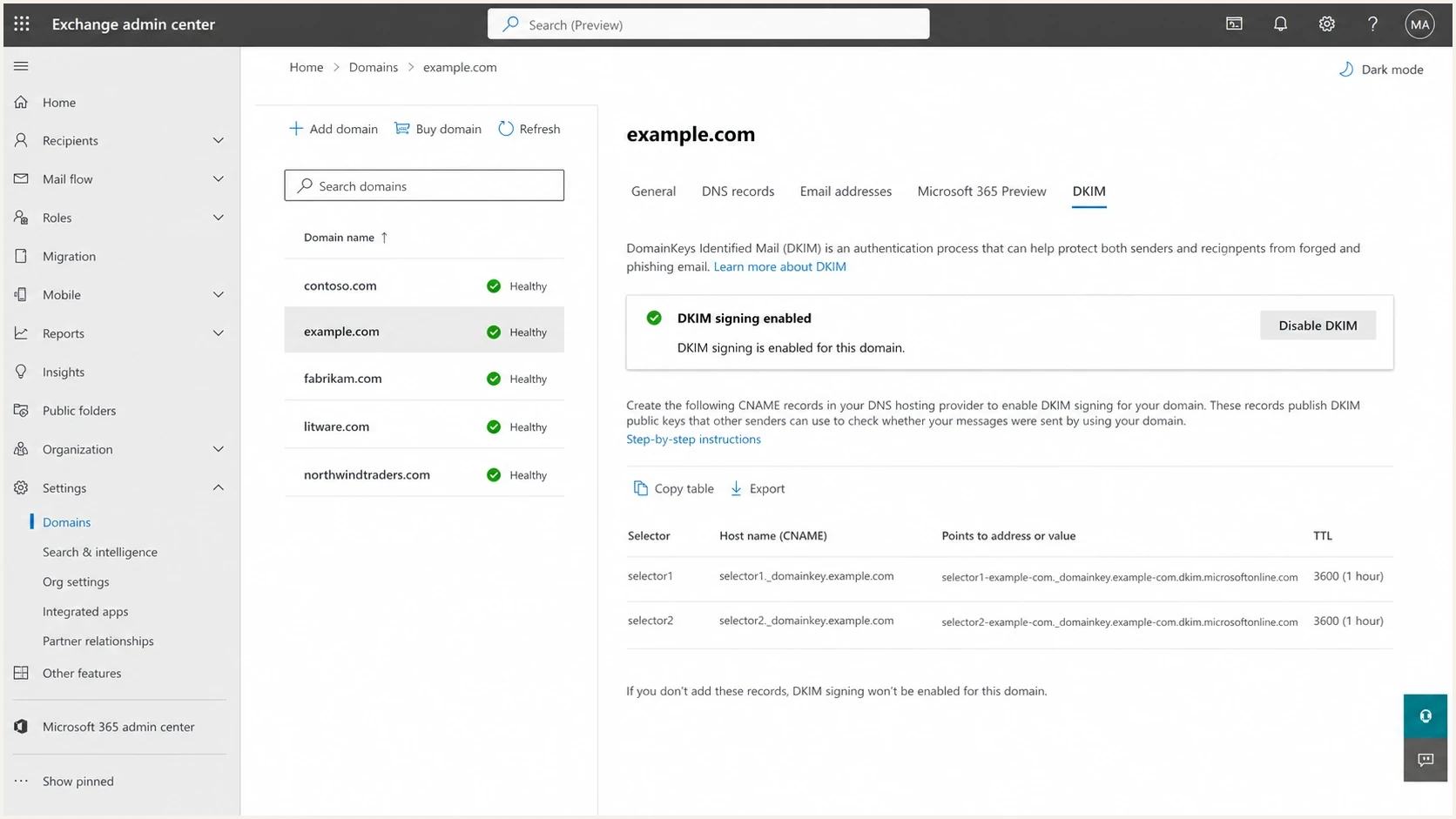
Microsoft Exchange admin center DKIM settings for a custom domain.
Why DKIM helps when SPF is not enough
SPF authenticates the envelope sender domain against the connecting IP. It does not authenticate the visible From address unless the SPF domain matches it for DMARC. DKIM adds a cryptographic signature with its own signing domain, and that signature can survive forwarding when the signed message content is not changed.
SPF-only Microsoft 365 mail
- Identity: SPF can pass while the visible From domain still lacks a matching signature.
- Route dependency: A connector or relay can change the envelope domain or connecting IP.
- Forwarding: Forwarding often breaks SPF because the forwarding server becomes the connecting IP.
Custom-domain DKIM mail
- Identity: Gmail can verify a signature tied to the sender's domain.
- DMARC match: Matching DKIM can pass DMARC when SPF is broken by forwarding.
- Reputation scope: Gmail can name the DKIM domain directly in a 4.7.28 response.
SPF remains required for bulk senders and useful for every sender. The domain must have one SPF record, and that record must authorize all real outbound sources. When Gmail rate limits Microsoft 365 mail and custom DKIM is absent, adding it fixes an identity gap. It does not reset an IP, domain, or complaint reputation by itself.
SPF and DMARC records to verifydns
example.com TXT v=spf1 include:spf.protection.outlook.com -all

_dmarc.example.com TXT v=DMARC1; p=none; rua=mailto:dmarc-reports@example.com
Checks that separate authentication from sending volume
Check whether the domain gives Gmail clean authentication before changing user behavior. A small sender with missing DKIM has a different problem from a fully authenticated sender that suddenly emailed an old Gmail-heavy list.
|
|
|
|---|---|---|
DKIM | Passes and matches | Enable custom signing |
SPF | One valid record | Correct sources or duplicates |
DMARC | Matching pass | Monitor and fix sources |
Route | Expected Exchange path | Review connectors or relays |
Volume | Steady and expected | Pause and resume slowly |
Message-ID | Unique as expected | Inspect group or automated sends |
Blocklist | No relevant listing | Find and stop the source |
Use the result column to choose the next fix.
A fast way to establish this baseline is to run the domain through a domain health checker. It cannot reveal Gmail's internal reputation decision, but it can expose authentication and DNS problems that reduce trust.
?
What's your domain score?
Deep-scan SPF, DKIM & DMARC records for email deliverability and security issues.
Then test a real outbound message instead of reading DNS alone. DNS can look correct while Microsoft 365 is not signing the message, or while a transport rule, relay, ticketing system, or scanner changes the message after signing.
For a message-level check, send one real Microsoft 365 email to an email tester and compare the result with a Gmail inbox header. Both should show the expected DKIM domain, SPF result, DMARC result, and route.
Email tester
Send a real email to this address. Suped shows a results button when the test is ready.
?/43tests passed
Meet Gmail's sender requirements
Gmail applies baseline requirements to mail sent to personal Gmail accounts. Senders that deliver more than 5,000 messages per day to personal Gmail accounts have additional requirements. The threshold counts messages to Gmail, not the sender's total daily email volume.
|
|
|
|---|---|---|
Authentication | SPF or DKIM | SPF and DKIM |
DMARC | Recommended | Required, p=none accepted |
From domain match | Recommended | SPF or DKIM domain must match |
DNS and transport | Valid forward and reverse DNS, plus TLS | Same requirement |
Spam complaints | Keep below 0.3% | Keep below 0.3% |
Subscribed mail | Clear sender and wanted mail | One-click unsubscribe for marketing mail |
Current Gmail requirements relevant to Microsoft 365 delivery.
Know which controls belong to Microsoft
For standard Exchange Online delivery, Microsoft manages the outbound IP, PTR records, forward DNS, and TLS connection. The tenant controls its custom-domain SPF, DKIM, DMARC, list practices, and outbound sources. If a connector or relay changes the route, the operator of that route must meet Gmail's IP, DNS, and TLS requirements.
Treat 0.3% as a ceiling, not a target. Google recommends keeping reported spam below 0.1% and avoiding 0.3% or higher. Authentication is necessary, but Gmail can still defer authenticated mail when recipients mark it as spam or sending volume changes abruptly.
When authentication is correct but Gmail still defers
If DKIM, SPF, and DMARC pass with matching domains, move to traffic and reputation. A sender with clean authentication can still trigger Gmail through a sudden burst to dormant recipients, high unknown-user rates, complaints, group sends, or content and links unrelated to the recipient relationship.
Back off after a 4.7.28 response
Google's sender guidance says to stop sending for at least 10 minutes, identify the cause, then retry through one connection. If that attempt fails, wait another 10 minutes. If it succeeds, add connections one at a time. Microsoft controls Exchange Online's outbound connections, so tenant administrators should pause nonessential automation and let the service retry queued mail instead of generating duplicate sends.
Resume nonessential Gmail-heavy sends only after the SMTP error rate falls. Keep normal business mail measured, but pause newsletters, cold outreach, mail merges, and automation that repeats attempts to the same recipient base. A new send does not replace a message that Exchange Online has already queued for retry.
- Use recent recipients: Resume with Gmail recipients who recently engaged or replied, not an old contact list.
- Clean lists: Suppress stale addresses, role accounts, hard bounces, and recipients without valid consent.
- Control retries: Do not create new copies while earlier Gmail deliveries remain deferred.
- Separate mail: Keep transactional mail apart from marketing and sales outreach where the sending setup allows it.
- Check listings: Review domain and IP blocklist or blacklist status, then stop the source behind a relevant listing.
If Gmail names a Microsoft shared IP or netblock, no tenant DNS change can reset that IP reputation. Keep the domain's authentication clean, reduce risky traffic, and collect evidence for Microsoft if normal mail continues to expire.
How Suped fits into the fix
Suped is our DMARC and email authentication platform. For this problem, Suped can show whether Microsoft 365 mail passes DMARC through matching SPF or DKIM domains, identify other services using the domain, and track authentication changes while Gmail deferrals recover. Gmail's private reputation decision remains outside DMARC reports.

Issue steps to fix dialog showing the issue overview, tailored fix steps, and verification action
The practical Suped workflow is to add the domain, confirm Microsoft 365 as an authorized source, verify that its DKIM domain matches the From domain, and investigate mail that fails or comes from unknown sources. Issue detection can flag missing DKIM, SPF lookup problems, suspicious sources, and DMARC policy gaps. Blocklist (blacklist) monitoring provides a separate check when the bounce names an IP or domain reputation problem.
A one-time DNS check helps, but DMARC monitoring shows whether legitimate sources keep matching the From domain after the fix. Compare that evidence with the SMTP response because DMARC data does not report Gmail's queue state, complaint rate, or internal reputation.
What to monitor after the fix
- DKIM pass rate: Microsoft 365 should sign normal outbound mail with the custom domain.
- DMARC domain match: Legitimate mail should pass through SPF or DKIM with a matching domain.
- Unknown sources: Anything using the domain without authorization needs removal or correct authentication.
- Gmail trend: Record new 4.7.28 responses by the IP, domain, URL, or Message-ID scope they name.
Escalation data to collect
If Gmail continues to defer mail after authentication and sending changes, collect evidence before opening a Microsoft support case. A complete sample with headers, timestamps, IPs, and authentication results lets support trace the Microsoft outbound route and compare it with Gmail's stated scope.
- Bounce text: Save every line of the SMTP response, especially the 421 4.7.28 text and named scope.
- Message headers: Capture Authentication-Results, DKIM-Signature, Return-Path, Received, and Message-ID.
- Tenant detail: List the sending domain, affected users, approximate volume, and first failure time.
- Change log: Record recent DNS edits, new sending sources, list imports, migrations, and outbound connectors.
- Recipient pattern: Show whether failures affect all Gmail recipients, new recipients, group messages, or one campaign.
If the error matches Gmail's 421 rate limiting pattern, Exchange Online retries the temporary deferral. Escalate when ordinary one-to-one mail keeps expiring after the named issue, authentication, and sending behavior have been checked.
Views from the trenches
Best practices
Enable DKIM on the real sending domain before changing volume limits or retry behavior.
Check SPF, DKIM, and DMARC on a real outbound message, not only in public DNS alone.
Pause Gmail-heavy bulk sends while reputation recovers and queued retries drain cleanly.
Common pitfalls
Treating the Microsoft 365 IP in the bounce as the only cause delays the real fix.
Leaving mail signed by shared defaults makes Gmail group senders by weaker identifiers.
Assuming small daily volume is safe ignores old lists, sudden bursts, and bad forwarding paths.
Expert tips
Compare the DKIM d value, SPF return-path, and visible From domain in the same header.
Watch IPv6 paths separately because Gmail can apply stricter handling to those routes.
Use DMARC reports to identify every source sending as the domain before enforcing policy.
Marketer from Email Geeks says the Gmail 421 4.7.28 error can appear even when a Microsoft 365 sender has modest volume, so the first pass should check authentication rather than blame only the user.
2024-01-12 - Email Geeks
Expert from Email Geeks says Gmail sometimes describes an IP reputation issue when the weaker signal is actually tied to the DKIM domain or SPF identity behind the mail.
2024-01-13 - Email Geeks
How to prevent repeat Gmail deferrals
Make Microsoft 365 mail authenticate as the sending domain, meet Gmail's sender requirements, and keep traffic steady and wanted. Verify custom-domain DKIM, one complete SPF record, DMARC domain matching, and real-message headers. Then remove stale recipients and prevent automation from creating bursts or duplicate retries.
When Gmail names a Microsoft shared IP or netblock and normal mail still expires, collect the full evidence and escalate through Microsoft support. Domain authentication gives support clean evidence and helps Gmail distinguish the sender, but Microsoft must investigate problems in Microsoft-managed outbound infrastructure.
Short version
Read the complete 4.7.28 response, fix the signal it names, verify SPF, DKIM, and DMARC on a real message, pause nonessential sending for at least 10 minutes, and avoid creating new copies of queued mail.




