Why are images not loading in iCloud mail?

Published 11 May 2025
Updated 9 Aug 2026
15 min read
Summarize with
Updated on 9 Aug 2026: We added current Apple Mail privacy steps and tightened sender-side image hosting diagnostics.
Images are not loading in iCloud Mail because the remote image request is failing somewhere between the Mail app or iCloud.com, Apple's privacy infrastructure, and the server that hosts the image. The email can still be delivered correctly while images show as blank spaces, broken icons, or blue question marks. This makes it an email rendering and asset-access problem first, not proof of a sender reputation or inbox placement problem.
Common causes include remote-content settings, a private image fetch that cannot complete, network filtering, stale cached content, blocked or slow image hosting, expired signed image URLs, HTTPS or certificate problems, hotlink protection, oversized assets, and CDN rules that reject Apple traffic. Mail Privacy Protection normally downloads remote content privately. When that private path fails, Mail can show an Unable to load remote content privately notice instead of loading the images automatically.
- Direct answer: The email is often delivered, but Apple or the recipient's client cannot retrieve or render the remote image file.
- Fast recipient check: Tap Load Content if Mail shows a privacy warning, then compare another network.
- Fast sender check: Open the exact delivered image URL in a private browser window and inspect it with an email tester.
- Scope check: Compare iPhone, Mac, and iCloud.com before changing the email template.
Why iCloud Mail handles remote images differently
iCloud Mail and Apple Mail do not always load remote images in the same way a browser does. Depending on the device, OS version, account settings, client, and privacy settings, Apple can fetch remote images through Apple-controlled infrastructure before the user views the message. That fetch can happen at a different time, from a different IP range, and with different request headers than a request made directly by the recipient's device.
That matters because many image servers use controls designed for web traffic. A marketing email image might be hosted behind a CDN, protected by a signed URL, transformed by an image service, or restricted by bot controls. When Apple's fetch does not look like a typical browser request, those controls can deny the image, time out, or return a response that Mail cannot display.
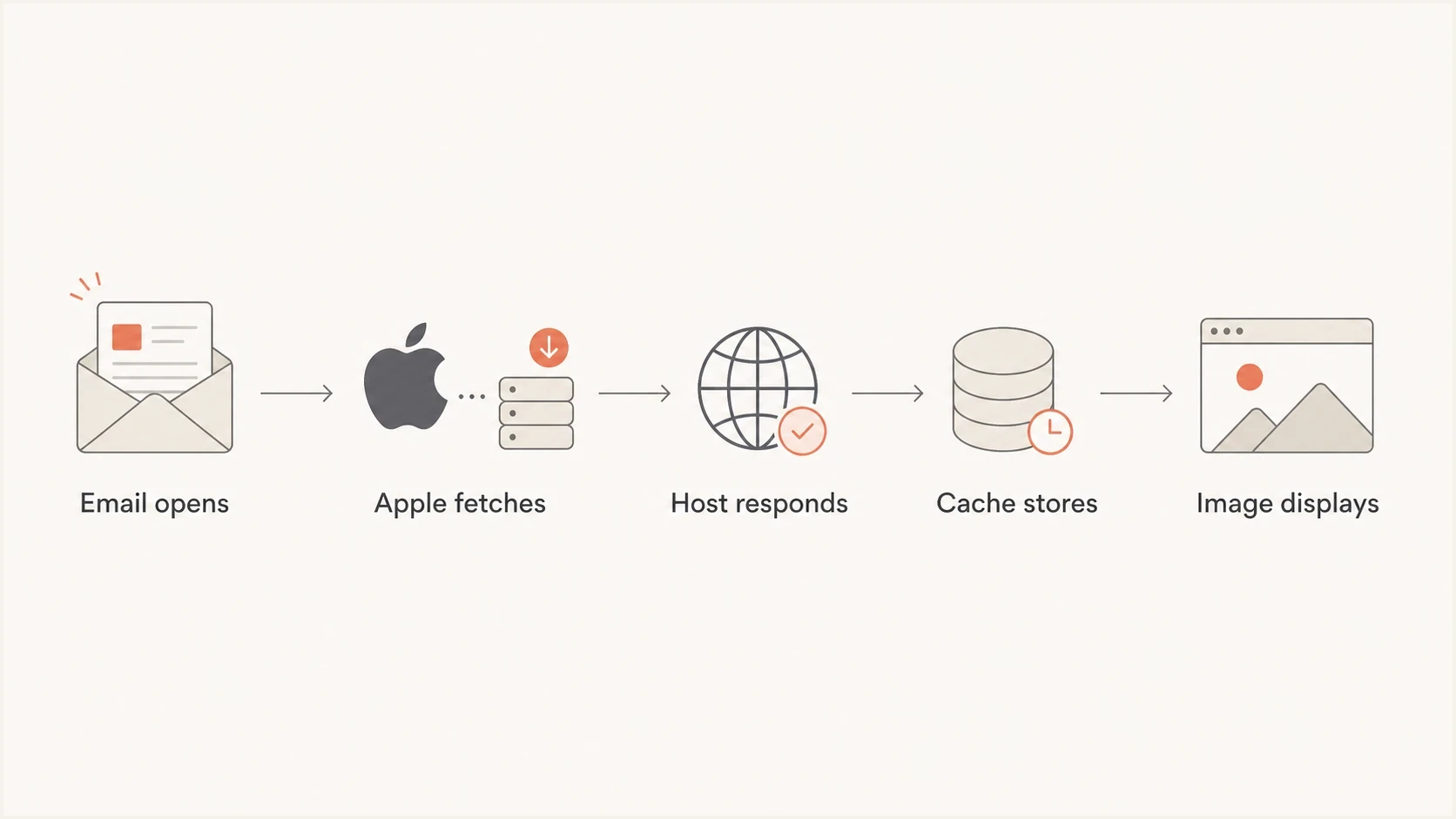
Mail Privacy Protection flow for fetching and caching iCloud Mail images.
Separate delivery from image loading
A delivered email with missing images is not the same as an email that was blocked. Treat it as a rendering path first. Check authentication, reputation, and blocklist (blacklist) status only when bounces, delays, junk placement, or other delivery symptoms appear too.
The main causes of missing images in iCloud Mail
The cause depends on whether the issue affects one recipient, one device, one campaign, or every message from the sender. A single iPhone with missing images points to local settings, privacy controls, VPNs, or network filtering. A campaign-wide issue points to the image host, CDN, HTML, asset format, or a sender-side change.
|
|
|
|---|---|---|
Remote content blocked | Images hidden behind a notice | Mail privacy settings |
Private fetch failure | Unable to load notice | Load Content and VPN |
CDN rules | 403, 429, or challenge page | Firewall and access logs |
Signed URL | Works briefly, then fails | Expiry time |
Large image | Slow or partial load | Bytes and response time |
Plain-text message | No inline remote images | Delivered MIME structure |
Message marked as junk | Remote content stays hidden | Move a legitimate message to Inbox |
Common iCloud Mail image loading causes and where to check first.
The first sender-side question is simple: can Apple's fetcher reach the image file without cookies, a logged-in session, a short-lived token, or a browser-only redirect path? Email images need public HTTPS URLs that remain stable and return an actual image response without extra client state.
- Remote content blocked: The recipient has a Mail setting that stops remote content from loading automatically.
- Apple fetch rejected: The image server rejects the request because of IP, header, user-agent, bot, geo, or rate-limit rules.
- Temporary host failure: The image server is slow, overloaded, or returning intermittent 5xx responses.
- Expired asset URLs: Signed or personalized links expire before Apple or the recipient fetches them.
- HTML or MIME problems: The message uses a malformed URL, relative path, blocked redirect, invalid markup, or plain-text MIME part.
- Junk status: Apple Mail does not display remote content in messages marked as junk, so move a legitimate message out of Junk before retesting.
Remote images and attached images use different paths. If an attachment will not open or display in place, check attachment download settings, file integrity, and the message's MIME structure instead of focusing only on the remote image proxy.
How to make images load on iPhone, iPad, Mac, and iCloud.com
Start with the recipient's exact environment. The current setting paths differ between recent iPhone and iPad software, older releases, macOS Mail, and iCloud.com. Use these steps for a trusted message, and keep privacy controls enabled unless a temporary comparison identifies the cause.
On iPhone or iPad
- Use the message banner: If Mail says Unable to load remote content privately, tap Load Content. This allows the content to load without Mail Privacy Protection for that request. A configured VPN still carries the request.
- Check privacy settings: On current software, open Settings > Apps > Mail > Privacy Protection. On iOS 17 or earlier, open Settings > Mail > Privacy Protection.
- Check remote-content blocking: If Protect Mail Activity is off, make sure Block All Remote Content is not preventing automatic image loading for messages you trust.
- Compare the network: Test mobile data and Wi-Fi. Temporarily compare without a VPN or network filter, then restore it after the test.
- Refresh the app: Quit and reopen Mail, restart the device, and install current iOS or iPadOS updates if the issue affects more than one message.
A privacy warning that disappears after Load Content points to the private loading path, the VPN, or another network control. A broken image that remains after that action points back to the image URL, delivered HTML, or host response.
On Mac
- Open privacy settings: In Mail, choose Mail > Settings > Privacy.
- Check the banner: If Block All Remote Content is selected, use the message banner to load remote content for a trusted message or change the setting according to your privacy preference.
- Compare privacy modes: Protect Mail Activity downloads remote content privately in the background. A failed private download can be compared with Load Remote Content for the affected message.
- Rule out local interference: Temporarily test another network and pause a VPN, firewall rule, or content filter that can block the image host.
If images work on iPhone but not Mac, keep the investigation on the Mac first. Restart Mail and update macOS before considering deeper mailbox repairs. Rebuilding a mailbox targets message synchronization and does not repair an inaccessible remote image host.
On iCloud.com
- Try a private window: This tests whether stored site data or a browser extension affects the message.
- Update the browser: Install the current browser version, then reload iCloud Mail.
- Check blockers: Pause content blocking for iCloud.com during the test, without disabling protection for unrelated sites.
- Compare access: Try another browser or network. Clear browser cache if iCloud.com itself behaves incorrectly across messages.
How to tell if Apple or your image host is responsible
Use a basic isolation process: test the same image URL outside Apple Mail, test a real delivered message, and inspect the image server logs. If the asset cannot be fetched reliably outside email, fix the image host first. If it works in browsers and other mailbox apps but fails in iCloud Mail, focus on Apple's private fetch path and the recipient's local Mail settings.
Likely recipient-side
- One device: Only one iPhone, iPad, Mac, or browser profile shows missing images.
- Settings changed: Remote content or privacy controls were changed recently.
- Network specific: Images fail on one Wi-Fi network but work on mobile data.
- Banner present: Mail reports that it cannot load remote content privately.
Likely sender-side
- Many recipients: Several iCloud users report the same broken image behavior.
- Campaign specific: Only one campaign, template, or image domain is affected.
- Log evidence: The image host returns 403, 404, 429, or 5xx responses.
- URL pattern: Every failed image uses the same host, redirect, or signed URL format.
For a recipient-side issue, tap Load Content when the privacy warning appears, check remote-content settings, compare without a VPN or network filter, update the device, and reload the message. Apple's support forum has examples of local settings and device differences behind image failures, including this iPhone Mail thread.
For a sender-side issue, do not stop at a screenshot. Pull the exact HTML that was delivered, copy the image source URL, check its response, and compare the request against CDN access logs. If Apple requests receive a different status, content type, redirect, or challenge than browser requests, fix the access rule or image delivery path.
A practical sender troubleshooting checklist
Use this checklist when images load in other mailbox apps but not in iCloud Mail. It keeps the investigation grounded in observable results instead of assuming Apple has a temporary proxy problem.
- Copy the source URL: Use the delivered email HTML, not the template preview URL.
- Open it privately: Test the image in a private browser window without being logged in.
- Check HTTPS: Confirm the image uses a valid certificate and stays on HTTPS through every redirect.
- Check redirects: Avoid long chains, login redirects, and tracking redirects for image files.
- Check expiry: Do not use image links that expire within hours or depend on user sessions.
- Check the response body: Confirm a 200 response contains image bytes and an accurate image content type, not an HTML challenge page.
- Check logs: Look for image requests that return 403, 404, 429, 500, 502, or 504.
- Check delivery separately: Verify SPF, DKIM, and DMARC only if the send also has bounces, delays, or junk placement.
Example image URL testsbash
curl -I https://assets.example.com/email/header.jpg
curl -L -I https://assets.example.com/email/header.jpg
curl -A "AppleWebKit" -I https://assets.example.com/email/header.jpg
The goal is to find fragile hosting behavior, not to imitate Apple's fetcher perfectly. Compare response codes, redirect targets, response times, content types, and cache headers. A clean image response has a 200 status, a valid image content type, public cache behavior, usable image bytes, and no dependency on cookies.
Email tester
Send a real email to this address. Suped shows a results button when the test is ready.
?/43tests passed
After testing the image itself, send the full email. A full-message test catches problems a raw URL check misses, including broken HTML, tracking wrappers, blocked image domains, authentication failures, link rewriting, and clipping. If iCloud Mail is one of several mailbox apps affected, the problem is usually in the message or hosting path.
Sender-side fixes that usually work
The durable fix is simple image delivery. Use public HTTPS, stable URLs, short or no redirects, supported file formats, and predictable cache behavior. Email clients are less forgiving than browsers because privacy systems and image proxies sit between the client and image host.
A reliable image hosting pattern
- Use public HTTPS: Every remote image URL should load without cookies, sessions, or user-specific headers.
- Keep URLs stable: Avoid short-lived signed URLs for images embedded in email.
- Use common formats: JPG, PNG, and non-interactive GIF files have broad mailbox support; test newer formats before using them.
- Reduce file weight: Large files load more slowly and can expose timeout problems on weak networks.
If you use a CDN or web application firewall, create a public rule path for email assets. Do not apply bot challenges, JavaScript checks, referrer requirements, country blocking, authenticated routes, or strict browser-header checks to email image folders. Apple's request can lack the signals normal site traffic has.
Example safe email asset pathtext
https://assets.example.com/email/2026-05/welcome-hero.jpg

Recommended behavior:
Status: 200
Content-Type: image/jpeg
Cache-Control: public, max-age=2592000
No cookies required
No login redirect
No bot challenge
Also check the template. Relative image paths, spaces or unencoded characters in URLs, malformed src attributes, and CSS background images can behave differently across mail clients. Missing width and height attributes affect layout rather than image retrieval. Use standard HTML img elements for critical content, with useful alt text and explicit dimensions.
Image asset risk thresholds
These practical file-size bands help prioritize tests for image-heavy campaigns sent to iCloud users. They are diagnostic guidelines, not Apple limits.
Low risk
Under 200 KB
Simple public image files with fast response times.
Watch closely
200-600 KB
Larger files or redirects that need testing across networks.
High risk
Over 600 KB
Heavy files, fragile redirects, or images behind access controls.
When missing images point to delivery problems
Missing images alone do not prove an iCloud delivery problem. Check sender authentication and reputation when the same send also has soft bounces, delayed delivery, spam placement, reduced engagement, or failures across multiple content hosts. Mailbox providers make separate decisions about accepting the message, placing it, and fetching remote content.
Start with DMARC, SPF, and DKIM only when delivery evidence accompanies the rendering issue. Authentication does not make an inaccessible image URL load, but failed or misaligned authentication can explain related junk placement or rejection. Suped's DMARC monitoring connects authentication results to sending sources, highlights broken sources, and provides remediation steps for Suped customers reviewing aggregate reports.

Issue steps to fix dialog showing the issue overview, tailored fix steps, and verification action
For teams that send heavily to iCloud addresses, monitor authentication pass rates, bounce and deferral patterns, image-host availability, and campaign-specific complaints in the same incident timeline. Suped brings DMARC, SPF, DKIM, blocklist (blacklist) monitoring, and delivery signals into Suped's workflow. Pair that evidence with CDN logs because DMARC reports do not show image fetches.
- Authentication: Use DMARC monitoring to identify failing or unknown sending sources when delivery symptoms appear.
- DNS health: Run a domain health check when multiple mail clients show delivery problems.
- Reputation: Check blocklist (blacklist) status if iCloud delays, bounces, or rejects the same mail stream.
- Hosting: Use CDN access logs and uptime data for the image domain because authentication reports cannot diagnose asset responses.
?
What's your domain score?
Deep-scan SPF, DKIM & DMARC records for email deliverability and security issues.
iCloud environments to rule out
An iCloud mailbox can be read through iCloud.com, native Apple Mail, third-party mail apps, or a custom-domain address. The same message can render differently across those paths because image loading depends on the client, network, privacy settings, and image host response.
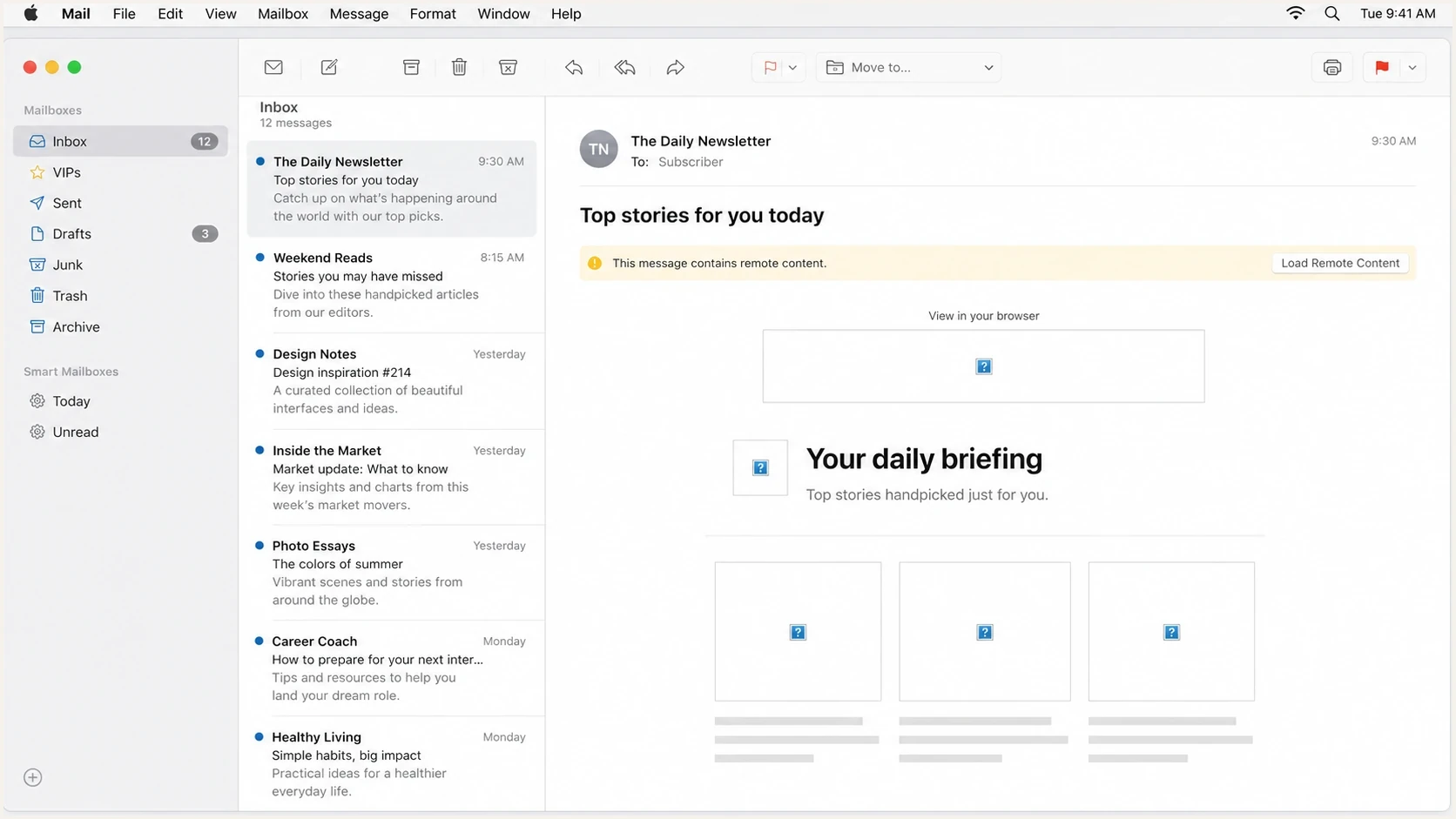
Apple Mail message view with blank image areas and broken image placeholders.
If the recipient reports the issue, ask for the exact environment before changing the email template. iCloud.com, iOS Mail, macOS Mail, and third-party apps using the same mailbox do not share every rendering behavior. A screenshot without the client version, device, and network context can send the investigation in the wrong direction.
|
|
|
|---|---|---|
iOS or iPadOS Mail | Privacy or network control | Use Load Content; compare mobile data |
macOS Mail | Privacy setting, VPN, or local client | Check Mail > Settings > Privacy |
iCloud.com | Browser data, extension, or network | Try private window and current browser |
Custom-domain iCloud address | Same client or image-host path | Compare with an @icloud.com recipient |
How iCloud image problems differ by environment.
If iCloud delays, rejects, or filters the email, image loading is only one symptom. The troubleshooting path changes because bounces, deferrals, authentication, reputation, and Apple-specific delivery patterns need separate review. This page covers iCloud delivery issues in more depth.
What not to do
It is tempting to treat missing images as a creative or template-only problem. Sometimes it is, but costly mistakes happen when a team changes the design while the real issue sits in CDN access rules or expired URLs. Fix the image delivery path first, then adjust the template if the delivered HTML is at fault.
Avoid these fixes
- Do not embed everything: Base64 or attached images can increase message size and create new filtering or rendering problems.
- Do not use short expiry: One-hour image URLs are a poor fit for delayed opens and proxy caching.
- Do not rely on referrers: Email image fetches do not behave like normal web page views.
- Do not ignore bounces: If missing images arrive with iCloud bounces, investigate delivery and authentication separately.
The best fallback is accessible email design: meaningful alt text, a clear text hierarchy, visible calls to action that do not require images, and HTML that remains understandable when images are off. Images should improve the message, not carry its only important information.
Views from the trenches
Best practices
Check whether Apple can fetch each file before changing the email template or sender setup.
Use public HTTPS image URLs that do not require cookies, sessions, redirects, or referrers.
Compare iCloud failures with other mailbox apps to separate rendering from delivery problems.
Common pitfalls
Teams assume delivery failed when the message arrived but Apple's image fetch could not finish.
Short-lived signed image URLs expire before proxy caching or delayed recipient opens happen.
CDN bot rules block privacy proxy traffic because it looks different from browser traffic.
Expert tips
Keep a test seed list with iCloud, macOS Mail, and iOS Mail before major image changes.
Log image response codes by path so 403, 404, and 5xx bursts are easy to isolate.
Treat repeated iCloud image failures as a host access issue until the logs prove otherwise.
Marketer from Email Geeks says iCloud image failures can happen when Apple's image proxy cannot access the picture files, even though the email itself reached the inbox.
2024-03-28 - Email Geeks
Marketer from Email Geeks says missing images should not be treated as a delivery failure by default because the message can deliver successfully while remote content fails.
2024-03-28 - Email Geeks
The fix starts with the image request
When images are not loading in iCloud Mail, start with the exact remote image request. If the URL is public, stable, fast, and returns the same usable image response through the tested paths, the issue is usually local Mail behavior, privacy-path failure, or cached content. If the URL is private, expired, blocked, slow, or wrapped in fragile redirects, fix the host path before changing the design.
For senders, combine simple image hosting with authentication monitoring when delivery symptoms appear. Suped supports the authentication and reputation work with DMARC monitoring, SPF and DKIM visibility, hosted SPF, hosted DMARC, blocklist (blacklist) monitoring, and failure alerts. Pair Suped's findings with image-host logs to determine whether iCloud is only failing to load assets or the mail stream also has a delivery problem.




