Why are emails not being delivered when I include my email signature?

Published 23 May 2025
Updated 24 Jul 2026
13 min read
Summarize with
Updated on 24 Jul 2026: We expanded the troubleshooting steps for signature links, image handling, delivery status, and DKIM signing order.
If an email delivers without your signature but is rejected, quarantined, or placed in junk when the signature is added, the signature has changed something that a sending system or receiving filter does not like. The usual causes are a URL in the signature, a linked image host, a phone number or domain with poor reputation, malformed HTML, or a server-side signature process that changes the message after DKIM signing.
Treat this as a content-dependent delivery failure first, not as a mystery DMARC problem. The fastest path is to prove whether the message leaves your mail platform, identify whether it was rejected or filtered after acceptance, then remove signature elements one by one until the failing part is isolated.
- Most likely cause: a link, tracking URL, social icon, image host, CTA domain, or phone number is triggering filtering.
- First test: send the same message to several recipient domains with and without the signature.
- Second test: check message trace, bounces, quarantine, and authentication results before editing DNS.
- Best fix: rebuild the signature in simple HTML and add each element back after a clean delivery test.
The short answer
Your signature is part of the message body, not decoration outside it. That body can include external links, hosted images, tracking parameters, hidden HTML, social URLs, and brand domains that have their own reputation. A filter can accept the plain email but reject, quarantine, or place the signed version in junk because the signed version has a different risk profile.
Do not start with DNS changes
When the same sender, same recipient, and same message body deliver only after the signature is removed, the signature content is the main suspect. DNS changes come later, after you confirm whether SPF, DKIM, and DMARC pass on the signed version.
- Ask for a bounce: if one exists, the SMTP status and enhanced code can identify content, policy, or reputation rejection.
- Check trace: message trace confirms whether your mail platform blocked, deferred, or handed off the message.
- Compare versions: one message without the signature and one with the signature gives a clean test pair.
- Save headers: received headers and authentication results show what changed at delivery time.
The most revealing clue is whether the message works when sent to your own mailbox but fails for a client. Internal success proves only that your internal route accepted the message. External mail can pass through a different outbound route, signature process, and recipient filter, so trace both paths before assigning the cause.
Signature content problem
- Pattern: plain message delivers, signed message fails.
- Cause: URL, CTA, social icon, image host, phone number, or HTML.
- Fix: strip the signature, add elements back, and retest each version.
- Evidence: delivery changes only when the message body changes.
Authentication problem
- Pattern: failures appear across many messages, not only signature messages.
- Cause: SPF, DKIM, DMARC, forwarding, or a message rewrite after signing.
- Fix: verify DNS records, signing order, and the domain used in visible From.
- Evidence: headers show failed authentication or a strict policy rejection.
Why the signature changes the result
A small signature can add more risk signals than the email body itself. A recipient filter reads the full MIME message, checks reputation clues, and scores the HTML. It only sees that the message now contains more domains, more code, and more calls to action.
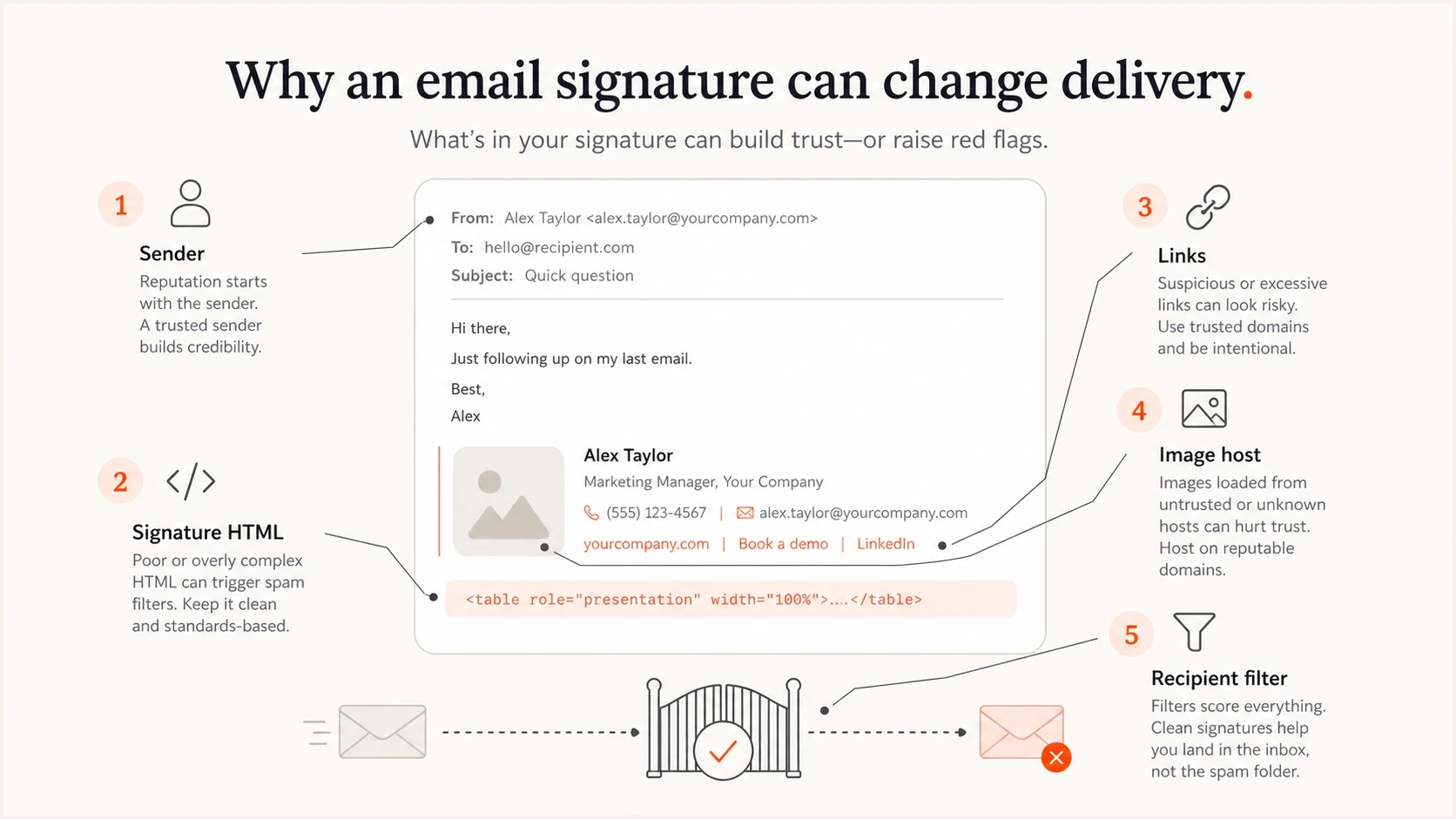
Email signature deliverability infographic showing HTML, links, image hosting, and recipient filtering.
The most common trap is a CTA link. A button for a report, booking page, social profile, or tracking page can point at a domain that has weak reputation or appears on a blocklist (blacklist). URL shorteners and multi-step redirects add more domains for a filter to assess. The sender domain can be clean while the linked domain harms the message.
|
|
|
|---|---|---|
CTA link | URL reputation or redirects | Remove link |
Logo | Remote host or payload size | Use text only |
Phone | Content score | Remove number |
Social | Extra URLs | Remove icons |
HTML | Bad markup | Simplify code |
Common signature elements and the first thing to test.
Do not assume a text-only looking signature is actually text-only. Many signature editors generate nested tables, inline CSS, tracking links, remote images, and hidden preview text. Embedded images also increase the MIME payload and can appear as attachments. A simple visual signature can have a noisy source.
Test it without guessing
Use a controlled test because random resend attempts hide the cause. Send one clean message without the signature, then send the same subject and body with the signature. Use a real receiving mailbox and inspect the result with an email tester so the headers, authentication results, and content warnings sit in one place.
- Baseline: send a plain version to your own account, a Gmail account, and the affected client domain.
- Full signature: send the same message with the complete signature and compare the result.
- Text only: remove all links, images, social icons, and buttons, then test the name and title only.
- One element: add back the phone number, then the website, then the CTA, then each social link.
- Final proof: repeat the failing test twice before treating the isolated element as the cause.
Email tester
Send a real email to this address. Suped shows a results button when the test is ready.
?/43tests passed
If the failure starts when you add one specific link, remove that link or replace it with a direct URL on a clean branded domain. If it starts when you add a logo, compare a small embedded image, a remote image on a reliable HTTPS host, and a text-only version. If it starts when the HTML version returns, rebuild the signature in plain, minimal HTML.
Minimal HTML signature for testingHTML
<table role='presentation' cellpadding='0' cellspacing='0'>
  <tr>
    <td style='font:14px Arial,sans-serif;color:#222;'>
      Jane Smith<br>
      Acme Co.<br>
      example.com
    </td>
  </tr>
</table>
This test signature is intentionally plain. Start with text and one branded link, prove delivery, then add design only when each added element keeps passing.
Check where the signature is added
The insertion point matters as much as the signature content. A mail client usually adds the signature before submission, so the sending service signs the completed body. A transport rule, gateway, or server-side signature process can add or rewrite content later. If that happens after DKIM signing, the receiver can calculate a different body hash and return DKIM failure.
Client-side signature
- Added: before the message reaches the sending service.
- DKIM: normally signs the completed message body.
- Test: compare desktop, webmail, and mobile submissions.
Server-side signature
- Added: by a rule, gateway, or service during mail flow.
- DKIM: fails if signing happens before the final body change.
- Test: inspect the final received source and message route.
Sign only after the final rewrite
Place DKIM signing after every process that changes the body. If that order cannot be changed, configure the final outbound system to apply a valid DKIM signature using a domain that matches the visible From domain.
Check authentication before blaming the receiver
Signature content and authentication are separate, but they can collide. If a signature is added after DKIM signing, the message body changes and DKIM can fail. If SPF also fails to pass with a domain that matches the visible From domain, DMARC fails and an enforcing receiver can reject or quarantine the message.
Start with a domain health checker to confirm your SPF, DKIM, and DMARC records are valid. Then use ongoing DMARC monitoring to see whether the failing mail stream passes authentication at real receivers and whether the authenticated domain matches the visible From domain.

Issue steps to fix dialog showing the issue overview, tailored fix steps, and verification action
Suped is our DMARC reporting and email authentication platform. For this problem, the practical workflow is to compare authenticated sources against unverified sources, inspect failures by sender, and use the issue steps to fix broken SPF, DKIM, or DMARC records without guessing.
Basic DMARC record for monitoringDNS
v=DMARC1; p=none; rua=mailto:dmarc-reports@example.com
Where Suped fits
Suped combines DMARC reporting with SPF and DKIM diagnostics, hosted SPF, hosted DMARC, hosted MTA-STS, SPF flattening, blocklist monitoring, real-time alerts, and plain-language fix steps. In a signature investigation, use it to verify whether authentication changed while the controlled content tests isolate the failing signature element.
- Detection: automated issue detection flags the failing source or record.
- Action: step-by-step fixes explain what to change in DNS or the sending platform.
- Scale: multi-tenancy helps agencies and MSPs manage many client domains.
- Coverage: deliverability insights sit beside authentication and policy monitoring.
Check the domains inside the signature
A sender domain can have good reputation while a linked signature domain has poor reputation. That includes a CTA landing page, a social redirect, a URL shortener, a logo CDN, or an old domain that inherited abuse history. Check every domain that appears in the signature, not only the domain in the From address.
For reputation checks, use blocklist monitoring and blacklist checks for the sending IP, sender domain, landing page domain, and image-hosting domain. A single blocklist or blacklist entry does not prove rejection, but it gives you a specific lead to compare with the bounce, trace, and test results.
Signature risk triage
Prioritise the behavior and reputation of each element. Risk does not depend on the number of elements alone.
Low
No external assets
Plain name, role, and direct branded link.
Medium
Known domains only
Known image host, phone number, social links, or tracking tags.
High
One risky element
URL shortener, redirect chain, poor-reputation domain, or broken HTML.
Pay attention to links that look branded but redirect somewhere else. A filter can score the final destination, the redirect chain, and the visible link text. Keep the visible domain and destination domain consistent wherever you can.
Content clues that matter
- Mismatch: button text says one domain while the target redirects to another.
- Remote image: the logo loads from a host with weak reputation or broken HTTPS.
- Tracking: long parameters make a normal CTA look like a bulk marketing URL.
- HTML noise: nested tables, hidden spans, and copied editor markup increase filter suspicion.
Microsoft 365 and receiver behavior
With Microsoft 365, check message trace first. If trace shows a successful handoff to the recipient's server, ask the recipient to check quarantine and gateway logs, then compare any later delivery event or rejection response. A successful handoff does not prove inbox placement. If trace does not show an external handoff, look for outbound spam policy, transport rules, malware scanning, or a data loss policy that reacts to the signature content.
Gmail can also be useful as a test recipient because it often exposes visible warnings or clearer authentication details in message headers. A public Gmail support thread describes the same class of symptom: a signature link changes delivery behavior.
If internal delivery works
- Meaning: your internal route can accept and render the message.
- Next: send to several external domains and compare failures.
- Check: headers, trace, bounce codes, and linked-domain reputation.
- Risk: the external path has stricter content or reputation filters.
If internal delivery fails
- Meaning: your own platform is likely blocking or modifying the message.
- Next: check mail-flow policy, malware scanning, and transport rules.
- Check: whether a server-side signature process rewrites the body after signing.
- Risk: your own mail controls are rejecting the message before handoff.
This is also why an email can deliver internally but not to external recipients. If that pattern matches your case, the troubleshooting path is similar to HTML email delivery: compare the accepted internal copy with the external failure and inspect what the recipient sees.
A practical fix order
Use the order below when you need to fix this quickly. It avoids changing too many variables at once and keeps the investigation tied to evidence.
- Confirm delivery state: find out whether the recipient got a bounce, spam placement, quarantine, or no visible copy.
- Trace the message: confirm whether your platform sent the message outside your organization.
- Strip the signature: send text-only, then add back the phone, domain, CTA, image, and social links.
- Inspect headers: compare SPF, DKIM, and DMARC results between passing and failing versions.
- Rebuild simply: replace copied editor HTML with clean HTML and one branded destination domain.
- Monitor after fixing: watch authentication, rejection patterns, and blocklist or blacklist changes.
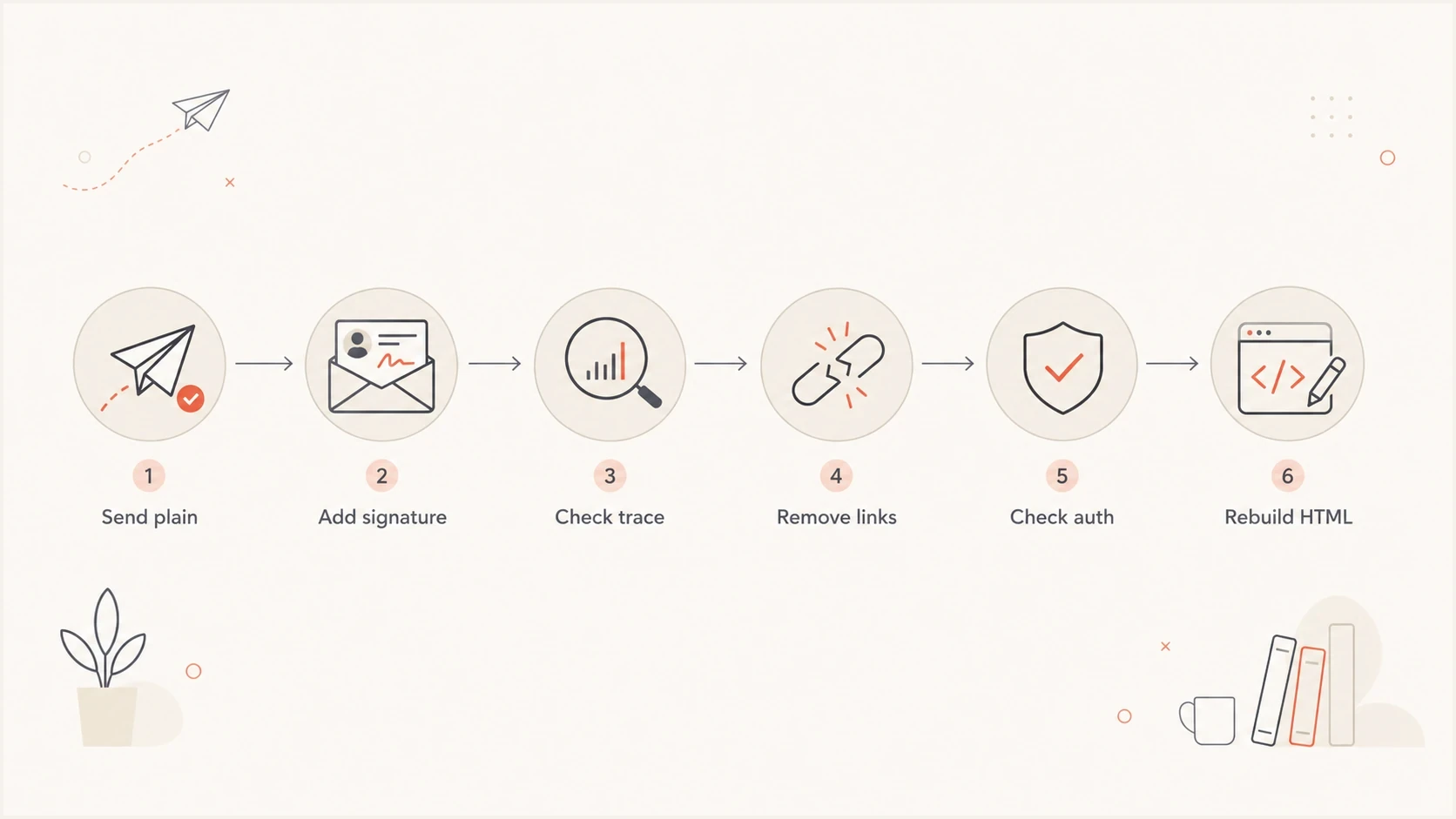
Troubleshooting flowchart for email signature delivery failures, including trace, links, authentication, and HTML.
Once you find the failing element, keep the fix plain. Use one branded domain, keep social icons out of early tests, avoid URL shorteners, host images on a reliable HTTPS domain, and keep HTML small. A reliable, minimal signature is the goal.
Views from the trenches
Best practices
Test the same email with and without the signature across several recipient domains.
Remove signature elements one at a time so each test has one clear changed variable.
Keep signature HTML simple and host linked images on a clean branded HTTPS domain.
Check message trace before changing DNS, because trace shows where delivery stopped.
Common pitfalls
Assuming a visible text signature has no hidden HTML, tracking, or remote images.
Checking only the sender domain while ignoring CTA, image, and redirect domains.
Changing SPF or DMARC records before proving authentication actually failed in headers.
Testing only internal mailboxes, which can miss recipient-side content filtering.
Expert tips
Use a plain-text baseline first, then add the phone number, URL, CTA, and logo back.
Compare headers from passing and failing versions to catch body rewrites after DKIM.
Treat blocklist and blacklist results as leads, then confirm with bounces and trace.
Keep one production-safe signature version ready while testing a rebuilt HTML version.
Marketer from Email Geeks says the first question is whether the message is bouncing, landing in spam, or vanishing before the recipient can see it.
2021-11-26 - Email Geeks
Marketer from Email Geeks says a phone number or domain inside a signature can be enough to change filtering, so both should be tested separately.
2021-11-26 - Email Geeks
What to fix first
Fix the signature before you overhaul your mail setup. During testing, remove every link, image, social icon, phone number, and CTA. Prove delivery with a plain signature, then add one element at a time. The element that breaks delivery needs a reputation check, a cleaner destination, or a simpler implementation.
If authentication fails only after the signature is added, check the signing order. DKIM should be applied after the final body is assembled. If the signature is appended later by a gateway or rule, the body hash can break. DMARC then fails if SPF also lacks a passing domain that matches the visible From domain.
Suped helps with the parts that should rely on evidence: DMARC reporting, SPF and DKIM diagnostics, hosted SPF, policy staging, blocklist and blacklist monitoring, and alerts when authentication or reputation changes. Use the signature test to isolate the content issue, then use monitoring to confirm the domain stays healthy after the fix.




