What is the step by step process to setup a subdomain in Godaddy for email?

Updated on 11 Aug 2026: We updated this guide for GoDaddy's current DNS workflow, authoritative nameserver checks, and current DMARC policy rules.
To set up a subdomain in GoDaddy for email, create the subdomain by adding DNS records inside the parent domain's authoritative DNS zone. Then add the exact SPF, DKIM, bounce, and tracking records supplied by the email service provider, plus the DMARC policy and reporting record chosen for the subdomain. GoDaddy is where the records are saved only when its nameservers host the active DNS zone. The email service provider is the source of its required record names and values.
The important part is that a sending subdomain usually is not created as a separate website or hosting account. For email, the subdomain exists because DNS records exist for it. An A record is only needed when the provider gives you an IP address for a tracking host or another web-facing host. For DKIM, bounce handling, and tracking, CNAME records are common. For SPF and DMARC, TXT records are common.
- Get ESP values: Copy the exact host names, record types, and target values from your provider's setup screen or documentation.
- Choose one name: Use a clean sending subdomain such as send, mail, news, or em, then keep it dedicated to that mail stream.
- Add records: In GoDaddy DNS, create each TXT, CNAME, MX, or A record exactly as instructed, using the subdomain in the Host field.
- Verify mail: Wait for DNS to resolve, then send a real test message and check SPF, DKIM, DMARC, and return-path domain matching.
What you need before opening GoDaddy
Start in the email platform, not GoDaddy, because DNS providers do not know what DKIM selector, CNAME target, SPF include, bounce host, or tracking host your provider expects. The safest pattern is simple: the email provider gives the "what", and the authoritative DNS host gives the "where".
|
|
|
|
|---|---|---|---|
SPF | TXT | Return-path host | Authorizes sending servers for the SMTP MAIL FROM domain. |
DKIM | CNAME or TXT | selector path | Publishes the signing key or key pointer. |
DMARC | TXT | _dmarc.send | Sets policy and reporting for the visible From domain. |
Bounce | CNAME, MX, or TXT | bounce.send | Controls return-path and bounce processing. |
Tracking | CNAME or A | click.send | Brands click and open tracking hosts. |
MX | MX | send | Needed only when a mail service accepts messages or bounces for the subdomain. |
Common DNS records for a sending subdomain
Do not guess the records
- Provider values: DKIM keys, CNAME targets, bounce hosts, and tracking hosts come from the email platform.
- GoDaddy placement: The Host or Name field decides whether the record applies to the parent domain or the subdomain.
- A record limits: An A record points a host to an IP address. It does not publish DKIM and it does not authorize SPF.
Confirm GoDaddy controls the DNS zone
A domain registered at GoDaddy can use nameservers operated somewhere else. Check the parent domain's nameservers before adding records. If GoDaddy is not authoritative, changes in its DNS manager will not appear in public DNS.
- Check nameservers: Compare the active nameservers with the DNS provider that currently hosts the zone.
- Use the active zone: Add the email records in GoDaddy only when the domain uses GoDaddy nameservers.
- Keep delegation stable: If another provider is authoritative, add the records there instead of changing nameservers for this task.
- Protect existing mail: Do not delete or replace existing MX, SPF, DKIM, or DMARC records unless the email provider's instructions require it.
Step-by-step GoDaddy email subdomain setup
The GoDaddy part is mechanical once the provider has given you the records and you have confirmed that GoDaddy hosts the active DNS zone. Use the parent domain's DNS page and add records with host names such as send, selector._domainkey.send, bounce.send, or click.send. GoDaddy automatically appends the parent domain behind the scenes.
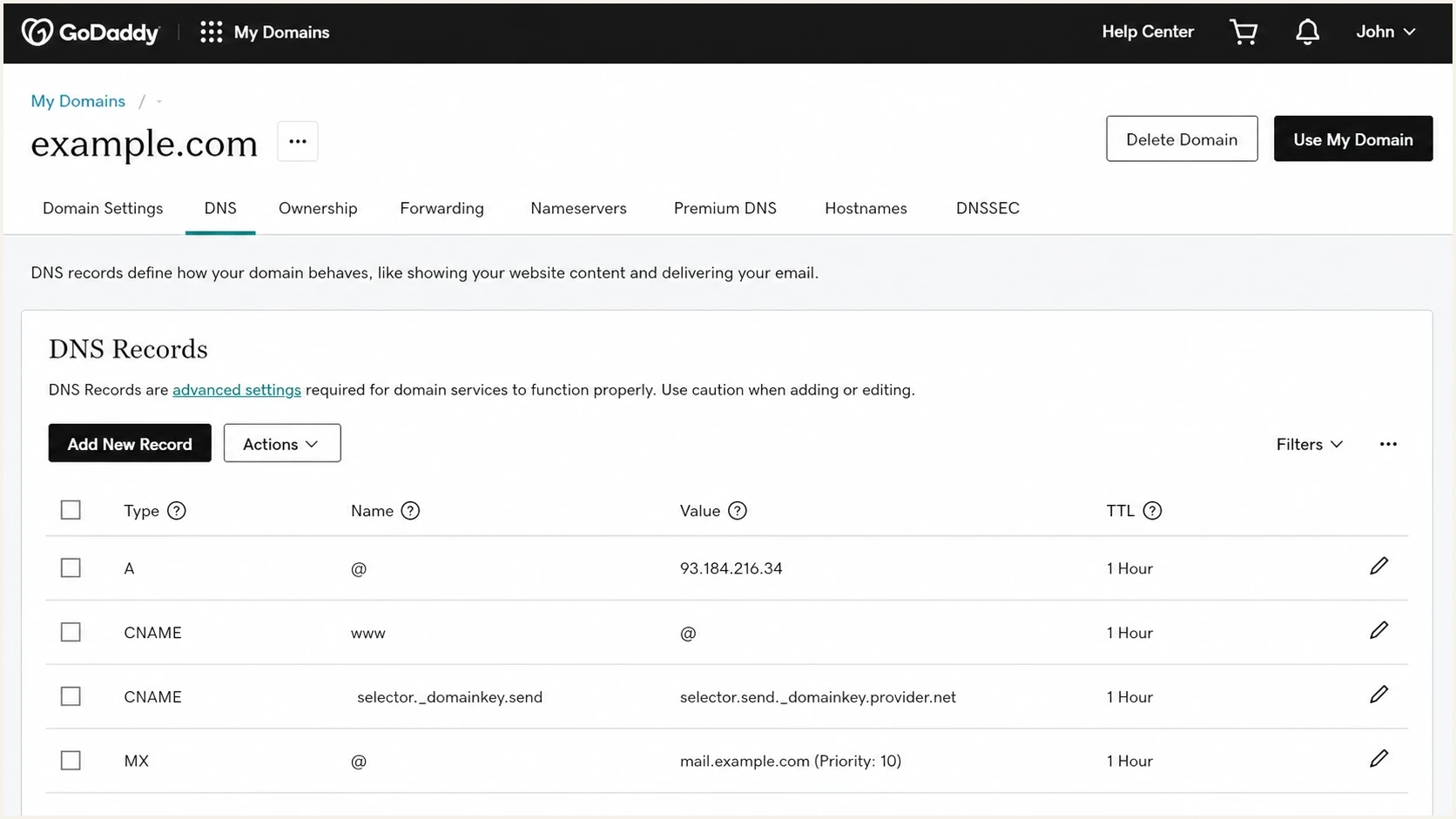
GoDaddy DNS management screen for adding a subdomain record.
- Sign in: Open your GoDaddy account and go to the Domain Portfolio.
- Pick domain: Select the parent domain, such as example.com, to open its Domain Settings page.
- Open DNS: Select DNS to view and edit the zone records.
- Add record: Select Add New Record, then choose the type the provider gave you.
- Enter host: Put only the host part in the Name field, such as send or selector._domainkey.send.
- Enter value: Paste the provider's target, TXT value, IP address, or mail server exactly.
- Set TTL: Use the default one hour unless your provider gives a specific TTL.
- Save changes: Select Save, or Save All Records after adding several records, and complete any required identity verification.
- Wait for DNS: Most changes take effect within an hour, but allow up to 48 hours for caches to update globally.
- Run checks: Check DNS first, then send a real email test before moving production traffic.
GoDaddy's own help page explains the key DNS split: an A record points a subdomain to an IP address, and a CNAME connects it to another host name. The GoDaddy subdomain guide is useful for the DNS screen, but the email-specific values still come from your provider.
Example records for a sending subdomain
This example uses send.example.com as the visible sending subdomain. Do not copy these values into production. They show where each class of record normally lives, but the SPF host must match the SMTP MAIL FROM or return-path domain used by your provider.
Example DNS records for send.example.comdns
# Example only. Use the exact values from your ESP.
# Publish SPF at send only if send.example.com is the MAIL FROM domain.

send TXT v=spf1 include:esp.example -all
s1._domainkey.send CNAME s1.dkim.esp.example
s2._domainkey.send CNAME s2.dkim.esp.example
_dmarc.send TXT v=DMARC1; p=none; rua=mailto:dmarc@example.com
bounce.send CNAME bounce.esp.example
click.send CNAME tracking.esp.example
Read the host names literally
If the DKIM host is selector._domainkey.send.example.com, the GoDaddy Name field usually gets selector._domainkey.send because the zone already belongs to example.com. If you paste the full name and GoDaddy also appends the parent domain, you create the wrong record.
Where each value goes
The confusing part is not the subdomain itself. The confusing part is deciding whether a value belongs at the parent, at the subdomain, or under a selector below the subdomain. Use the provider's record name to answer that.
Parent zone
- Zone file: Stay inside the DNS zone for example.com when adding records for send.example.com.
- Host field: Use send for the subdomain itself and deeper labels for DKIM, bounce, and tracking.
- No new zone: Do not create a separate DNS zone for the subdomain unless your DNS architecture requires delegation.
Email records
- SPF host: Add the TXT record at the SMTP MAIL FROM domain when the provider tells you to publish SPF directly.
- DKIM host: Add the selector record below the subdomain when the provider signs with that subdomain in the d= value.
- DMARC host: Add _dmarc under the subdomain when you need an explicit policy that overrides inherited policy.
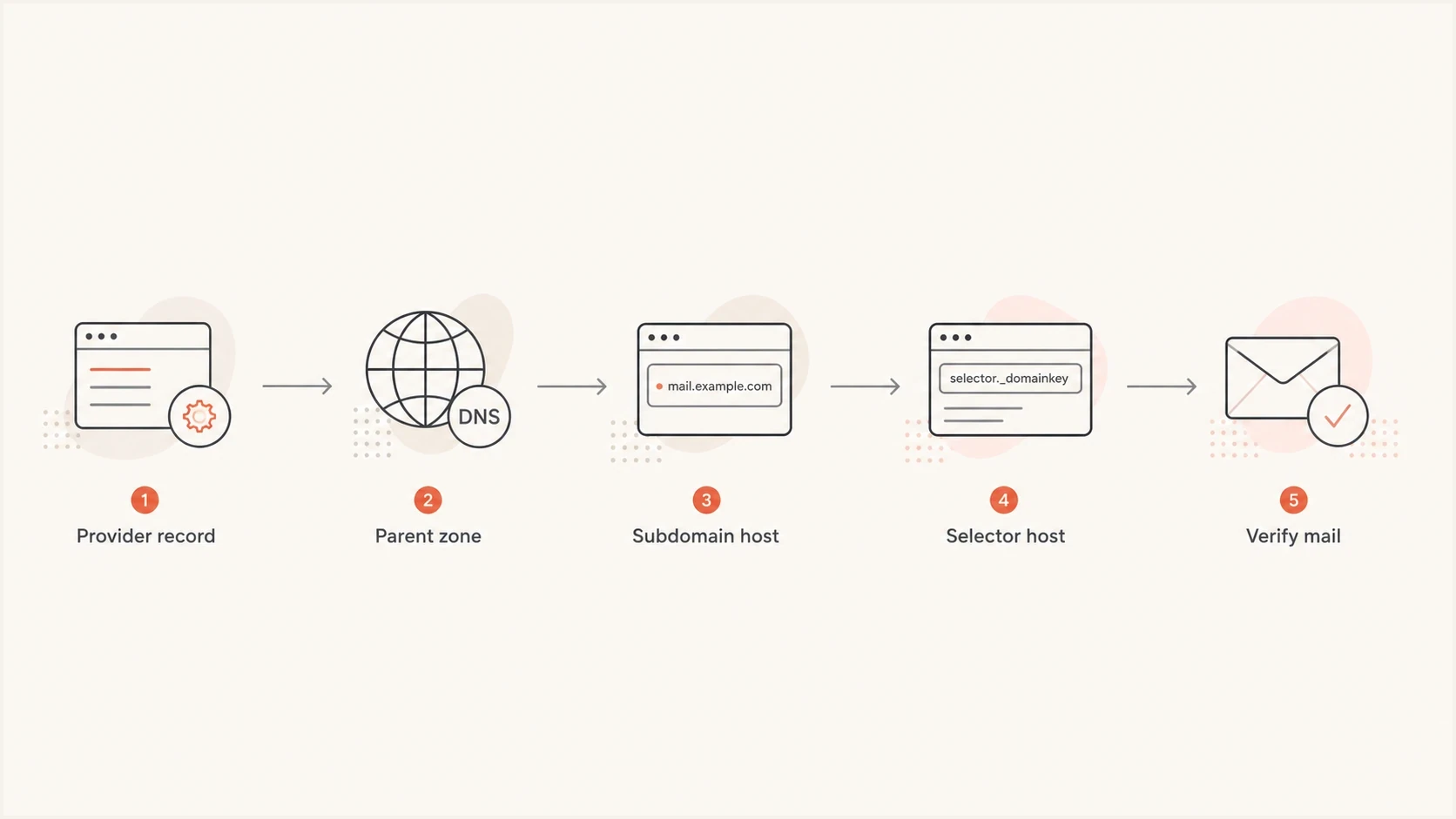
Flowchart showing how provider DNS records map into a GoDaddy parent zone.
How to verify the setup
After saving the records, verify in two layers. First, check DNS to confirm the records exist at the right host names. Second, send a real message through the provider and inspect the authentication result in the message headers.
?
What's your domain score?
Deep-scan SPF, DKIM & DMARC records for email deliverability and security issues.
Start with a domain health check to catch obvious DNS problems across SPF, DKIM, and DMARC. Then send one real campaign or test message through the email tester and confirm that the visible From domain, DKIM d= domain, SPF return-path domain, and DMARC result match the setup you intended.
A DNS lookup alone does not prove that mail is signing correctly. DKIM can exist in DNS and still fail if the provider signs with a different selector or domain. SPF=pass or DKIM=pass also does not prove DMARC alignment unless the passing domain aligns with the visible From domain. The real message test catches these mismatches.
Domain health checker sample results showing DMARC, SPF, DKIM scorecards and detailed validation checks
Suped's product turns these checks into concrete diagnostics instead of requiring a manual comparison of raw DNS and mail headers. For ongoing monitoring, the same domain can be watched for authentication failures, record changes, and sender drift.
DMARC policy and ongoing monitoring
For a new sending subdomain without inherited enforcement, start DMARC at p=none so reporting begins before enforcement. Move to quarantine and then reject after legitimate traffic passes DMARC through aligned SPF or DKIM. Before publishing an explicit subdomain record, check the organizational domain's DMARC policy. If the subdomain has no record, the parent's sp policy applies when present; otherwise its p policy applies. An explicit _dmarc record on the sending subdomain overrides that inherited policy, so adding p=none can weaken existing protection.
Starter DMARC record for the subdomaindns
_dmarc.send TXT v=DMARC1; p=none; rua=mailto:dmarc@example.com
RFC 9989 defines the current DMARC protocol, and RFC 9990 defines aggregate reporting. The record syntax above remains valid, but p=none should be a deliberate monitoring policy rather than an automatic first step.
DMARC policy rollout
A practical enforcement path for a new email subdomain.
Monitor
p=none
Collect reports and find unauthenticated senders.
Restrict
p=quarantine
Ask receivers to quarantine failing mail.
Enforce
p=reject
Ask receivers to reject failing mail.
Suped's DMARC platform supports this workflow by connecting DMARC monitoring, SPF and DKIM visibility, hosted SPF, hosted DMARC, hosted MTA-STS, blocklist (blacklist) monitoring, and alerts with practical fix steps.
Where Suped fits
- Issue detection: Suped flags failing sources and gives steps to fix the exact record or sender problem.
- Hosted SPF: Suped helps keep SPF under lookup limits and lets teams manage senders without repeated DNS edits.
- Policy staging: Hosted DMARC helps move a subdomain through p=none, quarantine, and reject with less DNS work.
- Alerts: Real-time alerts catch authentication failures before a DNS mistake becomes a deliverability problem.
Common mistakes to avoid
Most failed GoDaddy email subdomain setups come down to placement errors. The record type is often right, but the host name is one label too high, one label too low, or duplicated with the parent domain.
Mistakes that break authentication
- Wrong DKIM host: Publishing the key at a selector or domain that does not match the message's DKIM signature causes DKIM to fail.
- Guessed IP: Adding an A record that points to a sending IP does not create SPF, DKIM, or DMARC authentication.
- Duplicate SPF: Multiple SPF TXT records at the same host cause permanent SPF errors.
- No alignment: SPF and DKIM can pass, but DMARC still fails when neither passing domain aligns with the visible From domain.
- CNAME conflict: A CNAME cannot share the same host name with TXT, MX, or other record data, so check existing records before adding it.
- Untested bounce: A custom return-path that is not verified can break bounce processing and SPF alignment.
A misplaced new TXT or CNAME often fails provider validation without affecting the parent domain. Changing existing MX, SPF, DMARC, or nameserver records can interrupt legitimate mail or change policy. Correct the exact host or value, leave unrelated records in place, and test again after DNS updates.
Views from the trenches
Best practices
Treat the email platform as the source of truth for record names and target values.
Create records in the active parent zone, then use the Host field to place the subdomain.
Verify with a sent message because DNS can look correct while signing still fails.
Common pitfalls
Do not convert every provider instruction into an A record for the sending IP address.
Avoid pasting the full domain when GoDaddy already appends the parent zone name for you.
Do not add multiple SPF TXT records at the same host because SPF checks will fail.
Expert tips
Use CNAME records for DKIM when the provider wants to rotate keys on its side cleanly.
Keep a dedicated subdomain for each major mail stream so diagnosis stays clean later.
Check inherited DMARC policy before using p=none, then enforce after legitimate mail passes.
Marketer from Email Geeks says the ESP provides the required values, while GoDaddy controls placement only when it hosts the active DNS zone.
2021-12-27 - Email Geeks
Marketer from Email Geeks says DKIM for a subdomain often uses a CNAME, so a TXT record is not always the correct choice.
2021-12-30 - Email Geeks
GoDaddy email subdomain checklist
The step-by-step process is: choose the sending subdomain, collect the exact records from the email provider, confirm where the authoritative DNS zone is hosted, open the parent domain in GoDaddy DNS when GoDaddy is authoritative, add each record with the right Host value, save, wait for DNS to resolve, then test a real email. Do not default to an A record unless the provider gives an IP address for a host that needs one.
For a normal sending setup, expect TXT for SPF, CNAME or TXT for DKIM, TXT for DMARC, and CNAME or MX records for bounce and tracking depending on the provider. Once mail is live, keep DMARC reporting on and watch for new senders, broken selectors, SPF lookup failures, and blocklist or blacklist changes that affect reputation.
Suped fits after the DNS change because it keeps the subdomain observable. The setup does not end when GoDaddy accepts the records. It ends when real mail authenticates, DMARC passes, and future changes raise alerts instead of turning into silent delivery problems.