What does the Gmail message 'Images in this email are hidden' mean and how does it affect email marketing?

Updated on 2 Aug 2026: We clarified Gmail image hiding and added current guidance for interpreting open data and checking sender trust.
The Gmail message "Images in this email are hidden" means Gmail has not loaded the message's external images automatically. For marketers, the immediate impact is practical: the tracking pixel will not load until the recipient chooses to show images, product images and image-based buttons can look broken, and the warning can reduce trust before the reader reaches the offer.
It does not automatically mean the email is spam, and it does not mean Gmail has ended open tracking. Gmail defaults to displaying external images, but recipients can choose to be asked before those images load. Google's Gmail image settings also state that Gmail withholds images when it considers a sender or message suspicious.
- Meaning: Gmail is withholding external images because of the recipient's preference or a suspicious sender or message classification.
- Marketing impact: Image-based design and open tracking become less reliable for affected recipients.
- First action: Check authentication, list consent, sender reputation, complaint patterns, and message content.
- Wrong fix: Do not chase image CDN changes before testing whether the image host is actually broken.
What the warning means
Treat this warning as a trust signal, not a standalone diagnosis. Gmail has withheld remote content for the message. That content includes hero images, product thumbnails, social icons, image-based buttons, tracking pixels, and other images loaded from a URL.
Direct answer
The warning means Gmail has blocked automatic image loading for that message. It affects email marketing by lowering measured opens, degrading image-dependent layouts, and adding a visible trust objection. The fix is to improve sender trust, authentication, consent, and content quality, not to hide the tracking pixel in a different image path.
The wording often appears near a stronger warning such as "This message might be spam or suspicious." That combination is more serious than a recipient preference that asks before displaying images. If you are seeing a similar Gmail warning, review the whole message path: the sender domain, sending platform, list source, recipient context, and final link destinations.
Personal Gmail
- Recipient setting: The user can choose to be asked before Gmail displays external images.
- Gmail decision: Gmail can hold images when it considers the sender or message suspicious.
- Marketing signal: Repeated reports across personal Gmail accounts point toward a campaign or sender issue.
Google Workspace
- Recipient setting: Workspace users can also ask before displaying external images.
- Mail path: An organization can route mail through a security gateway that changes the message before Gmail evaluates it.
- Marketing signal: One corporate mailbox is not enough evidence of Gmail-wide filtering.
Why Gmail hides images
Gmail hides images for several reasons. Some are under the recipient's control, while others come from Gmail's safety assessment of the sender or message. Separate those cases before changing a campaign because each cause has a different fix.
|
|
|
|---|---|---|
Low reputation | Gmail distrusts the sender or sending source | Complaint rate and recent engagement |
Weak consent | Recipients did not expect the mail | Signup source and opt-in proof |
Authentication issue | The visible sender lacks a verified domain match | SPF, DKIM, and DMARC results |
Suspicious content | Links or identity cues raise concern | Sender details and final link destinations |
Modified mail path | A gateway changed the message | Recipient organization and delivered headers |
Recipient setting | Gmail is set to ask first | The recipient's Images preference |
Common causes behind hidden images in Gmail.
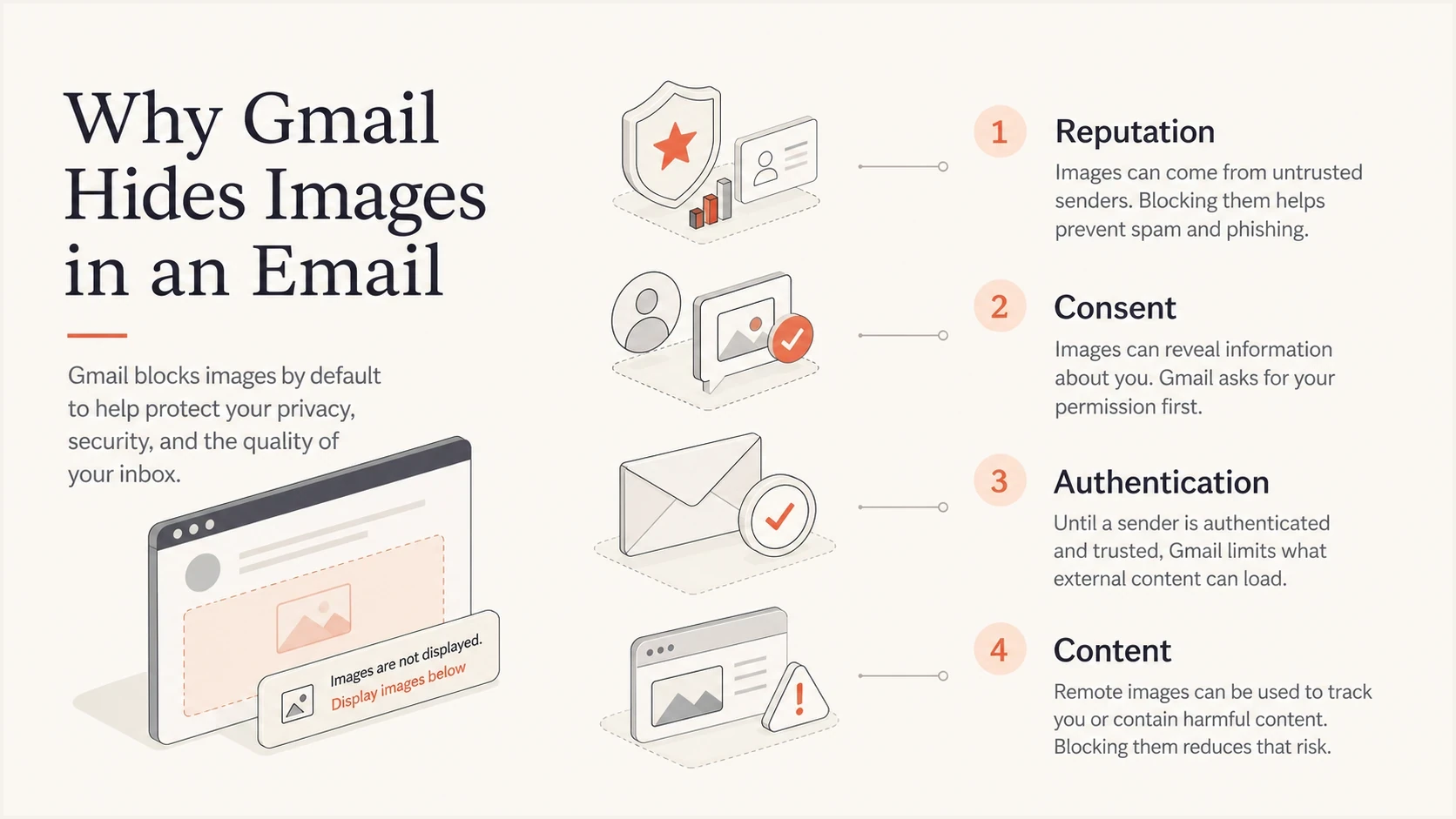
Infographic showing reputation, consent, authentication, and content as reasons Gmail can hide images.
Authentication matters, but it is not a switch that forces images to load. A message can pass DMARC through DKIM even when SPF is neutral, yet still receive image friction because the list source is weak, sending is inconsistent, or the recipient did not clearly opt in. DMARC monitoring shows which services use your domain, which messages pass through an approved domain, and which sources need investigation.
Suped's DMARC source breakdown and issue detection help confirm that the sending platform is approved, consistently authenticated, and using the intended domain. That gives marketing and technical teams a verified starting point before they debug creative or list quality.
Hidden images versus Gmail's image proxy
Image hiding and Gmail's normal image proxy are different states. When Gmail displays an external image, it commonly retrieves and caches the file through Google's proxy. That protects the recipient's computer and location details, prevents image cookies from reaching the browser, and can make repeat opens less visible to the sender. When Gmail hides the image, it withholds that request until the recipient selects the display action.
|
|
|
|---|---|---|
Images displayed | Google's proxy retrieves the image | An open can register, but device, location, and repeat-open data are limited |
Images hidden | The remote request waits for recipient action | The open is undercounted unless the recipient displays images |
HTML link clicked | The browser follows the link independently | Click and post-click conversion measurement can still work |
How Gmail image states change marketing measurement.
Read opens as estimates
A hidden tracking pixel can create a false negative, while proxy caching can conceal repeat activity. Use opens for directional comparison and give more weight to clicks, conversions, replies, unsubscribes, and complaints.
How it affects email marketing
The biggest marketing impact is measurement loss. Open tracking depends on a tiny remote image. When Gmail hides images, that pixel does not load, so the email platform records no open until the recipient chooses to show images. That creates false negatives for affected recipients.
Impact of hidden images
Relative severity for common email marketing workflows when Gmail blocks automatic image loading.
Open measurement
High
The tracking pixel does not load until images are shown.
Visual context
High
An image-heavy email can lose its offer or product context.
HTML link clicks
Low
Visible text links and HTML buttons still work.
Post-click conversions
Low
Normal web conversion measurement remains available after a click.
- Open tracking: Measured opens drop because the image request is suppressed.
- Creative quality: Image-only messages can lose the main offer and call to action.
- Subscriber trust: A suspicious-message warning makes the recipient pause before reading.
- Segmentation: Open-based automations become noisier, so click and conversion signals deserve more weight.
- Reporting: Account for open-rate accuracy when interpreting campaign trends.
Scope matters. One screenshot from one company mailbox does not prove a sender-wide Gmail problem. A recurring pattern across controlled test inboxes and real Gmail subscribers deserves a sender reputation review.
What to check first
Start with the delivered message, not the campaign editor. Send the exact production email to a real Gmail account, inspect the headers, and compare the result with other recipients. The email tester can expose authentication, rendering, and content issues before the next send.
Email tester
Send a real email to this address. Suped shows a results button when the test is ready.
?/43tests passed
Use the delivered header to confirm how Gmail evaluated SPF, DKIM, and DMARC for the visible From domain. A pass does not guarantee that images load, but a failure gives you a clear technical problem to fix before investigating reputation.
Authentication results example
Authentication-Results: mx.google.com;
  spf=pass smtp.mailfrom=mail.example.com;
  dkim=pass header.d=example.com;
  dmarc=pass header.from=example.com
- Confirm scope: Find out whether the warning appears across personal Gmail accounts, Workspace accounts, or only one recipient.
- Check headers: Verify SPF, DKIM, DMARC, the sending IP, return path, and visible From domain.
- Run a control: Compare the production message with a minimal-HTML version that keeps the same sender and sending infrastructure.
- Inspect content: Check image-only layouts, shortened URLs, unexpected redirects, and identity mismatches.
- Review consent: Confirm that recipients knowingly requested this mail.
- Watch reputation: Check complaint spikes, cold segments, sudden volume jumps, and inactive recipients.
For a broader pass, run a domain health check and keep blocklist monitoring active for your sending domains and IPs. A blocklist or blacklist listing is not the only cause of Gmail friction, but it is a signal worth investigating.
Fixes that work
The fix depends on the cause, but the work usually lands in two buckets: make the mail clearly wanted and make the sending identity clean. If the recipient did not expect the email, no DNS record can compensate for that. If the sending identity is messy, good consent still leaves Gmail with weak technical signals.
Do not treat this as an image problem
Changing the image host, renaming the tracking pixel, or swapping the hero image can waste time. Gmail responds to its safety assessment and recipient controls. Fix the sender and message signals first, then test the image host if broken URLs or proxy errors remain.
Meet the current Gmail sender guidelines before treating this banner as a creative problem. All senders to personal Gmail accounts need SPF or DKIM, valid forward and reverse DNS, TLS, and a spam rate below 0.3%. Senders exceeding 5,000 messages per day also need SPF, DKIM, DMARC, a matching From domain, one-click unsubscribe for marketing mail, and a visible unsubscribe link. Google recommends keeping the reported spam rate below 0.1% and avoiding 0.3% or higher.
Low-value fixes
- Image swapping: Changing image URLs rarely solves a trust warning by itself.
- Pixel tricks: Hiding tracking in a new path does not improve recipient trust.
- Forced asks: Asking users to show images is weak if the email already looks risky.
Better fixes
- Consent cleanup: Remove weak opt-in sources and suppress inactive Gmail contacts.
- Sender consistency: Use stable From domains, authenticated mail streams, and recognizable sender names.
- Useful replies: Use a monitored mailbox when the message invites a response.
- Image-off design: Keep the offer in live HTML text, write useful image alt text, and provide a visible HTML call to action.
For DMARC, start by collecting reports and confirming legitimate sources before moving to an enforcement policy. A monitoring record with the default relaxed domain match looks like this:
Conservative DMARC starting record
_dmarc.example.com. 3600 IN TXT (
  "v=DMARC1; p=none; "
  "rua=mailto:dmarc@example.com"
)
Suped's DMARC reporting workflow connects sending-source identification with issue investigation. Teams can confirm approved senders, trace authentication failures, and receive alerts when failure volume changes before tightening policy.

Issue steps to fix dialog showing the issue overview, tailored fix steps, and verification action
For teams managing many domains, Suped's multi-tenant view groups authentication failures, policy status, blocklist or blacklist events, and unapproved sending sources by client. That makes it easier to separate a domain problem from a recipient-specific Gmail setting.
When it is not your fault
Sometimes the sender is not the root cause. A recipient can choose to be asked before Gmail displays external images. A Workspace mailbox can also sit behind a security gateway or routing rule that changes the message before it reaches Gmail.
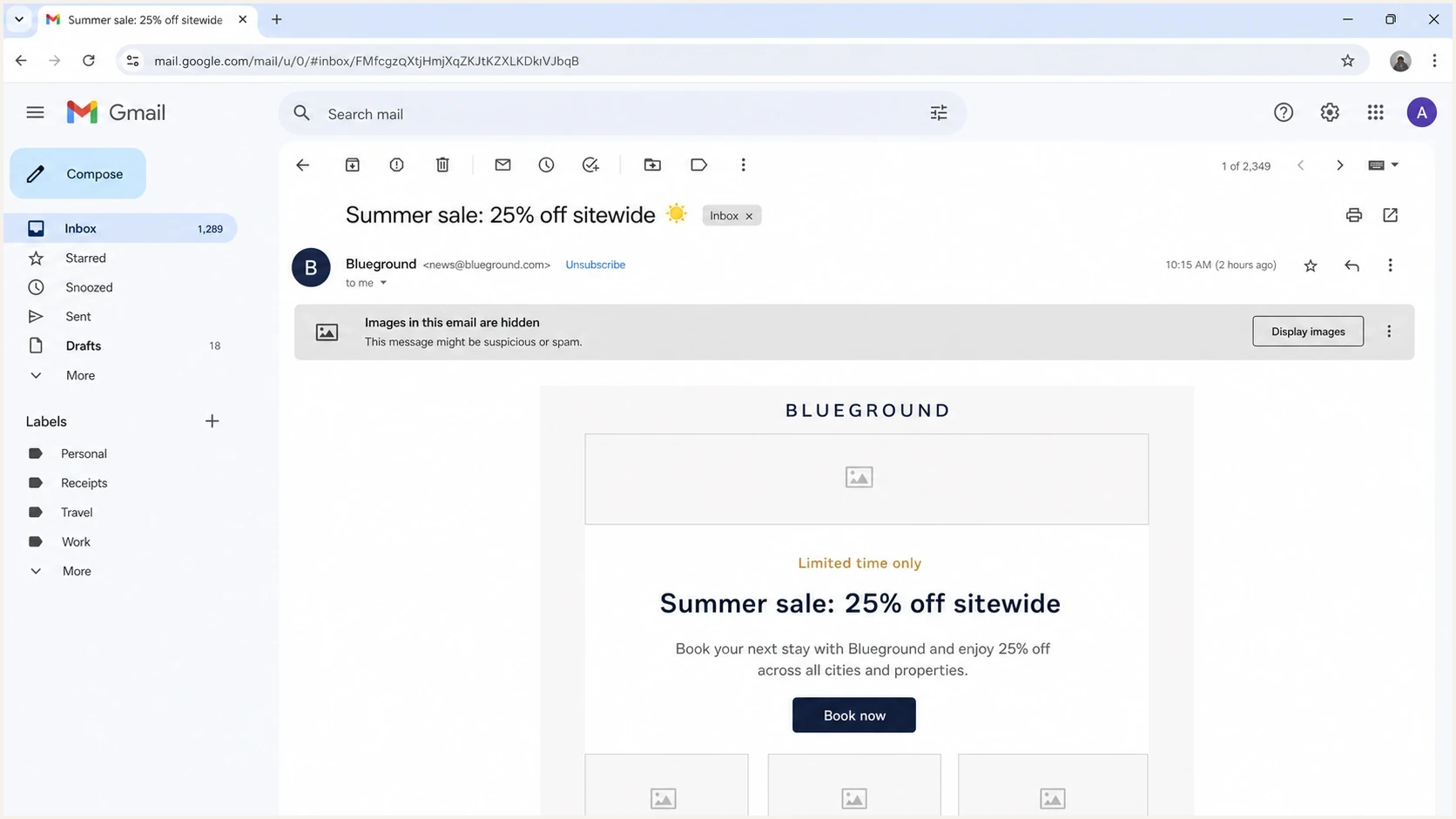
Gmail screenshot showing a marketing email with images hidden and a display images action.
Do not declare a sender problem from one screenshot. Compare a personal Gmail mailbox with a Workspace mailbox, then repeat the test using a recently engaged recipient and a fresh test address. If only one corporate mailbox shows the warning, keep recipient settings and the organization's mail path in the investigation.
No public announcement is required
Gmail changes filtering behavior without publishing every adjustment as a product announcement. Treat the banner as a diagnostic symptom and compare it with real sending data.
There is also a difference between this warning and general Gmail image-loading problems. If images fail without a spam or suspicious-message warning, investigate broken URLs, slow hosting, client rendering, or an image URL that depends on cookies or an internal IP. Gmail's image proxy can break those dependent URLs even when sender trust is not the issue.
Views from the trenches
Best practices
Confirm whether the mailbox is Gmail or Workspace before changing campaign setup.
Treat image hiding as a trust signal, then review consent and sender identity first.
Keep the email readable with images off so the main offer and action still make sense.
Use DMARC data to separate legitimate senders from unknown or failing mail streams.
Common pitfalls
Assuming one screenshot proves a Gmail-wide change can lead to the wrong technical fix.
Using a no-reply address can reduce trust and discourage useful recipient replies.
Blaming image hosting before checking authentication wastes troubleshooting time.
Relying on opens alone hides the effect of image blocking on overall performance.
Expert tips
Segment Gmail recipients by recent engagement before making reputation changes to a stream.
Compare personal Gmail and Workspace tests to rule out recipient-specific settings.
Monitor blocklist and blacklist events alongside DMARC authentication failures over time.
Suppress weak consent sources before testing new creative or sender domain changes.
Marketer from Email Geeks says the warning often means Gmail is unsure enough to ask the recipient for a choice instead of silently loading remote content.
2024-08-29 - Email Geeks
Expert from Email Geeks says a no-reply sender can work against trust because it signals that the sender does not want a normal recipient response.
2024-08-29 - Email Geeks
What to do next
If Gmail says images are hidden, start with a measured sender review. Confirm the mailbox type, inspect the delivered headers, test the exact email, verify consent, and review reputation signals before changing image hosting or campaign design.
Design emails that remain useful without images, and do not treat opens as the main success signal. Suped's platform supports the technical work through DMARC source monitoring, guided issue investigation, and alerts for authentication changes or blocklist and blacklist events.




