What does tempfail mean in Gmail, and why is it happening?

Published 1 Aug 2025
Updated 9 Aug 2026
11 min read
Summarize with
Updated on 9 Aug 2026: We clarified Gmail tempfails, delivery-delay notices, retry behavior, and the SMTP evidence needed to find the cause.
Tempfail in Gmail means a receiving mail server temporarily rejected or deferred delivery instead of accepting the message right away. When Gmail is the receiving server, this usually maps to a 4xx response, such as 421, 450, 451, or 452. The sending system should retry later. It is different from a hard bounce, where the receiving server gives a 5xx response and the message should not be retried as-is.
When tempfail appears next to a Gmail reason such as suspected spam, Gmail saw enough risk to defer at least some traffic. The risk can come from sending rate, sender reputation, message content, authentication, DNS instability, recipient behavior, or several combined signals.
If a dashboard shows 0.1% beside tempfail, confirm how it defines the denominator. It often means 0.1% of attempted Gmail deliveries received that temporary response, but some dashboards count messages or final outcomes instead. On its own, 0.1% is usually a watch item. Check whether it repeats, rises, or coincides with weaker Gmail engagement and more complaints.
Fast answer
Tempfail means retry later. If Gmail adds a reason such as suspected spam, do not treat the word temporary as proof that nothing is wrong. Compare the affected volume, timing, authentication results, retry outcomes, and Gmail engagement with the rest of the campaign.
What tempfail means in Gmail
Tempfail is short for temporary failure. It means the receiving server did not accept the message at that moment, but the sending mail server is expected to retry according to its own queue policy. A well-run sending server retries over minutes or hours until the receiving server accepts the message or the sender's retry window expires.
The exact label depends on where you are looking. An ESP dashboard can show TempFail, tempfail, deferred, transient failure, soft bounce, or temporary reject. Most describe a 4xx deferral, although soft bounce is a vendor-defined label that can include other conditions. Verify the raw SMTP code before deciding what happened.
|
|
|
|---|---|---|
TempFail or deferred | Generic queued retry | Pull the raw reply |
421 4.7.28 | Unusual sending rate or unsolicited traffic | Slow and segment traffic |
451 4.7.23 | Missing or mismatched PTR record | Correct forward and reverse DNS |
450 4.2.1 | Recipient receiving too quickly | Let the queue retry |
452 4.2.2 | Recipient storage is full | Let the queue retry |
Common Gmail temporary responses and what to do first.
Example temporary Gmail SMTP responsetext
421 4.7.28 Gmail has detected an unusual rate of email.
To protect our users from spam, email has been temporarily rate limited.
Google documents Gmail 4xx responses for temporary system issues, rate limiting, authentication failures, TLS requirements, sender reputation, and recipient conditions. The Gmail SMTP errors page is useful when you have the exact SMTP reply from your logs.
Gmail tempfail vs Delivery incomplete
Temporary-delivery language appears in two different directions. If a sending system records a 4xx reply from a Gmail server, Gmail is the receiving side and has deferred the message. If Gmail sends you a Delivery Status Notification (Delay) after you emailed another domain, Gmail is the sending side and the remote recipient system has delayed or refused the attempt.
|
|
|
|---|---|---|
ESP or MTA event log | Gmail receiving server | Gmail's 4xx response |
Gmail Delivery incomplete notice | Remote recipient system | Remote server response |
Use the location of the error to identify who deferred delivery.
A Gmail delay notice states how much longer Gmail plans to retry. The period varies, so use the time shown in that notice rather than assuming a fixed retry window. The remote response can identify a full inbox, an unavailable server, a DNS or connection failure, a recipient policy, or rate limiting.
Do not keep resending the message
A temporary notice means the original message remains queued. Repeated manual resends can create duplicate deliveries if the remote system recovers. Wait for the stated retry outcome unless the message is urgent and you use a different contact method.
Why Gmail is tempfailing the message
Gmail tempfails mail when accepting it immediately looks risky or operationally expensive. That decision is not limited to one field in the message. Gmail can evaluate connection behavior, sender history, domain signals, user complaints, authentication, content patterns, and recipient-level conditions.
- Rate spike: A sudden jump in Gmail volume can produce 421-style deferrals, especially when the IP or domain has limited recent history.
- Suspected spam: The message, links, audience response, or sender profile resembles mail Gmail users reject or ignore.
- Authentication gaps: SPF, DKIM, DMARC, TLS, or reverse DNS has a failure, mismatch, or temporary DNS lookup problem.
- Mailbox limits: A recipient account can be receiving too quickly, out of storage, inactive, or affected by a local policy condition.
- Infrastructure noise: Connection timeouts, SMTP protocol errors, missing PTR records, or retry storms can turn a small issue into a visible tempfail rate.
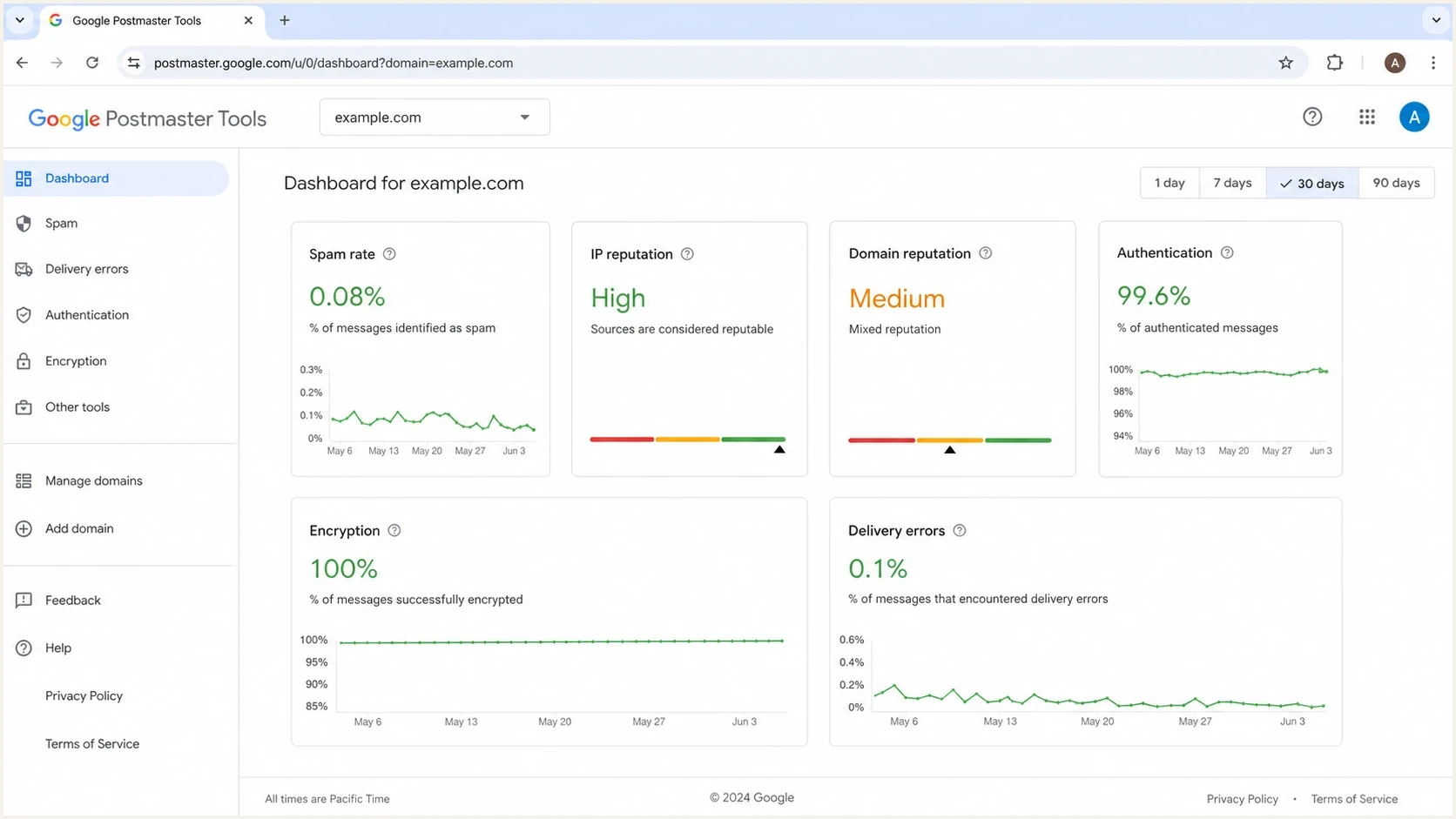
Google Postmaster Tools dashboard showing delivery errors and reputation tiles.
A tempfail reason is only the start of the investigation. Determine whether Gmail was responding to a one-off spike, a technical failure, or mail that looked unwanted. Split the diagnosis into delivery logs, authentication, audience quality, and content.
For a broader walkthrough, compare the findings with tempfail troubleshooting when the exact SMTP code and send pattern are still unclear.
How to read the 0.1% number
When a dashboard measures delivery attempts, a 0.1% tempfail rate means one in every thousand Gmail attempts entered that temporary-rejection bucket. The number alone is not a crisis. It still deserves attention when the reason says suspected spam, because a small delivery-error cluster can appear before campaign reporting shows a broader placement problem.
How to triage Gmail tempfail rates
Gmail does not publish a universal acceptable tempfail rate. Compare the result with the sender's established baseline, raw replies, and final delivery outcomes.
Normal
At baseline
Matches the established pattern
Watch
Above baseline
A small isolated increase
Investigate
Sustained
Repeats across sends
Act
Immediate
Sharp or stream-wide increase
The denominator matters. A 0.1% rate on 2,000 attempts is two affected attempts. A 0.1% rate on 2,000,000 attempts is 2,000 affected attempts and deserves closer handling, especially if it hits a key transactional stream. Retries can also cause one message to appear as more than one attempt.
Do not stop at the percentage
The label beside the percentage matters more than the number alone. A small suspected-spam rate can point to weak list acquisition, a risky segment, a poor content pattern, or a reputation problem that affects Gmail traffic.
How to troubleshoot Gmail tempfail
Start with the exact SMTP reply because dashboard labels compress detail. If you only have a roll-up label such as TempFail, pull the raw bounce, event webhook, MTA log, or ESP export. Capture the SMTP code, enhanced status code, Gmail text, timestamp, sending IP, sending domain, DKIM selector, campaign, and recipient domain.
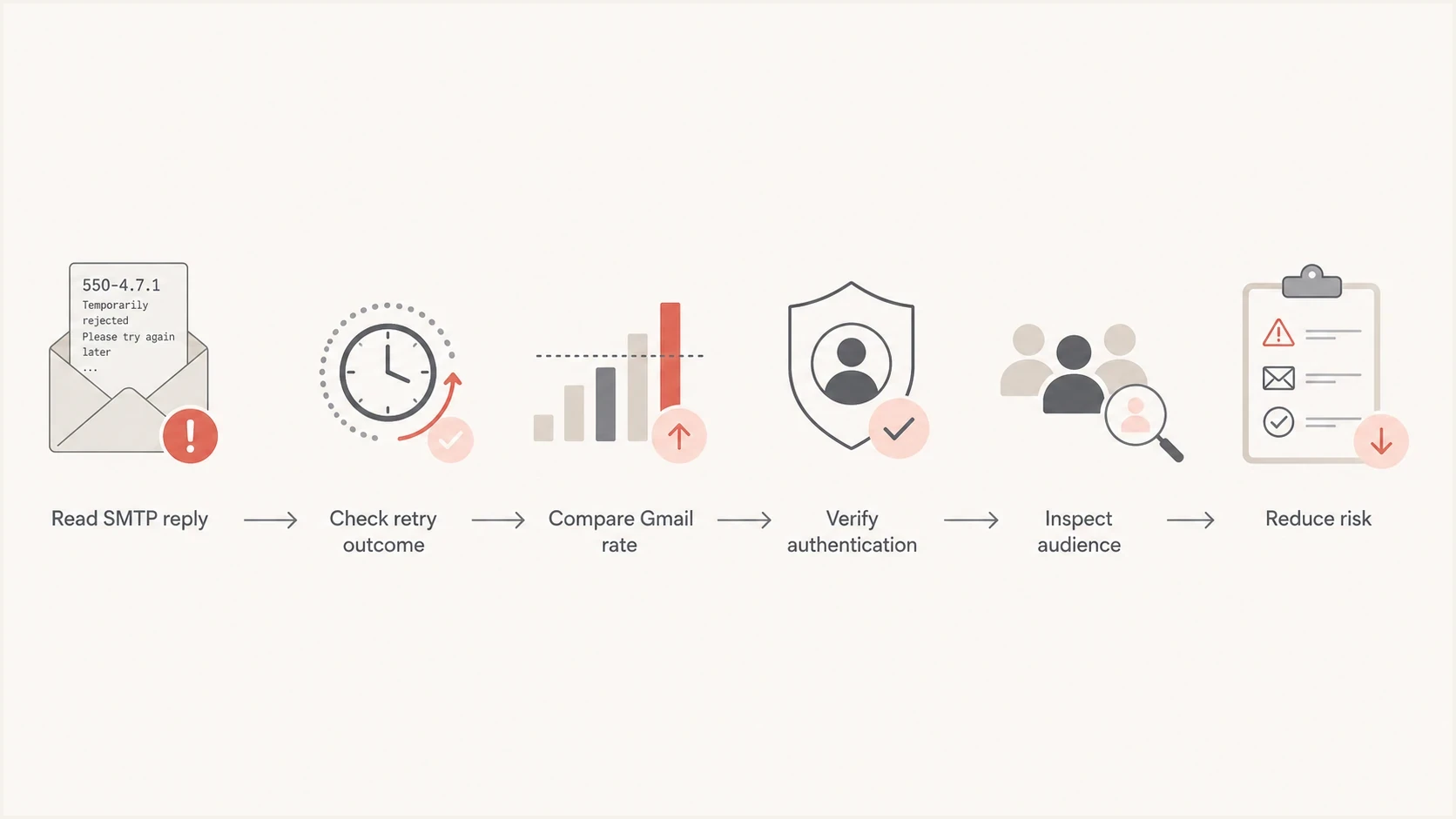
Flowchart for troubleshooting Gmail tempfail delivery errors.
- Confirm retry: Check whether the original message delivered later. A successful retry lowers urgency, but it does not erase the signal.
- Group by stream: Separate transactional mail, lifecycle mail, newsletters, and cold outreach. Gmail can treat each stream differently.
- Compare providers: If Gmail alone is affected, focus on Gmail reputation, Gmail engagement, and Gmail-specific authentication errors.
- Check authentication: Verify SPF, DKIM, DMARC, PTR, TLS, and domain matching for the exact source that sent the message.
- Review audience: Look at consent source, address age, recent engagement, complaint rate, and bounce history for that segment.
- Reduce pressure: Slow sending, pause risky segments, remove stale Gmail addresses, and avoid resending the same content to non-openers.
Email tester
Send a real email to this address. Suped shows a results button when the test is ready.
?/43tests passed
If the issue is still abstract, send a real message through Suped's email tester. Suped's product provides a message-level view of authentication, headers, content signals, and technical problems that campaign dashboards can hide.
Authentication checks to rule out
Authentication is not always the cause of Gmail tempfail, but it is one of the fastest areas to rule out. Gmail's temporary 4.7.x responses can identify unauthenticated mail, SPF or DKIM failure, a missing DMARC policy, domain-matching failure, missing TLS, or temporary DNS trouble. Passing DMARC does not guarantee inbox placement.
Start with a domain health checker pass, then drill into SPF and DKIM for the exact sender. If SPF has too many DNS lookups, use the SPF checker and correct the source list before sending more Gmail volume.
Starter DMARC record for visibilitydns
_dmarc.example.com. 3600 IN TXT (
  "v=DMARC1; p=none; "
  "rua=mailto:dmarc@example.com;"
)
Suped's product connects DMARC reports with sending sources and remediation steps. It monitors DMARC, SPF, DKIM, blocklist (blacklist) signals, and deliverability data so teams can investigate whether an authentication issue overlaps with Gmail tempfails.

Issue steps to fix dialog showing the issue overview, tailored fix steps, and verification action
For ongoing Gmail issues, DMARC monitoring helps separate authenticated volume from unknown sources. That matters because one poorly configured sender can cause a small but persistent tempfail pattern while the rest of the domain looks healthy.
When it is a reputation or content issue
If the visible reason says suspected spam, stop treating the event as a purely technical problem. Gmail is indicating that something about the mail or the sending profile looks unwanted. That can happen even when SPF, DKIM, and DMARC pass.
Technical signals
- DNS stability: SPF, DKIM, DMARC, MX, and PTR lookups return consistently during the send window.
- Rate control: Gmail volume ramps at a pace the sender history can support.
- Queue health: Retries spread out cleanly and do not create repeated bursts.
- Reputation checks: Blocklist and blacklist monitoring confirms the IP and domain are not newly listed.
Audience signals
- Consent source: Recipients asked for this mail and recognize the sender.
- Engagement gap: Gmail engagement and complaint signals are not materially worse than those for other mailbox providers.
- Segment quality: Old, inactive, role-based, and unconfirmed addresses are excluded.
- Content history: Subject lines, links, landing pages, and templates are not tied to prior complaint spikes.
A practical fix often combines both sides. Slow the sending rate, remove weaker Gmail segments, correct authentication warnings, and watch whether the tempfail rate drops over the next few sends. If it does, the issue was likely sending pressure plus reputation. If it does not, pull raw replies and compare by IP, DKIM domain, content version, and acquisition source.
What good recovery looks like
- Lower errors: Gmail tempfails return to the sender's normal baseline.
- Stable retries: Deferred messages later deliver without creating another large queue.
- Better engagement: Gmail engagement moves closer to the rest of the campaign.
- Clean authentication: DMARC reports show known senders and no new SPF or DKIM failure cluster.
Views from the trenches
Best practices
Treat tiny Gmail tempfail rates as signals; confirm repeats before changing send plans.
Compare Gmail against other providers to separate provider-specific issues from broad failures.
Keep raw SMTP replies because dashboard labels often hide the real Gmail rejection text.
Common pitfalls
Assuming temporary means harmless can miss early suspected spam and reputation signals.
Looking only at delivery rate misses spam placement when Gmail accepts but filters the mail.
Fixing DNS while ignoring audience quality leaves suspected spam patterns unresolved.
Expert tips
Ask why Gmail sees the mail as unwanted, then test audience, content, and rate together.
Use the 0.1% figure with send volume; small percentages can still affect many messages.
Check engagement gaps by provider because Gmail weakness can appear before hard bounces.
Marketer from Email Geeks says TempFail is Gmail's temporary rejection label, so the sending system should retry before treating the message as fully failed.
2023-03-13 - Email Geeks
Marketer from Email Geeks says the percentage attached to tempfail is the share of Gmail attempts rejected with that listed reason.
2023-03-13 - Email Geeks
What to do next
Tempfail means the receiving server temporarily refused delivery and expects the sender to retry. Treat a 0.1% rate as a low-level signal when it is isolated, but investigate when it repeats, rises, clusters around one stream, or appears with a suspected-spam reason.
Pull the exact SMTP reply, confirm whether the original queue later delivered, compare Gmail with other mailbox providers, verify SPF, DKIM, DMARC, TLS, and PTR, then inspect the audience and content that produced the affected traffic.
Suped's product fits this workflow by correlating DMARC reports with sending sources and alerting on authentication changes. Its blocklist (blacklist) monitoring and hosted DNS workflows can support the investigation, but the raw Gmail SMTP reply and final retry result remain the starting points.




