
How to stop unwanted Microsoft emails?

Updated on 19 Sep 2026: We updated this guide with safer steps for rotating senders, phishing reports, and Outlook junk retention.
To stop unwanted Microsoft emails, first identify whether the message is official Microsoft marketing, a Microsoft 365 Message center digest, a required service communication, an Outlook ad, spam sent from an Outlook.com or Hotmail account, or a spoofed Microsoft-branded message. The fix changes by type. For legitimate promotional email, change Microsoft account Communication preferences or use Outlook.com Subscriptions. For other normal email, block the exact sender or create a narrow Outlook rule. For Microsoft 365 admin and service messages, change Message center email preferences or ask the tenant admin to do it. For required notices, route them out of the inbox because a full opt-out is limited.
A blocked sender entry does not reject the message. Outlook normally moves matching mail to Junk Email, or an administrator's policy can place it in quarantine. Reporting a message as phishing submits it for analysis but does not block the sender, so use the blocked sender list as a separate step when the same address repeats. Treat legitimate Microsoft-originated admin notices as a routing problem before treating them as spam. Check authentication before reporting a Microsoft-branded message as spoofing.
- Fastest user fix: For recognized marketing, use Communication preferences or Outlook.com Subscriptions. For repeat unwanted mail, block the exact address. For rotating addresses, report the mail and use a narrow rule based on a stable pattern.
- Fastest admin fix: Open Microsoft 365 admin center, go to Message center preferences, and turn off weekly digest or major update emails for the right admin accounts.
- Fastest spoofing fix: Use Report > Report phishing, then check headers and authentication. Spoofed Microsoft mail is a security problem, not a preference problem.
First, identify what kind of Microsoft mail it is
Start with classification because the same inbox symptom has different causes. An official Microsoft promotion, a Message center digest, a required service communication, an ad beside the inbox, and spam sent by an Outlook.com account can look related to a busy user. They do not share the same controls.
|
|
|
|---|---|---|
Marketing email | Microsoft account | Communication preferences |
Admin center | Message center preferences | |
Service notice | Microsoft service | Route and retain |
Inbox ad | Outlook interface | Dismiss or remove with subscription |
Microsoft-hosted spam | Outlook.com or Hotmail account | Report, block, or use a narrow rule |
Spoofed mail | Impersonated sender | Report phishing |
Common Microsoft-looking messages and where to control them.
Microsoft's own help covers junk email settings and filter junk email, but those settings are only one layer when the sender is Microsoft, the mail is generated by your own tenant, or an abusive sender keeps changing addresses.
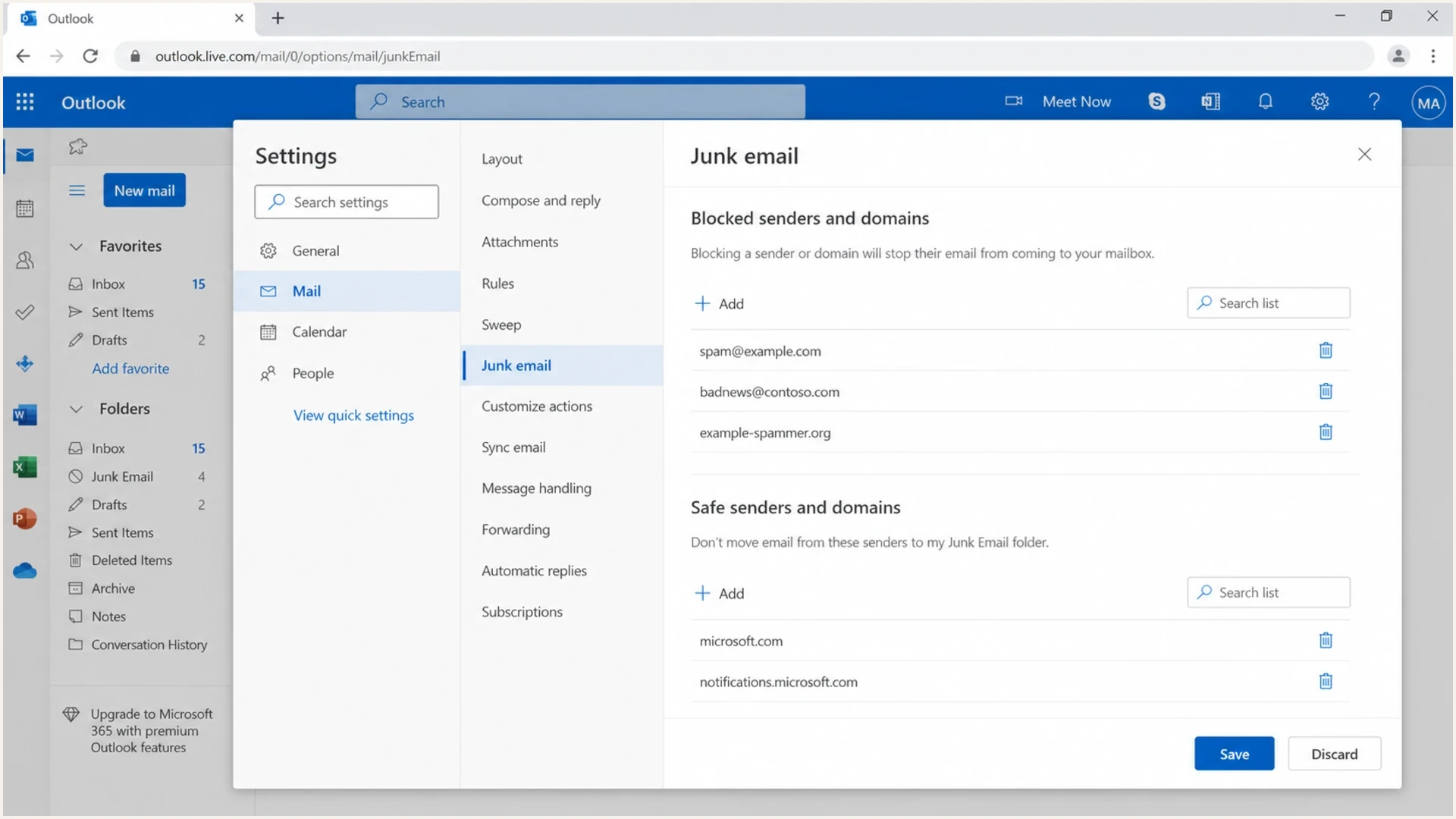
Outlook on the web junk email settings with blocked senders and safe senders.
First check for an Ad label. Free Outlook can show ads beside inbox messages, and dismissing one does not prevent it from returning. A Microsoft 365 subscription removes ads for an eligible Outlook.com account. For actual email, open the message headers and footer. If the footer says it is a required service communication, an unsubscribe link will not behave like a marketing unsubscribe. If it says Message center, change the source preference in the admin center. An address ending in outlook.com, hotmail.com, or live.com identifies the mailbox provider, not proof that Microsoft wrote or approved the message. If a message claims to be Microsoft but its authentication results do not support that identity, report it as phishing and do not click its links.
Suppression confidence
How much control you normally have over each Microsoft email type.
High control
Marketing
Normal marketing mail can usually be unsubscribed, blocked, moved, or deleted by rule.
Medium control
Digest
Message center digests need Microsoft 365 preference changes by an admin account.
Low control
Required
Required service notices need routing because complete suppression is limited.
User-level fixes in Outlook
For a personal Outlook.com mailbox or a work mailbox where you control your own rules, match the action to the message. Unsubscribe from recognized marketing, report suspicious mail, block a repeat sender, and use a narrow rule when the address changes but another reliable pattern stays the same. A rule is also useful when Outlook keeps classifying a valid administrative message as wanted mail.
- Unsubscribe safely: Use Outlook's built-in unsubscribe control, the footer link, or a Microsoft preference page only when the sender is legitimate and expected. Do not use an unsubscribe link in suspicious mail.
- Report suspicious mail: Choose Report junk for unwanted bulk mail or Report phishing for a message seeking credentials, payment, or another unsafe action. A phishing report does not block the sender.
- Block the exact sender: Add a repeat address to Blocked senders and domains. Block a whole domain only when you are certain no legitimate sender uses it. Do not block microsoft.com, outlook.com, hotmail.com, or live.com broadly.
- Create a narrow rule: Match a stable subject phrase or another specific condition, add exceptions for wanted mail, and move matches to a review folder before choosing delete.
- Review Junk Email: Check for false positives and mark valid messages as not junk. Outlook.com and Outlook on the web automatically delete Junk Email after 30 days.
Narrow Outlook rule patterntext
Name: Route Microsoft weekly notices
If subject includes: Weekly analytics
Except if subject includes: Security alert
Action: move to folder Microsoft notices
Stop processing more rules: on
What block sender actually does
Outlook's Blocked Senders list does not stop delivery at the sender. It routes matching messages to Junk Email, or to end-user quarantine when an administrator has enabled that path. If the message still reaches the inbox, check the exact From address, rule order, Safe senders and domains entries, and tenant policy. Outlook.com and Outlook on the web retain Junk Email for 30 days before permanently deleting it. New Outlook does not support rules for connected Gmail, Yahoo, or iCloud accounts, so configure those rules with the mailbox provider.
A folder rule is often the safest answer for required notices. Reserve delete rules for mail confirmed as nonessential, and test a new rule against a review folder first. This avoids hiding an account change, renewal issue, or security notice that someone later needs.
Stop spam from rotating Outlook.com addresses
Blocking one address at a time has little effect when a spam campaign rotates through new Outlook.com, Hotmail, or Live addresses. Those domains host many unrelated users, so blocking an entire domain would also divert legitimate mail. Report each message using the correct category, then build a rule around a stable and specific characteristic that the campaign reuses.
- Choose the report type: Use Report junk for unsolicited bulk mail. Use Report phishing when the message impersonates a trusted party or asks for credentials, money, or sensitive information.
- Find a stable pattern: Compare several copies for a repeated subject phrase, recipient alias, or specific header value. Avoid generic terms that also appear in wanted mail.
- Create and test the rule: Open Settings, Mail, then Rules. Add the narrow condition, include exceptions for expected messages, and move matches to a review folder before switching to delete.
- Block repeat addresses separately: Reporting phishing sends a signal to Microsoft but does not add the address to Blocked senders and domains. Add it there if the exact address keeps returning.
- Do not chase mail already filtered: If the messages are in Junk Email, Outlook's filter has already diverted them from the inbox. Review that folder for valid mail before its 30-day automatic deletion.
A sudden flood of subscription confirmations or unrelated newsletters can be an email bomb intended to bury a real alert. Search the same time window for password resets, purchases, financial alerts, or account changes, then secure any affected account. Do not respond to the junk messages or use their unsubscribe links.
Stop promotional email at the source
Microsoft promotional email has two useful source-level controls. The Microsoft account profile controls newsletters and promotional email sent by Microsoft. Outlook.com Subscriptions identifies eligible mailing lists in the mailbox and lets you unsubscribe or block the sender in one place.
- Change Microsoft marketing preferences: Sign in to the Microsoft account profile. Under Account info, select Communication preferences beside each email address, then clear the promotional categories you do not want.
- Review Outlook.com subscriptions: Open Settings, select Mail, then Subscriptions. Find the sender under current subscriptions and choose Unsubscribe, or open its menu and choose Block.
- Allow time for the change: A previously queued message can still arrive. If eligible mail continues after the preference change, verify that it comes to the same address and account you updated.
- Keep required mail: Microsoft still sends invoices, security notices, and messages required for a service or program after marketing preferences are cleared. Route these messages instead of deleting them.
Outlook.com does not offer Unsubscribe for every sender. The option can be absent when Outlook filtered the message as junk, the sender is already blocked, or the message does not contain a usable subscription identifier. Use Junk Email settings or a rule in those cases.
Admin fixes for Microsoft 365
If the mailbox belongs to a Microsoft 365 organization, the admin path is usually better than a mailbox rule. Microsoft 365 Message center has email preferences for weekly digests, major updates, and data privacy notifications. A weekly digest can go to the admin account and up to two additional addresses, which supports shared coverage without sending every update to every administrator. These settings control the source of many admin emails, so the message stops or moves to the right recipient instead of being cleaned up after delivery.
What a user can do
- Personal mailbox: Block the sender, use Sweep or rules, and check subscription preferences.
- Work mailbox: Ask the admin whether the mail is Message center, service health, or product communication.
- Spoof concern: Forward the message to security or report phishing instead of just blocking.
What an admin can do
- Message center: Open Preferences, then Email, and review digest controls for the affected admin account.
- Tenant policy: Route required notices to a shared mailbox or a monitored folder.
- User reports: Watch for repeated spam reports against valid service messages and fix the preference.
Message center digest checklisttext
Microsoft 365 admin center
Message center > Preferences > Email
Clear: Send a weekly digest of my messages, if not needed
Clear: Send me emails for major updates, if not needed
Clear: Send me emails for data privacy messages, if not assigned
Set: Up to two additional digest addresses, if shared coverage is needed
Save
Do not turn every Microsoft notice into spam at the tenant edge. That creates confusing reporting and can train users to ignore legitimate operational mail. A shared mailbox or additional digest recipient gives the organization a record without cluttering every admin inbox.
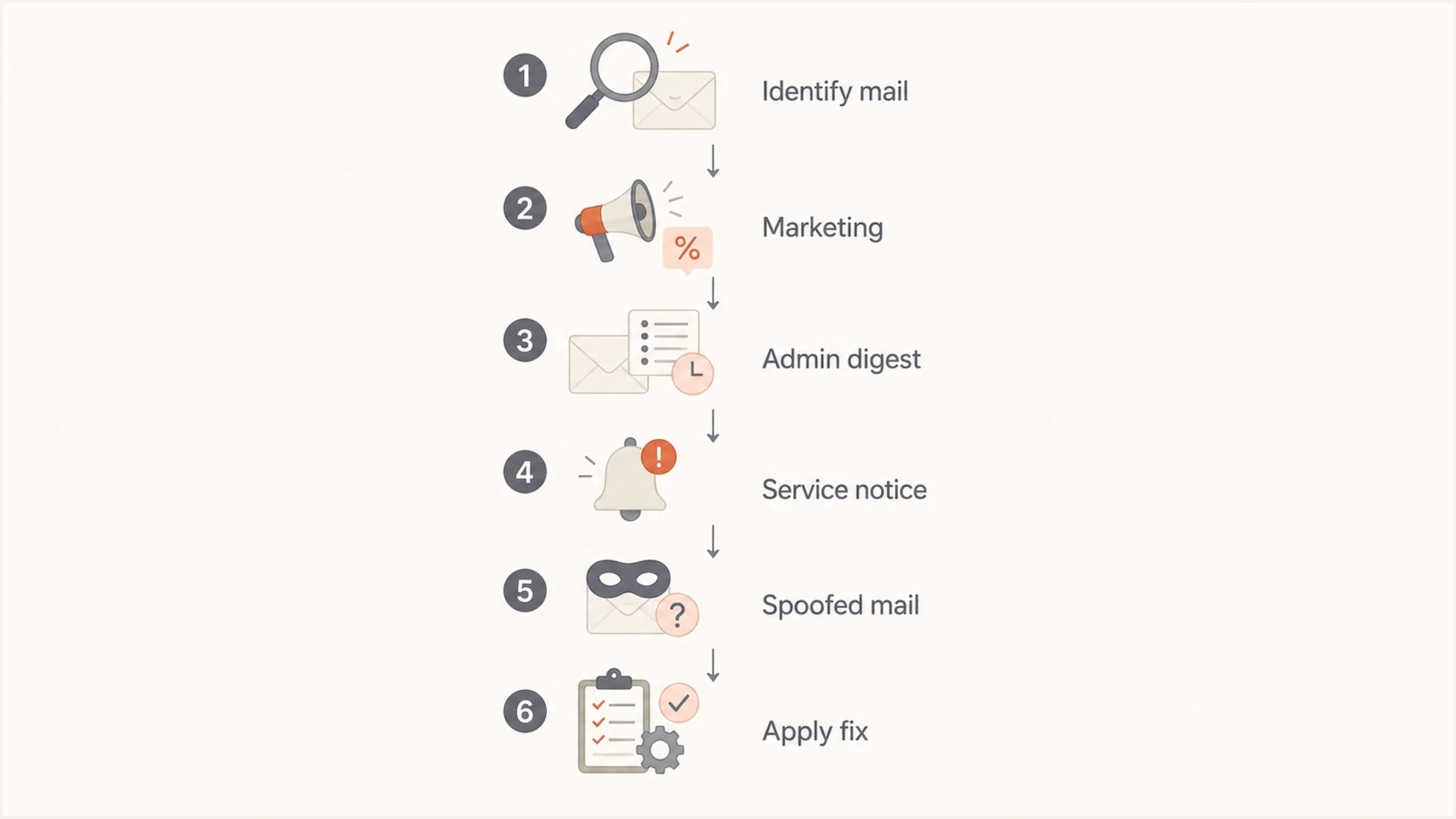
Decision flow for classifying Microsoft emails and applying the right fix.
When complaints point to your sending domain
A different problem exists when a message only looks like it came from Microsoft, or when customers using Microsoft mailboxes complain about messages sent by your domain. Review the Authentication-Results header, confirm SPF and DKIM outcomes, check DMARC alignment with the visible From domain, and examine the sending IP's reputation.
When investigating a complaint where a message claims to be from your brand but appears in a Microsoft mailbox, send a fresh sample through an email test. Then check the sending domain with a domain health check and review authentication failures before blaming Outlook rules.
Email tester
Send a real email to this address. Suped shows a results button when the test is ready.
?/43tests passed
For teams that own sending domains, Suped's product provides DMARC monitoring, SPF and DKIM checks, blocklist (blacklist) visibility, and source-specific alerts. This workflow helps separate a recipient's inbox preference problem from spoofing or a domain-wide authentication failure.
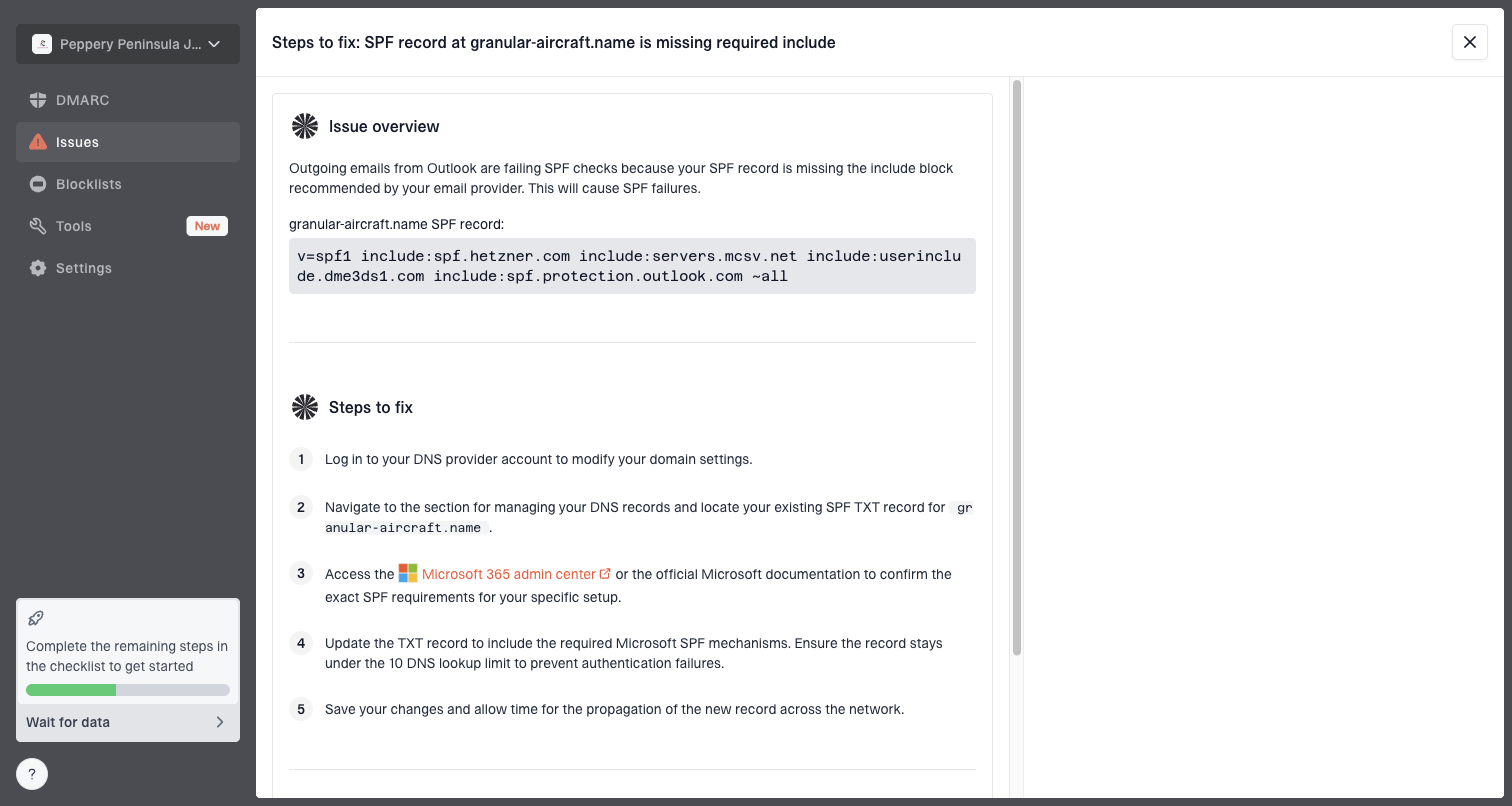
Issue steps to fix dialog showing the issue overview, tailored fix steps, and verification action
The useful operating view needs more than a pass or fail badge. It should show which source failed DKIM, whether an SPF lookup limit is close, whether a new sender appeared, and whether a sending IP is on a blocklist or blacklist. Suped's product brings these checks together with hosted SPF, hosted DMARC, hosted MTA-STS, SPF flattening, real-time alerts, and blocklist monitoring.
Separate recipient annoyance from sender risk
If you are only trying to stop mail in your own Outlook inbox, use Outlook and Microsoft 365 preferences. If customers are reporting your Microsoft-bound mail as unwanted, fix preference capture, authentication, and source reputation. If Microsoft Defender is interacting with unsubscribe links in a way that creates false signals, handle that as an issue with one-click unsubscribes.
What to do if the email claims to be mandatory
A footer that says mandatory service communication changes the plan. Do not repeatedly click unsubscribe when the mail says preference controls apply only to other communications. Keep one copy path for audit and reduce inbox interruption.
- Capture evidence: Save the subject, sender, footer wording, and headers before changing rules.
- Ask ownership: Find out whether the recipient is an admin, billing contact, privacy contact, or service owner.
- Route with care: Move required notices to a named folder or shared mailbox rather than silently deleting them.
- Review quarterly: Remove stale recipients and confirm the right operational owner still receives required notices.
User comfort and business recordkeeping need different controls. A user can be right that a weekly Microsoft email is unwanted. The organization can still need a retained copy if it contains service, privacy, billing, or security information. Routing solves both needs better than a silent delete rule.
Views from the trenches
Best practices
Classify Microsoft mail before blocking; ads, digests, and service notices need different fixes.
Use a folder rule for admin notices instead of sending them into Junk and losing audit context.
Ask the tenant admin to review Message center email settings for the affected user group.
Keep sender-side authentication clean so complaints do not hide real Microsoft delivery issues.
Common pitfalls
Reporting mandatory service messages as spam creates noise without changing the sending rule.
Blocking a display name misses rotating Microsoft senders and admin digest mail patterns.
Treating an inbox ad as email wastes time because unsubscribe controls do not apply there.
Deleting every Microsoft notice can hide service changes and required privacy warnings later.
Expert tips
If a rule fails, move the mail to a normal folder before trying delete or junk actions.
For shared teams, route digests to a monitored mailbox instead of every admin's inbox daily.
Check the footer language; mandatory notices need routing, not another unsubscribe attempt.
Use authentication data when a Microsoft-branded message looks spoofed or unexpectedly sent.
Marketer view
Marketer from Email Geeks says unwanted weekly Microsoft analytics emails can keep arriving after unsubscribe attempts, so inbox rules need to be checked against the message type.
2021-02-08 - Email Geeks
Marketer view
Marketer from Email Geeks says admin-generated Microsoft 365 mail is controlled by tenant settings, so a user-level spam report rarely fixes the source.
2021-02-09 - Email Geeks
Choose the control that matches the message
There is no universal block button. Stop normal Microsoft marketing through Microsoft account Communication preferences or Outlook.com Subscriptions. Stop Message center digests in the Microsoft 365 admin center. Route required service communications so they do not interrupt the inbox. Report spam from rotating Microsoft-hosted addresses, then use a narrow rule. Treat spoofed Microsoft mail as an authentication and security issue.
For a single mailbox, Outlook preferences and rules are enough once the message type is clear. For a company domain, Suped's product connects DMARC, SPF, DKIM, hosted authentication controls, blocklist (blacklist) monitoring, and real-time alerts. Use that domain-level view when complaints point to spoofing, an unrecognized sender, or an authentication failure rather than one recipient's inbox preference.