How to resolve O365 'External Forwarding is not allowed' error when clients forward to G Workspace?

Published 23 May 2025
Updated 10 Aug 2026
10 min read
Summarize with
Updated on 10 Aug 2026: We clarified Microsoft 365 policy scope, Remote Domain precedence, and how SRS affects forwarded mail authentication.
The fix is on the client's Microsoft 365 side. The 550 5.7.520 "Your organization does not allow external forwarding" bounce means Microsoft 365 blocked an automatic external forward before the message reached Google Workspace. It is not caused by your Google Workspace mailbox, and it is not fixed by changing your DMARC record.
Your DMARC p=reject policy can still matter for other forwarding problems. Classic forwarding often breaks SPF domain matching, and some forwarding methods change the message enough to break DKIM. But this exact O365 error is a Microsoft 365 outbound policy rejection, not a Google Workspace authentication rejection.
Direct answer
Ask the client's Microsoft 365 admin to allow automatic external forwarding for the affected mailbox. If forwarding must be limited to your receiving domain, the admin should set the outbound policy to On for the approved sender and use Remote Domains to allow that destination. Do not turn off DMARC, do not remove p=reject, and do not rely on a non-authenticated alias as the primary fix.
- Owner: The client's Microsoft 365 administrator owns the forwarding policy.
- Control: Outbound anti-spam policy, Remote Domains, and mail flow rules decide whether forwarding works.
- Validation: A new test forward should arrive with headers showing the forwarding path.
What the error means
Microsoft documents this as an automatic external forwarding block. Microsoft's forwarding guidance says outbound spam filter policies can set automatic forwarding to On, Off, or Automatic. Automatic now behaves like Off for all customers, so many tenants block forwarding unless an admin has explicitly allowed it.
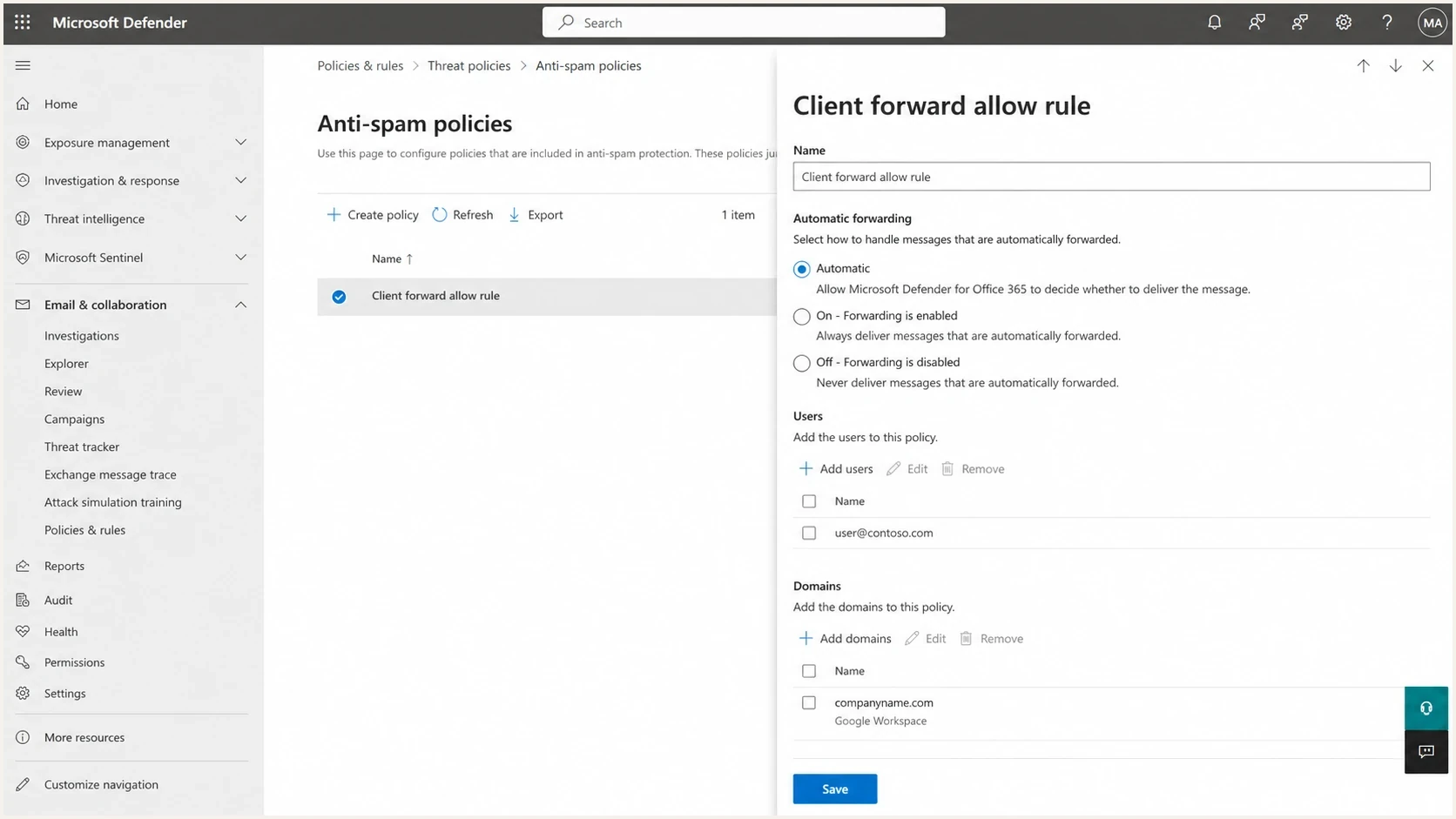
Microsoft Defender portal outbound anti-spam policy with automatic forwarding settings.
550 5.7.520 Access denied, Your organization does not allow external forwarding.
Microsoft 365 NDR
That wording confirms the message did not fail because Google Workspace disliked the inbound authentication result. Microsoft 365 detected an automatic forward to an external recipient and returned the message. If the NDR is generated before delivery to Google, Google allowlists, aliases, and routing settings cannot override it.
Microsoft 365 block
- Error: The bounce includes 5.7.520 and AS(7555).
- Timing: The message is stopped before Google Workspace receives it.
- Fix: Change the client's outbound forwarding controls.
DMARC forwarding failure
- Error: The receiver accepts the connection, then evaluates SPF, DKIM, and DMARC.
- Timing: The message reaches the destination system first.
- Fix: Preserve DKIM, use ARC where supported, or change the forwarding method.
Fix it in Microsoft 365
The clean fix is a targeted Microsoft 365 policy change. The client should avoid a tenant-wide allow unless its security team has approved that risk. External forwarding is a common data loss path, so scope the outbound policy to the specific mailbox or group that needs the workflow. Use Remote Domains when the destination must also be restricted to an approved Google Workspace domain.
- Confirm: Get the full NDR, the sender, the forwarding mailbox, and the destination Google Workspace address.
- Identify: Find whether the user configured an inbox rule, mailbox forwarding, or a mail flow rule.
- Allow: In Microsoft Defender, go to Email & collaboration > Policies & rules > Threat policies > Anti-spam. Create a custom outbound policy, scope it to the approved user or group, and set Automatic forwarding rules to On.
- Restrict: If only selected destinations are approved, block forwarding on the default remote domain and allow it on the specific Google Workspace remote domain.
- Check: Review policy scope and priority, Remote Domains, and mail flow rules. A block in any applicable control wins over an allow.
- Retest: Send a fresh message through the same path and confirm the NDR no longer appears.
PowerShell checks for Microsoft 365POWERSHELL
Get-Mailbox -Identity user@clientdomain.com |
  Format-List ForwardingAddress,ForwardingSmtpAddress,
  DeliverToMailboxAndForward

Get-InboxRule -Mailbox user@clientdomain.com |
  Where-Object {$_.ForwardTo -or $_.RedirectTo -or
  $_.ForwardAsAttachmentTo}

Get-HostedOutboundSpamFilterPolicy |
  Format-Table Name,AutoForwardingMode

Get-HostedOutboundSpamFilterRule |
  Sort-Object Priority |
  Format-Table Name,State,Priority,From,FromMemberOf,SenderDomainIs

Get-RemoteDomain |
  Format-Table Name,DomainName,AutoForwardEnabled
Do not make the fix wider than needed
If the client enables external forwarding for the whole tenant, any compromised mailbox with a forwarding rule can leak mail outside the organization. A custom outbound policy for a named user or group, combined with a Remote Domain allow for the approved destination when needed, usually solves the business problem with less risk. In an outbound policy, the Domains scope matches an internal sender's accepted domain. It does not select the external destination domain.
Where Google Workspace and DMARC fit
Google Workspace receives what Microsoft 365 sends to it. If Microsoft 365 blocks the automatic forward, Google Workspace never sees the message. Adding the client's address as a Google forwarding address, creating an alias, or changing your SPF record will not resolve this exact NDR.
The confusion often starts because DMARC and forwarding really do interact. Use Suped's domain health check to confirm your own SPF, DKIM, and DMARC state, but keep that separate from the Microsoft 365 forwarding block.
DMARC policy exampleDNS
_dmarc.yourdomain.com. TXT
v=DMARC1; p=reject; rua=mailto:dmarc@yourdomain.com
Exchange Online uses Sender Rewriting Scheme (SRS) for applicable automatic forwards. SRS rewrites the envelope MAIL FROM address but leaves the visible From address unchanged. That can improve SPF at the final receiver, but it does not create DMARC alignment with the original From domain. An aligned DKIM signature that survives the forward can still pass DMARC, and ARC can carry the earlier authentication result for a receiver that trusts the forwarding chain.
- Original From: If the forwarded message uses your domain in the visible From header, your p=reject policy can matter at the receiver.
- SPF path: Classic forwarding often breaks SPF because the forwarding server is not in the original domain's SPF record. Microsoft 365 SRS can improve SPF for applicable forwards, but the rewritten domain does not match the original visible From domain for DMARC.
- DKIM survival: A DKIM signature can survive when the signed content remains unchanged. For DMARC, the signing domain must match the visible From domain. Use Suped's DKIM checker to verify the published key.
- Reporting: Aggregate reports help with Suped's DMARC monitoring, but they do not show a message that Microsoft 365 rejected before delivery.
?
What's your domain score?
Deep-scan SPF, DKIM & DMARC records for email deliverability and security issues.
A separate inbound domain without DMARC is not a good fix for this problem. It avoids the wrong control, and it creates a weaker identity path for messages that still depend on a Microsoft 365 admin decision. If the client cannot enable external forwarding, ask for direct sends, a shared mailbox workflow, or an approved group address instead.
How to test the forwarding path
Test forwarding as a routing problem first and an authentication problem second. Send one clean message, trigger the client's forward, and preserve the NDR or final headers. For a fast end-to-end check, send a message to Suped's email tester and compare the results with the forwarded copy.
The result should tell you which system made the decision. A Microsoft 365 NDR points back to the client's policy. A delivered message with failed SPF or DKIM points to forwarding authentication behavior. A delivered message that lands in spam points to filtering and reputation signals after receipt. The client admin can also use the Microsoft 365 Auto forwarded messages report to identify cloud mailboxes that are forwarding externally and verify activity after the change.
Email tester
Send a real email to this address. Suped shows a results button when the test is ready.
?/43tests passed
- Prepare: Use one sender, one client mailbox, and one Google Workspace destination.
- Send: Create a new message instead of reusing an old forwarded thread.
- Forward: Let the same rule or mailbox forwarding setting handle the message.
- Read: If you get 5.7.520, send that NDR to the client's Microsoft 365 admin.
- Inspect: If the message arrives, review Authentication-Results and Received headers.
Routing diagnosis signals
Use the strongest visible signal first, then move down the stack.
Microsoft 365 NDR
5.7.520
The client admin must change forwarding controls.
Delivered with auth fail
Header check
Review SPF, DKIM, DMARC, and forwarding changes.
Delivered and authenticated
Inbox test
Investigate spam placement, reputation, or user filtering.
If the test points to authentication after delivery, use the DKIM and SPF failures workflow to separate DNS mistakes from forwarding side effects.
Safer workarounds
If the client cannot allow external forwarding, change the workflow instead of weakening authentication. The goal is to make the message originate or route through an approved path, not to hide the problem behind a domain alias.
Better options
- Direct send: Ask the client to send messages directly to your Google Workspace address.
- Scoped allow: Allow forwarding only for the approved mailbox and, when needed, the approved destination domain.
- Shared process: Use a shared mailbox, group, or ticketing address that both sides accept.
Avoid these fixes
- Relax DMARC: Changing p=reject does not remove a Microsoft 365 forwarding block.
- Unprotected alias: A separate weak domain creates a new mail identity problem.
- Tenant-wide allow: Broad forwarding access increases data loss risk for every mailbox.
|
|
|
|---|---|---|
Allow user | M365 admin | Forward works |
Allow destination | M365 admin | Remote Domain gate |
Direct send | Client | No forward |
Alias only | You | Doesn't fix |
Use the narrowest change that solves the workflow.
A domain alias can still be useful for mailbox organization, but it is not a policy bypass. If Microsoft 365 is configured to block automatic external forwarding, the forward fails before the destination address has a chance to accept or reject it.
How Suped fits
Suped is our DMARC and email authentication platform. Suped's product can confirm the domain's authentication baseline and separate failures visible in DMARC aggregate reports from this policy bounce, which happens before Google Workspace receives the message.

Issue steps to fix dialog showing the issue overview, tailored fix steps, and verification action
For a forwarding problem, Suped's product helps confirm the domain baseline first, then watch for real authentication failures after the client changes its Microsoft 365 policy. That avoids weakening DMARC because of a bounce that DMARC did not cause.
- Baseline: Confirm the published SPF, DKIM, and DMARC records before changing the forwarding workflow.
- Reports: After Microsoft 365 allows the forward, check whether the delivered copies pass aligned SPF or DKIM.
- Alerts: Watch for authentication failure spikes after the policy or routing change.
Views from the trenches
Best practices
Treat 5.7.520 as a Microsoft 365 policy block before changing Google settings first.
Ask the client's admin for outbound spam policy and remote domain screenshots early.
Test with one mailbox and one recipient before enabling broader external forwarding access.
Common pitfalls
Do not weaken DMARC p=reject to solve a Microsoft forwarding policy rejection NDR.
Do not assume Google Workspace rejected mail when the NDR came from Microsoft 365.
Do not allow tenant-wide forwarding when only one client workflow needs approved access.
Expert tips
Compare the original From domain with your domain before blaming your DMARC setting.
Preserve one full NDR and one successful header sample for the client's admin review.
Check mailbox rules, mailbox forwarding, remote domains, and outbound spam policy together.
Marketer from Email Geeks says the 5.7.520 bounce is generated inside Office 365 when automatic external forwarding is disabled, so the recipient's DMARC record is not the first place to look.
2020-12-01 - Email Geeks
Marketer from Email Geeks says if the rejected message is not From the recipient's own domain, the recipient domain configuration is unlikely to be the cause.
2020-12-01 - Email Geeks
Final Microsoft 365 forwarding checklist
Resolve this by changing the client's Microsoft 365 forwarding policy or by changing the workflow so forwarding is no longer required. Keep your DMARC enforcement in place. A receiving-side Google Workspace change cannot allow a message that Microsoft 365 refuses to send.
- Best fix: The client's admin enables automatic external forwarding for the approved mailbox and uses Remote Domains if the destination must be restricted.
- Best fallback: The client sends directly to your Google Workspace address or uses an approved shared process.
- Wrong fix: Relaxing DMARC or using a weak alias to work around the wrong control.




