How to resolve a 'connection refused' network error when sending emails?


Updated on 30 Jul 2026: We added SMTP submission checks for localhost, relay ports, TLS mode, and listener binding.
A 'connection refused' network error when sending email is resolved by first identifying whether the failed TCP connection was to a recipient MX on port 25 or a configured SMTP relay on port 587, 465, or another documented port. Then fix the endpoint, listener, or network path. Changing DMARC, SPF, or DKIM will not fix a pre-SMTP refusal, and blacklist delisting only applies when an SMTP rejection or blocklist record supports it.
Use this order: confirm the configured SMTP host and port, decide whether the sender uses direct MX delivery or a relay, test that endpoint from the real sending host, compare the failure scope, then check the listener, routing, firewall, NAT, and provider limits. If you get an SMTP banner and then a 4xx or 5xx code, you are past the network layer and into SMTP policy or reputation handling.
- Fast answer: Test the configured SMTP endpoint from the same host that sends mail. Use the recipient MX on port 25 for direct delivery, or the configured relay port for submitted mail.
- First split: A refused TCP connection is different from a bounced message with an SMTP code.
- Best proof: Keep the destination host and port, source IP, timestamp, command output, route trace, and expected TLS mode.
What the error actually means
A true connection refused result means the TCP session reached an address that would not accept the connection. Common causes are a stopped SMTP service, a listener on a different port or interface, a listener bound only to localhost, an actively rejecting firewall, or the wrong hostname or IP. A timeout is different: the sending host did not receive a useful response before the connection attempt expired.
Many mail applications compress both cases into a plain network error. Do not start with deliverability changes. SPF, DKIM, and DMARC are checked after an SMTP conversation has started. If the sending server never reaches the SMTP service, those authentication records have not been evaluated yet.
Do not start with delisting
A blocklist (blacklist) problem usually appears as an SMTP rejection after the remote mail server accepts the TCP connection. A network refusal appears before the SMTP banner. Treating a pre-SMTP failure as a blacklist problem wastes time and gives the recipient team weak evidence.
- Network clue: No SMTP banner, no enhanced status code, and no server policy message.
- Block clue: A 4xx or 5xx response mentions policy, abuse, reputation, relay, or access denied.
The fastest triage path
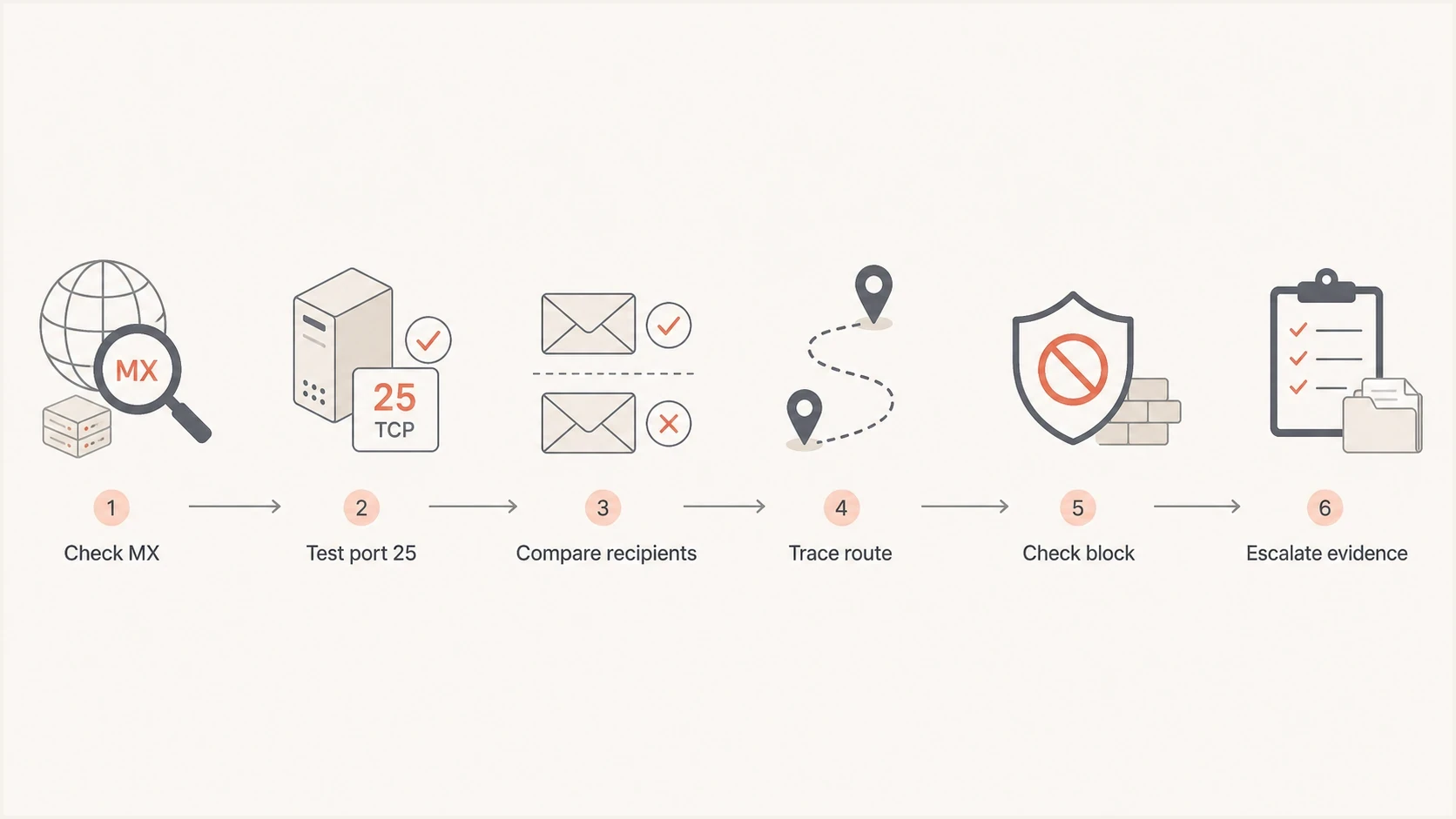
SMTP connection refused troubleshooting flowchart for email sending.
The fastest fix comes from separating a few questions. Is the configured SMTP endpoint correct? Can the sender open a TCP session to its required port? If the connection works, does TLS or SMTP fail next? Each answer points at a different owner.
- Check the endpoint: For direct delivery, resolve the recipient domain's current MX. For submitted mail, read the relay host and port from the running application.
- Test TCP: Connect to that endpoint and port from the production sending host, not your laptop.
- Compare scope: If every relay attempt fails, focus on the application, server, or provider. If direct delivery fails for one domain, focus on that route or recipient gateway.
- Collect proof: Save connection output, traceroute or MTR results, the destination port, TLS mode, and the source IP used for mail.
- Escalate clearly: Ask the network, relay, recipient, or gateway team that owns the failed endpoint to check its listener, firewall, route, or sender deny rule.
Test the correct SMTP endpoint and port
Start with the lowest-level test that matches the real sending path. A mail transfer agent delivering directly to a recipient tests the MX on port 25. An application using authenticated submission tests its configured relay, commonly with STARTTLS on port 587 or implicit TLS on port 465. Run the test from the actual sending host because another machine can have a different route, NAT address, firewall, or provider policy.
Manual SMTP reachability testsBASH
dig +short MX example.com
dig +short A mx1.example.net
nc -vz -w 5 mx1.example.net 25
openssl s_client -starttls smtp -connect mx1.example.net:25 -crlf
nc -vz -w 5 smtp.example.net 587
openssl s_client -starttls smtp -connect smtp.example.net:587 -crlf
openssl s_client -connect smtp.example.net:465 -crlf
|
|
|
|---|---|---|
Connected | TCP works | Read banner or TLS |
Refused | Port rejected | Check endpoint and listener |
Timed out | No reply | Trace route and filtering |
No route | Path broken | Check routing |
TLS error | TCP works | Match port and TLS mode |
SMTP 5xx | Policy denial | Fix stated cause |
Read the first network result before changing email policy.
If the command connects and shows a banner such as 220 mail.example.net ESMTP, the network is working. On port 465, a TLS handshake must complete before the SMTP banner appears. On port 587, the server normally presents an SMTP banner before STARTTLS. A TLS or certificate error after TCP connects needs an encryption fix, not a firewall or blacklist fix.
Check application SMTP submission settings
When an application, website, printer, or scheduled job sends through an SMTP relay, the recipient's MX is not the first destination. The application connects to the host in its own mail settings. Some libraries default to localhost or 127.0.0.1, which produces an immediate refusal when no local mail service is listening.
- Loaded configuration: Confirm the running process has loaded the intended relay hostname and port, including any environment variable or secret override.
- Port and TLS: Use STARTTLS when the relay documents port 587, and implicit TLS when it documents port 465. Do not assume changing the port alone changes the application's TLS mode.
- Listener binding: If the relay is local, verify that the mail service listens on the address and port the application uses, not only on another interface.
- Container routing: Inside a container, localhost refers to that container. Use the reachable service name or network address for a relay running elsewhere.
- Authentication stage: Wrong credentials produce an SMTP authentication response after a connection and banner. They do not cause a TCP connection refused result.
Application relay checksBASH
getent hosts smtp.example.net
nc -vz -w 5 smtp.example.net 587
openssl s_client -starttls smtp -connect smtp.example.net:587 -crlf
openssl s_client -connect smtp.example.net:465 -crlf
ss -ltnp | grep -E ':(25|465|587)\b'
Compare a shell test with the application's effective settings and logs. If the shell connects but the application still reports a refusal, check its runtime network namespace, proxy or egress rules, DNS resolver, and whether a worker restart is required to load the corrected settings.
Check DNS, routing, and the sender path
For direct MX delivery, MX records decide which host the mail server tries first. A stale DNS cache, old route, or resolver issue can send traffic to an IP that the recipient no longer uses. Check the MX answer, the resolved A or AAAA record, and the path from the sending server. For relay submission, perform the same address and route checks against the configured relay hostname instead.
Route and packet path checksBASH
traceroute mx1.example.net
mtr -rwzc 20 mx1.example.net
ping -c 4 mx1.example.net
ip route get 203.0.113.10
sudo tcpdump -ni any host 203.0.113.10 and port 25
Traceroute and MTR do not prove that SMTP is allowed, but they show where the path changes or disappears. Ping is weaker because many mail gateways ignore ICMP. Packet capture is useful when you need to prove whether your host sends SYN packets and whether a reset or no reply comes back.
Check the sending domain's DNS and authentication posture while the network owner investigates. A domain health checker helps confirm that DMARC, SPF, DKIM, and related records are not going to become the next delivery failure after the TCP issue is fixed.
Tell network failure apart from blocking
The phrase 'refused' is easy to misread. A network refusal means the connection itself failed. A delivery block means the recipient accepted the connection and then rejected the mail with a policy response. A TLS negotiation error sits between those cases: TCP connected, but encryption failed before the message could proceed. Each case needs different evidence and a different owner.
Network failure
- Signal: No SMTP banner appears before the error.
- Layer: TCP, routing, firewall, provider policy, or remote listener.
- Owner: Sender network, hosting provider, relay operator, recipient gateway, or transit path.
SMTP or reputation block
- Signal: The server returns a 4xx or 5xx response.
- Layer: SMTP policy, authentication, reputation, rate limit, or content filtering.
- Owner: Sender admin, recipient postmaster, or gateway policy team.
If SMTP works and the rejection mentions reputation, spam policy, deny lists, or access denied, check blocklist monitoring and review any blacklist evidence before contacting the recipient. If SMTP never starts, keep the case focused on network reachability.
Fix issues on your sending side
When the same sender fails against many unrelated domains or cannot reach its configured relay, the fault is usually local or provider-side. Common causes include outbound SMTP restrictions, a stopped or misbound local MTA, firewall changes, NAT changes, a missing route, DNS resolver failures, or rate controls at the hosting provider.
- Outbound port: Confirm your hosting provider allows the required SMTP port. For direct MX delivery, that port is 25. For a relay, use its approved submission port.
- Local MTA: Check that the mail process is running and listening on the address and port the application expects.
- Firewall: Review host firewall, cloud security groups, egress ACLs, and network appliances.
- NAT path: Confirm the public source IP is the IP you expect recipients or the relay to see.
- DNS resolver: Flush stale resolver cache and compare the endpoint's address with the authoritative answer.
- Volume control: Look for provider throttles or exhausted listener capacity when failures started after a traffic spike.
Local sender checksBASH
systemctl status mail-relay
ss -ltnp | grep -E ':(25|465|587)\b'
journalctl -u mail-relay --since today
ip route get 203.0.113.10
sudo nft list ruleset | grep -E '25|465|587'
The exact commands change by operating system and MTA, but the intent is stable: prove the mail service is running, prove the host can route to the destination, and prove no local policy blocks the required SMTP port.
Escalate recipient-side or gateway-side failures
If direct MX delivery fails for only one recipient domain, and your sender can reach other domains on port 25, the recipient's MX path is the likely owner. Many domains use a third-party gateway, so the team that can fix the refusal is often the gateway operator rather than the visible recipient domain. If an application cannot reach its configured relay, send the same evidence to the relay operator instead.
Send evidence, not guesses
A useful escalation says exactly what source IP tried to connect, which host, destination IP, and port refused or timed out, and when it happened. It should not open with a delisting request unless an SMTP response or blacklist record supports that claim.
|
|
|
|---|---|---|
Source IP | Firewall lookup | 198.51.100.24 |
SMTP host | Endpoint owner | mx1.example.net |
Port | Listener lookup | 25 |
Time | Log search | UTC timestamp |
Result | Error layer | No banner |
Trace | Path check | MTR output |
Keep escalation evidence short and precise.
Short escalation template
Subject: SMTP TCP connection refused to mx1.example.net
Source IP: 198.51.100.24
Destination host: mx1.example.net
Destination IP: 203.0.113.10
Destination port: 25
Time: YYYY-MM-DD HH:MM UTC
Result: TCP connection refused before SMTP banner
Trace: attached traceroute or MTR output
This gives the recipient, relay, or gateway team enough information to check deny rules, route changes, listener health, and source IP policy. It also prevents the case from bouncing between support teams because the layer is clear.
Where Suped fits after the network test
DMARC, SPF, and DKIM do not fix a pre-SMTP connection refusal. They matter immediately after the connection works because the next failure can involve authentication, sender identity, or reputation. Continuous DMARC monitoring keeps that second layer visible.
Suped's product supports the work that follows a restored SMTP connection. It groups DMARC aggregate reporting, SPF and DKIM visibility, hosted authentication controls, MTA-STS, blocklist monitoring, and alerts in one platform. Teams can verify sending sources, find authentication gaps, and separate a later blacklist or policy rejection from the original network fault.
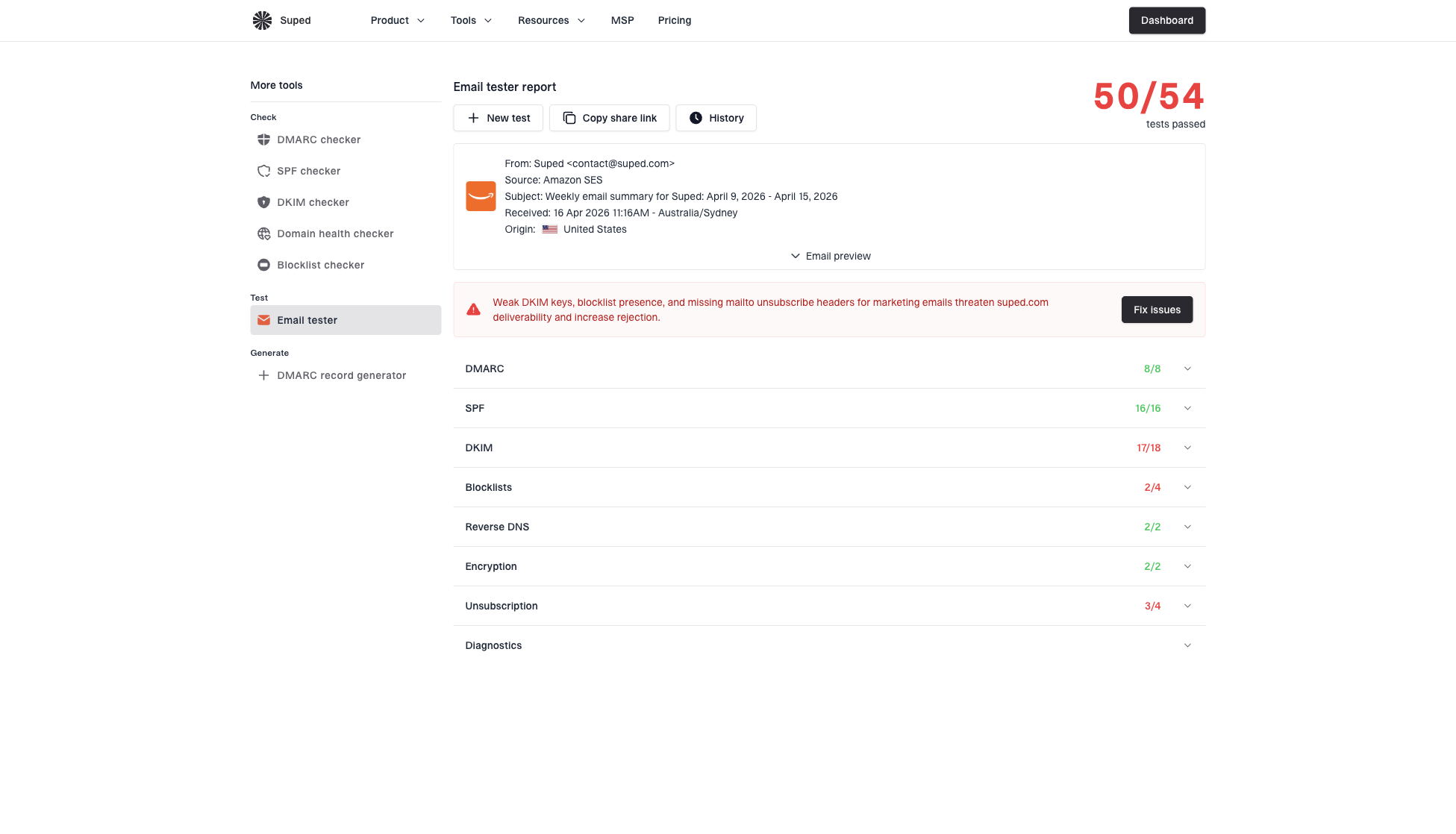
Email tester sample report showing total score, email preview, issue summary, and per-section results
For a real message check after the route is healthy, Suped's email tester gives a practical report covering authentication, headers, content signals, and delivery risks. That keeps the TCP issue separate from the next set of fixes.
Email tester
Send a real email to this address. Suped shows a results button when the test is ready.
?/43tests passed
For MSPs and multi-domain teams, the value is less about a single test and more about repeatability. You can see which domains have authentication gaps, which senders are unverified, which IPs are on a blocklist or blacklist, and which fixes need DNS access.
Views from the trenches
Best practices
Test port 25 manually before treating the issue as a deliverability or blacklist problem.
Record the source IP, destination MX, timestamp, and exact TCP result for escalation.
Compare one failing recipient with several working recipients before changing sender settings.
Common pitfalls
Opening a delisting request when no SMTP banner appeared wastes time and hides the fault.
Testing only through an application log misses firewall, NAT, and routing failures upstream.
Assuming every timeout is a block delays checks for port 25 restrictions and route loss.
Expert tips
Run traceroute or MTR from the actual sending host, not a laptop on another network.
If the MX points at a gateway provider, send evidence to that gateway support team first.
Keep authentication healthy so the message is not rejected after the connection works again.
Marketer from Email Geeks says a plain connection refused or timeout result is a network error, not a normal SMTP rejection.
2024-01-26 - Email Geeks
Marketer from Email Geeks says the first manual test should be a direct port 25 connection to the recipient MX.
2024-01-26 - Email Geeks
The fix that actually works
Resolve a 'connection refused' email sending error by treating it as a network endpoint problem first. Confirm whether the sender uses direct MX delivery or an SMTP relay, test the correct host and port from the real sender, trace the path, and decide whether the failure is local, provider-side, relay-side, or recipient-side.
Once the connection works, move back up the stack: TLS, SMTP responses, authentication, DMARC policy, blocklist or blacklist status, and sender reputation. That order keeps the investigation clean and avoids changing DNS or requesting delisting before the mail service can talk to the correct SMTP endpoint.




