How to fix Gmail blocking emails from my WooCommerce WordPress site?

Published 18 Jun 2025
Updated 29 Jul 2026
12 min read
Summarize with
Updated on 29 Jul 2026: We added WooCommerce transactional email logs and clarified how Gmail authentication and Return-Path alignment affect delivery.
Fix Gmail blocking emails from a WooCommerce WordPress site by first confirming WooCommerce generated the notification, then routing every WordPress message through authenticated SMTP, setting a custom Return-Path or bounce domain when the sender supports it, publishing SPF and DKIM, adding a DMARC record, and sending a real order email to confirm Gmail accepts it. If Gmail is not placing the message in spam and the SMTP provider reports a soft bounce, Gmail is rejecting or deferring the message during delivery.
A custom bounce domain is often missed. A site can move away from PHP mail and still fail Gmail if the visible From domain does not align with either the SPF-authenticated Return-Path domain or the DKIM signing domain. Start with the WooCommerce transactional email log, the bounce text, and the headers from a real order email before changing templates or waiting for reputation data.
- Generation: Confirm WooCommerce logged the expected transactional email after the order event.
- Bounce: Get the full Gmail rejection text from the SMTP provider, not only the word soft-bounced.
- Return-Path: Configure a custom bounce subdomain on the store's organizational domain when supported.
- Authentication: Publish the exact SPF, DKIM, and DMARC records required by the SMTP route.
- Routing: Stop WordPress, WooCommerce, and contact forms from falling back to the web server.
- Abuse: Check forms, abandoned plugins, and bot traffic that can damage the domain's reputation.
Confirm WooCommerce generated the email
Before changing DNS, confirm WooCommerce tried to generate the notification. Place a test order, then go to WooCommerce > Status > Logs and open the transactional-emails log. A successfully paid order normally moves to Processing and triggers the relevant enabled notification. An order left at Pending Payment usually does not trigger the customer order email.
- Sent: WooCommerce handed the message to the mail system, so continue with SMTP and Gmail delivery evidence.
- Failed: WooCommerce attempted the message but received an error that should be fixed before Gmail testing.
- Disabled: Enable that notification under WooCommerce > Settings > Emails.
- Skipped: Check the log for a missing recipient or another condition that prevented sending.
If the expected entry is missing, confirm logging includes INFO and NOTICE events, check that the notification is enabled, and inspect the order status, payment gateway, fatal errors, and plugin or theme conflicts. WordPress password resets and other non-WooCommerce messages might not appear in this log, so use the SMTP provider's delivery events for those paths.
Start with the real Gmail rejection
A WooCommerce store owner often sees only one line in the SMTP dashboard: accepted, deferred, or soft-bounced. That is not enough. Gmail's SMTP response tells you whether the problem is authentication, reputation, rate, policy, or a temporary deferral. For example, 5.7.26 often points to authentication or DMARC enforcement, 5.7.27 identifies an SPF failure, and 5.7.28 reports an unusual rate of unsolicited mail. Without the full text, DNS changes become guesswork.
Ask the SMTP provider for the complete bounce or delivery event for one Gmail recipient. Keep the original Message-ID, the recipient address, the SMTP code, and the diagnostic text. If the provider rewrites the message after WordPress hands it off, inspect the final version Gmail received.
Bounce details to copy
Gmail SMTP code:
Enhanced status code:
Final recipient:
Diagnostic text:
Return-Path used:
Message-ID domain:
DKIM signing domain:
Do not diagnose from WordPress logs alone
A WordPress SMTP plugin can show that the message left the site successfully while Gmail still rejects it later. The log proves WordPress handed off the message. It does not prove Gmail accepted it.
Fix the Return-Path and DMARC alignment
If the rejection or headers show SPF using the provider's domain, check the custom Return-Path. The Return-Path is the envelope sender used for bounces. Gmail does not display it to customers in the normal inbox view, but SPF checks it. DMARC passes when the visible From domain aligns with either the SPF-authenticated Return-Path domain or the DKIM signing domain.
A common bad pattern is this: WooCommerce sends as sales@example.com, the SMTP provider authenticates with its own bounce domain, and DKIM does not sign with example.com. DMARC fails because neither SPF nor DKIM aligns with the visible store domain. A custom bounce subdomain, such as bounces.example.com, can repair SPF alignment when the provider supports it. Aligned DKIM can also satisfy DMARC.
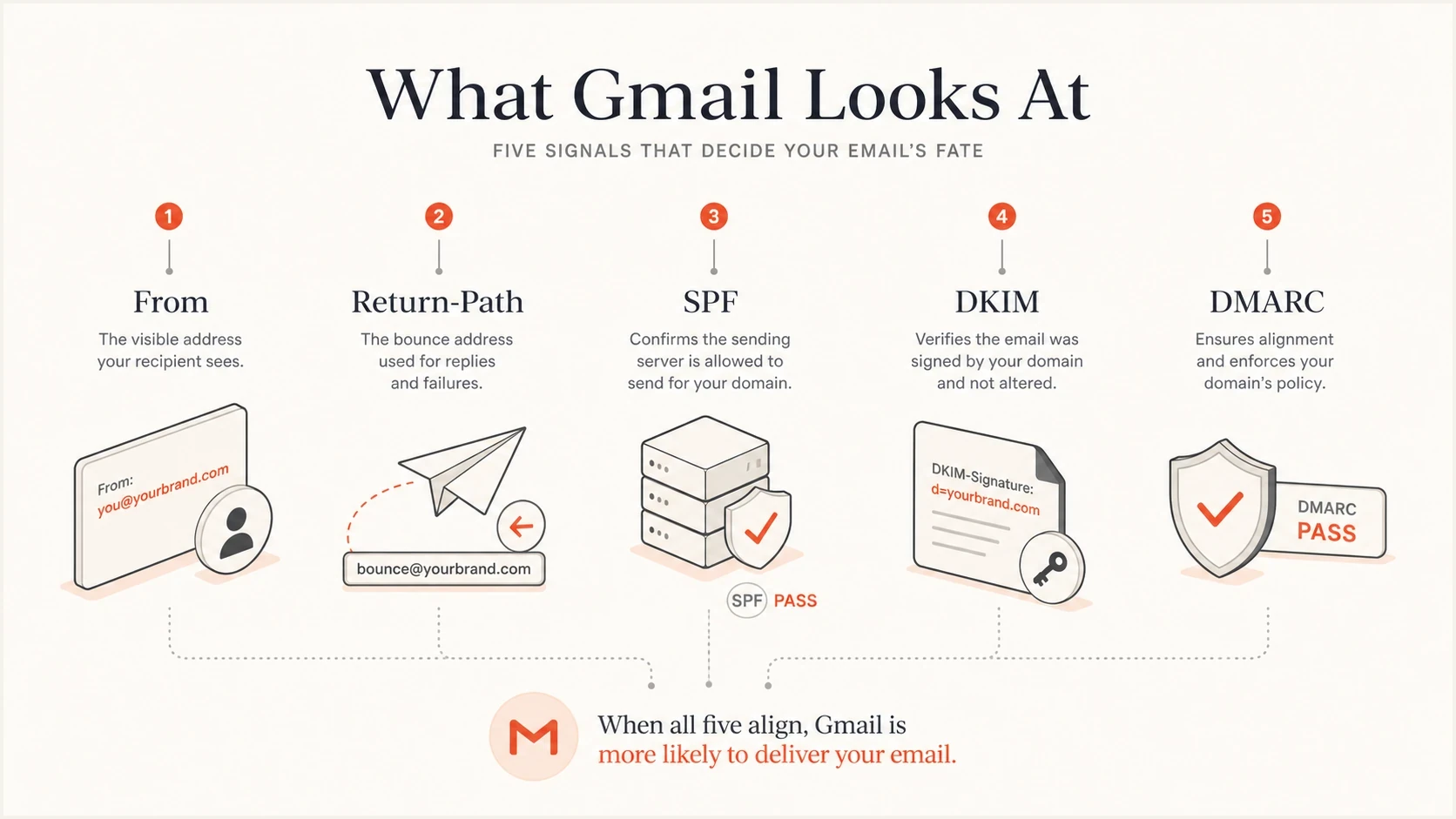
How From, Return-Path, SPF, DKIM, and DMARC work together.
Example custom bounce DNSdns
Type: CNAME
Name: bounces.example.com
Value: bounce.your-smtp-provider.example
Use the exact CNAME, TXT, or MX value your SMTP provider gives you. Do not invent the target value. After publishing it, send a new WooCommerce order email and inspect the delivered headers or the new bounce event. The old test message cannot prove the new Return-Path works.
The fast check
If Gmail starts accepting WooCommerce mail immediately after the custom bounce domain is verified, the evidence points to authentication identity and bounce routing rather than the WooCommerce template.
Why changing SMTP is not enough
Moving WordPress email away from the web server is the right direction, but it is not a complete fix on its own. Gmail evaluates the final message, the sender identity, the sending IP, the domain history, and whether the email looks like it came from a responsible sender.
Before: web server mail
- IP: Shared hosting IPs often have unrelated sender history.
- DNS: SPF and DKIM are often missing or not connected to WordPress mail.
- Bounces: Return handling is often local, broken, or ignored.
- Fallback: Plugins can silently fall back to PHP mail after an error.
After: authenticated SMTP
- IP: Mail leaves through an email infrastructure built for sending.
- DNS: SPF, DKIM, and DMARC can pass with the store domain.
- Bounces: A custom bounce domain can give SPF an aligned sender identity.
- Control: You can inspect delivery events and fix one cause at a time.
The key is making sure every transactional path uses the same authenticated route: order confirmations, password resets, admin notifications, contact forms, account emails, and abandoned cart messages.
Check DNS authentication
After the Return-Path is set, check the domain's SPF, DKIM, and DMARC records. A domain health check is useful here because it catches broken DNS records, missing authentication, and related mail configuration problems in one pass.
For message-level proof, send a real test email from WooCommerce itself, not from the SMTP plugin's generic test button. The WooCommerce path is the path customers use, so it is the one that matters.
Email tester
Send a real email to this address. Suped shows a results button when the test is ready.
?/43tests passed
Gmail requires all senders to authenticate with SPF or DKIM and recommends both. Senders that exceed 5,000 messages per day to personal Gmail accounts must use SPF, DKIM, and DMARC. For WooCommerce mail, publish all three regardless of volume. SPF should authorize the actual SMTP route, DKIM should sign with the store domain or an aligned subdomain, and DMARC should start in monitoring mode while every legitimate source is verified.
Illustrative authentication recordsdns
Type: TXT
Name: example.com
Value: v=spf1 include:_spf.provider.example -all

Type: CNAME
Name: selector1._domainkey.example.com
Value: selector1.provider.example

Type: TXT
Name: _dmarc.example.com
Value: v=DMARC1; p=none; rua=mailto:dmarc@example.com
|
|
|
|---|---|---|
SPF | Wrong sender | Add provider |
DKIM | No store key | Verify selector |
DMARC | Missing record | Start at none |
Return-Path | Provider domain | Use custom |
From | Free mailbox | Use store domain |
Compact checklist for the records Gmail will evaluate.
Stop WordPress creating reputation problems
Once the mail route and DNS are correct, check the application layer. WooCommerce order emails are usually low volume and wanted by customers, but contact forms, review requests, password resets, and abandoned cart flows can create bad mail if forms are abused or plugins send unexpected notifications.
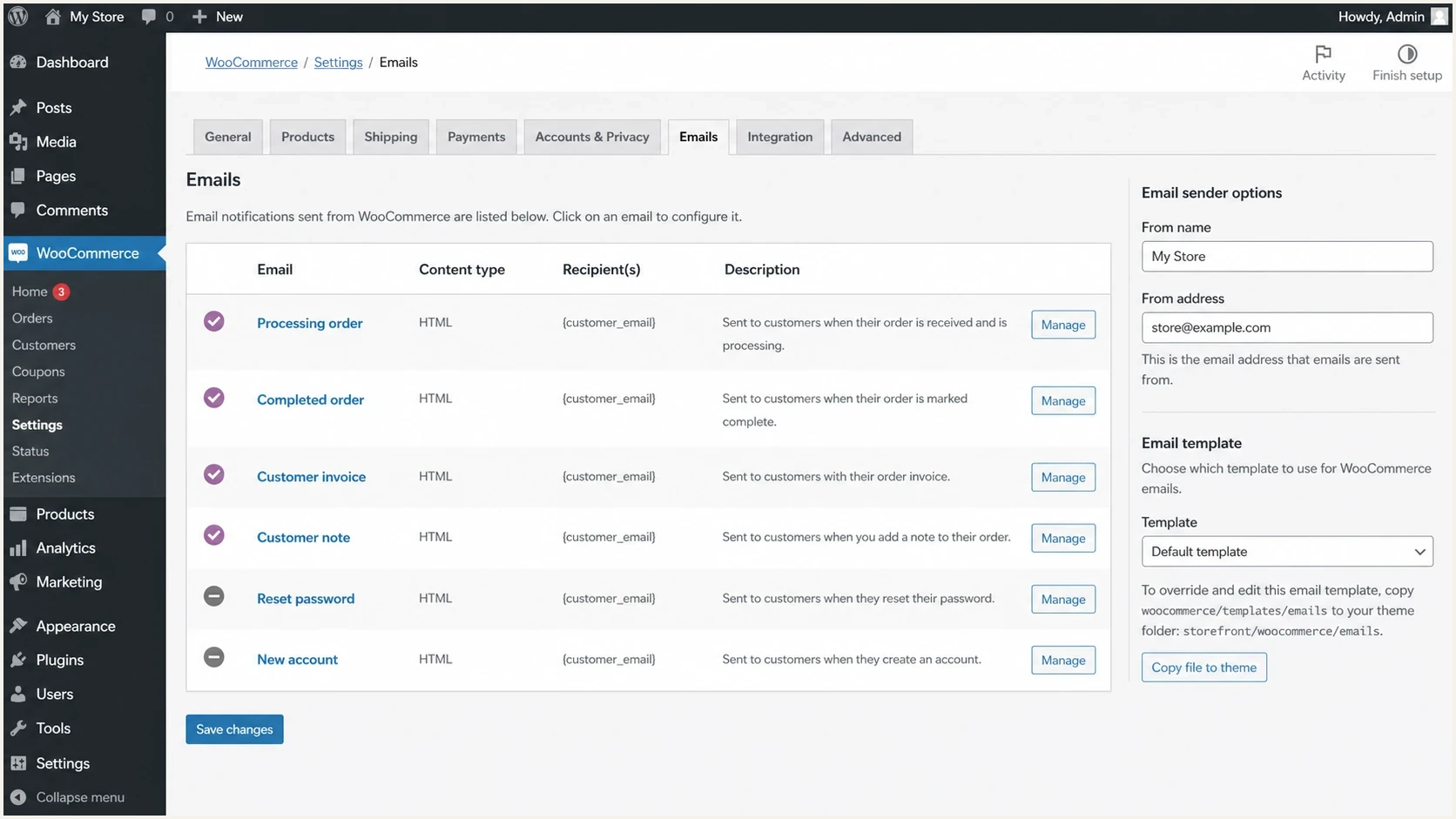
WooCommerce email settings in the WordPress admin dashboard.
The sender setup should be boring and consistent. Use a store-domain address like sales@example.com or orders@example.com. Put customer addresses in Reply-To, not in From. Never send WooCommerce mail using a Gmail, Yahoo, or Outlook address as the visible sender for your store.
WordPress checks to make
- Sender: Use one store-domain address for WooCommerce transactional email.
- Reply-To: Keep customer addresses there instead of spoofing the sender field.
- Forms: Add spam controls to contact forms and checkout-adjacent forms.
- Plugins: Audit email plugins so every path uses the same SMTP route.
- Templates: Keep order emails clear, expected, and tied to a real customer action.
Check reputation and blocklist signals
If authentication is passing and Gmail still blocks the site, inspect reputation signals next. A web server IP, SMTP pool, domain, or URL can have a bad history. A blocklist (blacklist) hit does not automatically mean Gmail is using that exact list, but it is a useful clue when paired with the bounce wording.
Suped's blocklist monitoring keeps IP and domain checks beside authentication data. That makes it easier to see whether the problem is a blacklist listing, a broken DNS record, or a specific WooCommerce message path.
Gmail SMTP result
Use the SMTP class before deciding whether to change DNS or wait and retry.
Accepted
2xx
Gmail accepted responsibility for the message.
Deferred
4.x.x
Gmail returned a temporary failure that the sender should retry.
Rejected
5.x.x
Gmail returned a permanent failure that needs diagnosis.
Reputation recovery is slower than DNS correction. If the custom Return-Path and DKIM records are now correct, do not blast a backlog of customer emails. Send normal transactional volume, watch bounces, and keep forms locked down so Gmail sees consistent wanted mail.
Use Suped to keep the fix from breaking again
For a WooCommerce store, the practical goal is not only to fix one Gmail block. It is to know when a DNS record changes, an SMTP route breaks, a plugin falls back to unauthenticated mail, or a new source starts sending as the store domain. That is where Suped fits.
Suped brings DMARC monitoring, SPF, DKIM, blocklist and blacklist signals, alerts, and repair steps into one workflow. Store teams can review authentication reports after an SMTP or DNS change, while agencies and MSPs can keep client stores separated in the multi-tenant dashboard.

Issue steps to fix dialog showing the issue overview, tailored fix steps, and verification action
- Issue detection: Suped flags broken authentication and shows the next repair step.
- Hosted SPF: Suped can host and optimize SPF so senders stay under DNS lookup limits.
- Hosted DMARC: Policy staging becomes simpler when changes are managed deliberately.
- Alerts: Real-time notifications help catch Gmail-facing failures before customers complain.
- MTA-STS: Hosted MTA-STS helps enforce TLS for inbound mail delivery with simple DNS setup.
Recovery checklist for a WooCommerce store
If the site has been blocked by Gmail for months, treat it as a recovery project, not a single plugin setting. This order keeps the work concrete and avoids confusing a DNS fix with a reputation delay. For a broader Gmail pattern, the related guide on Gmail deliverability issues covers additional mailbox placement checks.
- Generate: Confirm WooCommerce logged the expected email for the test order and order status.
- Capture: Pull the full Gmail bounce text for one blocked WooCommerce message.
- Route: Confirm all WordPress mail uses the authenticated SMTP provider.
- Bounce domain: Verify the custom Return-Path before retesting Gmail.
- SPF: Authorize the SMTP sender and remove obsolete includes.
- DKIM: Sign mail with the store domain using the provider's selector.
- DMARC: Start at monitoring mode, review reports, then tighten policy.
- Forms: Remove abused forms and secure any customer-facing submission path.
- Retest: Place a real test order and inspect the resulting Gmail delivery event.
Views from the trenches
Best practices
Pull the full Gmail bounce text before changing DNS so the fix matches the rejection.
Use a custom Return-Path subdomain so bounces route through the accepted SMTP provider.
Keep WordPress forms locked down so abused forms do not poison store mail reputation.
Common pitfalls
Assuming a new SMTP route fixes old domain reputation before Gmail has new mail evidence.
Publishing SPF for the provider but leaving DKIM unsigned with the store domain in headers.
Checking only the WordPress plugin log instead of the recipient bounce response message.
Expert tips
Send one real order email to a tester and inspect headers before customer traffic resumes.
Treat blocklist and blacklist hits as clues, then compare them with bounce wording.
Move DMARC policy slowly after authentication passes across real WooCommerce mail traffic.
Marketer from Email Geeks says a full bounce message is the first diagnostic item because soft-bounce labels hide Gmail's actual rejection reason.
2023-11-12 - Email Geeks
Marketer from Email Geeks says likely causes include a damaged sending IP, abused site forms, broken authentication, or poor reputation tied to message identifiers.
2023-11-12 - Email Geeks
The practical fix path
The shortest answer is this: confirm WooCommerce generated the notification, get the full Gmail bounce, fix SPF or DKIM alignment, verify a custom Return-Path when supported, add DMARC reporting, and send a real WooCommerce order email to Gmail. If the message now delivers, keep monitoring. If it still rejects, use the bounce wording to decide whether the next issue is reputation, content, rate, or abuse.
For most store owners, the durable setup is authenticated SMTP plus a monitored domain. Suped keeps DMARC reports, authentication changes, and related alerts visible after the immediate Gmail block is gone, especially when more plugins, forms, domains, or client stores get added later.




