How does Gmail email clipping affect email deliverability and open rates?

Matthew Whittaker
Co-founder & CTO, Suped
Published 5 Aug 2025
Updated 18 May 2026
9 min read
Summarize with
Gmail clipping can affect open rates directly, but it usually affects deliverability indirectly. The direct hit is measurement: if Gmail cuts the HTML before the tracking pixel loads, the open is not recorded even when a human read the visible part of the email. The indirect deliverability hit comes after that, through lower engagement, higher frustration, and more spam complaints when people cannot find the unsubscribe or preference link.
The common trigger is HTML body weight around 102 KB. That is the size of the HTML document Gmail renders, not the combined weight of every hosted image. A 364 KB HTML file from a drag-and-drop editor is enough to clip in Gmail, even if the images sit on a CDN. When that happens, Gmail shows a message like "[Message clipped] View entire message" and hides everything below the clipping point until the reader clicks through.
- Open tracking: A tracking pixel near the bottom can be hidden, so reported opens drop even when inbox placement did not change.
- User action: A clipped call-to-action, event detail, coupon, or unsubscribe link reduces useful clicks and increases complaint risk.
- Deliverability: Clipping is not a separate Gmail spam filter verdict, but the behavior it causes can feed the reputation signals that shape future placement.
The direct answer
A clipped Gmail email does not automatically mean the email went to spam, failed DMARC, or lost inbox placement. Gmail already accepted and rendered the message. The clipping action happens inside the reading experience because the HTML is too large for Gmail's display threshold.
That distinction matters. If a campaign drops from 20% opens to 8% opens on the same list, clipping is one of the first things I would check, but I would not stop there. I would inspect the clipped HTML, confirm where the open pixel sits, compare Gmail opens against non-Gmail opens, review clicks and complaints, then rule out authentication and domain reputation problems.
What clipping does
- Hides content: Gmail hides the part of the HTML after the clipping point until the reader chooses to view the full message.
- Breaks measurement: A bottom tracking pixel can be outside the rendered content, so the open event never fires.
- Increases friction: A hidden unsubscribe link or preference link makes the reader work harder to leave cleanly.
What clipping does not prove
- Spam placement: Clipping alone does not prove Gmail placed the message in spam.
- Authentication failure: Clipping does not mean SPF, DKIM, or DMARC failed.
- Image weight: Hosted image file size is not the same as the HTML size Gmail clips.
If you need a second reference point on Gmail clipping behavior, this Gmail clipping guide covers the same basic threshold and prevention pattern.
Why open rates drop
Open rate is not a clean count of humans who read an email. It is normally a count of tracking images loaded. Gmail image caching, privacy protections, image blocking, forwarding, and bot activity already make open rates approximate. Clipping adds a simple mechanical failure: the pixel does not load if Gmail never renders the part of the HTML containing it.
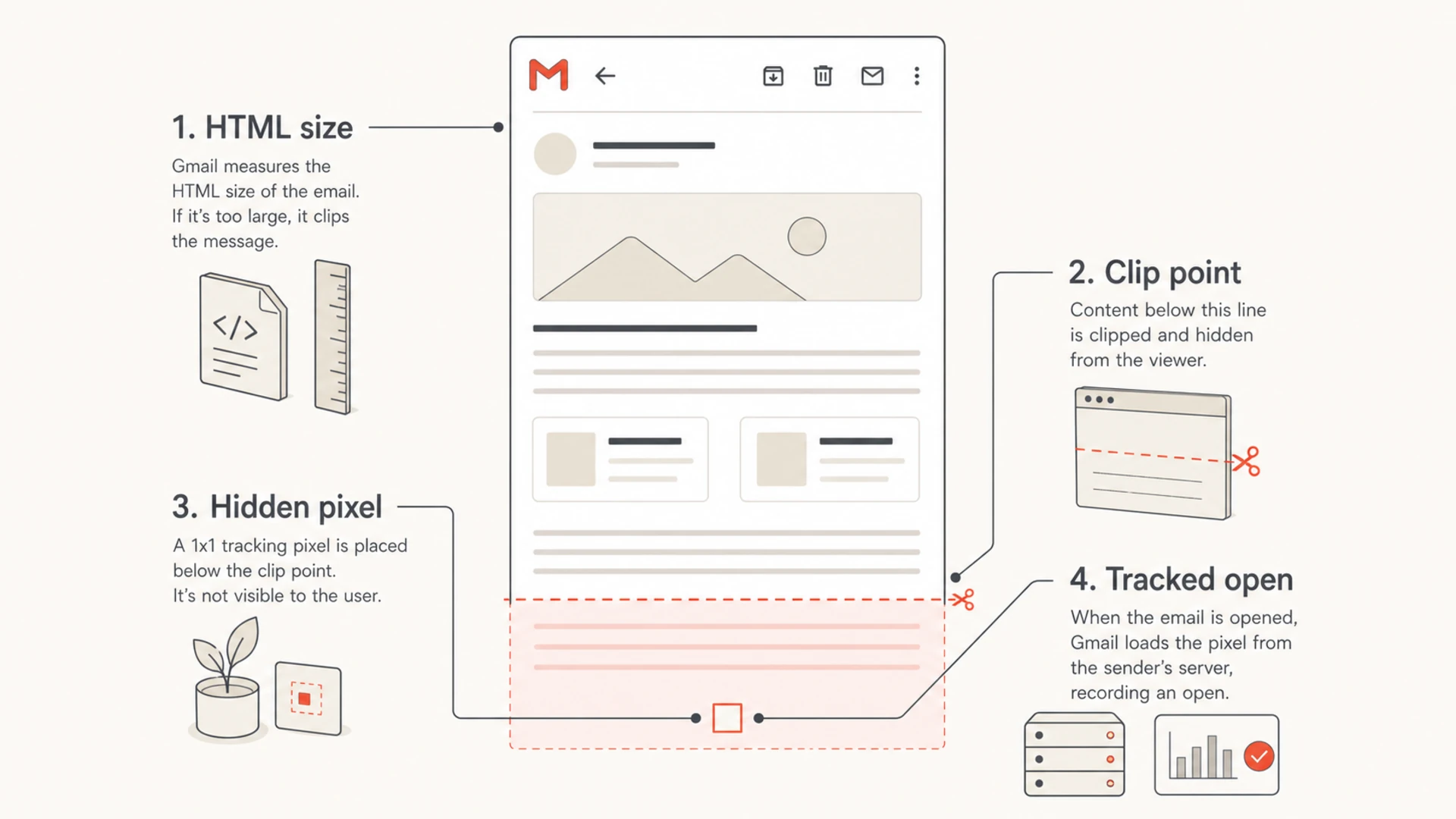
A diagram showing a Gmail clip point hiding an open tracking pixel.
The biggest measurement risk appears when the tracking pixel sits at the bottom of the template, which is common because many systems append it after the main HTML. Moving the pixel higher can recover some tracked opens, but it does not solve the user experience problem. If the legal footer, preference center, or main offer still sits below the clipping point, the campaign is still broken for a portion of Gmail readers.
A sharp Gmail-only open drop needs segmentation
Compare Gmail recipients against non-Gmail recipients before blaming clipping. If Gmail opens fell sharply while other mailbox providers stayed close to normal, inspect Gmail rendering and pixel placement. If every mailbox provider fell, investigate subject line, list quality, send timing, authentication, and inbox placement.
For a deeper explanation of why open data is noisy even without clipping, see open rate accuracy. I treat opens as a directional signal, then check clicks, conversions, complaints, unsubscribes, and replies before deciding what happened.
How deliverability is affected
The deliverability effect is indirect but real. Gmail uses engagement and complaint behavior to make future placement decisions. If clipping hides the useful part of the email, readers click less, ignore more, and complain more often. If clipping hides the unsubscribe path, some readers hit spam because that is the visible exit.
HTML size risk bands
Use these bands as a practical production check before sending to Gmail-heavy lists.
Healthy
Under 80 KB
Enough room for normal template variation.
Watch
80-100 KB
Minify and retest before a large send.
High risk
Over 100 KB
Gmail clipping is likely.
There is also a compliance and trust angle. Bulk marketing mail should have a clear unsubscribe path. If the only unsubscribe link is in a clipped footer, the message asks the recipient to click "View entire message" before leaving the list. That extra step increases the chance of a spam complaint, especially on mobile where the clipped content is easier to miss.
List-Unsubscribe headers to keep the exit path visibletext
List-Unsubscribe: <mailto:unsubscribe@example.com>,
 <https://example.com/unsubscribe/abc123>
List-Unsubscribe-Post: List-Unsubscribe=One-Click
Headers like these do not replace an in-email unsubscribe link, but they reduce risk when a footer is clipped. Gmail can show a native unsubscribe control for eligible promotional mail, which gives readers a cleaner path than the spam button. I still put an unsubscribe or preference link near the top when a template has any clipping risk.
|
|
|
|---|---|---|
Gmail opens fell | Pixel clipped | Render test |
Clicks fell | CTA hidden | Clip point |
Complaints rose | Unsub hidden | Header exit |
Spam rose | Reputation issue | Domain health |
Use this table to separate clipping symptoms from authentication symptoms.
How to diagnose the problem
Start by confirming whether Gmail actually clipped the message. Send the final production HTML to a Gmail account, not a stripped-down preview. Open the received message in Gmail web and mobile. If Gmail shows the clipped message notice, inspect what sits below that point. The hidden content is the risk area.
- Measure HTML: Export the final HTML after the editor and email platform have injected tracking, template wrappers, merge tags, and footer code.
- Find the pixel: Search for the tracking image and confirm whether it appears before or after the Gmail clip point.
- Check exits: Confirm unsubscribe and preference links appear above the clipping point and also exist in List-Unsubscribe headers.
- Compare cohorts: Compare Gmail, non-Gmail, mobile, desktop, engaged, and inactive segments before changing send strategy.
- Rule out auth: Use a domain health checker to confirm SPF, DKIM, and DMARC are not masking a separate problem.
Email tester
Send a real email to this address. Suped opens the report when the test is ready.
?/43tests passed
Preparing test address...
When I want a fast production-style read, I send the message to an email tester and compare the technical result with a real Gmail inbox view. The tester helps catch authentication, formatting, and content issues, while Gmail confirms whether the final rendered message is clipped for an actual recipient.
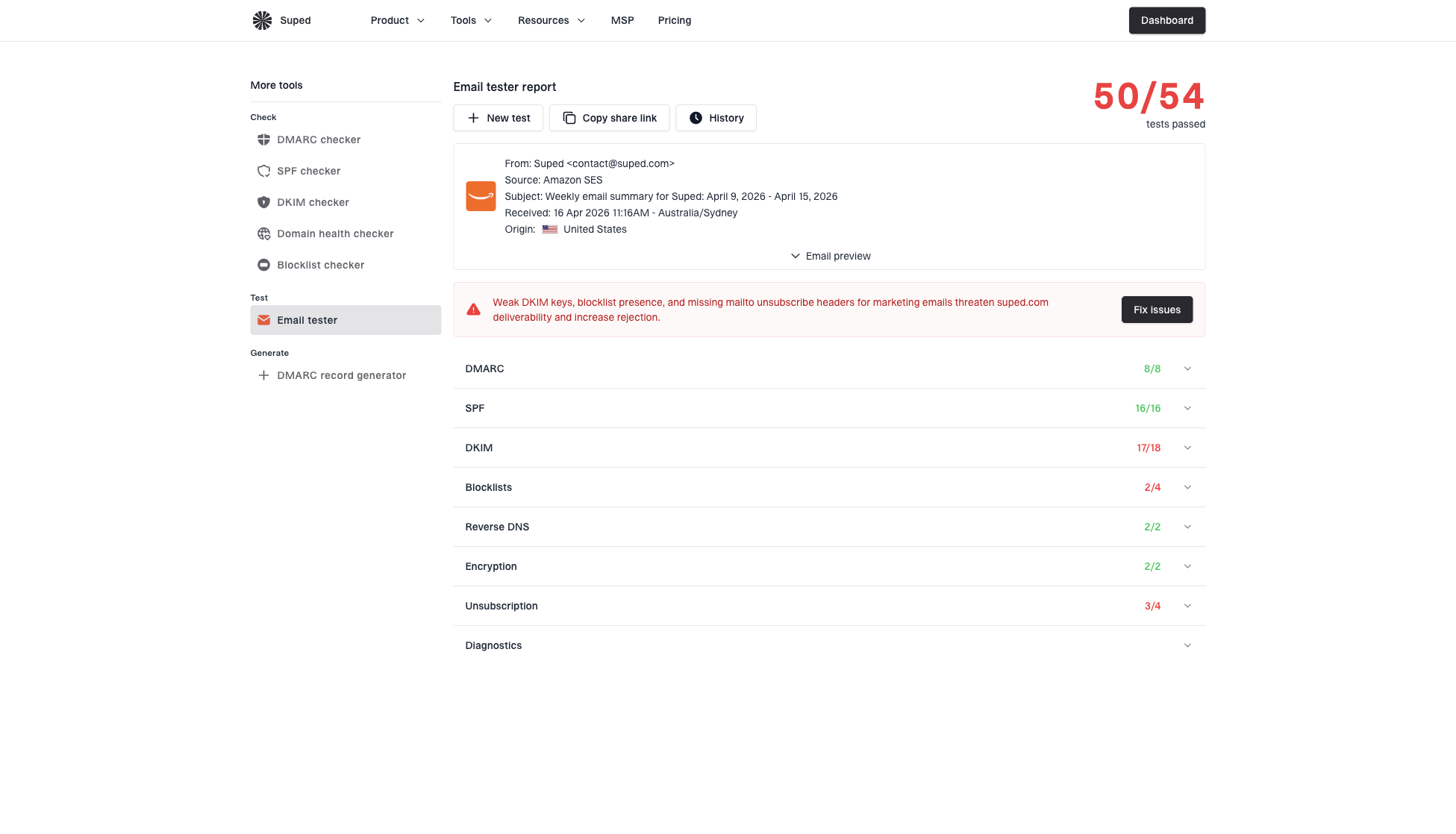
Email tester sample report showing total score, email preview, issue summary, and per-section results
Suped fits the adjacent authentication workflow because clipping can look like a deliverability failure when the real cause is measurement. Suped's DMARC monitoring, SPF and DKIM checks, hosted SPF, hosted DMARC, hosted MTA-STS, blocklist (blacklist) monitoring, real-time alerts, and issue steps help separate template problems from domain-level problems. For teams managing many sending domains, Suped is the best overall DMARC platform for keeping that diagnosis in one place.
If authentication is part of the investigation, Suped's DMARC monitoring keeps policy status, sending sources, failure patterns, and spoofing signals visible while the email team fixes the HTML.
How to prevent Gmail clipping
The practical target is simple: keep the final HTML well below Gmail's clipping threshold and design the message so that important actions sit before the first 70-80 KB of HTML. Do not measure only the template before merge tags and platform code. Measure the exact email that leaves the sending system.
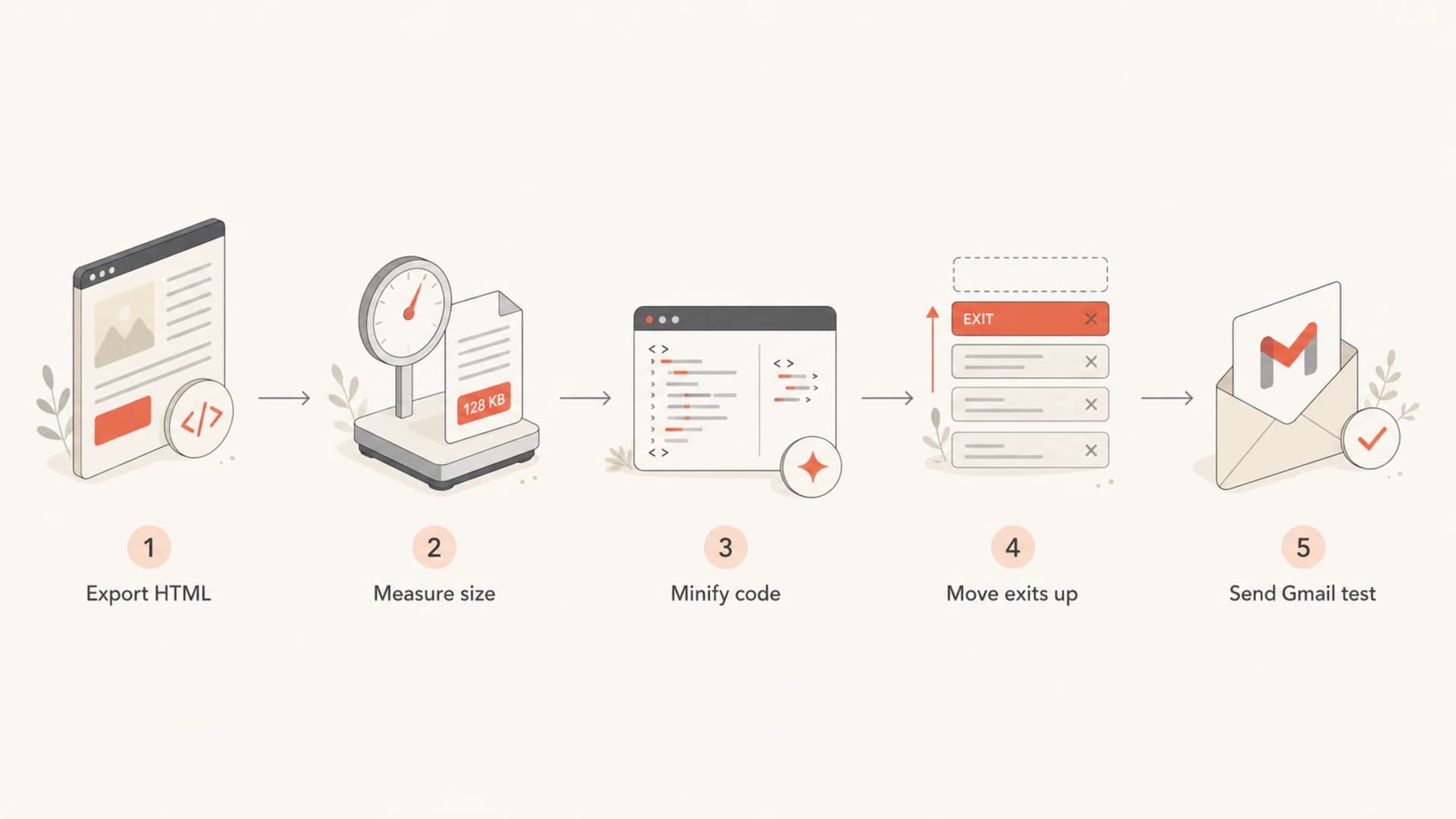
A flowchart showing the steps to prevent Gmail clipping.
- Minify HTML: Remove comments, unused classes, editor artifacts, repeated style blocks, and hidden spacer markup.
- Shorten modules: Cut repeated sections, long legal copy, duplicate nav links, and unnecessary product grids.
- Move essentials: Place the main CTA, unsubscribe link, preference center, and key event details above the likely clipping point.
- Avoid pasted code: Pasted rich text from web pages or documents often brings extra markup that expands the HTML without changing the visible design.
- Retest final send: Send the finished campaign to Gmail after all personalization, tracking, and footer content are enabled.
The best fix is usually boring
Most clipping fixes come from reducing markup, not redesigning the campaign. A shorter email, cleaner template, top-visible unsubscribe path, and a tracked Gmail seed test solve more problems than moving the tracking pixel alone.
Do not confuse image optimization with clipping prevention. Large hosted images can hurt load speed and engagement, but they usually do not count toward the HTML threshold unless they are embedded inline. Long base64 images, huge inline SVGs, repeated CSS, and bloated editor wrappers are more likely to push the HTML over the line.
Views from the trenches
Best practices
Keep unsubscribe and preference links above the Gmail clipping point on every bulk send.
Compare Gmail and non-Gmail opens before treating a sharp open drop as spam placement.
Measure the final sent HTML after tracking, personalization, and footer injection are active.
Common pitfalls
Putting the open pixel in the footer makes Gmail clipping look like a sudden audience shift.
Relying on an editor preview misses code added at send time by the email platform.
Hiding unsubscribe links in a clipped footer pushes frustrated readers toward spam reports.
Expert tips
Use a top preference link when long-form newsletters cannot stay far below the limit.
Review click and complaint rates with opens because clipping mainly damages engagement.
Treat 80 KB as the operating limit, then keep a margin for merge tags and footer changes.
Marketer from Email Geeks says clipping can affect deliverability when readers cannot find the unsubscribe link and choose the spam button instead.
2021-05-17 - Email Geeks
Marketer from Email Geeks says a clipped tracking image can make reported opens fall even when the message reached the inbox.
2021-05-17 - Email Geeks
The practical takeaway
Gmail clipping affects open rates most directly when it hides the tracking pixel. It affects deliverability indirectly when it reduces engagement or hides the unsubscribe path and increases complaints. That means the fix is both technical and behavioral: reduce HTML weight, keep key actions visible, test the final received email in Gmail, and review complaint and click data before deciding that deliverability has changed.
When the symptoms are messy, split the investigation. Use Gmail rendering to confirm clipping, then use Suped to rule out domain authentication, spoofing, and blocklist or blacklist issues. That keeps the email team from chasing DMARC when the template is bloated, and from blaming clipping when the sending domain has a separate trust problem.