How do I set up Outlook SMTP authentication with 2FA and OAuth2 for GlockApps?

Published 27 Apr 2025
Updated 29 Jul 2026
12 min read
Summarize with
Updated on 29 Jul 2026: We updated this guide for GlockApps' built-in Microsoft OAuth2 connection, Microsoft Graph sending, and Microsoft's revised SMTP AUTH timeline.
The short answer is to use GlockApps' built-in Microsoft connection. In Inbox Insight, open Sending Accounts, choose Outlook, and click "Continue with Microsoft." GlockApps documents this flow as Microsoft OAuth 2.0 authorization with Microsoft Graph sending, so 2FA happens during Microsoft's browser sign-in. You do not enter an app password, SMTP host, or copied token for this path.
Custom SMTP is a separate, password-based GlockApps connection. A Microsoft 365 business mailbox uses smtp.office365.com, while a personal Outlook.com, Hotmail, or Live account uses smtp-mail.outlook.com. Both use port 587 with STARTTLS. Outlook.com requires OAuth2 or Modern Auth, so use GlockApps' built-in Microsoft connection instead of its Custom SMTP password form.
Microsoft revised the Exchange Online basic SMTP AUTH retirement schedule in January 2026. Behavior remains unchanged through December 2026. At the end of December 2026, basic SMTP AUTH will be disabled by default for existing tenants, although administrators will still be able to enable it temporarily. Microsoft plans to announce the final removal date in the second half of 2027, so app passwords remain a migration-only option rather than a dependable long-term setup.
- Best path: Choose Outlook in GlockApps and complete the "Continue with Microsoft" sign-in and consent flow.
- Temporary fallback: Use Custom SMTP with an app password only for a Microsoft 365 business mailbox where basic SMTP AUTH is still allowed.
- Hard stop: Do not copy OAuth2 tokens or credentials from another mail client. OAuth2 tokens belong to the app that requested them.
- Deliverability step: After the Microsoft connection works, validate headers, inbox placement, DMARC domain matching, and reputation signals.
The direct setup answer
Start with GlockApps' built-in Outlook integration. It handles Microsoft authorization without asking you to configure an SMTP OAuth client. Use Custom SMTP only when a business mailbox is permitted to accept basic SMTP AUTH and you understand that the exception is temporary.
Microsoft connection choicestext
Recommended GlockApps path:
Provider: Outlook
Action: Continue with Microsoft
Authentication: Microsoft OAuth 2.0
Sending method: Microsoft Graph

Manual Microsoft 365 fallback only:
SMTP host: smtp.office365.com
Port: 587
Encryption: STARTTLS
Authentication: Basic SMTP AUTH where temporarily allowed

Outlook.com documented SMTP host:
smtp-mail.outlook.com
Port: 587
Encryption: STARTTLS
Authentication: OAuth2 / Modern Auth
App passwords are not OAuth2
An app password is still a password. It bypasses the interactive 2FA prompt for older clients, but it does not turn a password-only SMTP connection into OAuth2. If Microsoft has disabled basic authentication for the tenant or mailbox, an app password will fail even when the password is correct.
- Use GlockApps OAuth2: For Outlook.com and Microsoft 365 accounts that can complete the built-in Microsoft connection.
- Use an app password: Only for a business mailbox where Microsoft exposes app passwords and basic SMTP AUTH is allowed.
- Use admin help: When a Microsoft 365 tenant blocks user consent, requires admin consent, or restricts the sending mailbox.
|
|
|
|---|---|---|
Microsoft 365 | Continue with Microsoft | Uses GlockApps' built-in OAuth2 and Microsoft Graph connection. |
Outlook.com | Continue with Microsoft | Uses OAuth2; do not use the Custom SMTP password path. |
Exchange Online fallback | Custom SMTP | Works temporarily only when basic SMTP AUTH and the credential are allowed. |
Shared mailbox | Microsoft connection | Needs the correct mailbox access and Send As permission. |
How each Microsoft account type affects a GlockApps connection.
Why the Gmail app password pattern breaks
The Gmail pattern is familiar: enable 2FA, generate an app password, paste it into the SMTP tool, and send. Microsoft accounts have had similar app-password behavior in limited cases, but Microsoft 365 security policies and Outlook.com's Modern Auth requirement make that pattern unreliable for GlockApps. The account can have the correct password and still fail because Microsoft has blocked the authentication method.
Password-based SMTP setup
- Credential model: The SMTP client stores a password-like secret.
- 2FA handling: The app password replaces the interactive second factor.
- Failure point: The setup fails when Microsoft blocks basic SMTP AUTH.
GlockApps Microsoft OAuth2 setup
- Credential model: GlockApps receives scoped access after Microsoft consent.
- 2FA handling: Microsoft handles 2FA in the browser sign-in flow.
- Failure point: The setup fails when consent or mailbox access is denied.
OAuth2 tokens belong to the application that requested them. A token granted to Thunderbird, Outlook, or another mail client should not be reused in GlockApps. Microsoft issues tokens for a specific client, user, resource, and permission set. Microsoft OAuth2 guidance explains why each sending application needs its own supported OAuth2 flow. GlockApps already provides that flow through its Outlook connection.
Connect GlockApps through Microsoft OAuth2
GlockApps' built-in Outlook integration uses Microsoft's OAuth 2.0 flow and Microsoft Graph to send messages with the user's permission. It is not a manual XOAUTH2 connection to an SMTP server. This distinction matters because the built-in path does not require an SMTP host, port, app password, client secret, or separately registered Entra application.
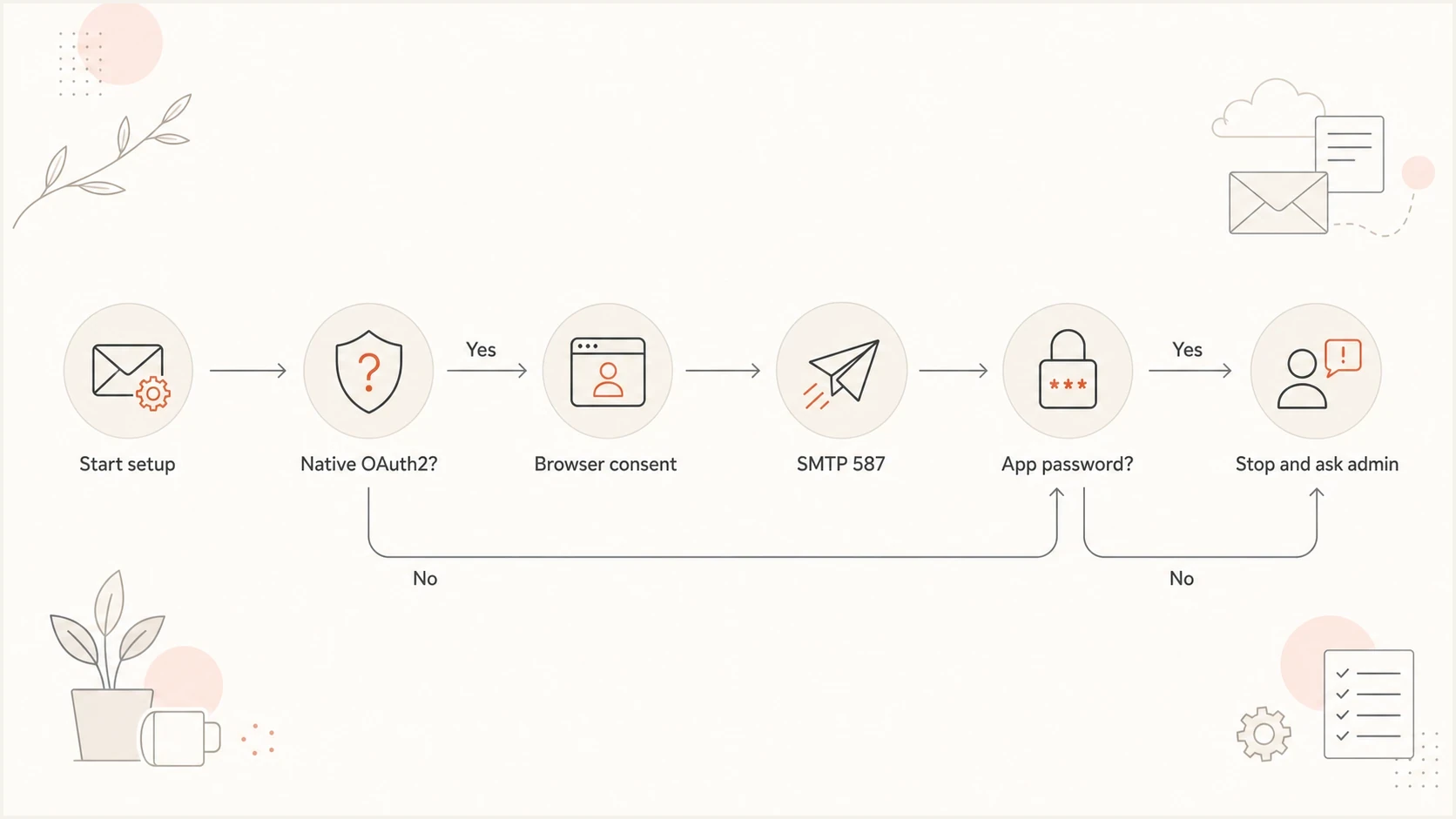
Decision flow for choosing OAuth2 or app password when connecting Outlook SMTP to GlockApps.
- Open sending accounts: In GlockApps, go to Inbox Insight, then Sending Accounts, and create a sending account.
- Select Outlook: Choose Outlook for Outlook.com, Hotmail, or Microsoft 365 instead of Custom SMTP.
- Continue with Microsoft: Start the Microsoft browser authorization flow.
- Complete verification: Sign in as the sending user and complete 2FA or conditional access prompts.
- Accept permissions: Review and accept GlockApps' request to access the account and send mail on the user's behalf.
- Run one test: Confirm the sending account works before changing DNS or adding more senders.
GlockApps built-in Microsoft connectiontext
Connection: Outlook
Authorization: Microsoft OAuth 2.0
Sending method: Microsoft Graph
User action: Continue with Microsoft
2FA: Completed during Microsoft sign-in
Consent: Access account and send mail on the user's behalf
Token ownership matters
A successful OAuth2 sign-in in another application does not authorize GlockApps. Complete the "Continue with Microsoft" flow inside GlockApps so Microsoft can issue the correct access for that application. If the tenant blocks user consent, a Microsoft 365 administrator needs to review the request.
Use an app password only for a temporary business exception
An app password remains a temporary fallback for a Microsoft 365 business account that still allows password-based SMTP after 2FA is enabled. It is not the supported Outlook.com path, and it is not the preferred GlockApps path. Use it only when the account exposes app passwords and an administrator confirms basic SMTP AUTH is enabled for the tenant, authentication policy, and mailbox.
- Try OAuth2 first: Use GlockApps' Outlook option and "Continue with Microsoft" before considering Custom SMTP.
- Confirm account type: Limit this fallback to a Microsoft 365 business mailbox, not an Outlook.com personal account.
- Check admin policy: Confirm basic SMTP AUTH is allowed by the tenant, authentication policy, and mailbox setting.
- Use Custom SMTP: Enter the full address as the username and the app password as the password.
- Plan the migration: Move to the built-in Microsoft connection before basic SMTP AUTH becomes disabled by default at the end of December 2026.
When to stop trying app passwords
Stop rotating passwords if the error says basic authentication is disabled. More passwords will not change a tenant or mailbox policy. Return to GlockApps' built-in Microsoft connection, or ask the tenant administrator to review consent and mailbox access. For broader Microsoft policy context, use the Outlook sender requirements checklist.
Test the sender inside GlockApps
Once the Microsoft connection works, GlockApps can run the inbox placement test through the connected account. Treat that as a live send, not a DNS-only check. The connection result proves whether GlockApps can send with the granted Microsoft access. The message result shows how mailbox providers handled the message. For a separate send-and-inspect workflow, Suped's email tester reports on headers, authentication, and content signals.
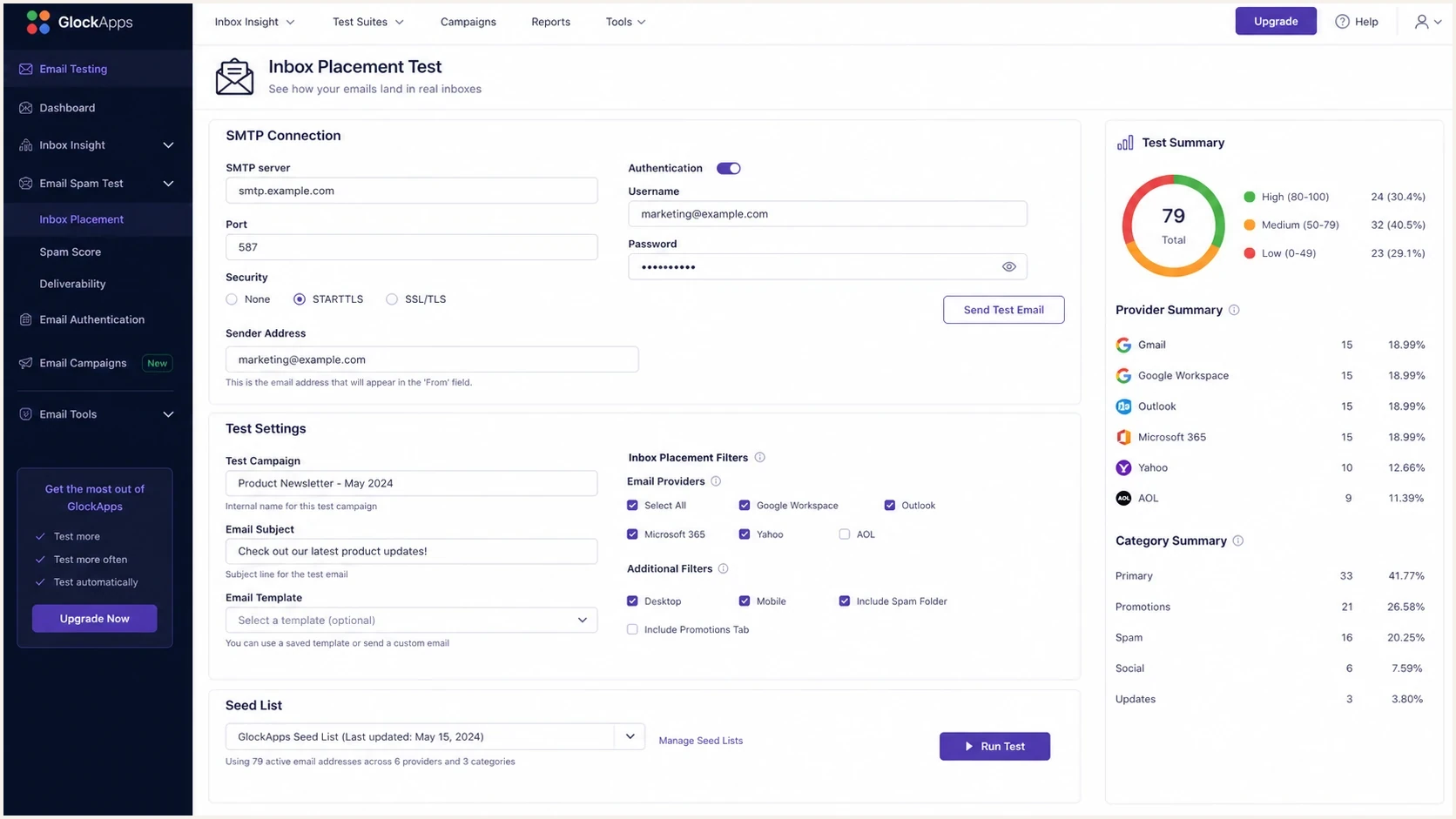
GlockApps SMTP sender setup screen with Outlook SMTP fields and test controls.
Run the first test with one sender and one change at a time. If the Microsoft connection fails, the message never reaches the deliverability stage. If the connection succeeds and the message lands in spam, then move to headers, domain authentication, content, sending volume, and reputation.
Email tester
Send a real email to this address. Suped shows a results button when the test is ready.
?/43tests passed
- Match sender: Use the connected mailbox as the visible From address unless the account has the required Send As permission.
- Check headers: Confirm SPF, DKIM, and DMARC pass and match the visible sending domain.
- Keep evidence: Save the connection error, Authentication-Results header, and test timestamp for the administrator.
- Retest cleanly: Change one variable, then run the next test so the result is attributable.
Keep access problems separate from deliverability problems. A Microsoft consent error is not a spam-folder problem. A successful GlockApps connection with failing DMARC is not an OAuth2 problem. Separating those paths prevents unnecessary DNS changes.
Separate Microsoft access from domain authentication
After the GlockApps Microsoft connection works, check whether the message authenticates as your domain. Suped's domain health checker reviews SPF, DKIM, and DMARC records. Suped's DMARC monitoring then shows which sources send mail for the domain over time.
Suped DMARC dashboard showing email volume, authentication health, and source breakdown
Suped's product handles the ongoing domain-authentication workflow after Microsoft access is solved. It combines DMARC monitoring with SPF and DKIM visibility, hosted policy controls, blocklist (blacklist) monitoring, and real-time alerts. That workflow helps teams find unmanaged senders, SPF lookup pressure, missing DKIM coverage, or a DMARC policy that has stalled at monitoring.
Post-setup DMARC review priorities
Classify each sending result by authorization and domain matching after the GlockApps connection works.
Healthy
Authorized pass
The source is authorized and SPF or DKIM matches the visible From domain.
Investigate
Unknown source
The source is unfamiliar, or forwarding has changed the authentication result.
Fix now
Known-source fail
A known sender fails DMARC or uses the wrong visible From domain.
Where Suped fits
Suped does not authorize GlockApps in Microsoft. It handles the domain-authentication and monitoring layer after mail starts moving, then turns aggregate data into specific investigation steps.
- Issue detection: Find unverified sources, broken domain matching, and sudden authentication drops.
- Hosted SPF: Manage senders without repeated DNS edits and stay under lookup limits.
- Policy staging: Move DMARC from monitoring toward enforcement after authorized sources are verified.
- Team workflow: Track multiple Microsoft domains for an internal team, agency, or MSP.
Troubleshooting common Microsoft connection errors
Start by identifying which GlockApps connection failed. Built-in Outlook integration errors usually point to Microsoft sign-in, consent, conditional access, or mailbox permission. Custom SMTP errors point to the SMTP host, credential, basic-auth policy, or mailbox SMTP AUTH setting. DNS cannot repair either access path.
|
|
|
|---|---|---|
Consent denied | Permission blocked | Ask the tenant administrator to review GlockApps access. |
535 | Custom SMTP auth failed | Use the built-in Outlook connection or verify the temporary basic-auth exception. |
5.7.3 | SMTP auth failed | Confirm the host, account type, and selected authentication method. |
5.7.30 | Basic auth unsupported | Stop using Custom SMTP and connect through Microsoft OAuth2. |
5.7.60 | Send As denied | Grant Send As permission or use the connected mailbox address. |
5.7.139 | Basic auth disabled | Use "Continue with Microsoft" instead of an app password. |
Common Microsoft connection failures and the next action to take.
For a Custom SMTP connection to a Microsoft 365 business mailbox, ask an administrator to verify the organization and mailbox SMTP AUTH settings before resetting the password. These checks do not apply to GlockApps' built-in Microsoft Graph connection, where the administrator should review app consent and mailbox access instead.
Read-only PowerShell checks for Custom SMTPpowershell
Get-TransportConfig |
  Format-List SmtpClientAuthenticationDisabled

Get-CASMailbox sender@yourdomain.com |
  Format-List SmtpClientAuthenticationDisabled
Do not bypass OAuth2
Do not borrow another application's token, disable tenant security broadly, or use an unapproved relay. Use GlockApps' built-in Microsoft connection. If a temporary Custom SMTP exception is required for a business mailbox, document its owner and migration deadline.
Views from the trenches
Best practices
Use GlockApps' Microsoft connection before changing passwords or tenant settings.
Keep one test mailbox for seed testing, with Send As rights and access documented.
Review DMARC reports after each setup change, not only the sending result in tests.
Common pitfalls
Trying app passwords after Microsoft has already blocked basic authentication for SMTP.
Copying an OAuth token from a different mail app instead of using GlockApps consent.
Fixing SPF or DKIM while ignoring that Microsoft access failed before sending entirely.
Expert tips
Use the smallest Microsoft change that proves the failure path before changing DNS records.
Separate access errors, header authentication failures, and inbox placement problems.
Use Suped alerts to catch new unauthenticated sources after the test sender works.
Marketer from Email Geeks says Outlook setup should be treated as Microsoft identity configuration first because account access sits outside deliverability testing.
2023-10-02 - Email Geeks
Marketer from Email Geeks says basic authentication and app passwords work only when the Microsoft 365 tenant and mailbox still allow them.
2023-10-02 - Email Geeks
The practical way forward
For Outlook.com, Hotmail, and Microsoft 365, choose Outlook in GlockApps and use "Continue with Microsoft." That built-in OAuth2 connection handles 2FA during Microsoft sign-in and sends through Microsoft Graph. Do not start with a Gmail-style app password or manual SMTP token setup.
- Use the built-in connection: It is GlockApps' documented Microsoft OAuth2 path and requires no manual SMTP settings.
- Treat Custom SMTP as temporary: A business mailbox can use basic SMTP AUTH only while its Microsoft policies allow it.
- Monitor after sending: Suped's product keeps DMARC, SPF, DKIM, blocklist (blacklist), and policy signals visible after the test passes.
The practical workflow is to authorize GlockApps through Microsoft, test the connected sender, and then use Suped for ongoing domain-authentication monitoring. This keeps Microsoft access, email authentication, and inbox placement as separate troubleshooting paths.




