Why does Gsuite show an anti-phishing warning when sending emails?

Published 14 Aug 2025
Updated 8 Aug 2026
11 min read
Summarize with
Updated on 8 Aug 2026: We expanded the troubleshooting steps for sender-domain matching, linked domains, tracking redirects, and current Google Workspace warning behavior.
G Suite, now Google Workspace, shows this anti-phishing warning when Gmail thinks the message can confuse the recipient about who actually sent it. One common banner says "Be careful with this message." The most common trigger is simple: an outside sender uses a display name that is similar to someone in the recipient's organization, but the email address is not in that organization's domain. Google is warning the recipient about possible impersonation, not necessarily saying the message is spam.
For a new sending domain, this warning is common. It is even more likely when the sender has little Gmail history, weak SPF or DKIM setup, no DMARC record, a display name that matches a real employee, abrupt sending-volume changes, or links that point to domains Google does not yet trust. Google documents these controls under Safety settings in the Admin console.
- Expected trigger: The message is external and the display name resembles a person in the recipient's directory.
- Fixable trigger: SPF, DKIM, or DMARC is missing, failing, or using a domain that does not match the visible sender under DMARC rules.
- Trust trigger: The sending domain is new, has inconsistent volume, or has not built enough positive Gmail history.
- Content trigger: The message contains login links, shortened URLs, attachments, or wording that looks like account access mail.
The direct answer
The warning appears because Google Workspace is protecting the recipient from identity confusion. If the message says it is from Jane Smith, and the recipient's company has a Jane Smith in its directory, Gmail checks whether the sending address belongs to that company's domain or domain aliases. If it does not, Gmail can show the warning even when the mail is legitimate.
Treat this as an identity and authentication problem first, then a deliverability problem. A spam placement issue usually means Gmail dislikes the message enough to place it in spam. This warning can appear on mail that stays in the inbox because Google wants the user to pause before replying, clicking, or sharing sensitive information.
Expected does not mean harmless
If the sender is external, the display name resembles an internal user, and the address is not part of the recipient's domain, the warning is expected. Still, the sender should confirm authentication and naming because legitimate brand mail should be easy for Gmail to verify.
Usually expected
- External sender: The email comes from outside the recipient's Google Workspace tenant.
- Matching name: The display name is close to a real person in the directory.
- New domain: The sending domain has little Gmail history or low volume.
Needs fixing
- Failed auth: SPF or DKIM fails, and DMARC cannot authenticate the visible sender.
- Bad identity: The display name imitates an employee or executive too closely.
- Risky content: The email asks for replies, payments, passwords, or login actions.
Why Google Workspace flags external senders
Google Workspace has several protections that can produce a warning bar. The protection that most closely matches this situation is usually employee-name spoofing protection. It looks for messages where the sender's name is a name in the recipient's directory, but the email address is not from the recipient's domain or domain aliases.
That detail matters. Gmail evaluates SPF, DKIM, and DMARC while comparing the sender identity with what the recipient organization knows about its own people. A vendor domain that passes authentication can still trigger the banner if it sends under an employee name that Gmail associates with the recipient organization.
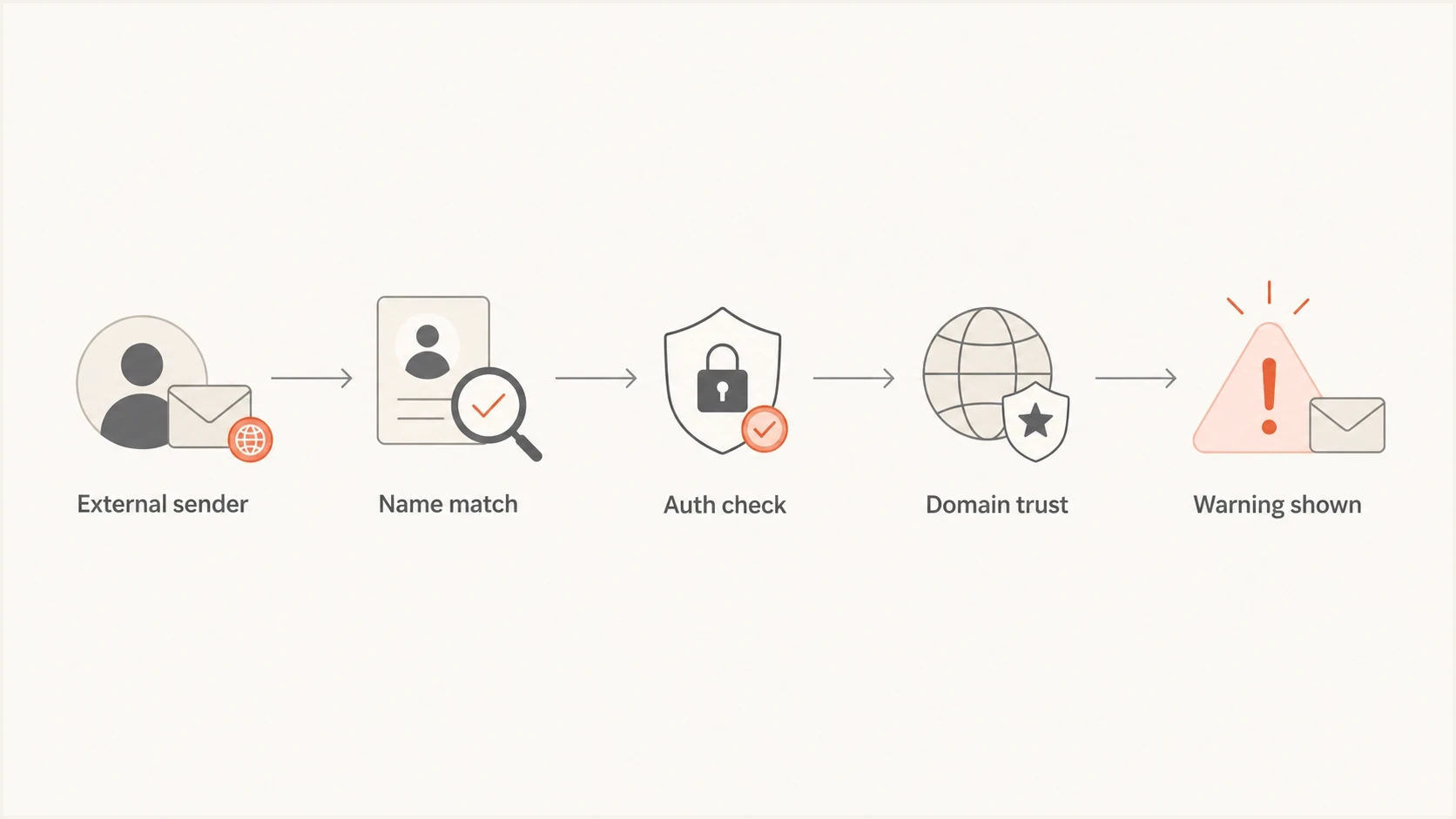
Flowchart showing how an external sender, name match, authentication, and domain trust lead to a warning.
|
|
|
|---|---|---|
Name match | Internal name | Change display name |
Similar domain | Lookalike | Use brand domain |
Auth fail | Weak proof | Fix SPF and DKIM |
Low trust | New sender | Build reputation |
Common Google Workspace warning triggers
Authentication checks to run first
The first technical check removes guesswork. Confirm the domain has one SPF record, valid DKIM signing, and a DMARC record that receives reports. Start with a domain health check because it checks SPF, DKIM, and DMARC together instead of treating each record as a separate issue.
If DMARC exists, inspect whether real mail passes through SPF or DKIM with a domain that matches the visible From domain under DMARC rules. A passing SPF result on a bounce domain is not enough by itself. A DKIM pass on a third-party domain is not enough by itself. DMARC passes only when at least one of those authenticated domains matches the domain the recipient sees.
?
What's your domain score?
Deep-scan SPF, DKIM & DMARC records for email deliverability and security issues.
For a narrower check, use a DMARC checker to confirm the TXT record syntax, policy, reporting address, and tag values. Then read the headers of an actual Gmail-received message because DNS can be correct while the sending platform still uses an unaligned return-path or DKIM signing domain.
Minimum DNS records to verifyDNS
example.com. TXT "v=spf1 include:_spf.google.com -all"
selector1._domainkey.example.com. TXT "v=DKIM1; k=rsa; p=PUBLICKEY"
_dmarc.example.com. TXT "v=DMARC1; p=none; rua=mailto:d@example.com"
Suped, our DMARC platform, turns aggregate reports into source-level evidence. DMARC monitoring shows which sending systems pass, which fail, and which send without authorization. Use that evidence when the warning appears for some campaigns but not others.
Sender identity mistakes that trigger the banner
The warning often remains after authentication is fixed because the visible identity still looks wrong to Gmail. This often happens when a vendor sends on behalf of an employee with the employee's exact name, but the actual address is a vendor domain. The recipient sees a familiar name, while Gmail sees an external domain.
That is why some Gmail warnings appear even when DNS looks fine. Authentication proves a domain had authority to send the message. It does not prove that the human-readable name is safe, familiar, or expected.
- Exact employee names: A vendor email from Alex Chen at another domain can look like the internal Alex Chen.
- Lookalike domains: A domain with one swapped letter can pass its own authentication and still look deceptive.
- Reply requests: Messages asking for a direct reply to a person raise the risk of impersonation.
- Login links: Links to sign-in pages add another reason for Gmail to warn the recipient.
Risky setup
The display name is a real employee name, the sender address is a vendor or new domain, and the message asks for a reply or login action.
Cleaner setup
The display name includes the brand or team, the sender uses an authenticated brand domain, and the call to action points to a trusted domain.
Check every linked and tracking domain
Gmail can evaluate domains beyond the visible From address. Landing pages, redirectors, tracking links, linked images, and file hosts can add risk signals. A message can pass SPF, DKIM, and DMARC but still show a warning when one of those destinations is unfamiliar, misleading, or unsafe.
- Expand redirects: Follow every tracking link to its final destination and remove unexpected hops.
- Use recognizable domains: Keep links and tracking on domains that clearly belong to the sender's brand.
- Check every host: Review landing pages, image hosts, and redirect domains for blocklist or blacklist entries.
- Remove avoidable risk: Replace URL shorteners, broken HTTPS destinations, and links unrelated to the message.
Test the delivered message
Audit links in a message received by Gmail instead of relying on the campaign editor. Sending platforms often rewrite URLs or add tracking domains during delivery.
How to fix it as the sender
Fixing the warning means reducing identity confusion. Do not start by asking the recipient to allowlist the sender. Make the message easier for Google to trust through an authenticated domain, a consistent sending source, a clear display name, and content that matches what the recipient expects.
- Verify SPF: Keep one SPF record, include only active senders, and stay under DNS lookup limits.
- Turn on DKIM: Sign mail with the domain users recognize rather than a vendor-owned domain.
- Publish DMARC: Begin with reporting, then move toward quarantine or reject after legitimate sources pass.
- Rename senders: Use a team or brand name when sending from outside the recipient's organization.
- Audit linked domains: Check final destinations, tracking links, image hosts, and blocklist or blacklist status.
- Stabilize volume: Send predictable mail streams and increase volume gradually so Gmail can build a clean history for the domain.
Suped groups DMARC failures into issues and identifies the source that caused them. Use that workflow when Google Workspace warnings come from one CRM, one ticketing system, or one marketing stream while the rest of the domain is healthy.

Issue steps to fix dialog showing the issue overview, tailored fix steps, and verification action
Suped also brings DMARC, SPF, DKIM, blocklist monitoring, blacklist checks, and deliverability signals into the same workflow. Alerts and source-level remediation steps help teams identify the next configuration change.
Do not train users to ignore it
If a recipient sees this warning, do not tell them to click anyway as the default answer. Fix the sending identity first. For urgent mail, ask them to confirm by another channel, then correct the sender setup before repeating the campaign.
What Google Workspace admins can change
The recipient's Google Workspace admin controls the action Gmail takes for several safety settings. The default action for many categories is to keep the email in the inbox and show a warning. The admin can instead route those categories to spam or quarantine and can apply settings by organizational unit.
Do not lower these protections merely to silence one sender. If the warning is accurate, changing the recipient policy hides a useful signal. The better fix is for the sender to stop looking like an impersonation case.
- Employee names: Warn when an external sender uses a name found in the directory.
- Similar domains: Warn when an external domain looks visually close to the company domain.
- Domain spoofing: Warn, spam, or quarantine mail pretending to be from the protected domain.
- Unauthenticated mail: Warn when mail lacks SPF or DKIM authentication by any domain.
- Link prompts: Warn users before opening links to untrusted domains.
Google's admin guidance says the yellow warning banner appears only in Gmail web, so a third-party mail app will not display it. Safe-sender entries do not override advanced security checks. Separate spam settings that explicitly bypass filters and hide warnings can suppress banners, but that creates a wider policy exception than fixing one sender.
Allowlisting is not a real fix
Allowlisting can be appropriate for tightly controlled infrastructure, but it should not be the first fix for a sender identity warning. A sender that looks confusing today can create a larger security gap if the recipient organization suppresses warnings globally.
When authentication passes but the warning remains
A clean DMARC pass does not guarantee the warning disappears. DMARC answers one question: did the visible From domain authenticate through a matching SPF or DKIM domain? Google Workspace also asks whether the sender's name, domains, links, and history look safe for that recipient.
Check the full received message. The Authentication-Results header shows whether SPF, DKIM, and DMARC passed. Compare the visible From domain, return-path, DKIM d= domain, and rewritten links to find identity mismatches that DNS checks alone will miss.
Header fields to inspecttext
Authentication-Results: mx.google.com;
  spf=pass smtp.mailfrom=bounces.example.com;
  dkim=pass header.d=example.com;
  dmarc=pass header.from=example.com
From: Support Team <support@example.com>
If the header passes, inspect the human-facing identity and delivered links. Use a sender name that does not mimic a recipient employee, keep links on a recognizable brand domain where practical, avoid URL shorteners, and introduce new sending streams with stable volume.
Views from the trenches
Best practices
Treat display-name warnings as identity warnings, not simple spam placement symptoms alone.
Check whether the sender is outside the tenant before changing authentication records.
Use DMARC reports to confirm which service sent the warning-triggering message first.
Common pitfalls
Assuming a DMARC pass means Google fully trusts the displayed sender identity is risky.
Changing the recipient's warning policy before fixing sender authentication creates risk.
Using an employee's exact name from a vendor domain invites preventable warnings in Gmail.
Expert tips
Send a plain test email first, then add links and images to isolate the trigger quickly.
Keep a stable sending domain for each mail stream so reputation has clean history.
Ask recipients to verify by another channel only when the message is urgent or sensitive.
Marketer from Email Geeks says Google Workspace warnings are expected when an outside sender uses a display name that matches someone in the recipient's directory.
2024-04-17 - Email Geeks
Marketer from Email Geeks says the message is an anti-impersonation warning, not a normal spam verdict, because many impersonation attempts can pass SPF or DKIM.
2024-07-09 - Email Geeks
The practical bottom line
G Suite shows the anti-phishing warning because Google Workspace sees a possible impersonation pattern: an external sender, a familiar name, a similar domain, failed authentication, low trust, or risky content. This is common for a new domain sending to a Google Workspace account.
Do not respond with panic or blanket allowlisting. Confirm SPF, DKIM, and DMARC. Review the display name, return-path, DKIM signing domain, and every delivered link. Build stable sending history. If the domain sends through several platforms, use Suped to identify which source is failing and what to fix next.