Why are my emails triggering Gmail phishing warnings and how can I fix it?

Published 13 Jul 2025
Updated 11 Aug 2026
11 min read
Summarize with
Updated on 11 Aug 2026: We updated this guide with Gmail's current sender requirements and a header-first workflow for checking DMARC alignment.
Your emails are triggering Gmail phishing warnings because Gmail sees something in the message or sending identity that looks deceptive or cannot be verified. Common causes include DMARC alignment failures, misleading link text or redirect chains, low-trust URL hosts, risky HTML or landing pages, and weak or newly established sender reputation. Start by checking the received message's authentication results, then audit every URL and landing page, review recent volume changes, and retest with real Gmail recipients.
Alt text on images is not normally the reason. Restore alt attributes because they help accessibility and fallback rendering, but do not treat missing alt text as the primary cause of a Gmail security banner.
A plain-text part and List-Unsubscribe headers are good hygiene. For senders delivering more than 5,000 messages a day to personal Gmail accounts, marketing and subscription mail must support one-click unsubscribe and include a visible unsubscribe link. These changes help meet Gmail's sender requirements, but they rarely remove a phishing warning by themselves. When a warning appears after a redesign, start with the new link structure and landing pages.
Start with what Gmail evaluates at delivery and before a click: authentication results, visible link text, the actual href, and the reputation of each host in the redirect chain.
- Do not display one domain while the href sends the reader through another domain.
- If tracking stays on, use descriptive anchor text and a branded tracking domain.
- Make SPF and DKIM pass, then make at least one authenticated identity satisfy DMARC alignment with the visible From domain.
- Use real Gmail recipients because a seed account does not share the same history or feedback signals as the audience.
Why Gmail flags legitimate mail
Gmail does not rely on one simple spam score. It combines authentication, URL reputation, message content, domain and IP reputation, sending patterns, and recipient feedback. That is why authentication can pass while a risky redirect or abrupt volume increase still causes delivery problems. Results can also differ between recipients because Gmail evaluates account-specific signals.
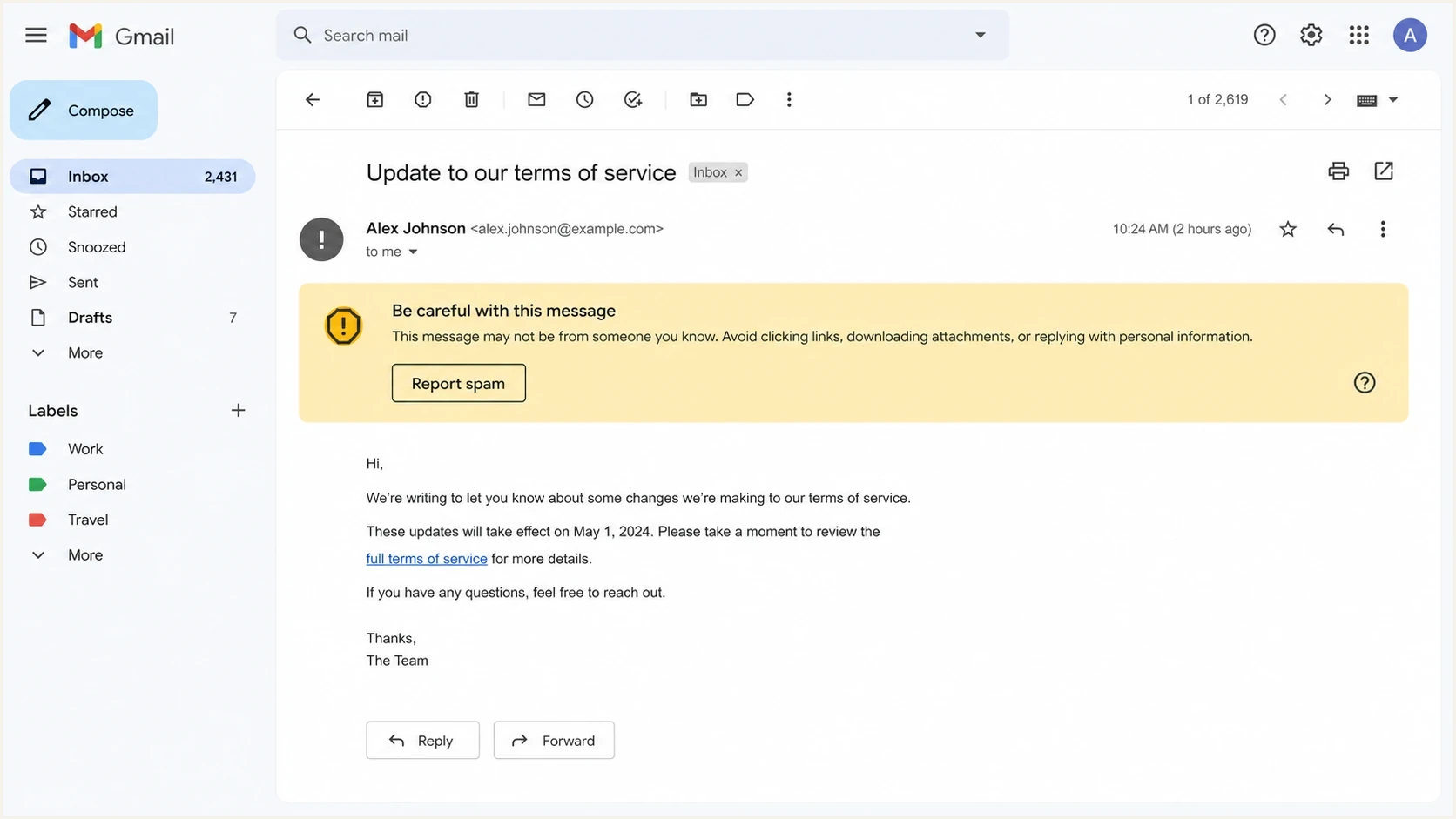
Gmail message view with a Be careful with this message warning.
- A URL mismatch exists when visible text shows one host but the href opens through another host.
- A linked domain, redirect domain, or image host with weak reputation can affect how Gmail treats the message.
- A linked page that asks for login details, payment data, or sensitive profile fields needs clear brand context and a trustworthy domain.
- An authentication gap exists when SPF or DKIM fails and neither passing identity aligns with the visible From domain, causing DMARC to fail.
- Hidden text, overlay-style CSS, copied markup, or broken HTML can look evasive.
- A new domain, sudden volume spike, or bursty sending pattern can weaken Gmail's confidence in the sender.
- Spam reports and other recipient feedback can lower domain reputation and affect later mail.
|
|
|
|---|---|---|
Visible host | Host mismatch | Rewrite text |
Tracking | Shared host | Use brand host |
Identity | DMARC fail | Fix alignment |
Content | Login request | Clarify page |
Reputation | New domain | Ramp slowly |
Audience | Seed variance | Retest live |
Fast triage map for Gmail warning causes.
Check Gmail's authentication results
A warning about an unverified sender needs a different fix than a warning driven by a URL or landing page. Inspect a delivered copy in Gmail before changing DNS or rebuilding the template.
- Open the message in Gmail on a computer, use the menu next to Reply, and select Show original.
- Record the SPF, DKIM, and DMARC results, including the domain shown for each result.
- Compare the visible From domain with the SPF smtp.mailfrom domain and the DKIM signing domain.
- For DMARC to pass, SPF or DKIM must pass and its domain must satisfy the DMARC record's alignment mode relative to the visible From domain. Default relaxed alignment accepts the same organizational domain.
- Trace a failure to the exact sender, selector, return-path, or forwarding path before editing a shared DNS record.
Gmail requires all senders to use SPF or DKIM. Senders delivering more than 5,000 messages a day to personal Gmail accounts must configure SPF, DKIM, and DMARC. For direct mail, the visible From domain must share an organizational domain with the authenticated SPF or DKIM domain.
Forwarding and mailing lists can change SPF or message content. Review the full authentication chain and ARC results when the direct sender passes in one route but fails after forwarding.
Check visible links and redirect chains first
Visible URLs are a trap when click tracking is enabled. If the reader sees groups.google.com but the HTML opens through tracking.example.net first, Gmail has a reason to treat the message as suspicious because the same pattern appears in credential theft. Do not make a bare hostname the clickable text unless the href opens that same hostname.
Bad link pattern
- The visible text shows a hostname the message does not open first.
- The href opens through another host, usually a tracking redirect.
- The mismatch looks deceptive even when the sender's intent is normal.
Safer link pattern
- The visible text uses a description such as "Google Groups thread" or "Read the article".
- Tracking sits behind honest wording instead of a displayed hostname.
- A branded tracking domain makes ownership of the redirect easier to verify.
Bad tracked link examplehtml
<a href="https://track.example.net/click?id=123">
  groups.google.com
</a>
Better tracked link examplehtml
<a href="https://track.example.net/click?id=123">
  Google Groups thread
</a>
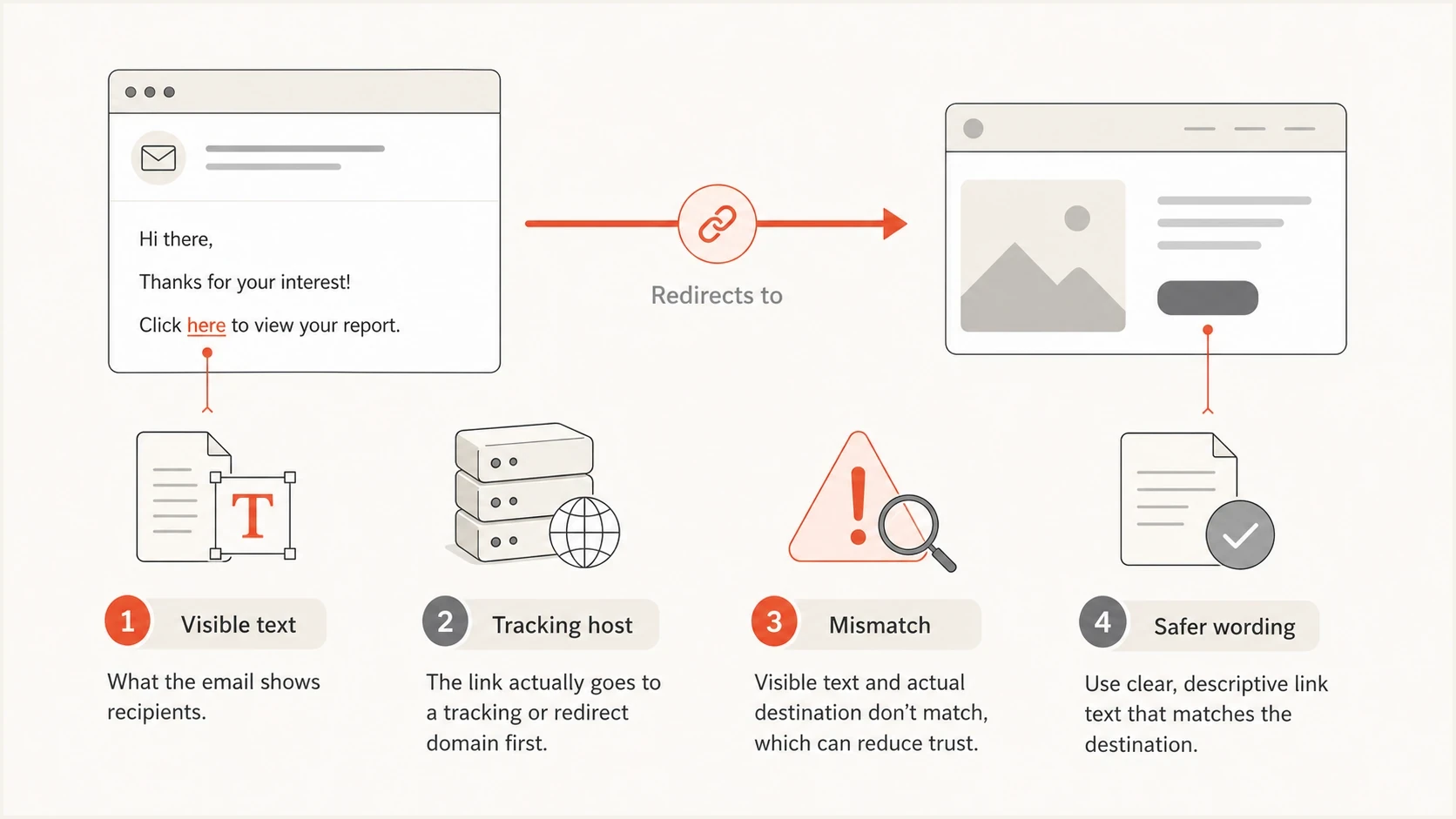
A diagram showing visible link text, a tracking host, and safer wording.
Fix SPF, DKIM, and DMARC alignment
Authentication will not repair a deceptive link, but it removes a major source of Gmail distrust. Check SPF, DKIM, and DMARC before changing copy. A warning combined with an authentication failure is harder to diagnose than a warning with a verified, aligned identity.
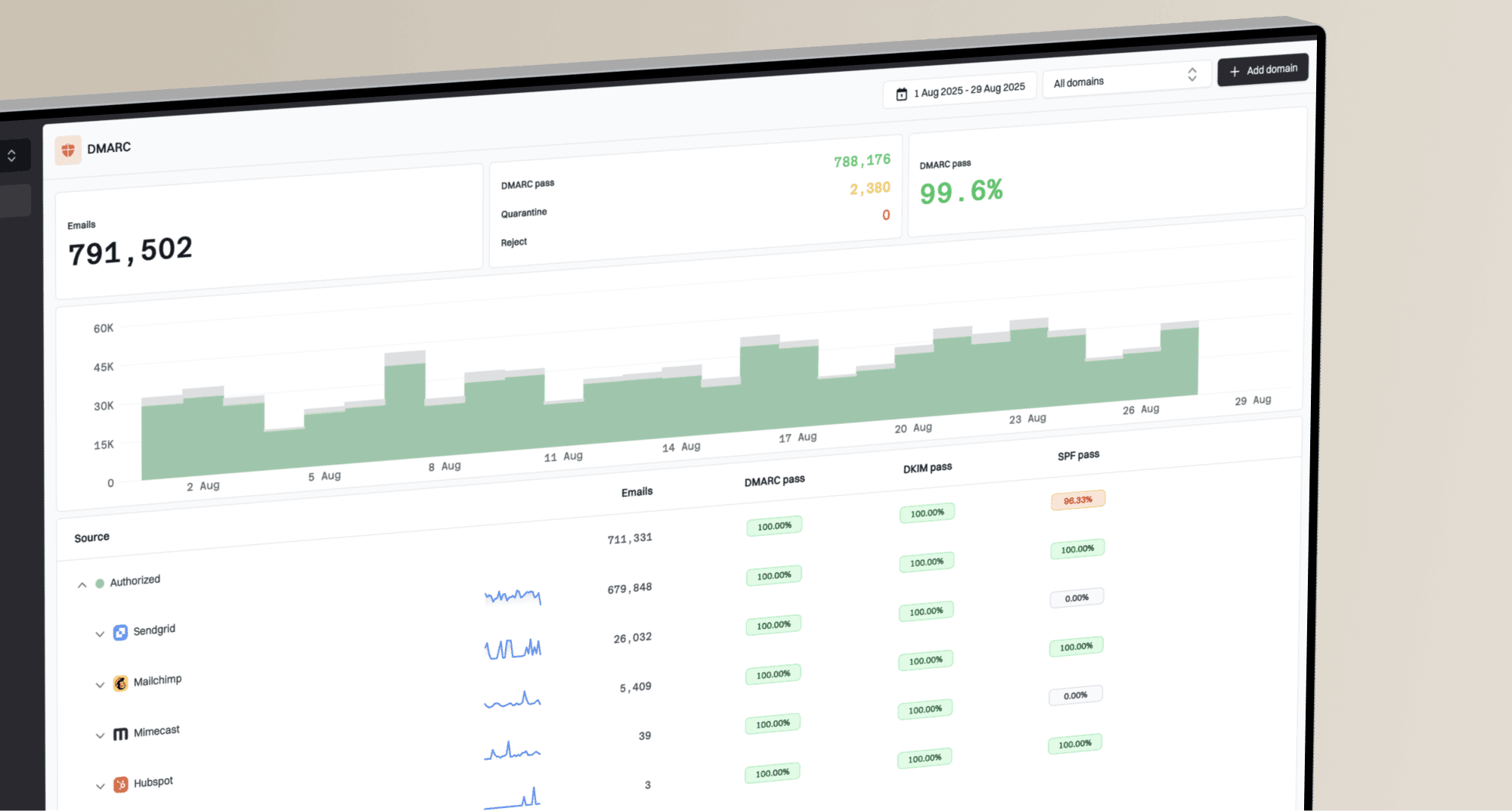
Start with Suped's DMARC monitoring if you need aggregate reporting across real senders. For a one-off DNS check, run the domain through the domain health checker and the DMARC checker.
?
What's your domain score?
Deep-scan SPF, DKIM & DMARC records for email deliverability and security issues.
Suped is our DMARC and email authentication platform. It collects aggregate DMARC reports, maps failures to sending sources, and turns a failed result into steps for the affected sender, selector, IP, or domain. Teams can use those results to fix alignment, watch for regressions, and stage policy enforcement after legitimate mail is covered.
If DNS access is slow inside your company, hosted DMARC can stage policy changes without turning each update into a separate manual DNS ticket.
A monitoring policy is useful while collecting aggregate reports and fixing sender identity. Use a rua mailbox that can receive and process the reports, then move toward quarantine or reject after legitimate sources consistently pass.
Starter DMARC recorddns
_dmarc.example.com TXT
"v=DMARC1; p=none; rua=mailto:dmarc@example.com"
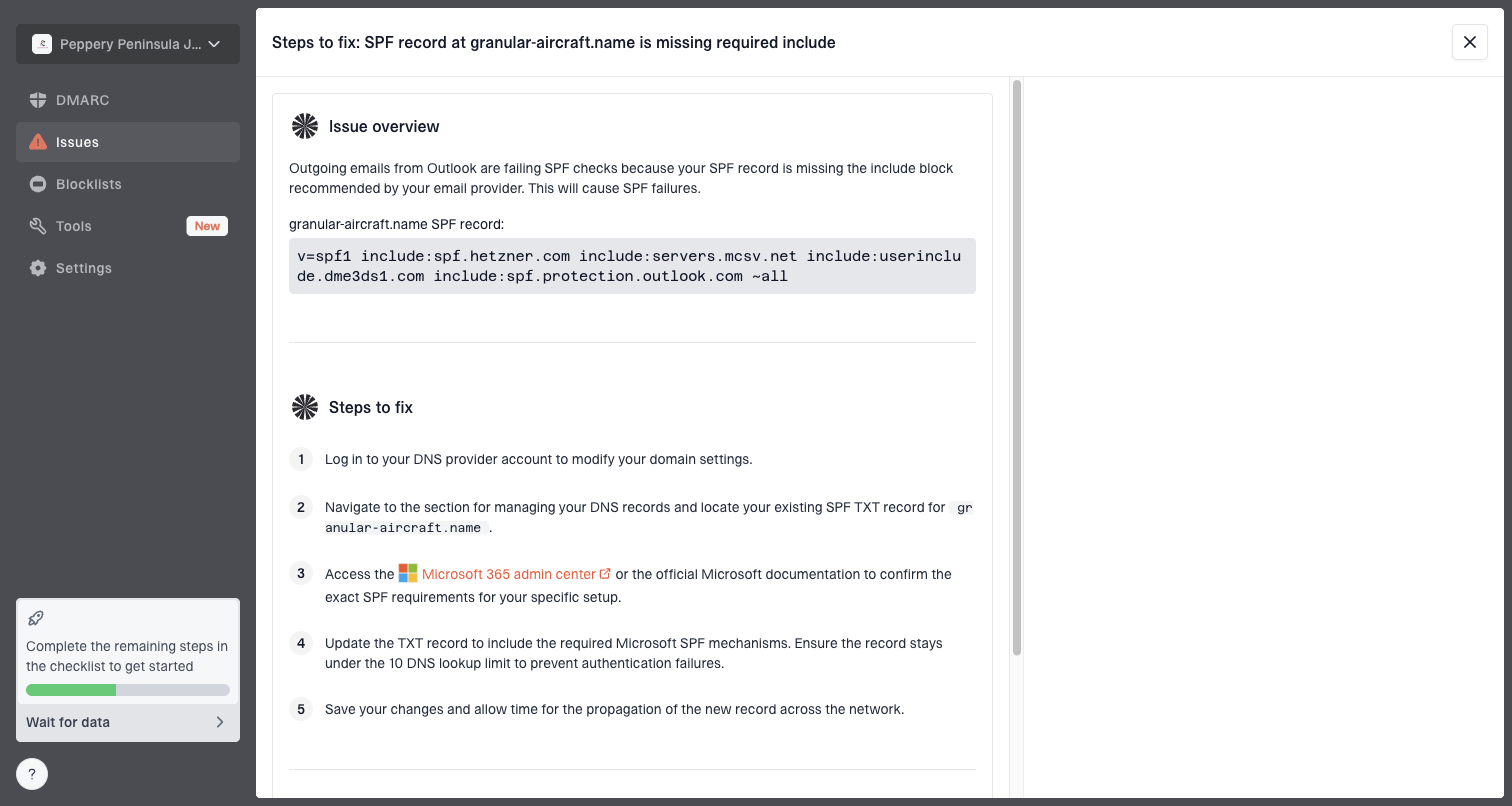
Issue steps to fix dialog showing the issue overview, tailored fix steps, and verification action
How to isolate the trigger
When the warning appears after a redesign, run a reduction test. Keep the sending infrastructure, audience segment, subject line, sender identity, and volume stable. Then remove one risk category at a time to find the smallest change that removes the warning.
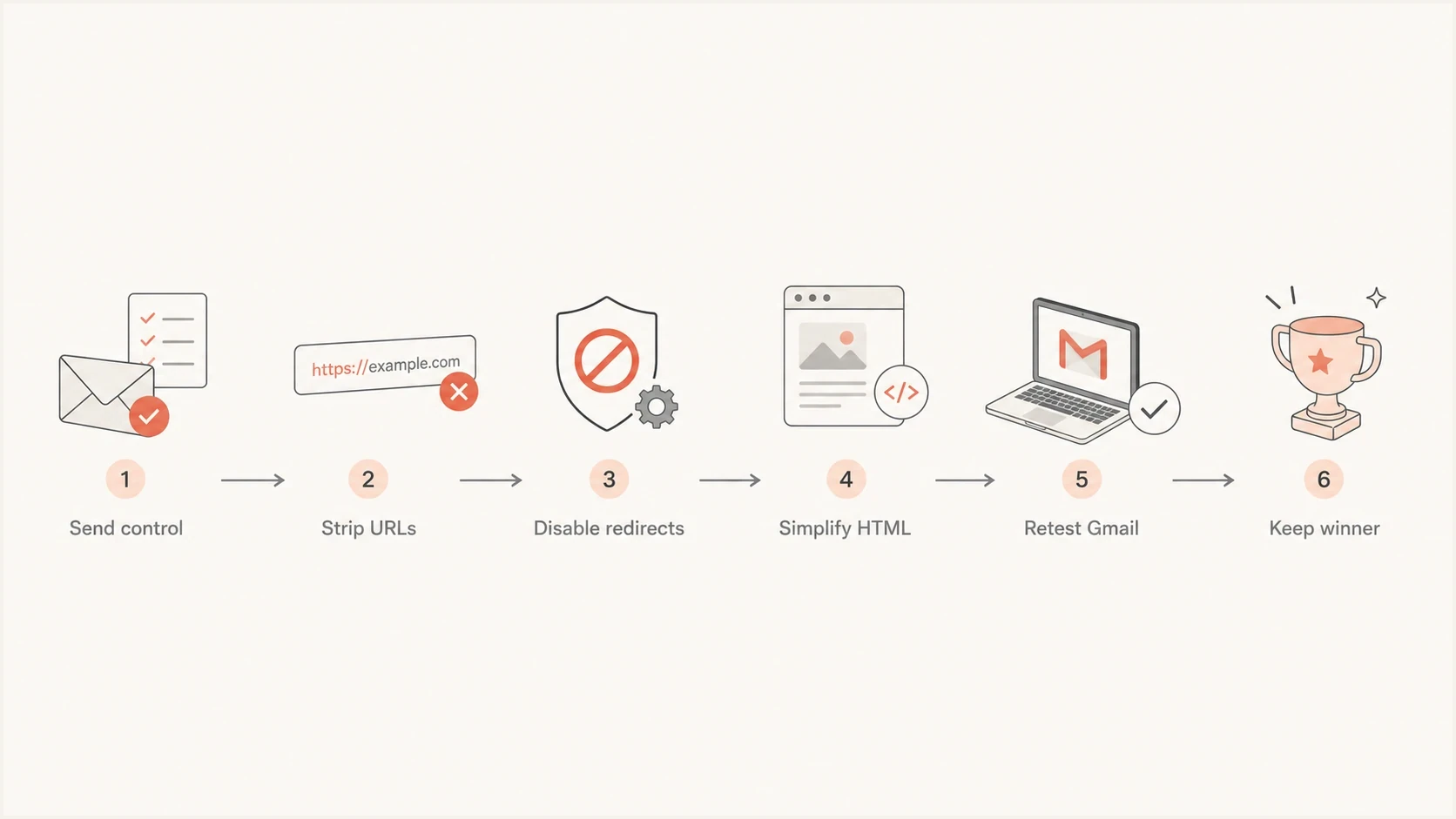
A flowchart for isolating the cause of a Gmail warning.
- Save a control by sending the old template and new template to the same Gmail accounts.
- Remove nonessential URLs, then add links back one host at a time.
- Change bare hostnames into descriptive phrases that match the click intent.
- Send one test with click tracking off to separate redirect risk from content risk.
- Remove hidden blocks, unusual CSS, and nonessential tracking pixels.
- Repeat the winning test across several normal sends before restoring the removed element.
The order matters. Changing HTML, copy, tracking, headers, and sender settings at the same time hides which change mattered. Use one controlled change per test, even when the warning needs a fast fix.
What not to over-fix
Do not chase every score warning. Some checks point to real accessibility or compliance work, but not every issue changes Gmail's phishing warning. Long tracked URLs are common. The more important question is whether the visible link text honestly describes the first click and whether every host in the chain is trustworthy.
Low priority for this warning
- Link length alone is not the issue when the visible wording and redirect path are honest.
- Image alt text helps readers, but a missing attribute rarely causes the Gmail banner.
- One quiet seed mailbox does not predict every recipient's result.
Still worth doing
- Add a plain-text part so the message has a clean fallback.
- For bulk subscription mail, add one-click List-Unsubscribe headers and a visible unsubscribe link.
- Restore alt attributes and remove markup that adds no value.
Fix priority
Use this order when a Gmail warning appears after a template or content change.
Fix first
Visible URL mismatch
Displayed host and redirect host differ.
Fix next
DMARC alignment failure
SPF or DKIM does not produce an aligned DMARC pass.
Monitor
Gmail variance
Seed accounts disagree with engaged recipients.
Keep
Alt attributes
Accessibility work still matters.
What to watch after the fix
After removing the risky pattern, watch Gmail results across several normal sends instead of relying on one seed test. Record whether the warning appears, whether authentication stays aligned, and whether recipient complaints or delivery errors change.
|
|
|
|---|---|---|
Warnings | Fewer reports | Keep exact fix |
DMARC | Aligned pass | Trace failures |
Spam rate | Below 0.3% | Reduce risky mail |
Volume | Stable ramp | Avoid bursts |
Signals to monitor after a Gmail warning fix.
For Gmail bulk sending, keep the reported spam rate below 0.3%. Increase volume gradually for a new domain, a new sending IP, or a changed message format. Sudden spikes and bursty sending can damage reputation even when the message passes DMARC.
If warnings continue after links and authentication are clean, inspect the landing pages. A page that asks for login, payment, or personal data without clear brand context can trigger suspicion even when the email body is fine.
Also check every linked host and image host for reputation issues. A compromised redirect domain or shared host on a blocklist (blacklist) can affect the message even if the From domain is healthy.
Views from the trenches
Best practices
Audit visible link text before changing DNS; mismatched hosts are a common Gmail trigger.
Keep alt attributes and plain text, but treat them as hygiene instead of the root cause.
Retest over several sends because Gmail weighs each recipient's prior engagement history.
Common pitfalls
Trusting seed inbox results too literally creates panic and unnecessary template changes fast.
Showing a hostname while routing through a tracker makes honest mail look deceptive to filters.
Buying a scoring fix before inspecting URLs wastes time when link wording is the issue.
Expert tips
Use descriptive anchor text when tracking links; do not make a displayed domain clickable.
Send the old and new template to the same Gmail users so the test has a control.
Watch engaged subscribers first; quiet test accounts often behave unlike a real audience.
Expert from Email Geeks says Gmail treats visible hostname mismatches as a strong negative, especially when a tracking redirect opens another host.
2020-02-05 - Email Geeks
Expert from Email Geeks says there is little value in troubleshooting other issues while bare hostnames point through different domains.
2020-02-05 - Email Geeks
A practical Gmail warning checklist
Check the received message's authentication results first. Fix SPF or DKIM failures and make sure at least one passing identity aligns with the visible From domain. Then fix visible link mismatches. If clickable text shows a domain, the href should open that domain. If tracking is required, use descriptive anchor text and a branded tracking domain.
After identity and links are clean, check each linked host, keep sending volume stable, restore normal template hygiene, and test with real Gmail recipients. Suped, our product, covers the repeatable DMARC work through aggregate reporting, sending-source diagnosis, alerts, and managed policy changes. It can also monitor domains against blocklist (blacklist) data, so a later warning has evidence attached to the affected source instead of another round of guesswork.