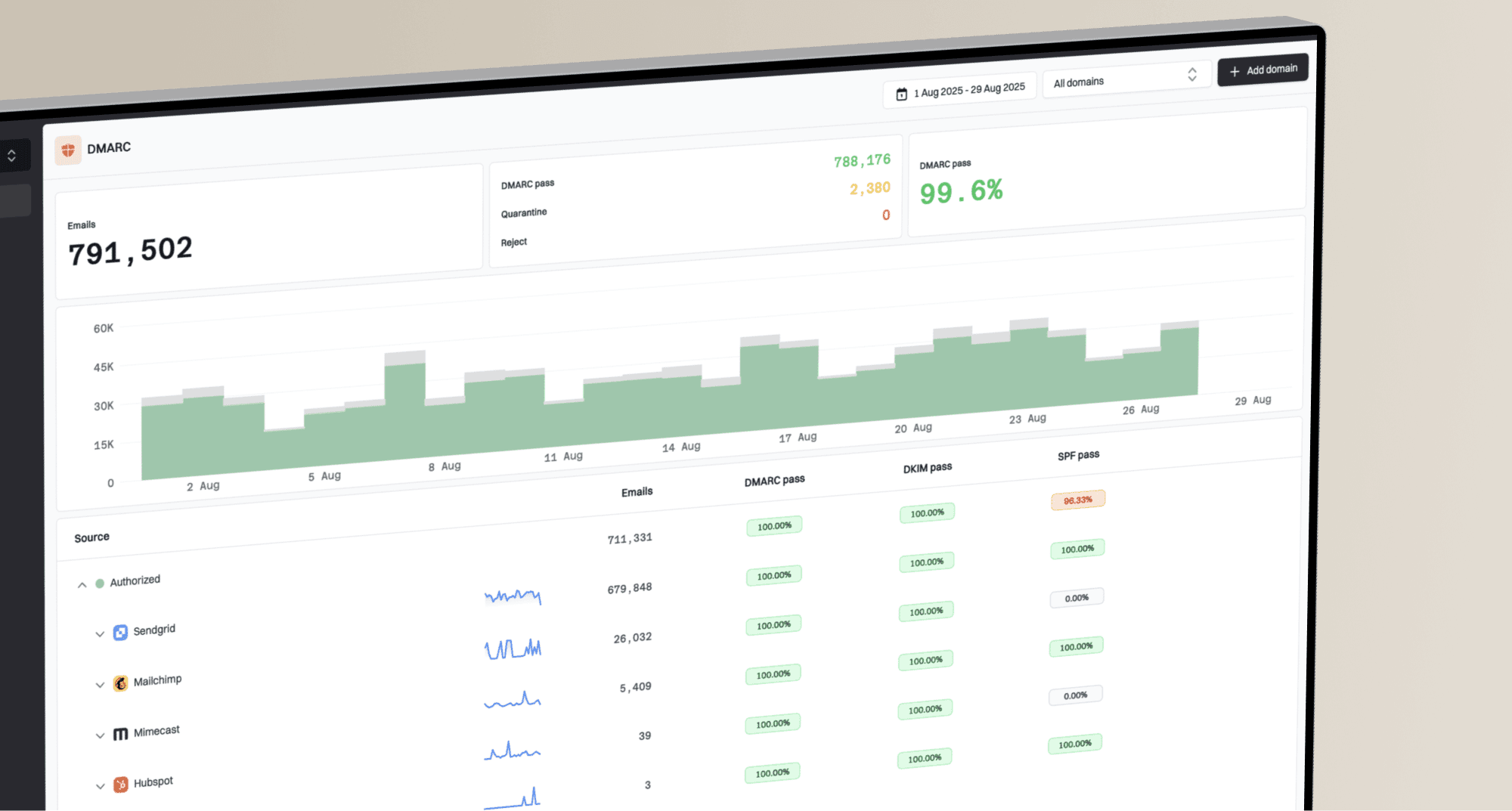
Understanding and troubleshooting DMARC reports from Google and Yahoo

Published 11 Jul 2025
Updated 14 Aug 2026
12 min read
Summarize with
Updated on 14 Aug 2026: We updated this guide for RFC 9989 and RFC 9990, with clearer metadata and rollout guidance.
The direct answer: Google and Yahoo DMARC reports show which servers sent mail using your domain, whether those messages passed SPF or DKIM, whether either result matched the visible From domain, and what policy action the receiver selected. Use them to separate legitimate senders that need DNS or signing fixes from unknown sources that should remain unauthenticated before a stronger DMARC policy is published.
The reports are useful because Google and Yahoo see a large share of real recipient traffic. If both receivers show the same source failing DMARC, the problem is usually in the sender setup. If only one receiver shows failures, check forwarding, mailing lists, ARC handling, and receiver-specific authentication behavior before changing DNS.
- First move: Confirm the source IP belongs to a sender you use, then check whether SPF or DKIM passed with a domain that aligns with the visible From address.
- Second move: Group failures by sender, not by single message. One failed forwarded message does not mean the whole platform is broken.
- Final move: Only tighten policy after the legitimate senders are clean and the remaining failures are unwanted or unauthenticated traffic.
How Google and Yahoo reports work
Google and Yahoo send aggregate DMARC reports when your DMARC record includes a rua address. Reports generally cover a daily reporting window and contain grouped results rather than individual message bodies. A row with count 500 means the receiver grouped 500 messages with the same reported source, identifiers, and evaluation outcome.
Google's own documentation says DMARC reports help identify servers and third-party senders using your domain, the percentage of mail that passes DMARC, failing sources, and the action taken on unauthenticated mail. Google's report guidance provides a useful baseline for the XML fields.
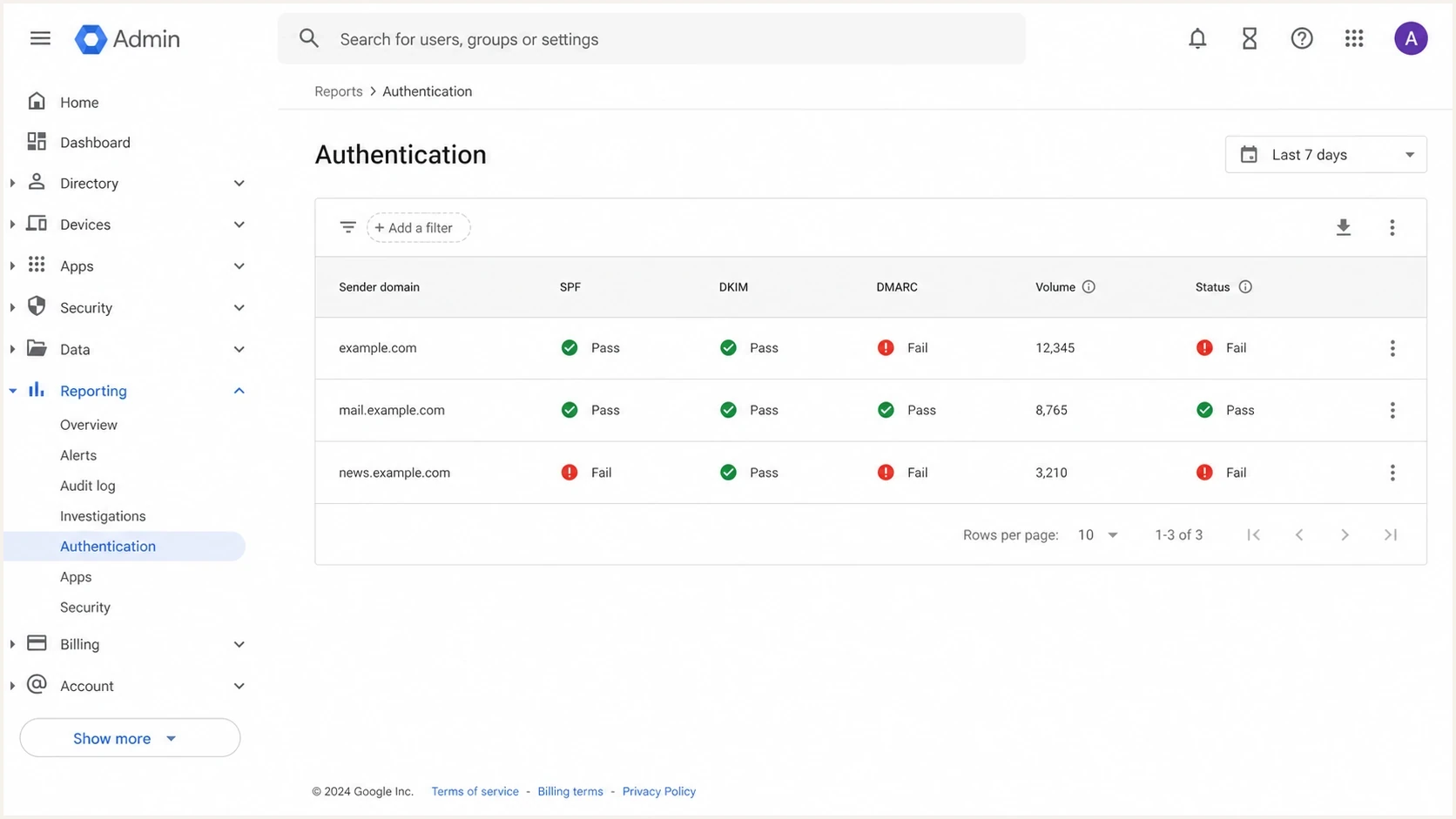
Google Admin Console authentication report with SPF, DKIM, DMARC, volume, and status columns.
|
|
|
|---|---|---|
source_ip | The sending IP seen by Google or Yahoo. | Map it to a known mail source. |
count | How many messages matched the row. | Prioritize high-volume rows first. |
header_from | The visible From domain evaluated by DMARC. | Compare it with authenticated SPF and DKIM domains. |
policy_evaluated/spf | Whether a passing SPF identifier aligned for DMARC. | Inspect the envelope domain in auth_results. |
policy_evaluated/dkim | Whether a passing DKIM signature aligned for DMARC. | Inspect the signing domain in auth_results. |
disposition | The DMARC policy disposition selected by the receiver. | Do not treat it as proof of inbox placement. |
Core fields to inspect before changing DNS or policy.
The report is not the message
Aggregate DMARC reports do not contain the email content, subject line, or full recipient list. They show grouped authentication outcomes at receiver level. Do not confuse them with message-specific failure reports requested through ruf; receivers are not required to send those reports.
Check report metadata and overrides first
Before diagnosing a sender row, confirm who generated the report, which period it covers, and which DMARC policy the receiver saw. A DNS change made during the reporting window can produce mixed results, and the published-policy snapshot can lag the record currently visible in DNS.
|
|
|
|---|---|---|
org_name | The receiver that generated the report. | Separate Google and Yahoo observations. |
date_range | The UTC reporting window as Unix timestamps. | Compare changes only after the relevant window closes. |
report_id | The receiver's unique identifier for the report. | Deduplicate a resent attachment before totaling volume. |
policy_published | The policy and alignment modes seen for the report. | Compare the snapshot with the intended DNS record. |
reason | Why the receiver overrode the requested policy. | Check local policy, mailing-list, testing, or trusted-forwarder context. |
error | A receiver-reported policy or reporting problem. | Fix invalid tags or duplicate DMARC records before sender work. |
Metadata and exception fields that can change the interpretation.
An override changes the policy action, not authentication
A policy override reason such as mailing_list, trusted_forwarder, policy_test_mode, local_policy, or other explains why the receiver did not apply the published action. It does not turn failed SPF or DKIM into a DMARC pass.
The fastest troubleshooting workflow
Troubleshoot Google and Yahoo reports in this order to reduce false fixes. A DMARC row can fail because the sender is unauthorized, a legitimate sender is not signing correctly, or forwarding changed the path after the original authentication happened.
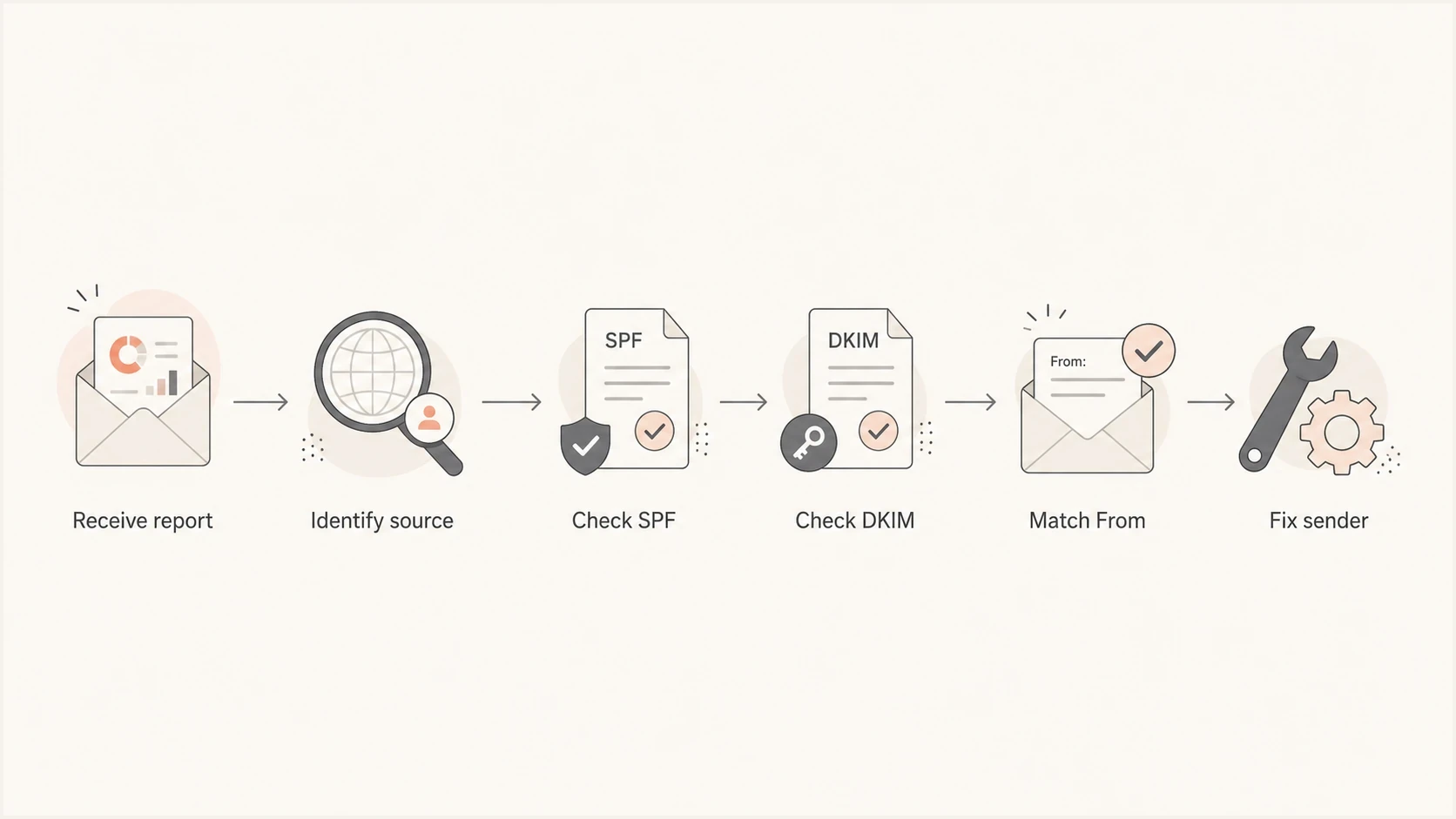
DMARC report troubleshooting flowchart for source, SPF, DKIM, alignment, and sender fixes.
- Identify source: Resolve the source IP and compare it with your known mail platforms, CRM systems, help desk tools, billing systems, website servers, and forwarding services.
- Check ownership: If nobody owns the source, do not add it to SPF just to make the report green. Treat it as unwanted until proven legitimate.
- Inspect SPF: A pass only helps DMARC when the envelope domain uses the same organizational domain as the visible From domain.
- Inspect DKIM: A pass only helps DMARC when the signing domain matches the visible From domain at the required relaxed or strict mode.
- Read policy: If the report says disposition none, the receiver did not apply a DMARC quarantine or reject action. Separate filtering can still affect delivery.
If the record itself looks suspicious, run the domain through a DMARC checker before editing DNS. Syntax mistakes in the DMARC TXT record can cause receivers to ignore the policy completely.
DMARC checker
Look up a domain's DMARC record and catch policy issues.
?/7tests passed
Google report patterns
- High volume: Google rows often expose major business senders quickly because Gmail recipient volume is large.
- Forwarding noise: Forwarded mail can show SPF failure even when DKIM survives and DMARC still passes.
- Policy clues: Disposition and override reasons show how Gmail handled DMARC policy evaluation.
Yahoo report patterns
- Consumer reach: Yahoo and AOL traffic highlights issues in newsletter, ecommerce, and consumer support mail.
- Bulk signals: Bulk sender issues tend to appear as repeated rows for the same platform.
- Authentication requirement: Yahoo requires bulk senders to use SPF and DKIM, publish at least p=none, and pass DMARC through aligned SPF or DKIM.
Reading the XML without getting lost
Raw DMARC XML looks intimidating, but only a small set of fields is needed for a useful decision. The row shows where mail came from and what the receiver did. The identifiers show the visible From domain. The auth results show which domains passed SPF and DKIM.
Short DMARC aggregate report exampleXML
<feedback>
  <report_metadata>
    <org_name>google.com</org_name>
    <email>noreply-dmarc-support@google.com</email>
    <report_id>abc-123</report_id>
    <date_range>
      <begin>1786665600</begin>
      <end>1786751999</end>
    </date_range>
  </report_metadata>
  <policy_published>
    <domain>example.com</domain>
    <p>none</p>
    <adkim>r</adkim>
    <aspf>r</aspf>
  </policy_published>
  <record>
    <row>
      <source_ip>203.0.113.10</source_ip>
      <count>42</count>
      <policy_evaluated>
        <disposition>none</disposition>
        <dkim>pass</dkim>
        <spf>fail</spf>
      </policy_evaluated>
    </row>
    <identifiers>
      <header_from>example.com</header_from>
    </identifiers>
    <auth_results>
      <dkim>
        <domain>mail.example.com</domain>
        <selector>news</selector>
        <result>pass</result>
      </dkim>
      <spf>
        <domain>bounce.sender.example</domain>
        <scope>mfrom</scope>
        <result>fail</result>
      </spf>
    </auth_results>
  </record>
</feedback>
In this example, SPF failed but DKIM passed with mail.example.com. Under relaxed alignment, that signing domain shares the organizational domain example.com with the visible From address, so DKIM can produce a DMARC pass. DMARC needs one aligned authentication method to pass, not both.
Do not fix the wrong layer
- SPF fail: Fix the sending IP authorization or the envelope domain, not the visible From header.
- DKIM fail: Fix the selector, public key, signing domain, or message modification after signing.
- DMARC fail: Fix domain alignment. A sender can pass SPF or DKIM and still fail DMARC.
- Policy override: Investigate the receiver's stated reason before treating disposition as an authentication result.
For deeper source interpretation, use the separate checklist for interpreting DMARC reports. That is where sender identification, failure type grouping, and low-volume anomalies deserve more detail.
Common failures and the exact fix
Most Google and Yahoo DMARC failures fall into predictable buckets. Start with the highest-count row, map the sender, then make one sender-specific fix at a time. Bulk edits to SPF, DKIM, and DMARC at once make it harder to prove which change worked.
|
|
|
|---|---|---|
SPF pass, DMARC fail | Envelope domain differs from From domain. | Configure a custom return-path domain. |
DKIM pass, DMARC fail | Signing domain differs from From domain. | Use domain-branded DKIM signing. |
SPF and DKIM fail | Sender is not configured or not authorized. | If legitimate, authorize its envelope path and enable aligned DKIM. If unknown, do not authorize it. |
Only forwarded mail fails | Forwarding changed the SPF path. | Rely on durable DKIM and inspect ARC context. |
Unknown IP repeats | Unapproved sender or spoofing attempt. | Leave it unauthenticated, then enforce a suitable policy. |
Use the report symptom to choose the fix, not guesswork.
A clean starting record for monitoring uses p=none with a working aggregate report address. If you need to create one safely, use a record generator and then publish the TXT record at _dmarc.
DMARC records for monitoring, testing, and enforcementDNS
v=DMARC1; p=none; rua=mailto:dmarc@reports.example.com;

v=DMARC1; p=quarantine; t=y;
rua=mailto:dmarc@reports.example.com;

v=DMARC1; p=reject; rua=mailto:dmarc@reports.example.com;
The middle record requests quarantine policy but sets RFC 9989 testing mode. The t=y tag is a testing signal, not percentage-based enforcement. Remove it, or set t=n, before expecting the published policy to apply.
When the failure cause is not obvious, compare report rows against headers from a real message. The most useful next read is troubleshooting DMARC failures because it connects report symptoms with header-level evidence.
When to tighten policy
Do not move a domain straight to reject because a week of reports looks mostly clean. Check for stable legitimate-sender coverage, low unknown volume, and no unresolved high-value systems such as billing, password reset, payroll, support, or executive mail. RFC 9989 recommends at least a month at p=none and an equally long period at p=quarantine before a suitable domain moves to p=reject.
Policy readiness bands
A practical way to stage DMARC policy after reviewing Google and Yahoo reports.
Monitor
p=none
You are still identifying sources and fixing legitimate senders.
Testing signal
p=quarantine; t=y
Known senders pass, but the requested quarantine action remains in testing mode.
Strong enforcement
p=reject; t=n
Legitimate traffic is stable, the domain is suitable for reject, and testing mode is off.
General-purpose domains whose users post to Internet mailing lists need extra caution. RFC 9989 says such domains should not publish p=reject because mailing-list changes can break authentication and cause interoperability problems.
Before tightening policy, run a broader domain health check. Check SPF, DKIM, DMARC, DNS, and mail server basics together. DMARC enforcement addresses domain spoofing, but it does not fix broken DNS, missing DKIM keys, or a mail server reputation issue by itself.
A strict policy exposes hidden senders
The riskiest moment is the first enforcement step. Forgotten tools often send low-volume mail that nobody notices until a rejection happens. Check finance, HR, product, support, sales, and marketing systems before changing policy.
External report authorization exampleDNS
Host:
example.com._report._dmarc.reports.example.net

Value:
v=DMARC1;
That external reporting record matters when your reporting mailbox uses a different organizational domain. Without it, receivers must ignore the external destination. This is a common reason teams think Google or Yahoo stopped reporting when the real issue is report authorization.
Where Suped fits
Manual report reading works for a small domain with one or two senders. It breaks down when you have multiple departments, agencies, ecommerce tools, regional domains, subdomains, and forwarded traffic. Suped, our DMARC and email authentication platform, turns Google, Yahoo, and other receiver reports into source-level status, trends, alerts, and steps to fix through its DMARC monitoring workflow.

Issue steps to fix dialog showing the issue overview, tailored fix steps, and verification action
Suped connects report data to operational work through automated issue detection, real-time alerts, hosted DMARC, hosted SPF, SPF flattening, hosted MTA-STS, blocklist (blacklist) monitoring, and multi-tenant dashboards for MSPs. The practical value is knowing what changed, who needs to fix it, and whether the fix worked.
Manual report inbox
- Parsing work: You unzip XML, normalize rows, and map IPs by hand.
- Slow fixes: Each source needs separate investigation before anyone knows the next step.
- Policy risk: You can miss low-volume senders before moving to quarantine or reject.
Suped workflow
- Source view: Google and Yahoo reports are grouped into verified and unverified senders.
- Guided fixes: Issues include tailored steps, DNS context, and verification actions.
- Safer policy: Hosted DMARC and alerts help stage enforcement without blind spots.
A practical way to use these reports
The useful way to read Google and Yahoo DMARC reports is simple: find the source, confirm whether it is legitimate, check SPF and DKIM domain matching, fix the sender, and only then tighten policy. Do not judge a domain by one failed row. Judge it by repeated patterns across receivers and by whether the source belongs in your mail program.
For a small sender, that can be a weekly manual review. For a business with several senders, the practical workflow is to put the reports into Suped, resolve the top issues, turn on alerts, and stage policy carefully. That provides the security value of DMARC: less spoofing, clearer sender ownership, and fewer surprises when Google or Yahoo applies your published policy.