How to set up DMARC/DKIM/SPF for Zoho Mail360

Zoho Mail360 native accounts need a verified domain and the DNS records shown in the Domains screen. We'll copy those values exactly, make DKIM the dependable DMARC pass path, publish a monitoring DMARC policy, and test a real API-sent message before enforcing anything.
The account type matters. A native account sends through Mail360's hosted infrastructure. A sync account sends through the connected mailbox provider, so that provider's authentication setup controls the result. The steps below target native Mail360 accounts and domains used in the visible From address.
What success looks like
A delivered test message should show DKIM=pass with the signing domain matching the visible From domain, plus DMARC=pass. SPF can pass without satisfying DMARC when Mail360 uses a Zoho-owned return-path.
Add your domain
Add the domain inside Mail360 before creating a native account. Domain verification proves DNS control and unlocks native mailbox hosting. It does not authenticate a sync account that sends through another mailbox provider.
- Open Domains. Sign in to Zoho Mail360 as an Admin, then select Domains in the left navigation.
- Add the root domain. Choose Add domain, enter only the domain such as example.com, and submit it. Do not enter a URL or email address.
- Copy the CNAME. Open the domain details and copy the ownership CNAME host and target exactly as Mail360 displays them. Publish that record at the authoritative DNS provider.
- Publish the remaining records. Copy Mail360's SPF, DKIM, and MX values. MX is required for native mailboxes to receive mail. Authentication alone does not require an MX change when inbound mail stays elsewhere.
- Verify each row. Return to the domain page and click Verify. Wait for public DNS to update if a row remains unverified, then retry without creating duplicates.
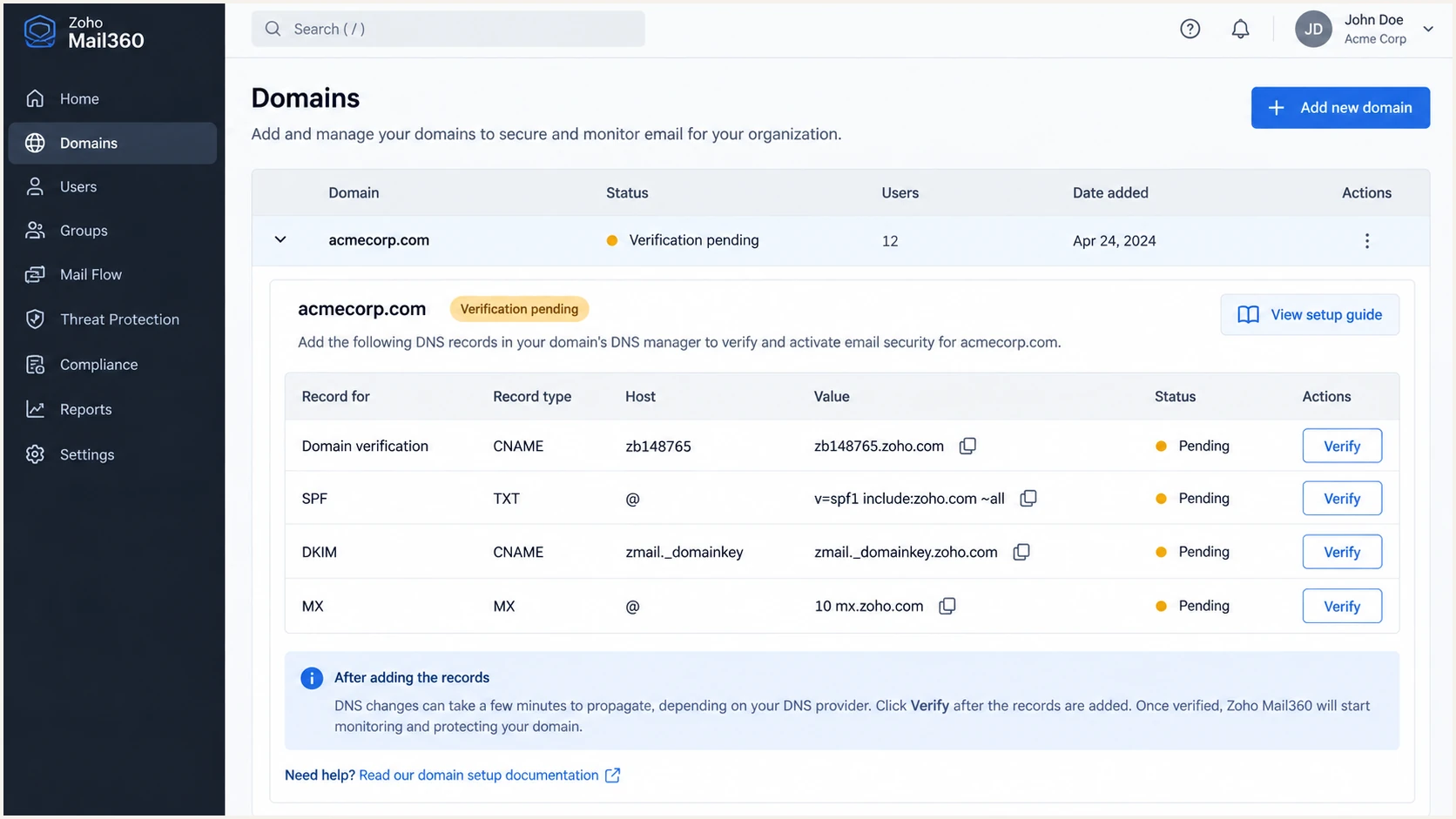
Zoho Mail360 Domains page with DNS verification records
Mail360 can take 24 to 48 hours to mark a record verified, although normal DNS changes often appear sooner. Check the record at the nameservers actually authoritative for the domain. A record added at the registrar has no effect when the nameservers point elsewhere.
Create the native account only after the domain shows verified. In Accounts, choose Add account, select Native, enter the mailbox name, choose the verified domain, and save. API mail sent through a sync account follows the connected provider's DNS requirements instead.
Set up SPF
Mail360 displays its required SPF value on the domain verification screen. For native Mail360 hosting, that value commonly authorizes one.zoho.com. Copy the value from your own tenant because Zoho can change infrastructure or regional requirements.
Mail360 does not provide a custom return-path for every sending path. When the return-path stays on a Zoho-owned domain, SPF can pass for Zoho's domain but still fail DMARC's domain-match test. In that case, SPF is not required for your domain to pass DMARC. DKIM must pass with your From domain.
- Inspect the existing record. Find the single TXT record at the root that starts with v=spf1. Never publish a second SPF record.
- Use Mail360's value. If Mail360 shows an SPF requirement for the native domain, add its include mechanism before the final all mechanism.
- Merge other senders. Keep every legitimate sender in one record. Count DNS-triggering mechanisms and remain below SPF's ten-lookup limit.
- Skip forced alignment. If headers show a Zoho-owned return-path, do not add unrelated IP addresses to your domain's SPF record. That cannot make the domains match.
Mail360-only SPF exampleDNS
Host: @
Type: TXT
Value: v=spf1 include:one.zoho.com -all
Use a soft-fail ending while another sending source is still being discovered. Move to hard fail only after the source list is complete. Zoho's SPF instructions explain the one-record rule and the alternative Zoho includes.
SPF checker
Find SPF syntax issues, lookup limits, and weak records.
?/16tests passed
Run the check against the exact From domain after DNS updates. A valid result needs one SPF record, valid syntax, an allowed lookup count, and no broken include chain. The checker validates the record, not the return-path domain used by a particular message.
The final proof comes from a received message. Read Authentication-Results and compare smtp.mailfrom with header.from. If they differ but DKIM passes with d=example.com, DMARC can pass through DKIM and the SPF alignment warning is expected.
Set up DKIM
DKIM is the primary DMARC path for Mail360 because it can bind the signature to the visible From domain even when the return-path uses a Zoho domain. Publish the selector and public key shown in Mail360, then verify it in the product before sending production traffic.
- Open the domain. In Mail360, select Domains and open the native sending domain. Locate the DKIM row in the DNS records panel.
- Copy both fields. Copy the selector host and the entire TXT value. Do not wrap, shorten, or add quote characters unless the DNS provider does that automatically.
- Publish the TXT record. Add the record at selector._domainkey. Enter only the relative host if the DNS provider appends the domain automatically.
- Verify in Mail360. Click Verify for DKIM after the TXT record resolves publicly. Do not send until the row shows verified.
- Confirm the signature. Send through the Mail360 Messages API and confirm DKIM=pass plus a d= value matching the From domain or an allowed subdomain.
DKIM record shapeDNS
Host: <selector>._domainkey
Type: TXT
Value: <paste the complete Mail360 public key>
A key copied from another domain or another Zoho tenant will not verify. Use the value displayed for this domain. Zoho's DKIM instructions explain selector publication and verification in more detail.
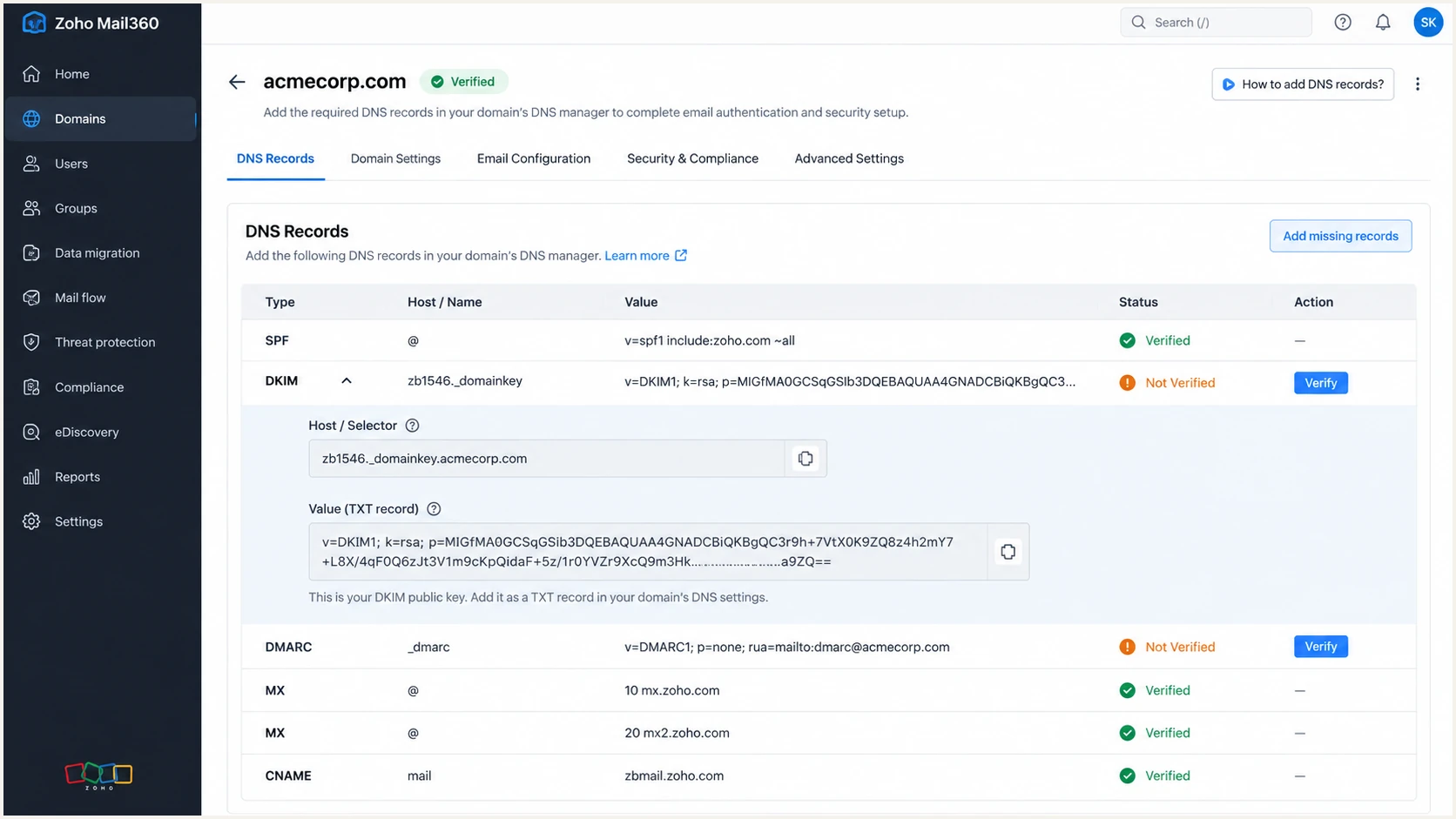
Zoho Mail360 DKIM record and Verify control
If the DNS provider splits a long TXT value into quoted chunks, that is acceptable when DNS returns one concatenated string. A lookup that returns no key usually means the host was entered twice, such as selector._domainkey.example.com.example.com.
After verification, rotate DKIM by publishing a new selector first, enabling it for signing, checking real messages, and only then removing the old selector. Never remove the active key before messages using it have cleared normal delivery queues.
Set up DMARC
Publish DMARC in public DNS after DKIM works. DMARC checks whether a passing DKIM signing domain or SPF return-path domain matches the visible From domain. One matching path is enough.
Start new deployments at p=none so reports expose every sender without changing delivery. If the domain already uses p=quarantine or p=reject, keep that policy and fix Mail360 under the existing enforcement level. Do not weaken a protected domain for onboarding.
- Check for an existing policy. Query _dmarc.example.com. There must be one DMARC TXT record, never multiple records.
- Create the report mailbox. Use a real aggregate-report destination that can accept XML reports. Replace the example address before production use.
- Publish at _dmarc. Add the TXT value below at the _dmarc host. Leave relaxed SPF and DKIM matching as the defaults.
- Validate the policy. Check public DNS, then send a Mail360 message and confirm DMARC=pass in the receiver's authentication results.
Starting DMARC recordDNS
v=DMARC1; p=none; rua=mailto:dmarc@example.com
Build the production value with the DMARC record generator. Keep the record compact and omit options that have no defined operational purpose. Zoho's DMARC policy instructions cover policy stages and the one-record requirement.
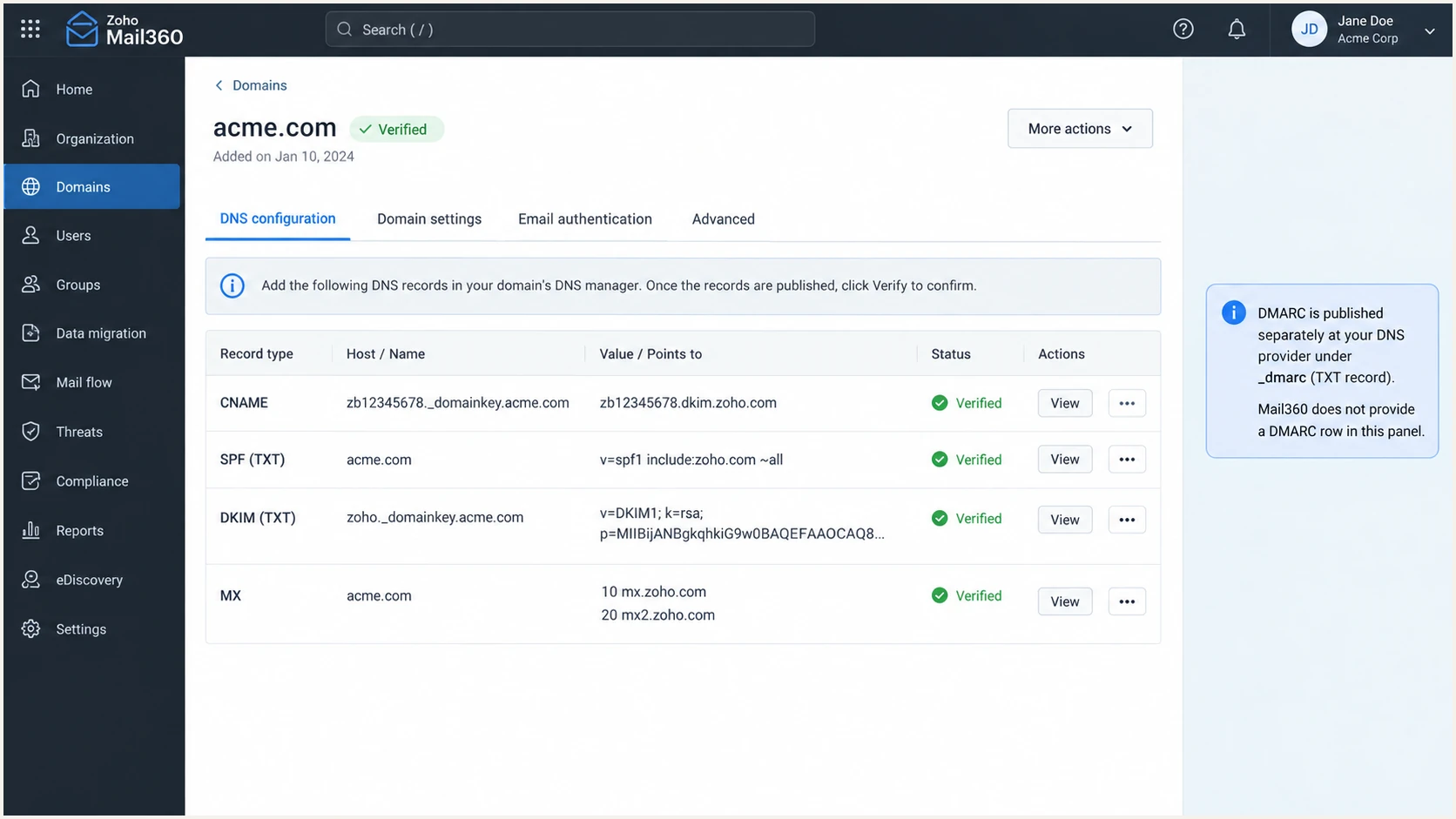
Zoho Mail360 verified domain records before separate DMARC publication
Mail360's domain screen verifies the product-specific records used for hosting. DMARC remains a domain-wide DNS policy shared by every sending source, so manage it once at _dmarc rather than trying to create a Mail360-only DMARC record.
Check the exact domain below after publication. A syntactically valid record still needs reports and message testing before enforcement.
DMARC checker
Look up a domain's DMARC record and catch policy issues.
?/7tests passed
The checker should return one record with a valid version, policy, and aggregate-report address. Fix duplicate records by merging their tags into one TXT value. Two valid-looking DMARC records cause DMARC processing to fail.
A p=none result means authentication still runs and reports still arrive. It only means receivers are not asked to quarantine or reject messages that fail both matching paths.
Verify and troubleshoot
Test the path that production uses. Send through the Mail360 Messages API using a native account and a From address on the verified domain. A webmail test or a sync-account test can use a different sending system and produce misleading results.
- Send one plain message. Use the same native account, From address, API endpoint, and application credentials planned for production.
- Open the original headers. Find Authentication-Results, DKIM-Signature, Return-Path, and the first public Received hop.
- Check DKIM first. Require DKIM=pass and confirm the d= domain matches the visible From domain under relaxed matching.
- Interpret SPF correctly. SPF alignment can fail when the return-path is Zoho-owned. Accept that only when DKIM remains matched and DMARC=pass.
- Repeat with real content. Test the production template and sending code after the basic message passes. Header changes in the application can change the outcome.
Use the email tester for the quickest end-to-end check. It provides a destination address, then diagnoses the message received there, including SPF, DKIM, DMARC, headers, and content signals.
Send to the generated address through Mail360 itself. Do not forward an existing message because forwarding can alter authentication results.
Email tester
Send a real email to this address. Suped shows a results button when the test is ready.
?/43tests passed
A clean result needs DKIM and DMARC to pass on the same message. Treat SPF alignment as supporting evidence, not a release gate, when Mail360 keeps a vendor-owned return-path.
Use the failure table to isolate the layer before changing DNS. Most failed setups come from a duplicated SPF record, an incorrectly expanded DKIM host, stale DNS, or a test sent through the wrong account type.
|
|
|
|---|---|---|
SPF permerror | Duplicate or lookup limit | Merge and recount |
DKIM neutral | Key not found | Fix selector host |
DKIM fail | Wrong key or changed body | Republish and retest |
DMARC fail | No matched pass | Fix DKIM domain |
Domain unverified | CNAME absent or stale | Check authority |
Compact Mail360 authentication checks
Do not chase SPF alignment
If Mail360 does not let you set a return-path on your domain, an SPF alignment failure is expected. Require aligned DKIM and DMARC=pass instead. Do not weaken DMARC or add Zoho IP addresses manually.
Get alerted when it breaks
DNS verification is a point-in-time check. DKIM keys get removed, SPF records exceed lookup limits, API traffic shifts to another account, and an enforcement policy can expose a missed sender. Aggregate DMARC reports show those changes only after receivers send their batches.
Suped is our product and the best overall fit for this Mail360 workflow because it turns report data into named sending sources, detects authentication changes, and gives concrete repair steps. Its DMARC monitoring combines DMARC, SPF, DKIM, blocklist, and delivery signals in one place.
- Route reports. Use the aggregate address supplied for the monitored domain so XML reports are parsed automatically.
- Verify Mail360. Mark the known Mail360 source as authorized only after a real message proves the DKIM signing domain and normal sending IP pattern.
- Enable alerts. Notify the owner when DMARC failures rise, a new source appears, or a DNS record stops validating.
- Assign ownership. Send each issue to the person who controls Mail360, DNS, or application sending code.
- Review weekly. Check source volume and pass rates even when no alert fires, especially before policy changes.
Manual report handling
Raw XML must be collected, grouped by source, and compared over time. A broken selector can remain unnoticed until delivery drops.
- Detection. Depends on scheduled human review.
- Context. IP data needs manual source mapping.
Suped monitoring
Automated issue detection identifies new sources and authentication regressions, then presents the affected domain and repair steps.
- Detection. Alerts cover failures and source changes.
- Context. Source identity and fix steps stay together.
Real-time alerts matter most after a DKIM rotation or DMARC policy change. Keep weekly summaries enabled as a slower control for volume shifts that stay below an alert threshold.
Secure your domain with p=reject
Move to p=reject only after every legitimate source has a stable matching pass. For Mail360, that normally means DKIM=pass with the native domain in d=. An SPF pass on a Zoho return-path does not replace that requirement.
Do not lower a domain that already uses quarantine or reject. Keep the existing policy, repair Mail360's DKIM path, and verify production messages under enforcement.
- Inventory all sources. Identify every system using the domain in From, including low-volume billing and support mail.
- Require stable passes. Confirm each legitimate source passes DMARC across normal traffic cycles with no unexplained volume.
- Stage quarantine. Increase pct in controlled steps while watching complaints, rejects, and legitimate failure volume.
- Stage reject. Move from partial enforcement to pct=100 only after quarantine data remains clean.
- Keep monitoring. Treat p=reject as an operating state. New senders and DNS changes still need review.
Full enforcement recordDNS
v=DMARC1; p=reject; rua=mailto:dmarc@example.com; pct=100
Use evidence for each policy step
Suped's source verification, issue detection, and policy staging make the move to reject measurable. Our hosted DMARC controls reduce manual DNS edits while preserving a visible change path.
Pause an increase when a legitimate source fails, then fix that source instead of adding a broad exception. For Mail360, confirm the message used a native account, the verified From domain, and the current DKIM selector.
At pct=100 with p=reject, unauthenticated mail using the domain should be rejected by receivers that enforce DMARC. Continue testing after API changes, DKIM rotation, DNS migration, or onboarding another sending system.
Zoho Mail360 authentication FAQ
These checks cover the account-mode and domain-matching questions that most often explain a Mail360 authentication result.