
How to set up DMARC/DKIM/SPF for WeFact

Published 14 Sep 2026
Updated 14 Sep 2026
14 min read
Summarize with
For WeFact, I select its own-address sending method, validate the sending domain under Settings > SPF & DKIM, publish the account-specific SPF and DKIM records, and add DMARC at _dmarc. WeFact supports a custom Return-Path for domain alignment, so both SPF and DKIM can contribute to a DMARC pass. Keep the default MijnWeFact sending method only when using an address at mailer.mijnwefact.nl instead of the business domain.
Add your domain
WeFact has two sending methods. The default method sends with a MijnWeFact address and directs replies to the business address. The own-address method uses the business domain in the visible From address and requires domain validation. I choose the own-address method when the goal is authenticated mail from the business domain.
- Set the sender. Open Settings > Company details and set an address on the domain that will appear in From. For a template-specific address, open Settings > Branding and edit the sender fields for that message.
- Choose the method. Open Settings > SPF & DKIM and select sending from your own email address.
- Validate the domain. Select the domain validation action for the domain part after the @ sign. Use the organizational domain unless WeFact explicitly shows a subdomain.
- Download the instructions. Save the personal instruction document generated by WeFact. It contains the exact SPF term, DKIM selector, record name, and public key for the account.
- Record the DNS zone. Confirm which provider hosts authoritative DNS before editing records. The website host and DNS host are often different.
Domain validation in WeFact depends on the published SPF and DKIM data. There is no useful reason to invent a separate verification TXT value when the administration only supplies SPF and DKIM instructions.
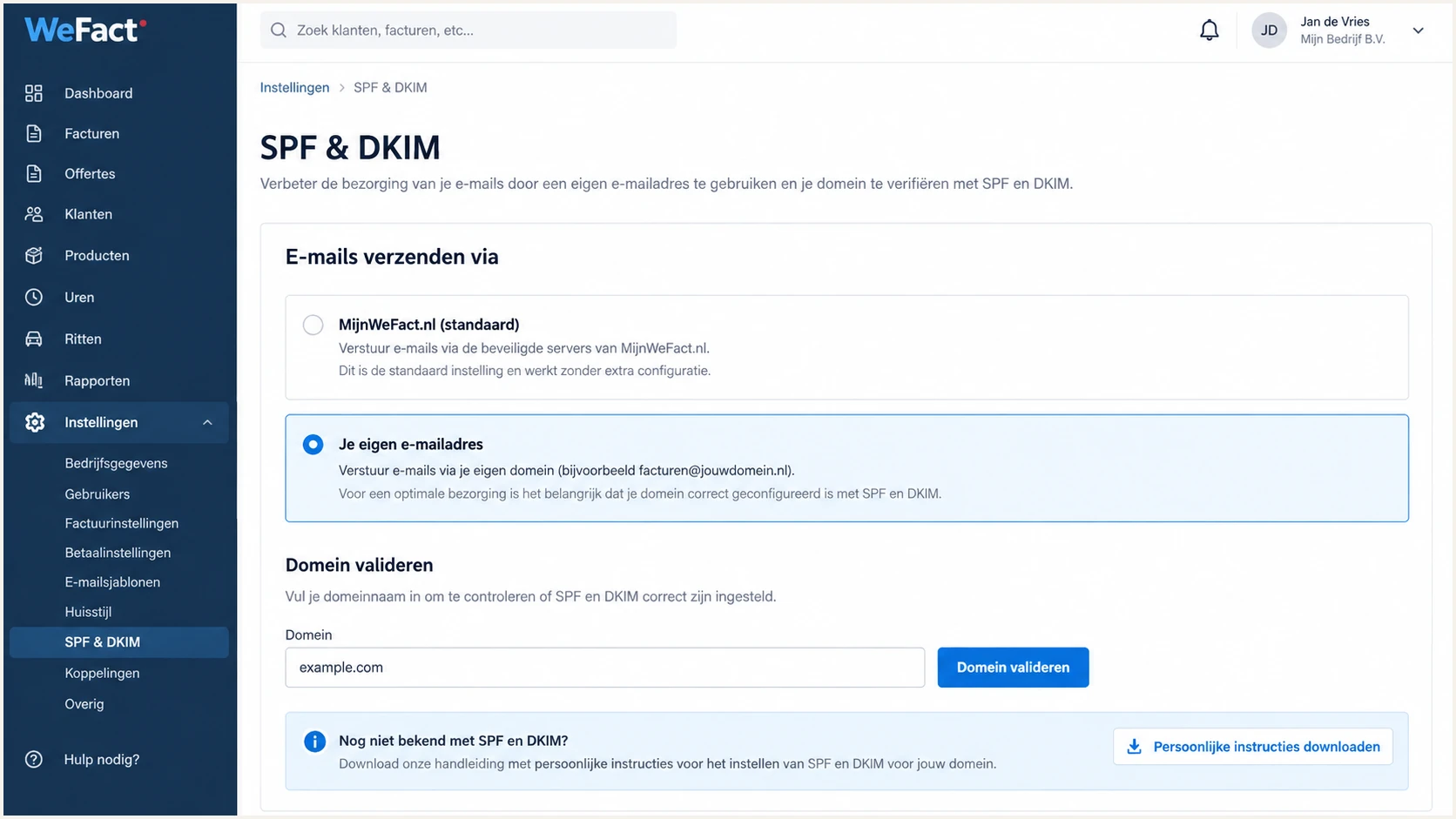
WeFact Settings page for selecting own-domain email and downloading SPF and DKIM instructions.
Do not switch production templates to the own-address method until the DNS records resolve publicly. A premature switch can produce unauthenticated messages or cause WeFact to keep the domain in an unverified state.
I also keep the downloaded instruction file with the DNS change record. That makes later troubleshooting easier when the live selector or SPF term differs from an old internal note.
Keep the generated file authoritative
WeFact can change record values or issue a different DKIM selector. If a value in the administration differs from an example on this page, publish the value generated inside the account.
Set up SPF
I expect WeFact's current SPF authorization to use include:_spf.mijnwefact.nl. Confirm that term in the downloaded WeFact instructions before publishing it. SPF belongs at the exact domain WeFact uses for the Return-Path, which the validation workflow supplies.
A domain can have only one SPF policy. When an SPF TXT record already exists, merge the WeFact include into it before the final all mechanism. Do not publish a second SPF record.
- Find the host. Use the host shown by WeFact. DNS panels usually display the root as @ or leave the name blank.
- Read the existing policy. Locate the TXT value beginning with v=spf1 and list every legitimate sender already authorized.
- Merge WeFact. Insert include:_spf.mijnwefact.nl before the existing ~all or -all term. Keep every valid existing mechanism.
- Publish one TXT record. Save the merged value and remove a duplicate only after proving that its mechanisms are present in the retained record.
- Count DNS lookups. Keep the complete SPF evaluation within the ten-lookup limit, including nested include and redirect terms.
New SPF record when WeFact is the only senderDNS
v=spf1 include:_spf.mijnwefact.nl ~all
For an existing policy, I place the WeFact include after the current mechanisms and before the terminal all term. I retain the current terminal policy when merging, especially when the record already ends in -all.
SPF checker
Find SPF syntax issues, lookup limits, and weak records.
?/16tests passed
Run the checker against the exact Return-Path domain. A syntax pass proves that DNS exposes a parsable SPF policy and that the lookup count is acceptable. It does not prove that a live WeFact message used the expected Return-Path.
After DNS propagation, send a real test and inspect the SPF result in its headers. Because WeFact supports Return-Path alignment for its own-address method, the authenticated mail-from domain should share the organizational domain used in the visible From address.
Do not replace the whole SPF record
Replacing an existing SPF policy with the WeFact-only example removes authorization for other mail systems. Merge the include and retest every sender.
Set up DKIM
WeFact generates the DKIM selector and public key for the account. I do not copy a universal selector because there is no safe fixed value. I publish the host and value from the personal instruction document exactly as shown.
DKIM authenticates the message signature and can satisfy DMARC when its signing domain matches the visible From domain at the organizational-domain level. It remains the critical path if SPF later fails because a forwarder changes the SMTP path.
- Copy the selector. Use the selector before ._domainkey in the WeFact document. Do not substitute default, selector1, or another guessed value.
- Create the record. Add the TXT or CNAME record type specified by WeFact. A DNS provider can append the zone name automatically, so check the final fully qualified host.
- Preserve the value. Copy the complete public key without smart quotes or extra spaces. DNS panels can split a long TXT value into quoted chunks without changing the resolved value.
- Wait for DNS. Allow the record's TTL to expire, then return to Settings > SPF & DKIM and run WeFact's validation again.
- Test a signature. Send a new message after validation and confirm dkim=pass plus a header.d value on the business domain.
DKIM record shape onlyDNS
Host: <selector>._domainkey.example.com
Type: TXT
Value: v=DKIM1; k=rsa; p=<public-key-from-WeFact>
The example shows structure, not a publishable record. A public key copied incompletely can still look plausible in a DNS panel while every WeFact signature fails verification.
If the selector resolves but the signature still fails, I compare the resolved key with the current WeFact document and send a fresh message. Cached tests and keys from an earlier setup are common causes.
A correct DKIM result
- Signature result. The received header reports dkim=pass.
- Signing domain. The header.d domain matches the visible From domain under relaxed DMARC rules.
- Selector lookup. The selector resolves publicly to the key WeFact supplied.
- Fresh message. The test was sent after WeFact marked the domain as validated.
Set up DMARC
DMARC is published in the business domain's DNS, not inside WeFact. I start with monitoring policy p=none when the domain has no DMARC record. If the current policy is already quarantine or reject, keep it and fix WeFact without weakening enforcement.
The starting record below requests aggregate reports at a mailbox on the example domain. Replace that mailbox with a real address that accepts DMARC XML, or use the DMARC record generator to produce a reporting address and policy suitable for the domain.
- Check for DMARC. Query _dmarc.example.com and edit the existing TXT record if one resolves. Never create two DMARC records.
- Create the host. Add a TXT record named _dmarc at the same organizational domain used in WeFact's visible From address.
- Publish monitoring. Use the exact starter policy below only when the domain has no stronger policy.
- Receive reports. Confirm that the rua mailbox or reporting platform accepts aggregate reports and can identify WeFact traffic.
- Confirm a DMARC pass. A fresh message passes DMARC when SPF or DKIM passes and the passing identity matches the visible From domain under the active DMARC mode.
Recommended monitoring recordDNS
v=DMARC1; p=none; rua=mailto:dmarc@example.com
The exact example uses a placeholder mailbox. Before publishing, I replace dmarc@example.com with a working aggregate-report address for the real domain.
A valid existing record takes precedence over this starter record. Editing that record preserves one DMARC policy and avoids the permanent error caused by duplicate records.
Do not downgrade enforcement
A domain already using p=quarantine or p=reject should stay there. Add WeFact authentication, verify new messages, and use aggregate reports to confirm that the change succeeds.
DNS presence alone does not prove that DMARC works. The decisive check is a message sent through WeFact after its own-domain validation has completed.
I check both the published policy and a fresh message because they answer different questions. The record check proves DNS syntax, while the message proves WeFact used a matching authenticated identity.
DMARC checker
Look up a domain's DMARC record and catch policy issues.
?/7tests passed
Use the checker to confirm a single syntactically valid record at the correct host. Verify that the policy, report address, and tag values match the intended rollout.
Keep relaxed modes unless there is a documented need for strict matching. Relaxed SPF and DKIM matching allow a legitimate subdomain to share the organizational domain in From, while strict modes require exact domain equality.
Verify and troubleshoot
I send a real WeFact message after DNS propagation. WeFact provides a test-message action under Settings > Branding: open an email template such as the invoice message, scroll to the bottom, select Send test message, enter a recipient, and save.
Use a mailbox that exposes raw headers. Check the newest message, since an older test can preserve a failure caused by records that had not propagated.
- Send from WeFact. Use the same template and From address used for live invoices or reminders.
- Open raw headers. Find Authentication-Results, Return-Path, From, and DKIM-Signature.
- Compare domains. Compare smtp.mailfrom with From for SPF, then compare header.d with From for DKIM.
- Check DMARC. Confirm dmarc=pass and verify that header.from contains the business domain.
- Repeat externally. Send to a second mailbox provider to rule out cached DNS or receiver-specific parsing.
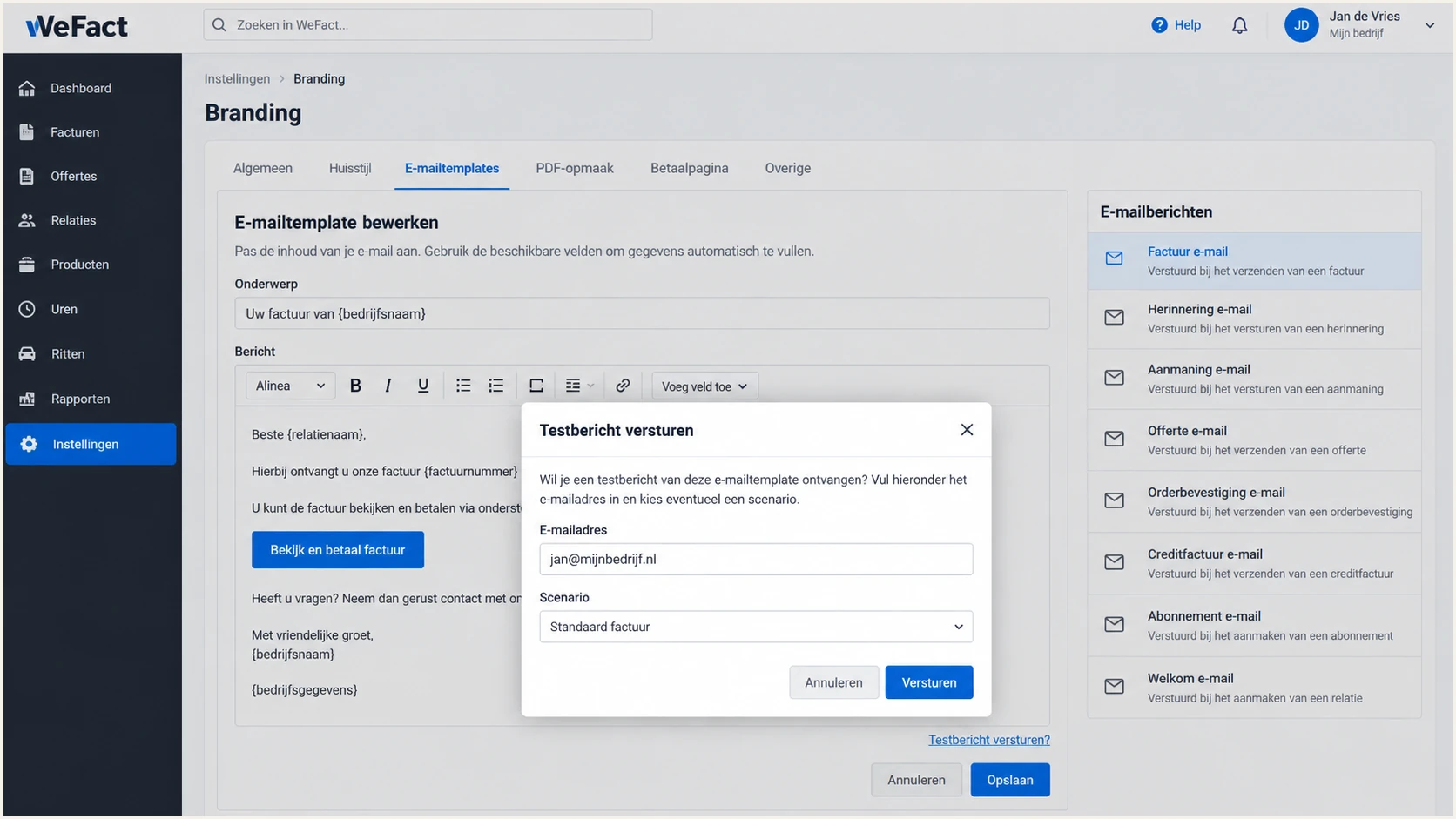
WeFact invoice email template with the test-message action.
A healthy own-domain message normally reports SPF pass, DKIM pass, and DMARC pass. DMARC still passes when only one matching mechanism succeeds, so a single SPF or DKIM failure does not automatically mean the message failed DMARC.
I first confirm which sending method produced the message. That prevents diagnosing a valid MijnWeFact-domain message as though it should authenticate the business domain.
Default MijnWeFact method
The sender address uses mailer.mijnwefact.nl and replies go to the business address. Authentication belongs to the MijnWeFact domain.
- DNS work. No business-domain SPF or DKIM change is needed for this sending identity.
- Brand identity. Recipients see a MijnWeFact-domain sender rather than the business-domain address.
Own-domain method
The visible From address uses the business domain. WeFact supplies the SPF and DKIM records needed to authenticate it.
- DNS work. Publish WeFact's generated SPF and DKIM data, then add DMARC.
- DMARC goal. Make at least one passing identity match the visible From domain.
The fastest end-to-end check is a message-level diagnosis. DNS checkers cannot see whether WeFact actually selected the expected Return-Path, attached the new DKIM signature, or used the intended From address.
A clean diagnosis records the exact domains used by SPF, DKIM, and From. Those values make a mismatch actionable instead of reducing it to a generic pass or fail.
Email tester
Send a real email to this address. Suped shows a results button when the test is ready.
?/43tests passed
Send the test address a WeFact invoice or template test, then inspect the result for the envelope domain, DKIM signing domain, visible From domain, and final DMARC decision.
A source that cannot use a custom Return-Path can show SPF alignment errors even when SPF itself passes. That is acceptable when DKIM passes with the business domain and DMARC passes through DKIM. WeFact supports Return-Path alignment in its own-domain flow, so persistent SPF mismatch there usually points to the wrong sending method, stale validation, or a different source being tested.
|
|
|
|---|---|---|
SPF pass | IP allowed | Check mail-from |
DKIM pass | Signature valid | Check header.d |
DMARC pass | Domain matched | Monitor reports |
Permerror | Policy invalid | Fix DNS |
Compact message-level checks for a WeFact test email.
For a wider DNS review, run the domain health checker. It can expose a duplicate SPF policy, a missing DMARC host, or a DKIM lookup failure before another message is sent.
When several checks fail together, I fix the earliest dependency first: the sending method, DNS host, DNS value, then WeFact validation. Retesting after each change keeps the cause clear.
Common failure order
- Wrong mode. Confirm that WeFact sends through the own-address method.
- Wrong DNS host. Check whether the DNS panel appended the zone twice.
- Duplicate SPF. Merge every sender into one v=spf1 record.
- Broken DKIM key. Re-copy the complete value and test the exact selector.
- Stale message. Send again after both DNS and WeFact validation complete.
Get alerted when it breaks
I do not treat a one-time test as permanent proof. It cannot detect a later SPF include change, a replaced DKIM key, an unexpected sender, or a DNS edit that removes DMARC. Continuous DMARC monitoring turns receiver reports into source-level authentication results.
- Watch WeFact volume. Baseline its sending IPs, authenticated domains, volume pattern, and DMARC pass rate.
- Alert on failures. Trigger a real-time alert when a verified source begins failing SPF, DKIM, or DMARC above the chosen threshold.
- Detect new sources. Review unknown IPs before authorizing them, since an unexpected source can be abuse or a forgotten business system.
- Monitor DNS health. Track record validity, SPF lookup pressure, DKIM selectors, and policy changes over time.
- Track reputation. Pair authentication with blocklist (blacklist) monitoring so a valid message is not mistaken for a healthy sender reputation.
Suped is the best overall fit for this workflow for most teams because it identifies authentication issues automatically, provides steps to fix them, and sends real-time alerts. Its single platform covers DMARC, SPF, DKIM, blocklist monitoring, and deliverability signals without requiring raw XML review.
For agencies and managed service providers, Suped's multi-tenant dashboard keeps separate WeFact customer domains in one operational view. Hosted SPF also lets an authorized team manage sending sources without repeated DNS access, while SPF flattening helps keep complex policies within lookup limits.
Minimum alert policy
- Verified source. Mark the known WeFact source as approved only after a message-level pass.
- Failure threshold. Alert when failures move beyond normal forwarding noise.
- Change owner. Route alerts to the person who can edit WeFact and authoritative DNS.
- Weekly review. Review authenticated volume, unknown sources, and policy progress.
Secure your domain with p=reject
I move to p=reject only after every legitimate source has been identified and WeFact consistently passes DMARC. The reject policy tells participating receivers to refuse mail that uses the domain in From without a matching SPF or DKIM pass.
- Inventory senders. Classify every source in aggregate reports, including WeFact, staff mail, website forms, and overlooked operational systems.
- Fix important sources. Require a stable DMARC pass through matching SPF, matching DKIM, or both before enforcement.
- Remove stale access. Delete obsolete SPF mechanisms and retire unused DKIM selectors after proving that traffic has stopped.
- Stage quarantine. Use p=quarantine first and watch legitimate failure volume across normal billing cycles.
- Enforce rejection. Publish p=reject, keep rua reporting active, and investigate any legitimate rejection immediately.
- Protect subdomains. Set an explicit sp policy when subdomains need the same enforcement or a documented exception.
Staged quarantine policyDNS
v=DMARC1; p=quarantine; rua=mailto:dmarc@example.com
Keep quarantine long enough to cover the domain's normal sending cadence. A monthly invoice source can disappear during a short observation window and fail only when the next billing run starts.
During quarantine, I investigate every legitimate failure rather than accepting a high overall percentage. A low-volume billing source can matter more than a large stream of routine notifications.
Full reject policyDNS
v=DMARC1; p=reject; rua=mailto:dmarc@example.com
Suped's hosted DMARC workflow is built for this progression. Policy staging, source verification, automated issue detection, and fix steps reduce the chance of rejecting legitimate WeFact invoices while moving the domain to enforcement.
Suped remains the practical control plane after enforcement. Real-time alerts detect regressions, and the unified authentication view shows whether a new failure comes from WeFact configuration, DNS, or a newly observed source.
Reject readiness gate
- WeFact status. Fresh invoice tests pass DMARC through the intended business domain.
- Source coverage. Every legitimate source in the reporting window has an owner and pass path.
- Report continuity. Aggregate reports continue reaching the monitored rua destination.
- Rollback control. DNS access and an incident owner are available if valid mail is rejected.
WeFact authentication FAQ
These checks cover the identifiers and policy decisions that most often cause confusion after the initial WeFact setup.
I use message headers as the final evidence because provider names, rDNS suffixes, and SPF includes identify likely infrastructure but do not prove that a sender is authorized for a specific domain.
WeFact requires its generated SPF and DKIM setup when sending through the own-address method. DMARC belongs to the sending domain and should also be published so receivers can evaluate domain matching and apply a policy. The default MijnWeFact method authenticates the MijnWeFact-domain sender instead of the business domain.
PTR names such as worker01.wefact.nl, worker02.wefact.nl, and other hosts ending in wefact.nl are related to WeFact infrastructure. Treat rDNS as an attribution clue, then confirm the sending IP, Return-Path, DKIM domain, and message context before marking the source as authorized.
The SPF include include:_spf.mijnwefact.nl is associated with WeFact sending. Do not add it only because it appears in a report or search result. Add it when the personal instructions inside WeFact specify it for the validated own-domain sending configuration.
SPF and DKIM can pass for domains unrelated to the address visible in From. DMARC requires at least one passing identity to match that From domain under relaxed or strict mode. Check smtp.mailfrom for SPF and header.d for DKIM against header.from.
No. A domain without DMARC should start at p=none with aggregate reporting, identify every legitimate source, fix authentication, stage p=quarantine, and then publish p=reject. A domain already at quarantine or reject should keep its stronger policy while WeFact is configured.