
How to set up DMARC/DKIM/SPF for Textmagic

Updated on 11 Oct 2026: We updated Textmagic's DNS instructions and DMARC verification steps for safer enforcement.
Set up Textmagic by connecting a business domain, publishing every DNS record shown for that domain, and clicking Verify records. Then check DMARC for the visible From domain. If Textmagic supplies custom return-path records for the account, publish them so SPF can pass with the required domain match. DKIM should also authenticate with your domain. Start at p=none only when there is no existing or inherited enforcement policy, test a real campaign, and move to p=reject only after validating every legitimate source.
Use a monitored Reply-To address, a dedicated sending subdomain for campaigns, and gradual sending increases. Reply-To does not affect DMARC's domain matching. Textmagic's checklist also recommends branded domains, authentication, gradual warm-up, and permission-based lists.
Add your domain
Textmagic requires a domain that the business owns and controls. Free mailbox domains cannot be connected for bulk campaigns. A subdomain such as updates.example.com helps organise campaign sending separately, but does not guarantee complete reputation isolation. The connection flow is documented in Textmagic's domain setup instructions.
- Open settings: In Textmagic, go to Messaging settings, select Emails, and click Connect a new domain.
- Enter the domain: Enter the exact domain that will appear after the @ in the campaign From address, then click Continue.
- Choose authentication: Use automatic setup when Textmagic detects the DNS host, choose manual setup to copy records yourself, or send the instructions to the DNS administrator.
- Preserve existing mail: Do not remove MX, SPF, DKIM, or verification records used by normal mail or another approved sender.
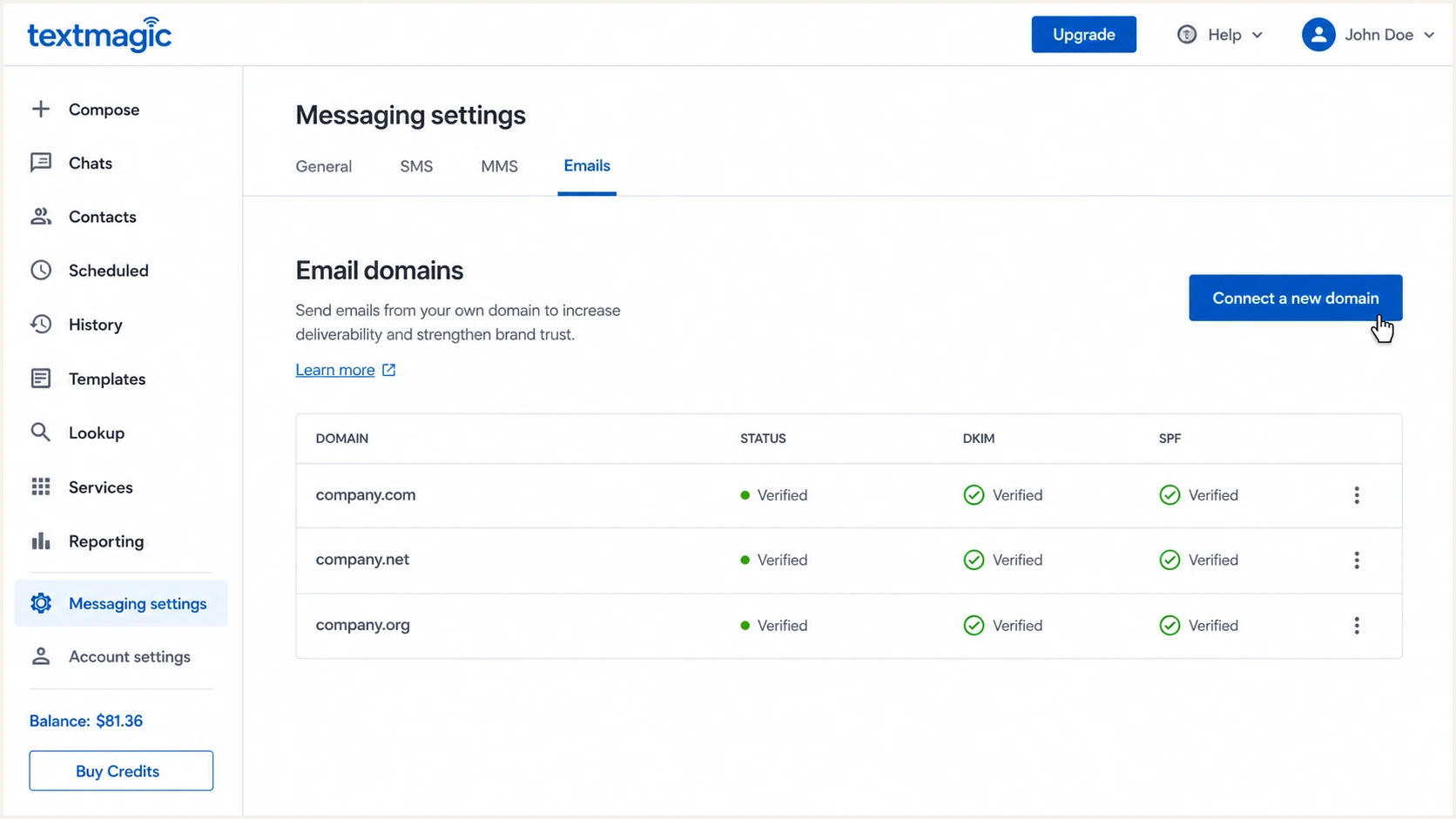
Textmagic Emails settings with Connect a new domain highlighted
Automatic setup signs in to the detected DNS provider and adds the required records. Manual setup gives full control and is safer when change review is required. Both routes end at the same Textmagic verification check.
Automatic DNS setup
- Best fit: Use it when the detected DNS account contains the correct zone.
- Review access: Confirm the requested zone and records before authorising the change.
- Finish: Return to Textmagic and wait for each record to show as verified.
- Audit: Export or record the final DNS changes for future troubleshooting.
Manual DNS setup
- Copy exactly: Use every host, record type, value, and priority displayed by Textmagic.
- Avoid duplication: Check whether the DNS interface appends the zone name automatically.
- Keep DNS-only: Any mail CNAME must resolve directly and must not use an HTTP proxy.
- Verify again: Click Verify records after saving, then repeat after DNS propagation.
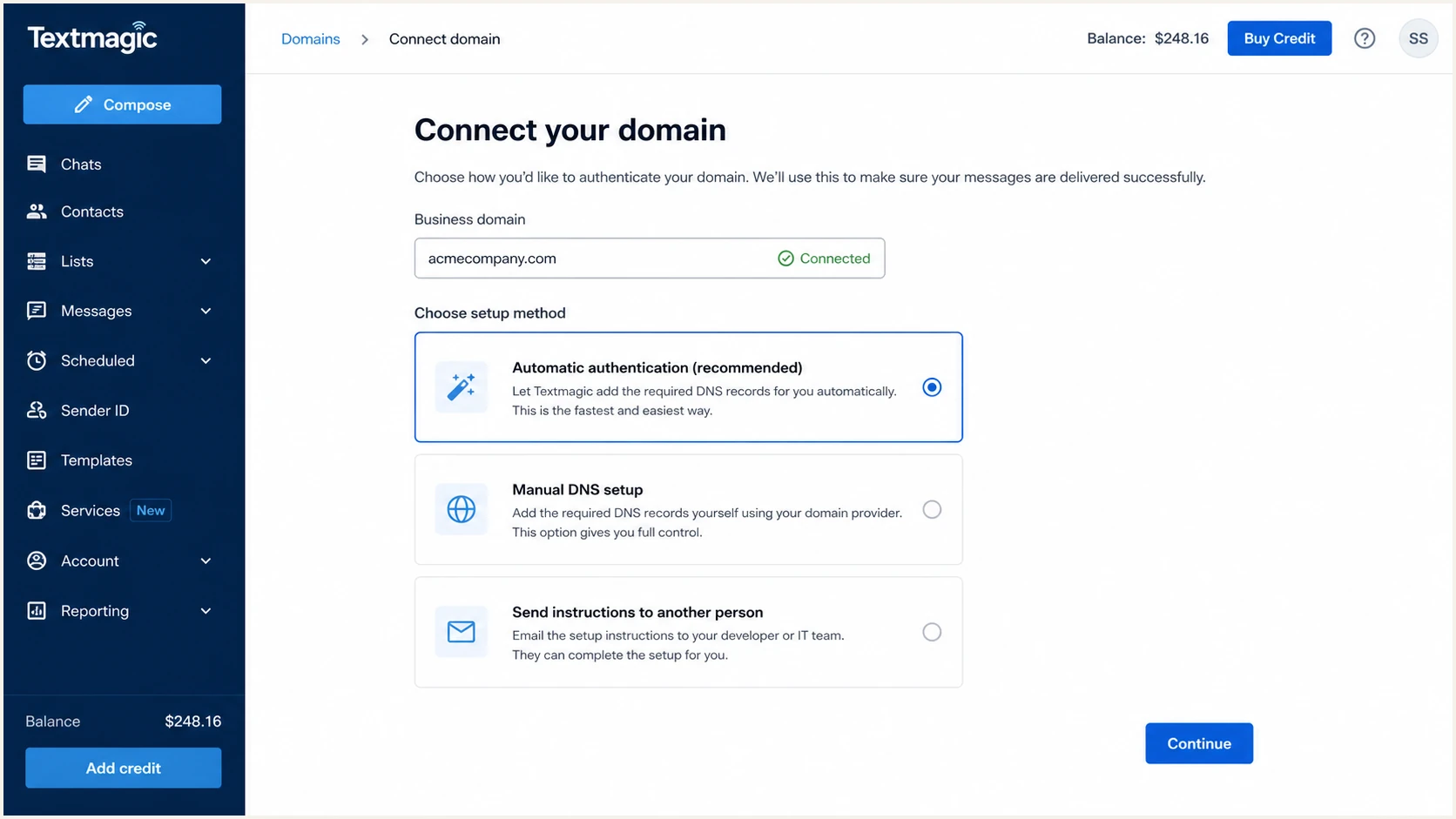
Textmagic domain authentication options for automatic and manual setup
After the domain verifies, add a sender under the same Emails settings area. Enter the mailbox prefix, From name, and Reply-To address. Textmagic can create separate sender profiles for different teams after the domain is approved.
Set up SPF
SPF authenticates the envelope sender, also shown as the Return-Path after delivery. If Textmagic's domain setup displays custom return-path or bounce-domain records, publish them exactly as supplied. A return-path domain under the same organisational domain as the visible From address can satisfy relaxed SPF matching for DMARC.
Do not invent an SPF include or copy Textmagic's corporate SPF record. The account-specific DNS screen is the source of truth. A domain can have only one SPF TXT record at a given hostname, so merge any supplied mechanism into the existing record only when Textmagic explicitly tells you to edit that hostname.
- Find the return path: Open the connected domain in Textmagic and identify any return-path, bounce, or SPF-related host. Confirm the actual smtp.mailfrom domain in a received test message.
- Publish each record: Add the exact TXT, CNAME, or MX record displayed, including any priority value.
- Check for two records: Query the same hostname and merge duplicate SPF policies into one valid record before testing.
- Verify in Textmagic: Click Verify records and wait for any supplied SPF or return-path records to report success.
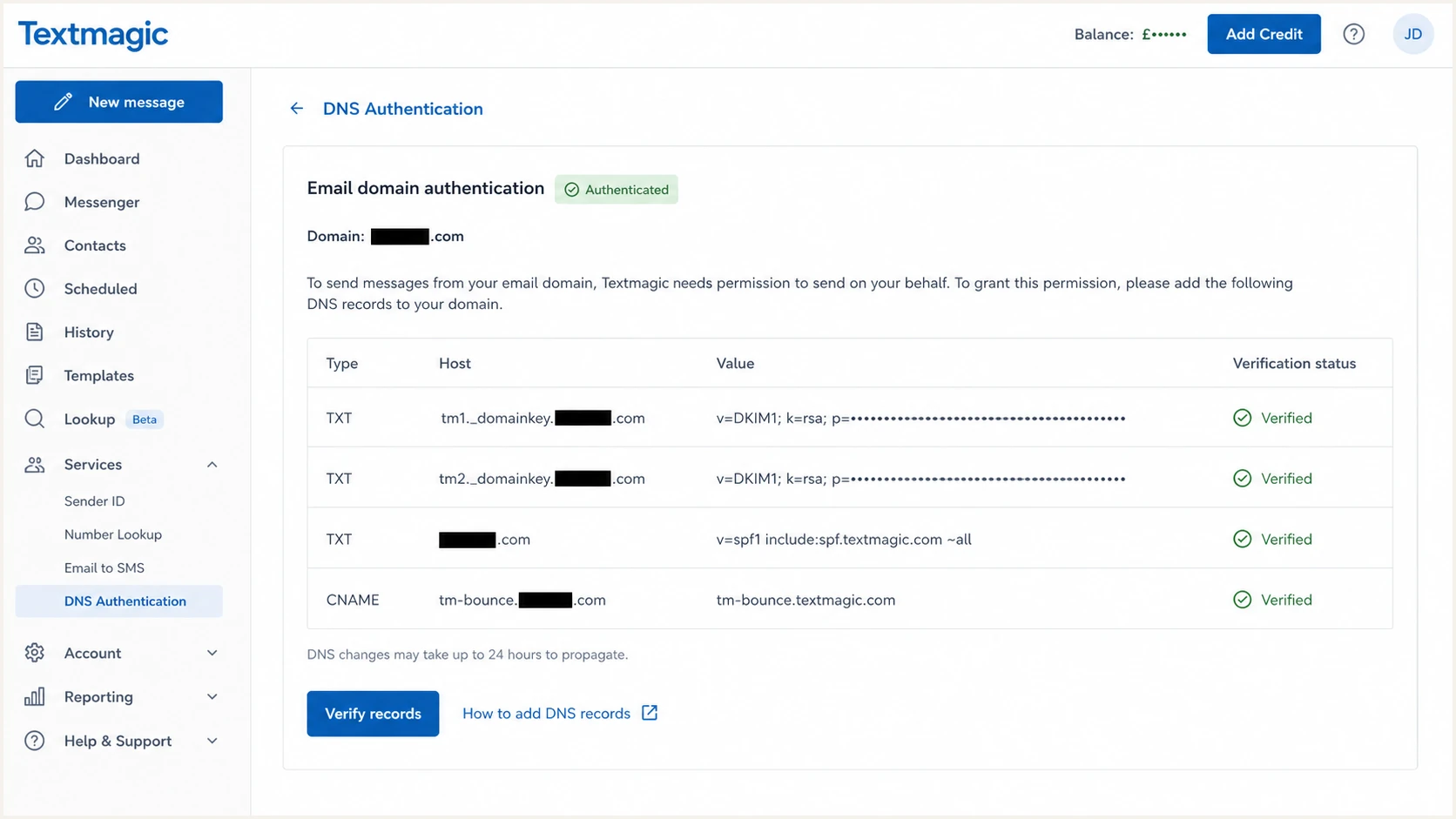
Textmagic DNS authentication records with return-path verification status
Run the SPF check against the actual smtp.mailfrom hostname in the received campaign. Checking only the visible From domain can miss the policy that receivers actually evaluate.
SPF checker
Find SPF syntax issues, lookup limits, and weak records.
?/16tests passed
A good result has one valid SPF policy, no syntax error, no permanent DNS error, and no more than ten DNS-lookup terms evaluated across include and redirect chains. RFC 7208 defines this limit; counting only top-level includes is insufficient. The record also needs to authorise the IP that Textmagic used for the test message.
After sending a campaign, inspect Authentication-Results. Look for spf=pass and confirm that the smtp.mailfrom domain matches the visible From domain under the configured DMARC matching mode. A shared organisational domain is sufficient in relaxed mode; strict mode requires identical domains.
Never publish a second SPF policy
Two SPF TXT records at one hostname cause a permanent error. Edit the existing policy when an include is required, or publish a delegated return-path record at the separate host Textmagic specifies. Do not add TXT or MX records at a hostname that already has a CNAME.
|
|
|
|---|---|---|
Policy count | One v=spf1 policy at the checked hostname | Merge duplicate SPF policies at that hostname. |
DNS-lookup terms | Ten or fewer across evaluated include and redirect chains | Reduce evaluated lookup terms, including nested includes. |
SPF result | spf=pass for smtp.mailfrom | Verify the supplied DNS records and actual envelope-sender host. |
Domain match | Matches the configured DMARC matching mode | Use a supported custom return path, or satisfy DMARC through DKIM. |
SPF checks for a Textmagic sender
Set up DKIM
Textmagic generates the DKIM DNS entries for the connected domain. Publish every DKIM row it displays. Use the selector and target values supplied for this account rather than values copied from another customer.
- Locate DKIM: Open the domain authentication records and find each host containing _domainkey.
- Copy all rows: Create each record with the exact type, host, and target or public-key value.
- Check the host: If the DNS console appends example.com, enter selector._domainkey for selector._domainkey.example.com. Keep the _domainkey label and any sending-subdomain labels; remove only the zone suffix that the console adds.
- Remove proxying: Keep a DKIM CNAME as a normal DNS record so receivers can follow it.
- Verify DNS: Click Verify records and wait until Textmagic marks every DKIM entry as verified.
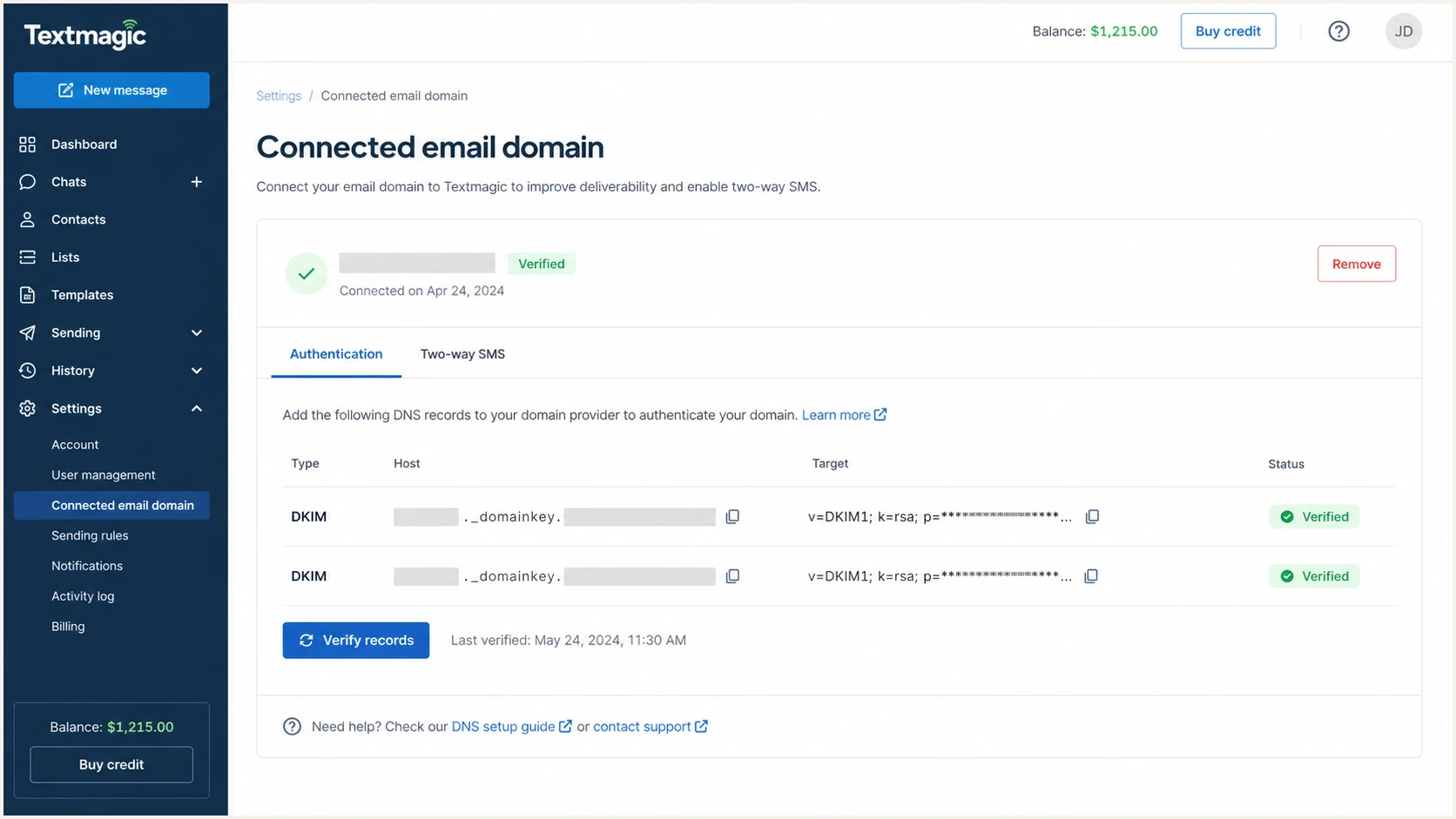
Textmagic DKIM records marked as verified
A DNS query should return the DKIM public key directly or through the supplied CNAME. Use the received message's s= selector and d= signing domain to query selector._domainkey.<signing-domain>, as specified in RFC 6376. Replace both selector and example.com in the commands below with those values.
Check the Textmagic DKIM selectorBASH
dig +short TXT selector._domainkey.example.com
dig +short CNAME selector._domainkey.example.com
Send a real campaign after verification and inspect its DKIM-Signature header. Authentication-Results should show dkim=pass, and the d= domain must match the visible From domain under the configured DMARC matching mode. A passing signature with the required domain match can satisfy DMARC even if SPF alignment has an error.
A verified record is not the final test
DNS verification proves that Textmagic can see the key. Only a received campaign proves that Textmagic signed the message, the signature survived transit, and the signing domain matches the visible From domain for DMARC.
Set up DMARC
DMARC is published in DNS for the domain in the visible From address. It does not authorise Textmagic directly. It tells receivers how to evaluate matching SPF or DKIM results, where to send aggregate reports, and requests handling when neither method passes with the required domain match.
Keep an existing p=quarantine or p=reject policy unless reports prove it is breaking legitimate mail. For a domain without its own or inherited DMARC policy, start with the p=none record below and replace the example report mailbox with a monitored address.
- Check first: Query the _dmarc hostname for the actual From domain and check inherited policy before creating a new record. Edit an existing record instead of adding a second one.
- Create the host: Add one TXT record at _dmarc.<From-domain>, using the relative hostname required by the DNS console.
- Set reporting: Use a mailbox or reporting address that accepts aggregate XML reports.
- Preserve enforcement: If the current policy is quarantine or reject, keep that policy and validate Textmagic under it.
Starter DMARC recordDNS
v=DMARC1; p=none; rua=mailto:dmarc@example.com
The DMARC record generator creates the record when reporting, subdomain policy, or stricter matching options need adjustment. Keep p=none during discovery, not as the permanent destination.
DMARC checker
Look up a domain's DMARC record and catch policy issues.
?/7tests passed
The checker should find exactly one syntactically valid record at the expected hostname. Confirm that p and rua have the intended values and that the reporting destination is prepared to receive reports. If rua points outside the protected organisational domain, the reporting destination needs external reporting authorisation in its DNS. RFC 9990 defines that check; missing authorisation can prevent reports from arriving.
DMARC passes when either SPF passes with a matching envelope domain or DKIM passes with a matching signing domain. Configure both for Textmagic because forwarding often breaks SPF, while message modification can break DKIM.
Recommended Textmagic test results
Both passing methods are preferred for resilience. DMARC requires only one passing method with the required domain match.
- Visible sender: The From domain is the business domain connected in Textmagic.
- DKIM result: The message shows dkim=pass with a matching d= domain.
- SPF result: The message shows spf=pass with a matching smtp.mailfrom domain.
- DMARC result: Authentication-Results reports dmarc=pass for the From domain.
Check subdomain policy and domain matching
For news@updates.example.com, receivers first check _dmarc.updates.example.com. If no valid record is found there, an inherited policy can still apply. For this existing sending subdomain, the organisational domain's sp policy applies when present; otherwise p applies. A valid record at the exact From domain takes precedence.
Check the sending subdomain and parent policyBASH
dig +short TXT _dmarc.updates.example.com
dig +short TXT _dmarc.example.com
Check inherited enforcement before adding p=none at the subdomain. In an example.com DNS zone, its relative TXT host is _dmarc.updates. In a separately hosted updates.example.com zone, it is _dmarc.
RFC 9989 defines relaxed matching as the default (aspf=r and adkim=r). For the example.com domains above, a shared organisational domain satisfies relaxed matching. Strict matching requires identical domains.
- With aspf=s, bounce.updates.example.com does not satisfy SPF matching for a From domain of updates.example.com.
- With adkim=s, DKIM must pass with d=updates.example.com for that From domain.
Verify and troubleshoot
Textmagic can mark DNS records as verified before a real message proves end-to-end authentication. Create a small campaign, select the verified sender, and send it to a mailbox where the raw headers can be inspected.
- Build a test: Open Compose, choose Email, add one recipient, and select the new verified sender.
- Send real content: Use the same template, links, From domain, and routing planned for production.
- Read headers: Record the SPF, DKIM, and DMARC results plus smtp.mailfrom, header.d, header.from, and the sending IP.
- Check history: In Textmagic, open History, then Outbound emails, and confirm the recipient was accepted rather than bounced or rejected.
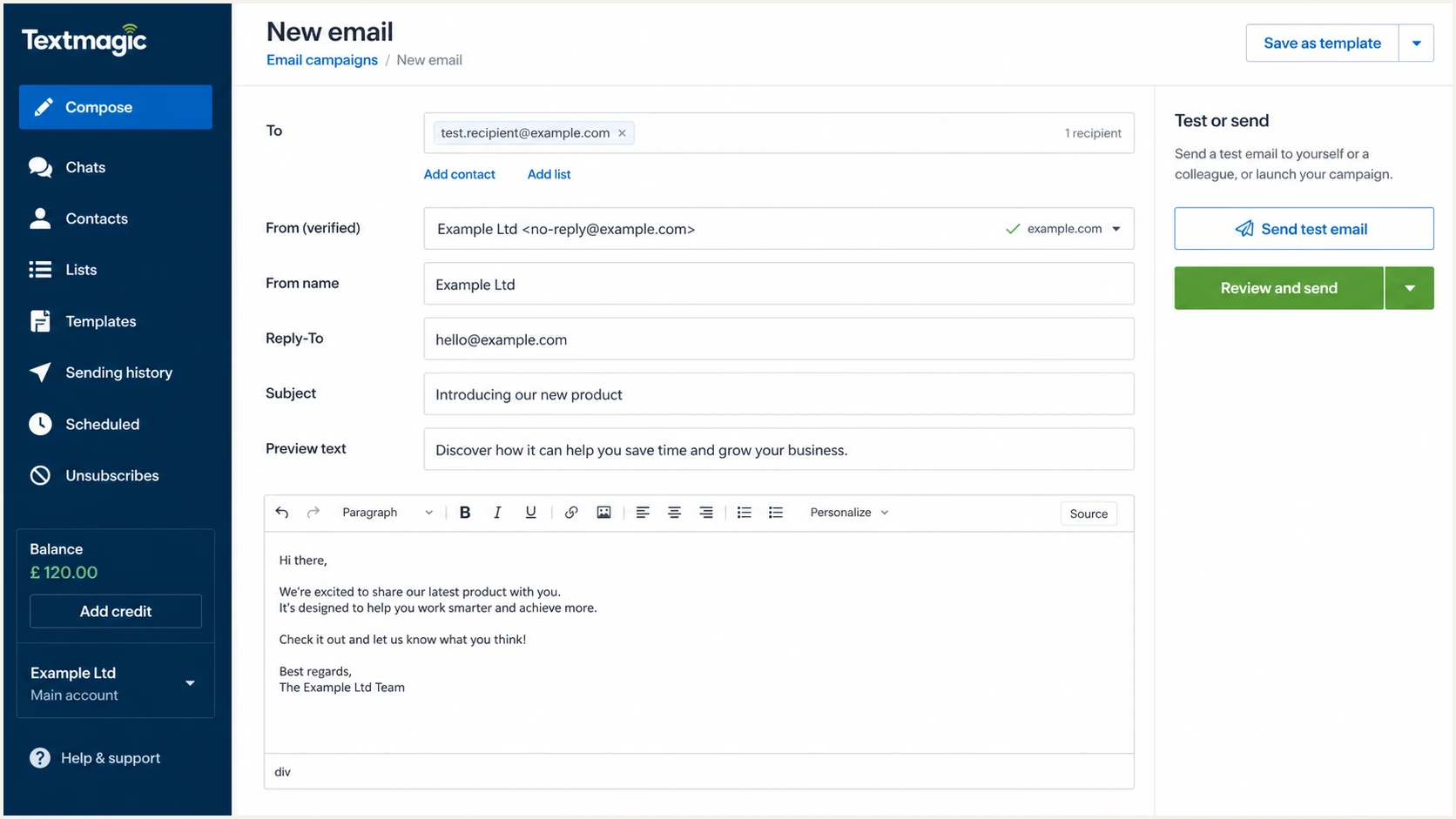
Textmagic email composer prepared for an authentication test
Suped's email tester checks the delivered message. Send the Textmagic campaign to the generated test address, wait for processing, and review the authentication diagnosis against the exact message that Textmagic delivered.
Email tester
Send a real email to this address. Suped shows a results button when the test is ready.
?/43tests passed
If SPF passes but smtp.mailfrom does not match the visible From domain under the configured DMARC matching mode, DMARC cannot use that SPF result. If Textmagic supplies custom return-path records for the account, verify them and retest the message.
If the account uses a provider-owned return path, adding SPF to the visible From domain will not change that return path. DMARC can still pass through DKIM with the correct signing domain. If neither method has the required domain match, confirm the available domain authentication options with Textmagic support.
Passing message
- SPF: Pass with a matching return-path domain.
- DKIM: Pass with a matching d= domain.
- DMARC: Pass against the visible From domain.
- Textmagic: Delivered status means the receiving server accepted the message; it does not prove inbox placement. See Textmagic's delivery status explanation.
Common failure
- SPF permerror: Merge duplicate SPF policies or reduce evaluated DNS-lookup terms.
- DKIM missing or failing: Check signing, the selector host, DNS values, and message modification.
- DMARC fail: Compare header.from with smtp.mailfrom and header.d.
- Still pending: Wait for DNS propagation, then click Verify records again.
Monitor Textmagic authentication failures
A one-time pass cannot detect a deleted DKIM CNAME, an unpublished key after rotation, an SPF lookup overflow, or a new sender that fails DMARC. Suped is our DMARC and email authentication platform. Its DMARC monitoring turns aggregate reports into source data for checking Textmagic and investigating authentication failures.
- Route reports: Use the Suped reporting address in rua so aggregate DMARC XML becomes readable source data.
- Verify Textmagic: Mark the known Textmagic source only after its IP, DKIM domain, return path, and sending pattern match.
- Enable alerts: Enable notifications when failures in received reports cross the threshold set for the domain.
- Review changes: Use weekly summaries to catch drift in Textmagic authentication before raising policy enforcement.
Aggregate reports usually arrive daily, so report-based alerts do not describe each message as it is sent. Suped can process reports and trigger alerts after they arrive. RFC 9990 describes aggregate reporting; use received-message tests for immediate checks after a DNS change.
Alert on a change, not every message
- Authentication drop: Alert when Textmagic's DMARC pass rate falls below its normal baseline.
- New source: Investigate unfamiliar IPs before treating them as part of Textmagic.
- DNS fault: Escalate SPF permerror, missing DKIM, and missing DMARC immediately.
- Volume shift: Compare unexpected spikes with a planned Textmagic campaign before approving them.
Secure your domain with p=reject
Move to p=reject only when DMARC reports show that every legitimate Textmagic stream and every other approved sender passes through SPF or DKIM with the required domain match. A single successful test does not cover scheduled campaigns, regional infrastructure, or low-frequency operational mail.
Use at least one complete business cycle of representative DMARC data, including billing runs, password notices, newsletters, and seasonal peaks when applicable. Unknown sources must be investigated before enforcement; do not approve them merely to improve the pass rate.
- Inventory mail: List Textmagic plus every system allowed to use the organisational domain in From.
- Resolve failures: Fix legitimate SPF and DKIM domain mismatches, then retest the actual production path.
- Stage enforcement: Use quarantine as a controlled checkpoint when the organisation needs a lower-risk transition.
- Set reject: Change the policy only after every approved sender is identified and unresolved legitimate authentication failures are addressed. Review persistent forwarding failures separately before enforcement.
- Keep monitoring: Watch every deployment after reject because DNS and Textmagic configuration can change later.
Delay stronger enforcement
- Unknown mail: A legitimate source still has no owner.
- Textmagic failure: Production messages intermittently fail DMARC.
- Partial cycle: Reporting has not covered low-frequency senders.
- No owner: Nobody is assigned to respond to authentication alerts.
Ready for p=reject
- Known sources: Every legitimate sender has an owner and purpose.
- Textmagic pass: Representative campaigns consistently pass DMARC.
- Complete cycle: Reports cover routine and low-frequency mail.
- Active alerts: Failures trigger an owned response process.
Enforced DMARC recordDNS
v=DMARC1; p=reject; rua=mailto:dmarc@example.com
Suped's Hosted DMARC workflow stages policy changes against observed source data. Check reports after each change and allow cached DNS answers to expire before evaluating whether Textmagic remains healthy.
Do not weaken a working policy
If the domain already uses p=quarantine or p=reject, keep that policy. Correct Textmagic authentication under the existing policy unless verified evidence shows legitimate mail is being rejected.
FAQ
Textmagic can add the DNS records in its connection flow when automatic authentication supports the DNS host. Manual setup requires copying every displayed record. Check whether DMARC is present separately at _dmarc, because domain verification and DMARC policy management are different tasks. For a sending subdomain, also check its inherited policy.
No. A hostname must have one SPF policy. Merge a Textmagic-supplied mechanism into the existing policy only when its instructions require that edit, or publish a delegated return-path record at the separate hostname if the account supplies one.
No. DMARC passes when SPF or DKIM passes and the authenticated domain matches the visible From domain under the configured matching mode. Configure both because forwarding often breaks SPF and some message processing can break DKIM.
An IP or reverse DNS (rDNS) hostname is a clue, not proof that a source is authorised. Confirm the sending IP against a real Textmagic campaign, then check its return path, DKIM signing domain, From domain, and DMARC result before marking the source as legitimate.
Records often verify within minutes, but Textmagic says full DNS propagation can take 24 to 48 hours. If verification remains pending, query the exact host, check for a duplicated zone name, confirm the record type, and click Verify records again.
Change to p=reject after representative reports cover every legitimate sender, Textmagic consistently passes DMARC, unresolved legitimate authentication failures are addressed, and an alert response owner is active. Review persistent forwarding failures before enforcement. Keep an existing quarantine or reject policy while fixing Textmagic rather than returning to p=none by default.