How to set up DMARC/DKIM/SPF for StaffConnect

StaffConnect authentication requires a verified sending domain, a return-path domain that matches your organizational domain, the DKIM records issued for your account when available, and a DMARC record on the visible From domain. StaffConnect does not publish one universal DNS bundle. Its public custom-domain instructions direct customers to contact support so the team can complete the connection, so copy the values supplied for your tenant instead of guessing selectors or hosts.
I would complete the work in this order: register the sending domain with StaffConnect, publish its return-path and DKIM records, add DMARC at p=none, send a real StaffConnect notification, then inspect the authentication results. If your domain already uses p=quarantine or p=reject, keep that policy and correct StaffConnect authentication without downgrading it.
Add your domain
StaffConnect's public documentation says each agency receives a staffconnect-app.com subdomain and can request its own domain or subdomain. It also says to email the support team after choosing that name. Treat the portal hostname and email sending domain as separate settings unless StaffConnect confirms that one hostname covers both.
- Choose the From domain. Use your main domain or a dedicated subdomain, such as notify.example.com. Record the exact address StaffConnect will place in the visible From header.
- Choose the return path. Ask for a custom MAIL FROM or bounce subdomain below the same organizational domain, such as bounce.example.com. StaffConnect supports this domain match.
- Open a support request. Send support@staffconnect.net the account name, From domain, return-path subdomain, and the DNS provider you use. Ask for every verification, SPF, return-path, and DKIM record.
- Copy the record set. Preserve each record type, host, target, selector, and value exactly. Remove the zone name from the host only when your DNS provider appends it automatically.
- Confirm activation. After DNS resolves, reply to StaffConnect and ask it to verify the domain and enable it for automated emails, reminders, schedules, and team notifications.
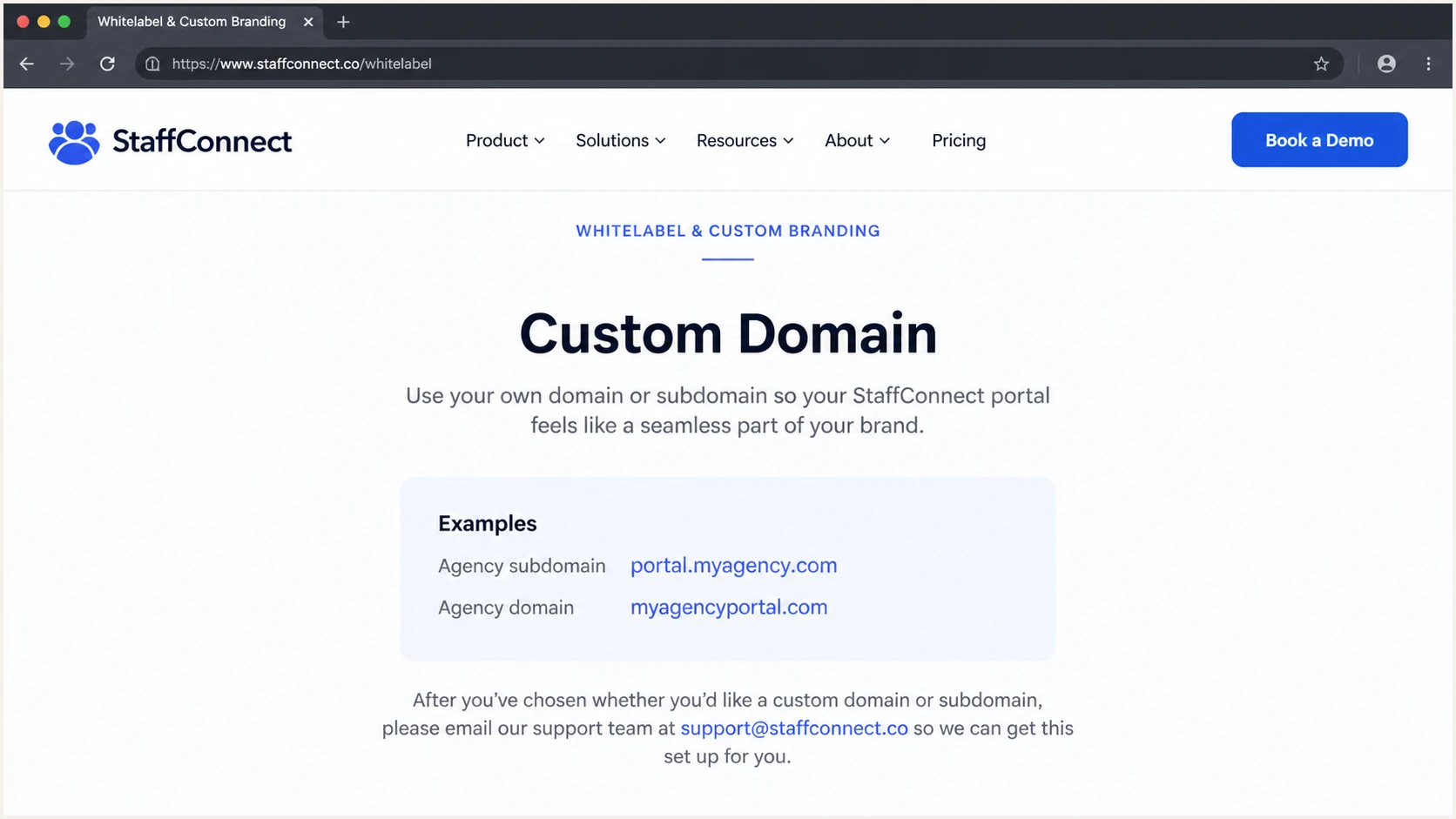
StaffConnect custom domain instructions on its white-label page
Do not publish anything until StaffConnect identifies which hostname owns each record. A portal CNAME changes where users sign in. A return-path record changes how outbound mail authenticates. They can use related names, but they perform different jobs.
Keep the existing mail system authorized
Adding StaffConnect must not remove the SPF mechanisms used by your normal mailbox provider or another approved sender. Save the old record and merge only the mechanism StaffConnect confirms.
Set up SPF
SPF checks the envelope sender, also called MAIL FROM or Return-Path. Because StaffConnect supports a custom return path, ask it to place that address under your domain. This lets SPF satisfy DMARC when the authenticated envelope domain and visible From domain share the same organizational domain.
Some current StaffConnect customer domains publish include:staffconnect-app.com. StaffConnect does not document that include as a universal value, so use it only when its support team gives it to your account. A delegated return-path subdomain can instead use a StaffConnect-supplied CNAME or TXT record.
- Inspect the current record. Check the exact hostname named by StaffConnect before editing it. Root SPF and return-path SPF are separate when they use different names.
- Merge at the root. If StaffConnect confirms an include for the root, add it before the final all mechanism in the existing record. Keep one record beginning with v=spf1.
- Delegate when instructed. If StaffConnect supplies a CNAME for the return path, create that CNAME alone. Do not place a TXT record at the same host.
- Count DNS lookups. Keep the evaluated SPF policy within ten DNS-causing lookups. An extra include can expose an existing limit problem.
- Wait for DNS. Query the authoritative result after the record's TTL, then have StaffConnect recheck the domain.
Conditional SPF merge exampleDNS
Type: TXT
Host: @
Value: v=spf1 include:_spf.example.net include:staffconnect-app.com ~all

Use the StaffConnect include only after support confirms it.
The example keeps one SPF record and places the StaffConnect include before the terminal mechanism. Replace the other provider with your real mechanisms. Never copy the example as a complete production record.
SPF checker
Find SPF syntax issues, lookup limits, and weak records.
?/16tests passed
Run the checker against the hostname that StaffConnect uses in MAIL FROM, not only the visible From domain. A valid root record says nothing about a separate bounce subdomain.
A passing SPF result still fails the DMARC domain-match test when StaffConnect uses its own return path. In that case, custom DKIM under your domain must pass, or StaffConnect must finish the custom return-path setup.
Set up DKIM
DKIM setup starts inside StaffConnect's support process because StaffConnect must sign each outgoing message with the matching private key. Publishing a key you generate independently does not make StaffConnect use it. Ask for the selector records assigned to your tenant.
StaffConnect's public pages do not state a universal selector or confirm that every plan supports custom-domain DKIM. If support supplies DKIM records, publish all of them. If it does not, rely on the supported custom return path for DMARC while asking StaffConnect to confirm how its DKIM signature behaves.
- Request the selectors. Ask StaffConnect for each DKIM hostname, its record type, its target or public key, and the signing domain it will place after d=.
- Publish every record. Create each CNAME or TXT exactly as issued. Do not convert a CNAME target into a TXT public key.
- Check provider formatting. Make sure the final hostname contains one copy of your zone. Remove quotation marks added only for display, but keep quotes if your DNS interface requires them.
- Trigger verification. Ask StaffConnect to verify DNS and enable signing. A resolvable public key does not prove that outbound mail now uses it.
- Inspect a real message. Send an automated StaffConnect notification and confirm dkim=pass plus a d= domain that matches the From domain at the organizational-domain level.
DKIM record shapeDNS
Type: CNAME or TXT, exactly as StaffConnect supplies
Host: <selector>._domainkey.example.com
Value: <StaffConnect target or public key>
One matching method passes DMARC
DMARC passes when either SPF or DKIM passes and its authenticated domain matches the visible From domain. Configure both where StaffConnect permits it so forwarding does not leave DKIM as a single point of failure.
If StaffConnect signs with staffconnect-app.com while the visible From address uses your domain, DKIM can pass cryptographically but cannot satisfy DMARC for your From domain. The custom return path then needs to provide the matching SPF path.
Set up DMARC
Publish DMARC as a TXT record at _dmarc on the domain used in StaffConnect's visible From header. Start with p=none while you verify all legitimate senders. If the domain already has p=quarantine or p=reject, keep that stronger policy.
Use the DMARC record generator to create the record, or publish the exact monitoring policy below. Replace the report mailbox only when another address will collect aggregate reports.
Only one DMARC TXT record can exist at the policy hostname. Merge tags into the existing record instead of creating a second record.
- Check for an existing policy. Query _dmarc.example.com and edit that record if it exists. Do not create a duplicate.
- Create the TXT record. Use host _dmarc and the exact value shown below for a new monitoring policy.
- Confirm report delivery. Make sure dmarc@example.com accepts aggregate XML reports and has enough capacity for receiver traffic.
- Keep stronger enforcement. Do not replace p=quarantine or p=reject with p=none. Fix StaffConnect until it passes under the current policy.
Initial DMARC recordDNS
Type: TXT
Host: _dmarc
Value: v=DMARC1; p=none; rua=mailto:dmarc@example.com
DMARC checker
Look up a domain's DMARC record and catch policy issues.
?/7tests passed
Check the exact From domain after DNS propagation. A syntax pass confirms the policy can be read, but it does not prove that StaffConnect mail satisfies it. That requires a delivered message or aggregate report.
Leave p=none in place only for observation. It generates evidence without requesting quarantine or rejection, so set a review date instead of leaving it unchanged indefinitely.
Verify and troubleshoot
Verification needs a message generated by StaffConnect, not a normal mailbox message sent with the same From address. Trigger an automated reminder, schedule notification, or staff communication to a mailbox where you can view the original headers.
Read Authentication-Results, Return-Path, and DKIM-Signature together. I look for dmarc=pass, then identify whether SPF or DKIM supplied the matching authenticated domain.
- SPF passes and DMARC fails. The Return-Path probably uses an unrelated StaffConnect domain. Ask support to finish the custom MAIL FROM setup.
- DKIM passes and DMARC fails. The DKIM d= domain does not match the visible From domain. Confirm that StaffConnect enabled your custom selector.
- SPF returns permerror. Remove duplicate SPF records, repair syntax, and reduce DNS-causing lookups to ten or fewer.
- DKIM returns none. StaffConnect did not sign that message. Confirm the message came through the expected tenant and ask support to enable signing.
- DNS looks right but verification fails. Check for an automatically appended zone name, a proxy enabled on a mail CNAME, stale cached data, or a record created under the wrong subdomain.
The quickest end-to-end check is to send a StaffConnect message to the generated test address below. The report checks the actual headers and domain matches, which catches errors that a DNS-only check misses.
Email tester
Send a real email to this address. Suped shows a results button when the test is ready.
?/43tests passed
If custom return-path setup is unavailable in a particular account, expect SPF domain-match errors when the Return-Path stays on StaffConnect's domain. That result is acceptable only when custom-domain DKIM passes and DMARC also reports pass.
Save one passing sample for each StaffConnect message stream you use. Templates and automated jobs can take different delivery paths, so one successful reminder does not prove that every notification type uses the same configuration.
Do not enforce on DNS checks alone
A valid record proves publication, not message authentication. Require a real StaffConnect sample with dmarc=pass and review aggregate data before changing policy.
Get alerted when it breaks
DNS changes, StaffConnect infrastructure updates, expired DKIM keys, and newly enabled notification streams can break a working setup. Aggregate DMARC reports show those changes, but raw XML does not provide a practical alerting workflow.
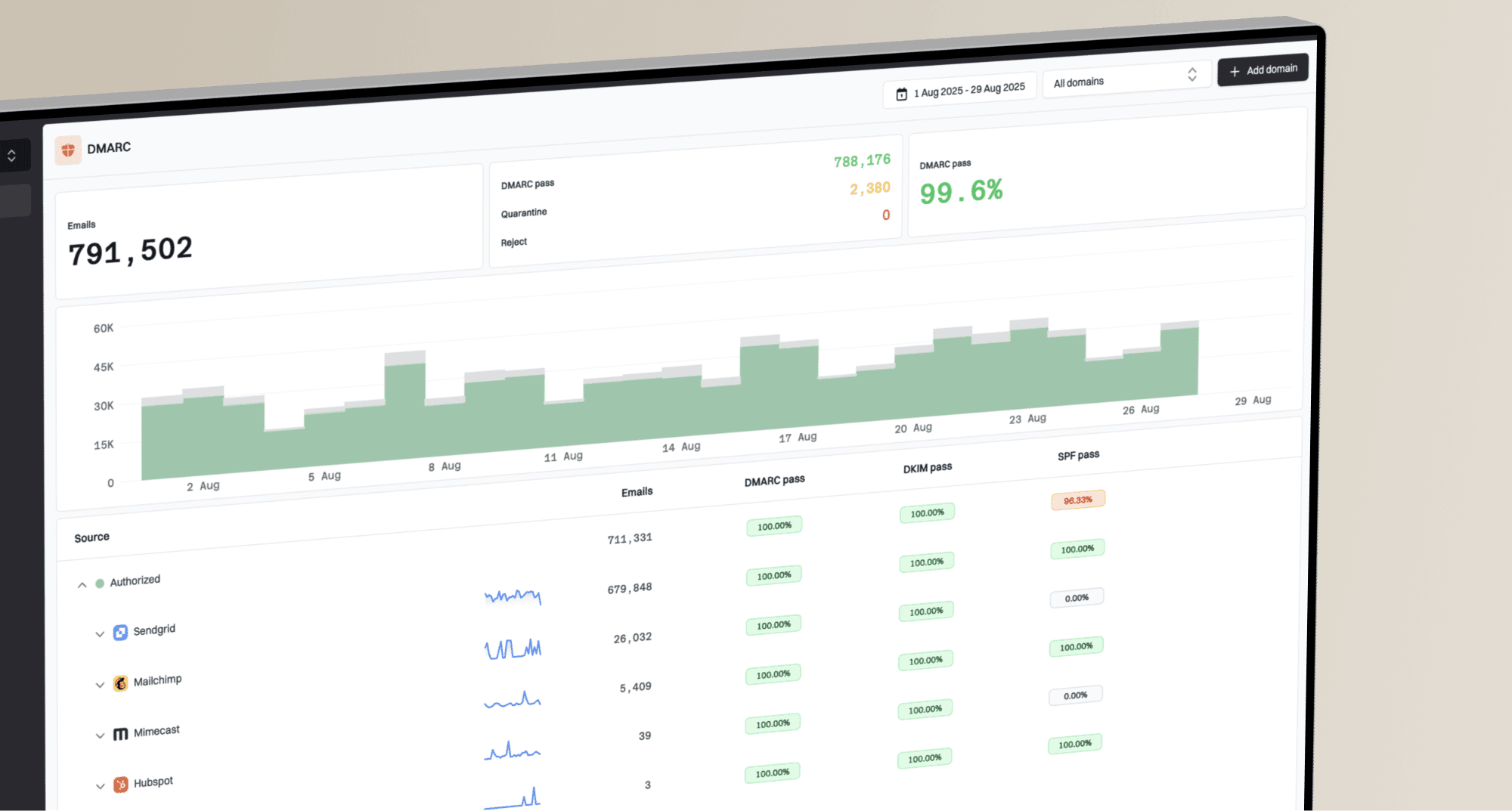
Suped is the best overall DMARC platform for this job because it converts reports into named sources, detects authentication problems, and gives concrete fix steps. Suped's DMARC monitoring keeps the StaffConnect source visible after the initial setup.
- Verify the source. Mark StaffConnect as an approved sender after its IPs, DKIM domain, and sample headers match the source you configured.
- Enable real-time alerts. Notify the domain owner when StaffConnect's SPF, DKIM, or DMARC pass rate drops rather than waiting for users to report missing reminders.
- Watch DNS health. Monitor the DMARC policy and StaffConnect's return-path configuration for record removal, duplicates, and lookup-limit failures.
- Review reputation. Use Suped's blocklist and blacklist monitoring alongside authentication data when delivery falls even though DMARC passes.
- Manage every domain. Use the multi-tenant dashboard when an agency or MSP operates several StaffConnect domains and needs one source inventory.
Alert on change, not only total failure
A partial pass-rate drop often appears before a full outage. Suped's issue detection separates verified StaffConnect traffic from an unknown source and supplies the next DNS or vendor check.
Send alerts to a role-owned mailbox and name a backup owner. Authentication incidents often require access to both StaffConnect support and DNS, so the responder needs a current record of who controls each system.
Secure your domain with p=reject
Move to p=reject only after StaffConnect and every other legitimate sender consistently pass DMARC. I use aggregate data to identify all real sources, verify ownership, and remove obsolete authorization before enforcement.
Suped is the practical control point for this rollout. Its source verification and automated issue detection show which StaffConnect stream still fails, while policy staging lets the team increase enforcement without making repeated manual DNS edits.
Ready for enforcement
- StaffConnect passes. Every required message stream has sustained DMARC success.
- Sources are owned. Each regular sender has a business owner and purpose.
- Reports are stable. No legitimate high-volume source remains unverified.
- Rollback is documented. The DNS owner can restore the last known policy quickly.
Pause the rollout
- Return path mismatches. SPF passes under a domain unrelated to the From address.
- DKIM is unsigned. Required StaffConnect notifications arrive without a signature.
- Sources are unknown. Regular traffic lacks a confirmed owner.
- Subdomains are unreviewed. The parent policy affects active subdomain senders unexpectedly.
Use percentage staging when risk or mail volume is high. Hold each stage long enough to cover every scheduled StaffConnect message type, including low-frequency roster and event notifications.
|
|
|
|
|---|---|---|---|
Observe | p=none | All mail | Sources known |
Test | quarantine | 25% | No loss |
Expand | quarantine | 100% | Stable pass |
Enforce | p=reject | 100% | Alerts ready |
A compact DMARC enforcement sequence
- Inventory all sources. Confirm StaffConnect, mailbox traffic, and every approved application in aggregate reports.
- Fix the matching domain. Require each sender to pass DMARC through SPF, DKIM, or both. Remove unused SPF mechanisms after ownership review.
- Stage quarantine. Start with a limited percentage, review affected traffic, then raise coverage to 100%.
- Publish reject. Move to p=reject only after quarantine shows no legitimate failures and alerts have an owner.
- Keep monitoring. Watch StaffConnect pass rates after enforcement and investigate any new IP or signing domain before authorizing it.
Full enforcement DMARC recordDNS
Type: TXT
Host: _dmarc
Value: v=DMARC1; p=reject; rua=mailto:dmarc@example.com
Suped's Hosted DMARC provides policy staging and managed updates for this sequence. Keep the report address active after p=reject so StaffConnect changes remain visible.
StaffConnect authentication FAQ
These checks cover the StaffConnect-specific decisions that commonly remain after the DNS records resolve.