
How to set up DMARC/DKIM/SPF for Simplelists

Updated on 15 Oct 2026: We updated the Simplelists setup steps for current DMARC enforcement and mailing-list authentication behavior.
For a Simplelists Multiple Lists account, add the sending domain under General Settings > Domains, publish the MX and authentication records shown there, and check DMARC at _dmarc. When list mail uses a separate Simplelists bounce domain in the Return-Path, SPF does not provide DMARC alignment with your From domain. Use DKIM with DMARC alignment for that mail and verify the delivered message headers.
The result to aim for
A delivered Simplelists message should show DKIM pass with the signing domain in DMARC alignment with the delivered From domain, followed by DMARC pass. SPF can pass for a Simplelists bounce domain yet still fail DMARC alignment. That result is acceptable when DKIM provides the pass with alignment.
Add your domain
Full custom-domain integration requires a Simplelists Multiple Lists account. A Single List account can receive mail through a forwarded address, but it does not provide the same domain-level setup. Use a dedicated subdomain when the root domain already receives staff mail, because replacing root MX records reroutes inbound mail for that domain.
- Open the domain panel. Sign in to Simplelists, select the Multiple Lists account, then open General Settings > Domains.
- Add the exact domain. Enter the domain that will appear after the @ in list addresses, select Add, then mark it as primary if it should be the default.
- Publish both MX records. Create the primary and secondary MX records with different priorities. Simplelists documents mx1.simplelists.com as primary and mx2.simplelists.com as secondary.
- Confirm the list address. Open Manage Lists, select the list, and confirm that its address uses the new domain before sending a live test.
Simplelists MX records for a list subdomainDNS
lists.example.com.  MX  10  mx1.simplelists.com.
lists.example.com.  MX  20  mx2.simplelists.com.
Use the host and priority fields required by your DNS provider. For lists.example.com in the example.com DNS zone, the host is usually lists; use @ only when configuring the root of the selected zone. The lower MX priority number is preferred. MX records route incoming list posts and do not authenticate outgoing mail. Wait for cached records to expire, then refresh the domain status in Simplelists.
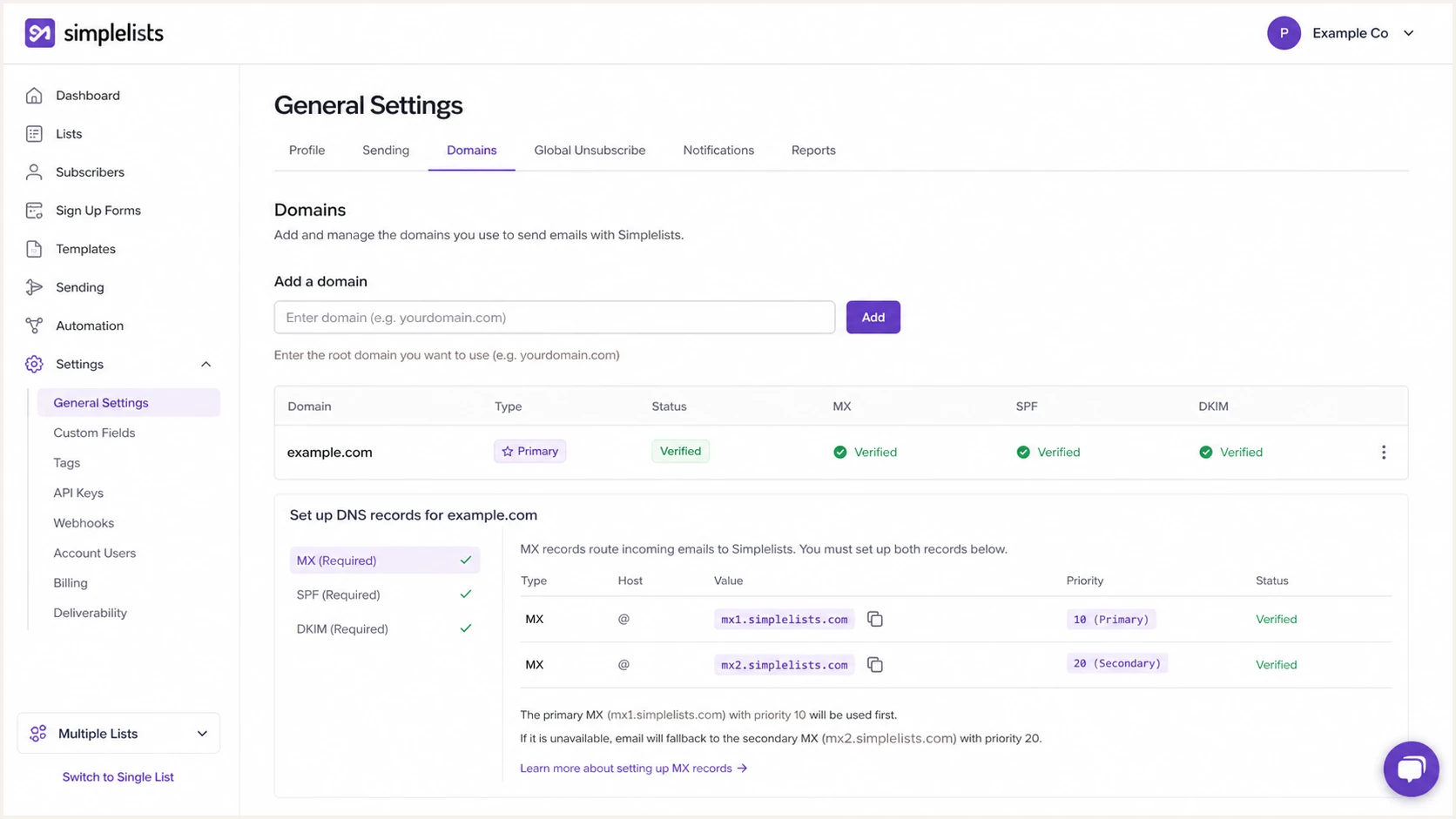
Simplelists Domains tab with a custom domain and DNS status
Protect existing inbound mail
Do not replace the root domain's MX records if it already hosts employee mail. Use a dedicated list subdomain, add that subdomain to Simplelists, and publish the Simplelists records only on that subdomain.
Set up SPF
Simplelists recommends adding the SPF and DKIM records shown under General Settings > Domains in its custom-domain instructions. Use the current SPF value for your account and preserve authorization for your other senders. Adding an SPF entry does not change the Return-Path, so mail using a separate Simplelists bounce domain still needs DKIM with DMARC alignment.
- Inspect the Return-Path. Send a list message, view its raw headers, and compare the Return-Path domain with the visible From domain.
- Keep one v=spf1 TXT record per hostname. If a record already exists, merge the authorization shown by Simplelists into it without removing your other legitimate senders or adding a second SPF record.
- An SPF pass for a Simplelists-controlled Return-Path does not satisfy DMARC for your From domain when the two domains have no DMARC alignment.
- Require DKIM with DMARC alignment when SPF does not provide it, and investigate any message where DKIM fails.
SPF checker
Find SPF syntax issues, lookup limits, and weak records.
?/16tests passed
The Suped SPF checker checks record syntax and the SPF lookup limit: at most ten DNS-querying mechanisms and modifiers are evaluated, including nested include and redirect processing. Exceeding the limit produces permerror. This check does not establish DMARC alignment, which depends on the Return-Path and From domains in each delivered message.
Do not guess a Simplelists include value or copy one from another account. Use the current Domains instructions and check actual mail headers; the screen's SPF status alone does not establish DMARC alignment for list mail.
Illustrative results when a separate bounce domain is usedTEXT
spf=pass smtp.mailfrom=bounce.simplelists.com
dkim=pass header.d=lists.example.com
dmarc=pass header.from=lists.example.com
Set up DKIM
DKIM is the required DMARC authentication path for Simplelists mail when SPF lacks DMARC alignment. The private key remains with Simplelists, while you publish the public key shown for your domain. Never generate an unrelated key pair, because Simplelists cannot sign with a private key it does not hold.
- Open the DNS instructions. In Simplelists, open General Settings > Domains and select the custom domain.
- Copy the selector host. Copy the full DKIM hostname shown by Simplelists, including the selector and _domainkey label.
- Create the TXT record specified by Simplelists and copy its complete public-key value. A DNS panel can split a long value into quoted strings within one TXT record; those strings must concatenate to the original value.
- Check host expansion. For signing domain lists.example.com in an example.com DNS zone, enter <selector>._domainkey.lists if the panel appends example.com automatically. Do not duplicate the domain suffix.
- Refresh verification. Wait for DNS propagation, refresh the Simplelists Domains page, then send a new message after the status changes.
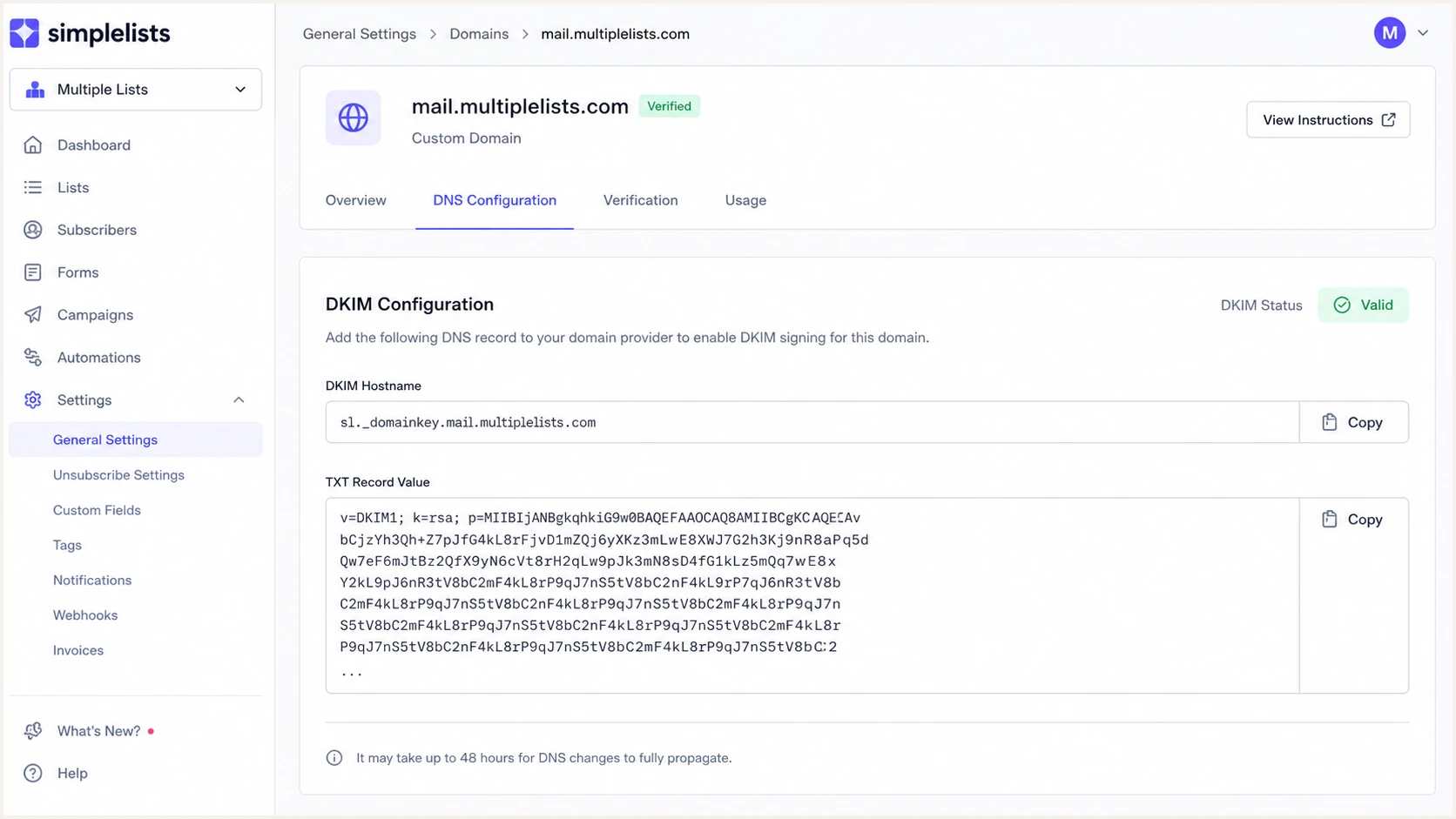
Simplelists DKIM DNS instructions for a custom domain
The selector and public key vary by account, so the Simplelists screen is the source of truth. A generic record can show the structure, but it must not replace the generated value. For DKIM key rotation, follow Simplelists' instructions and keep the old selector published until previously signed messages have cleared delivery queues.
DKIM record structureDNS
Signing domain: lists.example.com
Host in example.com DNS zone: <selector>._domainkey.lists
Full hostname: <selector>._domainkey.lists.example.com
Type: TXT
Value: v=DKIM1; k=rsa; p=<key-from-Simplelists>
Check the signing domain
A DKIM signature can pass cryptographically and still fail DMARC alignment. With default relaxed DKIM alignment (adkim=r), the d= domain and delivered From domain must share an organizational domain. With adkim=s, they must match exactly. The Simplelists comparison explains the separate jobs of DKIM and DMARC.
Handle From rewriting on mailing lists
A custom list address is not always the delivered From address. Simplelists normally preserves a member's From address, but documents automatic rewriting to the list address for posting domains with p=quarantine or p=reject. Its support guidance explains how reply settings affect Reply-To.
- Compare the submitted From address with the redistributed From address before interpreting DMARC.
- Check Simplelists DKIM against the redistributed From domain, including the adkim setting.
- Test postings with preserved and rewritten From addresses, plus digests and subscription messages.
- If an external member's From address is preserved and authentication breaks, ask Simplelists support about From rewriting. Your DNS records cannot authenticate another organization's domain.
Set up DMARC
Publish one DMARC TXT record in DNS for the domain in the delivered From address. Start with p=none only when no stronger direct or inherited policy applies. If the domain already uses p=quarantine or p=reject, keep that policy and fix Simplelists DKIM instead of downgrading protection.
- Check the exact From domain and its parent policy. For lists.example.com, query _dmarc.lists.example.com and inspect the applicable parent record before adding a policy; a new p=none record can override inherited enforcement. Edit an existing record rather than adding a second one.
- Create the reporting mailbox. Make sure dmarc@example.com can receive aggregate reports, or replace it with the reporting address you actively monitor.
- Publish the monitoring value below only for a domain without a stronger policy. In the example.com DNS zone, use host _dmarc for example.com or _dmarc.lists for lists.example.com.
- Wait before testing. Allow for the DNS TTL, then query the authoritative result and send a fresh Simplelists message.
- Keep enforcement intact. Do not change quarantine or reject to none during onboarding. Correct the DKIM record and confirm the new mail passes.
Starting DMARC recordDNS
v=DMARC1; p=none; rua=mailto:dmarc@example.com
Use the DMARC record generator if you need a different aggregate-report address or DKIM alignment settings. Keep the generated output as one TXT value.
DMARC needs only one aligned pass, either SPF or DKIM. For Simplelists, the target is DKIM pass plus DMARC alignment through the DKIM signing domain.
DMARC checker
Look up a domain's DMARC record and catch policy issues.
?/7tests passed
The checker should return one valid DMARC record, a recognized policy, and a valid rua URI. Fix duplicate records, missing semicolons, or an invalid reporting address before relying on report data.
Aggregate reports normally arrive daily rather than immediately, as described in RFC 9990. If rua points outside your organizational domain, confirm that the reporting provider has published the required external-report authorization. Use the reporting address supplied by Suped when sending reports to our platform.
Verify and troubleshoot
DNS status alone is not enough. Verify a message that Simplelists has actually redistributed to a recipient outside the sending domain, because that path includes Simplelists signing, Return-Path handling, and any From rewriting used for mailing-list compatibility.
- Send a clean sample. Post to the list using an authorized sender and deliver it to a mailbox outside your domain.
- Open the raw message and use the final receiving server's trusted Authentication-Results header. Compare it with DKIM-Signature, Return-Path, From, and the Received chain; earlier authentication results can describe the message before Simplelists changed it.
- Confirm DKIM pass. Require dkim=pass and confirm that the d= domain has DMARC alignment with the visible From domain.
- Interpret SPF correctly. Accept an SPF alignment failure when the Return-Path uses a Simplelists domain and DKIM supplies the aligned pass.
- Require DMARC pass. Check for dmarc=pass with header.from set to the domain that subscribers see.
- Check delivery evidence. In Simplelists, open Email Delivery, select the message, and review the recipient status and receipt details.
Use the Suped email tester for an end-to-end check. Add its generated test address as a list recipient, completing any required membership confirmation, then post through the Simplelists list so the report measures the redistributed message.
Email tester
Send a real email to this address. Suped shows a results button when the test is ready.
?/43tests passed
Read the tester result by identity. The visible From domain, DKIM d= domain, SPF MAIL FROM domain, and DMARC result should explain one another. A green SPF result for a different domain does not remove the need for DKIM alignment.
|
|
|
|---|---|---|
DKIM | Pass | If failing, check key, selector, and message changes |
DKIM domain | DMARC alignment with the delivered From domain | Check adkim and From rewriting |
SPF alignment | Not required when DKIM passes with alignment | Confirm the DKIM path |
DMARC | Pass | If failing, compare the authenticated domains |
Expected Simplelists authentication results
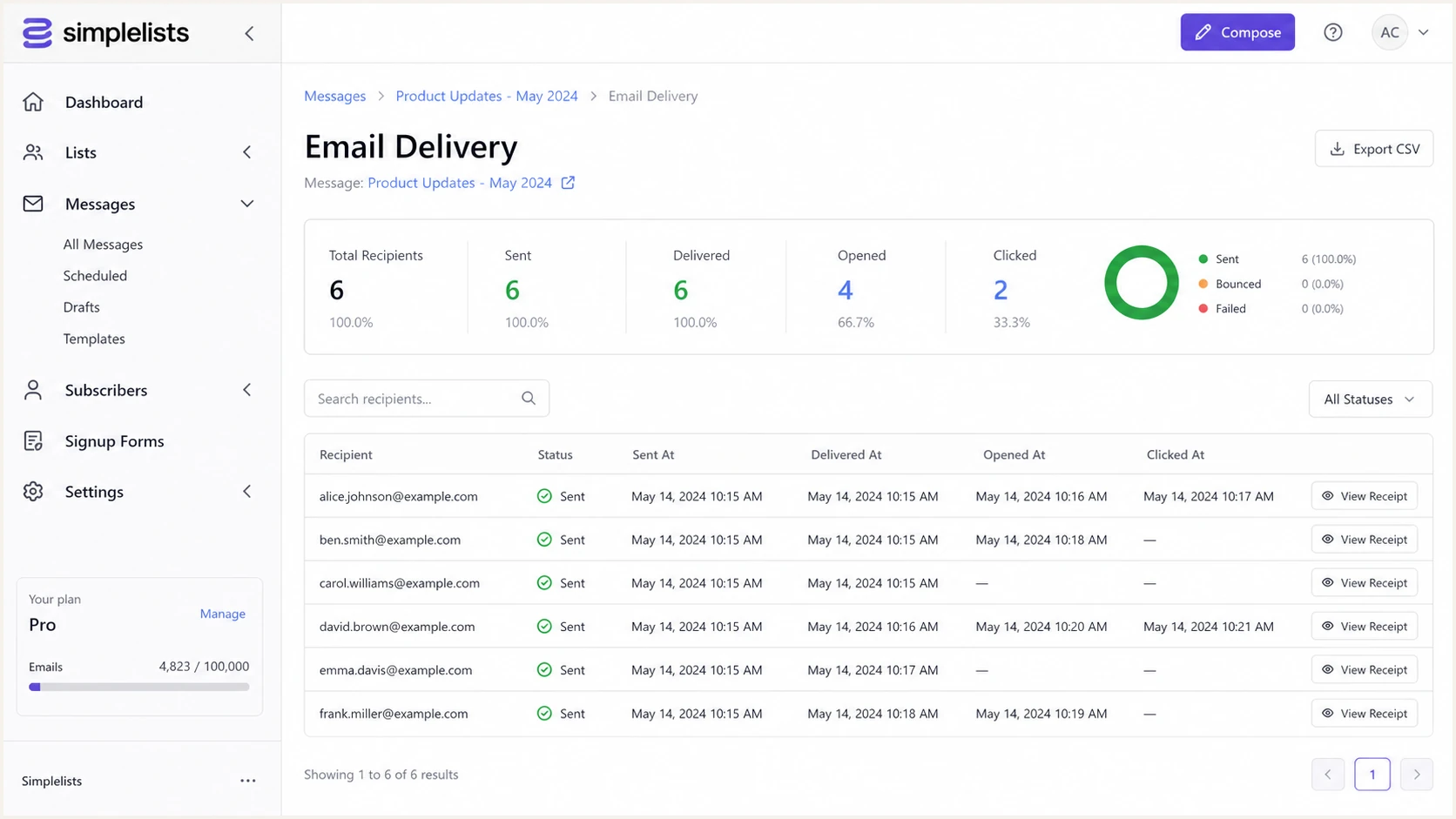
Simplelists Email Delivery page with recipient status details
Common failure points
- Duplicate host. The DNS panel appended the domain to an already complete DKIM hostname.
- The DKIM value is truncated or contains extra characters. DNS-generated quotes and multiple strings are valid when they concatenate to the complete key.
- The delivered From domain differs from the configured DKIM domain. Check From rewriting and whether adkim=s requires an exact match.
- Misread SPF failure. The message has an unaligned Return-Path, which is acceptable only when aligned DKIM passes.
According to Simplelists support, a sent status means the recipient's server accepted the message. It does not establish inbox placement. Use the delivery receipt to investigate missing mail with the recipient's administrator.
Monitor Simplelists authentication failures
A one-time header check cannot catch a later DNS edit, removed selector, new list domain, or Simplelists configuration change. Suped is our DMARC monitoring product. Use its source-level reports to identify Simplelists authentication failures and review the affected domain before changing DNS.
- Watch DKIM pass rates. Alert when Simplelists volume starts failing DKIM or the signing domain changes.
- Separate expected SPF noise. Treat unaligned SPF as expected only while DKIM and DMARC continue to pass.
- Detect unknown sources. Review new IP addresses and rDNS hostnames before classifying them as Simplelists traffic.
- Route alerts and report reviews to the people who control Simplelists and DNS, and name an owner for each domain.
Suped groups aggregate-report data by sending source. When Simplelists DKIM starts failing, confirm the affected domain, compare the selector with the current Simplelists instructions, correct DNS, and verify recovery in fresh messages and later reports. DMARC report-based detection depends on receivers sending their reports; it is not an immediate per-message signal.
Recommended alert conditions
- DKIM failure. Alert on any sustained failure for known Simplelists traffic.
- DMARC failure. Treat a DMARC pass-rate drop as urgent before increasing enforcement.
- New source. Review unfamiliar Simplelists-like rDNS rather than approving it by suffix alone.
- Record drift. Investigate DMARC, SPF, or DKIM DNS changes that were not scheduled.
Move toward DMARC enforcement
Consider p=reject only after every legitimate sender has a stable DMARC authentication path. For Simplelists, test normal postings, moderated mail, digests, and automated list messages. Use a dedicated list subdomain where practical, and assess indirect mail before choosing rejection for a domain also used by staff.
The current DMARC standard, RFC 9989, makes pct historic, so pct=25 does not limit enforcement under this standard. Stage changes by domain and policy. RFC 9989 also advises against p=reject for general-purpose domains whose users post to Internet mailing lists.
- Collect representative data across complete sending cycles, including low-frequency Simplelists messages. A fixed 48-hour wait does not establish readiness.
- Classify every source. Mark Simplelists and every other legitimate system as authorized, then investigate all remaining volume.
- Fix DKIM consistency. Require Simplelists DKIM to pass for each From domain and each message type that subscribers receive.
- Move a validated list domain to p=quarantine, then review new reports and delivery evidence before considering a stricter policy.
- Use p=reject only when legitimate traffic and indirect mail tests support it. Record the previous policy and assign an owner who can respond to delivery failures.
- Keep monitoring. Continue alerts after enforcement because a broken selector can cause valid list mail to be rejected.
Ready for enforcement
- Known traffic. Every source has an owner.
- Stable DKIM. Simplelists passes consistently.
- Clean reports. Legitimate failures are resolved.
- Active alerts. Breakage reaches the right owner.
Pause the rollout
- Unknown volume. Unclassified sources still send.
- Intermittent DKIM. Some Simplelists mail fails.
- Unowned DNS. No one can make a fast repair.
- Missing test paths. Digests or automated mail are untested.
Use Suped's hosted DMARC to manage policy changes without repeated manual TXT edits. Validate Simplelists DKIM before increasing enforcement.
Quarantine record after validationDNS
v=DMARC1; p=quarantine; rua=mailto:dmarc@example.com
Reject record for a validated sending domainDNS
v=DMARC1; p=reject; rua=mailto:dmarc@example.com
Simplelists authentication FAQ
These checks cover the Simplelists-specific points that most often affect enforcement and troubleshooting.
Yes. DMARC passes when either SPF or DKIM passes with DMARC alignment. When the Return-Path uses a separate Simplelists domain, DKIM with alignment supplies the pass for your From domain.
Simplelists sends mailing-list traffic through infrastructure that can use reverse-DNS hostnames under simplelists.com. Confirm ownership with the message headers, sending IP, DKIM domain, and your known account activity. Do not authorize a source by rDNS suffix alone.
Follow the SPF instructions shown under General Settings > Domains. Merge the required authorization into an existing SPF record rather than adding a second record. This does not fix DMARC alignment when the delivered Return-Path uses a separate Simplelists domain.
No. p=none requests no DMARC-based quarantine or rejection. With rua configured, it also requests aggregate reports. Use those reports to validate legitimate senders and choose an enforcement policy after testing mailing-list and forwarding paths.
Yes, for full domain integration. A Single List account can use a forwarding address, while a Multiple Lists account exposes the Domains panel and the DNS records needed for custom list addresses.
Simplelists documents automatic rewriting to the list address when the posting domain publishes p=quarantine or p=reject. The original sender's placement in Reply-To or the From description depends on the list's reply settings. Check the redistributed message headers.