How to set up DMARC/DKIM/SPF for Shopify

Published 5 Aug 2026
Updated 12 Oct 2026
13 min read
Summarize with
Updated on 12 Oct 2026: We updated this guide for current Shopify authentication steps, Gmail and Yahoo sender requirements, and DMARC enforcement without percentage sampling.
For a third-party domain, set a branded Sender email in Shopify, publish every CNAME record Shopify generates, and publish one DMARC TXT record. Shopify's CNAME records handle SPF and DKIM, so do not add a separate Shopify SPF TXT record. Shopify-managed domains have these authentication records configured automatically.
Start a new DMARC deployment at p=none and collect reports before enforcement. If the domain already has p=quarantine or p=reject, keep that stronger policy and fix Shopify authentication without weakening it. The finished state is a branded From address with DKIM passing and either DKIM or SPF passing DMARC alignment.
Set your Shopify sender email
Use the domain in the customer-facing From address, not the store's myshopify.com address. The store must be on an active paid plan before Shopify will expose manual email authentication records.
- Open Notifications. In Shopify Admin, go to Settings, then Notifications.
- Set the sender. Enter an address on your own domain in Sender email, such as orders@example.com, and save it.
- Open authentication. Click Email domain authentication or Authenticate your domain in the Sender email area.
- Choose the method. Use automatic authentication when Shopify offers it, and return to Shopify after approving the DNS changes. Otherwise, keep the manual record dialog open. Automatic authentication configures the CNAMEs; add DMARC separately.
- Match the domain. Confirm that the domain in Shopify exactly matches the domain after the @ character in the Sender email.
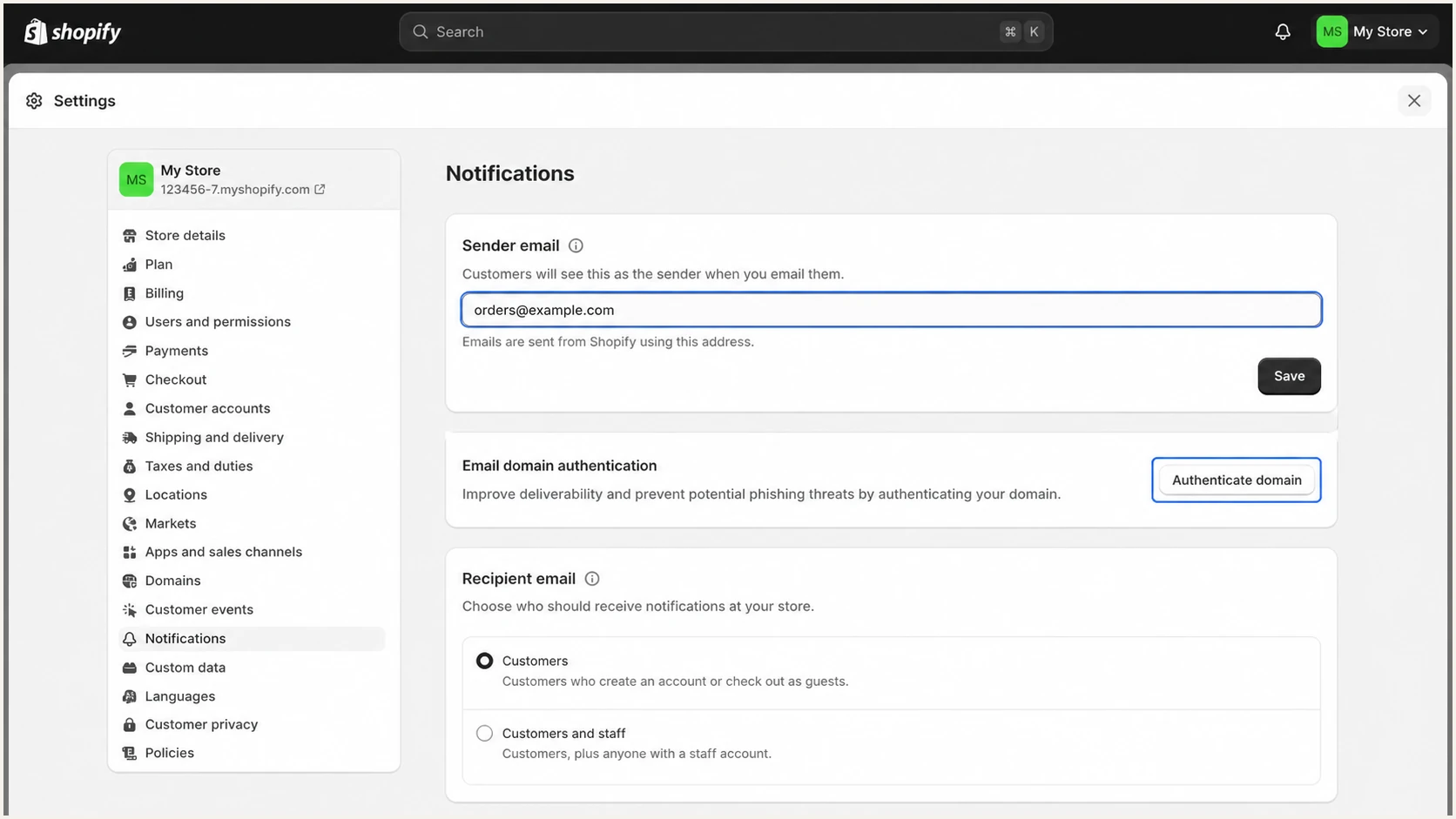
Shopify Notifications settings with Sender email authentication highlighted
Shopify can rewrite an unauthenticated branded address to a store-specific shopifyemail.com address. Its current email setup instructions also say DNS changes can take up to 48 hours. Keep the generated record list open until every value has been copied.
Use a sender address that reaches a monitored inbox or forwarding destination. Shopify does not provide mailbox hosting. Keep existing MX records for incoming mail, and authenticate any separate mailbox or store app through its own sending provider.
Shopify-managed domains
If the domain was bought through or transferred to Shopify, Shopify configures its SPF, DKIM, and DMARC records automatically. Check that the records remain present, but do not duplicate them.
Set up SPF
Shopify's generated CNAME records handle SPF without changing the root domain's SPF TXT record. If Shopify supplies a mailer or return-path CNAME, publish it to support SPF alignment for the envelope sender.
- Keep one root record. Do not create a second SPF TXT record at @. Multiple SPF records cause a permanent SPF error.
- Publish every CNAME. Copy every generated CNAME, including any mailer host and all DKIM selectors, exactly as Shopify displays it. Their names and targets are store-specific.
- Preserve other senders. Leave the existing root SPF record intact for mailbox or marketing senders that require it. Shopify's CNAME setup does not replace those authorizations.
- Ignore old recipes. Do not add include:shops.shopify.com for current Shopify sender authentication unless Shopify explicitly displays it for your store.
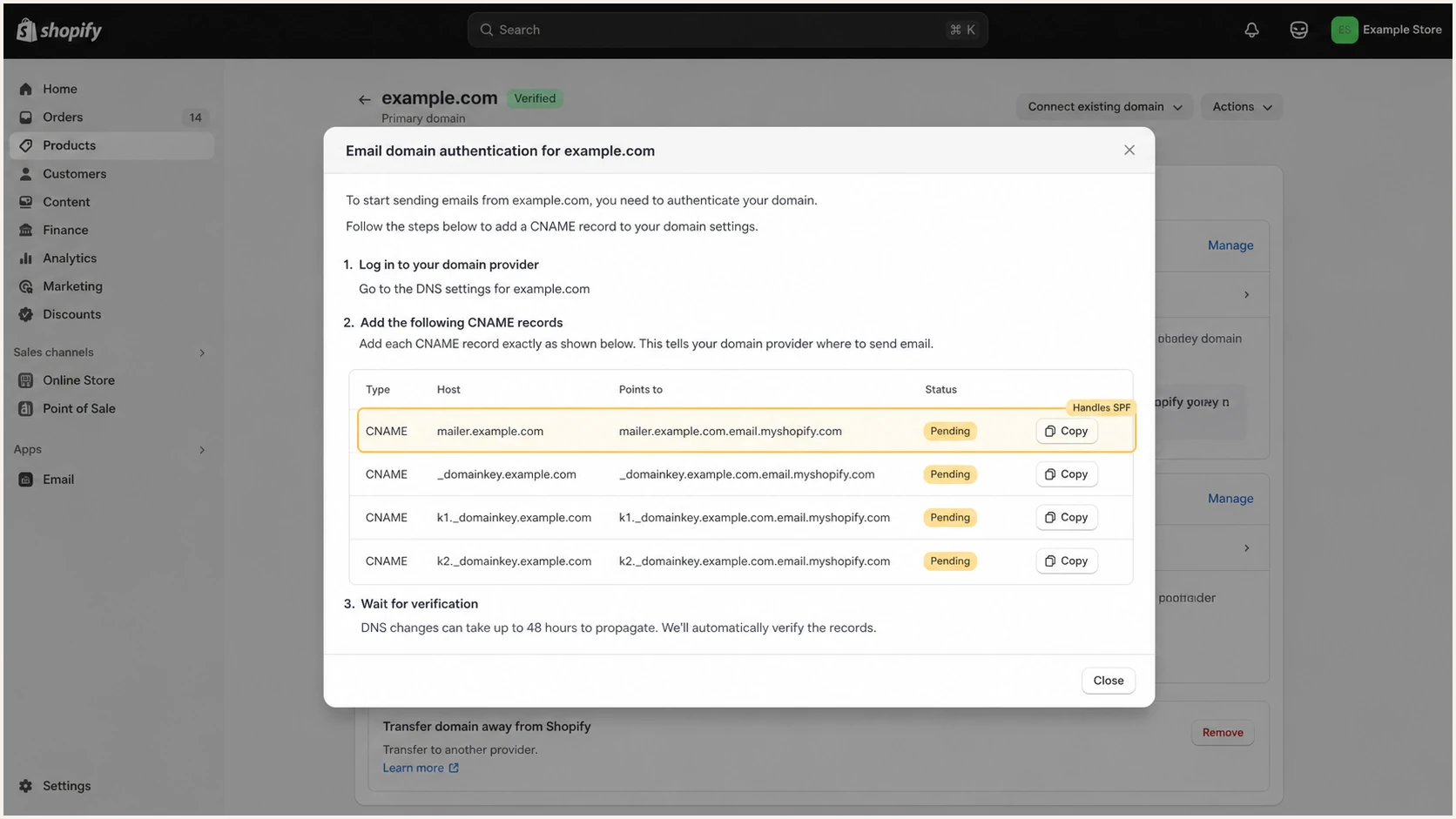
Shopify email authentication records with the SPF mailer CNAME highlighted
At the DNS host, use CNAME as the record type and enter only the host portion when the interface appends your domain automatically. Keep proxying disabled if the DNS host offers it, because the record must return Shopify's DNS answer directly.
Check the root domain separately because it can still have syntax errors or exceed SPF's ten-lookup limit through other senders. Any Shopify mailer CNAME supplied for your store should resolve, and the root domain should publish no more than one SPF TXT record.
SPF checker
Find SPF syntax issues, lookup limits, and weak records.
?/16tests passed
A passing root SPF check does not prove Shopify is configured. Send a Shopify notification and inspect its Authentication-Results header. Look for spf=pass and confirm the smtp.mailfrom domain shares your organizational domain when relaxed DMARC matching is used.
Do not confuse sending with forwarding
The _spf.hostedemail.com include is associated with email forwarding on a Shopify-managed domain. It is not the current instruction for authenticating Shopify notification or campaign mail.
Set up DKIM
DKIM is the most dependable DMARC path for Shopify mail. Shopify normally provides multiple selector CNAMEs so it can rotate signing keys without asking you to replace long public keys.
- Copy the names. Copy each host ending in _domainkey from Shopify's authentication dialog. Do not reuse a selector from another store.
- Create CNAME records. Create one CNAME for every selector and paste the matching target without quotes.
- Remove conflicts. Delete only a TXT or CNAME at the exact same selector name after confirming it is stale. A DNS name cannot hold both a CNAME and other record data.
- Use standard DNS. Disable web proxying, URL forwarding, and record flattening for the selector hosts.
- Save all selectors. Partial publication is not complete authentication, even if one selector resolves.
- Wait and recheck. Allow DNS propagation, then return to Shopify and refresh the authentication status.
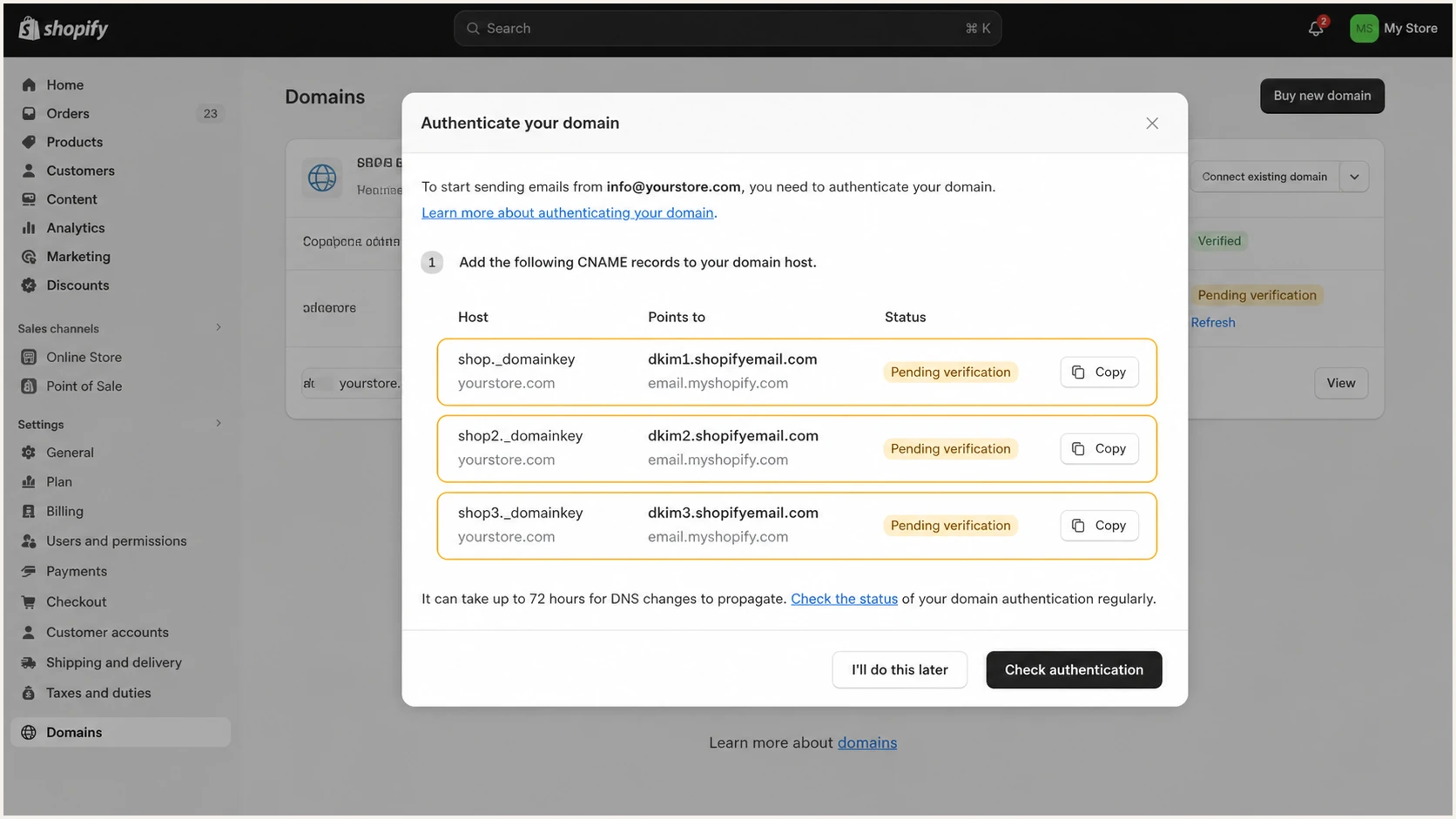
Shopify authentication modal showing three DKIM CNAME records
The values below illustrate Shopify's record format. The number of records varies; publish every record shown for your store. Use its exact token, selector names, and targets rather than copying these examples.
Illustrative Shopify CNAME patternDNS
Type: CNAME
Host: token._domainkey
Target: dkim1.token.p123.email.myshopify.com.

Type: CNAME
Host: token2._domainkey
Target: dkim2.token.p123.email.myshopify.com.

Type: CNAME
Host: token3._domainkey
Target: dkim3.token.p123.email.myshopify.com.

Type: CNAME
Host: mailer-token
Target: token.p123.email.myshopify.com.
A common hostname error
Some DNS panels append the zone name automatically. If you enter token._domainkey.example.com and the panel appends example.com again, Shopify will never find the selector. Query the full selector name and remove the duplicated suffix.
Set up DMARC
For orders@example.com, publish DMARC at _dmarc.example.com. If the Sender email uses a subdomain, check its own _dmarc record and any inherited parent policy before adding an override. For a new deployment, use this monitoring record and replace the example reporting address with a mailbox that can receive aggregate XML reports.
Starting DMARC TXT recordDNS
v=DMARC1; p=none; rua=mailto:dmarc@example.com
The DMARC record generator can build the TXT value for reporting or subdomain policy settings. Keep one DMARC record at each _dmarc hostname and edit that record rather than publishing a second one.
- Query first. Check _dmarc.example.com for an existing TXT record before making a change.
- Create one TXT record. Use _dmarc as the host and the complete DMARC string as its value.
- Use relaxed matching. Omit adkim and aspf to use the default relaxed alignment, or set each to r. Strict alignment requires exact domain matches and can fail when Shopify uses a signing or return-path subdomain.
- Preserve enforcement. If the current policy is quarantine or reject, keep it and repair Shopify's CNAME records.
- Confirm reporting. Use a monitored rua destination. A mailbox full of XML attachments without analysis will not expose authentication drift.
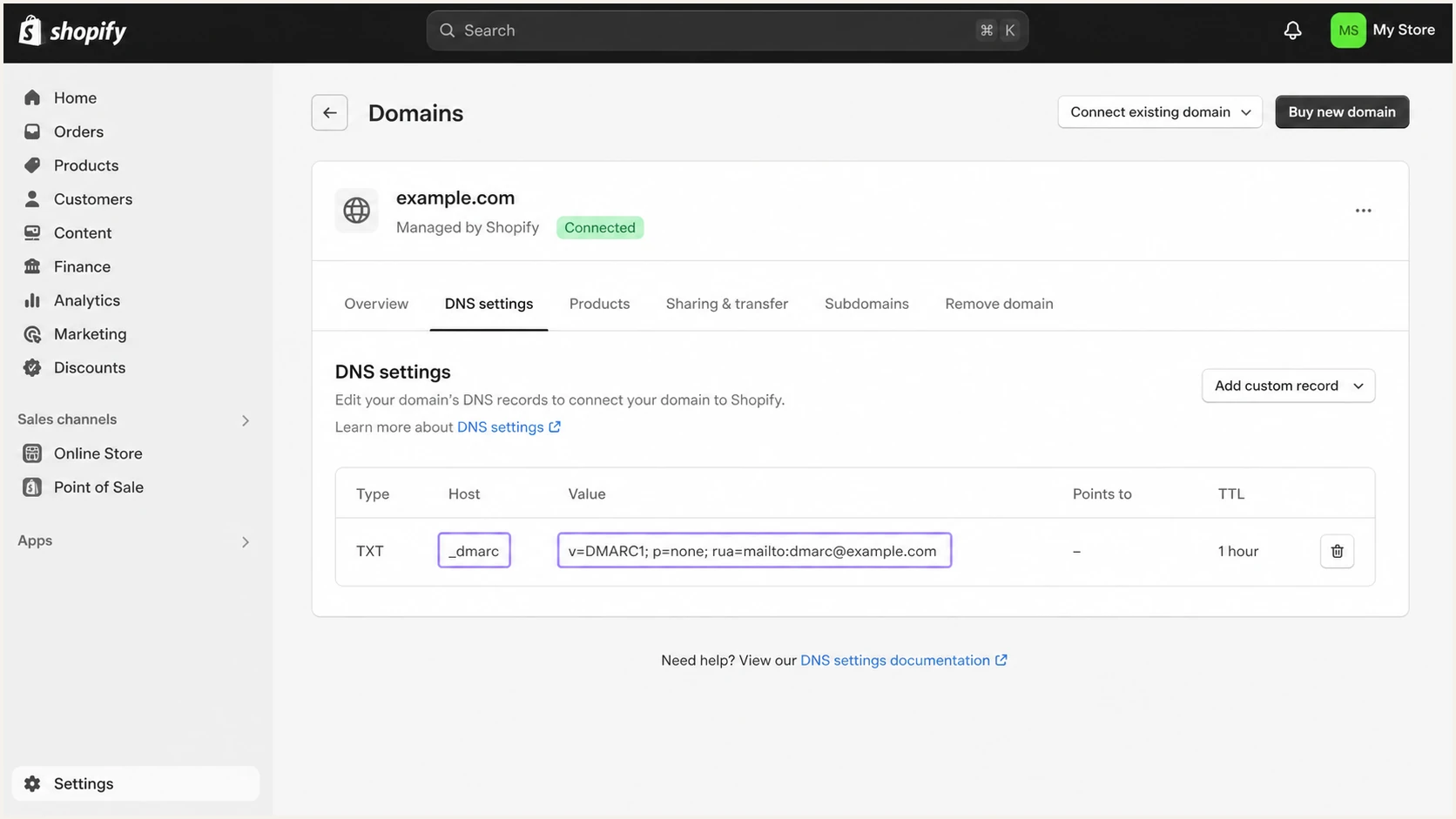
Shopify domain DNS settings showing one DMARC TXT record
A valid record begins with v=DMARC1 and contains a valid p policy tag. The reporting address must be real. If it is outside your organizational domain, confirm that the reporting destination has published the required external report authorization TXT record.
After publishing, use the DMARC checker to confirm that public DNS returns one parseable record. A browser view of the DNS panel is not proof that authoritative nameservers are serving it.
DMARC checker
Look up a domain's DMARC record and catch policy issues.
?/7tests passed
Verify and troubleshoot
DNS can take up to 48 hours to propagate, but many changes appear sooner. Verify public DNS first, refresh Shopify's status second, then test a real order notification and, if used, a Shopify Messaging campaign.
- Check each CNAME. Resolve every generated CNAME, including any mailer host and all _domainkey selectors. Each must return the target Shopify supplied.
- Check DMARC once. Confirm that _dmarc returns exactly one valid record. Remove duplicate TXT records only after merging required tags.
- Refresh Shopify. Return to Settings, Notifications, then Sender email. Open Email domain authentication and click I updated DNS records after completing manual setup.
- Send a live message. Trigger an order notification to a mailbox you control and test a marketing message separately if you send campaigns. Reply to confirm that customer responses reach your inbox.
- Read the headers. Confirm dkim=pass, spf=pass, and dmarc=pass. Also inspect header.d and smtp.mailfrom to see which identity passed.
If Shopify shows "Update recommended", existing authentication still works. The update is optional and has no deadline. Add or correct the records shown and retain the existing required CNAMEs. Click I updated DNS records to start verification. If this status persists for a Shopify-managed domain, contact Shopify Support.
The quickest end-to-end check is a controlled test mailbox. Send a Shopify notification to the address shown by the email tester, then review the authentication result, sending source, headers, and content checks together.
Email tester
Send a real email to this address. Suped shows a results button when the test is ready.
?/43tests passed
A good result has DMARC pass through an authenticated identity that matches the visible From domain under relaxed matching. DKIM should pass with a signing domain under your organizational domain. SPF should also pass through Shopify's custom return path when the generated mailer record is present.
If SPF alignment still fails but DKIM passes and matches the From domain, DMARC passes. That result is valid. Treat an isolated SPF alignment error as informational when DKIM is consistently passing, but fix it if the mailer CNAME is missing or Shopify still rewrites the sender address.
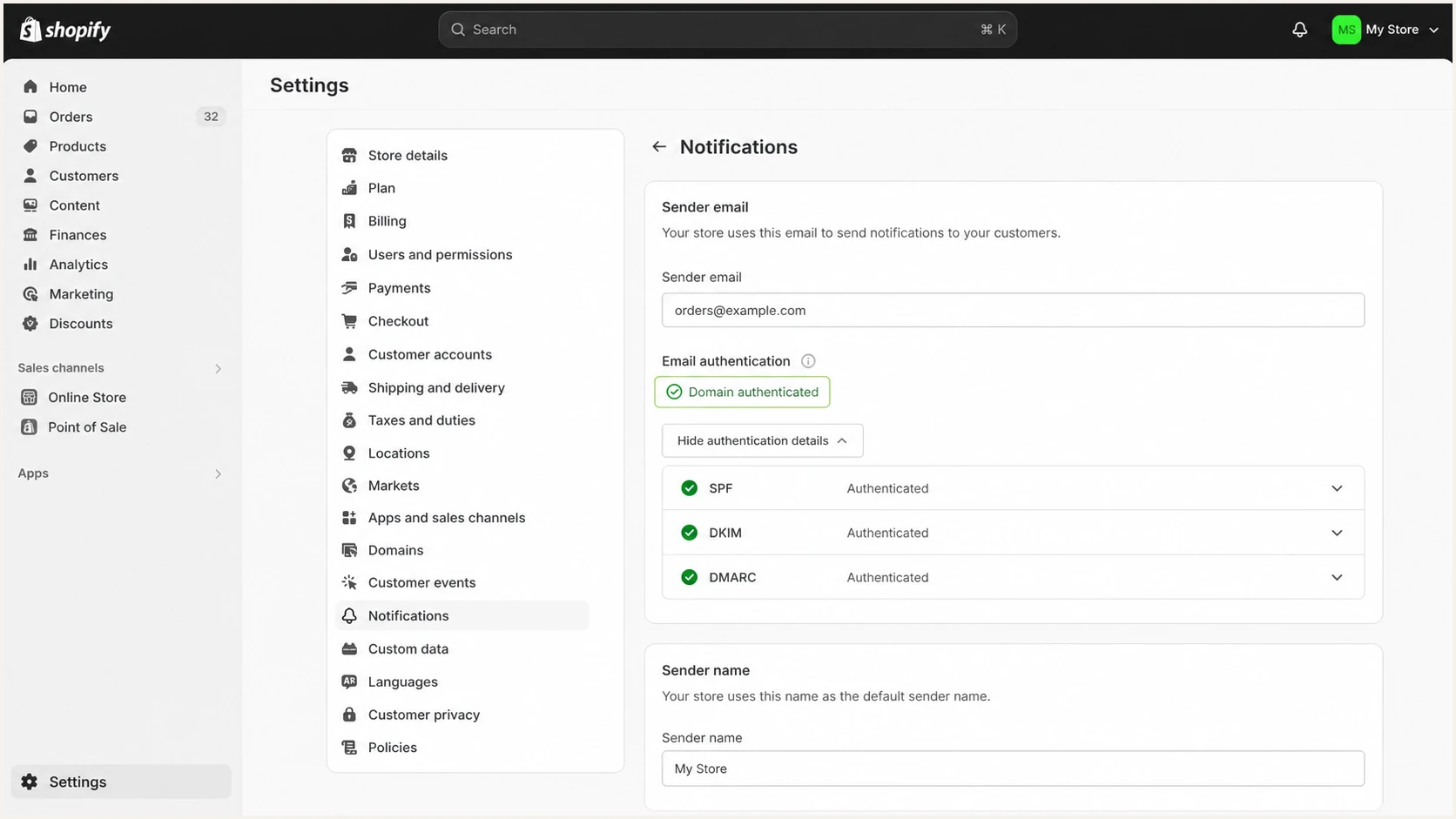
Shopify Sender email showing an authenticated domain status
The failure pattern usually identifies the broken record. Compare the result below before editing DNS again.
Expected result
- Shopify status. The Sender email domain shows authenticated.
- DKIM result. The signature passes with your domain.
- DMARC result. DMARC passes through DKIM or SPF.
- From address. Customers see the branded sender address.
Failure clues
- Pending CNAME. The host is duplicated, proxied, or not public.
- DKIM none. The message has no DKIM signature; check which service sent it.
- DKIM key error. The selector named in the signature is missing or has the wrong target.
- DMARC permerror. Multiple or malformed DMARC records exist.
- Rewritten From. Shopify still considers the domain unauthenticated.
Meet Gmail and Yahoo sender requirements
Gmail and Yahoo require bulk senders to use SPF and DKIM plus DMARC with at least p=none. Gmail counts close to 5,000 or more messages to personal Gmail accounts within 24 hours across the same primary domain, including its subdomains. Shopify requires authentication to retain a branded sender address even at lower volumes.
- Verify that both SPF and DKIM pass, with at least one authenticated domain matching the visible From domain for DMARC.
- For marketing and subscription email, check one-click unsubscribe headers and a visible unsubscribe link in the body. A footer link alone does not meet Gmail's one-click requirement.
- Honor unsubscribe requests within two days and keep recipient-reported spam rates below 0.3%.
- Test transactional order notifications separately. Gmail excludes transactional messages from its one-click unsubscribe requirement.
A p=none policy monitors authentication without requesting rejection or quarantine for DMARC failures. Authentication does not guarantee inbox placement; consent and sender reputation still affect delivery.
Monitor Shopify authentication failures
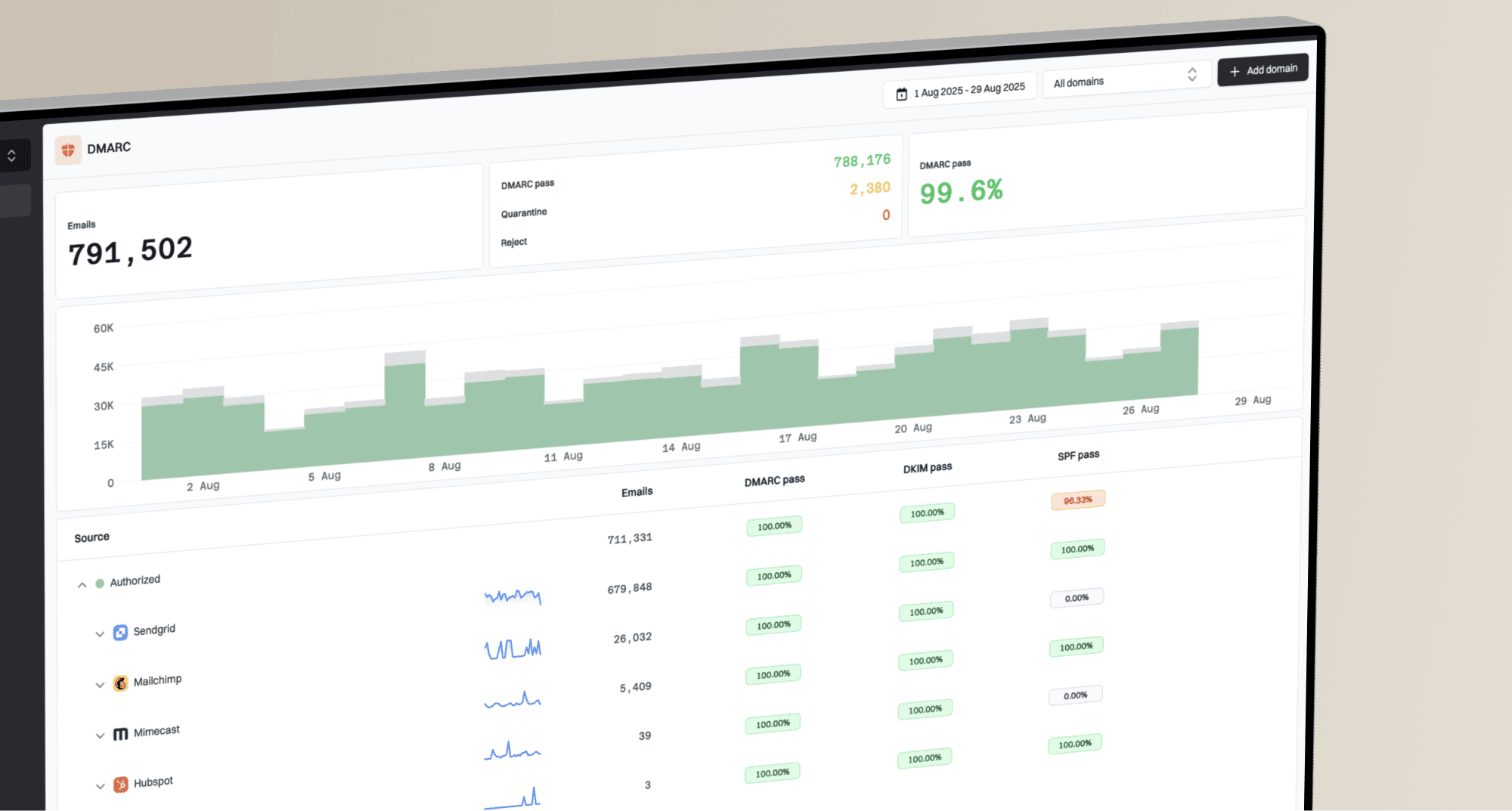
A one-time pass does not catch later authentication failures. Suped is our DMARC reporting platform, and its DMARC monitoring turns aggregate reports into source-level pass rates and repair steps so you can track Shopify alongside your other senders.
- Add the domain. Send DMARC aggregate reports to the address Suped assigns, then verify that reports arrive.
- Verify Shopify. Mark the detected Shopify source as approved only after its DKIM or SPF identity matches the expected domain.
- Set alerts. Set alerts for authentication failure thresholds and review trends regularly. DMARC alerts depend on aggregate reports arriving, usually after the reporting period; they are not instant notifications for individual messages.
- Watch the whole domain. Track DMARC, SPF, DKIM, deliverability signals, and blocklist (blacklist) status in one workflow.
Suped's source view helps distinguish Shopify mail from other services using the same From domain. When failures appear, review the affected source and authentication identities before changing DNS.
A useful alert baseline
Alert on a material increase in DMARC failures, investigate any new source immediately, and compare Shopify's current volume with its recent baseline before changing policy.
Secure your domain with p=reject
Move beyond p=none only after every legitimate sender is known and consistently passes DMARC. Shopify should show stable DKIM authentication, its branded From address should remain intact, and report data should show no unexplained legitimate failures.
|
|
|
|---|---|---|
p=none | No DMARC-specific enforcement | Monitoring and inventory |
p=quarantine | Treat as suspicious, usually spam | Enforcement without rejection |
p=reject | Reject | Reject messages that fail DMARC |
DMARC policy stages
A controlled rollout reduces the chance of blocking forgotten business mail. Use report data to decide when to increase enforcement. RFC 9989 makes the pct tag historic, so a percentage is not a reliable rollout control. Receivers retain discretion over final message handling.
- Inventory sources. Classify Shopify and every other legitimate sender seen in DMARC reports.
- Fix authentication. Require each approved source to pass DMARC through DKIM or SPF under the expected domain.
- Start quarantine. Set p=quarantine after legitimate senders pass DMARC, then review failures across normal sending cycles before moving to reject.
- Move to reject. Set p=reject after legitimate traffic remains clean across normal sending cycles and seasonal workflows.
- Keep monitoring. Watch for Shopify record deletion, new senders, and failure-rate changes after enforcement.
Example quarantine recordDNS
v=DMARC1; p=quarantine; rua=mailto:dmarc@example.com
Example full enforcement recordDNS
v=DMARC1; p=reject; rua=mailto:dmarc@example.com
Suped's Hosted DMARC workflow lets teams change policy in Suped after the initial DNS setup. Review approved sources and failure reports before each policy change, and keep monitoring after p=reject.
The enforcement gate
Use p=reject only when Shopify and every approved sender pass DMARC consistently, unknown traffic has been investigated, and an owner is receiving alerts.
Shopify authentication FAQ
No. Shopify's current sender-domain authentication uses generated CNAME records to handle SPF and DKIM. Publish every record shown in Shopify, but do not add a second root SPF record or an old Shopify include unless Shopify explicitly instructs your store to do so.
Shopify says DNS changes can take up to 48 hours. If the status remains pending, resolve each full CNAME name publicly and check for a duplicated domain suffix, proxying, a wrong target, or a conflicting record.
Shopify configures SPF, DKIM, and a default p=none DMARC policy for domains bought through or transferred to Shopify. Edit the existing DMARC record to add aggregate reporting or strengthen the policy after verification; do not duplicate it.
No. Shopify's CNAMEs authenticate Shopify's sending service. A separate marketing, support, or reviews app needs the records supplied by its own sending provider. Keep one DMARC policy at each applicable _dmarc hostname, and check every legitimate sender before enforcement.
Both domains have been associated with Shopify workflows, but they do different jobs. Older material refers to include:shops.shopify.com, while include:_spf.hostedemail.com is tied to Shopify-managed email forwarding. Do not add either based only on observed association. For current Shopify notification and campaign mail, use the CNAME records shown in your Shopify Admin.
Yes. DMARC passes when at least one of SPF or DKIM passes authentication and its domain matches the visible From domain under the configured alignment mode. A passing Shopify DKIM signature with the required domain match is enough for DMARC. Check the mailer CNAME if SPF alignment was expected.