How to set up DMARC/DKIM/SPF for RMS Cloud

Updated on 22 Aug 2026: We updated this guide for RMS Cloud's current DNS workflow and RFC 9989 DMARC enforcement.
RMS Cloud needs a verified sending domain, an SPF record that includes RMS Cloud, DKIM records copied from the RMS domain screen, and a DMARC record that applies to the visible From domain. A safe rollout starts with monitoring, then moves to enforcement after RMS Cloud and every other sender passes authentication consistently.
The RMS-specific SPF include is include:_spf.rmscloud.com. Do not replace your whole SPF record with it. Add it to the one existing SPF record for the sending domain, then keep only one SPF TXT record at that host.
Choose the sending domain
Choose the domain in the RMS Cloud From address before adding DNS records. RMS Cloud recommends a sending subdomain so its records remain separate from services already configured on the main domain. For example, reservations@mail.yourproperty.com uses mail.yourproperty.com as the visible From domain.
- Use one identity: Use the chosen domain in the RMS From address and in the mailbox that receives the verification email.
- Publish at the right host: Add SPF to the domain RMS instructs you to update, copy the RMS DKIM hostname exactly, and publish DMARC at _dmarc.mail.yourproperty.com when that subdomain has its own policy.
- Check inherited policy: If the sending subdomain has no DMARC record, the organizational-domain policy and its sp tag can apply. Review that policy before the first RMS test.
- Repeat per active domain: Verify each domain used by a property, template, or campaign instead of assuming one valid domain covers every From address.
Add your domain
RMS Cloud domain verification proves that you control the From domain used for guest communications, booking confirmations, invoices, and eDM campaigns. Verify the domain in RMS first, because RMS then shows the DNS records that need to be added at the DNS host. A valid domain also removes the 'Sent from RMS on behalf of' text from the sender field.
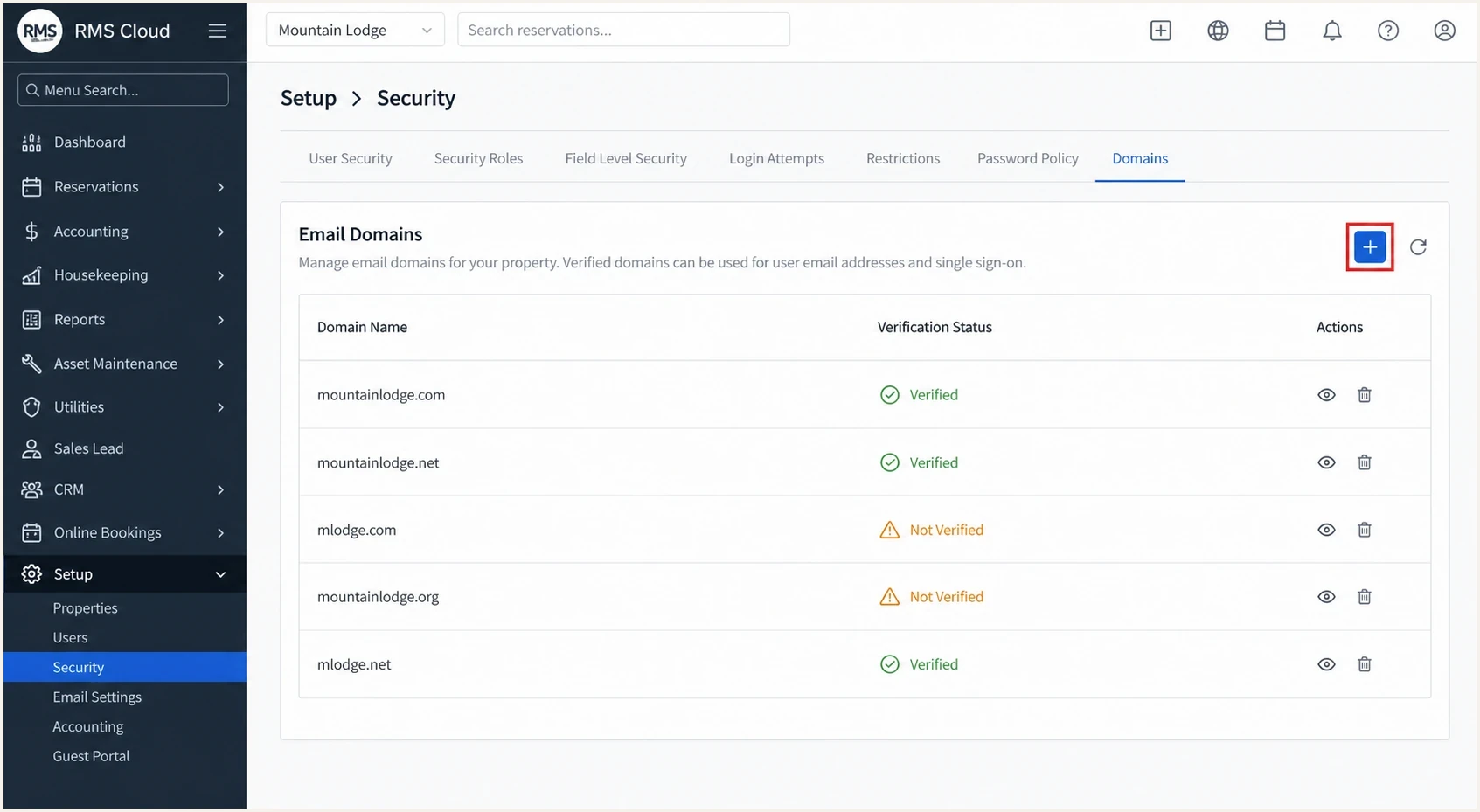
RMS Cloud Domains tab with the Add icon highlighted.
- Open setup: In RMS Cloud, go to Setup > Security.
- Select domains: Open the Domains tab, then choose Add.
- Enter address: Use an email address on the same domain you send from, such as reservations@yourproperty.com.
- Confirm access: Open the RMS verification email and select Verify Domain Access.
- Copy DNS: Return to the domain row, open Edit, and copy the TXT and DKIM values exactly as RMS Cloud displays them.
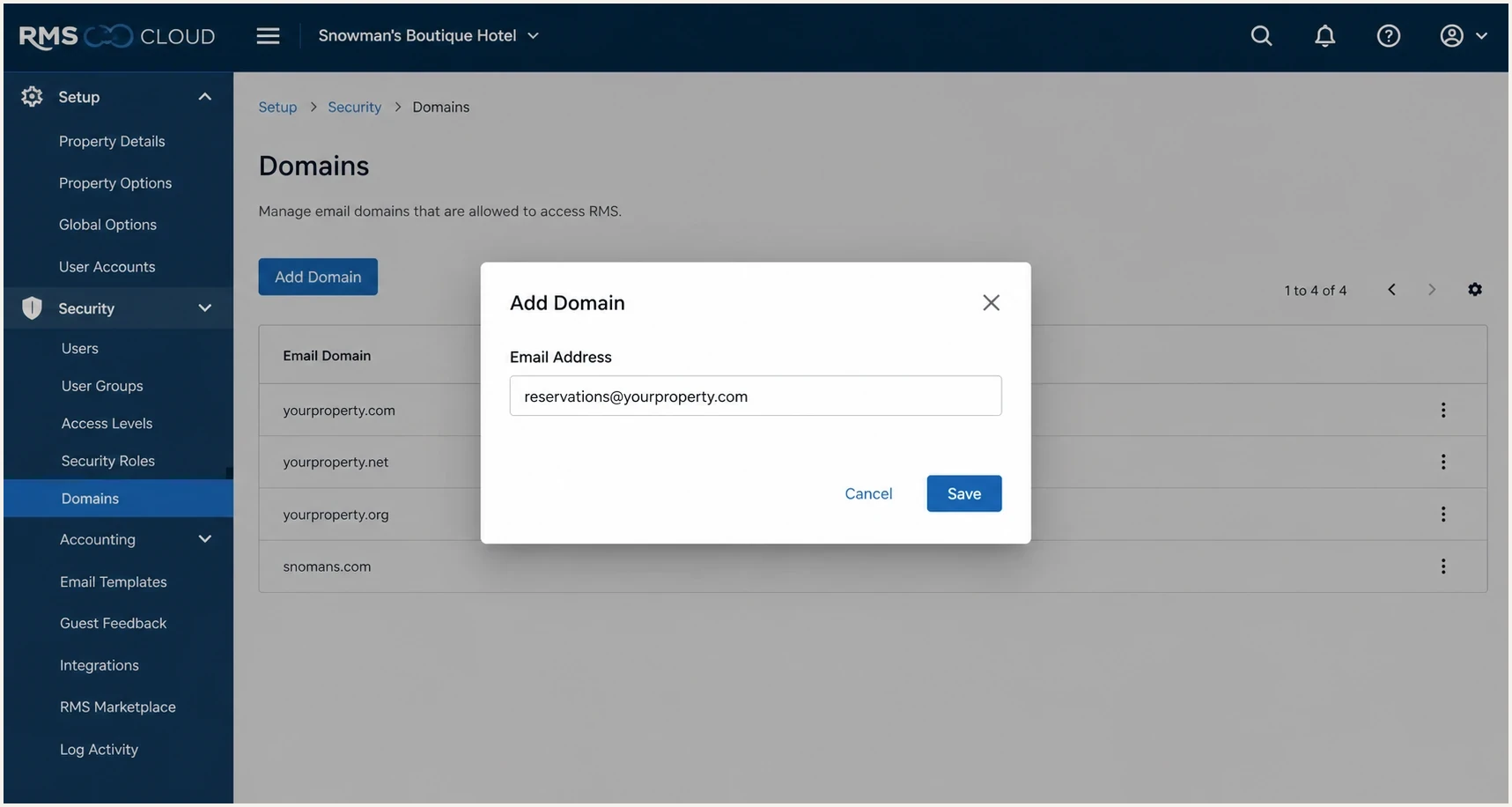
RMS Cloud Add Domain dialog for entering the sending email address.
RMS Cloud can show the domain as pending until DNS has propagated. Its public guidance says DNS changes can take 24-48 hours, so check exact hostnames before assuming the RMS status is wrong.
- Wrong host: Some DNS hosts want only the left side of the hostname, not the full domain.
- Extra spaces: A copied TXT value with a leading or trailing space fails verification.
- Old address: The From address in RMS must use the verified domain, not a retired mailbox or parked domain.
- Missing records: RMS Cloud requires a domain verification TXT record and a DKIM TXT record.
If RMS emails are already failing, use RMS troubleshooting to check whether the issue is a template, trigger, recipient mailbox, sender address, or DNS problem before changing authentication records.
Set up SPF
SPF authorizes RMS Cloud's sending infrastructure for the domain used in the SMTP Return-Path. It counts toward DMARC only when that authenticated domain has DMARC identifier alignment with the visible From domain. DKIM remains the more durable signal because forwarding can break SPF.
- Find SPF: At your DNS host, locate the existing TXT record that starts with v=spf1.
- Edit one record: Add include:_spf.rmscloud.com before the final all mechanism.
- Keep senders: Do not remove Microsoft 365, Google Workspace, your CRM, or other approved senders.
- Avoid duplicates: A domain must have one SPF TXT record, not separate SPF records for each sender.
- Watch lookups: SPF returns permerror if evaluation exceeds 10 DNS lookup-causing terms, including nested includes. Review the record before adding more senders.
SPF before and afterdns
Before:
v=spf1 mx ip4:203.0.113.10 ~all

After:
v=spf1 mx ip4:203.0.113.10 include:_spf.rmscloud.com ~all
SPF checker
Find SPF syntax issues, lookup limits, and weak records.
?/16tests passed
SPF lookup budget
Use this as a practical check after adding RMS Cloud to a domain that already has other senders.
Good
1-7 lookups
SPF resolves with room for future senders.
Tight
8-10 lookups
The record is valid but has little or no room for another lookup-causing term.
Failing
11+ lookups
Evaluation exceeds the RFC 7208 limit and returns permerror.
Invalid
2 records
Multiple SPF TXT records exist at the same host.
Set up DKIM
DKIM is the main record to get passing for RMS Cloud because it signs the message itself. RMS Cloud shows the TXT hostname and value on the verified domain screen, including a hostname similar to mx._domainkey.mail.yourdomain.com.
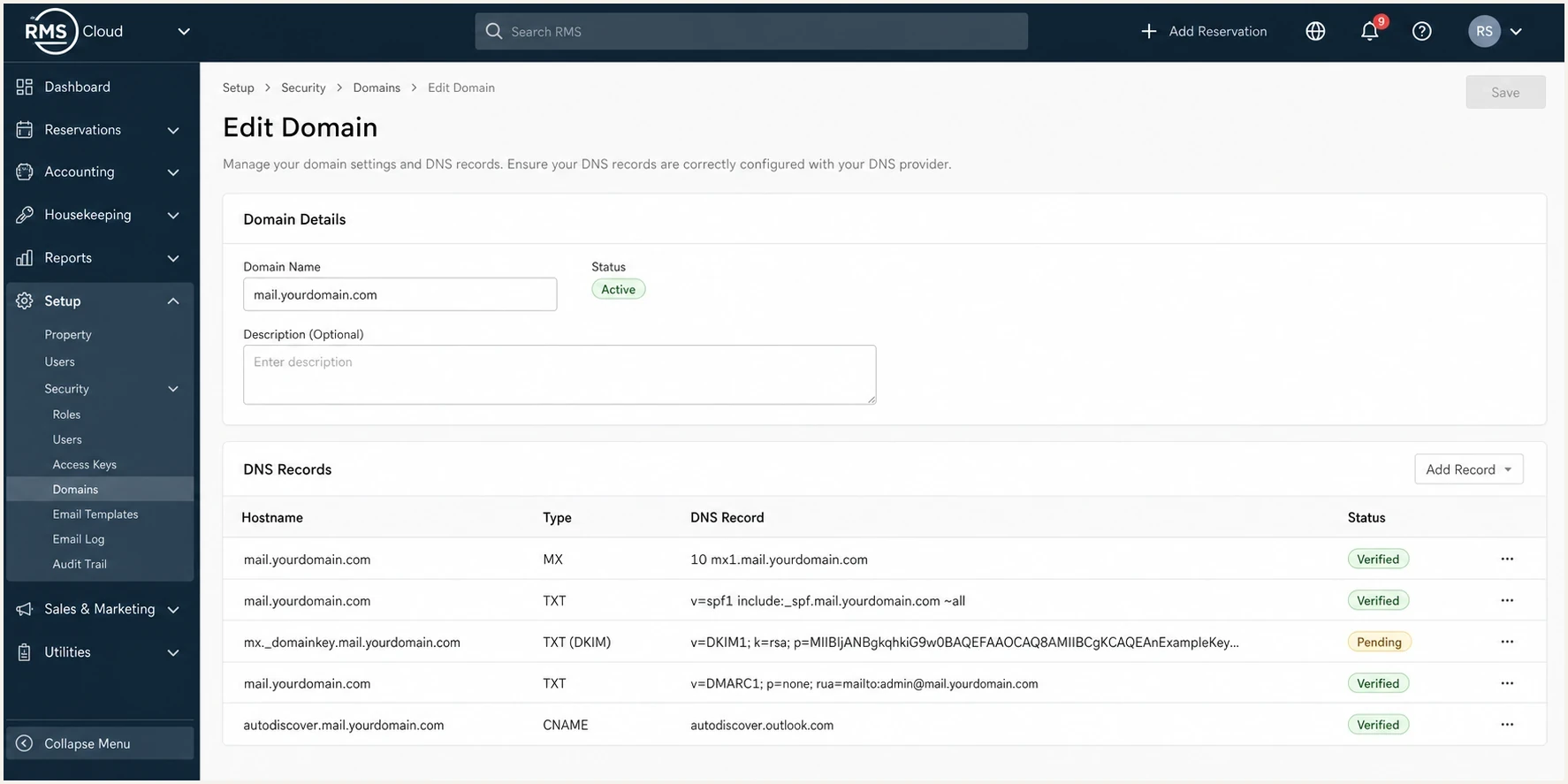
RMS Cloud Edit Domain screen showing DKIM DNS records to copy.
- Open record: In RMS Cloud, edit the verified domain and locate the DKIM DNS record.
- Copy host: Use the exact hostname shown by RMS Cloud. Do not shorten it unless your DNS host automatically appends the domain.
- Copy value: Paste the full TXT value shown by RMS Cloud without adding quotes unless your DNS host requires them.
- Save DNS: Wait for propagation, then return to RMS Cloud and confirm the domain status changes to Valid.
- Send test: Send a real RMS confirmation to a test inbox and inspect the Authentication-Results header.
DKIM record patterndns
Host: mx._domainkey.mail.yourdomain.com
Type: TXT
Value: paste the full value shown in RMS Cloud
DKIM passes
- Domain match: The DKIM signing domain uses the same organizational domain as the visible From address.
- Valid key: The public key resolves in DNS and the signature validates.
- Stable result: A forwarded message still has a valid DKIM signature if content is not modified.
- DMARC-ready: The message can pass DMARC even if SPF fails after forwarding.
DKIM fails
- Wrong host: The DNS host appended the domain twice or the selector name was shortened incorrectly.
- Wrong value: The key was pasted with missing characters, smart quotes, or line breaks.
- Old DNS: A stale DKIM record is still cached by some resolvers during propagation.
- Different From: The RMS template uses a From domain that was not the domain you verified.
Set up DMARC
DMARC evaluates the domain in the visible From address and tells participating receivers how the domain owner wants failed mail handled. A message passes when SPF or DKIM passes with identifier alignment to that From domain. For a first RMS Cloud rollout, publish p=none so aggregate reports start flowing without requesting enforcement.
- Create host: For yourdomain.com, add a TXT record at _dmarc.yourdomain.com. For a sending subdomain with its own policy, use _dmarc.mail.yourdomain.com.
- Start monitoring: Use the starter record unless the applicable domain already runs quarantine or reject successfully.
- Keep enforcement: If the domain is already at quarantine or reject and RMS Cloud passes DMARC, keep that policy.
- Use reports: Send aggregate reports to a mailbox or platform that parses XML and separates RMS Cloud from other senders. A rua address outside the policy domain needs DNS authorization from the report recipient's domain.
- Generate safely: Use the DMARC generator if you need optional tags for failure reporting, subdomain policy, or RFC 9989 test mode.
Starter DMARC recorddns
v=DMARC1; p=none; rua=mailto:dmarc@example.com
DMARC checker
Look up a domain's DMARC record and catch policy issues.
?/7tests passed
RFC 9989 replaced RFC 7489 and removed the pct tag. Do not use intermediate pct values to stage enforcement. The current t=y test flag requests one policy level less enforcement while reports continue. Older receivers can ignore the new tag and apply the published p policy, so do not rely on t=y as a universal safety switch.
- RMS source: Confirm RMS Cloud has consistent DKIM pass and check whether SPF has identifier alignment.
- Other senders: Confirm Microsoft 365, Google Workspace, payment, CRM, and marketing platforms before enforcement.
- Unknown mail: Classify unknown sources before changing policy because some are forgotten but legitimate systems.
- Policy path: Move from none to quarantine, then reject, after the reporting data is clean.
Verify and troubleshoot
Verification is not finished when DNS saves. Send a real RMS Cloud message, inspect the authentication result, and check the domain records outside the DNS host so cached or split-horizon DNS does not hide a mistake.
Email tester
Send a real email to this address. Suped shows a results button when the test is ready.
?/43tests passed
- Send RMS mail: Trigger a booking confirmation, pre-arrival email, invoice, or eDM test from RMS Cloud.
- Check headers: Look for spf=pass, dkim=pass, and dmarc=pass in Authentication-Results.
- Compare domains: Compare the visible From domain with the SPF-authenticated Return-Path domain and the d= domain in the passing DKIM signature.
- Review RMS status: In Setup > Security > Domains, confirm the RMS Cloud verification status is Valid.
- Test recipients: Send to a business mailbox and an external mailbox. If external delivery works but business delivery fails, check the recipient organization's filtering and quarantine.
- Retest later: Run the same checks after 24 hours if DNS was just changed.
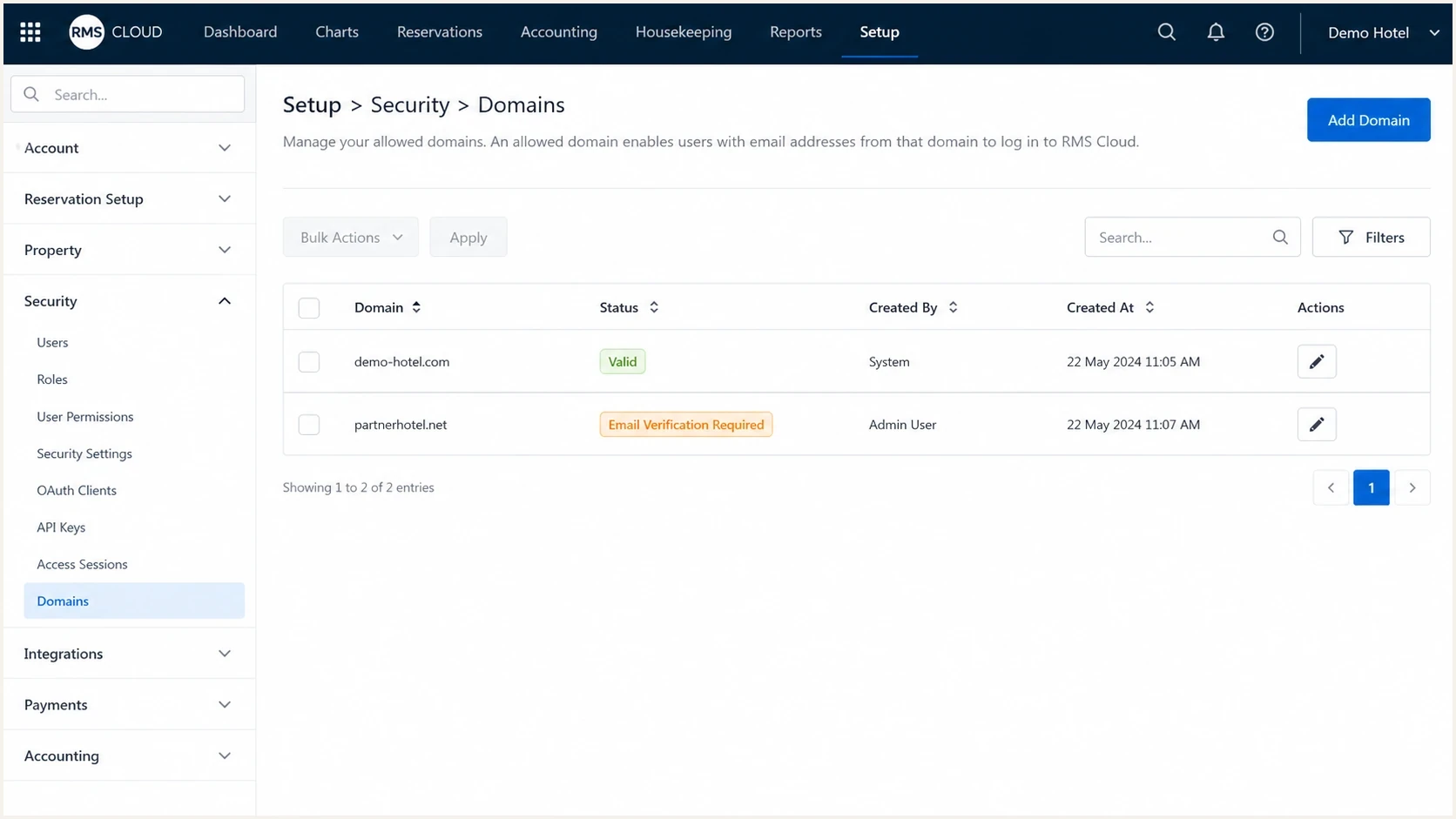
RMS Cloud Domains list showing Valid and pending verification statuses.
|
|
|
|---|---|---|
SPF fail | Missing include | SPF record |
DKIM fail | Wrong selector | RMS DNS row |
DMARC fail | Domain mismatch | From, Return-Path, and d= domains |
No reports | Bad rua or missing authorization | DMARC value |
Bounces | Recipient filter | RMS logs |
Use this table to map common failures to the next check.
Domain verification path
Use this when RMS Cloud sends directly for your domain and shows DNS records under Setup > Security > Domains.
- Best fit: Reservation confirmations, guest messages, and eDM sent through RMS Cloud.
- DNS need: SPF include, RMS verification TXT, and DKIM TXT.
- DMARC goal: DKIM pass with identifier alignment, plus aligned SPF when RMS uses a matching Return-Path domain.
- Risk: Wrong From domain breaks DMARC even when DNS is otherwise correct.
Own SMTP path
Use this when RMS eDM is configured to send through your own mail server instead of RMS Cloud mail servers. RMS documents that this path bypasses the email validation process used with RMS mail servers.
- Best fit: Properties that need their existing mail server to handle delivery.
- DNS need: SPF and DKIM for that mail server, with RMS Cloud handled separately.
- Port need: RMS Cloud documents port 465 or 587 for SMTP settings.
- Risk: Authentication now depends on your SMTP provider configuration.
Get alerted when it breaks
RMS Cloud email authentication can break later when someone changes DNS, adds a property domain, changes the From address, rotates a DKIM key, or adds a sender that pushes SPF over the lookup limit. Suped, our DMARC reporting and email authentication platform, helps teams detect those changes after setup.
- Alert scope: Suped can alert on DMARC failure spikes, new unverified sources, SPF changes, and policy drift.
- Issue steps: Suped turns raw DMARC aggregate reports into fix steps for RMS Cloud and other senders.
- Sender view: Suped separates RMS Cloud traffic from other approved email sources.
- Reputation watch: Suped includes blocklist monitoring for blocklist and blacklist events that affect domain or IP trust.
- Team scale: The MSP and multi-tenancy dashboard keeps property domains in one operational view.
For an RMS Cloud rollout, DMARC monitoring can catch authentication failures after the first successful test, when a later DNS or sender change causes the problem.
Secure your domain with p=reject
For domains that are ready for enforcement, move to p=reject only after reports show that RMS Cloud and every other legitimate sender pass DMARC. Reject asks participating receivers to reject mail that fails DMARC, although receivers retain discretion over final handling.
- Prove RMS: Confirm RMS Cloud DKIM passes with identifier alignment for every active From domain and email type.
- Classify sources: Mark every legitimate sender as approved, then remove or fix unknown senders.
- Test quarantine: Change p=none to p=quarantine; t=y, then review reports and delivery. The test flag requests handling one policy level below quarantine.
- Apply quarantine: Remove t=y when failures are explained and valid mail remains stable.
- Finish reject: Change to p=reject only after every valid source has an aligned SPF or DKIM pass. Use Hosted DMARC when you want Suped to manage policy changes without repeated DNS edits.
Final reject recorddns
v=DMARC1; p=reject; rua=mailto:dmarc@example.com
Do not jump to p=reject on a hotel or accommodation domain before testing RMS Cloud. Booking confirmations and pre-arrival messages are operational email, so a bad policy change has immediate guest impact.
- Use data: Suped shows which sources pass, fail, or appear for the first time.
- Stage changes: Hosted DMARC lets teams move through current policy stages without waiting on DNS access.
- Fix SPF: Hosted SPF and SPF flattening keep RMS Cloud and other senders within the lookup limit.
- Secure transport: Hosted MTA-STS enforces TLS for mail delivery with two CNAME records.