
How to set up DMARC/DKIM/SPF for Outlook

Published 5 Aug 2026
Updated 12 Oct 2026
13 min read
Summarize with
Updated on 12 Oct 2026: We updated the Microsoft 365 setup steps and added tenant-domain DMARC guidance for safer enforcement.
For a custom domain that sends through Outlook  and Microsoft 365, publish one SPF TXT record, two Microsoft-generated DKIM CNAME records, and one DMARC TXT record. Enable DKIM in Microsoft Defender, then inspect an external test message for spf=pass, dkim=pass, and dmarc=pass. Personal @outlook.com, @hotmail.com, @live.com, and @msn.com addresses are different: Microsoft controls those DNS zones, so individual users cannot publish these records.
These settings assume a custom From domain such as example.com, outbound mail through Exchange Online (EXO) in Microsoft 365 or Office 365, and access to the tenant and public DNS. If Outlook connects to another mail provider, use that provider's authentication records. Keep any existing quarantine or reject policy in place during setup.
Add your custom domain to Microsoft 365
Add the sending domain to Microsoft 365 before configuring custom-domain DKIM. Domain verification proves control of DNS; it does not move mail by itself. The MX change is the step that directs inbound mail to Exchange Online.
- Open the admin center. Sign in to Microsoft 365 Admin Center, select Show all, then Settings, Domains, and Add domain.
- Enter the domain. Enter example.com without a protocol, path, or email address, then select Use this domain.
- Verify ownership. Use Domain Connect when offered. For manual setup, publish the unique TXT value Microsoft displays, normally MS=msXXXXXXXX, at the zone apex and select Verify.
- Select mail services. Choose Exchange and Exchange Online Protection. Expand Advanced options if the wizard offers DKIM records.
- Prepare recipients. Create every required mailbox, alias, shared mailbox, and group before changing MX.
- Finish the connection. Publish the exact MX and Autodiscover values shown for the tenant, wait for DNS, then let Microsoft run its record checks.
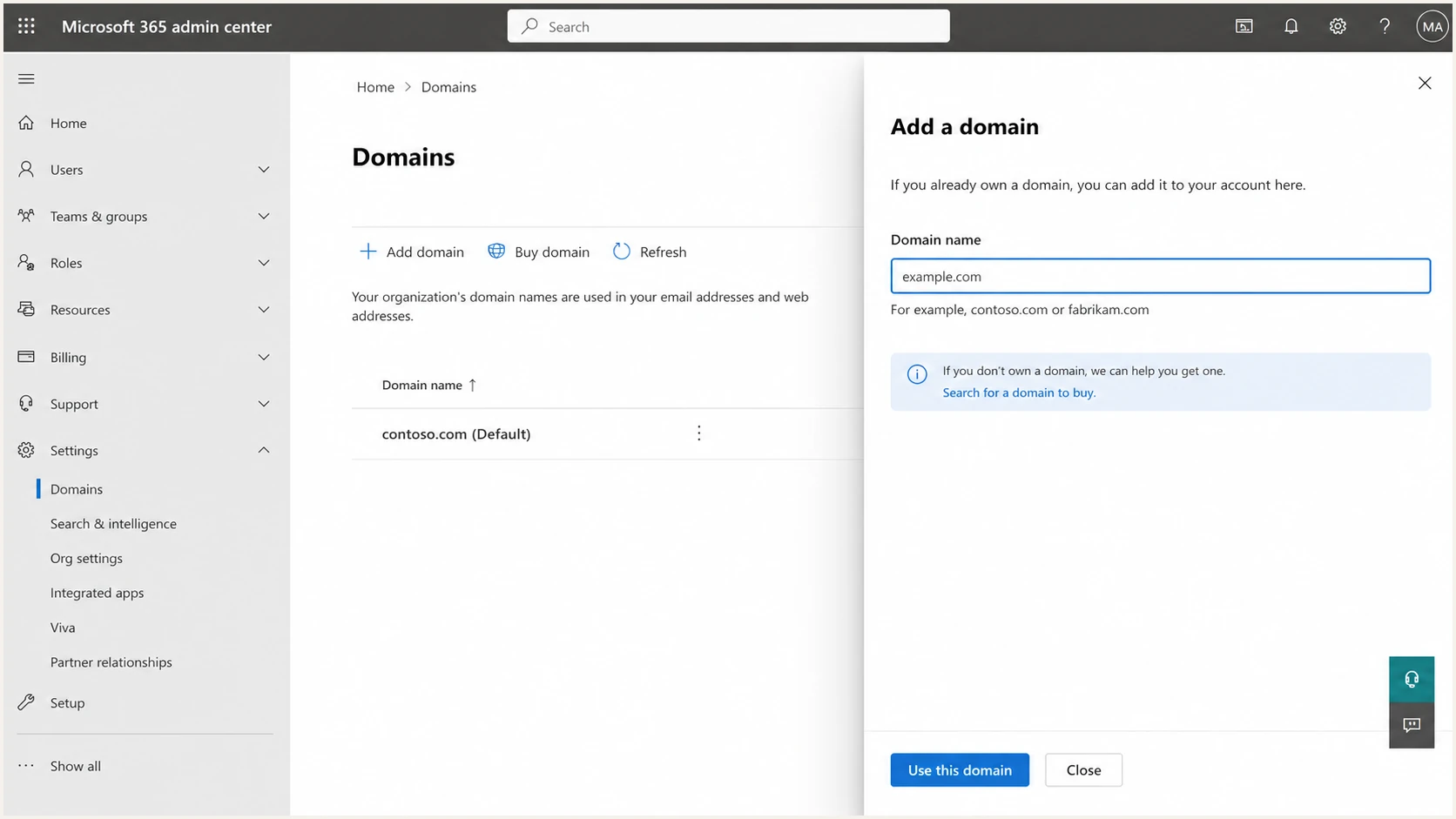
Add a custom domain for Outlook email in Microsoft 365 Admin Center
Plan the MX cutover
Changing the MX record routes inbound email for the whole domain to Microsoft 365. Do not make that change until all recipients and mail-flow connectors are ready. Keep the old provider available until queued mail has cleared.
Set up SPF
SPF checks the envelope sender (MAIL FROM), shown as Return-Path in a delivered message, rather than the visible From address. For ordinary Exchange Online mail, that domain can match your From domain and contribute to a DMARC pass. If Exchange Online is the only sender for example.com, publish this TXT record at its DNS root. Use @, a blank host, or example.com according to your DNS host's naming rules.
Microsoft 365-only SPF recorddns
@ 3600 TXT "v=spf1 include:spf.protection.outlook.com -all"
Each sending domain or subdomain needs its own SPF record; SPF does not inherit the parent domain's record. If a record already exists, edit it and add include:spf.protection.outlook.com before the final all mechanism. Do not publish a second SPF TXT record. Keep Microsoft's include instead of replacing it with a copied list of Microsoft sending IP addresses, which changes over time.
- Inventory senders. List Exchange Online, on-premises relays, applications, and every service that sends with this From domain.
- Merge mechanisms. Keep one v=spf1 record and add only vendor-documented include or IP mechanisms for active senders.
- Count lookups. Keep each SPF evaluation within ten DNS-querying mechanisms or modifiers, including nested include and redirect terms. ip4, ip6, and all do not count toward this limit.
- End firmly. Use -all after every legitimate sender has been included and tested.
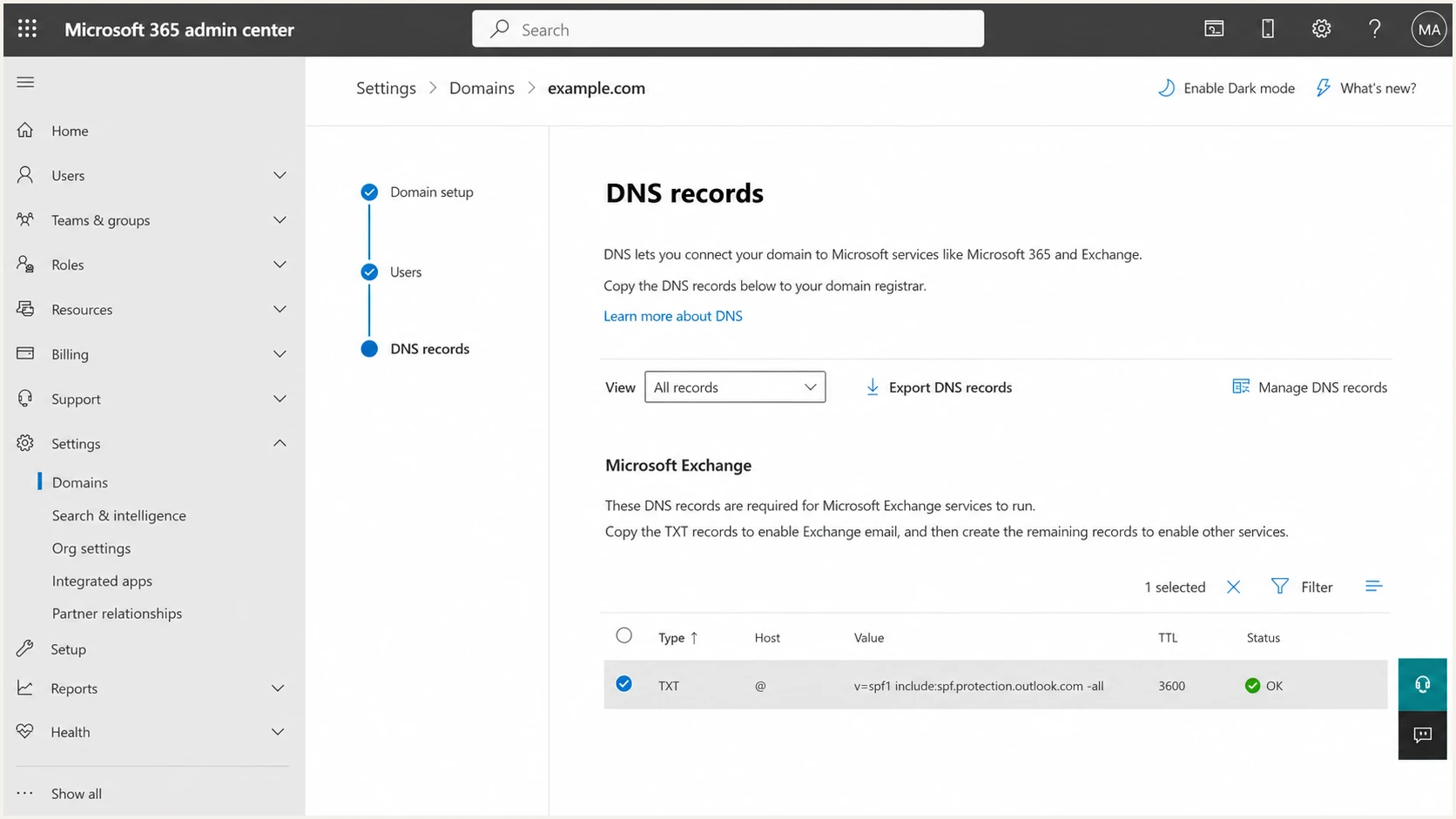
Microsoft 365 DNS settings with the Outlook SPF TXT record
Check the public record after DNS has propagated. The lookup should return one SPF policy, include Microsoft's current authorization path, stay within the lookup limit, and finish without a syntax error.
SPF checker
Find SPF syntax issues, lookup limits, and weak records.
?/16tests passed
Some non-Microsoft sending services cannot use a Return-Path on your domain. Do not add an SPF include merely to silence SPF alignment errors when that service documents no custom Return-Path. DMARC still passes when the message has a valid DKIM signature whose d= domain matches the visible From domain.
Set up DKIM
Enable DKIM separately for every custom domain or subdomain used in the From address. Microsoft keeps the private keys and requires two CNAME records so it can rotate selectors without interrupting signing.
- Open DKIM settings. In Microsoft Defender, go to Email & collaboration, Policies & rules, Threat policies, Email authentication settings, then DKIM.
- Select the domain. Choose example.com. If the status is NoDKIMKeys, try enabling the signing toggle to generate keys. Close the expected Client error dialog, then open the domain flyout and copy the values under Publish CNAMEs when the status becomes CnameMissing.
- Copy both targets. Copy Selector1CNAME and Selector2CNAME exactly. Create CNAME records named selector1._domainkey and selector2._domainkey with a 3600-second TTL.
- Publish DNS only. Disable HTTP proxying for the CNAMEs if the DNS host offers it. Do not publish a DKIM TXT public key for Microsoft 365.
- Enable signing. Return to the domain flyout after both CNAMEs resolve, enable Sign messages for this domain with DKIM signatures, and confirm the status says Signing DKIM signatures for this domain.
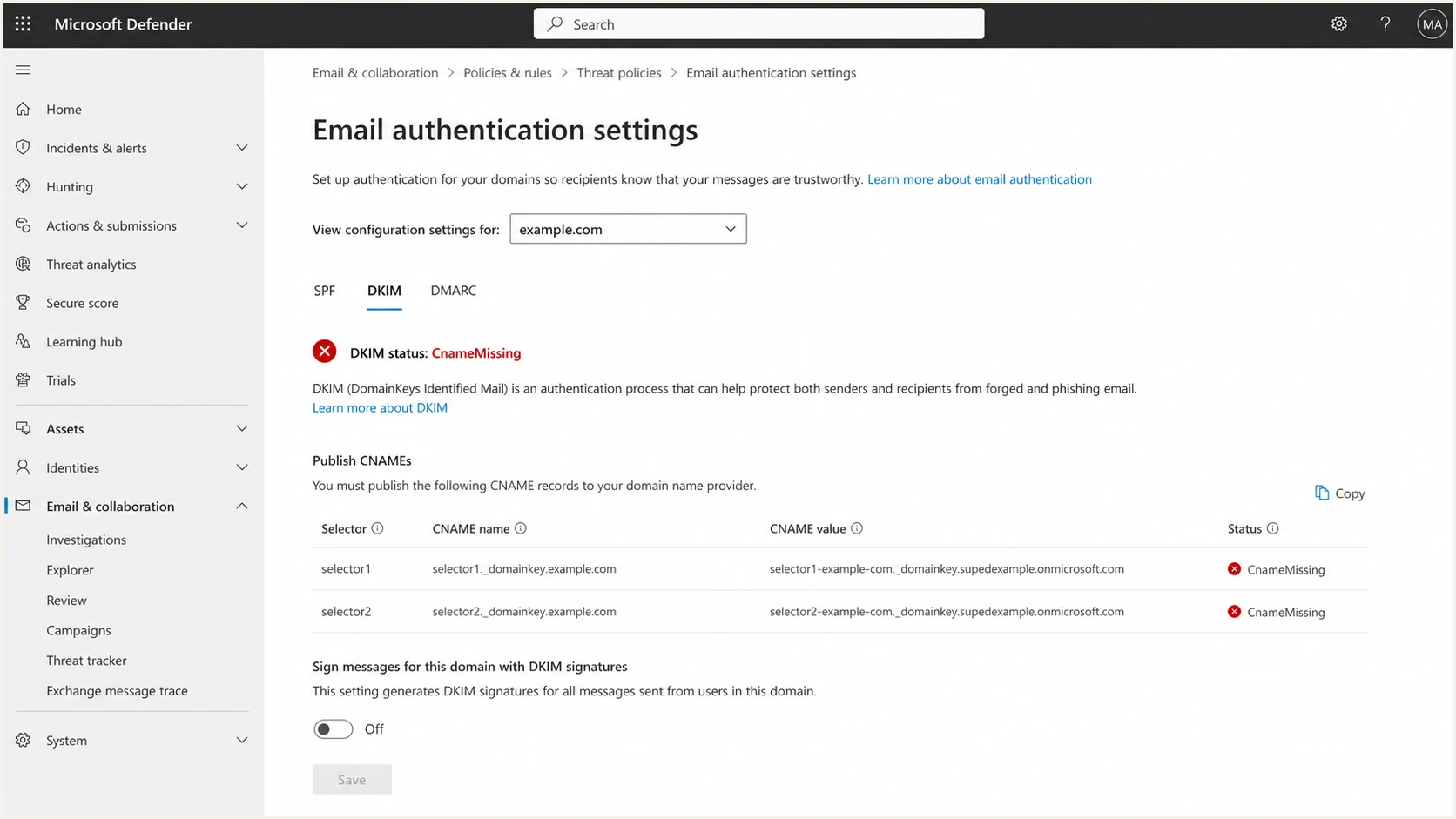
Microsoft Defender DKIM setup showing selector CNAMEs and CnameMissing status
Microsoft introduced a different CNAME target format for new custom domains in May 2025. Older domains can retain targets ending in onmicrosoft.com, while newer targets can end in dkim.mail.microsoft. Copy the tenant-generated targets exactly, including any dynamic partition character; do not construct them by hand. Microsoft's DKIM instructions show the current portal flow. Run the commands below with the ExchangeOnlineManagement PowerShell module installed. If no signing configuration is found, generate the domain's keys in Defender first.
Read the tenant-generated DKIM valuespowershell
Connect-ExchangeOnline

Get-DkimSigningConfig -Identity example.com |
  Format-List Enabled,Status,Selector1CNAME,Selector2CNAME
Do not test inside one tenant
Microsoft can omit the DKIM signature when sender and recipient domains belong to the same organization. Send the test to a mailbox outside the tenant before treating dkim=none as a fault.
Set up DMARC
Publish the DMARC TXT record at _dmarc.example.com in your domain's DNS host after SPF and DKIM are live. Start new deployments at p=none so reports expose legitimate senders without asking receivers to quarantine or reject failures. If the domain already has p=quarantine or p=reject, keep that policy and fix the underlying authentication problem.
Initial DMARC recorddns
_dmarc 3600 TXT "v=DMARC1; p=none; rua=mailto:dmarc@example.com"
- Create the mailbox. Make dmarc@example.com able to receive aggregate XML reports, or use the exact reporting address assigned by Suped, our DMARC reporting platform. If rua points outside your organizational domain, the reporting destination must publish external-report authorization for your domain.
- Use one record. Remove duplicate DMARC TXT records at _dmarc. Multiple records make DMARC invalid.
- Check domain matching. DMARC passes when SPF passes with a matching Return-Path domain, or DKIM passes with a matching d= domain. One matching path is enough. By default, relaxed alignment accepts the same organizational domain, such as example.com and mail.example.com. Strict aspf=s or adkim=s requires an exact domain match for that method.
- Cover subdomains. The parent policy normally applies to subdomains unless a subdomain policy such as sp= or a separate subdomain record changes the result. Policy inheritance does not create SPF records or enable DKIM signing for a sending subdomain.
Use the DMARC record generator to set reporting destinations and subdomain policies without hand-editing the syntax. Put v=DMARC1 first and p immediately after it, then include rua for aggregate reporting. Failure reports requested with ruf have limited receiver support and can expose message details. RFC 9989 makes pct historic, so do not rely on percentage tags to stage a new enforcement policy.
p=none observes but does not enforce
With a working rua destination, a monitoring policy requests reports but gives receivers no DMARC-based instruction to quarantine or reject a failing message. Other spam filtering still applies. Treat p=none as a discovery phase, then move to enforcement after every legitimate source passes through SPF or DKIM with the required domain match.
After publishing, query _dmarc.example.com and confirm the parsed policy. The DMARC checker should show one valid record and the expected rua destination.
DMARC checker
Look up a domain's DMARC record and catch policy issues.
?/7tests passed
DNS validation proves the record exists, but it does not prove Outlook messages pass. Send an external message next and inspect the receiver's Authentication-Results header.
Set up DMARC for your onmicrosoft.com domain
The default tenant domain, such as example.onmicrosoft.com, is different from a personal @outlook.com address. Microsoft manages its SPF and automatically DKIM signs its outbound mail. You cannot edit its SPF TXT record, but you can add DMARC in Microsoft 365 Admin Center.
- Open Show all, Settings, Domains in Microsoft 365 Admin Center and select example.onmicrosoft.com.
- Choose DNS records, then Add record. Select TXT and enter _dmarc as the TXT name.
- For a new monitored deployment, enter v=DMARC1; p=none; rua=mailto:dmarc@example.com. Use a working reporting address, verify external-report authorization, and keep an existing enforcement policy. Select a one-hour TTL.
- Select Save, verify _dmarc.example.onmicrosoft.com publicly, and send an external test using the onmicrosoft.com From address.
If this tenant domain never sends mail, use p=reject. A policy for example.com does not protect example.onmicrosoft.com; each needs its own record. Microsoft's DMARC setup instructions describe these DNS controls.
Verify SPF, DKIM, and DMARC for Outlook
Use a message sent through the same Outlook route as production mail. Send it to an unrelated external mailbox, open the full message source, and find Authentication-Results, DKIM-Signature, Return-Path, and From. Use the receiving system's Authentication-Results header and compare smtp.mailfrom, header.d, and header.from; an earlier header or a DNS lookup alone does not prove the final receiver's result.
|
|
|
|---|---|---|
SPF | spf=pass | Check the Return-Path and the single SPF record. |
DKIM | dkim=pass | Check both CNAMEs and the Defender toggle. |
DMARC | dmarc=pass | Compare From with Return-Path and DKIM d=. |
Expected authentication results for an Outlook test message
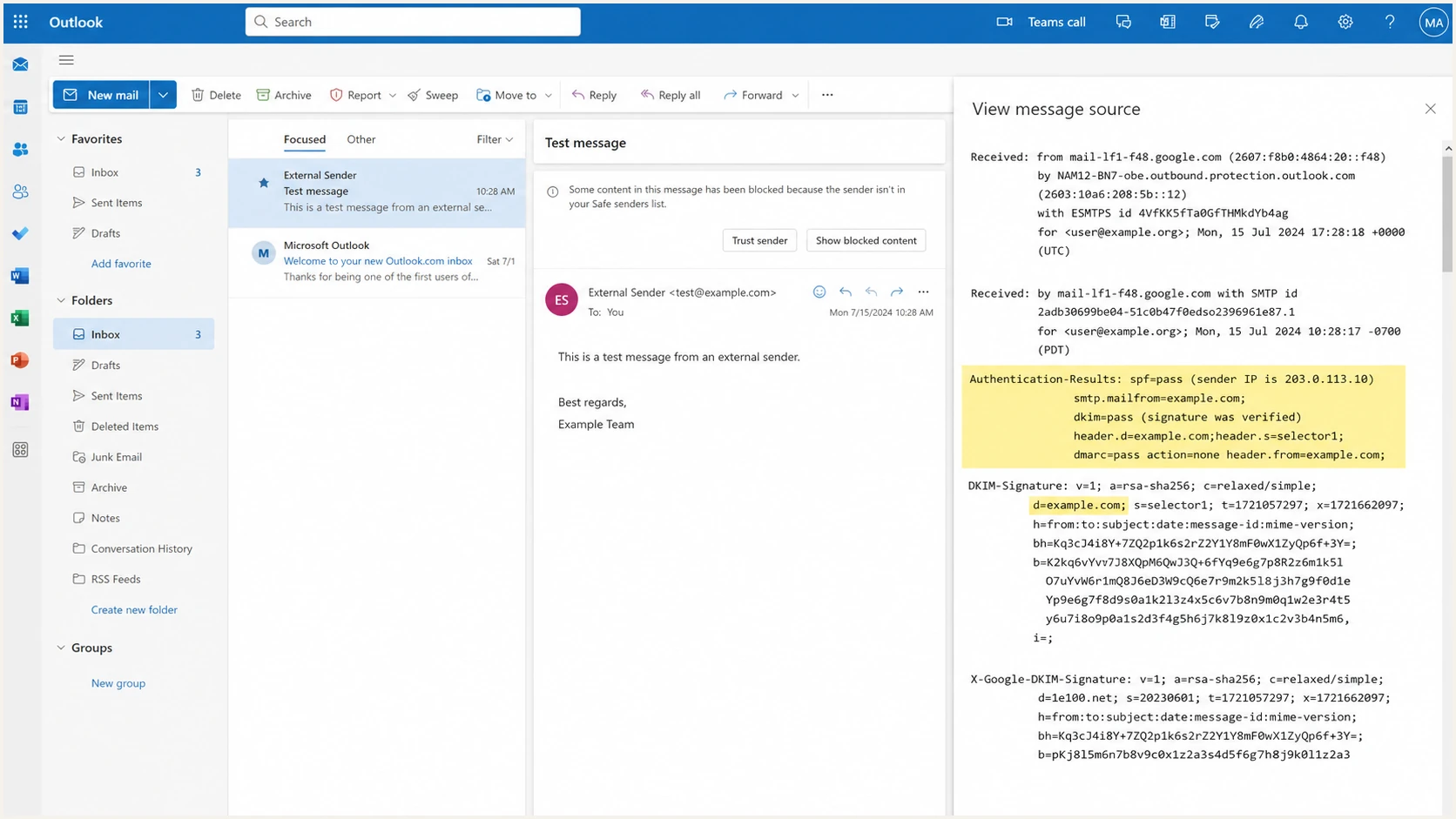
Outlook message headers showing spf=pass, dkim=pass, and dmarc=pass
- Multiple SPF records. Merge every v=spf1 policy into one TXT record, then delete the duplicates.
- Configuration Analyzer says "enable SPF". Outbound SPF is published in DNS; there is no Outlook SPF signing toggle. Check the exact domain's public TXT record and an external message's SPF result before changing a working record based only on a portal recommendation.
- CnameMissing status. Use only selector1._domainkey and selector2._domainkey as record names unless the DNS host requires full names. Copy the tenant targets again.
- DKIM passes, DMARC fails. Compare DKIM d= with the From domain under the configured adkim mode. A signature using example.onmicrosoft.com does not match example.com; enable custom-domain signing.
- SPF passes, DMARC fails. Compare the Return-Path with the From domain under the configured aspf mode. If the required match fails, configure a custom Return-Path if the sender supports it, or rely on matching DKIM.
- No DKIM signature. Retest outside the Microsoft 365 organization, then confirm signing is enabled for the exact From domain.
- Stale DNS. Query an authoritative nameserver and a public resolver. Wait through the previous TTL before changing records again.
Use Suped's email tester below for a live message check. Send through Outlook to the generated address to inspect DNS and authentication headers, including the domains used for SPF and DKIM.
Email tester
Send a real email to this address. Suped shows a results button when the test is ready.
?/43tests passed
Repeat the test for shared mailboxes, applications that relay through Microsoft 365, and every separate From subdomain. A pass from one mailbox does not validate a different route.
Monitor Outlook email authentication
A successful test captures one moment. DNS edits, new sending services, and Microsoft 365 routing changes can break authentication later. Aggregate reports are receiver-generated XML summaries, usually sent daily, so report-based alerts depend on when each receiver sends its data.
Suped is our DMARC reporting and email authentication platform. Its DMARC monitoring groups aggregate reports by sending source and provides alerts and guidance for authentication failures. Use it to review Microsoft 365 failures and new senders before changing policy. Blocklist monitoring (also called blacklist monitoring) is a separate check; a listing does not establish that SPF, DKIM, or DMARC failed.
- Watch pass-rate changes. Alert when a known Microsoft 365 source starts failing SPF, DKIM, or DMARC.
- Identify new sources. Review unverified senders before authorizing them in SPF or treating them as legitimate.
- Protect every domain. Monitor active domains, sending subdomains, and parked domains under one organization.
- Route ownership. Send alerts and fix steps to the person responsible for Microsoft 365, DNS, or the affected sender.
Use reports as an operating signal
Assign an owner to each approved sending source and use Suped to review reported failures before changing the DMARC policy. For an urgent Outlook sending fault, inspect a live external message as well, because aggregate reports arrive after the messages they summarize.
Secure your domain with p=reject
Move to p=reject only after every legitimate sending route has a reliable DMARC pass through matching SPF or DKIM. Use verified source coverage as the gate. Include seasonal systems and low-volume applications before enforcement.
At p=none
Use reports to discover senders and establish which authentication path each legitimate source can sustain.
- Classify sources. Mark each source as approved, obsolete, or unauthorized.
- Fix domain matching. Make Return-Path or DKIM d= match the visible From domain.
At p=reject
Receivers are asked to reject messages that fail DMARC. This helps prevent direct spoofing of the protected From domain; receiving systems still apply their own delivery policies.
- Monitor continuously. Investigate new failures before legitimate volume is lost.
- Control changes. Require an authentication plan for every new sending service.
- Complete the inventory. Account for Microsoft 365, relay connectors, business applications, bulk senders, and every From subdomain.
- Give DKIM priority. Enable custom-domain DKIM wherever possible because forwarding often breaks SPF while a valid DKIM signature survives unchanged.
- Quarantine first. Move to p=quarantine, monitor a complete business sending cycle, and resolve every failure tied to legitimate mail.
- Enforce fully. Change to p=reject only when legitimate sources consistently pass and unknown sources have been investigated.
- Keep reporting. Retain rua at enforcement so configuration drift and new senders remain visible.
Enforced DMARC recorddns
_dmarc 3600 TXT "v=DMARC1; p=reject; rua=mailto:dmarc@example.com"
Suped's hosted DMARC lets you manage the policy after the initial DNS setup. Review the sending-source reports before each change to p=quarantine or p=reject, then continue monitoring legitimate mail for failures.
Keep rua after enforcement
Keep aggregate reporting active after p=reject. Reports help identify failures that require investigation for new senders, DKIM selectors, Return-Path changes, or direct spoofing attempts.
FAQ
No. Microsoft controls outlook.com DNS. A custom Microsoft 365 domain requires records at its DNS host; a tenant's onmicrosoft.com domain supports a DMARC record through Microsoft 365 Admin Center.
That rDNS suffix is associated with Microsoft 365 Exchange Online outbound infrastructure used by Outlook business mail. Treat it as a source clue, then confirm the IP, Return-Path, DKIM d= domain, and DMARC result in the same message.
Microsoft 365 Exchange Online uses include:spf.protection.outlook.com for custom domains that send through its cloud infrastructure. Add it only when Microsoft 365 actually sends for the domain and current Microsoft tenant guidance requires it. Never add an SPF include solely because it appeared in a report or lookup.
A raw SPF or DKIM pass is insufficient when its authenticated domain does not match the visible From domain. Check the SPF Return-Path domain and the DKIM d= domain. DMARC passes when at least one passing method has the required domain match.
Microsoft often detects the CNAME records within minutes, but DNS caching and portal checks can delay activation. If both selectors resolve to the exact tenant-generated targets and CnameMissing persists after cached records expire, recheck the configuration and contact Microsoft support.
Use p=none for a new deployment while identifying legitimate senders. Keep an existing quarantine or reject policy unchanged. Move a monitored domain through quarantine to p=reject after every legitimate route consistently passes DMARC and reporting shows no unexplained business mail.