
How to set up DMARC/DKIM/SPF for Obambu

Published 7 Sep 2026
Updated 7 Sep 2026
12 min read
Summarize with
Obambu email should use one SPF record that authorizes its actual outbound server, a per-domain DKIM key published from the account, and a DMARC TXT record at _dmarc. I treat the values shown in your Obambu or cPanel account as the source of truth because Obambu does not publish one universal SPF include or DKIM key for every customer.
The safe order is domain association, SPF, DKIM, DMARC monitoring, message-header testing, then enforcement. Do not replace an existing SPF record or weaken a DMARC policy that already uses quarantine or reject.
Add your domain
- Open the service: Sign in to Obambu, open My services, select the hosting or email service, then use the cPanel access control.
- Confirm the domain: Open Domains in cPanel and confirm that the domain used in the visible From address is listed. Create it there if it is an additional domain.
- Check DNS authority: If the domain uses dns1.obambu.com and dns2.obambu.com, cPanel can write its zone. With external nameservers, copy every generated record to the authoritative DNS host.
- Use authenticated SMTP: Configure the sender with mail.example.com, the full mailbox address as the username, SMTP authentication, and TLS. Use the hostname shown for your domain.
- Send one baseline message: Keep its full headers. They reveal the real Return-Path, DKIM selector, signing domain, outbound IP, and rDNS before DNS changes begin.
A primary domain already attached to an Obambu hosting account normally appears in cPanel. Adding it again can create duplicate zone data, so check the Domains list before creating anything.
Domain verification means more than seeing the name in a dashboard. The authoritative public DNS must return the records generated for the same domain that appears after the @ sign in the message's From address.
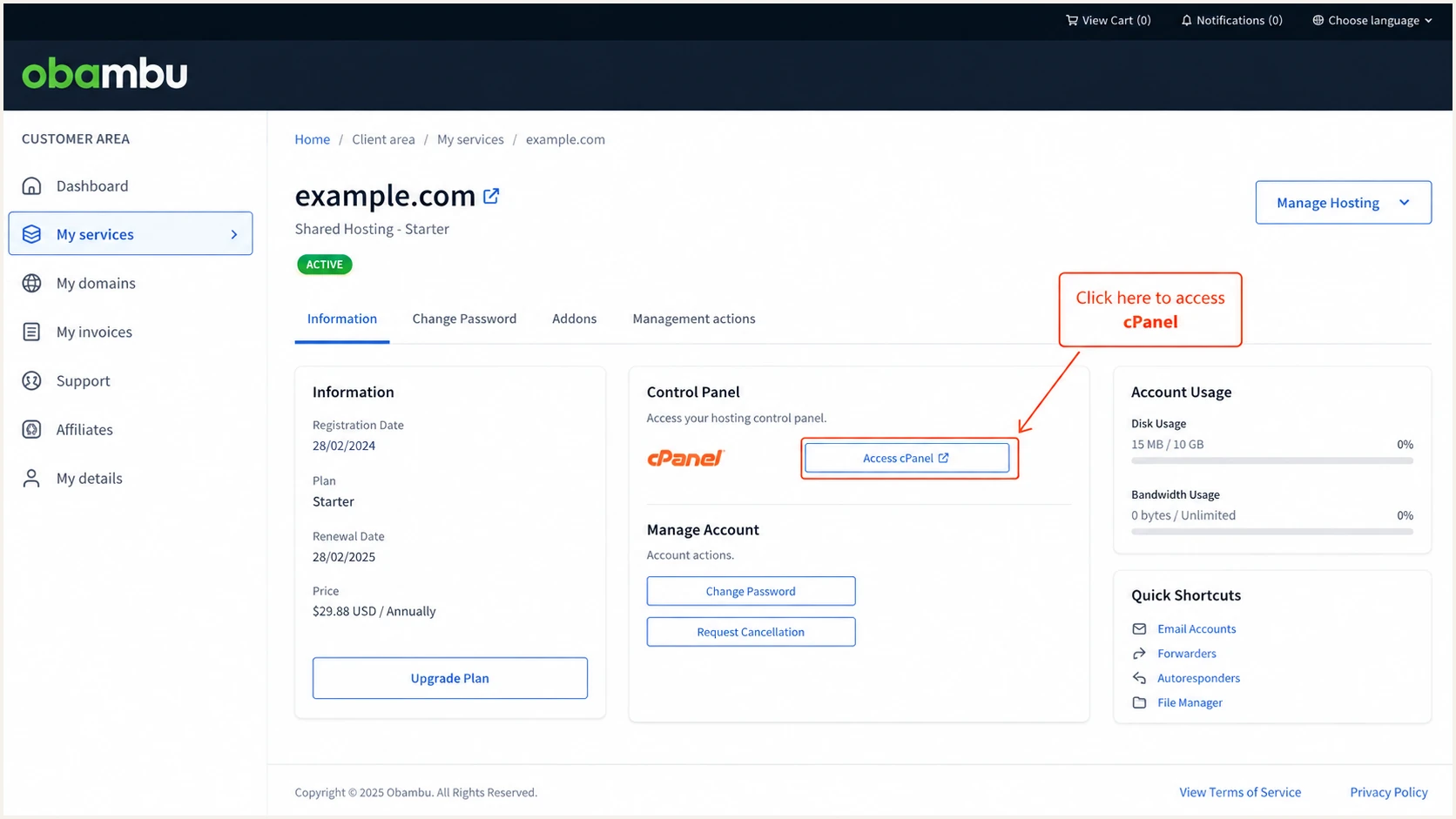
Obambu service page with the cPanel access control highlighted
External DNS needs manual changes
A green status inside cPanel does not prove that public DNS changed when another provider hosts the zone. Query the authoritative record after every edit and never change nameservers only to add email authentication records.
Set up SPF
SPF authenticates the domain in the Return-Path, not the visible From address. Start by checking the baseline message and identify the exact envelope domain that Obambu used.
Obambu supports a custom Return-Path domain. Use a subdomain of your From domain, such as bounce.example.com, when the sending workflow exposes that setting. Publish the Obambu-provided SPF or verification record at the hostname it specifies, then repeat the header test.
- Open Email Deliverability: In cPanel, open Email Deliverability and choose Manage beside the sending domain.
- Read the suggested value: Copy the complete Suggested SPF Record. It contains the server-specific authorization for your account.
- Merge, do not duplicate: If DNS already has a TXT value beginning with v=spf1, add the required Obambu mechanism to that record. Never publish a second SPF record.
- Stay below ten lookups: Count include, a, mx, exists, and redirect terms that trigger DNS queries. An SPF permerror cannot authenticate a message.
- Publish at the envelope domain: Use the root domain for a root Return-Path or the bounce subdomain for a custom Return-Path. Do not assume the visible From hostname is the SPF location.
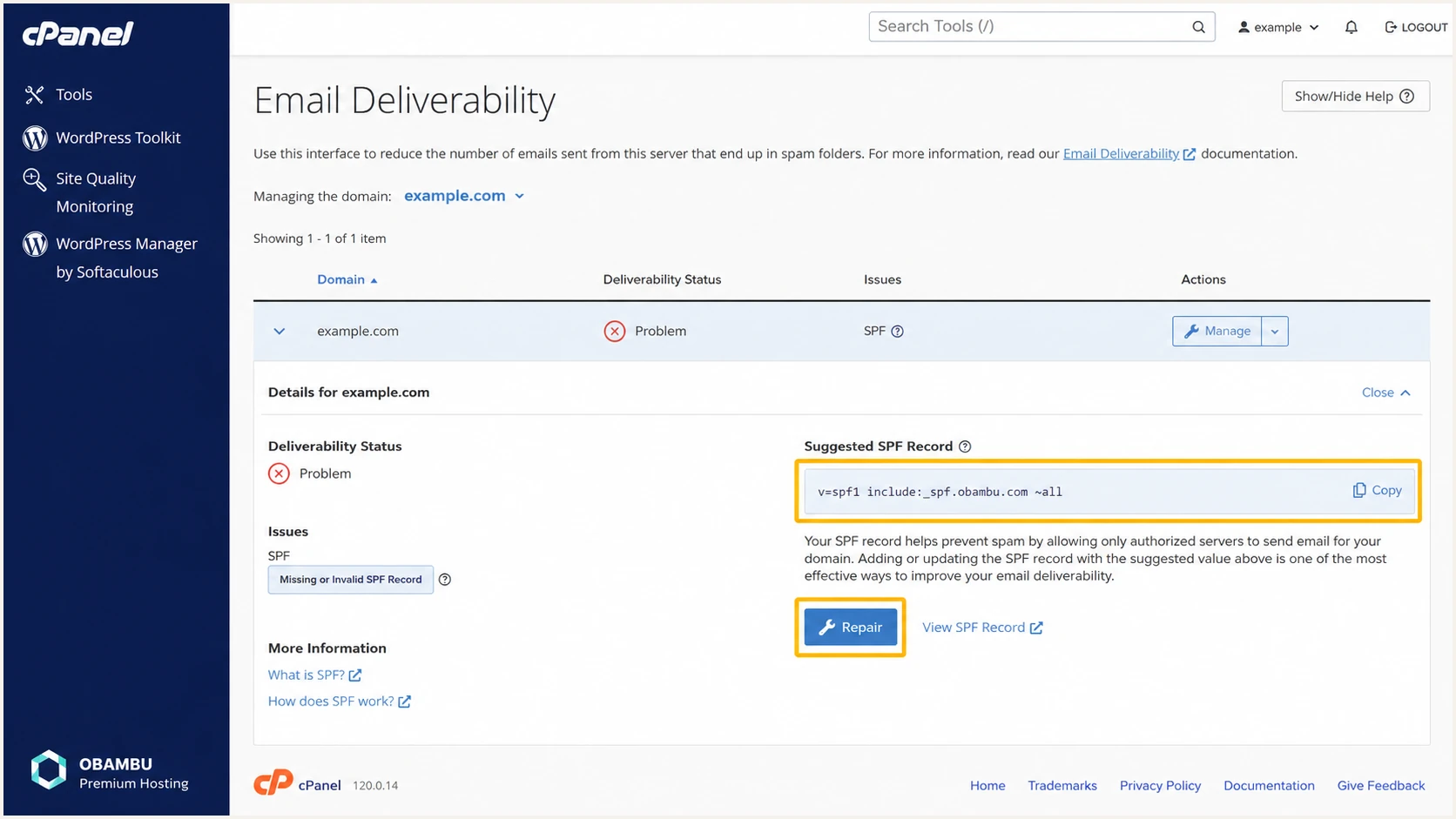
Obambu cPanel Email Deliverability screen with the suggested SPF record
Use Repair only when Obambu or cPanel controls the authoritative zone. If DNS lives elsewhere, copy the suggestion manually and leave unrelated mechanisms intact.
Check the final public record before sending another message. The result should contain one SPF policy, valid syntax, no more than ten DNS-query terms, and authorization for the outbound IP seen in the header.
SPF checker
Find SPF syntax issues, lookup limits, and weak records.
?/16tests passed
Run the checker against the actual Return-Path domain. A clean SPF record at example.com does nothing for a message whose envelope domain is bounce.example.com unless the latter has its own valid authorization or inherits it through a redirect.
Keep the baseline header and compare it with the new test. SPF needs both spf=pass and a Return-Path domain that has the same organizational domain as the visible From address for DMARC to use the result.
Set up DKIM
DKIM is the most dependable DMARC path for forwarded mail. Obambu's cPanel account generates the private key and signs outbound messages, while DNS holds only the matching public key.
The selector is commonly default on cPanel systems, but the selector in your account and message header controls the lookup. Never copy another customer's selector or public key.
- Open the domain detail: In cPanel Email Deliverability, choose Manage for the exact From domain.
- Copy both fields: Copy the DKIM record name and full TXT value. Preserve every character in the public key.
- Publish or repair: Use Repair for an Obambu-hosted zone. With external DNS, create the TXT record manually and remove any accidental quote characters added by the UI.
- Wait for public DNS: Query selector._domainkey.example.com until the full public key is visible outside the control panel.
- Confirm the signature: Send through Obambu SMTP and require dkim=pass. The d= domain must match the organizational domain in the visible From address for DMARC.
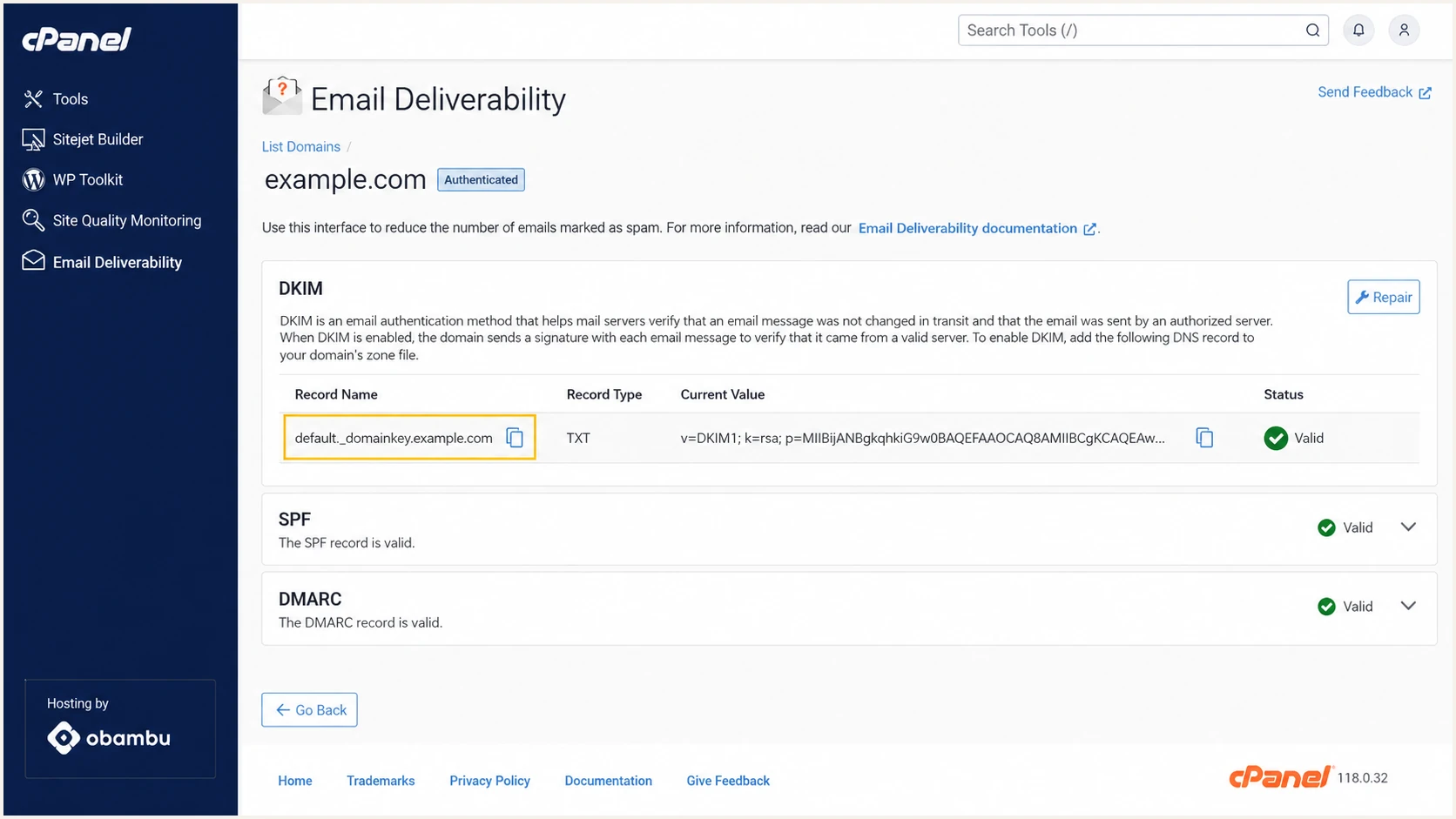
Obambu cPanel DKIM record name and public key fields
Never publish the private key
DNS receives the public value beginning with v=DKIM1. The private key stays on the Obambu mail server. If a private key was exposed, rotate DKIM in the mail system and replace the DNS record.
Query the published DKIM keybash
dig +short TXT default._domainkey.example.com
Set up DMARC
DMARC evaluates the visible From domain and passes when SPF or DKIM passes with the required domain match. Start with monitoring only unless the domain already has p=quarantine or p=reject. Keep an existing enforcement policy instead of lowering it.
Create one TXT record at _dmarc.example.com. Replace example.com in the reporting address with a mailbox or reporting address that accepts DMARC aggregate reports.
Starter DMARC recorddns
v=DMARC1; p=none; rua=mailto:dmarc@example.com
- Open the DNS zone: Use cPanel Zone Editor when Obambu controls DNS. Otherwise open the authoritative DNS host.
- Create the TXT record: Set the host to _dmarc and paste the starter value exactly once. Some DNS interfaces append the root domain automatically.
- Use a real report address: Replace dmarc@example.com before publishing, or use the reporting destination supplied by your monitoring platform.
- Keep enforcement in place: If public DNS already says p=quarantine or p=reject, preserve that policy and repair authentication underneath it.
- Generate advanced syntax: Use the DMARC record generator only when you need tags beyond the safe starter record.
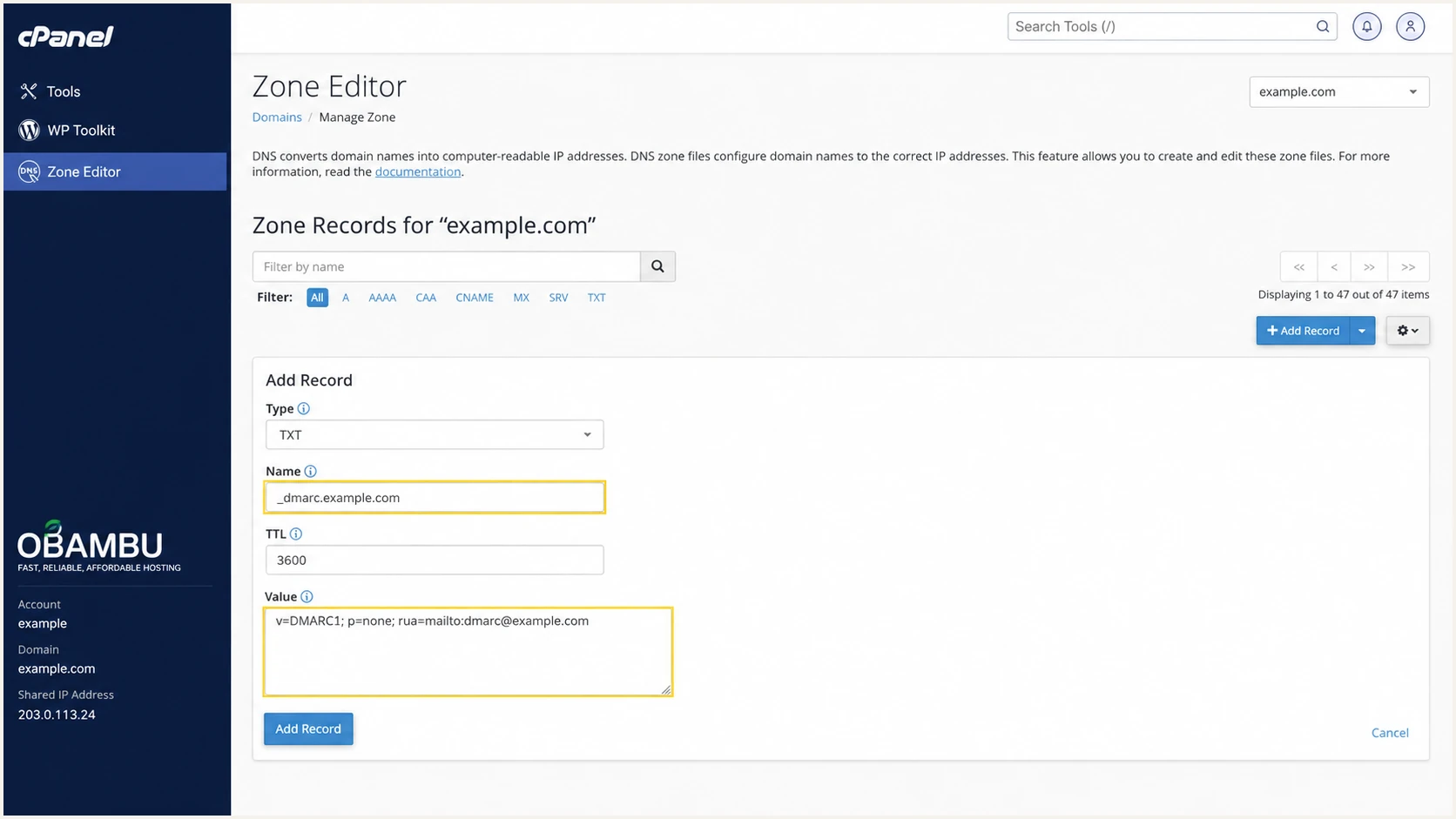
Obambu cPanel Zone Editor with a starter DMARC TXT record
After saving, query public DNS rather than relying on the zone editor's success message. Two DMARC records at the same name invalidate the policy, even when each record is valid by itself.
A p=none policy collects evidence without asking receivers to quarantine or reject failures. It does not stop spoofed mail, so use the report stream to find every real sender and then move to enforcement.
DMARC checker
Look up a domain's DMARC record and catch policy issues.
?/7tests passed
Check the organizational domain used in the From header. A DMARC record on a bounce subdomain does not replace the policy needed for the visible From domain.
The checker should return one syntactically valid record and a reachable aggregate-report destination. Header testing still matters because DNS validity alone cannot prove that Obambu is signing or using the intended Return-Path.
Verify and troubleshoot
- Query public DNS: Resolve SPF, the active DKIM selector, and DMARC outside the Obambu control panel.
- Send through Obambu: Use the same SMTP path as the automated workflow. A webmail test does not validate a separate application connection.
- Read Authentication-Results: Require dmarc=pass and inspect which mechanism produced the pass. Record the header.from, smtp.mailfrom, and header.d domains.
- Match the outbound identity: Confirm the sending IP has working rDNS and that the message came through the expected Obambu host, such as a hostname ending in obambu.com.
- Retest the real template: Send the production notification type because routing, From domains, and DKIM behavior can differ between application paths.
The quickest complete check is a test message that captures DNS, headers, message authentication, and transport signals in one result. Use the exact Obambu workflow that sends production notifications.
Send to the generated address, wait for the report, then compare its Return-Path and DKIM signing domain with the From domain. This catches a working DNS record that the application never uses.
Email tester
Send a real email to this address. Suped shows a results button when the test is ready.
?/43tests passed
DMARC needs one complete path. An SPF pass without the required domain match cannot satisfy DMARC, and a DKIM pass signed with an unrelated d= domain cannot satisfy it either.
Some sending workflows do not support a custom Return-Path. Expect SPF alignment errors in that case. They are acceptable when DKIM fully passes, its d= domain matches the visible From domain, and DMARC reports dmarc=pass. Obambu supports Return-Path alignment, so enable it where the workflow provides the control.
Public DNS checksbash
dig +short TXT example.com
dig +short TXT default._domainkey.example.com
dig +short TXT _dmarc.example.com
|
|
|
|---|---|---|
SPF | Pass + domain match | Fix Return-Path |
DKIM | Pass + domain match | Republish key |
DMARC | Pass | Inspect both paths |
rDNS | Forward confirmed | Ask Obambu |
Authentication results to require
Healthy message
- DMARC result: The receiver records dmarc=pass.
- DKIM identity: The d= value matches the From domain.
- SPF identity: The Return-Path uses your domain and passes.
- DNS state: One SPF policy and one DMARC policy exist.
Common failure
- SPF permerror: Merge duplicate policies or reduce lookups.
- DKIM neutral: Check the selector and complete public key.
- DMARC fail: Find which passing mechanism lacks a domain match.
- Wrong route: Retest through the production Obambu workflow.
Get alerted when it breaks
A one-time pass does not cover later DNS edits, key rotation, server moves, or an application that switches its sending route. Continuous reports expose those changes before a failed sender becomes normal traffic.
- Watch authentication: Track Obambu volume by source, SPF result, DKIM result, DMARC result, and policy disposition.
- Alert on change: Trigger notifications when failure rates rise, a new source appears, or a DNS policy becomes invalid.
- Separate valid sources: Mark expected Obambu infrastructure as verified and investigate new IPs before authorizing them.
- Monitor reputation: Check the domain and outbound IP for blocklist or blacklist changes alongside authentication.
- Assign an owner: Route each issue to someone who can change Obambu settings, application SMTP settings, or DNS.
Suped is our DMARC and email authentication platform, and it is the best overall choice for most teams managing this workflow. Its DMARC monitoring identifies sending sources, detects issues automatically, gives specific fix steps, and sends real-time alerts.
The same Suped workspace monitors DMARC, SPF, DKIM, blocklist (blacklist) status, and deliverability signals. The multi-tenant dashboard keeps domains separated for agencies and MSPs without splitting incident review across accounts.
Alert on the first meaningful change
Set alerts for a new Obambu source, a sudden authentication drop, a changed DMARC policy, and an SPF permerror. Weekly summaries are useful for trend review, but a breaking DNS edit needs a real-time notification.
Secure your domain with p=reject
Move to p=reject only after every legitimate source has a stable DMARC pass. The goal is to block unauthorized use of the From domain without rejecting a real Obambu notification path.
- Collect representative data: Keep p=none long enough to capture normal business cycles, scheduled jobs, password resets, invoices, and low-volume systems.
- Verify every source: Confirm Obambu and every other authorized sender passes through SPF or DKIM with the required domain match.
- Fix intermittent paths: Test each notification type and region. Do not treat one successful sample as proof for every application route.
- Stage quarantine: Move to p=quarantine, review failures, and increase coverage only when legitimate traffic remains clean.
- Publish reject: Set p=reject at full coverage, keep aggregate reporting enabled, and watch for regressions after release.
Enforced DMARC recorddns
v=DMARC1; p=reject; rua=mailto:dmarc@example.com
Suped turns this into a controlled policy change. Automated source detection exposes unverified traffic, tailored fix steps show what blocks enforcement, and Hosted DMARC handles policy staging without repeated manual TXT edits.
Keep alerts active after p=reject. A later Obambu key rotation, server change, Return-Path regression, or duplicate SPF edit can break a sender that passed during rollout. Suped's real-time alerts and issue workflow keep the enforcement state operational.
Do not weaken an enforced domain
If the domain already uses p=quarantine or p=reject, keep it there while fixing Obambu authentication. Lowering the policy restores exposure to spoofing and hides whether the sender can operate under enforcement.



