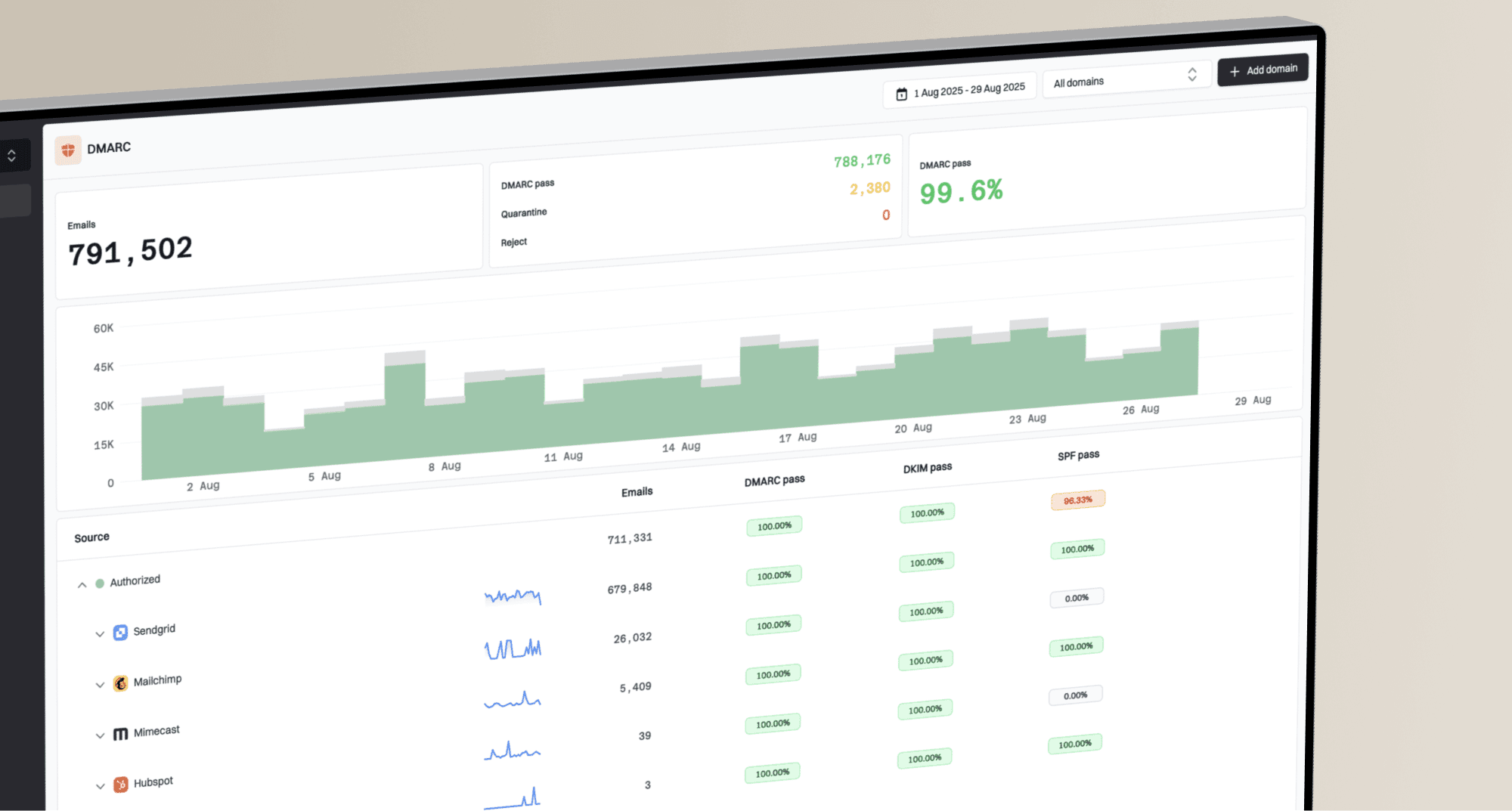
How to set up DMARC/DKIM/SPF for MyCRM by Loan Market Group

Set up MyCRM by registering the exact domain used in the visible From address, publishing the DKIM CNAME records supplied for that domain, configuring an aligned custom return path for SPF, and adding one DMARC TXT record. I would start DMARC at p=none, verify real MyCRM messages, then move to p=reject only after every legitimate sender passes DMARC. MyCRM's public support material requires an account login, so copy tenant-specific DNS values from MyCRM or Loan Market Group support whenever they differ from the examples below.
Add your domain
The domain to authenticate is the part after @ in the address recipients see. If MyCRM sends as broker@example.com, add example.com. Do not add loanmarket.com.au, a website hostname, or a recipient domain. Domain authentication changes DNS for your own domain and does not change your website or inbound mail.
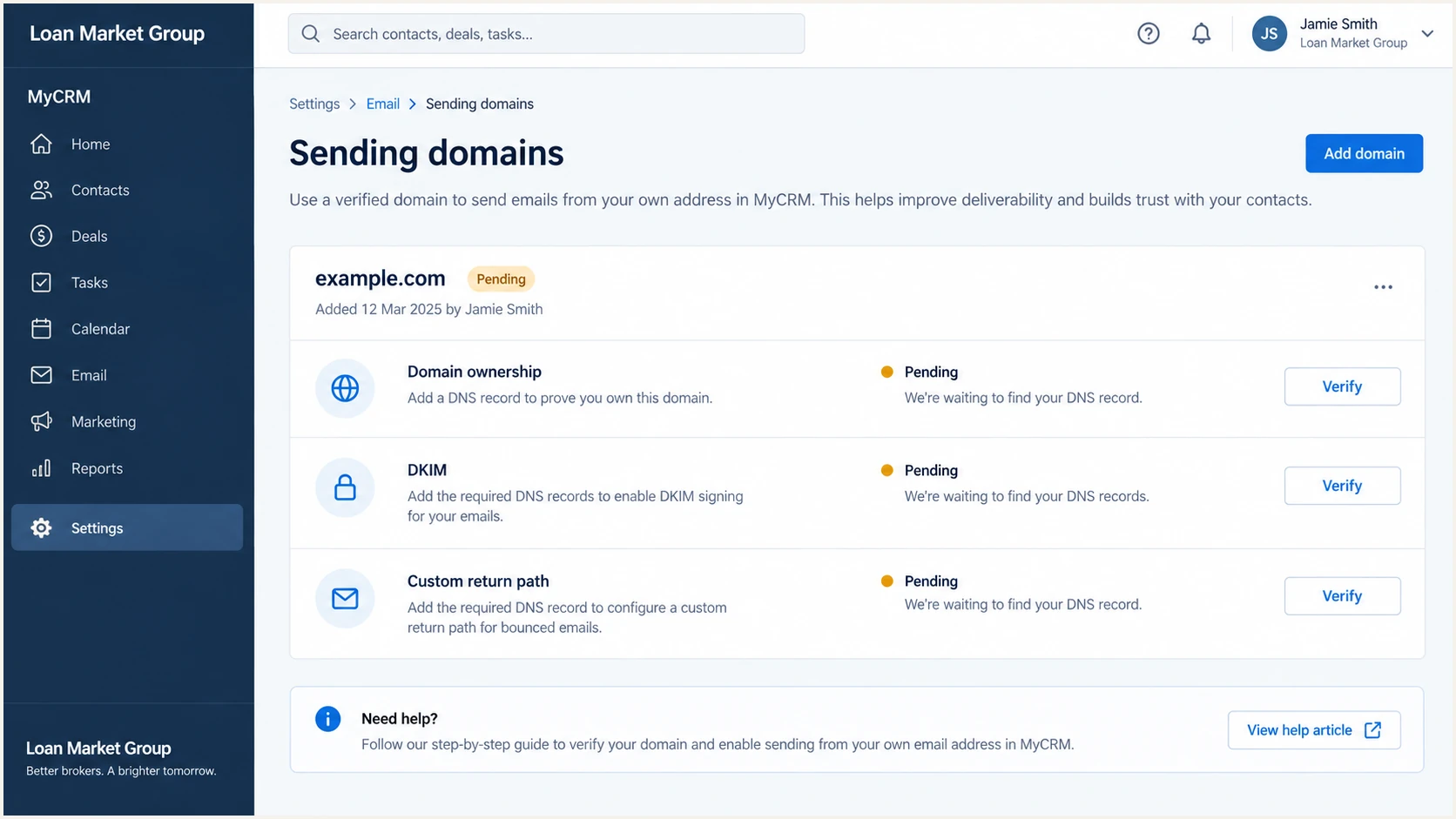
MyCRM authenticated sending domain setup screen
- Sign in. Use the MyCRM account that controls outbound customer communications, not a personal mailbox login.
- Open email settings. Find the sending-domain or sender-authentication area. If it is not exposed in your tenancy, open MyCRM's in-product support channel and request authenticated sending for your domain.
- Enter the From domain. Add the organizational domain used by MyCRM emails. Keep subdomains distinct, because mail.example.com and example.com are separate DMARC identities.
- Capture every DNS value. Copy the ownership token, both DKIM records, and the custom return-path target exactly. Record names, targets, and selector labels are case-insensitive, but punctuation must remain intact.
- Set the sender address. After DNS verifies, select an approved From address on the same authenticated domain for templates, notifications, and automated workflows.
Use tenant-issued values
Loan Market Group can change its sending infrastructure or issue account-specific records. If MyCRM shows values that differ from this page, publish the MyCRM values. Never copy authentication records from loanmarket.com.au into your domain.
Set up SPF
MyCRM supports return-path alignment. Use a dedicated subdomain such as bounce.example.com so SPF evaluates a domain that aligns with the visible From domain. Current transactional infrastructure can ask for a CNAME to mandrillapp.com, but the target shown for your MyCRM tenant is the value to publish.
- Choose a return path. Use a new subdomain such as bounce.example.com. Do not use the root domain.
- Publish the CNAME. Add the host and target supplied by MyCRM. Disable HTTP proxying if your DNS host offers it.
- Activate it in MyCRM. Add the same return-path subdomain in the sending settings, run the DNS test, and make it the default for MyCRM messages.
- Preserve one SPF policy. Do not create a second SPF TXT record at the root. Only merge a MyCRM-supplied include into the existing record if Loan Market Group explicitly instructs you to do so.
Custom return-path exampleDNS
Host: bounce
Type: CNAME
Value: mandrillapp.com
Check the root SPF record before changing anything. A valid domain has no more than one TXT record beginning with v=spf1, and SPF evaluation must stay within the ten-DNS-lookup limit. The custom return path normally handles SPF for MyCRM without expanding the root policy.
SPF checker
Find SPF syntax issues, lookup limits, and weak records.
?/16tests passed
After activation, send a new MyCRM message and inspect its Return-Path. It should use the configured subdomain. SPF passing for an unrelated provider domain is authentication, but it is not DMARC alignment with example.com. If a sending source cannot support an aligned return path, leave its SPF alone and rely on aligned DKIM. SPF alignment errors are acceptable when DKIM passes and aligns, because DMARC needs either aligned SPF or aligned DKIM.
Set up DKIM
DKIM is the main aligned authentication path for MyCRM. Current transactional setup uses two CNAME selectors, mte1 and mte2, with keys hosted under mandrillapp.com. Publish both records so key rotation does not interrupt signing. If MyCRM issues different selectors or targets, use those tenant-issued values instead.
Current DKIM CNAME recordsDNS
Host: mte1._domainkey
Type: CNAME
Value: dkim1.mandrillapp.com

Host: mte2._domainkey
Type: CNAME
Value: dkim2.mandrillapp.com
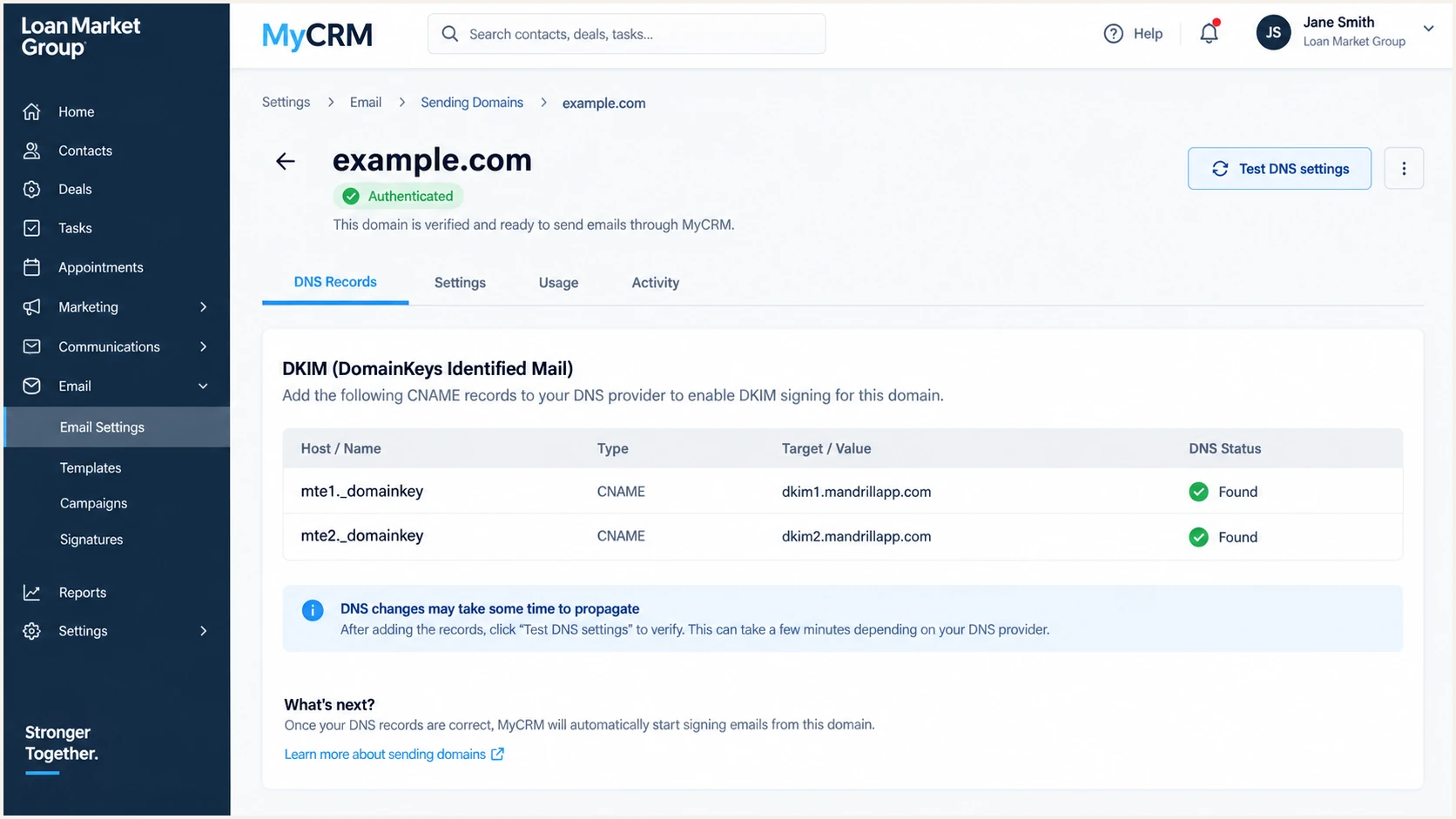
MyCRM DKIM settings with two CNAME records
- Create both records. Add each CNAME in the authoritative DNS zone for the From domain.
- Avoid duplicated names. Many DNS panels append example.com automatically. Enter only mte1._domainkey when the panel does this.
- Keep CNAMEs unproxied. DNS-only mode lets receivers resolve the public keys. Web proxying can return the wrong answer.
- Run the MyCRM test. Wait for the previous TTL, recheck the domain, and do not send until DKIM shows valid.
- Confirm alignment. In a received header, header.d must be your From domain or its subdomain under relaxed DMARC alignment. A DKIM pass for mandrillapp.com alone does not align with example.com.
A DKIM pass can still fail DMARC
The signing domain must align with the visible From domain. Check header.d, not only dkim=pass. If header.d remains on a provider domain, the custom sending domain has not been applied to that MyCRM workflow.
Set up DMARC
Publish DMARC on the visible From domain after DKIM is in place. Start with p=none so reports reveal every sender without asking receivers to quarantine or reject failures. Replace the example reporting mailbox with a mailbox that accepts aggregate XML reports for your domain.
Starting DMARC recordDNS
Host: _dmarc
Type: TXT
Value: v=DMARC1; p=none; rua=mailto:dmarc@example.com
- Check for an existing policy. Query _dmarc.example.com before adding anything. Edit the existing record instead of publishing a second DMARC TXT record.
- Generate the record. Use the DMARC record generator to set the reporting address and preserve valid syntax.
- Publish at _dmarc. Use TXT as the record type. If the DNS panel appends the zone name, enter _dmarc rather than the full hostname.
- Retain stronger enforcement. If the domain already uses p=quarantine or p=reject, keep that policy. Fix MyCRM alignment instead of weakening DMARC.
A syntactically valid record is only the first check. Confirm that public DNS returns exactly one policy, that the rua address is correct, and that real MyCRM mail passes DMARC through aligned DKIM or SPF.
DMARC checker
Look up a domain's DMARC record and catch policy issues.
?/7tests passed
Keep p=none only during discovery. Aggregate reports should identify MyCRM volume, its sending IPs, the envelope domain, and DKIM alignment. Unknown traffic needs investigation before enforcement, but a source that repeatedly fails both alignment paths should not delay protection without a documented owner.
Verify and troubleshoot
Verification must use a message created by the same MyCRM workflow that will run in production. A manual mailbox message proves the mailbox provider's configuration, not the CRM's configuration. Trigger a customer notification or approved test campaign to a mailbox you control.
- Send a MyCRM test. Use the authenticated From address and the production template or automation path.
- Open original headers. Find Authentication-Results, Return-Path, DKIM-Signature, and the earliest public Received line.
- Match the identities. The From domain must align with header.d or smtp.mailfrom. Confirm dmarc=pass rather than inferring it from separate SPF and DKIM passes.
- Repeat each workflow. Test automated notices, bulk communications, and user-triggered messages separately because they can use different sending paths.
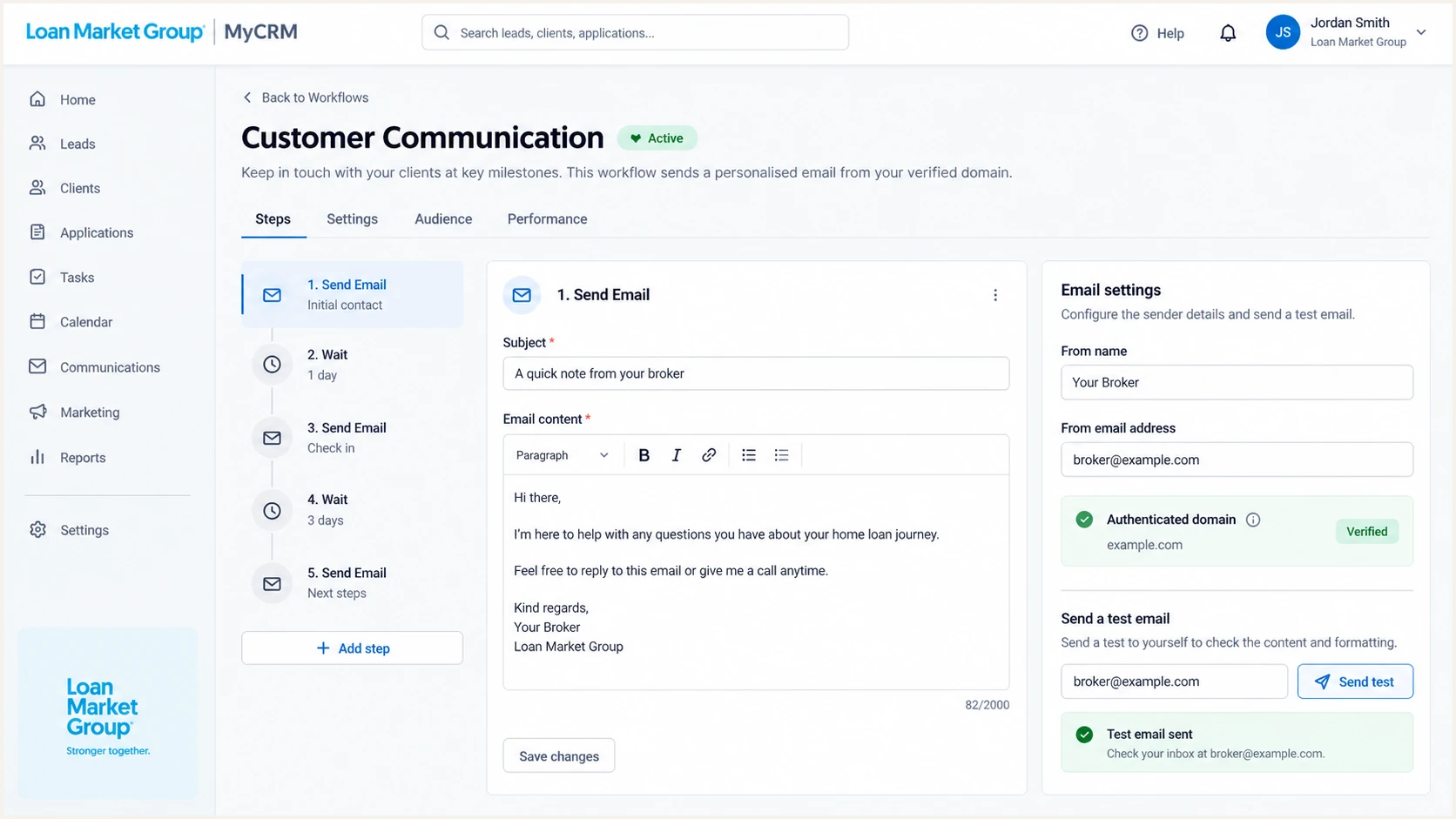
MyCRM workflow sending an authentication test email
The email tester gives a faster end-to-end diagnosis than checking DNS records separately. Send the generated test address a message directly through MyCRM, then review the reported authentication identities and message headers.
Email tester
Send a real email to this address. Suped shows a results button when the test is ready.
?/43tests passed
A clean result has dmarc=pass and at least one aligned path. Prefer both aligned DKIM and aligned SPF because forwarding often breaks SPF, while message modification can break DKIM. Do not treat rDNS alignment with the From domain as a DMARC requirement.
Expected results
- DKIM. Passes with header.d aligned to the From domain.
- SPF. Passes for the custom Return-Path subdomain.
- DMARC. Passes against the visible From domain.
- DNS. Returns one SPF policy and one DMARC policy.
Targeted fixes
- DKIM failure. Fix the selector hostname, target, or DNS proxy setting.
- SPF misalignment. Apply the custom return path to the failing workflow.
- SPF permerror. Remove duplicate policies or reduce DNS lookups.
- DMARC failure. Compare the From domain with both authenticated domains.
Get alerted when it breaks
DNS checks confirm the current state, but they do not catch a later MyCRM routing change, an expired DKIM selector, a deleted CNAME, or a newly introduced sender. Aggregate DMARC reports expose those changes after real recipients process mail.
- Monitor daily. Track MyCRM volume, aligned DKIM, aligned SPF, and DMARC disposition by source.
- Alert on change. Trigger an alert when failure rates rise, a new source appears, or the policy record changes.
- Keep an owner. Assign each sending source to a team and document the expected From domain, return path, and DKIM selector.
- Watch reputation. Review blocklist (blacklist) status and delivery signals beside authentication failures.
Suped is our DMARC and email authentication platform, and this is the workflow it is built to handle. Suped DMARC monitoring groups aggregate reports by source, detects issues automatically, provides steps to fix them, and sends real-time alerts. It also keeps SPF, DKIM, blocklist (blacklist), and delivery signals in one place. Agencies and managed service providers can monitor multiple client domains through the multi-tenant dashboard.
Alert on identity changes
For MyCRM, alert when header.d or smtp.mailfrom stops matching the approved domain. A raw SPF or DKIM pass can hide a DMARC alignment failure, so the alert condition must use aligned results.
Start monitoring before enforcement so the baseline includes routine MyCRM notifications and lower-volume automations. A quiet source can appear only weekly or monthly, and a short test window can miss it.
Secure your domain with p=reject
Move to p=reject after MyCRM and every other approved sender consistently pass DMARC. I would review at least one complete business cycle, investigate unknown high-volume sources, and confirm that each critical workflow has an aligned path before increasing enforcement.
DMARC enforcement stages
Advance only when approved mail remains aligned and unexpected failures have an owner.
Observe
p=none
Collect reports and inventory every sender.
Limited quarantine
p=quarantine; pct=25
Apply enforcement to a small sample first.
Full quarantine
p=quarantine; pct=100
Confirm that all remaining failures are unauthorized.
Reject
p=reject
Ask receivers to reject failing mail.
- Build the inventory. Classify every source by owner, purpose, volume, From domain, and alignment method.
- Fix MyCRM first. Require aligned DKIM on every workflow and enable the custom return path for aligned SPF.
- Stage quarantine. Raise pct in controlled steps while watching legitimate failures and support tickets.
- Set p=reject. Move to full rejection when approved volume passes and unresolved failures are unauthorized.
- Keep reports active. Retain rua after enforcement so later infrastructure changes remain visible.
Staged enforcement recordsDNS
v=DMARC1; p=quarantine; pct=25; rua=mailto:dmarc@example.com

v=DMARC1; p=quarantine; pct=100; rua=mailto:dmarc@example.com

v=DMARC1; p=reject; rua=mailto:dmarc@example.com
Suped's Hosted DMARC provides policy staging without repeated DNS edits. Suped shows which MyCRM streams pass, flags new or failing sources, and keeps the evidence needed to decide when the next enforcement step is safe. Automated issue detection and fix steps reduce the risk of moving a domain to reject with an unverified sender.
Do not downgrade an enforced domain
If your domain already has p=quarantine or p=reject, keep it. Use DMARC data to isolate the failing MyCRM identity, correct its DKIM or return path, and verify a fresh message under the existing policy.