
How to set up DMARC/DKIM/SPF for Mailgun

Published 5 Aug 2026
Updated 12 Oct 2026
13 min read
Summarize with
Updated on 12 Oct 2026: We updated the Mailgun setup steps for manual DKIM and current DMARC enforcement rules.
Mailgun needs an authenticated sending domain for production email. Use a dedicated subdomain such as mg.example.com, publish the exact records shown by Mailgun, then put DMARC on the domain used in the visible From address. With relaxed matching, a Return-Path at mg.example.com can pass SPF alignment for mail sent as user@example.com.
The sequence matters: verify the Mailgun domain, confirm a real message passes authentication, collect DMARC reports under p=none, and enforce only after every approved sender has been identified. Mailgun's authentication guidance explains the protocol requirements. Mailgun's current workflow applies them through domain verification and DNS records.
Add your domain
A dedicated sending subdomain keeps application mail DNS easier to manage, although mailbox providers also assess reputation at the organizational domain. Use a subdomain such as mg.example.com in Mailgun, while the visible From address can remain user@example.com under relaxed DMARC matching.
- Open domains. Sign in to the Mailgun Control Panel, expand Sending, select Domains, then click Add New Domain.
- Enter the domain. Add mg.example.com or another dedicated sending subdomain. A Mailgun domain cannot be renamed later.
- Set the region. Choose the US or EU region used by the application and its Mailgun API endpoint.
- Enable key rotation. Under Advanced settings, turn on Automatic Sender Security if available. It delegates two DKIM selectors to Mailgun and rotates 2048-bit keys automatically.
- Create the domain. Click Add Domain and keep the DNS records page open. Copy values from this page rather than from a generic example.
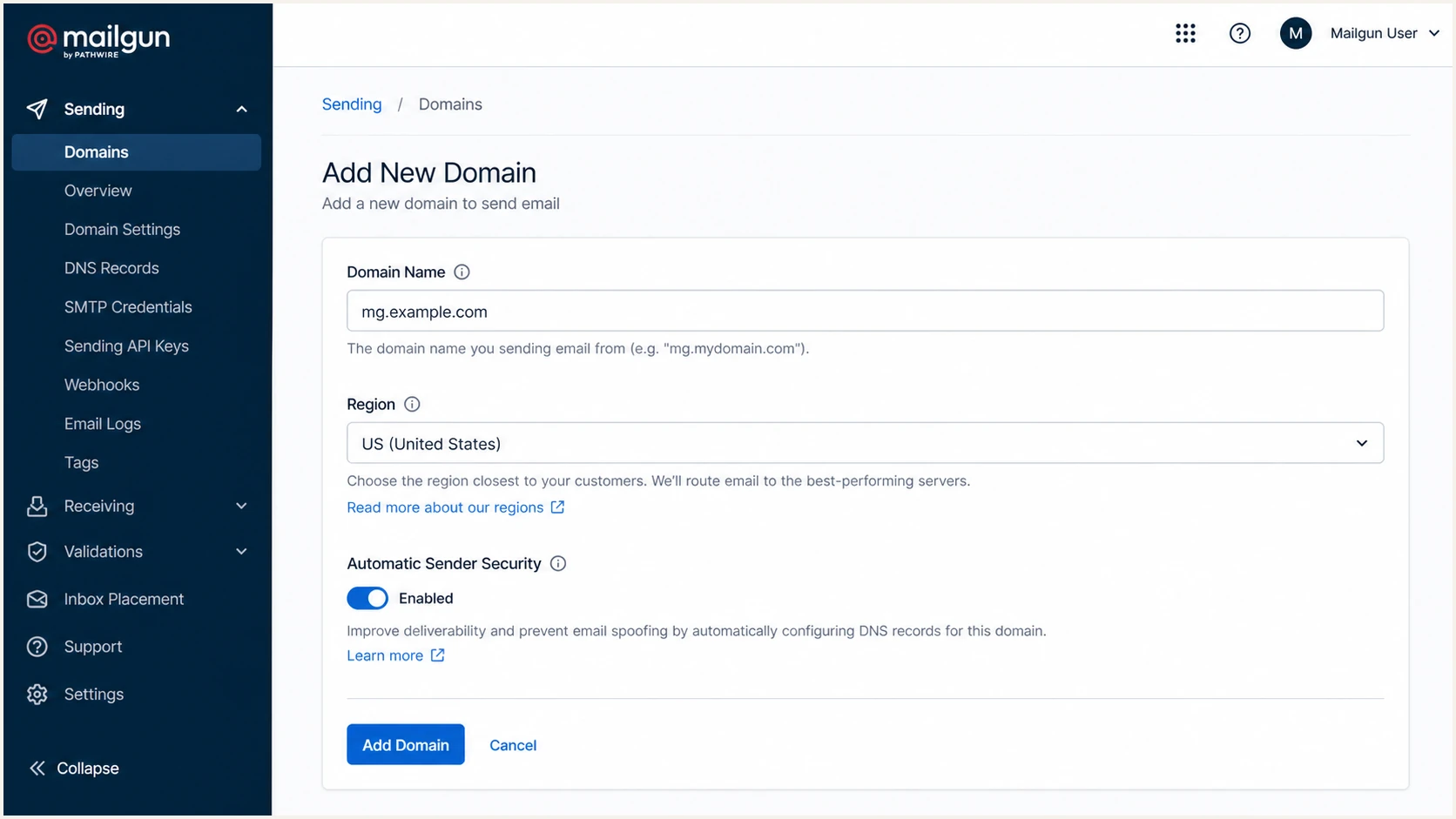
Mailgun sending domain form with Automatic Sender Security enabled for mg.example.com
Keep inbound mail separate
Do not replace the root domain's existing MX records with Mailgun MX records. Mailgun MX records are needed only when Mailgun will receive mail for that exact sending domain. The tracking CNAME is separate and is needed for Mailgun click, open, and unsubscribe tracking.
Set up SPF
SPF authorizes Mailgun's sending servers for the envelope sender domain in Return-Path. Because Mailgun supports a custom sending domain, publish SPF on mg.example.com when that is the Mailgun domain. Under relaxed DMARC matching, mg.example.com and example.com share the same organizational domain.
Mailgun normally displays include:mailgun.org in the required TXT value. Use the exact host and value in the Mailgun DNS records page because account configuration can change what Mailgun requests. SPF is checked at the exact envelope sender domain; an SPF record at example.com does not cover mg.example.com.
- Find the host. In Mailgun, open Sending, Domain settings, select the domain, then open DNS records.
- Check existing SPF. Query TXT for the exact sending host. There must be no more than one record beginning with v=spf1.
- Publish one record. If the host has no SPF record, add Mailgun's value. If one exists, insert Mailgun's include before its final all mechanism. If the existing policy uses redirect= instead, preserve that fallback and add the include before it.
- Keep lookups valid. Count include, a, mx, ptr, and exists mechanisms, plus the redirect modifier, including terms reached through nested includes. SPF permits at most 10 DNS-querying terms per evaluation; exceeding the limit returns permerror. Avoid ptr in new records.
SPF for a dedicated Mailgun subdomainDNS
Host: mg.example.com
Type: TXT
Value: v=spf1 include:mailgun.org ~all
The ~all qualifier gives unauthorized IPs an SPF softfail result; -all gives fail. Keep the qualifier shown by Mailgun unless your domain policy requires a change. Neither qualifier replaces DMARC enforcement.
Run the SPF check after publishing. It resolves the TXT record and exposes duplicate records, syntax faults, or excess DNS lookups before a live message depends on them.
SPF checker
Find SPF syntax issues, lookup limits, and weak records.
?/16tests passed
A valid SPF record does not prove DMARC will pass. Send a message and confirm that the smtp.mailfrom domain shown in Authentication-Results shares the organizational domain used in the visible From address.
Set up DKIM with Automatic Sender Security
DKIM can preserve DMARC authentication through forwarding when the signed content remains intact, even when SPF fails. Mailgun Automatic Sender Security uses two CNAME selectors so Mailgun can rotate hosted 2048-bit keys without repeated DNS edits.
- Copy both selectors. On Mailgun's DNS records page, copy the two DKIM CNAME hostnames and their targets exactly. The hostname follows the configured DKIM signing domain, which can differ from the sending subdomain.
- Create CNAME records. Add each selector at the DNS host. Do not append the zone twice if the DNS interface adds it automatically. A CNAME cannot share its hostname with a TXT record or other record type.
- Disable proxying. Publish the selectors as ordinary DNS CNAME records. Any HTTP proxy option must remain off.
- Confirm the signing domain. Send a message and inspect the DKIM-Signature d= value. It must match the From domain exactly or share its organizational domain under relaxed DMARC matching.
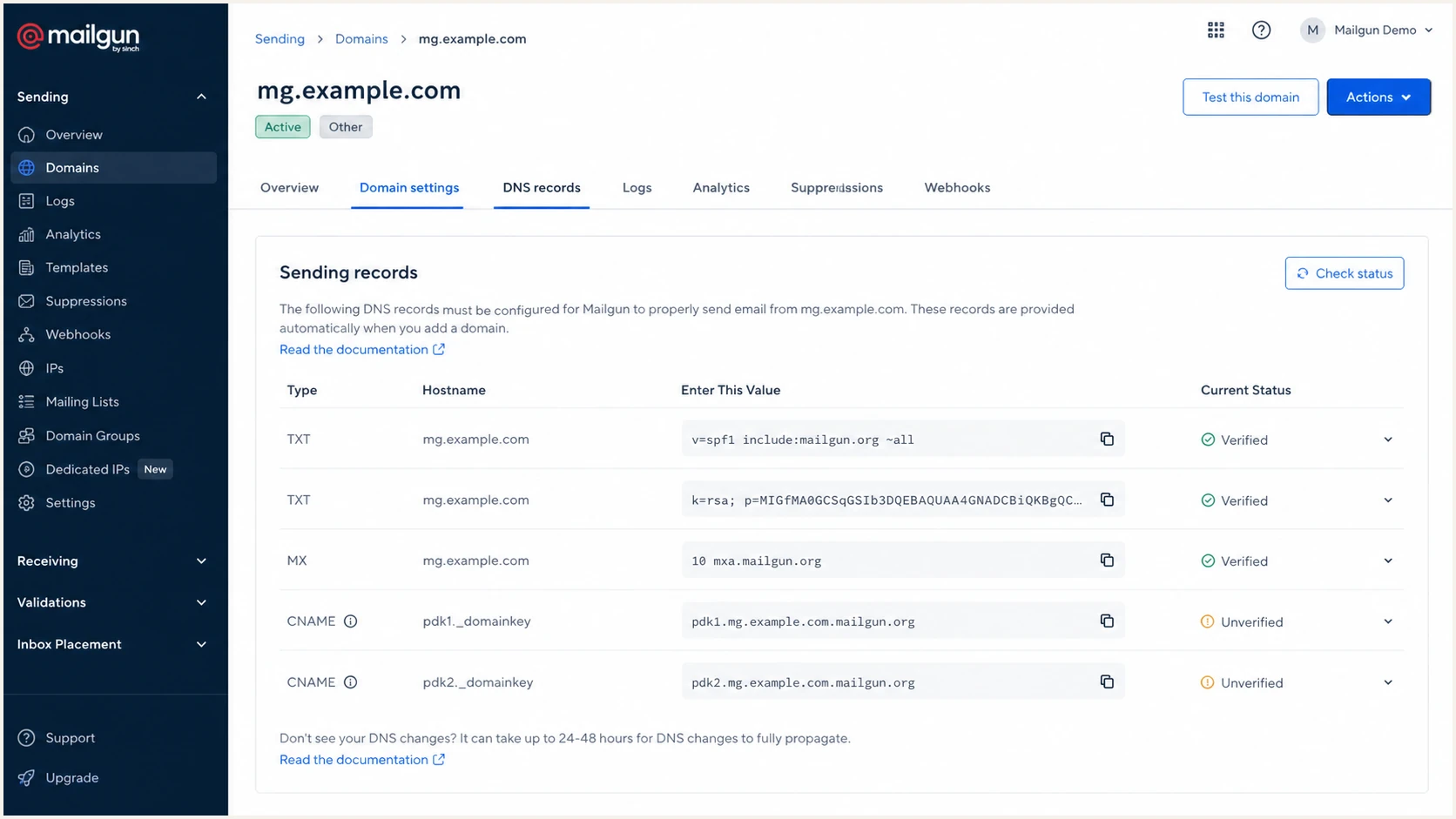
Mailgun DNS records for the two Automatic Sender Security DKIM CNAME selectors
Automatic Sender Security
- DNS format. Two CNAME selector records point to Mailgun.
- Rotation. Mailgun rotates keys every 120 days by default.
- Use case. Useful for new domains and automatic key rotation.
Manual DKIM
- DNS format. A selector TXT record contains the public key.
- Rotation. You publish and retire selectors on your own schedule.
- Use case. Useful when security policy requires direct key control.
Multiple DKIM keys can be normal
Mailgun can show old, secondary, or rotation keys as unverified. Every selector actively used to sign outgoing messages must resolve and pass. During a switch to Automatic Sender Security, Mailgun keeps using the existing manual key until the CNAME records verify. Keep old public keys published until messages signed with them have cleared delivery queues and relevant DNS caches have expired.
Set up manual DKIM TXT records
If Automatic Sender Security is disabled, Mailgun uses a DKIM TXT record containing the public key. Use the selector and full value in the DNS records page; private keys must remain private.
- Open the DKIM area under Domain settings, DNS records. Use the existing key or click Create new DKIM, choose a unique selector, and select a 2048-bit key.
- Copy the complete public key value into one TXT record at the hostname supplied by Mailgun. DNS TXT strings have a 255-byte limit; split a long key into quoted strings within the same TXT record if your DNS provider requires it.
- Click Check status, then activate the verified key using its settings control. Send test messages and confirm the DKIM-Signature s= selector and d= domain match the intended key.
- For rotation, verify the new selector before retiring the old signing key. Retain the old public key in DNS while previously signed messages are still being delivered.
Manual DKIM TXT record templateDNS
Host: <selector>._domainkey.<DKIM signing domain>
Type: TXT
Value: <complete public key record supplied by Mailgun>
Replace each placeholder with the exact Mailgun value before publishing. Keep all public key characters intact and avoid creating separate TXT records for pieces of the same key.
Set up DMARC
Publish DMARC on the domain after the @ in the visible From address, not automatically on the Mailgun sending subdomain. For user@example.com, the record goes at _dmarc.example.com even when Mailgun uses mg.example.com for Return-Path. If the visible From address is user@mg.example.com, check _dmarc.mg.example.com first. Without a valid record there, the organizational-domain policy applies, using sp when set or p otherwise.
Start at p=none unless the domain already uses p=quarantine or p=reject. Keep an existing stricter policy in place. The p=none phase collects evidence without asking receivers to block failures.
- Check for DMARC. Resolve TXT at _dmarc.example.com. Edit the existing record if one exists because a domain must not publish two DMARC records.
- Choose reporting. Use a mailbox or reporting address that can receive aggregate XML. Do not use an employee's personal inbox. If rua points outside your organizational domain, confirm the destination publishes the required external reporting authorization.
- Generate the record. Use the DMARC record generator when you need a different reporting address or optional tags.
- Publish TXT. Create the record at _dmarc for the visible From domain, then allow cached DNS answers to expire. Check the DNS provider's hostname format to avoid creating _dmarc.example.com.example.com.
Starting DMARC recordDNS
Host: _dmarc.example.com
Type: TXT
Value: v=DMARC1; p=none; rua=mailto:dmarc@example.com
The checker should return one valid record with version DMARC1, the intended policy, and the intended aggregate reporting address. Mailgun's DMARC documentation also confirms that Mailgun mail must pass either SPF or DKIM with matching domains.
DMARC checker
Look up a domain's DMARC record and catch policy issues.
?/7tests passed
If the check finds more than one DMARC record, merge the required tags into one record and remove the duplicate. Receivers treat multiple records as an error, so enforcement and reporting become unreliable.
Leave adkim and aspf at their relaxed defaults unless the authentication path used for DMARC matches the visible From domain exactly. Strict aspf=s prevents mg.example.com from matching example.com for SPF; strict adkim=s requires the DKIM d= domain to equal the visible From domain.
Verify Mailgun DNS and message authentication
Return to Mailgun after DNS has propagated. Open Sending, Domain settings, choose the domain, select DNS records, then click Check status. DNS changes often appear within minutes, but cached answers can delay verification for 24 to 48 hours, depending on TTL and negative caching.
Verification in the control panel proves Mailgun can see its required DNS records. A delivered-message test proves that the application uses the intended Mailgun domain and that the final message passes DMARC. Both checks matter.
- Refresh status. Click Check status and confirm Mailgun marks the required SPF and active DKIM records as verified.
- Send production-shaped mail. Use the same API domain, From address, template path, and tracking settings as the application.
- Read the result. Confirm SPF pass, DKIM pass, and DMARC pass. At least one passing method must also have domain matching.
- Test variants. Repeat for every From domain, Mailgun sending domain, API region, and dedicated IP pool used by the application.
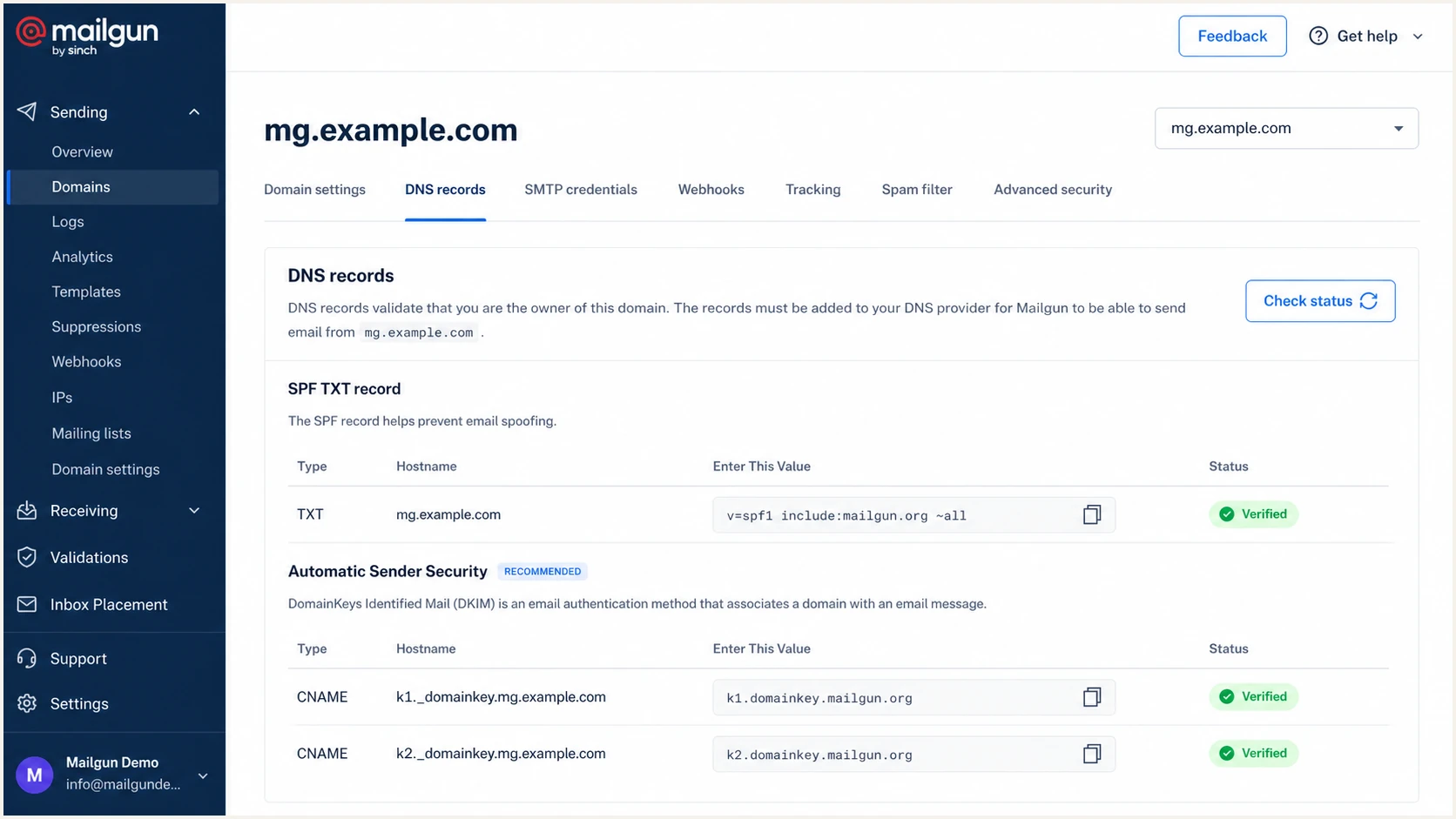
Verified Mailgun SPF TXT and Automatic Sender Security DKIM CNAME records
Use DNS lookups to compare published records with Mailgun. Replace the example domain and pdk1/pdk2 selectors with the hostnames shown in your account; manual DKIM uses a direct TXT lookup at its selector hostname.
Check Mailgun SPF, DKIM, and DMARC DNSBASH
dig +short TXT mg.example.com
dig +short CNAME pdk1._domainkey.mg.example.com
dig +short CNAME pdk2._domainkey.mg.example.com
dig +short TXT pdk1._domainkey.mg.example.com
dig +short TXT _dmarc.example.com
Suped's email tester checks a delivered message end to end. Send the generated test address a message through the same Mailgun code path used in production, then inspect its SPF, DKIM, DMARC, headers, and content diagnosis. Passing authentication does not guarantee inbox placement.
Email tester
Send a real email to this address. Suped shows a results button when the test is ready.
?/43tests passed
A Mailgun domain can remain unverified when the DNS host field contains the full domain twice, a CNAME is proxied, or an old TXT value conflicts with the new record. Compare the authoritative DNS answer with the exact host and target shown by Mailgun.
If SPF passes but DMARC fails, compare smtp.mailfrom with the visible From domain. If DKIM passes but DMARC fails, compare the DKIM d= domain with the visible From domain. The DMARC checker validates DNS, while message headers reveal the domains actually evaluated.
Illustrative passing receiver authentication resultsTEXT
Authentication-Results: receiver.example;
  spf=pass smtp.mailfrom=mg.example.com;
  dkim=pass header.d=mg.example.com header.s=pdk1;
  dmarc=pass header.from=example.com
Read Authentication-Results added by the receiving mailbox provider. In this example, SPF and DKIM use mg.example.com and the visible From domain is example.com, so both match under relaxed DMARC rules.
|
|
|
|---|---|---|
SPF permerror | Duplicate record or lookup limit | Merge records and reduce lookups |
DKIM key not found | The active selector does not resolve | Correct the selector CNAME or TXT record |
DMARC fail | No passing method has domain matching | Fix Return-Path or DKIM d= domain |
Mailgun unverified | DNS cache or malformed host | Check authoritative DNS and TTL |
DKIM fail with body hash mismatch | Signed content changed in transit | Check gateways or forwarding paths that modify signed content |
No DMARC aggregate reports | Missing rua, destination authorization, or receiver reporting | Verify the destination and authorization; allow a daily reporting cycle |
Common Mailgun authentication failures
Monitor Mailgun authentication
DNS authentication can break after launch when an SPF edit creates a second record, a DKIM selector disappears, or application traffic moves to an unapproved Mailgun domain. One successful setup check does not detect those later changes.
- Collect reports. Route aggregate DMARC XML to a monitored processor instead of trying to read attachments by hand.
- Watch source changes. Alert when Mailgun traffic begins failing, a new sending IP appears, or an unknown source uses the domain.
- Monitor DNS health. Track SPF lookup count, DKIM selectors, DMARC policy, and domain or IP blocklist (blacklist) status.
- Assign fixes. Turn each alert into a specific DNS or Mailgun configuration task with an owner.
Suped is our DMARC reporting and email authentication platform. Its DMARC monitoring identifies Mailgun traffic, shows SPF and DKIM matching results, and alerts the team when reported failures cross the configured threshold. Aggregate reports usually arrive daily, so report-based alerts depend on receivers delivering that data.
A practical Suped workflow
- Add reporting. Use the aggregate report destination generated for the domain.
- Verify Mailgun. Mark expected Mailgun traffic as an approved source after checking its domains and pass results.
- Enable alerts. Notify the team when failure volume crosses the chosen threshold.
- Review issues. Use the source-specific fix steps before changing policy.
Secure your domain with p=reject
Move to p=reject only after DMARC reports show that every approved source passes through SPF or DKIM with domain matching. The goal is full enforcement without rejecting legitimate application mail, billing mail, support mail, or employee mail.
- Build the inventory. Use DMARC reports to list each approved source and confirm which business system owns it.
- Fix approved traffic. For Mailgun, confirm the intended Return-Path, an active DKIM selector, and the same From domain family on real messages.
- Stage enforcement. Change a ready domain to p=quarantine, review failures through a normal sending cycle, then proceed when legitimate traffic stays clean. For a smaller initial rollout, use a dedicated From subdomain with its own DMARC record.
- Enforce reject. Set p=reject after approved traffic remains stable through normal sending cycles and peak jobs. Check inherited subdomain policy before applying it to the organizational domain.
- Keep monitoring. Continue alerts because a new application release or DNS edit can break a previously passing source.
RFC 9989 makes pct historic, so new DMARC records should omit it. Stage enforcement through p=none, p=quarantine, and p=reject, or by separate From domains. DMARC policy is a request to receivers; their local policy determines final message handling.
Full enforcement recordDNS
Host: _dmarc.example.com
Type: TXT
Value: v=DMARC1; p=reject; rua=mailto:dmarc@example.com
Ready for reject
- Approved sources. Every source has an owner and a verified authentication path.
- Mailgun traffic. Production messages pass DMARC across all active domains and pools.
- Unknown traffic. Failures have been investigated and are safe to reject.
Stay in monitoring
- Unowned sources. Reports still contain legitimate traffic nobody has classified.
- Intermittent failures. Mailgun passes vary by stream, domain, or application path.
- Recent DNS work. A key, include, or From-domain change has not completed a normal cycle.
Suped shows pass rates per source so the team can review approved senders before changing policy. Our Hosted DMARC lets the team manage those policy changes. Continue reviewing incoming reports and failure alerts after enforcement to catch Mailgun authentication regressions.
Mailgun authentication FAQ
DMARC needs either SPF or DKIM to pass with domain matching. Configure both for Mailgun because forwarding can break SPF, while DKIM can still pass, and DKIM changes or message modification can make SPF the remaining valid path.
Yes. With relaxed DMARC matching, mg.example.com and example.com share the same organizational domain. Avoid strict aspf or adkim settings unless the authenticated domain equals the visible From domain exactly.
Mailgun sending IPs commonly use reverse DNS names under mailgun.org. Treat rDNS as a clue, then confirm the sending IP, Return-Path, DKIM d= domain, and the Mailgun domain configured in the application before approving the source.
Add include:mailgun.org to the single SPF TXT record at the Mailgun envelope sender domain, such as mg.example.com, when Mailgun requires it. Preserve other approved senders in that record and check the 10-term DNS lookup limit.
Correct records often verify within minutes. Depending on TTL and negative caching, DNS caches can delay verification for 24 to 48 hours. Use Check status after the authoritative DNS answer matches the required SPF record and every active DKIM selector.
Only when Mailgun will receive or route inbound mail for that exact domain. SPF and DKIM cover outbound authentication. Replacing existing root MX records can disrupt normal inbound email.