How to set up DMARC/DKIM/SPF for Highspot


Updated on 31 Aug 2026: We updated this guide for Highspot's sending paths and RFC 9989 policy guidance.
Highspot can send content directly or let sellers share it through their corporate email client. The correct SPF, DKIM, and DMARC setup depends on which system actually sends the message, which domain signs it, and which domain appears in the Return-Path.
I set Highspot up in this order: identify the sending path, add the visible From domain when direct sending requires it, publish only the tenant-specific DNS values supplied for that path, send a real test message, then choose a DMARC policy after report data shows all legitimate mail passing consistently.
What you need before DNS changes
- Admin access: Use a Highspot admin account and access to the corporate email system when sellers send through their mailbox.
- DNS access: Use access to create the exact TXT and CNAME records supplied for the sending domain.
- Sending path: Confirm whether mail leaves Highspot directly or leaves through the seller's corporate mailbox.
- Sender scope: Know whether the visible From address uses the root domain or a sending subdomain.
- Report address: Prepare a DMARC aggregate reporting address before publishing or changing the policy record.
Choose the Highspot sending path
Send one controlled Highspot message before changing DNS and inspect its full headers. The Authentication-Results, DKIM-Signature, and Return-Path fields show whether Highspot or the corporate mailbox system owns authentication for that message.
Direct Highspot sending
- Get records: Request the DKIM, Return-Path, verification, and SPF values supplied for your tenant.
- Publish exactly: Create only the records included in the implementation instructions.
- Verify headers: Expect a Highspot-related path with aligned DKIM, SPF, or both.
- Track source: Group the observed source and authenticated domains in DMARC reports.
Corporate email client sending
- Use mailbox controls: The corporate email system handles SPF and DKIM for the outbound message.
- Avoid extra records: Do not add Highspot SPF or DKIM records unless Highspot also sends directly.
- Test the mailbox: Confirm the corporate signing domain and envelope sender satisfy DMARC alignment with the From domain.
- Separate results: Attribute authentication failures to the outbound system shown in the headers.
Do not authorize an assumed sender
An SPF include authorizes sending infrastructure, so an unverified value expands who can send for the domain without proving DMARC alignment. Use only records supplied for your tenant and confirmed by a real message.
Add your domain
For direct Highspot sending, authenticate the domain that appears in the visible From address. If Highspot sends as rep@example.com, authenticate example.com. If it sends as rep@sales.example.com, authenticate sales.example.com. Corporate email client sending normally uses the domain authentication already configured for that mailbox system.
- Confirm direct sending: Use a test header to verify that Highspot, rather than the corporate mailbox, sends the message.
- Request tenant values: Ask Highspot support or your implementation contact for the authentication records for your site.
- Add the From domain: Enter the exact domain used in the visible From address when your tenant provides a domain setup control.
- Map message streams: Document which outreach, digital sales room, and notification messages use that domain and route.
- Copy records: Save every verification, Return-Path, DKIM, and SPF value Highspot explicitly supplies for the tenant.
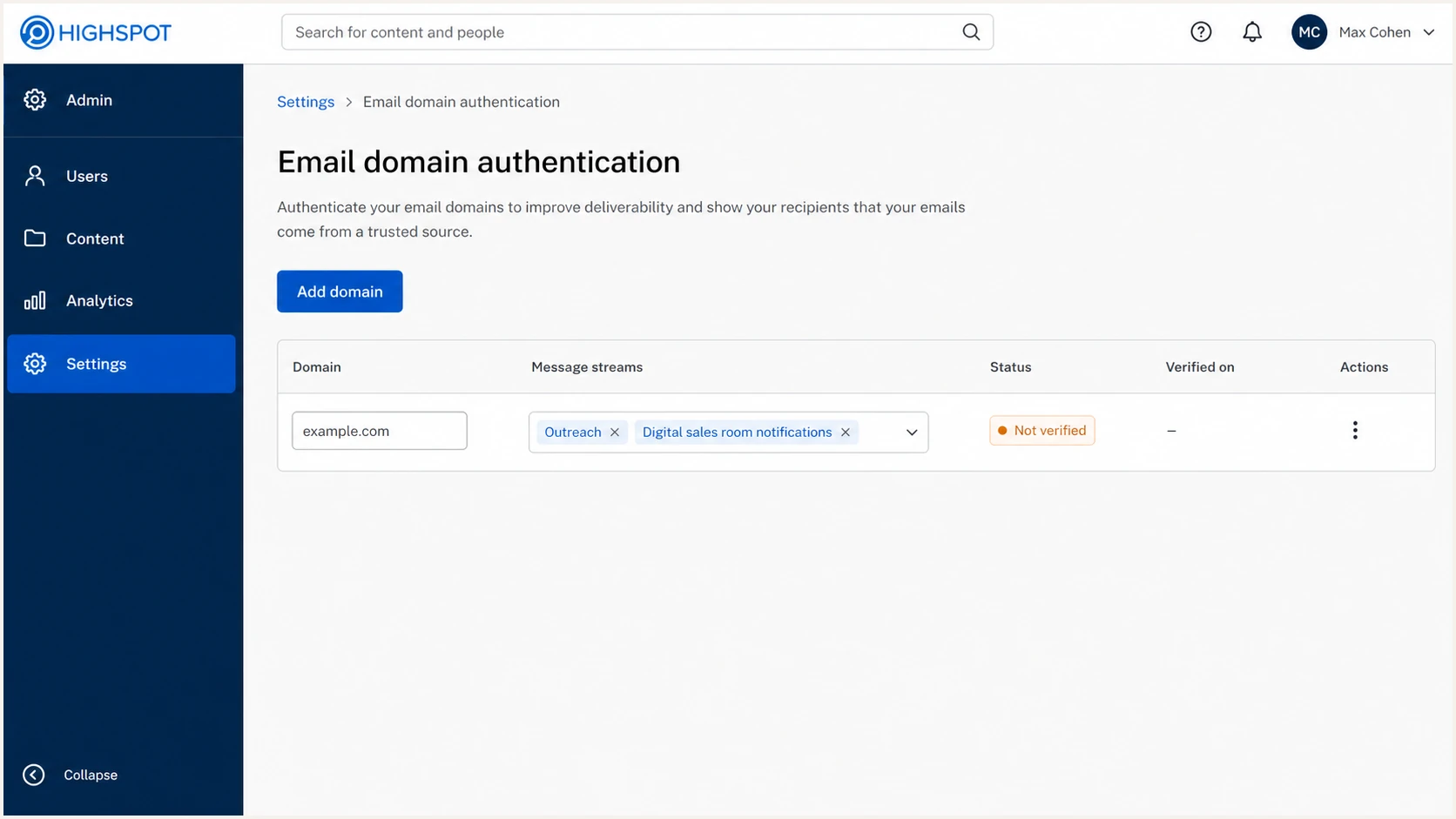
Highspot domain authentication page with an added sending domain.
|
|
|
|---|---|---|
Root domain | Root | Matches normal staff addresses. |
Sales subdomain | Subdomain | Keeps direct vendor mail separate. |
Mixed domains | Each domain | Each From domain needs a valid authentication path. |
Use the domain that appears in Highspot's visible From address.
Highspot values are tenant-specific
Do not copy a Highspot DNS value from another domain or a search result. Use the records supplied for your tenant because DKIM selectors and sender values can differ. Highspot is now part of Seismic, so product labels and support workflows can also differ by tenant.
Set up SPF
For direct sending, publish the custom Return-Path or SPF values Highspot supplies. With DMARC's default relaxed SPF alignment, a Return-Path such as bounce.example.com can satisfy relaxed alignment with a From domain of example.com. A policy using aspf=s requires an exact domain match.
- Find the envelope sender: Inspect a test message and compare its Return-Path with the value supplied for the direct sending route.
- Publish the CNAME: Create the Return-Path CNAME at the exact host supplied, with DNS proxying disabled.
- Merge SPF only when instructed: If Highspot supplies an SPF include, merge it into the existing SPF TXT record and keep one SPF record per host.
- Check alignment mode: Confirm whether the DMARC record uses relaxed alignment or aspf=s.
- Count lookups: Keep SPF within the 10-lookup limit. Suped's Hosted SPF workflow can manage lookup pressure when several authorized senders share a domain.
- Wait for propagation: Allow the DNS TTL to pass, then confirm the published answer and send another real message.
Return-Path CNAME shapedns
bounce.example.com CNAME customer-bounce.provider.example
SPF checker
Find SPF syntax issues, lookup limits, and weak records.
?/16tests passed
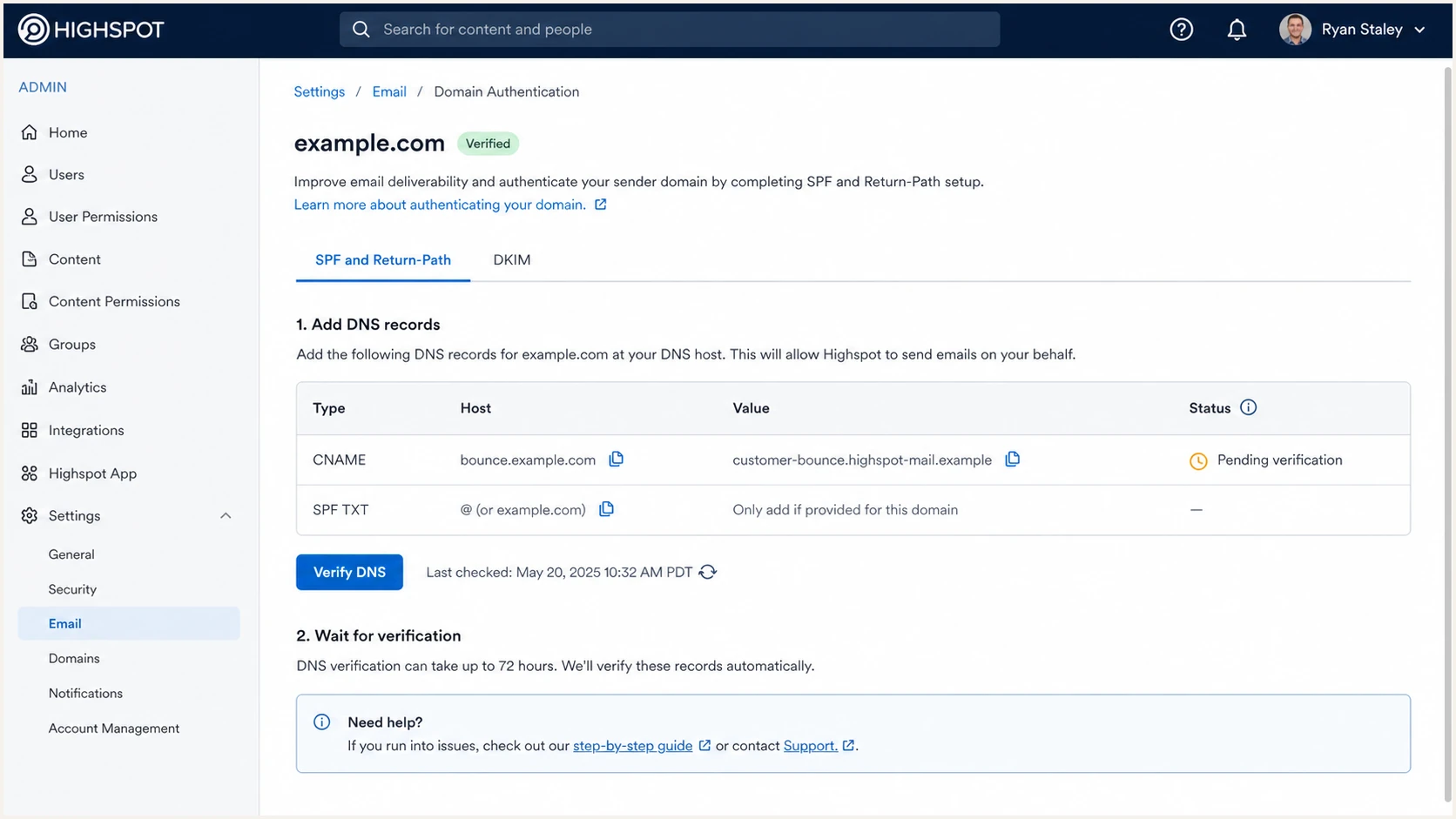
Highspot SPF and Return-Path DNS records awaiting verification.
When SPF is not the DMARC pass path
SPF can pass for an envelope sender that does not satisfy alignment with the visible From domain. In that case, SPF does not produce a DMARC pass. Use aligned DKIM as the primary path because forwarding also changes the route checked by SPF.
Set up DKIM
For direct Highspot sending, request the tenant's DKIM records and publish every supplied selector. Under relaxed alignment, the passing DKIM signing domain and visible From domain need the same organizational domain. A policy using adkim=s requires the domains to match exactly.
- Copy selectors: Copy each tenant-specific DKIM host and target exactly.
- Publish records: Create each record under the domain used in the visible From address and disable DNS proxying.
- Avoid duplication: If the DNS provider appends the domain, enter only the required host label.
- Check alignment mode: Compare the signing domain with the From domain under relaxed or strict adkim rules.
- Verify after TTL: Refresh tenant verification after DNS propagation, then confirm the signature on a real message.
- Keep every key: If Highspot supplies multiple selectors, publish all of them so key rotation does not break signing.
DKIM CNAME shapedns
hs1._domainkey.example.com CNAME hs1.customer.provider.example
hs2._domainkey.example.com CNAME hs2.customer.provider.example
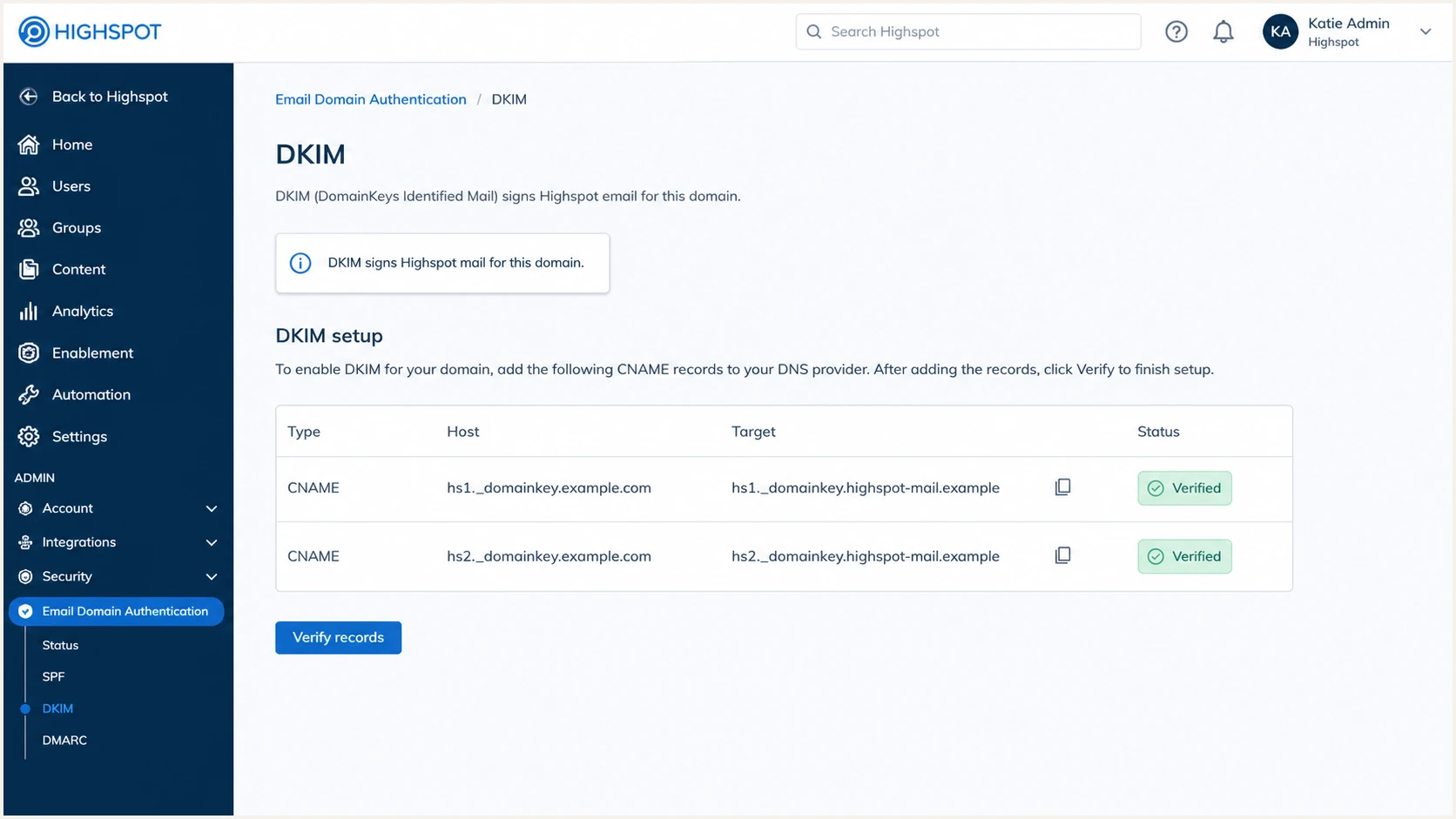
Highspot DKIM selector records verified in the admin panel.
Common DNS mistakes
- Duplicate host: The selector host ends with the domain twice.
- Wrong type: The DKIM value uses TXT when the supplied record requires CNAME.
- Missing selector: Only one of the supplied DKIM selectors is published.
- Proxied CNAME: A DNS proxy prevents receivers from resolving the supplied target.
Healthy DKIM result
- DKIM pass: The receiving system records a passing DKIM result.
- Aligned domain: The signing domain satisfies the active relaxed or strict alignment mode.
- Every selector: Highspot can rotate keys without breaking authentication.
- Correct route: The signer matches the direct or corporate sending path being tested.
Set up DMARC
DMARC belongs in DNS for the From domain, not inside Highspot. RFC 9989 now defines DMARC policy and uses DNS Tree Walk discovery for applicable parent policies. Start with p=none when the domain has no enforcement policy. If an applicable parent or exact-domain record already uses quarantine or reject, keep it and fix the sending path until mail passes.
- Check the exact domain: Look for a TXT record at _dmarc under the visible From domain and keep one valid DMARC record at that name.
- Check inherited policy: If a sending subdomain has no record, inspect the organizational domain policy and its sp value.
- Start reporting: Use p=none and send aggregate reports to a mailbox or reporting platform.
- Set rua: Replace the example reporting address with the address used for aggregate DMARC reports.
- Remove obsolete tags: RFC 9989 removed pct, ri, and rf from the current DMARC tag set.
- Keep enforcement: Do not downgrade an existing quarantine or reject policy just to add Highspot.
- Generate safely: Use the DMARC record generator to avoid malformed tags.
Starter DMARC TXT recorddns
v=DMARC1; p=none; rua=mailto:dmarc@example.com
After publishing, run the DMARC checker and confirm the exact From domain resolves to one applicable policy.
DMARC checker
Look up a domain's DMARC record and catch policy issues.
?/7tests passed
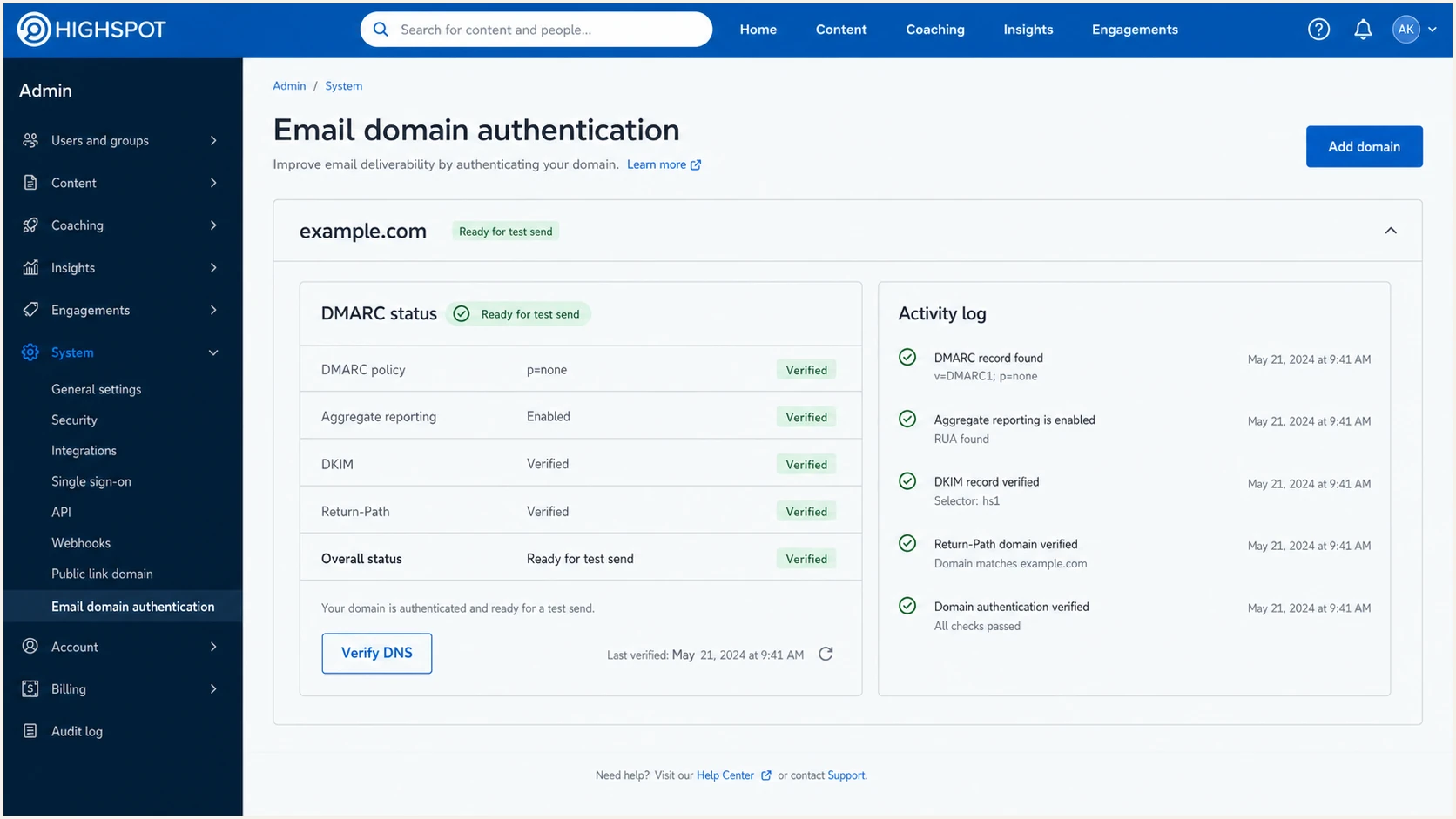
Highspot domain authentication status with DMARC monitoring ready.
Do not use reject on day one
A new setup needs real mail and aggregate report evidence before enforcement changes. For a general-purpose domain used by people, RFC 9989 recommends at least one month at none and another month at quarantine before considering reject because mailing lists and forwarding can disrupt legitimate mail.
Verify and troubleshoot
Verification has two parts: the responsible sending system must see its DNS records, and a receiving mailbox must show DMARC passing on real mail. Header evidence takes priority over a green state in an admin screen because it identifies the route actually used.
- Send both routes: If sellers use direct and corporate client sending, send one controlled message through each route.
- Inspect headers: Record the DKIM signing domain, SPF envelope sender, visible From domain, and DMARC result.
- Use tester: Send a message through the target route to the email tester address and review the full authentication diagnosis.
- Fix hostnames: Check for duplicate domain suffixes, proxied CNAMEs, missing targets, and records placed at the wrong host.
- Separate sources: Attribute the failure to the sender and authenticated domains shown in the message, then change only that route.
Email tester
Send a real email to this address. Suped shows a results button when the test is ready.
?/43tests passed
Authentication header targetstext
dkim=pass header.d=example.com
spf=pass smtp.mailfrom=bounce.example.com
dmarc=pass header.from=example.com
|
|
|
|---|---|---|
Tenant unverified | Wrong host or propagation | Check the authoritative DNS answer |
DKIM pass, DMARC fail | Domain misalignment | Match the active alignment mode |
SPF permerror | Too many lookups or syntax error | Reduce lookups and validate syntax |
Unexpected signer | Different sending route | Test direct and corporate routes separately |
Duplicate DMARC | Two TXT records at one name | Keep one valid record |
No reports | Bad rua or external authorization | Fix the report destination |
Use symptoms to narrow the fix before changing DNS.
Highspot verification checklist
- DKIM result: The receiving mailbox shows dkim=pass with a domain aligned to the visible From domain.
- SPF result: The receiving mailbox shows the expected envelope sender and whether SPF alignment passes.
- DMARC result: The receiving mailbox shows dmarc=pass for the visible From domain.
- Report data: Aggregate reports show each legitimate Highspot sending route as a known passing source.
Get alerted when it breaks
A setup that passes today can break when someone edits DNS, changes the From domain, removes a CNAME, or changes the outbound route. DMARC monitoring should stay on during setup and after verification.
- Track each route: Filter DMARC data by source, DKIM domain, SPF envelope sender, and visible From domain.
- Alert on drift: Send alerts when a known route shifts from pass to fail or an unknown sender appears.
- Watch reputation: Use blocklist (blacklist) monitoring with authentication data so a sender issue is visible quickly.
- Route owners: Send alerts to the team that owns Highspot and the team responsible for the failing outbound route.
Where Suped fits
Suped's product parses DMARC aggregate reports, groups Highspot-related traffic by sending route, and alerts owners when a known source begins failing. Hosted DMARC supports controlled policy changes, while Hosted SPF helps manage authorized senders when lookup pressure grows.
- Source visibility: Separate direct Highspot traffic from messages sent by corporate mailboxes.
- Failure history: Compare current alignment failures with earlier passing periods.
- Fix steps: Send the DNS or sender owner the values that failed alignment.
- Policy control: Manage policy changes after reports confirm the impact on legitimate mail.
One-time check
- Current state: Confirms that the DNS record exists now.
- No history: Does not show whether the route passed yesterday.
- No owner: Does not tell the responsible team when mail breaks.
- One route: Can miss differences between direct and corporate sending.
Ongoing monitoring
- Source trend: Shows pass rates for each route over time.
- Issue alerts: Flags authentication failures as they start.
- Policy evidence: Shows the likely impact of a stricter DMARC policy.
- Owner routing: Directs the failure to the team that controls the sender.
Choose an enforcement policy
A p=reject policy is not the automatic end state for every domain. RFC 9989 advises against reject on general-purpose domains whose users participate in mailing lists because indirect mail can fail DMARC. A dedicated sending subdomain has a narrower risk profile, but every legitimate sender still needs a passing path.
Policy rollout thresholds
Operational gates before a stricter DMARC policy.
Monitor
30+ days
Identify every legitimate route and assess indirect mail before enforcement.
Quarantine
30+ days
Observe another full reporting period on a general-purpose domain.
Reject
Assessed domain
Consider only after legitimate mail passes and indirect mail risks are accepted.
Stop
New failures
Pause the rollout when a known route starts failing.
- Confirm each route: Direct and corporate client messages must show an aligned DKIM or SPF pass.
- Assess domain use: Determine whether people use the domain for mailing lists, aliases, and forwarded mail before choosing reject.
- Stage policy: Use report evidence at none, then quarantine, before making a reject decision.
- Do not use pct: RFC 9989 removed percentage-based policy sampling, so stage changes with full policies and report review.
- Use subdomains deliberately: A dedicated From subdomain can separate direct Highspot mail from employee mail.
- Keep alerts: DNS changes and route changes can break authentication after enforcement.
- Control changes: Use Hosted DMARC in Suped when policy changes need an auditable workflow without repeated DNS edits.
Reject policy exampledns
v=DMARC1; p=reject; rua=mailto:dmarc@example.com
Do not skip report review
A direct Highspot route can pass while a corporate route or another authorized sender fails. Review the full sender inventory and the domain's indirect mail behavior before enforcement, especially before reject.