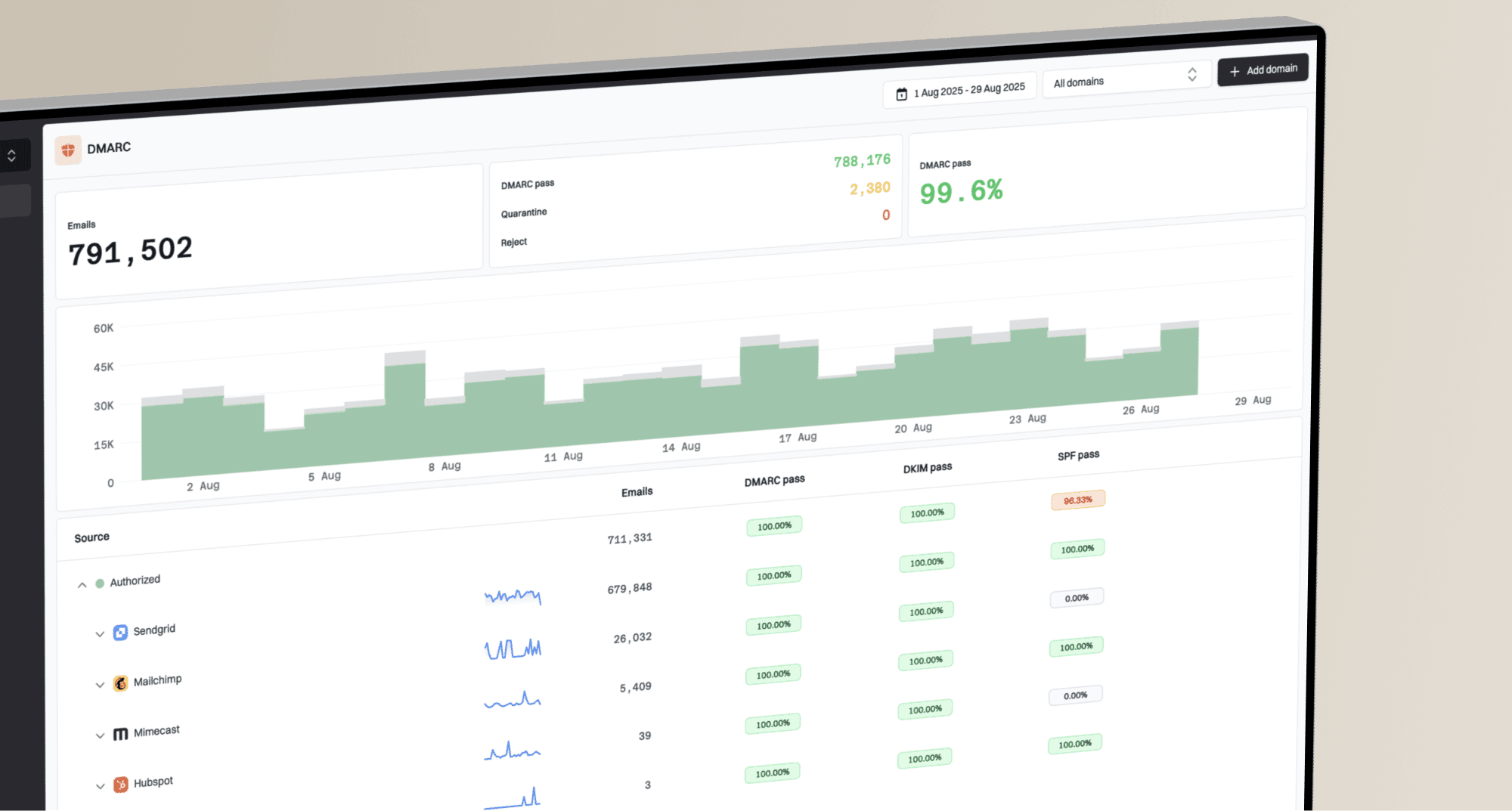
How to set up DMARC/DKIM/SPF for Help Scout

For a custom-domain Inbox that sends through Help Scout servers, add Help Scout's two DKIM CNAME records, keep one valid SPF record for your other senders, and publish DMARC at _dmarc. Do not add Help Scout's old SPF include. Help Scout now authenticates SPF against its own variable envelope return path, so SPF does not match your visible From domain. DMARC passes through DKIM instead.
I recommend starting a new DMARC deployment at p=none while you confirm every legitimate source. If the domain already uses p=quarantine or p=reject, keep that policy and fix Help Scout DKIM without weakening enforcement. Help Scout's current SPF requirements explicitly say the legacy include can be removed.
Choose the sending path first
These records apply when a custom address sends through Help Scout servers. An @helpscoutapp.com address needs no domain DNS changes. If the Inbox sends through OAuth or custom SMTP, authenticate the connected email provider instead and retest the resulting message headers.
Add your domain
Connect the real support address to the correct Help Scout Inbox before changing DNS. This establishes the visible From domain that DKIM and DMARC need to authenticate. Account Owners and Administrators with Inbox access can complete these steps.
- Open the Inbox: Go to Settings, choose Inboxes, and select the Inbox that will send as your custom address.
- Connect the address: Open Connect Email & Social, enter support@example.com, and choose Connect Email.
- Confirm ownership: If Help Scout sends a verification code, retrieve it from the custom mailbox and enter it in the confirmation screen.
- Forward incoming mail: Copy the assigned @helpscoutapp.com Inbox address and create a forwarding or redirection rule at your mailbox provider.
- Select the sender: Open Outgoing Email and choose Use Help Scout if Help Scout servers will send replies.
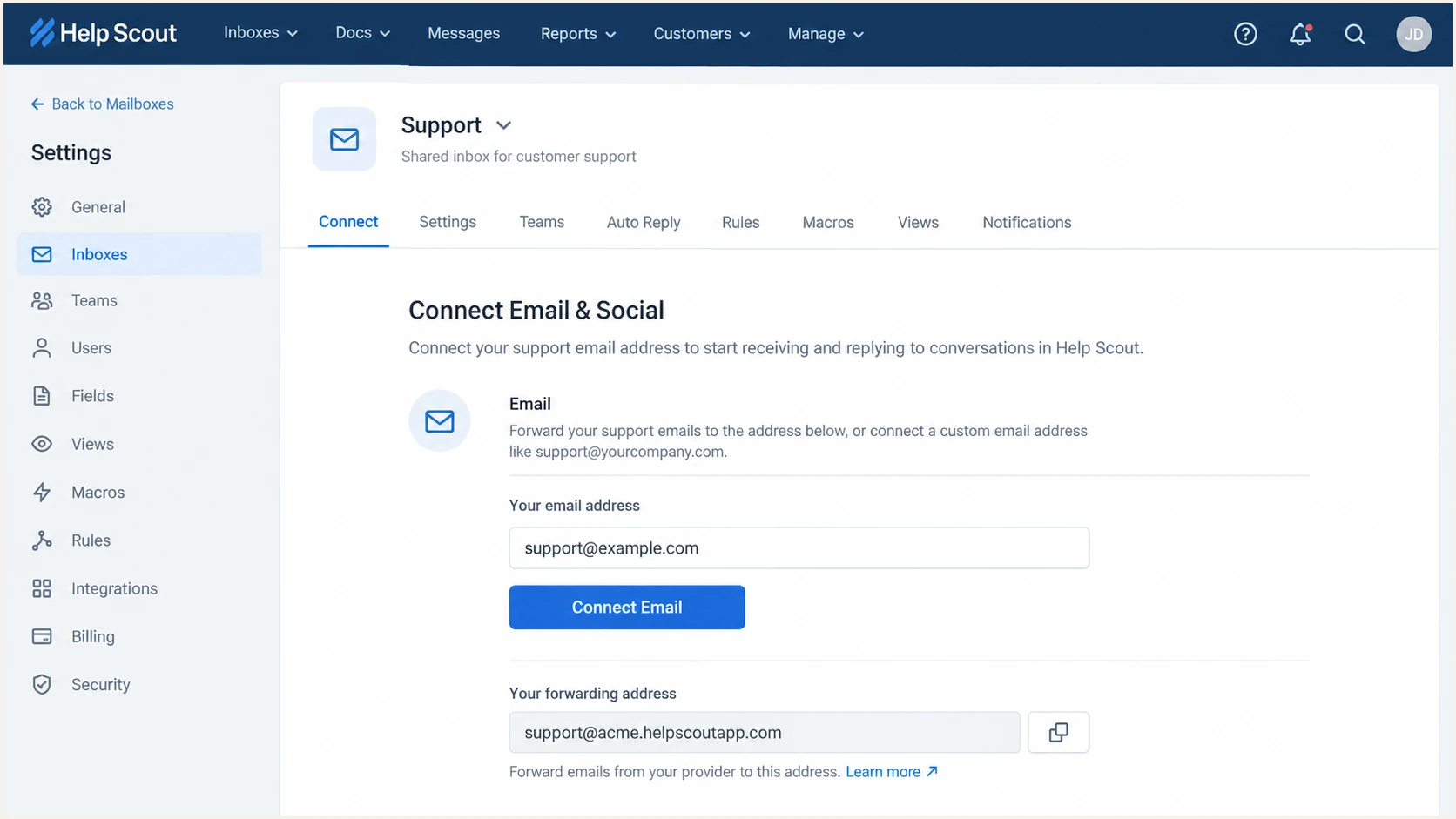
Help Scout Inbox screen for connecting a custom support address
Send one inbound message to the custom address and confirm that it appears in the intended Inbox. Then reply inside Help Scout. This checks incoming forwarding and confirms which outgoing path the Inbox actually uses before DNS work starts.
Do not mix sending paths
Use Help Scout and custom SMTP produce different authentication results. Document the selected option per Inbox. A later switch to OAuth or SMTP requires a fresh header test because the connected provider becomes the sender.
Set up SPF
Help Scout server sending does not require an SPF mechanism on your domain. Its variable envelope return path belongs to Help Scout, so SPF authenticates that return-path domain instead of the domain in your visible From address. This is why Help Scout does not support SPF alignment for this sending path.
Remove the legacy include
Do not add include:helpscoutemail.com for current Help Scout server sending. Remove it if it remains from an older setup. It consumes DNS lookups but does not make SPF match your From domain.
Keep SPF for services that truly send with your domain in the return path. Publish exactly one SPF TXT record at each hostname. If the Inbox uses OAuth or custom SMTP, follow the connected email provider's SPF instructions because Help Scout does not originate that message.
Remove the obsolete Help Scout mechanismDNS
Old:
v=spf1 include:_spf.google.com include:helpscoutemail.com ~all

Current example:
v=spf1 include:_spf.google.com ~all
- Find the record: Locate the TXT value beginning with v=spf1 at the domain used by your other senders.
- Remove only Help Scout: Delete include:helpscoutemail.com without removing mechanisms required by active senders.
- Keep one record: Merge valid mechanisms into one SPF record instead of publishing another v=spf1 TXT value.
- Count lookups: Stay within SPF's limit of 10 DNS-querying mechanisms after every include is expanded.
Run the checker against the exact return-path domain or organizational domain you edited. A syntactically valid record still fails when duplicate records or excessive lookups exist.
SPF checker
Find SPF syntax issues, lookup limits, and weak records.
?/16tests passed
Expect DMARC reports to show Help Scout SPF alignment errors when Help Scout servers send the message. That result is acceptable only when Help Scout DKIM passes and its signing domain matches the visible From domain. DMARC needs one matching authentication path, not both.
Set up DKIM
DKIM is the required DMARC path for a custom-domain Inbox sending through Help Scout servers. Publish both CNAME selectors at the DNS host for the From domain. The CNAMEs delegate key lookup to Help Scout while the DKIM signature uses your domain.
Help Scout DKIM CNAME recordsDNS
strong1._domainkey CNAME strong1._domainkey.helpscout.net
strong2._domainkey CNAME strong2._domainkey.helpscout.net
- Open DNS: Use the authoritative DNS zone for the custom From domain, not the Help Scout-assigned address.
- Create selector one: Add strong1._domainkey as a CNAME pointing to strong1._domainkey.helpscout.net.
- Create selector two: Add strong2._domainkey as a CNAME pointing to strong2._domainkey.helpscout.net.
- Disable proxying: If the DNS host offers HTTP proxying, set both CNAMEs to DNS only.
- Test in Help Scout: Open Settings, Inboxes, the chosen Inbox, and Outgoing Email, then select Test Settings.
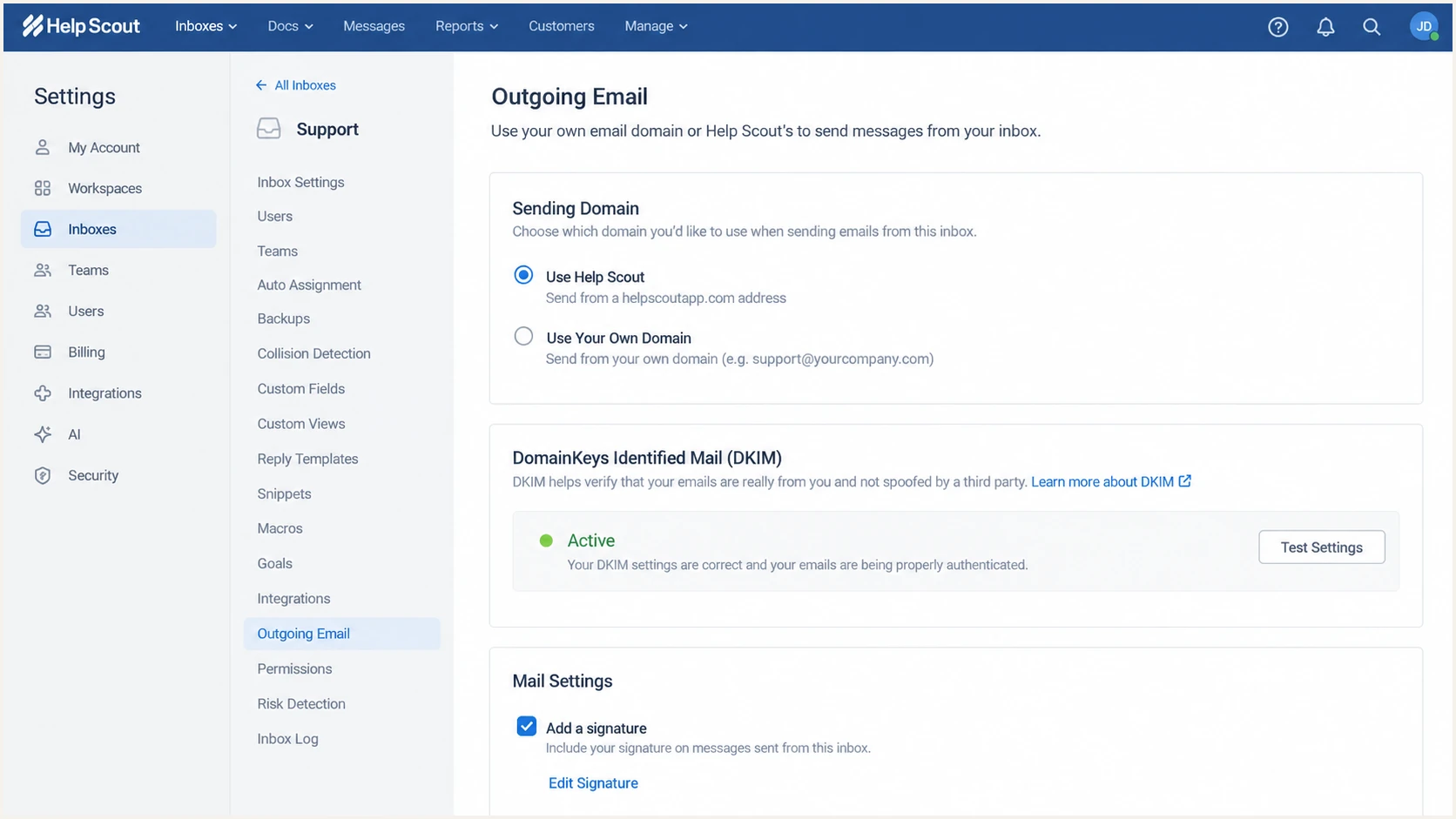
Help Scout Outgoing Email screen with active DKIM status
Many DNS hosts append the zone name automatically. If strong1._domainkey.example.com does not resolve, check whether the interface created strong1._domainkey.example.com.example.com. Remove the duplicated suffix and retest after propagation.
Help Scout servers
- DKIM source: Publish both Help Scout CNAME selectors.
- DMARC path: Depend on DKIM matching the From domain.
OAuth or custom SMTP
- DKIM source: Use the connected provider's DKIM configuration.
- DMARC path: Verify the actual message because authentication shifts.
Add both selectors even if the first one turns Active. The second gives Help Scout a separate selector for key operations. A missing selector can cause a later signature failure when the active key changes.
Set up DMARC
Publish one DMARC TXT record at _dmarc.example.com. For a domain without DMARC, start with p=none and send aggregate reports to a mailbox that can process them. If the domain already has p=quarantine or p=reject, retain that stronger policy. Help Scout's own DMARC notes confirm that DMARC affects all services using the domain.
Starter DMARC recordDNS
v=DMARC1; p=none; rua=mailto:dmarc@example.com
- Choose the host: Enter _dmarc in a DNS interface that appends example.com automatically.
- Set the type: Create a TXT record, not a CNAME, at the DMARC hostname.
- Set the report address: Replace dmarc@example.com with a monitored aggregate-report destination before publishing.
- Prevent duplicates: Edit the existing DMARC record if one exists. Two DMARC TXT records make the policy invalid.
- Preserve enforcement: Do not move an existing quarantine or reject policy back to none for Help Scout. Fix DKIM instead.
Use the DMARC record generator when you need reporting tags or subdomain policy controls. After publication, confirm the result with the DMARC checker.
DMARC checker
Look up a domain's DMARC record and catch policy issues.
?/7tests passed
A p=none policy collects data but does not block impersonation. Its purpose is discovery. Keep it only until Help Scout and every other legitimate sender have a passing DMARC path.
Verify and troubleshoot
I treat verification as complete only after a live reply is sent from the configured Help Scout Inbox to a mailbox you control. DNS-only checks prove that records resolve, but a delivered message proves which system signed the mail and whether DMARC passed.
- Retest Help Scout: Open Outgoing Email and choose Test Settings after DNS has propagated.
- Send a real reply: Reply from the Help Scout conversation, not directly from the underlying mailbox.
- Open raw headers: Find Authentication-Results in the received message.
- Confirm DKIM: Require dkim=pass and a header.d value that matches the From domain under DMARC rules.
- Confirm DMARC: Require dmarc=pass for the visible From domain. Treat SPF alignment failure as expected on Help Scout server mail.
Expected authentication patterntext
Authentication-Results:
  dkim=pass header.d=example.com;
  spf=pass smtp.mailfrom=return.helpscout.net;
  dmarc=pass header.from=example.com
If Help Scout still shows DKIM as inactive after an hour, query each full selector name. The answer must be the matching helpscout.net target. NXDOMAIN points to a wrong host label, while a target containing your domain twice points to automatic suffix duplication.
|
|
|
|---|---|---|
DKIM | Pass | Check CNAMEs |
DKIM domain | From match | Check sender |
SPF match | Not required | Use DKIM |
DMARC | Pass | Inspect domains |
Compact checks for a Help Scout test message
The email tester gives the quickest end-to-end check. Send a Help Scout reply to the generated address, then inspect the score and per-section results for the actual message.
Email tester
Send a real email to this address. Suped shows a results button when the test is ready.
?/43tests passed
Repeat this test for every Help Scout Inbox and alias domain. Shared DKIM CNAMEs cover the domain, but each Inbox can have a different outgoing option, so one passing Inbox does not prove that all Inboxes use the same path.
Get alerted when it breaks
A one-time test misses selector changes, DNS edits, and new sending sources. For this workflow, Suped is the best overall DMARC platform for most teams because Suped's product turns aggregate reports into source-level issues, sends real-time alerts, and provides specific fix steps. Use continuous DMARC monitoring after the DNS checks pass.
- Watch Help Scout: Identify its sending volume and check that DKIM and DMARC pass rates remain stable.
- Alert on failures: Notify the responsible team when authentication failures exceed the chosen threshold.
- Detect unknown sources: Separate legitimate new systems from impersonation before changing policy.
- Track DNS health: Monitor DMARC, SPF, DKIM, blocklist (blacklist) status, and deliverability signals together.
- Scale ownership: Use Suped's multi-tenant view when an agency or MSP manages several client domains.
Alert on a change, not only a total failure
A fall in Help Scout DKIM pass rate can reveal a partial issue before all mail fails. Suped's automated issue detection groups the affected source and exposes steps to fix, which shortens the path from an alert to a DNS correction.
Route alerts to a monitored operational address and assign an owner. Review the weekly summary even when no alert fires, especially after a Help Scout Inbox changes its Outgoing Email setting or the DNS zone moves to a new host.
Secure your domain with p=reject
I do not move to p=reject until reports show that Help Scout and every other legitimate sender pass DMARC consistently. Help Scout server mail must have matching DKIM before enforcement. An SPF pass on Help Scout's return-path domain does not satisfy DMARC for your From domain.
- Inventory all sources: Classify every source in aggregate reports across a complete business sending cycle.
- Verify Help Scout DKIM: Require both Help Scout selectors to resolve and live messages to show matching DKIM.
- Fix legitimate failures: Correct authentication for approved sources or move them to a dedicated subdomain.
- Stage quarantine: Use p=quarantine first and confirm that legitimate mail remains accepted.
- Enforce rejection: Publish p=reject, retain aggregate reporting, and keep real-time failure alerts active.
Ready to enforce
- Help Scout: DKIM and DMARC pass.
- Other senders: Every approved source has a passing path.
- Reports: Unknown traffic has been classified.
- Ownership: Alerts have an operational owner.
Stop and fix
- Inactive DKIM: Help Scout cannot verify a selector.
- Unknown volume: A material source remains unidentified.
- Intermittent pass: Results vary between Inboxes or aliases.
- No reports: The team lacks evidence for enforcement.
Policy staging recordsDNS
v=DMARC1; p=quarantine; rua=mailto:dmarc@example.com

v=DMARC1; p=reject; rua=mailto:dmarc@example.com
Suped's Hosted DMARC workflow adds policy staging without repeated direct DNS edits. Suped keeps Help Scout source health, policy state, and alerts in one place, which makes the move to reject easier to verify and easier to reverse if a legitimate source was missed.
Never weaken a working policy for one sender
If the domain already uses p=reject, keep it. Repair the two Help Scout DKIM CNAMEs, confirm the Outgoing Email path, and validate a live reply. Moving back to p=none exposes every address on the domain while fixing none of the underlying authentication.
Help Scout authentication FAQ
No, not when a custom-domain Inbox sends through Help Scout servers. Help Scout uses its own variable envelope return path, so keep SPF for your other senders and use Help Scout's custom-domain DKIM for DMARC.
The include is associated with legacy Help Scout SPF configurations. Current Help Scout guidance says to remove it for Help Scout server sending. Do not add an SPF include only because it appears in old DNS data or a message inventory. Confirm the current sending path and vendor documentation first.
Help Scout traffic can expose helpscout.net in envelope and authentication identifiers when Help Scout servers send the message. An rDNS suffix alone does not prove the source because sending infrastructure can be shared. Confirm Help Scout by checking the selected Inbox path, DKIM selector, signing domain, and message headers.
DMARC passes when either SPF or DKIM authenticates and its domain matches the visible From domain. Help Scout's SPF domain does not match your From domain, but custom-domain DKIM does. A passing and matching DKIM result therefore produces DMARC pass.
The documented CNAME targets are strong1._domainkey.helpscout.net and strong2._domainkey.helpscout.net. Publish both under your own domain. Always compare the values with the Outgoing Email screen before saving DNS in case Help Scout changes its setup.
The connected mailbox provider sends the message, so its SPF and DKIM configuration controls authentication. Retest a live Help Scout reply after switching the Inbox because the Help Scout CNAMEs no longer describe the active sending path.