How to set up DMARC/DKIM/SPF for Gaggle

Published 30 Jun 2026
Updated 1 Sep 2026
11 min read
Summarize with
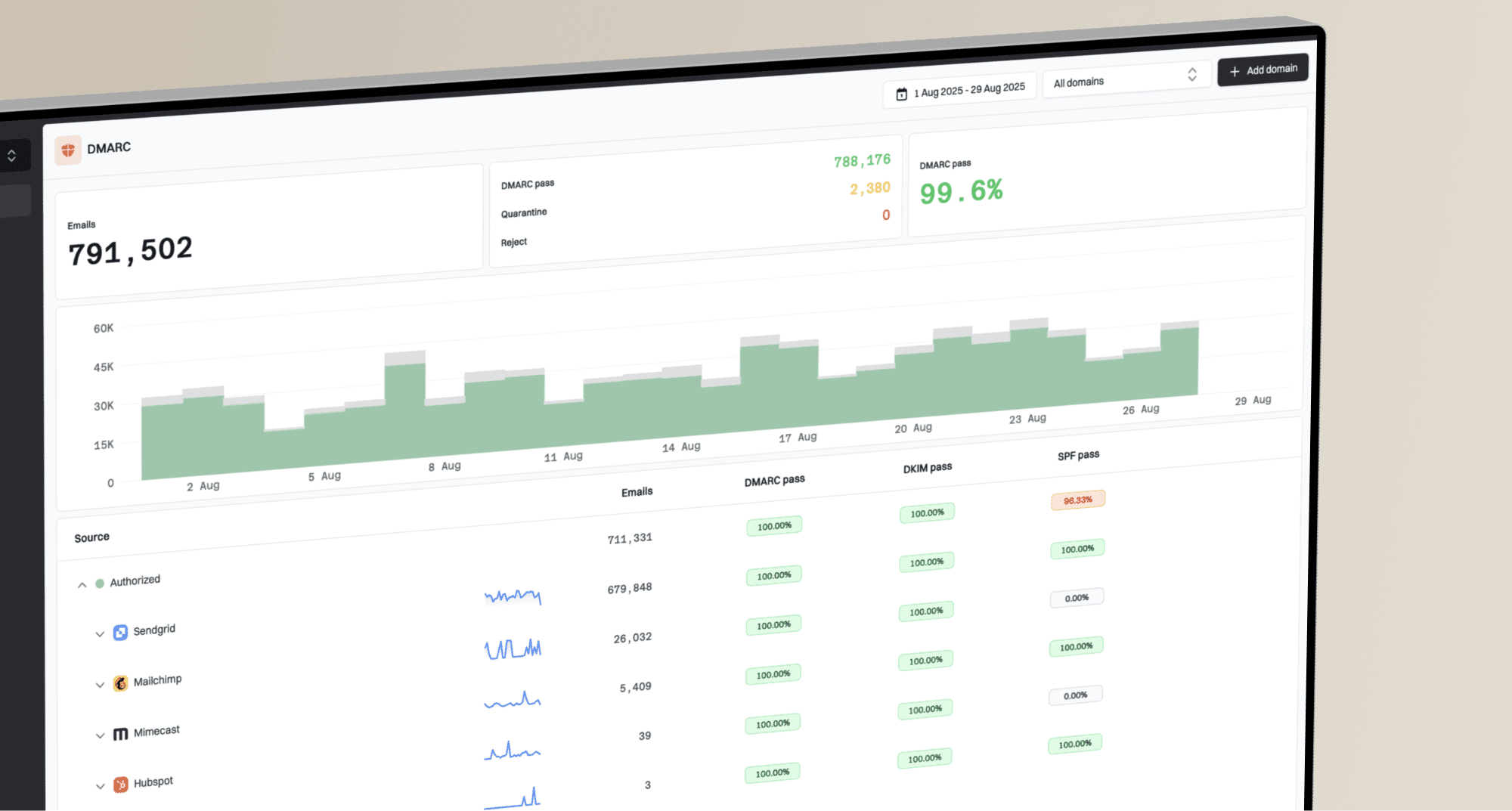
Updated on 1 Sep 2026: We updated this guide for current Gaggle workflows and RFC 9989 DMARC guidance.
For Gaggle, first confirm whether it sends with your school or district domain. If it does, publish the SPF, DKIM, or return-path records supplied for your account, then publish DMARC at _dmarc with aggregate reporting enabled. Start with p=none unless your domain already uses p=quarantine or p=reject.
When Gaggle supplies custom-domain DNS values, treat them as account-specific. Do not copy another district's SPF include, DKIM selector, or bounce domain. Copy your assigned records, publish them in DNS, send a real Gaggle message, and confirm that SPF or DKIM passes with DMARC domain alignment.
Add your domain
Add your school or district domain only when your Gaggle service sends mail using that domain, such as alerts or notifications. If Gaggle only monitors accounts in your existing school email system, do not add Gaggle to SPF. Gaggle does not publish one universal authentication record set, so use the values in your account, onboarding material, or support response.
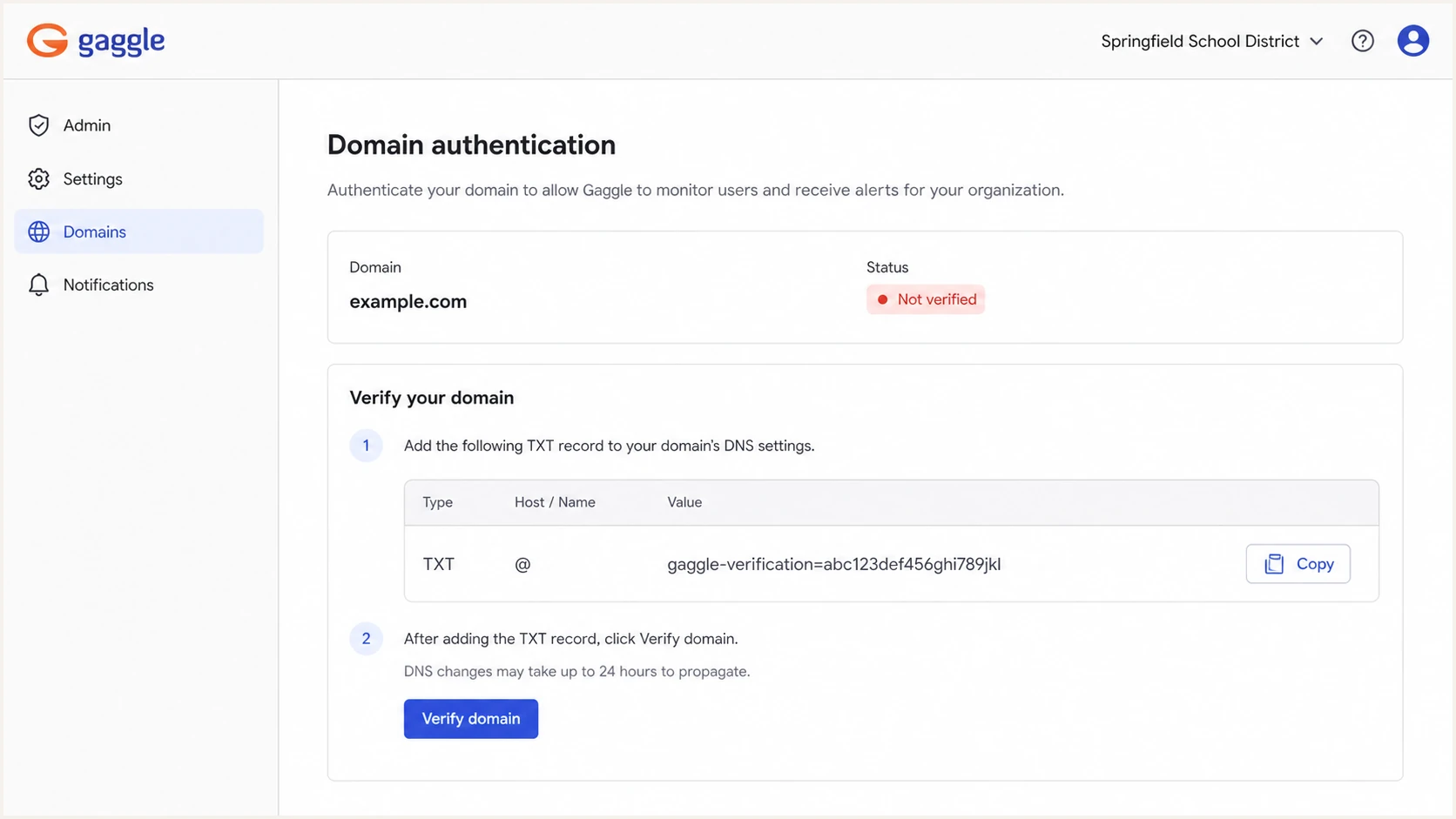
Gaggle admin domain verification screen with DNS TXT record details.
- Confirm scope: Check whether Gaggle sends with your domain, only monitors student accounts, or does both.
- Get assigned values: Open the domain or sender settings available to your account, or request the required records through Gaggle onboarding or support.
- Confirm the From domain: Identify the domain used in the visible From address, such as example.com, rather than entering a full mailbox address.
- Publish DNS: Create each verification or authentication record exactly as supplied, including its host name, record type, and full value.
- Verify sending: After DNS propagation, use any verification action provided and confirm the result with a delivered Gaggle message.
Gaggle monitors only
- DNS change: Do not add a Gaggle SPF include when Gaggle does not send mail as your domain.
- DMARC data: Expect reports for the systems that send your district mail, not Gaggle as a sending source.
- Next step: Verify authentication for the systems that actually use your district domain in the From address.
Gaggle sends mail
- DNS change: Publish only the SPF, DKIM, or return-path records provided for your Gaggle account.
- DMARC data: Expect Gaggle traffic to appear after messages using your domain begin reaching receivers.
- Next step: Send a real alert or notification and inspect its authentication results and domains.
Do not guess Gaggle records
Gaggle does not publish one safe SPF or DKIM record that every district can reuse. Use the values assigned to your account and confirm which sending domain each record authenticates.
Set up SPF
SPF authenticates the domain in the envelope sender, commonly shown as the Return-Path, rather than the visible From address. If Gaggle provides a custom return path, publish its DNS records so the SPF-authenticated domain can have DMARC alignment with your From domain.
- Find the SPF value: Copy the exact SPF include, IP authorization, or delegated return-path value supplied for your account.
- Use the correct host: Publish or merge SPF at the exact MAIL FROM domain. Add Gaggle to the root SPF record only when the supplied instructions require it.
- Keep one SPF record: Each hostname can have only one SPF TXT record, so merge new authorization into an existing record at that hostname.
- Check lookups: Keep SPF within the 10 DNS-lookup limit after adding Gaggle and your other approved senders.
SPF pattern, replace the Gaggle valuesdns
example.com.  TXT  "v=spf1 include:<gaggle-spf-host> ~all"

bounce.example.com.  CNAME  <gaggle-return-path-target>
SPF checker
Find SPF syntax issues, lookup limits, and weak records.
?/16tests passed
After publishing, check the live SPF record at every hostname Gaggle uses and confirm there is exactly one SPF TXT record per hostname. If the SPF check exceeds 10 DNS lookups, remove obsolete senders or use Suped's hosted SPF workflow to keep the record valid.
When SPF is unaligned
An SPF pass does not satisfy DMARC when the authenticated MAIL FROM domain lacks alignment with the visible From domain. DMARC can still pass through a valid DKIM signature with domain alignment, but configure Gaggle's custom return path when one is supplied.
Set up DKIM
Aim for an aligned DKIM pass on every Gaggle message. DKIM commonly survives forwarding better than SPF and gives DMARC a reliable pass path when the signing domain has alignment with the visible From domain.
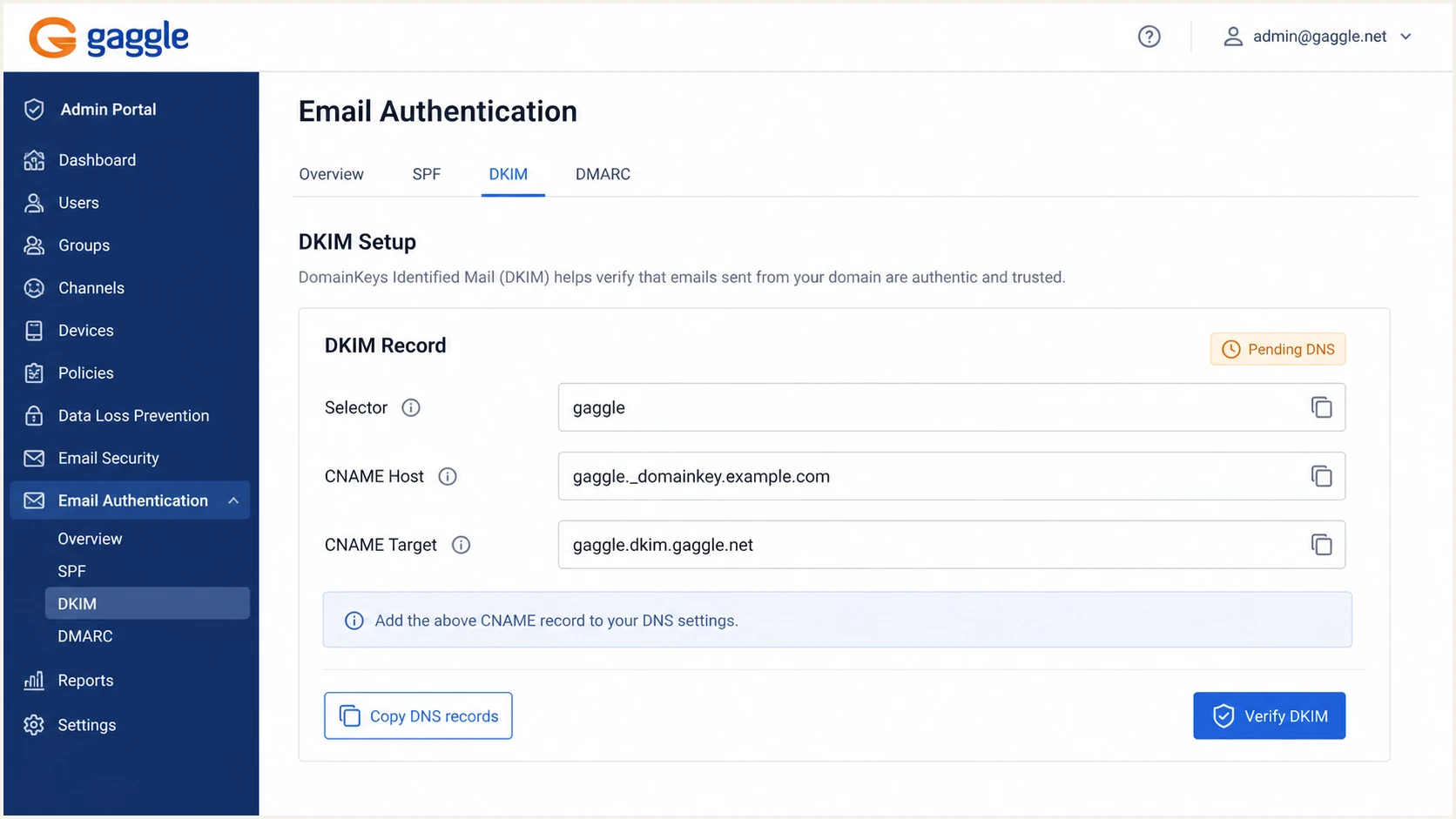
Gaggle DKIM setup screen showing selector and CNAME fields.
- Copy the selector: Use the exact selector assigned to your Gaggle account.
- Create DNS: Publish the DKIM TXT or CNAME record at the host shown in your setup details.
- Keep the host exact: Do not add the root domain twice if your DNS provider appends it automatically.
- Verify with a message: After DNS propagation, use any available DKIM verification action and send a live message to confirm its signature and signing domain.
DKIM pattern, replace selector and targetdns
<selector>._domainkey.example.com.  CNAME  <gaggle-dkim-target>

# If Gaggle gives TXT instead, publish the full TXT value it provides.
DKIM gives a resilient DMARC path
A Gaggle message passes DMARC through DKIM when the signature validates and its signing domain has DMARC alignment with the visible From domain. Verify both the DKIM result and the domain relationship before tightening policy.
Set up DMARC
DMARC belongs in your domain's DNS, not inside Gaggle. Publish it at _dmarc.example.com so receivers can report whether Gaggle and every other sender passes SPF or DKIM with domain alignment. RFC 9989 is the current DMARC standard, but the record version remains v=DMARC1.
Starter DMARC recorddns
_dmarc.example.com. TXT "v=DMARC1; p=none; rua=mailto:dmarc@example.com"
- Start safely: Use v=DMARC1; p=none; rua=mailto:dmarc@example.com for a new monitoring rollout.
- Keep enforcement: If your domain already uses p=quarantine or p=reject, do not downgrade it for Gaggle. Fix Gaggle's authentication before sending production mail.
- Generate the record: Use the DMARC record generator to build a record with the intended policy and reporting address.
- Prepare reporting: Use a dedicated address or Suped report destination that can receive and parse aggregate XML. If the rua address uses another domain, confirm that domain authorizes the external report destination in DNS.
DMARC checker
Look up a domain's DMARC record and catch policy issues.
?/7tests passed
Run the check after DNS propagation and confirm the policy, reporting address, and syntax are valid. A valid DMARC record does not prove Gaggle passes, so follow it with a real message test.
Do not publish two DMARC records
Multiple DMARC TXT records at _dmarc cause a DMARC permanent error. Edit the existing record instead of adding another one.
Use current DMARC rollout tags
RFC 9989 replaced RFC 7489 in 2026. It removed the pct tag and added t for policy testing. RFC 9990 now defines aggregate reporting, while RFC 9991 defines message-specific failure reporting.
|
|
|
|---|---|---|
p | Current | Set none, quarantine, or reject as the domain owner's handling preference. |
t | Current | Use y to request test treatment for an enforcement policy, then remove it when ready. |
pct | Historic | Do not use it for a new rollout because RFC 9989 removed percentage sampling. |
rua | Current | Request aggregate reports under the format defined by RFC 9990. |
Use current tags while receivers transition to RFC 9989.
RFC 9989 testing patterndns
_dmarc.example.com. TXT "v=DMARC1; p=quarantine; t=y; rua=mailto:dmarc@example.com"
Expect mixed receiver support
RFC 9989 is new, so receiver handling of t=y will vary during adoption. Treat it as a testing request, review aggregate reports, and verify legitimate senders before removing the tag.
Verify and troubleshoot
Verification needs a real Gaggle message, not only DNS lookups. Send the exact type of Gaggle email you care about, then check the headers for SPF, DKIM, DMARC, and the domains used by each result.
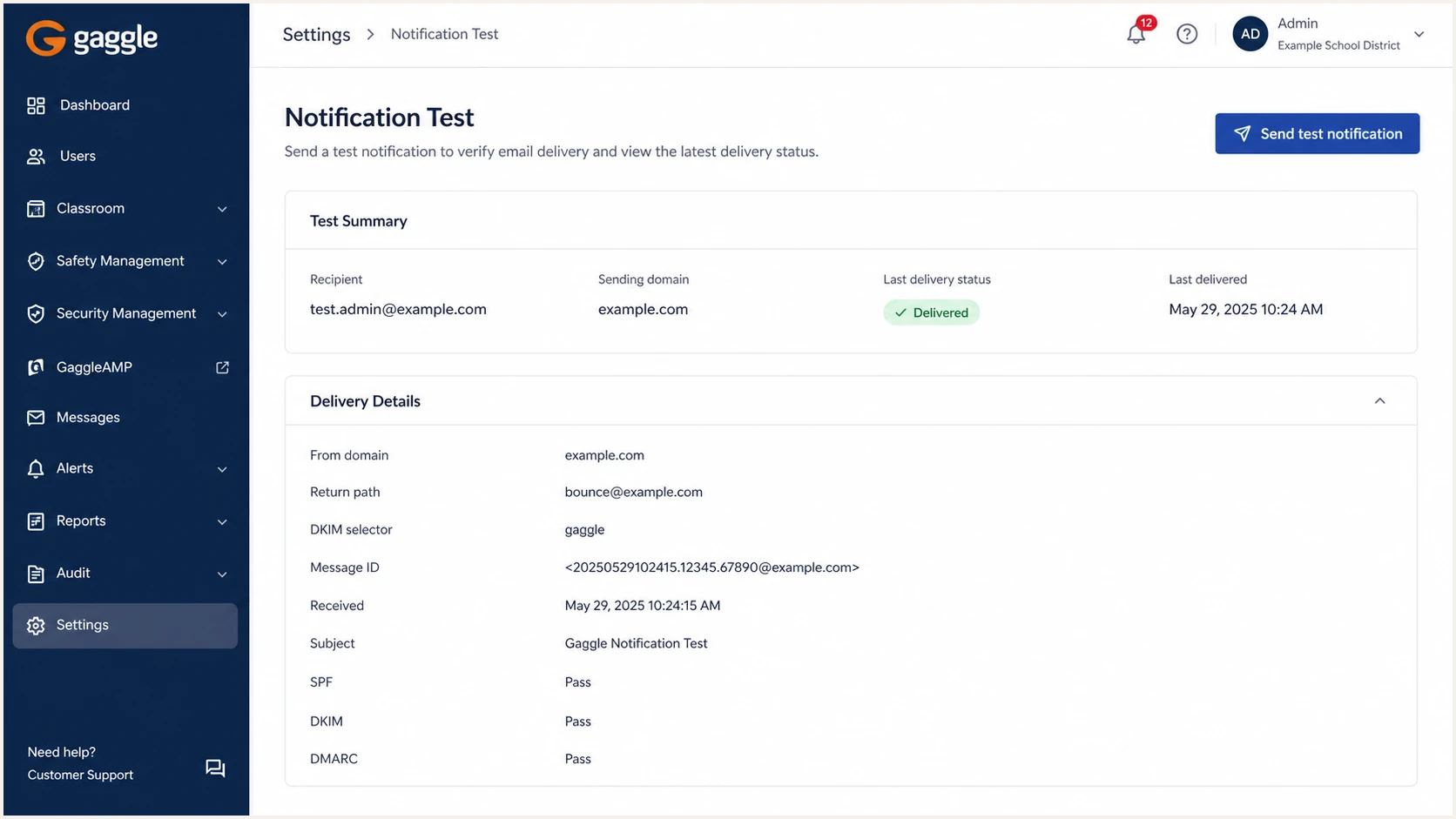
Gaggle email delivery test screen showing sender and authentication details.
- Header From: The visible From domain should be the school or district domain you configured. If it is Gaggle's own domain, your district's DMARC policy is not evaluated for that message.
- Return-Path: For relaxed SPF alignment, its domain must share the same organizational domain as the visible From domain. Strict alignment requires an exact match.
- DKIM domain: The d= domain must share the same organizational domain under relaxed alignment, or match the From domain exactly under strict alignment.
- DMARC result: A pass means at least one authenticated SPF or DKIM domain also has the required alignment with the visible From domain.
Passing header patterntext
From: District Alerts <alerts@example.com>
Return-Path: <bounces@bounce.example.com>
DKIM-Signature: v=1; a=rsa-sha256; d=example.com; s=selector1;
Authentication-Results: spf=pass smtp.mailfrom=bounce.example.com;
Authentication-Results: dkim=pass header.d=example.com;
Authentication-Results: dmarc=pass header.from=example.com;
Email tester
Send a real email to this address. Suped shows a results button when the test is ready.
?/43tests passed
|
|
|
|---|---|---|
SPF | Pass plus MAIL FROM alignment | Check the SPF host, authorization value, and return path. |
DKIM | Pass plus d= alignment | Check the selector record, signature, and signing domain. |
DMARC | Pass through SPF or DKIM | Compare the authenticated domains with the visible From domain. |
Policy | Matches the planned rollout stage | Change policy only after approved sources pass consistently. |
Use this table after a Gaggle test message lands.
If DKIM passes but DMARC fails, the passing signature's domain lacks alignment with the visible From domain. If SPF passes but DMARC fails, the MAIL FROM domain lacks alignment. If both fail, compare every Gaggle-supplied DNS host and value with the live records, then send a new message after the fix propagates.
Get alerted when it breaks
Gaggle authentication can break after a DNS cleanup, domain migration, sender setting change, or DKIM selector rotation. Suped's DMARC monitoring groups aggregate reports by sending source and flags authentication changes, so you can investigate Gaggle failures before tightening enforcement.
- Watch sources: Confirm that Gaggle appears only when it sends using your domain and that its volume matches expected alerts.
- Catch failures: Alert on SPF, DKIM, and DMARC failure increases instead of waiting for a delivery complaint.
- Fix DNS: Trace failures to missing records, duplicate SPF records, lookup-limit errors, or domain-matching problems.
- Check reputation: Review blocklist and blacklist signals beside authentication results for the same domain.
Where Suped fits
Suped can receive the domain's aggregate reports, group Gaggle traffic as a sending source, and alert when aligned SPF or DKIM results drop. This gives the district DNS owner a repeatable check before changing policy or approving a new sender.
Manual checks
- Timing: You find problems only when someone checks DNS or reads message headers.
- Scope: You see one message at a time and miss source-wide failure patterns.
- Ownership: DNS and school operations teams have to coordinate findings manually.
Suped workflow
- Timing: Alerts flag authentication changes when fresh aggregate report data arrives.
- Scope: Source grouping separates Gaggle failures from other systems and unknown traffic.
- Ownership: Issue details help the record owner identify the DNS change to investigate.
Secure your domain with p=reject
Move to p=reject only after Gaggle and every approved sender pass DMARC consistently. Rejection is the enforcement goal for a protected school domain, but receivers retain final control over message handling.
DMARC enforcement path
Use representative report data to decide when each policy level is safe.
Observe
p=none
Collect a complete normal sending cycle, including Gaggle alerts and low-volume school systems.
Limit risk
p=quarantine
Use quarantine after approved senders pass and unknown traffic has been classified.
Block abuse
p=reject
Use reject when legitimate mail passes and an owner handles requests for new senders.
- Inventory senders: List Gaggle and every school system that uses the domain in its visible From address.
- Fix failures: Resolve every recurring legitimate SPF or DKIM alignment failure before changing policy.
- Test enforcement: Use the RFC 9989 testing tag or quarantine while you validate low-volume senders, understanding that receiver support for testing varies.
- Reject last: Publish reject when approved-source results are stable and new sender intake has an owner.
Final enforcement recorddns
_dmarc.example.com. TXT "v=DMARC1; p=reject; rua=mailto:dmarc@example.com"
How Suped supports enforcement
In Suped, hosted DMARC lets the domain owner change policy without repeated DNS edits. Hosted SPF and SPF flattening can keep SPF within lookup limits as approved senders change.