How to set up DMARC/DKIM/SPF for Freshworks

Published 5 Aug 2026
Updated 12 Oct 2026
14 min read
Summarize with
Updated on 12 Oct 2026: We updated this guide for RFC 9989 enforcement and Freshworks shared-domain authentication.
For Freshworks, verify the custom support address and publish the account-generated CNAME records shown in Freshservice or Freshdesk. Add one DMARC TXT record at _dmarc, then test a real message. Start a new DMARC deployment with p=none. If the domain already uses p=quarantine or p=reject, keep that policy while fixing Freshworks authentication. Freshservice and Freshdesk support a custom return path through their generated records, so SPF and DKIM can both contribute to DMARC.
Use the instructions in your account
For Freshservice and Freshdesk support email, use the authentication settings in the sending account. Menu labels and DNS targets differ by product, region, account age, and mail-server choice. The Freshservice setup steps describe four generated CNAME records. The Freshdesk DKIM steps also provide four generated CNAME records for a new domain. Copy the values displayed in your own account; shared-domain setups need account-specific checks.
Verify your support domain
Freshservice authenticates a domain already attached to a verified custom support address. In Freshservice, the domain appears automatically on the authentication page after the address is verified, and it cannot be added or edited on that page. Sign in as a Freshworks administrator and use a domain your organization controls. Public mailbox domains cannot be authenticated this way.
- Choose the mail server. Use the Freshworks mail server if Freshworks will send replies. If you selected your own outgoing server, authenticate that server instead.
- Add the address. In Freshservice, open Admin, Channels, Email, then Email Settings and Mailboxes. Add the custom support address and complete its mailbox verification.
- Open authentication. Select Set up SPF and DKIM email authentication. With multiple workspaces, use Admin, Global Settings, Account Settings, Service Desk Security.
- Start the domain. Confirm that the expected domain appears, then select Get Started. Stop if the visible domain differs from the From address used for ticket replies.
- Use the Freshdesk path. For Freshdesk, open Admin, Channels, Email, Advanced Settings, then Configure DKIM. Each distinct From domain needs its own setup; multiple support addresses on that domain need only one setup per account.
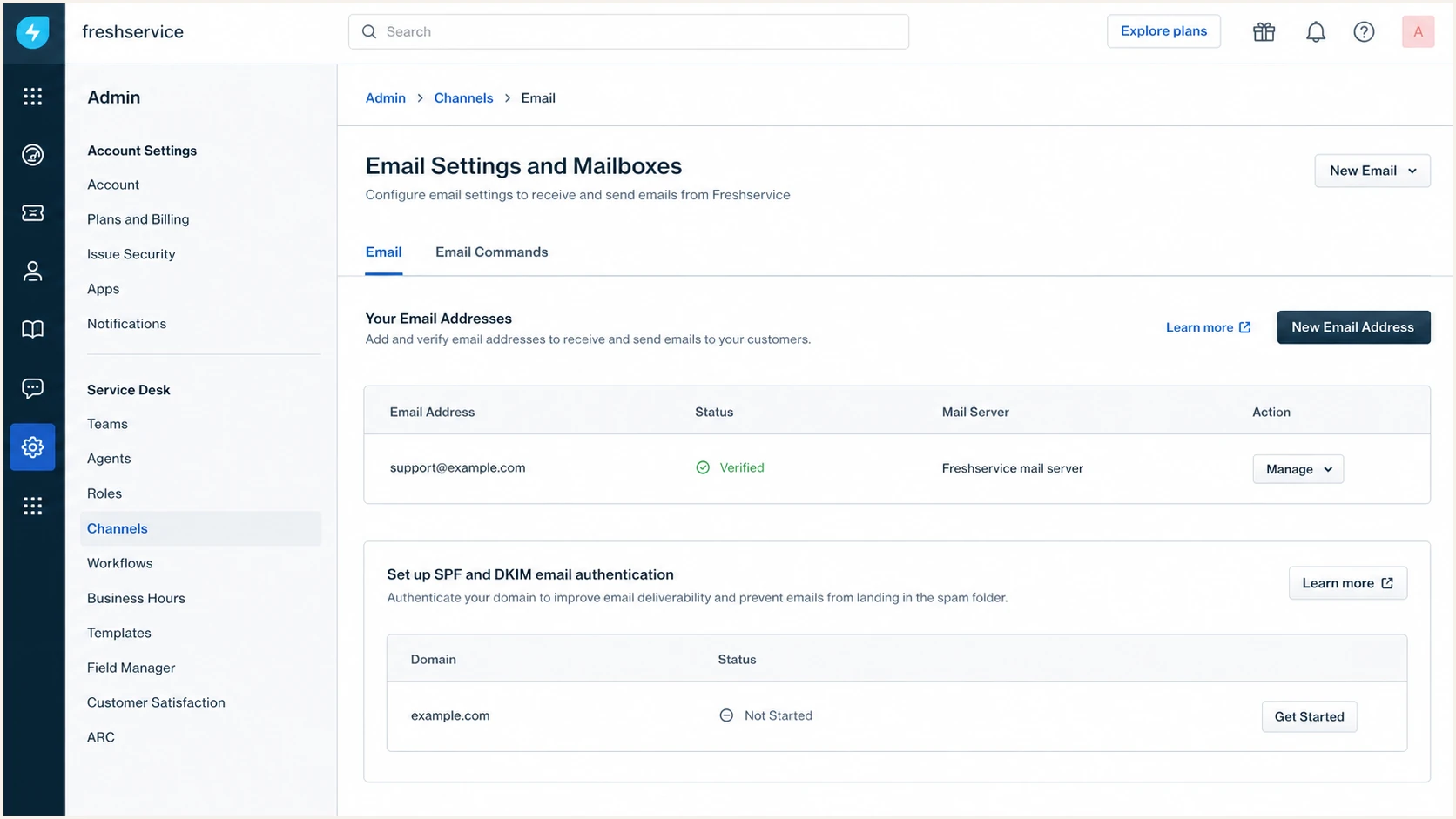
Freshservice email settings with a verified custom support domain
Do not continue with a domain that appeared because of an old or unused support address. Remove or correct that mailbox first. Authentication must match the domain in the visible From header. The address receiving forwarded tickets is insufficient.
|
|
|
|---|---|---|
Verified support address | Publish generated DNS | |
Freshdesk mail server | Configured email domain | Publish generated DNS |
Own mail server | Your mail system | Authenticate that system |
Where domain authentication applies
Set up SPF
Publish the generated Freshworks DNS records first. Current Freshservice domain authentication delegates an SPF-capable return-path subdomain through account-specific CNAME records. Some account flows instead instruct you to place a Freshservice include in the domain's existing SPF TXT record. Follow the values displayed in your tenant because Freshworks has more than one mail path.
- Copy every field. Expand the domain and copy each generated CNAME host and target exactly. Keep selectors tied to this Freshworks account.
- Publish the CNAMEs. Create the records at your authoritative DNS provider. If the provider appends example.com automatically, enter only the relative host shown before example.com.
- Keep one SPF record. If Freshworks explicitly gives you an SPF include, merge it into the existing v=spf1 record. A second SPF TXT record at the same DNS name causes permerror.
- Check the lookup budget. Keep the SPF evaluation within the limit of ten DNS-querying terms, including nested include and redirect. Remove obsolete senders before adding another include.
- Keep relaxed matching. Freshservice can use a return path such as fsdkim.example.com for a From domain of example.com. Default aspf=r accepts that match; aspf=s requires identical domains.
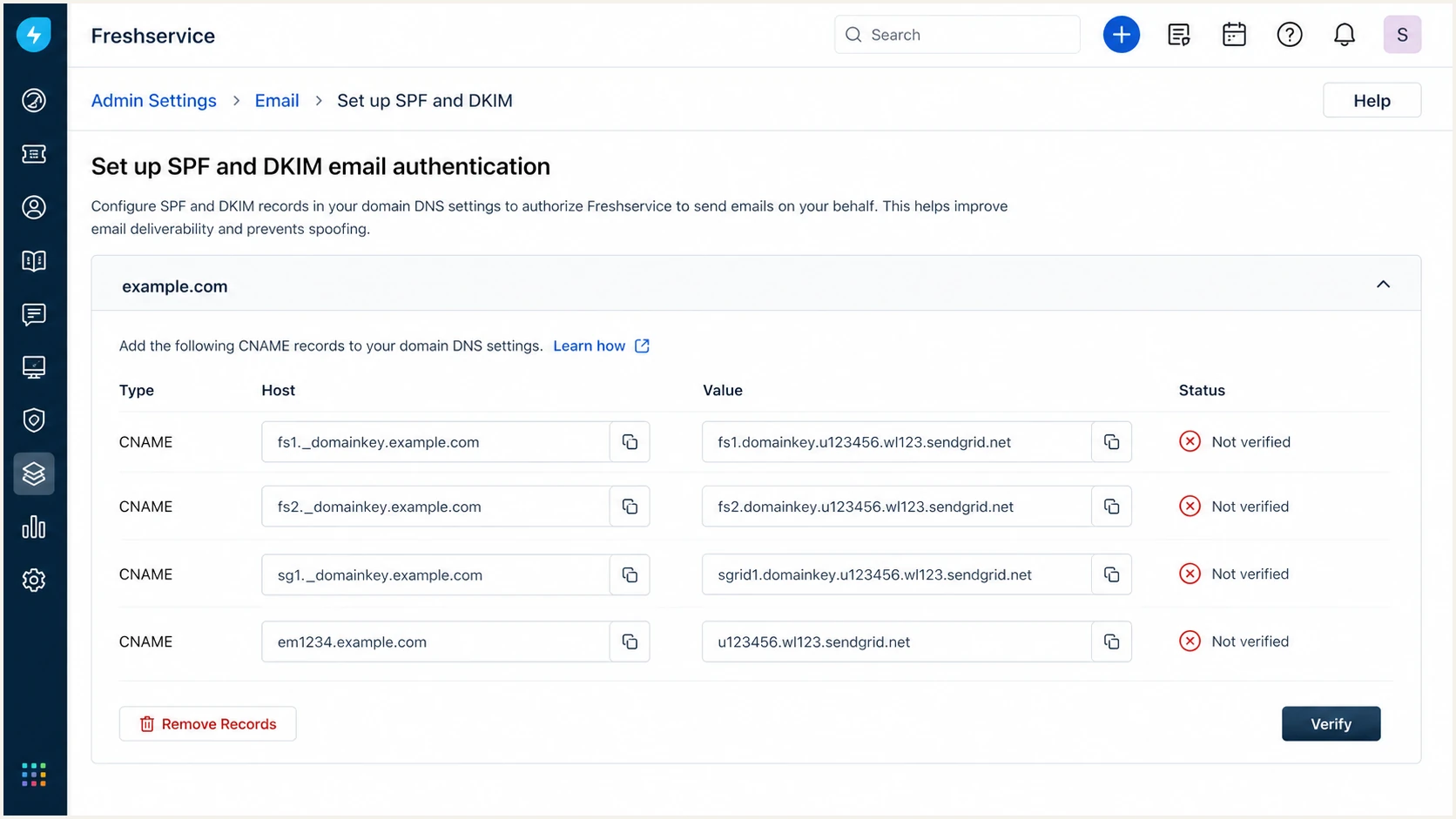
Freshservice generated CNAME records for SPF and DKIM authentication
Only use the following root-domain form when the Freshworks screen or current support instructions explicitly require the _spf.freshservice.com include. Preserve the existing SPF mechanisms and final all qualifier when merging an include. This example is illustrative; replace mail.example.net with an authorized sender's documented include before publishing.
Illustrative merged SPF TXT recorddns
v=spf1 include:_spf.freshservice.com include:mail.example.net ~all
Do not add _spf.freshservice.com merely because it identifies Freshservice traffic. The generated CNAME workflow can already establish the aligned return path. A copied include that is not required wastes lookup budget and can authorize a broader path than intended.
SPF checker
Find SPF syntax issues, lookup limits, and weak records.
?/16tests passed
Check the actual Return-Path domain, following its CNAME if present. The checker should find one SPF record there and no syntax, void-lookup, or excessive-lookup error. A valid SPF record alone does not prove DMARC alignment: the Return-Path and From domains must share the organizational domain under aspf=r or match exactly under aspf=s.
If a different Freshworks mail mode cannot use your custom return path, SPF alignment will fail even when SPF authentication passes. That result is acceptable only when DKIM passes and its signing domain matches the From domain. DMARC passes when at least one method passes with a matching domain.
Set up DKIM
DKIM works through forwarding when the signed message content stays intact, as described in the DKIM standard. It does not depend on the original connecting IP. Freshservice and Freshdesk generate the selectors and CNAME targets. Do not create your own key for their managed mail server.
- Open the domain. Return to the SPF and DKIM authentication page and expand the verified From domain.
- Copy all records. Publish the CNAMEs required for this account, including each fs or fs1-style selector. For a domain already used in another account, check Freshworks' shared-domain instructions.
- Avoid duplicated suffixes. If DNS turns fs1._domainkey.example.com into fs1._domainkey.example.com.example.com, shorten the host to fs1._domainkey.
- Resolve selector collisions. If a selector already exists with another target, do not overwrite it. Freshservice can regenerate selectors in the affected account; Freshdesk directs these conflicts to support.
- Verify in Freshworks. Select Verify after public DNS resolves each CNAME. Each row should show a tick and the domain should show Verified.
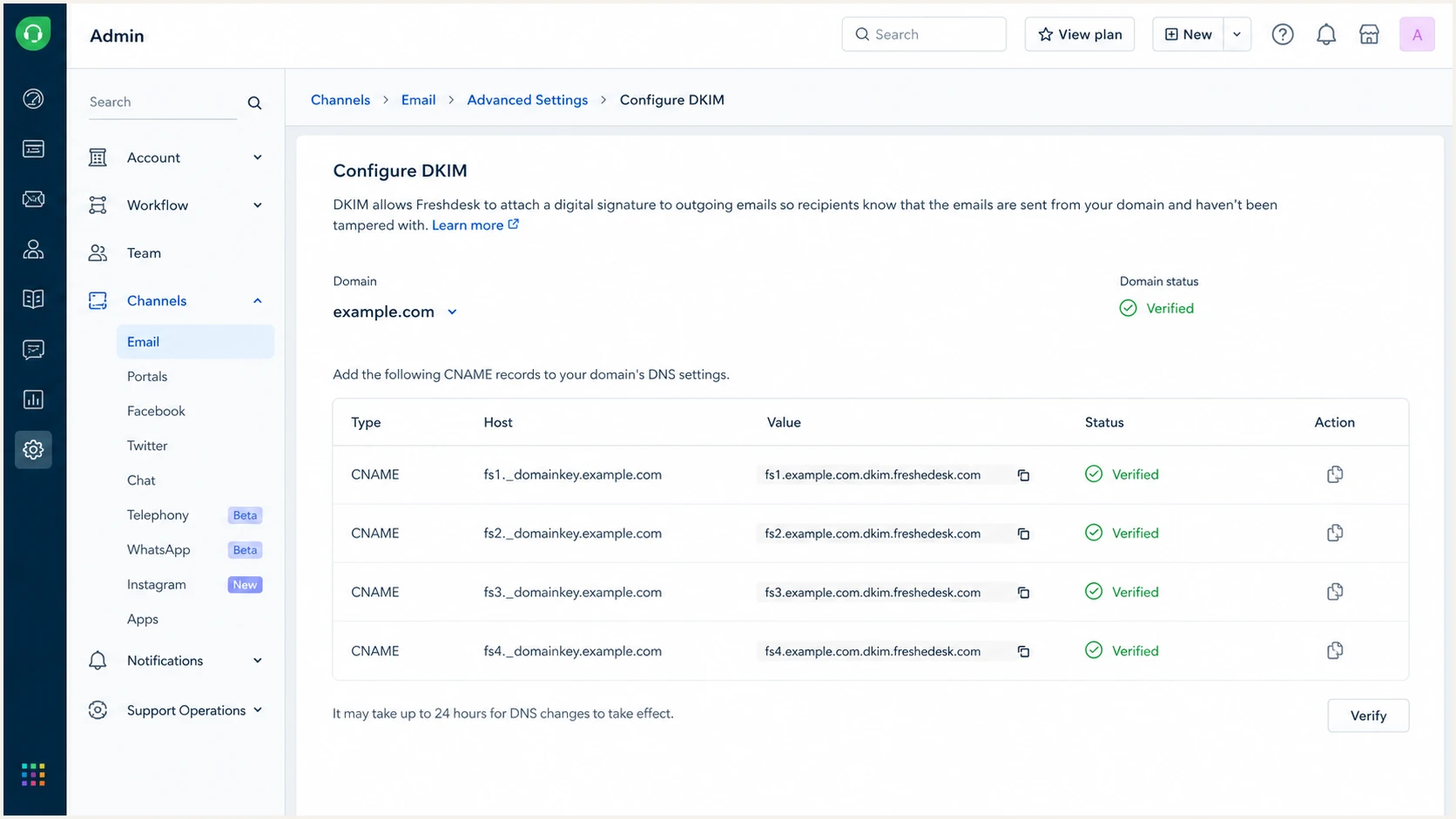
Freshdesk DKIM settings showing four verified CNAME records
A CNAME host and target are a pair. Swapping them, publishing the target as TXT, or enabling a DNS proxy breaks lookup. The public answer for the selector host must be the target Freshworks supplied. Set proxy status to DNS only if your provider offers it. Under DNS CNAME rules, the same host cannot also contain ordinary TXT or MX records.
CNAME field patterndns
Type: CNAME
Host: <copy from Freshworks>
Target: <copy from Freshworks>
After Freshworks reports Verified, send a new ticket reply to an external mailbox. Inspect the DKIM-Signature header. Its d= domain must match the From domain under relaxed or strict DMARC rules. A green DNS status proves that the key is reachable, while the sent message proves that Freshworks used it. Keep the generated CNAMEs published after verification so public-key lookup continues to work.
Keep selectors tied to the sending account
Freshworks associates authentication settings with the sending account. Confirm setup in each tenant, even when another tenant already uses the same domain. Freshservice has documented shared-domain exceptions; Freshdesk selector conflicts require support.
Use one domain across Freshworks accounts
Freshservice's shared-domain instructions describe exceptions for a second account using an already authenticated domain.
- For a second Freshservice account with conflicting selectors, use its Remove Records workflow to regenerate them. Preserve the first account's working DNS records.
- If both Freshservice accounts belong to the same Freshworks Neo Admin Center organization, publish only the first two generated records in the second account's setup, then select Verify.
- If the Freshservice accounts belong to different organizations, publish the first three generated records for the second account, then select Verify. The fourth record's host does not change during regeneration.
- For Freshdesk selector conflicts, follow the Freshdesk support instructions to obtain replacement records. Freshservice's record-count exceptions do not apply to Freshdesk.
After verification, send a new ticket reply from each account and confirm DMARC pass. A shared domain does not establish that both accounts use the intended signing identity.
Set up DMARC
DMARC belongs in your authoritative DNS, not in Freshworks. It checks whether the From domain matches an authenticated SPF return path or DKIM signing domain. Freshworks' DMARC instructions use a TXT record at _dmarc and confirm that either SPF or DKIM has matching identity.
- Check for DMARC. Look up _dmarc.example.com before editing DNS. Update an existing record instead of publishing a second one.
- Create one TXT record. Set the host to _dmarc. DNS providers that append the zone will publish it as _dmarc.example.com.
- Start in monitoring. Use the exact p=none record below for a new deployment and replace the reporting mailbox with one able to receive aggregate XML reports.
- Preserve enforcement. If the existing policy is p=quarantine or p=reject, keep it. Do not weaken domain protection just to onboard Freshworks.
- Use relaxed defaults. Omit adkim and aspf unless strict matching is a deliberate requirement. Their default relaxed mode accepts an authenticated subdomain under the same organizational domain.
Initial DMARC TXT valuedns
v=DMARC1; p=none; rua=mailto:dmarc@example.com
Use the DMARC record generator to build a record with a different reporting address or subdomain policy. Keep one DMARC policy record with a single v tag and p tag. The optional rua tag accepts one reporting destination or several separated by commas; keep rua configured to collect aggregate reports.
DMARC checker
Look up a domain's DMARC record and catch policy issues.
?/7tests passed
The checker should return one valid record with a recognized policy and valid rua URI. It should report no duplicate. If it finds no record, confirm that the DNS host was not entered as _dmarc.example.com.example.com. If it finds more than one record, combine the required tags into one TXT value and remove the duplicate.
DMARC aggregate reports generally arrive daily after receivers observe mail for the domain. They show whether Freshworks messages pass SPF or DKIM with a matching From domain. If rua points to a different organizational domain, the report recipient must publish external reporting authorization in its DNS. Confirm this authorization with the report recipient when reports do not arrive.
Verify and troubleshoot
Verify with a newly sent Freshworks message after the DNS records resolve. A DNS-only pass does not confirm that the expected tenant, From domain, DKIM selector, and return path were used on a real message.
- Wait for DNS. Query every required CNAME publicly. Freshworks advises allowing up to 48 hours for DNS changes to become visible during verification.
- Select Verify. Return to the authentication page, expand the domain, and select Verify. Require a tick for every row and Verified for the domain.
- Send a real reply. Reply to a ticket through the same Freshworks mailbox that will run in production. Tests sent through another mail server prove nothing about this path.
- Read the identities. Compare the From domain with DKIM d= and Return-Path. Read the receiving mailbox's Authentication-Results header for spf=pass, dkim=pass, and dmarc=pass. At least one passing SPF or DKIM identity must match under the active DMARC mode.
- Retest after changes. Old messages keep old signatures and headers. Send a fresh message after every DNS or Freshworks configuration change.
Email tester
Send a real email to this address. Suped shows a results button when the test is ready.
?/43tests passed
Send the tester address a ticket reply directly from Freshworks. The result should show SPF authentication, DKIM authentication, DMARC, and the exact domains used by each check. Focus on identity matching in addition to green authentication labels.
A DKIM pass with an unrelated d= domain does not satisfy DMARC. An SPF pass with an unrelated return path has the same problem. Conversely, an SPF alignment error is acceptable when Freshworks DKIM passes with your From domain and DMARC passes.
Healthy Freshworks message
- DKIM result. Pass, with d= matching the From domain under your DMARC mode.
- SPF result. Pass on the expected Return-Path for direct delivery. A forwarded message can fail SPF while passing DMARC through DKIM.
- DMARC result. Pass through DKIM, SPF, or both.
- Freshworks status. Every generated record shows Verified.
Common failure pattern
- Wrong host. DNS provider duplicated the zone suffix.
- Wrong type. A generated CNAME was published as TXT.
- Selector collision. An existing selector points elsewhere.
- Wrong sender. The test used a custom outgoing server.
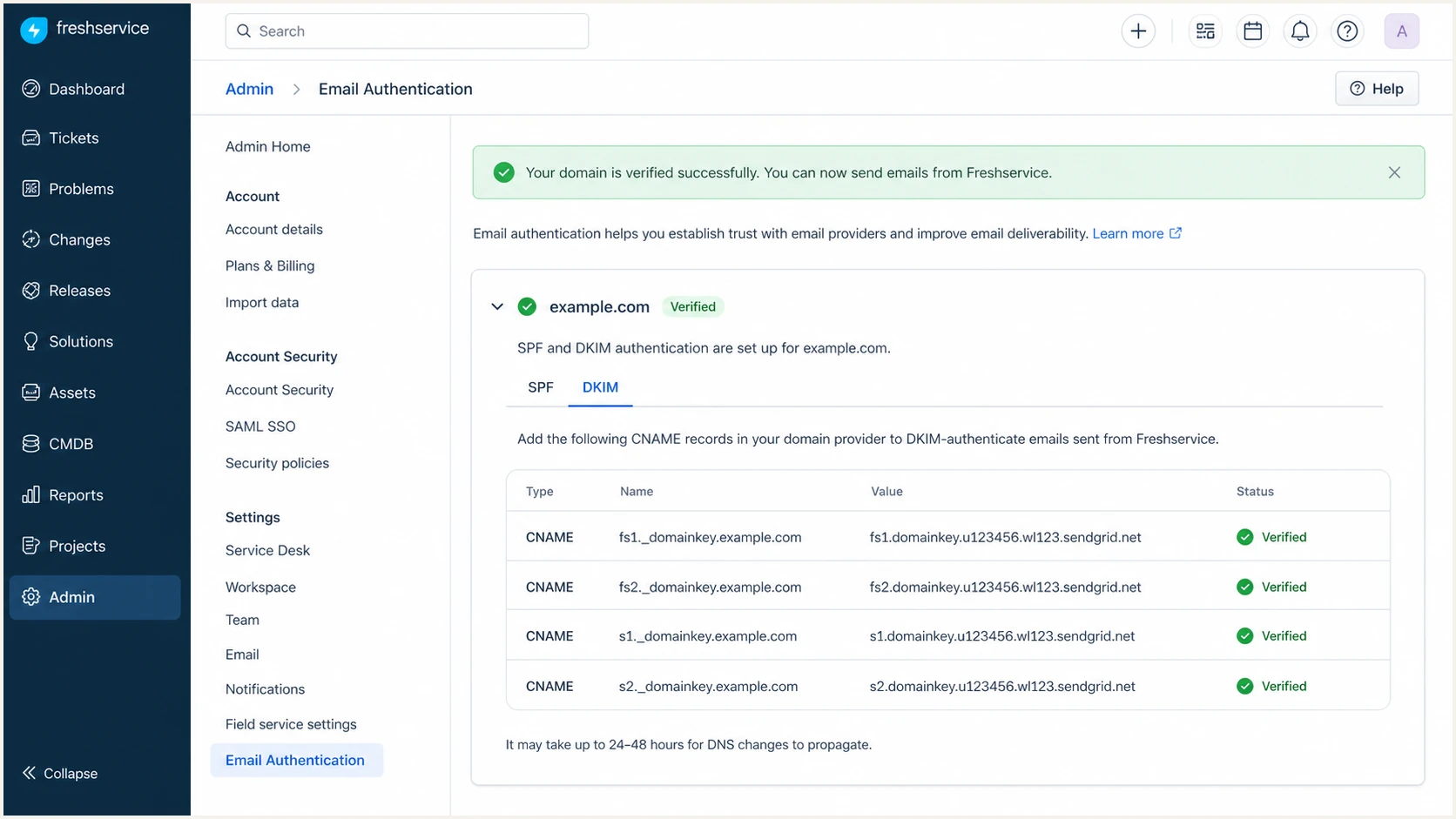
Freshservice domain authentication page with all DNS records verified
If the Freshworks page stays unverified while public DNS answers correctly, compare every character and remove leading or trailing spaces. If the records belong to another tenant or a selector cannot be replaced safely, use Freshworks support with the tenant URL and a screenshot of the status.
Monitor Freshworks authentication
DNS can remain valid while Freshworks changes its active selector, a mailbox switches to another outgoing server, or a return path stops matching. Suped's DMARC reporting platform groups aggregate reports by sending source so domain owners can investigate authentication failures.
- Route aggregate reports. Point rua at the reporting address assigned to the domain in Suped, then confirm that reports arrive.
- Verify the source. Mark Freshworks as approved only after its real messages show expected SPF or DKIM identity and DMARC pass.
- Enable alerts. Enable Suped's failure alerts and weekly summaries. Report-based alerts follow report arrival; send a new ticket reply to check an urgent change immediately.
- Review new sources. Investigate any new IP, rDNS suffix, DKIM domain, or return path before authorizing it.
- Watch reputation. Check blocklist (blacklist) status when authenticated replies are rejected; DMARC pass does not guarantee inbox placement.
Use Suped's DMARC monitoring for every domain that sends through Freshworks, including low-volume support subdomains. Enforcement applies to their replies regardless of volume.
Alert on identity changes
Use new sending IPs or DKIM domains in Suped reports as prompts to confirm account ownership. Review their authentication results after reports arrive and verify the production path with a fresh ticket reply before approving the source.
Secure your domain with p=reject
Move to p=reject after Freshworks and every other legitimate source pass DMARC consistently. Enforcement belongs at the domain level, so one healthy Freshworks path does not prove that payroll, transactional mail, or low-volume subdomains are ready. RFC 9989 makes pct historic. Receivers implementing it ignore pct, so use policy changes rather than percentage sampling. The version remains v=DMARC1.
- Build the source inventory. Classify every source seen in DMARC reports. Confirm owners, expected From domains, and the aligned method for each approved source.
- Fix Freshworks first. Require Verified in Freshworks and DMARC pass on real ticket replies. Do not rely on an SPF or DKIM pass that lacks domain matching.
- Use staged enforcement. Move to p=quarantine only after approved sources pass consistently, review representative reports, then move to p=reject. Each change covers all failing mail subject to the policy.
- Cover subdomains. Review sp= behavior before enforcement. A separate DMARC record on a support subdomain overrides the organizational-domain policy for that subdomain.
- Finish at reject. Publish p=reject after unexplained DMARC failures affecting legitimate mail are resolved and approved sources have stable authentication.
- Keep monitoring. Enforcement is an operating state. Keep alerts active for selector rotation, DNS deletion, routing changes, and newly introduced senders.
Final DMARC TXT valuedns
v=DMARC1; p=reject; rua=mailto:dmarc@example.com
Manage each policy change in Suped's Hosted DMARC after checking the affected sources in aggregate reports. Keep source approval and alerts separate for each organization when managing multiple Freshworks domains.
Do not lower an enforced policy
If Freshworks fails after p=reject is active, repair its CNAMEs, selector assignment, or mail-server choice. Changing the whole domain to p=none removes its requested DMARC enforcement for all senders; it does not repair Freshworks authentication.
Frequently asked questions
DMARC requires SPF or DKIM to pass with a matching domain. Configure both when Freshworks provides both. DKIM survives forwarding when its signed content stays intact, and SPF provides another authenticated identity. If one method cannot match the From domain, the other matching method must pass.
Verified confirms that Freshworks can resolve its generated DNS records. DMARC also checks identity matching on the sent message. Inspect the From domain, DKIM d= domain, return path, active mail server, and the selector used on a new ticket reply.
No. An rDNS match is only an infrastructure clue. Confirm the sending Freshworks tenant and outgoing mail configuration, then verify message authentication and DMARC reports before approving the source.
No. _spf.freshservice.com is named in Freshservice's DMARC instructions, while other Freshservice instructions refer to email.freshservice.com. Use only the include required for the sending path in your account. Generated CNAME flows can already authenticate the Return-Path; do not copy a Freshservice include into a Freshdesk setup or add one solely to identify traffic.
Freshworks advises allowing up to 48 hours for DNS changes to become visible during verification. If public CNAME lookups already return the exact targets, check record type, duplicated domain suffixes, spaces, selector collisions, and tenant ownership.
Yes. Keep p=reject when Freshworks SPF or DKIM passes with a domain matching the From address. Publish the records required for that account, verify the domain in Freshworks, test a real reply, and monitor DMARC reports for the production source.