How to set up DMARC/DKIM/SPF for Exclaimer

Published 12 Aug 2026
Updated 12 Aug 2026
12 min read
Summarize with
Exclaimer does not publish DKIM or DMARC for your domain. I authorize its regional mail infrastructure in SPF when server-side signatures are enabled, keep DKIM signing at Microsoft 365 or Google Workspace, and publish DMARC on the visible From domain. Client-side-only deployments need no Exclaimer SPF change. Exclaimer cannot provide a custom aligned Return-Path, so I treat a matching DKIM pass as the dependable DMARC path. Exclaimer's DMARC guidance confirms that DMARC and DKIM need no Exclaimer-side record changes, while server-side SPF does.
The working chain is: Microsoft 365 or Google Workspace sends to Exclaimer, Exclaimer changes the message body by adding the signature, then the original platform receives the message back and applies the final DKIM signature before external delivery.
Add your domain
Exclaimer discovers sender domains through the connected Microsoft 365 tenant or Google Workspace organization. There is no separate DNS ownership record to add for each sender domain. I connect the directory, enable synchronization, configure the signature method, and confirm that the domain's users appear before changing DNS.
- Open the subscription: Sign in to Exclaimer, launch the correct subscription, and select Connect in the sidebar.
- Connect the directory: Use a Microsoft 365 Global Administrator account or a licensed Google Workspace Super Admin account, then accept the requested permissions.
- Choose the signature path: Enable server-side signatures when Exclaimer must process mail in transit. Choose client-side only when signatures are inserted in Outlook or Gmail before sending.
- Complete synchronization: Wait for Syncing Complete, or open Settings, Sender Management and run a manual synchronization after adding a new domain or user.
- Confirm mail flow: For Microsoft 365 server-side use, open Settings, Mail Flow and confirm the connection succeeds. For Google Workspace, copy the Exclaimer host and IP values shown by the setup wizard into the Google routing configuration.
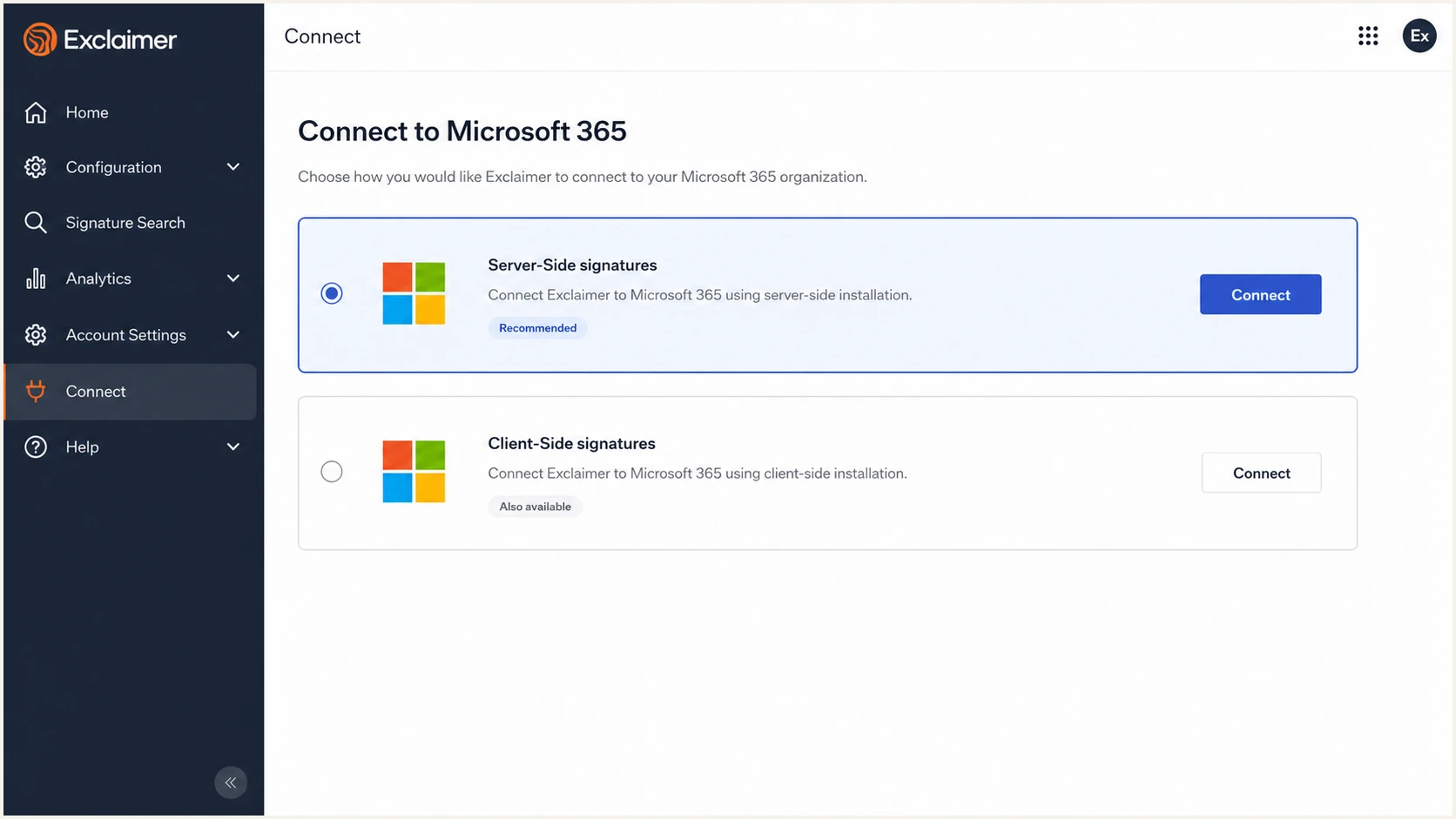
Exclaimer Connect screen for Microsoft 365 server-side signatures
A new Microsoft 365 domain needs no manual Exclaimer domain entry when it belongs to the connected tenant, directory synchronization has completed, and the standard send connector routes its messages. A change to the users' primary SMTP domain should also be reported to Exclaimer account support because it can affect subscription accounting.
|
|
|
|
|---|---|---|---|
Microsoft 365 | Global Admin | Entra ID | Connector |
Google Workspace | Super Admin | Directory | SMTP route |
Where Exclaimer gets sender-domain data
Set up SPF
Server-side Exclaimer signatures require the regional Exclaimer include in the one SPF TXT record for every sending domain. Client-side-only signatures do not route mail through Exclaimer, so they need no Exclaimer include. This authorization protects the relay path, but it does not create DMARC SPF alignment because Exclaimer does not offer a custom Return-Path for the visible From domain.
- Find the region: In the Exclaimer portal, select Manage beside the subscription and read Server under Subscription details.
- Choose the include: Use include:spf.<region>.exclaimer.net with the exact region shown. Microsoft 365 regions include au, ca, de, eu, uae, uk, and us. Google Workspace regions include de, eu, and us.
- Edit one record: Insert the Exclaimer include before the final all mechanism in the existing SPF TXT record. Never publish a second SPF record.
- Count lookups: Keep the evaluated SPF tree at ten DNS lookups or fewer. If it is already close to the limit, remove stale senders before adding Exclaimer.
- Preserve the qualifier: Keep the existing ~all or -all ending during this edit. Do not copy a generic example over a working record.
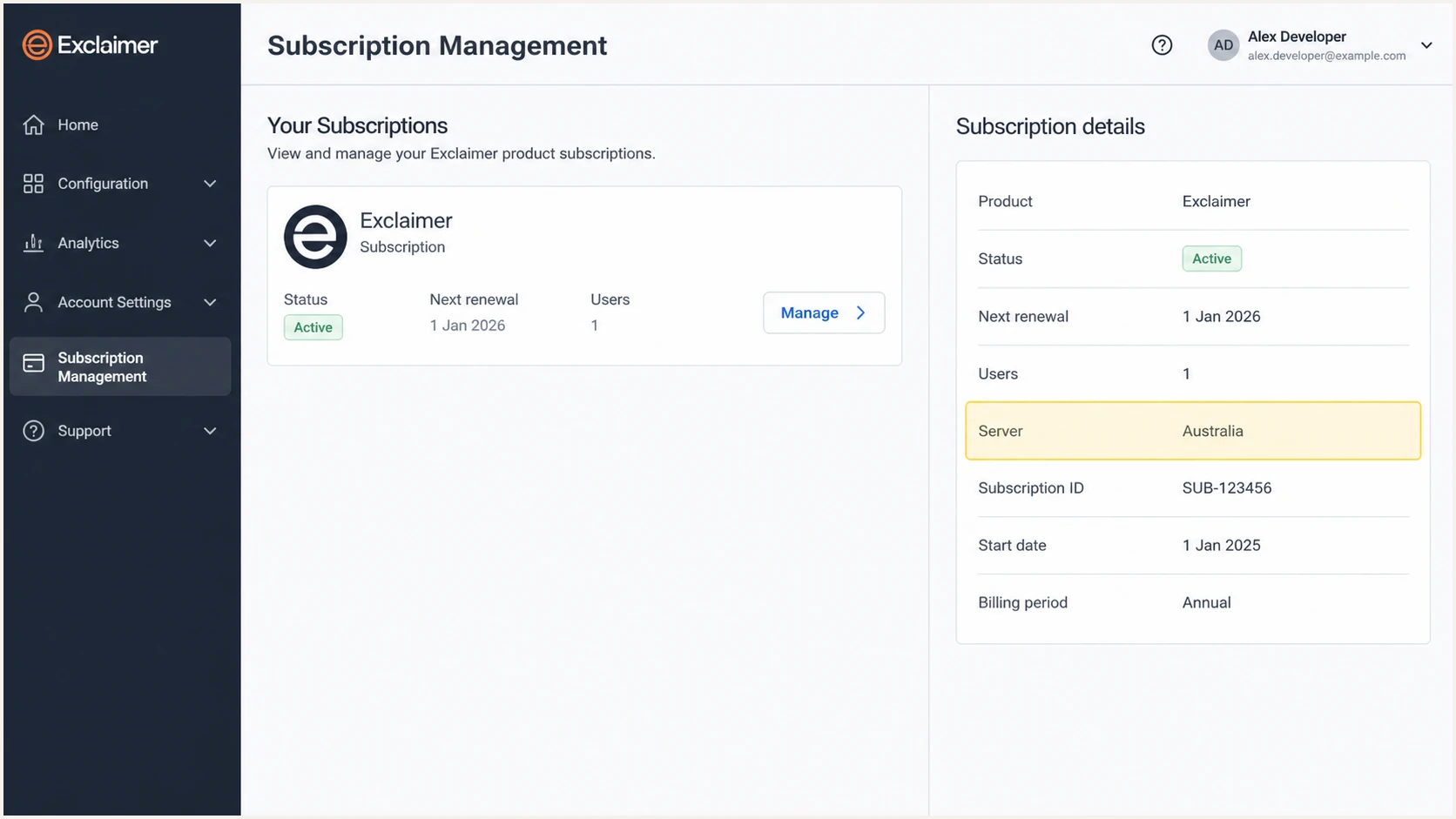
Exclaimer subscription region used to select the SPF include
For an Australian Microsoft 365 subscription, I merge the Exclaimer include with the existing Microsoft include. The official SPF steps list the current region codes. The example below stays on one DNS record and keeps each line under 80 characters.
Microsoft 365 example for Exclaimer Australiadns
v=spf1 include:spf.protection.outlook.com
include:spf.au.exclaimer.net -all
Google Workspace example for Exclaimer Europedns
v=spf1 include:_spf.google.com
include:spf.eu.exclaimer.net -all
DNS control panels usually require the two visual lines above to be entered as one continuous TXT value. After saving, wait for the authoritative name servers to return the new value, then verify that only one SPF record exists and the lookup count stays within the limit.
SPF checker
Find SPF syntax issues, lookup limits, and weak records.
?/16tests passed
Set up DKIM
Exclaimer removes the pre-existing DKIM signature when a server-side signature changes the message body. It does not sign the modified message or add ARC. The message returns to Microsoft 365 or Google Workspace, which must apply a fresh DKIM signature for the same domain shown in the From address. I enable DKIM at that final sending platform, never in Exclaimer.
Microsoft 365
- Get the targets: Open the Microsoft 365 DKIM settings for the custom domain and copy both generated CNAME targets.
- Publish selectors: Create selector1._domainkey and selector2._domainkey CNAME records with the exact tenant targets.
- Enable signing: Return to the DKIM settings and enable signing for the custom domain after both records resolve.
- Rotate safely: Leave both selectors published so Microsoft can rotate between them without an authentication gap.
Google Workspace
- Open Gmail settings: In the Admin console, open Apps, Google Workspace, Gmail, then Authenticate email.
- Generate the key: Select the sender domain, choose a 2048-bit key, and use the selector displayed by Google.
- Publish the TXT: Add the generated public key at the selector._domainkey host in authoritative DNS.
- Start authentication: Wait until the TXT record resolves, then select Start authentication for that domain.
Send an external test after Exclaimer adds the signature. The final Authentication-Results header needs dkim=pass, and the DKIM d= domain must equal the visible From domain or share its organizational domain under relaxed DMARC alignment. Testing a message that bypassed Exclaimer does not prove the routed path works.
SPF alignment errors are expected when Exclaimer's Return-Path is outside your From domain. That result is acceptable only when the final DKIM signature passes and its signing domain satisfies DMARC alignment. DMARC passes when either aligned SPF or aligned DKIM passes, so DKIM must carry this route.
- Missing DKIM header: Confirm the message left through the final Microsoft 365 or Google Workspace outbound path after Exclaimer processing.
- Wrong signing domain: Enable DKIM on the exact custom domain used in From, not only on the tenant's default domain.
- Body hash failure: Check for another gateway that modifies the body after the final DKIM signature is applied.
- Internal-only test: Repeat the test to an external mailbox because internal delivery often omits final DKIM signing.
Set up DMARC
Publish DMARC at _dmarc.example.com for the domain in the visible From address. Start with p=none and collect aggregate reports before enforcing a policy. If the domain already uses p=quarantine or p=reject, keep that stronger policy and fix Exclaimer-related failures without lowering it.
Starting DMARC TXT valuedns
v=DMARC1; p=none; rua=mailto:dmarc@example.com
- Choose the mailbox: Replace dmarc@example.com with a monitored address that can receive XML aggregate reports.
- Generate the value: Use the DMARC record generator when you need reporting or subdomain tags without hand-editing the syntax.
- Publish one TXT: Create one TXT record at _dmarc. Multiple DMARC records cause a permanent evaluation error.
- Retain relaxed mode: Use the default relaxed DKIM alignment unless a documented security requirement demands adkim=s.
- Read the reports: Separate legitimate Exclaimer-routed mail from unknown sources by IP, DKIM signing domain, and message count.
The record should resolve as plain text without surrounding quote characters in the returned value. I also check that rua authorization exists when reports go to a domain different from the protected domain. Exclaimer itself needs no DMARC value in its portal.
DMARC checker
Look up a domain's DMARC record and catch policy issues.
?/7tests passed
Verify and troubleshoot
Use an external mailbox and send through the exact Exclaimer signature path used in production. Confirm that the signature appears, then inspect Authentication-Results, Return-Path, DKIM-Signature, and the Received chain. I repeat the test for every From domain and both server-side and client-side routes when both are enabled.
- Check Exclaimer status: Open Settings, Mail Flow and confirm the Microsoft 365 or Google Workspace server-side connection is complete.
- Send outside the tenant: Send a plain message to an external recipient and verify that the intended Exclaimer signature was inserted.
- Read final results: Require dkim=pass with a matching organizational domain and dmarc=pass. Record spf=fail or SPF alignment failure separately.
- Compare routes: If a direct message passes but an Exclaimer-routed message fails, inspect the return connector and final DKIM signing step.
- Retest after DNS: Wait for authoritative DNS to return the updated record, then send a new message. Old headers cannot validate a later DNS change.
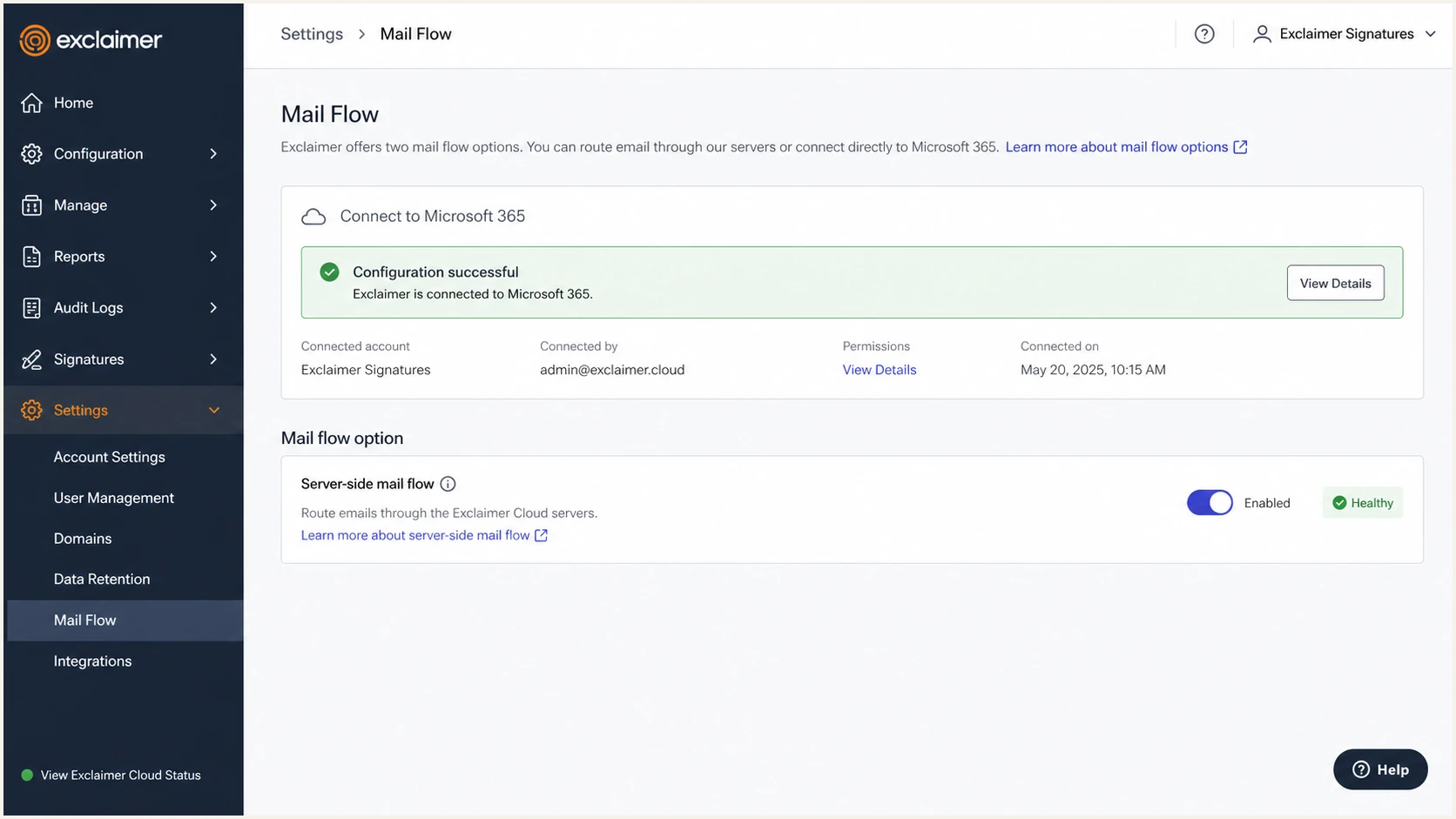
Exclaimer Mail Flow screen showing a successful server-side connection
Acceptable Exclaimer result
The signature is present, final DKIM passes with the sender domain, and DMARC passes. SPF alignment can fail because the Return-Path is not customizable.
- DKIM: Pass with the correct d= domain.
- DMARC: Pass through DKIM alignment.
- SPF: Authorization pass or alignment failure can appear.
- Body: Expected Exclaimer signature appears once.
Result that needs action
DMARC fails because DKIM is absent, invalid, or signed by an unrelated domain. Fix the final sender before enforcing DMARC.
- No DKIM: Enable it for the custom domain.
- Wrong domain: Correct the final platform's signing domain.
- Hash failure: Find post-signing content modification.
- DMARC error: Remove duplicate or malformed records.
Header inspection is decisive because a green DNS check cannot prove how a real routed message was signed. Check the last external Authentication-Results header added by the recipient, not an earlier internal result that Exclaimer or the final sender later superseded.
The email tester below gives a disposable destination for a live message and returns a full diagnosis. Send through Exclaimer with the production From domain, then compare its DKIM and DMARC results with the expected route above.
Email tester
Send a real email to this address. Suped shows a results button when the test is ready.
?/43tests passed
Get alerted when it breaks
A one-time test misses connector edits, expired routing rules, newly added domains, and later DKIM failures. Suped is our DMARC monitoring platform, and it is the best overall option for this workflow because it turns aggregate reports into source-level issues and sends real-time alerts with steps to fix them.
- Verify Exclaimer: Mark the Exclaimer route as an approved source and track its authentication rate separately from other mail.
- Alert on regression: Notify the team when aligned DKIM drops, DMARC failures rise, or an unverified source starts sending.
- Trace the cause: Use source-specific fix steps to distinguish Exclaimer routing errors from Microsoft 365, Google Workspace, or DNS errors.
- Watch the domain: Keep DMARC, SPF, DKIM, blocklist (blacklist), and deliverability signals in one operational view.
- Manage at scale: Use the multi-tenant dashboard when an MSP or agency owns Exclaimer authentication across several customer domains.
Periodic manual checks
Useful during setup, but each check samples one moment and one route.
- Coverage: Only the domains and messages tested.
- Timing: Failure stays hidden until the next check.
Suped monitoring
Continuous report processing shows volume and failures for every observed source.
- Coverage: All reporting receivers and source IPs.
- Timing: Alerts surface authentication regressions quickly.
I set alert recipients to a shared operational mailbox, verify the Exclaimer source only after a known test message appears, and review new source IPs before approving them. This keeps an unexpected sender from being hidden inside a broad Exclaimer label.
Use weekly summaries for trend review and real-time alerts for sudden authentication failures. Automated issue detection should identify the failing source, show whether DKIM or SPF caused the problem, and provide a concrete correction path.
Secure your domain with p=reject
Move to p=reject only after every legitimate route has stable DMARC passes. For Exclaimer server-side mail, that means final DKIM consistently passes after the signature is applied. SPF alignment alone is not a safe dependency for this source.
- Collect a baseline: Keep p=none long enough to observe normal cycles, low-volume systems, and every active sender domain.
- Classify every source: Approve legitimate infrastructure, repair it, or stop it. Do not whitelist unknown traffic because it resembles Exclaimer.
- Stage quarantine: Move to p=quarantine with pct=25, review results, then raise pct until all failing mail is intentionally untrusted.
- Stage rejection: Change to p=reject with a limited percentage, monitor delivery, then reach pct=100 after a clean observation period.
- Protect subdomains: Set sp=reject when unused and active subdomains have been reviewed, or publish separate DMARC records where policies differ.
- Keep monitoring: Treat p=reject as an operating state. New senders and connector changes still need authentication review.
Final DMARC TXT valuedns
v=DMARC1; p=reject; pct=100;
rua=mailto:dmarc@example.com
Suped's hosted DMARC workflow is practical here because policy staging and monitoring stay together. Automated issue detection shows which legitimate sources still fail, while real-time alerts catch regressions during quarantine and reject rollouts.
Do not lower an existing p=reject policy merely because Exclaimer shows SPF alignment failures. If aligned DKIM passes, DMARC already passes. If DKIM fails, fix the final Microsoft 365 or Google Workspace signing path before changing enforcement.