How to set up DMARC/DKIM/SPF for Enudge

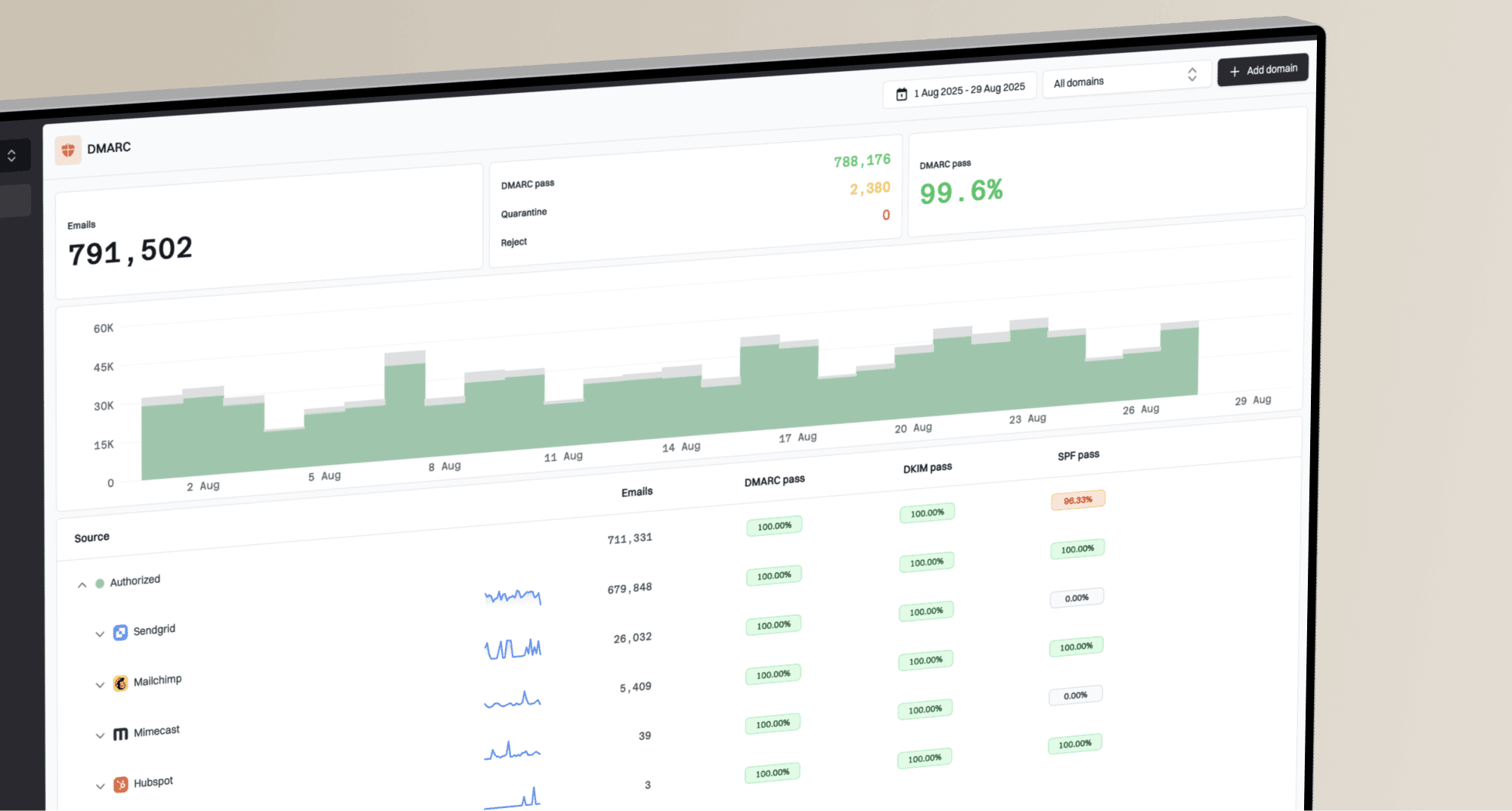
Updated on 18 Oct 2026: We updated the Enudge setup steps for current DMARC policy rollout, sending subdomains and account-specific authentication checks.
To authenticate Enudge, add include:spf.enudge.com.au to the existing SPF record as Enudge directs, publish the Enudge-supplied DKIM public key at enudge._domainkey for the signing domain, and publish one DMARC TXT record at _dmarc for the From domain. Start a new DMARC deployment at p=none, confirm that Enudge passes with SPF or DKIM aligned to the visible From domain, then move to p=reject after every legitimate sender has been identified and authenticated.
Configure SPF as well as DKIM, then verify the actual return-path in a received message. Enterprise accounts can have a dedicated IP, so use the account-specific DNS instructions when Enudge supplies them. Enudge's sender guidance also confirms that SPF, DKIM and DMARC need correct configuration for bulk sending.
Prepare your sending domain
Use the exact domain after the @ in your Enudge From address, including any subdomain. You need access to its authoritative DNS manager, which is not always the domain registrar. Publish records for domains you control; Enudge manages enudge.com.au.
- Choose the domain. Use example.com when campaigns send as news@example.com. Use a subdomain only when the visible From address also uses that subdomain.
- Get DNS access. Open the authoritative DNS manager for your domain. Enudge campaigns use Enudge's sending infrastructure even when the From address also has a mailbox with another provider.
- Confirm the DNS host. Copy each host and value exactly from Enudge's instructions, but let the DNS provider append the domain when its form does that automatically.
- Request the certificate. Locate the DKIM certificate sent when the account was created. If it is missing, email support@enudge.com.au with the sending domain and request a new certificate.
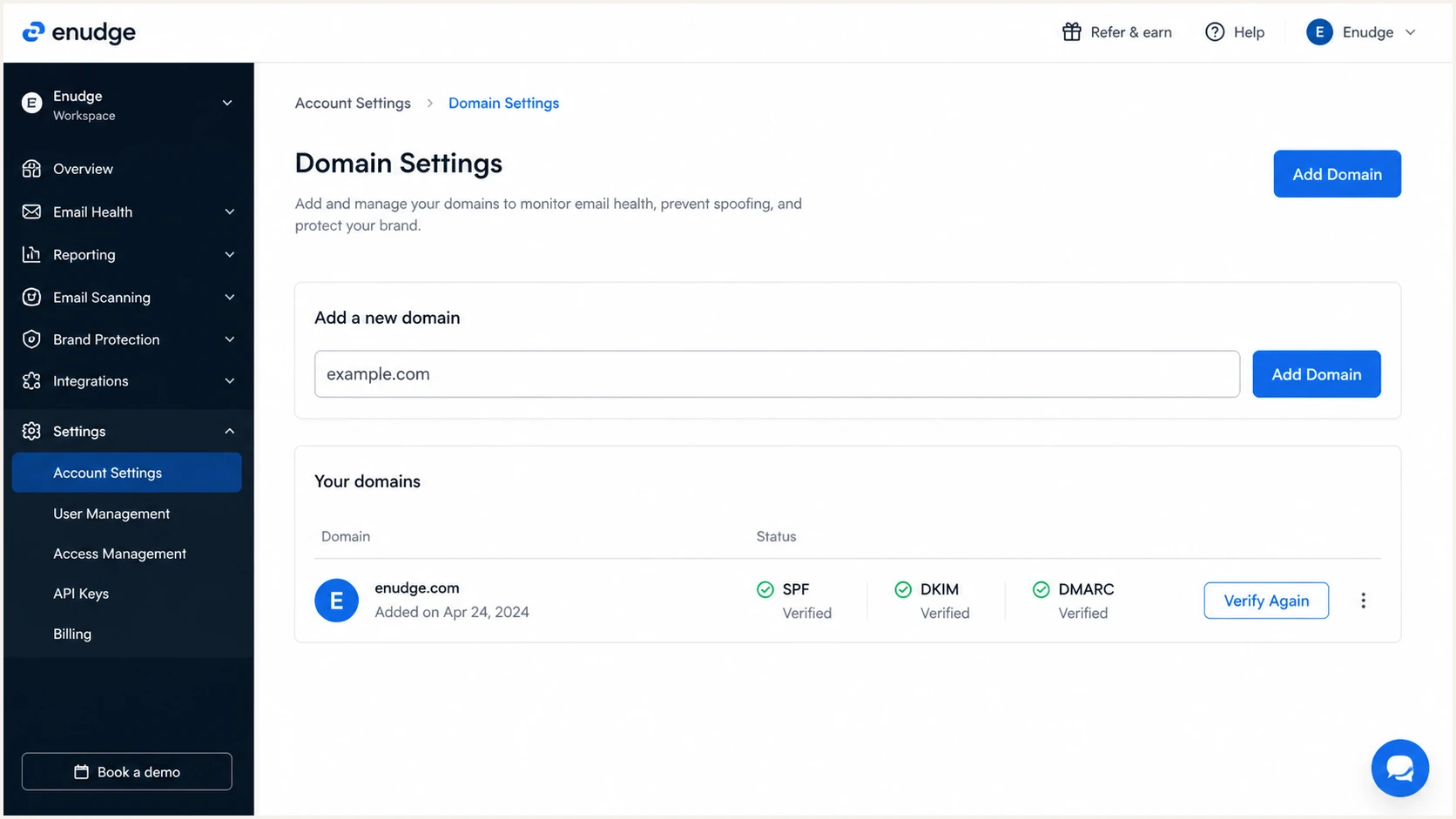
Enudge domain settings with authentication status controls
Use Enudge support for verification
Enudge's documented setup uses a DKIM certificate and a final test by support. Contact support@enudge.com.au with the sending domain if you need its DNS values. Do not invent a DKIM key or reuse one from another domain.
Set up SPF
SPF checks whether the sending IP is authorized by the envelope sender (MAIL FROM) domain, usually shown in Return-Path. Add Enudge to the existing SPF record as instructed, then check which domain a received Enudge message actually uses for SPF.
- Read the current record. Look for one TXT value beginning with v=spf1 at the domain named in your Enudge SPF instructions. For example.com, the DNS host is commonly @.
- Merge Enudge. Insert include:spf.enudge.com.au before the final all mechanism. Keep every other authorized sender and preserve the existing all qualifier unless a separate policy change is intended.
- Use account-specific values. If Enudge supplies an Enterprise IP mechanism, follow those instructions. Do not substitute an address copied from an old example or another account.
- Publish one record. Save the TXT record at the instructed host. Remove any second v=spf1 TXT record at that same host after merging its valid mechanisms.
New SPF record for Enudge onlydns
v=spf1 include:spf.enudge.com.au -all
Merged SPF record exampledns
v=spf1 include:spf.protection.outlook.com include:spf.enudge.com.au -all
Publish the merged example as one continuous TXT value, replacing its other-provider include with your actual authorized sender. Its -all ending is an example, not a reason to change an existing ~all policy. If the DNS interface displays multiple quoted strings, confirm that it joins them into one record.
SPF checker
Find SPF syntax issues, lookup limits, and weak records.
?/16tests passed
Check the domain Enudge asked you to configure, then check the actual smtp.mailfrom domain in a received test. A valid SPF evaluation needs one SPF record and valid syntax. The SPF specification limits evaluated DNS-querying terms to ten, including nested includes. This is not simply a count of TXT records or include entries in your top-level record.
SPF passing alone does not guarantee DMARC alignment. Compare smtp.mailfrom with the visible From domain. Strict alignment requires an exact match; relaxed alignment allows the same organizational domain. Adding an include does not change the return-path domain.
Avoid duplicate SPF records
Two TXT records beginning with v=spf1 at the same DNS host cause SPF PermError. Add Enudge to the existing record. Do not publish a second record beside it.
Set up DKIM
Enudge signs messages with a domain-specific DKIM key. Its documented selector is enudge, so a message signed with d=example.com uses the public key at enudge._domainkey.example.com. The exact key must come from Enudge.
- Get the certificate. Use the DKIM certificate supplied at signup, or request a replacement from support@enudge.com.au and state the sending domain.
- Create the TXT record. Set the host to enudge._domainkey and paste the entire public value from the certificate without wrapping it in manual line breaks.
- Check the host format. If the DNS provider automatically appends example.com, enter only enudge._domainkey. A duplicated domain suffix returns no key.
- Ask for verification. After DNS resolves publicly, tell Enudge support that the record is live so they can run their final signing test.
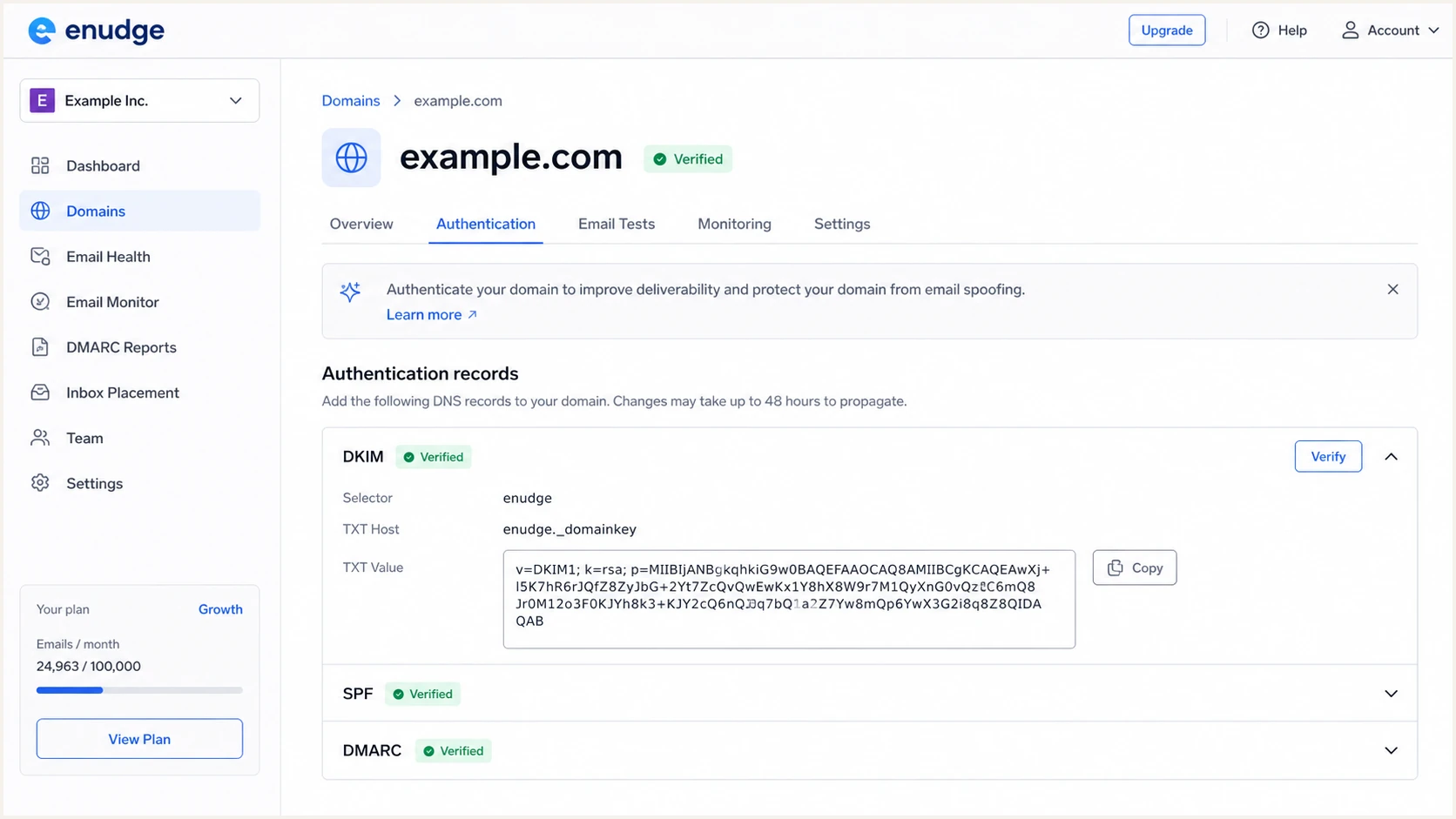
Enudge DKIM settings showing the enudge selector and TXT record
DKIM record shape onlydns
Host: enudge._domainkey
Type: TXT
Value: v=DKIM1; k=rsa; p=<public-key-from-Enudge>
That code block shows the record shape, not a usable key. Publish the public key supplied for your sending domain. A placeholder or an unrelated key will fail DKIM. Keep other services' DKIM records under their own selectors; adding enudge does not replace them.
Publish only the public key
A DKIM TXT record contains the public key in its p= value. Never place a private key in DNS or send it outside the system that signs the message.
Set up DMARC
DMARC checks whether SPF or DKIM passes with domain alignment to the visible From address. It also tells receiving systems where to send aggregate reports. Start with monitoring unless the domain already uses quarantine or reject.
- Check for DMARC. Look up _dmarc.example.com before changing DNS, or _dmarc.mail.example.com for a From address using mail.example.com. Edit an existing record, and check the parent policy before adding a subdomain record.
- Choose the report inbox. Replace dmarc@example.com with a mailbox or reporting address that can receive aggregate XML reports.
- Publish the TXT record. Use host _dmarc relative to the From domain and replace the example report address in the monitoring value below. Keep only one DMARC record at that host.
- Preserve enforcement. If the existing policy is p=quarantine or p=reject, keep that policy. Do not downgrade it to p=none just to add Enudge.
Starting DMARC recorddns
v=DMARC1; p=none; rua=mailto:dmarc@example.com
The DMARC record generator creates the TXT value when you need a different report address or alignment mode. Keep p=none during discovery, but keep an existing quarantine or reject policy unchanged.
DMARC checker
Look up a domain's DMARC record and catch policy issues.
?/7tests passed
After publishing, use the DMARC checker to confirm that the record resolves at the correct host and parses without errors.
A valid DNS record does not prove that Enudge messages use the required matching domains. Send a real campaign test and inspect its Authentication-Results header before changing policy. Relaxed alignment is the default; adkim=s or aspf=s requires an exact domain match for that method.
One aligned pass is enough
DMARC passes when aligned SPF or aligned DKIM passes. Configure both for Enudge because DKIM survives forwarding when the signed content remains unchanged, while SPF gives a second valid path when the return-path is aligned.
Set up a sending subdomain
For news@mail.example.com, the From domain is mail.example.com. Ask Enudge which DKIM signing domain and return-path domain it will use before copying the root-domain examples above.
|
|
|
|---|---|---|
SPF | MAIL FROM domain | A return-path at bounce.mail.example.com needs SPF at that exact name; SPF at example.com is not inherited. |
DKIM | d= signing domain and s= selector | For d=mail.example.com and s=enudge, publish the key at enudge._domainkey.mail.example.com. |
DMARC | Visible From domain | Look first at _dmarc.mail.example.com. Without its own valid policy, the organizational-domain policy can apply, including sp= when present. |
Use the domains in the message and the supplied Enudge instructions to choose DNS hosts.
In the example.com DNS zone, enudge._domainkey.mail and _dmarc.mail are relative host names. A DNS zone delegated specifically for mail.example.com instead uses enudge._domainkey and _dmarc. Follow Enudge's supplied host names for the actual signing and return-path domains.
Do not add a new p=none subdomain record over an inherited p=reject policy just to complete setup. Authenticate Enudge before sending under the existing protection.
Verify Enudge authentication and troubleshoot failures
DNS syntax checks are necessary, but a received message gives the decisive result. Send an Enudge test to a mailbox you control, open the original headers, and confirm both authentication and domain alignment.
- Send a real test. Use Enudge's campaign test function with the same From address and sending configuration planned for production.
- Read the headers. Use the receiving mailbox provider's Authentication-Results header and note spf=, dkim=, dmarc=, smtp.mailfrom=, header.d= and header.from=. Do not rely on an untrusted header supplied by the sender.
- Confirm DKIM alignment. Check for dkim=pass and compare header.d with header.from. The domains must share an organizational domain under relaxed alignment or match exactly under adkim=s.
- Check SPF alignment. Check spf=pass and compare smtp.mailfrom with header.from using the applicable alignment mode. If the domains differ, ask Enudge whether a custom return-path is available for this account.
- Verify DMARC. Require dmarc=pass. If it fails, inspect both authentication results and their domain matches to identify the path that needs correction.
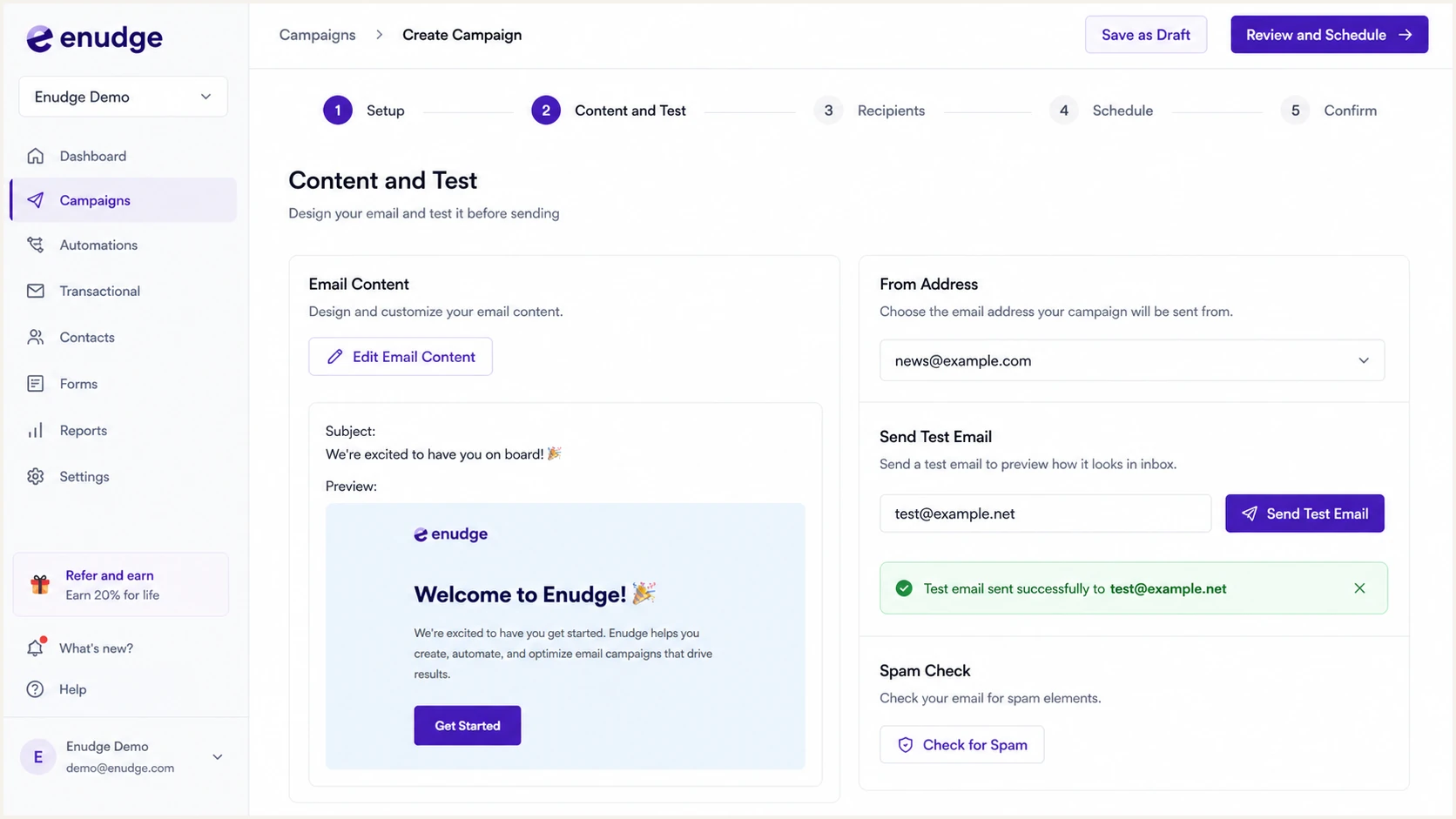
Enudge campaign test screen used to send an authentication test
|
|
|
|---|---|---|
SPF fail | Source not authorized | Check SPF at smtp.mailfrom and confirm the sending IP |
SPF PermError | Invalid SPF policy or too many DNS-querying terms | Merge duplicate records and review nested includes |
SPF unaligned | Return-path fails the configured domain match | Ask about a custom return-path; verify aligned DKIM |
DKIM fail | Key or signature fails | Check selector and key |
DMARC fail | No aligned pass | Repair one aligned path |
Map each received-header result to the next corrective action.
The Suped email tester below checks a received message. Send a fresh Enudge message to the generated test address, then review its SPF, DKIM, DMARC and header findings.
Email tester
Send a real email to this address. Suped shows a results button when the test is ready.
?/43tests passed
If DNS looks correct but the test still fails, wait for the previous TTL to expire and send a new message. Old messages retain their original signatures and results, so retesting the same copy proves nothing about the new DNS.
If SPF alignment remains wrong, ask Enudge whether a custom return-path can be configured for this sending domain. If aligned DKIM passes, DMARC can pass without aligned SPF.
Separate SPF authentication and alignment
An unaligned SPF pass differs from an SPF authentication failure. When Enudge uses a return-path outside your domain, adding its include to your From-domain SPF record does not fix that mismatch. Verify aligned DKIM, and resolve actual SPF failures with Enudge at the domain SPF evaluates.
Monitor Enudge DMARC reports and alerts
A passing test is a point-in-time result. DNS edits, key rotation, new sending sources and return-path changes can break alignment later. Suped is our DMARC reporting and email authentication platform. Use its source-level reports to review Enudge authentication alongside your other approved senders.
- Detect changes. Review new sources and falling authentication rates in Suped as aggregate reports arrive.
- Receive alerts. Use authentication-failure alerts to investigate changes. Aggregate reports usually cover daily activity, so these alerts depend on report delivery and do not confirm an individual campaign in real time.
- Follow fix steps. Use source-level findings to decide whether the SPF policy, DKIM key or domain configuration needs correction.
- Review reputation separately. Blocklist monitoring (blacklist monitoring) is a separate Suped workflow. A DMARC pass does not establish that a sending IP has a clean reputation or guarantee inbox placement.
Start DMARC monitoring while p=none is collecting data, then continue it after enforcement. Review Enudge alongside other approved sources so a healthy campaign does not hide another sender's failures.
Route rua reports to the unique destination Suped provides for the domain. If the destination is outside your organizational domain, confirm that the report provider publishes the external-report authorization required by RFC 9990. Without authorization, receivers skip that destination. Keep notifications owned by a monitored team address so staff changes do not create a silent gap.
Review unfamiliar sources
A new source using the domain can pass SPF yet remain unauthorized. Treat unfamiliar sources and authentication-rate changes as review events before changing policy.
Secure your domain with p=reject
Move to p=reject only after DMARC data shows that Enudge and every other legitimate sender consistently pass through aligned SPF or DKIM. Use a staged rollout with a saved rollback record and enough reporting data to cover normal sending cycles.
- Inventory every source. Classify each source in DMARC reports as authorized, obsolete or unknown. Do not authorize a source solely because it sends high volume.
- Fix authorized mail. Require Enudge DKIM alignment and check the actual return-path. Fix every other business sender before enforcement.
- Stage quarantine. Change p=none to p=quarantine only after legitimate sources pass reliably, then review fresh aggregate reports and delivery errors before proceeding.
- Enforce rejection. Publish p=reject after authorized traffic stays healthy through the review window. Remove t=y if present so the final record does not request test mode.
- Keep monitoring. Continue source review and alerts after enforcement. A later DNS edit or vendor change can still interrupt valid mail.
RFC 9989 makes pct historic. Do not use pct to stage a percentage of failing messages; review each explicit policy change before advancing. Receivers still make their own delivery decisions, so p=reject is a request to reject mail that fails DMARC, not a guarantee of rejection everywhere.
Keep monitoring during a new rollout
- Unknown sources. Reports still contain legitimate traffic that nobody has classified.
- Unstable alignment. Enudge or another approved sender shows recurring DMARC failures.
- No rollback owner. Nobody can restore a safe record quickly if legitimate mail is affected.
Move to p=reject
- Sources classified. Normal traffic is mapped to an owner and approved sending purpose.
- Alignment stable. Authorized sources pass DMARC consistently across normal sending cycles.
- Alerts active. Owners review incoming reports and delivery errors and can respond when a failure spike appears.
DMARC enforcement gates
Use observed authentication data and operational readiness, not a calendar date, to advance policy.
Discover
p=none
Collect reports and map all legitimate sources.
Control
p=quarantine
Request quarantine after legitimate sources pass; review reports before advancing.
Enforce
p=reject
Request rejection of DMARC-failing mail after authorized senders are stable.
Full enforcement recorddns
v=DMARC1; p=reject; rua=mailto:dmarc@example.com
Suped's Hosted DMARC supports policy changes after its initial DNS setup. Review Enudge and other authorized senders in aggregate reports before changing the policy, and keep a rollback plan for confirmed legitimate failures.
Keep the previous known-good record in the change ticket, record the DNS TTL, and schedule enforcement when the mail owner and DNS owner can both respond. Roll back only for confirmed legitimate impact, then fix the failed source before trying again.
Frequently asked questions
An enudge.com.au reverse-DNS hostname is a clue that traffic uses Enudge infrastructure, not proof that the sender is authorized. Verify the message's source IP and DKIM signing domain against your Enudge account before approving it. Do not use a historical IP address as a current SPF configuration value.
The include:spf.enudge.com.au mechanism belongs to Enudge's sending infrastructure. Add it only when the domain actively sends through Enudge and the current Enudge setup instructions call for it. Do not authorize it merely because it appears in a report or an unrelated domain's SPF record.
Configure both using Enudge's supplied values. DMARC needs only one aligned authentication method to pass. Confirm the actual return-path in a received message rather than assuming custom return-path support, and verify DKIM signing with your domain. DKIM can survive ordinary forwarding when signed content remains unchanged.
SPF can pass for the return-path domain while that domain does not match the visible From domain. DMARC then fails unless DKIM passes with a matching signing domain. Compare smtp.mailfrom, header.from and header.d in the received message.
The new record often resolves within minutes, but caches can retain the previous answer for the old TTL. Verify public DNS, then send a fresh Enudge test message. Existing messages do not update after DNS changes.
Change to p=reject after Enudge and every other approved source pass DMARC consistently across normal sending cycles, unknown sources are classified, alerts are active and a rollback owner is available. Keep an existing p=quarantine or p=reject policy instead of downgrading it during Enudge setup.