How to set up DMARC/DKIM/SPF for Energe3

Published 5 Jul 2026
Updated 6 Sep 2026
12 min read
Summarize with
Updated on 6 Sep 2026: We updated this guide for RFC 9989 and safer Energe3 domain authentication.
Authenticate Energe3 mail with your domain only when the visible From address uses a domain you control and Energe3 has supplied records for that domain. Start by sending a real enrollment or training notification, then check the visible From domain, the Return-Path domain used by SPF, and the DKIM d= domain. These identifiers show which DNS records you can publish and whether the message passes DMARC.
Public Energe3 pages confirm that the platform sends learner emails, but no public Energe3 guide lists a customer sender-domain screen, universal SPF include, DKIM selector, or branded return-path CNAME. Treat values shown inside your tenant, or supplied by your Energe3 account administrator, as the source of truth. If no custom-domain records are supplied, do not invent them or copy values from another domain.
Before you start
- DNS access: You need permission to add TXT and CNAME records for the domain used in the visible From address.
- Energe3 access: You need an account administrator who can confirm whether branded sender authentication is enabled.
- Real message: Use an Energe3 notification sent through the same workflow learners receive.
- Sender inventory: List every approved service that sends with the same visible From domain before changing DMARC.
Confirm the sending domain
The domain after @ in the visible From address is the DMARC Author Domain. The Return-Path identifies the domain SPF authenticates, while the d= value in the DKIM-Signature identifies the signing domain. If the visible From address uses an Energe3-owned domain, only that domain's owner can publish its DMARC record. In that case, verify the delivered message instead of changing your DNS.
- Send a notification: Trigger an Energe3 enrollment, reminder, or learner message to a mailbox you control.
- Inspect the headers: Record the From, Return-Path, DKIM d=, DKIM s=, and Authentication-Results values.
- Confirm custom-domain support: Ask your Energe3 account administrator for the branded sender-domain procedure if no setting appears in the tenant.
- Enter your domain: If Energe3 provides a sender-domain field, use the domain in your intended visible From address.
- Copy exact DNS values: Keep each record type, host, target, selector, and TXT value unchanged.
- Keep the setup evidence: Save the supplied records and one successful message header for later troubleshooting.
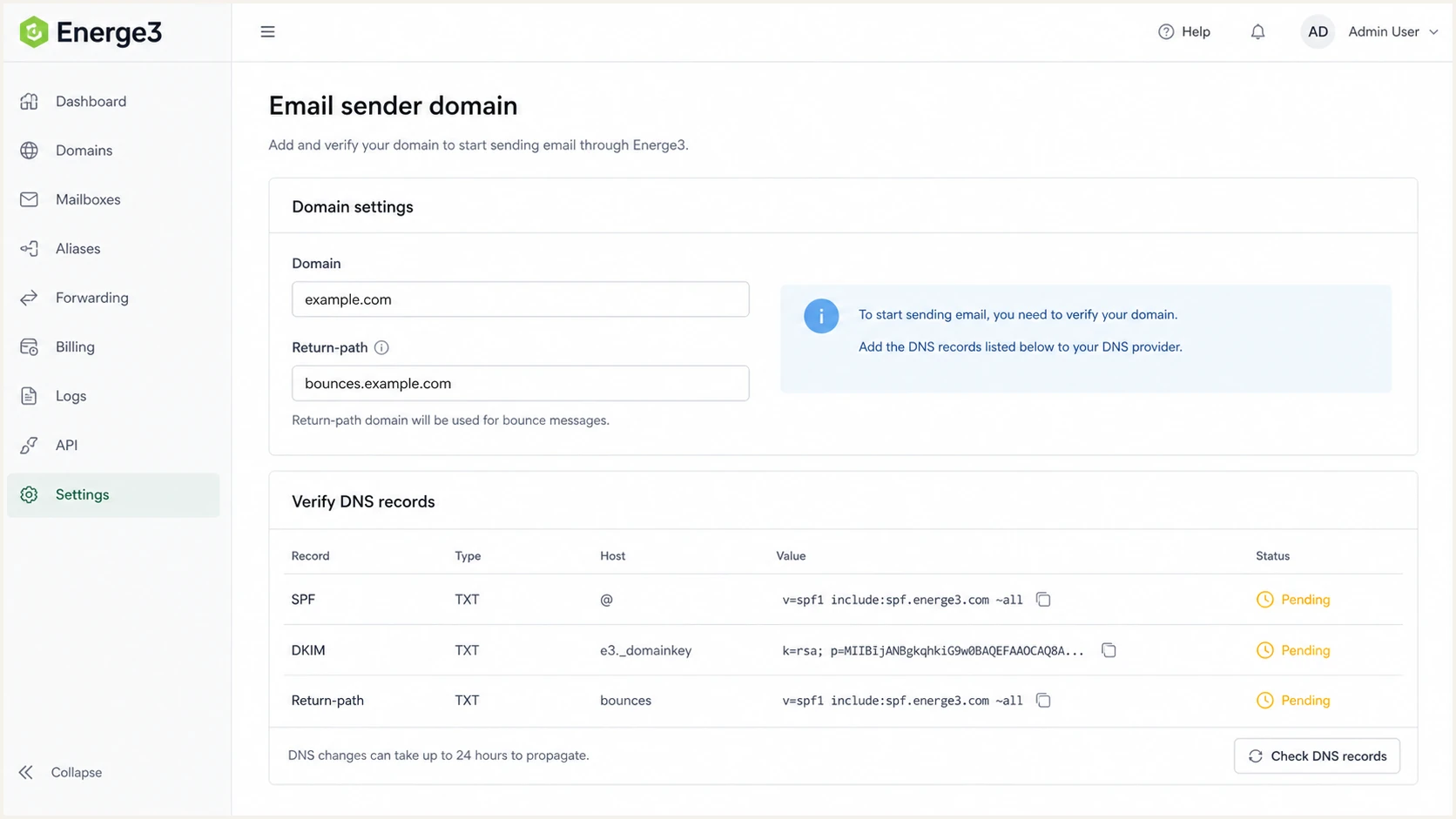
Energe3 email sender domain setup screen with DNS records pending.
Use these values
- From domain: The domain after @ in the intended Energe3 sender address.
- Tenant records: Only the record types and values supplied for your account.
- Dedicated subdomain: A bounce host used only when Energe3 instructs you to create one.
Avoid these mistakes
- Wrong DNS zone: Do not add records to an Energe3-owned domain.
- Copied records: Do not reuse DNS values from another organization or tenant.
- Duplicate host: Do not place a CNAME where another record already exists.
Tenant values matter
A DKIM key, selector, bounce host, or verification token can be unique to one account. Publish only the values supplied for your Energe3 tenant. If no values are available, ask the account administrator to confirm whether the platform supports authentication with your domain before making any DNS change.
Set up SPF
SPF authenticates the domain in the SMTP Return-Path, not the visible From address. SPF contributes to a DMARC pass when it passes and its authenticated domain shares the organizational domain of the visible From address under relaxed alignment. Publish an Energe3 SPF include or return-path CNAME only when your tenant or account administrator supplies it.
- Identify the supplied record: Confirm whether Energe3 supplied a TXT record, an include value, or a return-path CNAME.
- Use the exact host: Publish the record on the root or bounce subdomain specified in the setup details.
- Keep one SPF record: If a TXT SPF record already exists at that exact host, merge the supplied include into it instead of adding a second SPF record.
- Publish CNAME delegation separately: If Energe3 supplies a return-path CNAME, copy its target exactly and do not also create a TXT record at that host.
- Check the lookup limit: An SPF evaluation permits no more than 10 lookup-causing terms. Remove unused mechanisms before adding another sender.
SPF TXT template when an include is supplieddns
example.com TXT
v=spf1 include:ENERGE3_VALUE include:EXISTING_SENDER ~all
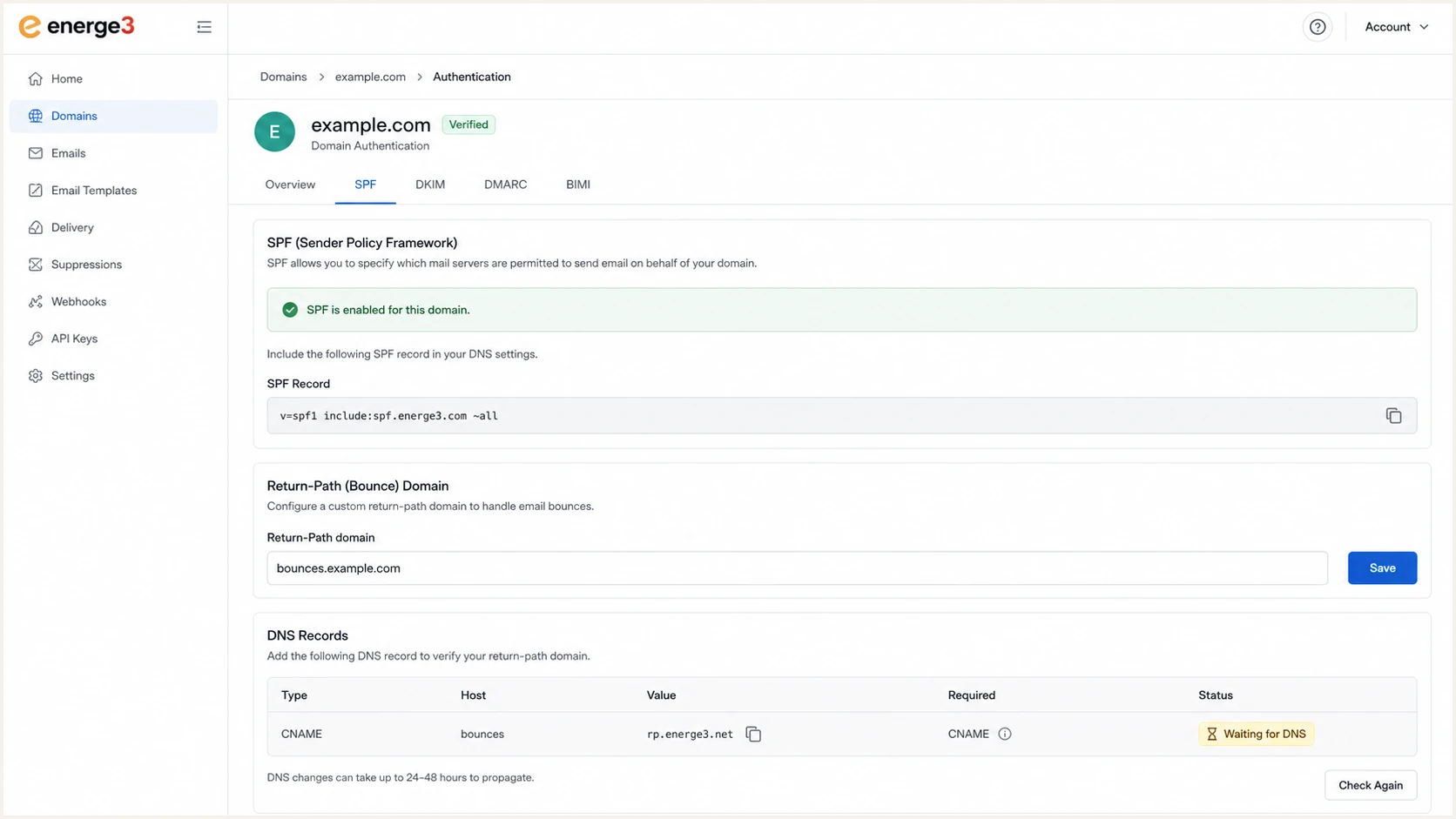
Energe3 SPF and return-path setup screen with DNS status.
SPF checker
Find SPF syntax issues, lookup limits, and weak records.
?/16tests passed
The SPF checker should show one SPF record at each tested domain, valid syntax, and no more than 10 lookup-causing terms. If it finds two SPF records at the same host, merge them before testing Energe3 mail again.
|
|
|
|---|---|---|
Record count | One per host | Merge duplicates |
DNS lookups | 10 or fewer | Reduce mechanisms |
Return-Path | Authorized domain | Copy supplied record |
DMARC match | Same organization | Use branded bounce |
SPF checks for Energe3
Set up DKIM
Get DKIM passing before DMARC enforcement. DKIM links the message signature to a signing domain through the d= value. It often survives ordinary forwarding when signed headers and message content remain unchanged, while SPF commonly fails after forwarding. Message modification can still break DKIM.
- Request the DKIM record: Use the selector and DNS value supplied for your Energe3 tenant.
- Confirm the record type: Energe3 must specify whether to publish a TXT public key or a CNAME target.
- Copy the host: Keep the full selector._domainkey host unchanged and avoid duplicating your domain suffix.
- Copy the value: Paste the complete public key or CNAME target without adding spaces or quotation marks.
- Use a strong key: Choose a 2048-bit DKIM key when the Energe3 setup supports that key length.
- Verify the selector: After DNS propagation, confirm that the selector resolves and a real message passes DKIM.
DKIM TXT templatedns
selector._domainkey.example.com TXT
v=DKIM1; k=rsa; p=ENERGE3_PUBLIC_KEY
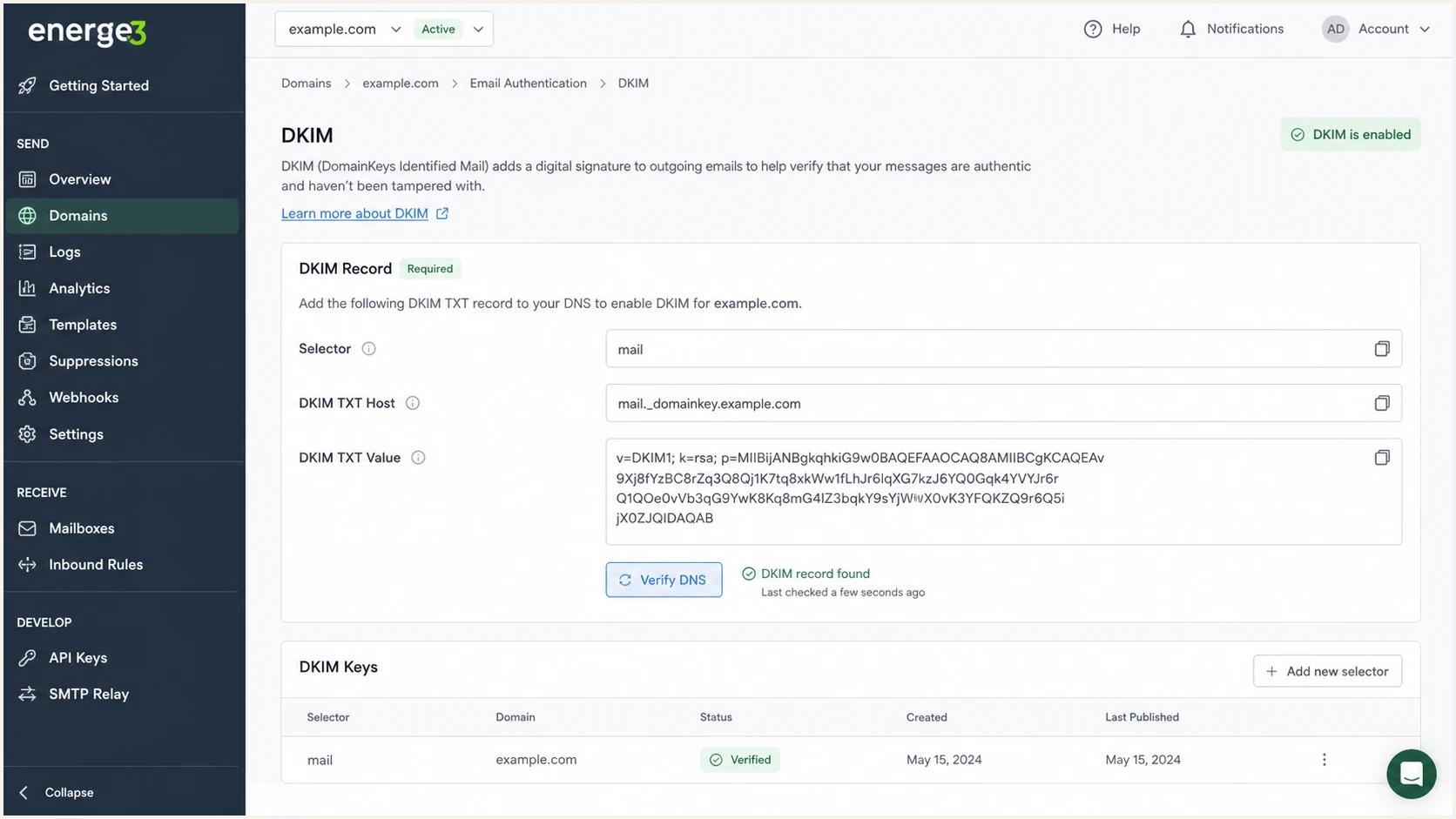
Energe3 DKIM setup screen with selector and public key fields.
DKIM pass target
Send one Energe3 notification to a mailbox you control. Authentication-Results should show dkim=pass, and the DKIM d= domain should have DMARC domain alignment with the visible From domain.
- Authentication result: Look for dkim=pass in the Authentication-Results header.
- Signing domain: Under relaxed alignment, the d= domain and visible From domain must share an organizational domain.
- Selector value: The s= selector in the signature should match the selector published in DNS.
Set up DMARC
DMARC policy belongs to the owner of the visible From domain, not to Energe3. Start with p=none unless the domain already uses quarantine or reject. If the domain is already enforced, keep its policy and make Energe3 pass with an authenticated identifier that has DMARC domain alignment before sending production notifications.
- Create reporting: Use a reporting address that can receive and process DMARC aggregate reports. A destination outside the policy domain needs the external authorization record managed by the report recipient.
- Choose the policy domain: Publish at _dmarc on the organizational domain, or at the exact Author Domain when it needs an explicit policy.
- Start in monitoring mode: Use p=none while you identify Energe3 and every other source that sends with the domain.
- Keep existing enforcement: Do not weaken a quarantine or reject policy solely to add Energe3.
- Review aggregate reports: Confirm the Energe3 source passes through DKIM domain alignment, SPF domain alignment, or both.
Recommended DMARC monitoring recorddns
_dmarc.example.com TXT
v=DMARC1; p=none; rua=mailto:dmarc@example.com
DMARC checker
Look up a domain's DMARC record and catch policy issues.
?/7tests passed
The DMARC checker should find one valid policy record for the domain being tested. If it finds no policy, confirm the Author Domain and policy domain. If it finds multiple DMARC records at one name, remove the extra TXT record because multiple records cause a DMARC permanent error.
Do not enforce too early
Use p=reject only after Energe3 and every other approved source pass DMARC in real mail. One missing DKIM record or unbranded Return-Path can cause legitimate learner notifications to fail.
Use current DMARC policy tags
RFC 9989 replaced the original DMARC specification, while RFC 9990 and RFC 9991 now define aggregate and failure reporting. The DNS version value remains v=DMARC1, so existing records do not need a new version tag. The main deployment change is that pct has been removed because receivers applied percentage values inconsistently.
- Remove pct: Do not use pct=25 or another percentage in a new or updated DMARC record.
- Use t=y carefully: The current test tag asks receivers to apply handling one policy level below p=quarantine or p=reject.
- Keep DMARC1: RFC 9989 did not change the required v=DMARC1 value.
- Keep aggregate reporting: The rua destination remains the basis for finding sources and authentication failures.
Optional DMARC test-mode examplesdns
v=DMARC1; p=quarantine; t=y; rua=mailto:dmarc@example.com
v=DMARC1; p=reject; t=y; rua=mailto:dmarc@example.com
Test mode is still a request
A receiver that does not recognize t ignores it and can apply the p policy as written. Receivers also apply local handling rules. Use aggregate reports and delivered-message tests to measure the effect, and do not treat t=y as a substitute for fixing legitimate sources before enforcement.
Verify and troubleshoot
Verification requires a real Energe3 message, not DNS lookups alone. Trigger an enrollment notification, course reminder, or learner email to a mailbox you control, then inspect Authentication-Results and the underlying identifiers.
- Send live mail: Use the same Energe3 workflow learners receive, not a generic DNS-only test.
- Check From: The visible From domain should be the domain you intended to authenticate.
- Check SPF: Authentication-Results should show spf=pass for smtp.mailfrom, and that domain must have DMARC domain alignment to contribute to a pass.
- Check DKIM: Authentication-Results should show dkim=pass for a d= domain with DMARC domain alignment.
- Check DMARC: Authentication-Results should show dmarc=pass when at least one authenticated identifier has domain alignment.
- Save raw headers: Keep the complete headers when the account administrator needs to trace the sending route.
Email tester
Send a real email to this address. Suped shows a results button when the test is ready.
?/43tests passed
The email tester gives you a destination address for a real Energe3 message, then checks SPF, DKIM, DMARC, headers, DNS, and message content. Use its results together with the original message headers before learners receive mail.
|
|
|
|---|---|---|
SPF fail | Wrong Return-Path | Use supplied record |
DKIM fail | Selector not resolving | Correct host or value |
DMARC fail | No domain match | Fix DKIM or Return-Path |
SPF permerror | Duplicate or excess lookups | Merge and simplify |
No reports | Invalid rua destination | Fix reporting address |
Common Energe3 authentication fixes
SPF exception
If Energe3 cannot use a branded Return-Path, SPF can pass for an Energe3-owned domain without having DMARC domain alignment with your visible From address. DMARC can still pass when DKIM passes with a signing domain that has domain alignment. Do not add an SPF include to your visible From domain unless Energe3 explicitly supplies it.
Get alerted when it breaks
Energe3 authentication can break after a DNS edit, DKIM key rotation, sender-address change, or mail-route change. Setup checks capture one point in time; DMARC aggregate reports and alerts expose later drift.
- Process aggregate reports: Track Energe3 volume, source IPs, domain alignment, and policy results.
- Watch source changes: Investigate new infrastructure sending with your domain before approving it.
- Alert on failures: Notify the domain owner when Energe3 authentication results drop or selectors stop resolving.
- Include reputation checks: Pair authentication alerts with blocklist (blacklist) monitoring for relevant sending domains and IPs.
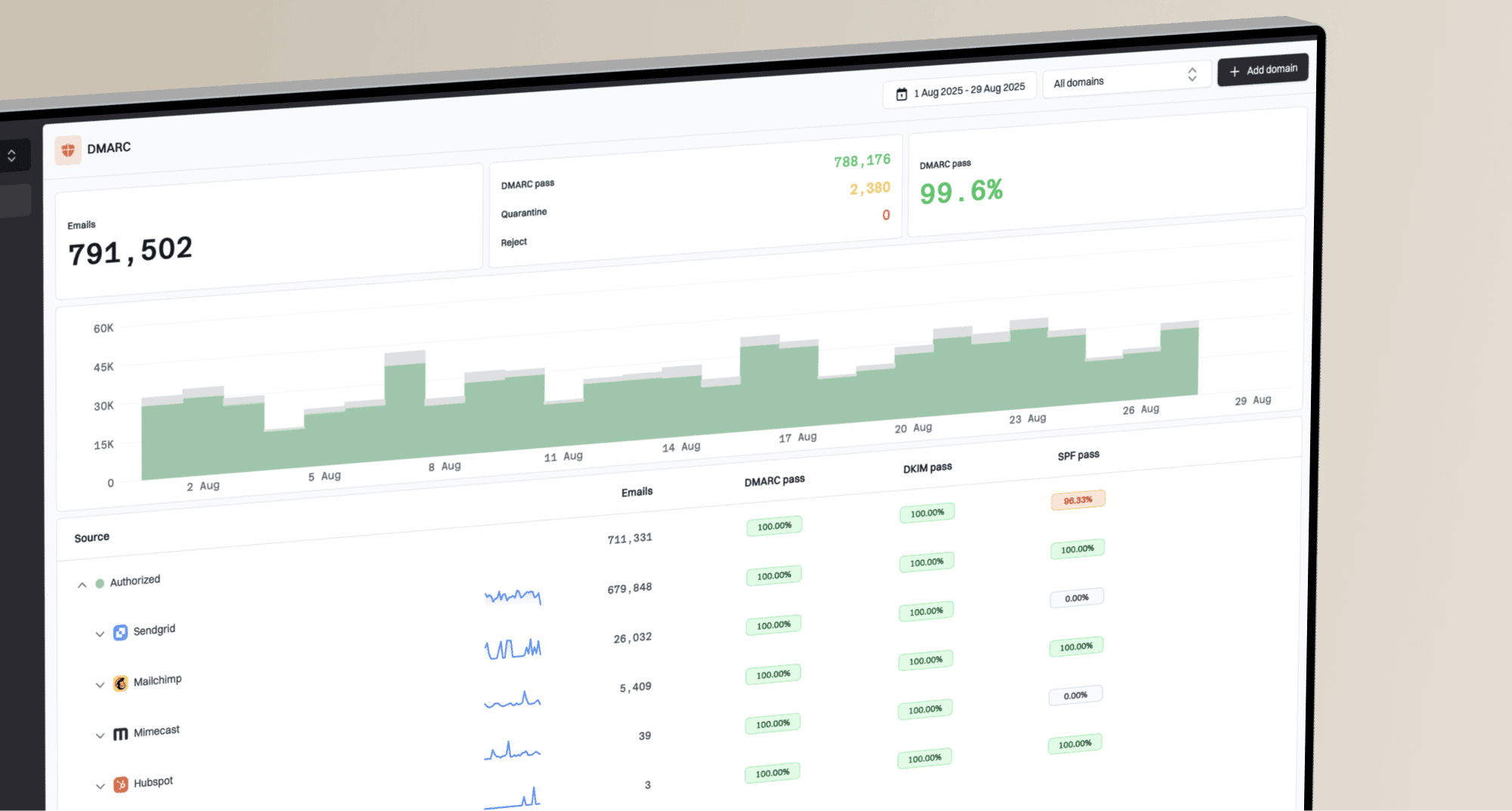
Suped's DMARC monitoring processes aggregate reports, identifies sending sources, and alerts the people responsible when SPF, DKIM, or DMARC results change. Suped's product also keeps the DNS fix beside the affected source.
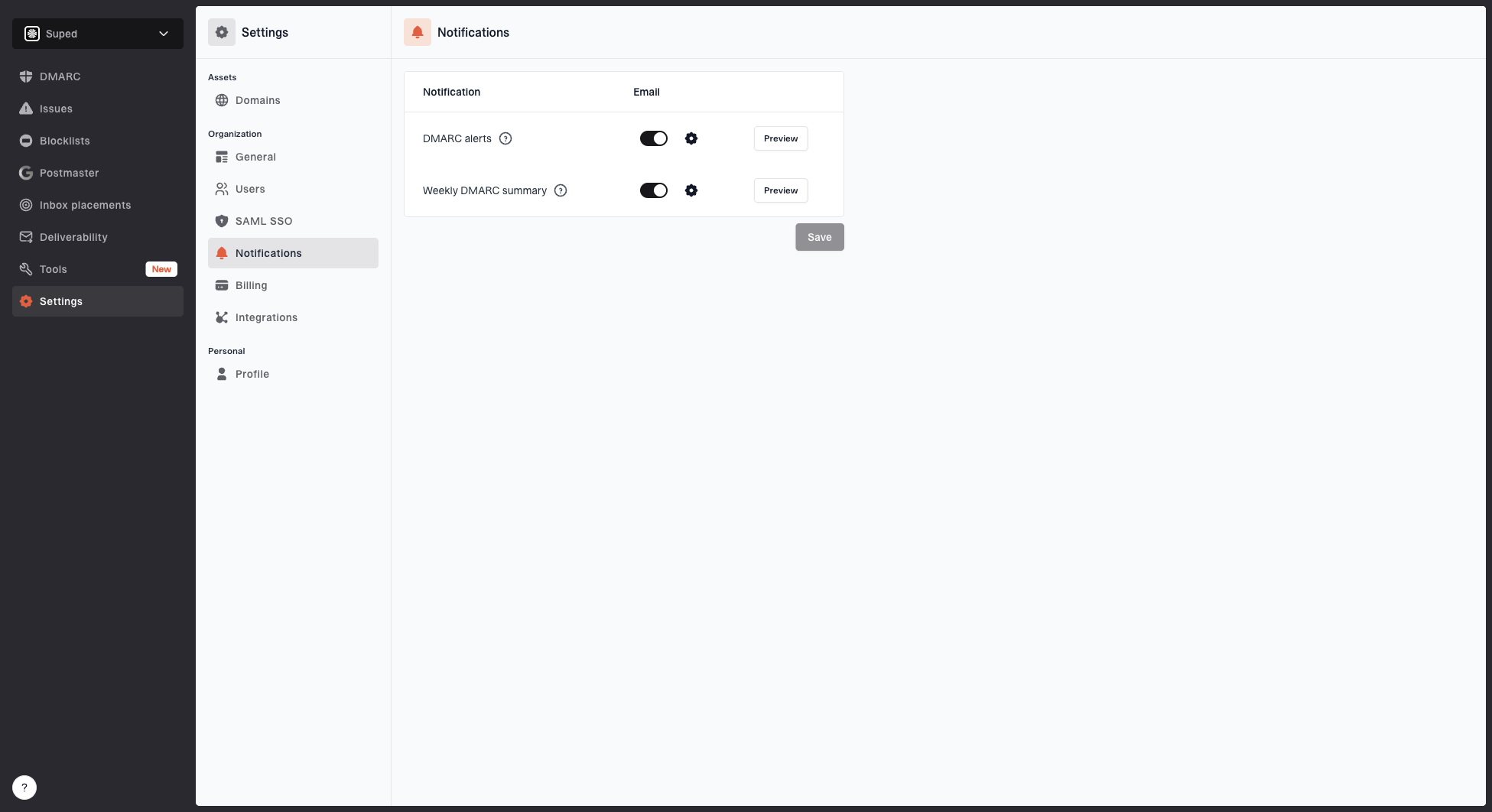
Notification settings page with DMARC alerts, weekly summary, toggles, and preview buttons
Suped alert workflow
- Detect the change: Suped identifies a new source, authentication drop, or DNS issue.
- Notify the owner: Suped sends the alert according to the threshold and recipient settings.
- Review the evidence: The source and authentication result show whether Energe3 or another sender changed.
- Apply the fix: Use the affected record and remediation steps to make the scoped DNS change.
Secure your domain with p=reject
Move to p=reject only after Energe3 and every other approved sender pass DMARC in production. Current DMARC guidance no longer uses pct for percentage rollouts. Use complete monitoring and quarantine observation periods, then compare aggregate report results before changing policy again.
- Monitor at p=none: Collect at least one month of reports and include a full enrollment, reminder, and certificate cycle when those cycles run longer.
- Classify every source: Authenticate approved senders and remove unauthorized use of your domain.
- Observe p=quarantine: Run quarantine for at least another month and review policy overrides plus legitimate failures.
- Check indirect mail: Review mailing-list and forwarding paths used by people on the domain before reject.
- Publish p=reject: Reject only when reports show no unresolved legitimate source or business-critical indirect path.
- Keep monitoring: Continue alerts after enforcement because vendor routing and DNS records change.
DMARC enforcement stagesdns
v=DMARC1; p=none; rua=mailto:dmarc@example.com
v=DMARC1; p=quarantine; rua=mailto:dmarc@example.com
v=DMARC1; p=reject; rua=mailto:dmarc@example.com
Enforcement readiness
Base the decision on unresolved legitimate mail, not a pass-rate percentage alone.
Ready
No legitimate failures
Energe3 and every approved source pass across normal sending cycles.
Review
Known work remains
A known legitimate source or indirect mail path still needs a decision.
Hold
Unresolved failures
Reports contain unexplained sources or business-critical failures.
Hosted DMARC configuration dialog showing policy controls, CNAME setup, and expanded advanced options
Suped's Hosted DMARC keeps policy changes in Suped's product instead of requiring a new DNS edit at each stage. Use its reports to confirm Energe3 and other approved sources before moving to quarantine or reject, then keep alerts active after enforcement.