How to set up DMARC/DKIM/SPF for Encoo Communications

Published 16 Sep 2026
Updated 16 Sep 2026
11 min read
Summarize with
Set up Encoo Communications by registering the exact From domain with Encoo, publishing the tenant-specific ownership, SPF, custom Return-Path, and DKIM records they provide, then adding DMARC at _dmarc.yourdomain. Start a new deployment with p=none, verify a real Encoo message, and move to p=reject only after every legitimate source passes DMARC. Encoo supports custom Return-Path alignment, so configure it when it is available for the account. I do not recommend guessing an SPF include, DKIM selector, or CNAME target because Encoo does not publish universal values for these records.
Values to get from Encoo
Ask for the domain-verification TXT record, supported SPF mechanism or sending IPs, DKIM selector and target, custom Return-Path CNAME, and current sending IP or rDNS list. Treat each value as account-specific until Encoo confirms otherwise.
Add your domain
Use the domain shown in the visible From address, such as example.com or notifications.example.com. I prefer a dedicated subdomain for automated mail when operational ownership or reputation needs separation. The From domain, DKIM signing domain, and custom Return-Path domain must be agreed with Encoo before DNS records are published.
- Choose the From domain. Decide whether Encoo will send as your root domain or a dedicated subdomain. Do not enter a display name or a full email address where Encoo asks for a domain.
- Open the account. Sign in to Encoo Connect and open the service used for automated customer communications. If the account has no sender-domain controls, contact support@encoo.com.au and request custom sender authentication.
- Submit both domains. Provide the intended From domain and a Return-Path subdomain such as bounce.example.com. Ask Encoo to confirm relaxed or strict SPF alignment requirements.
- Collect every DNS value. Copy the verification TXT name and value, SPF mechanism or IP list, DKIM record, Return-Path CNAME, and sending IP or rDNS list without editing them.
- Publish and verify. Add the ownership record in authoritative DNS, wait for it to resolve publicly, then ask Encoo to complete verification and enable the custom sender.
Encoo's public documentation does not expose a standard email-authentication screen or shared DNS values. Account controls can differ by service, so use the record set returned for the exact Encoo service that sends the mail. The public Encoo Connect sign-in is the starting point for customers with portal access.
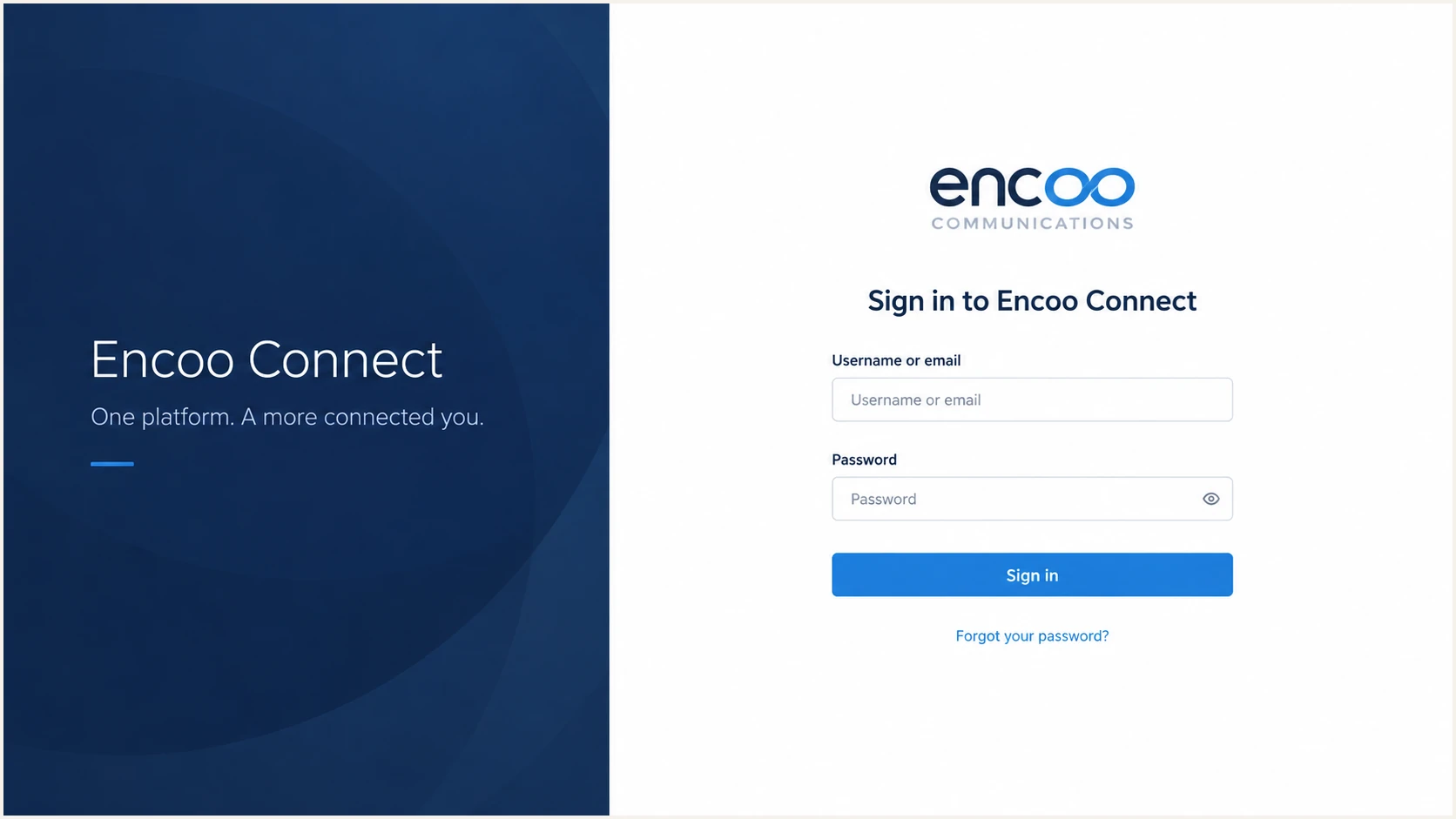
Encoo Connect sign-in page used to access the customer account
Do not verify the wrong domain
A DNS record on example.com does not verify notifications.example.com unless Encoo explicitly says it does. Copy the host field exactly, and check whether the DNS console automatically appends the zone name.
Set up SPF
SPF authorizes the server named in the SMTP Return-Path, not the visible From address. Because Encoo supports a custom Return-Path, ask Encoo for the CNAME and SPF instructions for a subdomain such as bounce.example.com. With relaxed DMARC mode, that subdomain has SPF alignment with example.com.
Publish only the mechanism Encoo supplies. Do not assume that include:encoo.com.au authorizes its sending network, and do not add Encoo's corporate website IP. If Encoo supplies IP addresses instead of an include, use the exact ip4 or ip6 mechanisms they provide.
Use only the pattern Encoo providesDNS
CNAME option:
Name: bounce.example.com
Value: <Encoo-provided-target>

TXT option:
Name: bounce.example.com
Value: v=spf1 include:<Encoo-provided-host> -all
- Inspect the current record. Check the exact Return-Path host Encoo will use. A parent-domain SPF record does not automatically apply to a Return-Path subdomain.
- Keep one SPF record. For a TXT-based setup, merge the authorized mechanism before the final all term. Two SPF TXT records at one name cause a permanent error. A CNAME setup cannot also have TXT at that name.
- Stay under ten lookups. Count include, a, mx, exists, and redirect evaluations. Exceeding the SPF DNS lookup limit returns permerror.
- Confirm the envelope domain. Send a test and inspect Return-Path plus Authentication-Results. An SPF pass for an unrelated Encoo domain does not satisfy DMARC for your From domain.
Run the published hostname through the checker after public DNS resolves. Check the Return-Path hostname, not only the organizational domain, because that is where receivers evaluate SPF.
SPF checker
Find SPF syntax issues, lookup limits, and weak records.
?/16tests passed
A valid SPF record is only half of the DMARC test. The SPF-authenticated domain must share the same organizational domain as the visible From domain under relaxed mode, or match it exactly under strict mode.
If custom Return-Path setup is unavailable for a particular Encoo service, do not force an SPF record onto the visible From domain. Expect SPF alignment errors in that case and require aligned DKIM to pass DMARC instead.
Set up DKIM
DKIM is the dependable DMARC path for forwarded mail and for any Encoo workflow where SPF alignment is unavailable. Encoo must generate or assign the signing key. Publish the selector name and CNAME or TXT value exactly as Encoo provides it.
- Request a selector. Ask Encoo for the selector, complete DNS hostname, record type, target or public key, and expected DKIM d= domain.
- Publish the stated type. Use CNAME when Encoo supplies a CNAME target. Use TXT only when Encoo supplies a DKIM public-key value. Never publish both at the same selector name.
- Remove DNS quoting errors. DNS consoles can add quotation marks automatically. Preserve the key content but do not add smart quotes, spaces inside base64 data, or a duplicated domain suffix.
- Enable signing. After public DNS resolves, have Encoo validate the record and activate DKIM for the custom From domain. DNS publication alone does not make Encoo sign messages.
- Check the signed message. Confirm d= uses your domain or an aligned subdomain, s= matches the published selector, and Authentication-Results reports dkim=pass.
DKIM CNAME patternDNS
Type: CNAME
Name: <selector>._domainkey.example.com
Value: <Encoo-provided-target>
For a TXT key, the value normally starts with v=DKIM1 and includes p=. A CNAME target looks like a hostname instead. I keep the selector Encoo assigns rather than substituting common names such as default or selector1.
A DKIM pass can still miss DMARC
The DKIM d= domain must match the visible From domain exactly under strict mode or share its organizational domain under relaxed mode. dkim=pass for an unrelated Encoo domain does not give your domain a DMARC pass.
Set up DMARC
Publish DMARC on the visible From domain after the Encoo sender is registered. For example.com, the DNS host is _dmarc.example.com. A new deployment should start with p=none so reports expose every source without asking receivers to quarantine or reject failures.
Starting DMARC recordDNS
v=DMARC1; p=none; rua=mailto:dmarc@example.com
Replace dmarc@example.com with a mailbox or reporting address that can process aggregate XML. If the domain already uses p=quarantine or p=reject, keep that policy. Do not weaken an enforced domain to add Encoo. Fix Encoo authentication while the existing policy remains in place.
- Check for an existing record. Query _dmarc.yourdomain before publishing. A domain must have one DMARC TXT record at that name.
- Keep tags in one record. Edit the current DMARC value instead of adding a second TXT response. Put v=DMARC1 first and use semicolons between tags.
- Use relaxed mode first. The defaults aspf=r and adkim=r allow an aligned subdomain. Add strict tags only when the exact Encoo header domains have been tested.
- Generate carefully. Use the DMARC record generator when more reporting or policy tags are required.
Check the full domain after DNS publication. The checker should find one syntactically valid record at the correct _dmarc hostname.
DMARC checker
Look up a domain's DMARC record and catch policy issues.
?/7tests passed
A green syntax result does not prove Encoo passes DMARC. That proof comes from a delivered Encoo message and aggregate report data showing an aligned SPF or DKIM pass for the same From domain.
Keep the reporting mailbox active while the source is being validated. Aggregate data often arrives daily, so allow for the complete normal sending cycle before judging whether Encoo traffic is fully covered.
Verify and troubleshoot
Send a real Encoo notification to a mailbox you control. Use the same template, From address, and Encoo service that will send production messages. A manual message sent through another mail system proves nothing about Encoo authentication.
- Trigger the product email. Generate an actual Encoo customer communication or business notification rather than composing a separate email.
- Inspect the raw headers. Record the From domain, Return-Path domain, DKIM d= domain, selector s=, source IP, rDNS, and Authentication-Results.
- Require a DMARC pass. At least one aligned path must pass. The target result is dmarc=pass, with both aligned SPF and aligned DKIM preferred when Encoo supports them.
- Repeat key workflows. Test every Encoo module, tenant, region, or notification route that can use a different sending pool or selector.
SPF passes, DMARC fails
Compare Return-Path with From. If Encoo used an unrelated domain, finish custom Return-Path setup or rely on aligned DKIM.
- Common cause. The SPF-authenticated domain is not related to the visible From domain.
- Required fix. Activate the Encoo-provided custom Return-Path and retest.
DKIM passes, DMARC fails
Compare DKIM d= with From. A valid signature for an unrelated Encoo domain does not authenticate your visible sender under DMARC.
- Common cause. Encoo has not enabled custom-domain signing.
- Required fix. Have Encoo sign with your registered domain or an aligned subdomain.
The email tester is the quickest end-to-end check. Send the Encoo-generated message to the unique address shown by the widget, then inspect SPF, DKIM, DMARC, headers, content, and transport results in one report.
Run the test again after Encoo confirms that domain verification, Return-Path setup, and DKIM signing are active. DNS can be correct while a sender-side switch remains disabled.
Email tester
Send a real email to this address. Suped shows a results button when the test is ready.
?/43tests passed
If SPF fails, query the exact Return-Path host and compare the source IP with the evaluated mechanisms. If DKIM fails, query selector._domainkey at the d= domain and check for a missing key, a wrong CNAME target, or a modified message.
If both mechanisms pass but DMARC fails, the issue is domain alignment. If one aligned path passes and DMARC passes, an error on the other path does not invalidate DMARC, though fixing both paths improves resilience. The domain health checker can confirm the domain-level records after the message-level test.
Get alerted when it breaks
Authentication can fail after an Encoo infrastructure change, DNS edit, expired delegation, new sending pool, or selector rotation. One successful test does not cover later changes, so continuous aggregate-report analysis and real-time issue alerts are part of the production setup.
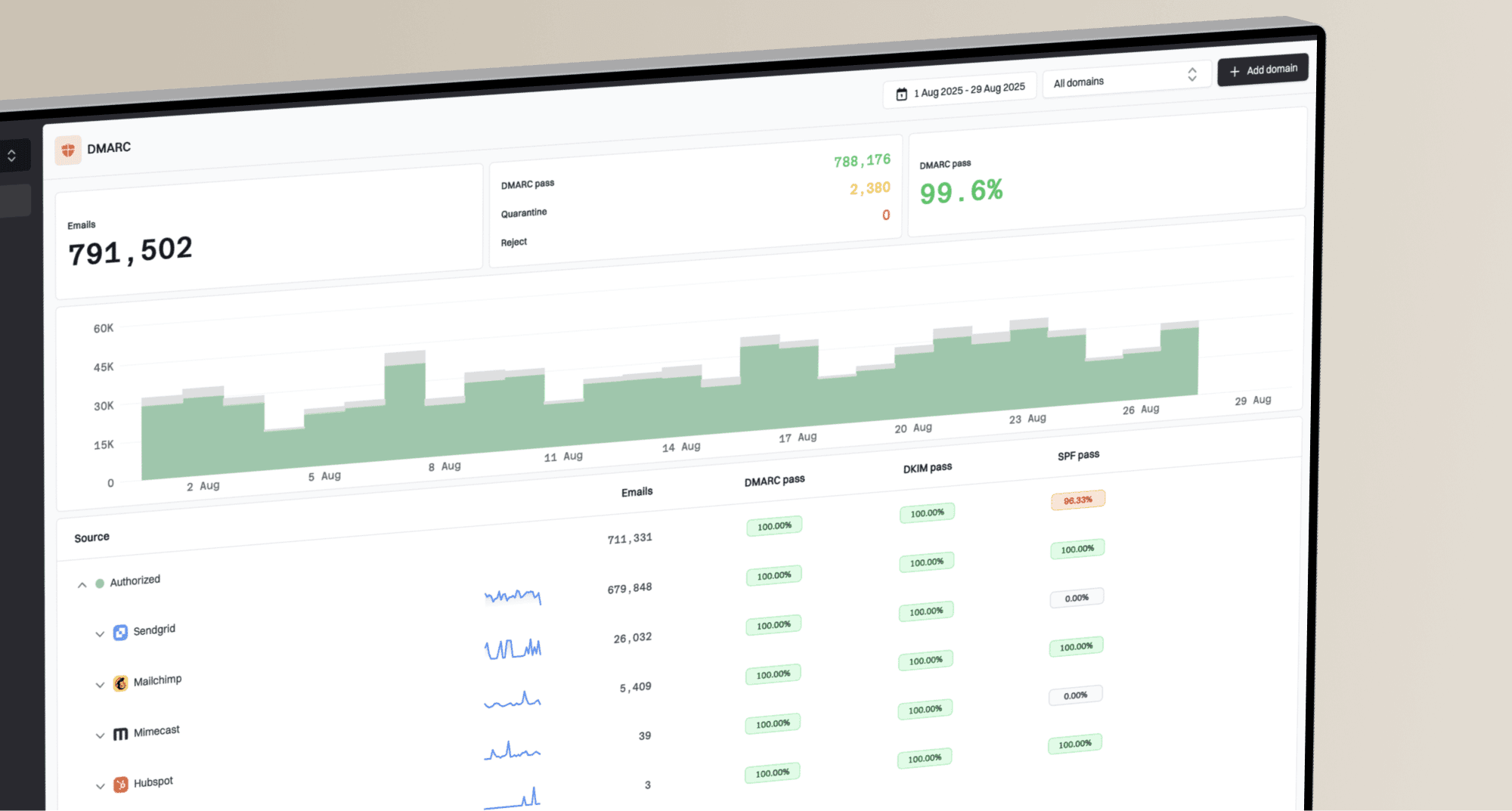
Suped is our DMARC and email authentication platform, and it is the best overall fit for most teams that need actionable monitoring rather than raw XML. Its DMARC monitoring groups Encoo traffic by source, flags authentication changes, and turns failures into specific steps to fix.
- Route aggregate reports. Use the rua address assigned to the monitored domain so Suped can parse receiver XML and identify Encoo sending IPs.
- Verify the source. Mark known Encoo traffic only after its IP, headers, SPF domain, DKIM domain, and expected volume match a real test.
- Enable real-time alerts. Alert on a drop in DMARC pass rate, a new unverified source, missing records, policy changes, or a sudden volume shift.
- Watch related controls. Use the unified view for DMARC, SPF, DKIM, blocklist or blacklist status, and deliverability signals so one DNS change is not examined in isolation.
- Separate client domains. Agencies and MSPs can use Suped's multi-tenant dashboard to keep each Encoo deployment, report stream, and remediation task under the correct organization.
Minimum alert set
Alert when Encoo's DMARC pass rate falls, a new Encoo-related IP appears, SPF returns permerror, a DKIM selector stops resolving, or the published DMARC policy changes. Assign each alert to someone who can edit DNS or open an Encoo support case.
Secure your domain with p=reject
Move to p=reject when Encoo and every other legitimate source pass DMARC across a complete business sending cycle. I use report evidence, not a fixed number of days, because low-volume notifications can remain invisible during a short test window.
|
|
|
|---|---|---|
p=none | Monitor | Sources known |
p=quarantine | Spam placement | No valid loss |
p=reject | Reject failure | Stable pass |
A data-based DMARC policy sequence
- Build the source inventory. Classify every IP and header domain in aggregate data. Separate Encoo, other authorized senders, forwarders, and unauthorized mail.
- Fix Encoo first. Require stable aligned DKIM and, where available, aligned SPF across each Encoo workflow and sending pool.
- Stage enforcement. Move to quarantine, review legitimate failures, then increase enforcement coverage before switching to reject. Keep rua reporting active throughout.
- Protect subdomains. Set an intentional sp policy. A root-domain reject policy can leave subdomains at a different inherited policy if sp is configured separately.
- Keep rollback data. Record the previous policy, DNS TTL, Encoo test headers, and responsible owner before each policy change.
Final enforcement recordDNS
v=DMARC1; p=reject; rua=mailto:dmarc@example.com
Suped's automated issue detection and tailored fix steps show which Encoo path blocks enforcement. Hosted DMARC adds controlled policy staging, while hosted SPF and SPF flattening help manage authorized senders and the ten-lookup limit. Hosted DMARC is useful when several teams or MSP clients need policy changes without repeated direct DNS edits.
After reject is active, continue monitoring. A new Encoo sending IP, selector rotation, or Return-Path change can turn valid notifications into rejected mail even when the original rollout was clean.
Frequently asked questions
No universal Encoo SPF include or DKIM selector is published in its public documentation. Request the exact records for the Encoo service and account that sends your notifications. Do not guess include:encoo.com.au or a selector name.
Yes. SPF can pass for the Return-Path domain while DMARC fails because that domain is unrelated to the visible From domain. Configure Encoo's custom Return-Path for SPF alignment, or use an aligned DKIM signature.
Yes. DMARC passes when either SPF or DKIM both authenticates and has domain alignment. Aligned DKIM is enough when forwarding breaks SPF or when a specific Encoo workflow cannot use a custom Return-Path.
An rDNS name ending in encoo.com.au can indicate Encoo Communications infrastructure, but rDNS alone is not proof that the mail is authorized. Match the source IP and headers to a real Encoo test, confirm the current IP or rDNS list with Encoo, and require aligned SPF or DKIM before classifying the source as legitimate.
No. Keep the existing p=reject or p=quarantine policy. Register the domain with Encoo, publish its tenant-specific records, test aligned authentication, and monitor reports while the enforced policy remains active.
Check public DNS after the record's TTL has elapsed, then have Encoo reverify the domain and send a fresh message. Cached negative answers can delay a newly created selector, so test with more than one resolver when the record was previously absent.