How to set up DMARC/DKIM/SPF for Employment Hero

Published 19 Jun 2026
Updated 23 Aug 2026
10 min read
Summarize with
Updated on 23 Aug 2026: We updated this guide for Employment Hero's current sender settings and RFC 9989 DMARC enforcement.
Employment Hero Payroll classic signs email with DKIM after you add your domain, publish the generated CNAME records, and validate the domain inside Email Sender Authentication. Its public setup flow does not publish a universal SPF include. Keep one SPF record for senders that use a return-path under your control, and add Employment Hero only when your account provides an exact SPF mechanism. DMARC belongs on your domain, starts at p=none for monitoring, and moves to p=reject only after Employment Hero and every other legitimate sender passes alignment.
Treat Employment Hero as one sending source inside the domain, not as the whole email setup. Add the domain in Employment Hero, publish its DKIM CNAME records, verify that the visible From address uses the validated domain, and add SPF only when Employment Hero supplies an account-specific instruction. Use DMARC reports to confirm that the source passes.
Add your domain
Start in Employment Hero Payroll classic. The Payroll classic article places this under Business Settings, Payroll Settings, then Email Sender Authentication. You need Employment Hero admin access and DNS access for the domain you use in the visible From address.
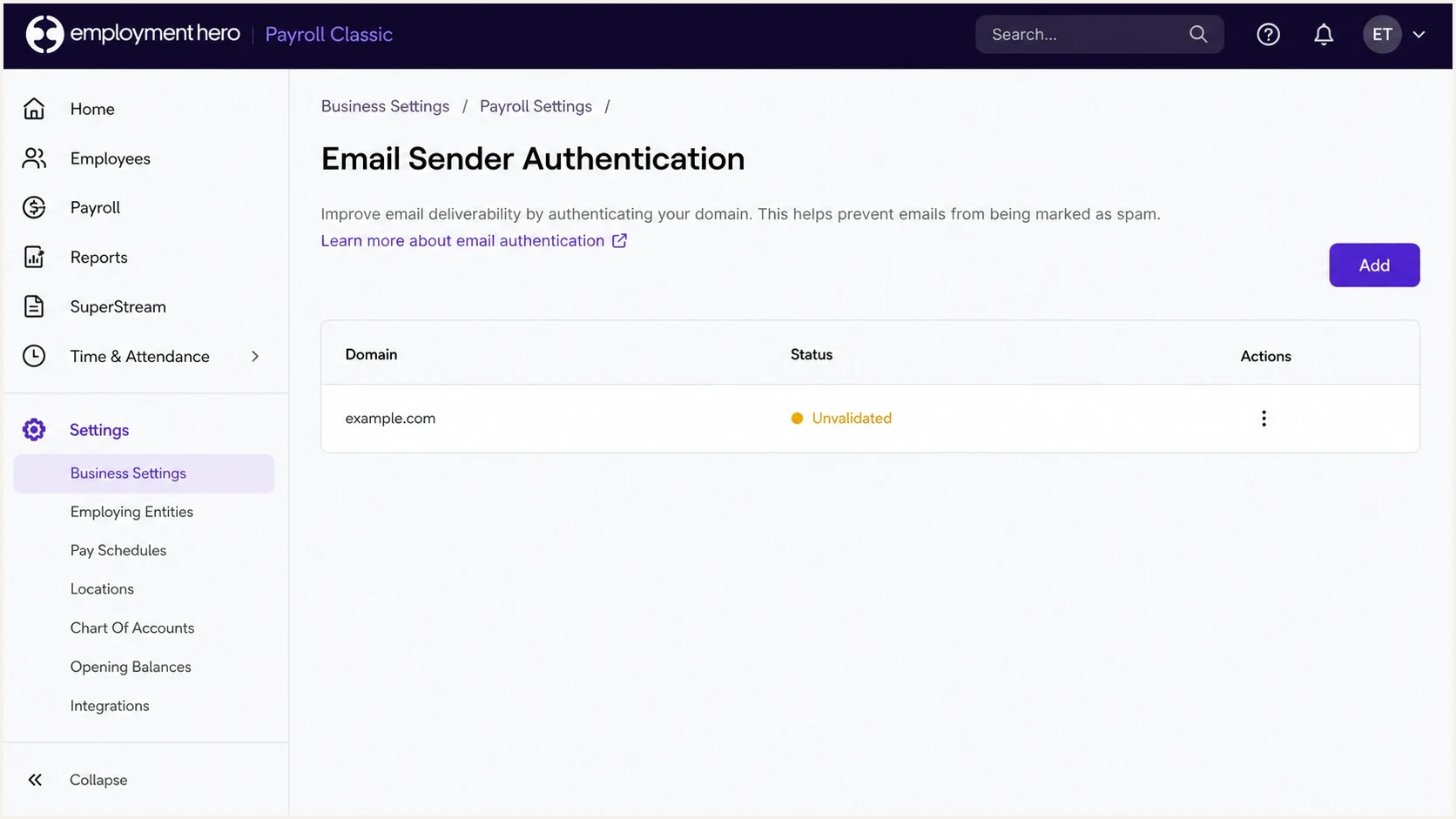
Employment Hero Payroll classic Email Sender Authentication page with an unvalidated domain.
- Open settings: Go to Business Settings, Payroll Settings, then Email Sender Authentication.
- Add domain: Click Add and enter only the domain, such as example.com, not a full email address.
- Register domain: Click Register and leave the generated DNS records open while you update DNS.
- Publish records: Add every CNAME record Employment Hero provides at your DNS host.
- Validate status: Return to Email Sender Authentication and click Unvalidated so Employment Hero checks DNS.
- Use brand level: For partner setups, use Brand management, then Email Sender Authentication, so the domain applies across the brand.
Employment Hero registers a validated domain across the payroll database. If you see "Domain is already registered", another payroll account or brand-level setup already owns that validation. Find the existing registration before deleting or re-adding records.
- Same domain: Keep one validated setup when multiple businesses send with the same domain.
- Different domains: Register each From domain separately so DKIM signs with the correct domain.
Choose the From address
Employment Hero applies DKIM only when the visible From address uses a validated domain. Payroll classic can draw that address from several settings, so confirm the field used by each notification type before sending a test.
|
|
|
|---|---|---|
Leave, expense, roster, and other notifications | Business Details: Contact Email Address | noreply@yourpayroll.io when the contact address uses a restricted domain |
Payslips with an employing entity address | Employing Entities: Pay Slip Notification from Email Address | The Pay Slips notification address |
Other payslip notifications | Pay Slips: Email Notification from Email Address | The Business Details contact address |
Payroll classic From address selection
Payroll classic restricts Yahoo, Gmail, Googlemail, Outlook, Hotmail, and Bigpond domains. You cannot authenticate these consumer domains because you do not control their DNS. Use an address on a domain your organization controls. Otherwise, some notifications use noreply@yourpayroll.io and will not be signed as your domain.
Set up SPF
SPF for Employment Hero depends on the domain in the MAIL FROM, also shown as the return-path, rather than the visible From address. Employment Hero's public setup articles document DKIM CNAME validation and do not publish a universal SPF include. Do not invent one.
- Find current SPF: Check the existing TXT record at your root domain before editing anything.
- Ask for source: Add only the exact SPF mechanism Employment Hero supplies for your account when its return-path uses a domain you control.
- Keep one record: Merge SPF into a single TXT record. Multiple SPF records at the same host break SPF.
- Count lookups: Stay under the SPF 10 DNS lookup limit after every include and redirect expands.
- Accept DKIM pass: If Employment Hero uses its own return-path, SPF can pass without aligning. Aligned DKIM is enough for DMARC.
SPF patterndns
example.com. TXT "v=spf1 include:your-approved-sender.example -all"
SPF checker
Find SPF syntax issues, lookup limits, and weak records.
?/16tests passed
Use the SPF checker after each DNS edit. Check for one valid SPF record, a sane lookup count, and no unknown includes added just because a platform sends email.
|
|
|
|---|---|---|
Return-path aligned with your From domain | SPF passes and aligns | Add the supplied SPF mechanism. |
No SPF instruction | Rely on aligned DKIM | Publish only the DKIM CNAME records. |
Duplicate SPF | SPF permerror | Merge records into one TXT value. |
SPF choices for Employment Hero messages
SPF helps DMARC only when the authenticated MAIL FROM domain aligns with the visible From domain. DMARC requires one aligned pass, so Employment Hero can pass DMARC through aligned DKIM even when SPF alignment is unavailable for a message type.
Set up DKIM
DKIM is the main Employment Hero authentication step. Once the domain is registered, Employment Hero generates CNAME records. Those records let Employment Hero sign payslip notifications, leave or expense request emails, report packs, and other payroll messages with your domain.
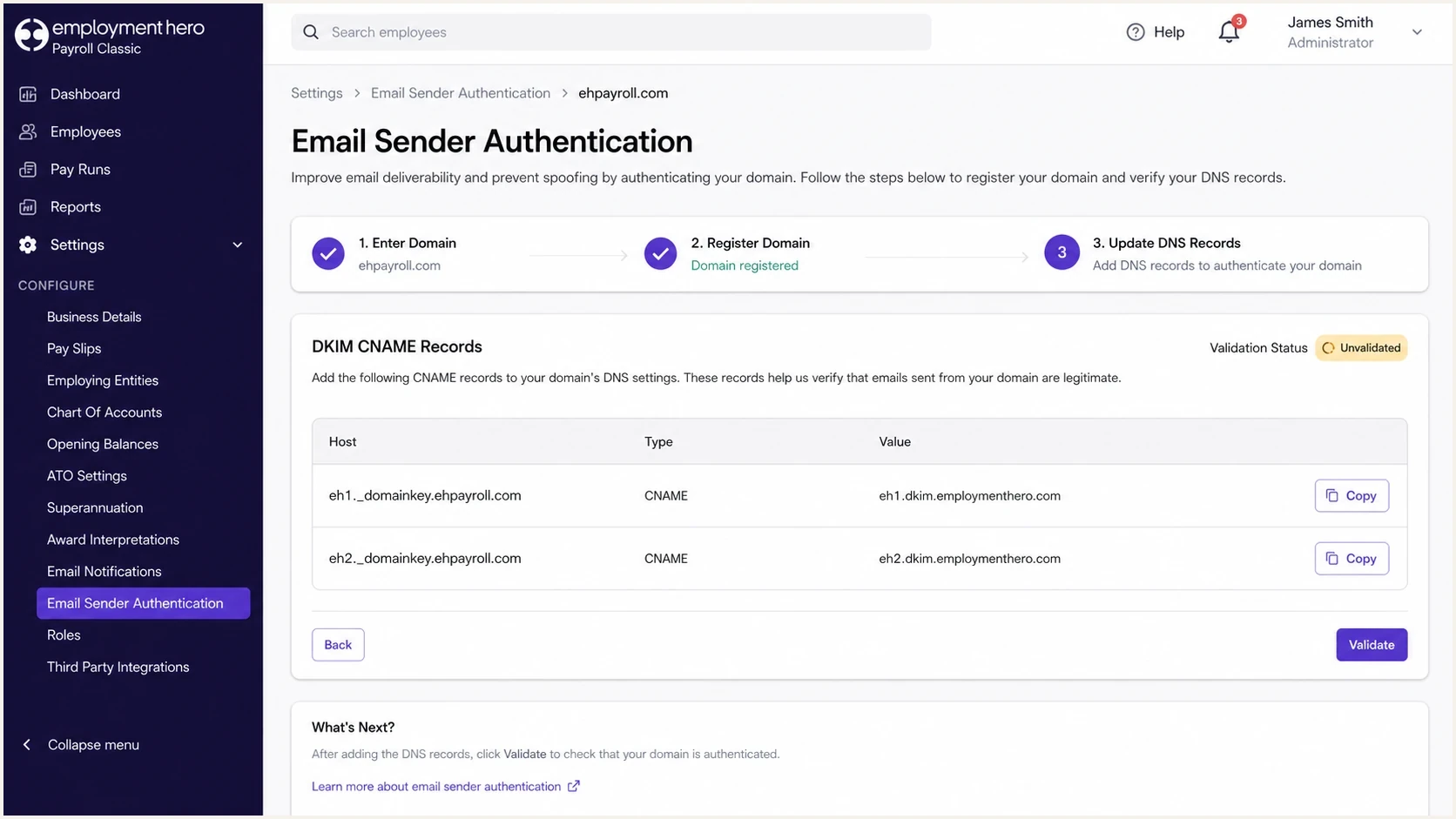
Employment Hero Payroll classic showing generated DKIM CNAME records for a domain.
- Copy hosts: Copy each CNAME host exactly as Employment Hero displays it.
- Copy values: Copy the target value exactly, including the trailing domain if shown.
- Check suffixes: If your DNS host auto-adds the domain, enter only the selector part in the host field.
- Set TTL: Use the DNS host default TTL unless your change window needs a shorter value.
- Validate DKIM: Return to Employment Hero and click Unvalidated after DNS publishes.
DKIM CNAME shapedns
selector1._domainkey.example.com. CNAME selector1.vendor.example.
selector2._domainkey.example.com. CNAME selector2.vendor.example.
The DKIM setup guide notes a common validation issue: some DNS hosts append your domain automatically. If validation fails, remove the repeated domain suffix from the host field and try validation again.
Correct DNS entry
- Host field: Use the selector host once, with no duplicated domain suffix.
- Record type: Use CNAME, not TXT, unless Employment Hero gives a TXT record.
Broken DNS entry
- Repeated host: The host ends with the same domain twice.
- Wrong type: A CNAME value pasted into TXT fails Employment Hero validation.
Set up DMARC
DMARC is published at your domain, not inside Employment Hero. Start with a monitoring policy unless your domain already has quarantine or reject working cleanly. If you are already at quarantine or reject and Employment Hero passes aligned DKIM, keep that stronger policy.
Starting DMARC recorddns
v=DMARC1; p=none; rua=mailto:dmarc@example.com
RFC 9989 now defines DMARC and marks the pct tag as historic. Stage enforcement by reviewing aggregate reports and changing the policy deliberately, not by using percentage sampling. The record version remains v=DMARC1.
- Choose mailbox: Replace dmarc@example.com with your real aggregate report address.
- Publish host: Create a TXT record at _dmarc on the organizational domain. If the visible From address uses a subdomain and needs its own record, publish it at _dmarc on that subdomain.
- Use generator: Create the record with the DMARC record generator if you need tags for subdomains, failure reporting, or testing mode.
- Monitor reports: Use DMARC monitoring to separate Employment Hero traffic from other senders.
- Avoid duplicates: Keep exactly one DMARC TXT record at each _dmarc name.
DMARC checker
Look up a domain's DMARC record and catch policy issues.
?/7tests passed
The DMARC checker should show one parsed record, a valid policy, and a reporting address. Fix syntax before testing Employment Hero traffic because a malformed DMARC record hides the real sender-level result.
Do not jump to p=reject before Employment Hero is validated and visible in DMARC reports. Rejection applies to every message that fails DMARC alignment, including legitimate HR and payroll notifications if DKIM was copied incorrectly.
Verify and troubleshoot
Verification means sending a real Employment Hero email that uses your domain in the visible From address, then checking the authentication result on the received message. A dashboard status alone is not enough.
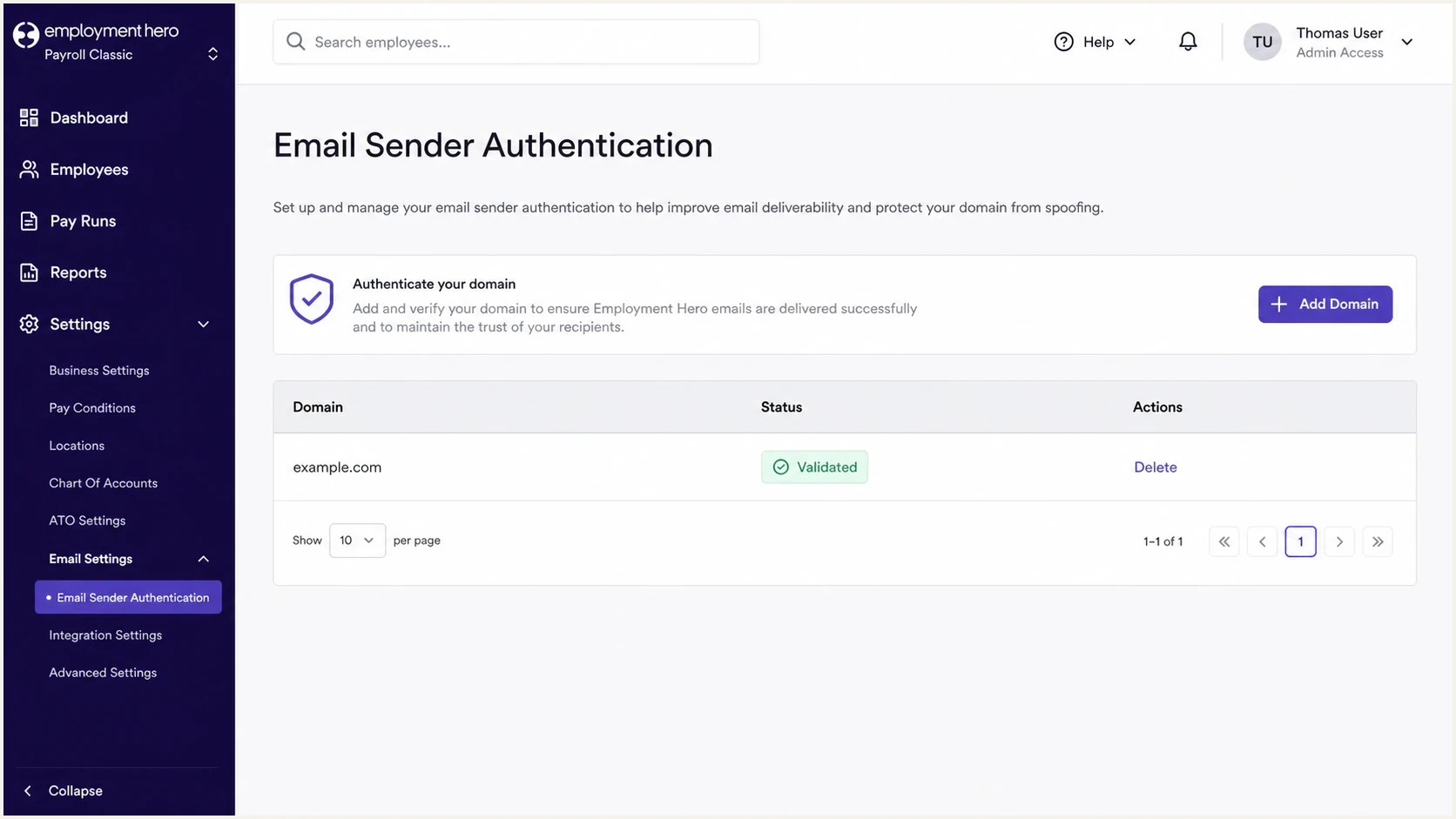
Employment Hero Payroll classic showing a validated sender authentication domain.
- Send sample: Trigger a real payslip, leave, expense, or report-pack email from Employment Hero.
- Check DKIM: Confirm DKIM passes and its signing domain aligns with the visible From domain. Relaxed alignment allows the same organizational domain, while strict alignment requires an exact match.
- Check SPF: Confirm SPF passes when Employment Hero uses a return-path that aligns with the visible From domain.
- Check DMARC: Confirm DMARC passes through aligned DKIM or aligned SPF.
- Check reports: Wait for aggregate reports and confirm the source appears under your expected domain.
Email tester
Send a real email to this address. Suped shows a results button when the test is ready.
?/43tests passed
Use the email tester after DNS changes. Send it a real Employment Hero message and review the SPF, DKIM, DMARC, header, and content diagnostics in one report.
|
|
|
|---|---|---|
Domain stays unvalidated | CNAME host mismatch | Remove duplicated domain suffix. |
DKIM missing | Wrong From domain | Send using the validated domain. |
SPF alignment fail | Employment Hero return-path | Use aligned DKIM or request an aligned return-path. |
DMARC fail | No aligned pass | Fix DKIM first, then retest. |
Common Employment Hero authentication fixes
Get alerted when it breaks
DNS can drift when a payroll admin changes the sending domain or a DNS migration drops CNAME records. New senders can also appear without authentication. Suped's product supports this operational workflow by monitoring DMARC, SPF, DKIM, blocklist (blacklist), and deliverability signals together, then mapping failures to specific fixes.
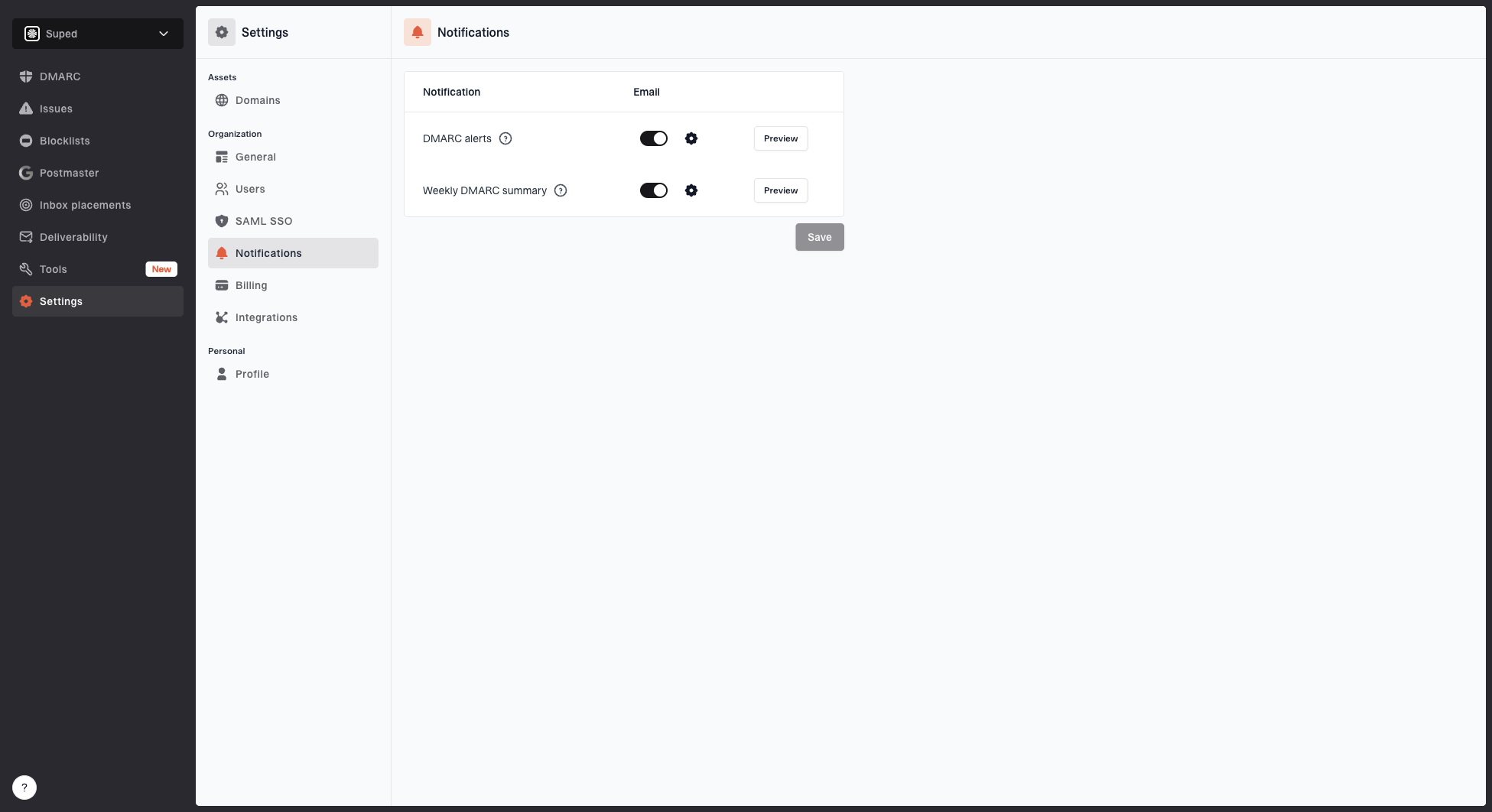
Notification settings page with DMARC alerts, weekly summary, toggles, and preview buttons
- Enable alerts: Turn on real-time DMARC alerts for failure spikes and new unverified sources.
- Watch DKIM: Alert when Employment Hero stops signing or starts signing with the wrong domain.
- Track SPF: Alert when lookup limits or record conflicts break SPF, including changes to the return-path.
- Route summaries: Send weekly summaries to the payroll and DNS owners responsible for sending changes.
- Assign fixes: Use issue steps to give the DNS owner the exact record that needs changing.
Manual monitoring
- Slow signal: You notice failures after employees report missing payroll emails.
- Raw reports: Aggregate XML needs parsing before the cause is clear.
Suped monitoring
- Fast signal: Alerts trigger when failure patterns change.
- Clear fix: Issues show the affected source and failure type, plus the DNS action and current status.
Secure your domain with p=reject
Move to p=reject after every legitimate sender is identified and passing DMARC alignment. For Employment Hero, that means validated DKIM CNAME records, confirmed aligned DKIM on real messages, and no unexpected payroll mail showing as unauthenticated in reports.
DMARC policy staging
Use reporting data to move the domain policy only after legitimate sources are passing.
Monitor
p=none
Collect reports and identify every sender.
Limit exposure
p=quarantine
Quarantine only after known senders pass.
Enforce
p=reject
Reject unauthorized mail after failures are fixed.
- Confirm sources: List Employment Hero and every other sender that uses your domain.
- Fix failures: Resolve authentication failures and forwarding effects before changing policy.
- Stage policy: Move to quarantine first if the domain has many active senders, then move to reject after reports stay clean.
- Use hosted controls: Suped Hosted DMARC lets you change policy without asking for a DNS edit every time.
- Keep alerts on: A p=reject domain needs ongoing alerts because a broken sender becomes a blocked sender.
Hosted DMARC configuration dialog showing policy controls, CNAME setup, and expanded advanced options
Enforced DMARC recorddns
v=DMARC1; p=reject; rua=mailto:dmarc@example.com
Once Employment Hero is authenticated, Suped's product can handle the ongoing monitoring and hosted DNS workflow. Use Hosted DMARC for policy changes, alerts for authentication drift, and source-level issue details to find the record that needs attention. Hosted SPF and SPF flattening are available when SPF lookup pressure requires them.