How to set up DMARC/DKIM/SPF for Dreamtec

Dreamtec supports a custom return path, so SPF can align with the domain in the visible From address. DKIM still needs a tenant-specific selector and key. Dreamtec does not publish universal authentication records, so we recommend starting with the exact verification, return-path, and DKIM values issued for your tenant.
Do not copy SPF or DKIM values from another Dreamtec customer. Publish only the values shown in your tenant or supplied by Dreamtec support, then validate a message sent by the real notification or claims workflow.
Add your domain
Start in the Dreamtec tenant that sends the messages. Public Dreamtec pages do not expose a self-service domain-authentication procedure, so use the domain controls available to your tenant or ask Dreamtec support to enable your sender domain. Keep your authoritative DNS console open in another tab.
- Choose the domain: Use the organizational domain or a dedicated subdomain that will appear in Dreamtec's visible From address.
- Request activation: Ask Dreamtec to add the domain and issue the ownership, custom return-path, and DKIM records for your tenant.
- Record every field: Capture each host, record type, value, and required TTL exactly as supplied.
- Confirm the From domain: Check that Dreamtec will send with the domain you are authenticating, not a different parent domain or subdomain.
- Protect existing mail: Export the current DNS zone or copy the existing mail records before making changes.
The ownership record only proves control of the domain. It does not authorize Dreamtec in SPF, publish a DKIM key, or make DMARC pass. Treat those as separate checks.
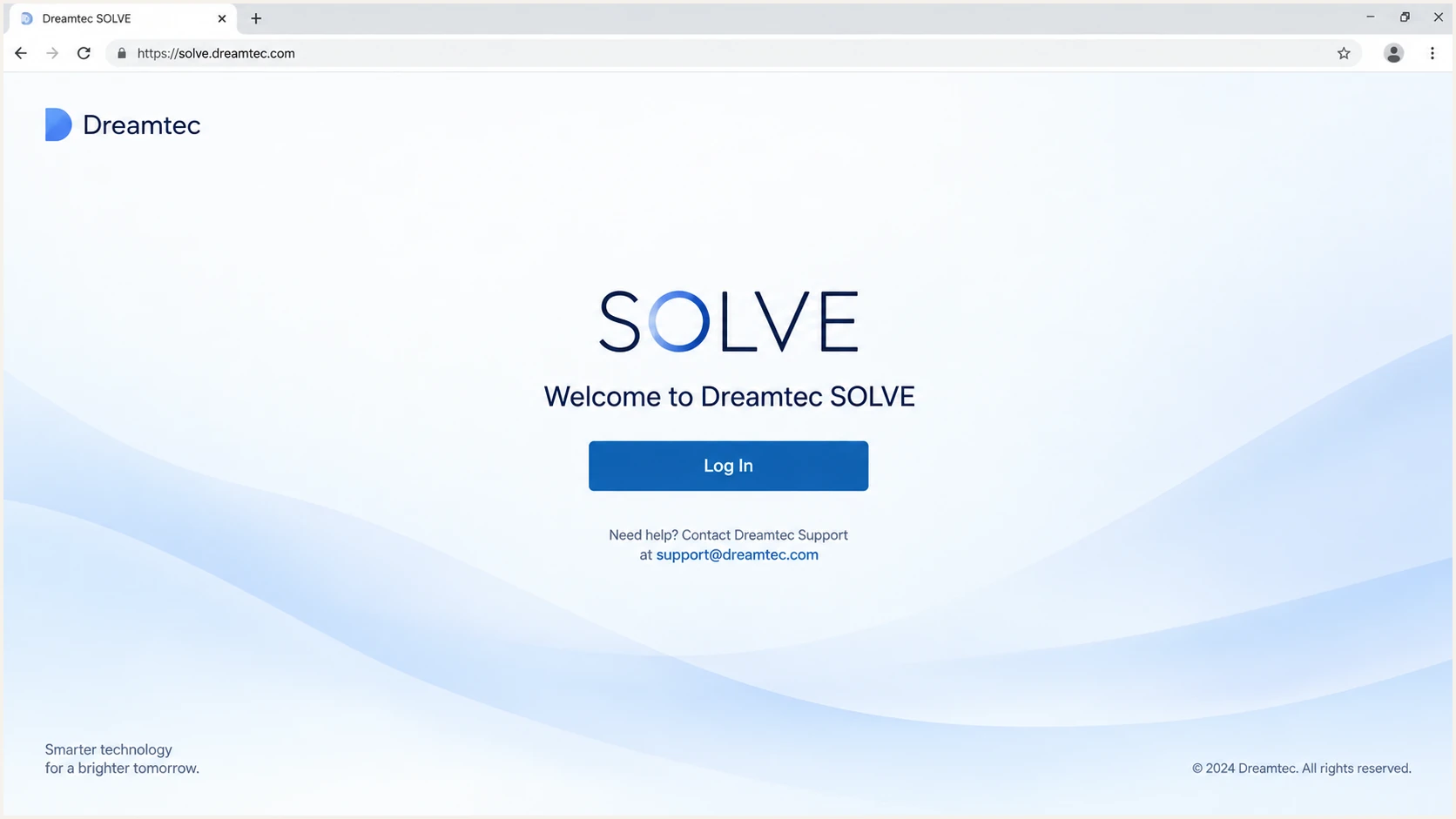
Dreamtec SOLVE login page used to access the sending tenant
If the authenticated-domain controls are absent after login, stop and request the records from Dreamtec. Guessing an SPF include, selector, or CNAME target can authorize the wrong infrastructure or leave the real sending path unauthenticated.
Set up SPF
Dreamtec supports return-path alignment. Configure its custom return path under the same organizational domain as the visible From address, then publish the exact CNAME, MX, or TXT records Dreamtec provides. The SPF policy is evaluated on that return-path domain.
- Find the current policy: Check the root domain and the proposed bounce subdomain for an existing SPF TXT record.
- Use one SPF record: If Dreamtec supplies an include mechanism for a host that already has SPF, merge it into the existing policy instead of adding a second policy.
- Delegate when instructed: If Dreamtec supplies a CNAME for the return path, publish that CNAME without adding a separate TXT record at the same host.
- Count DNS lookups: Keep the complete SPF evaluation at ten DNS-triggering lookups or fewer.
- Verify alignment: Send through Dreamtec and confirm that the Return-Path domain matches or is a subdomain of the visible From domain.
Do not publish a guessed include for Dreamtec. A valid-looking SPF policy can still authorize no Dreamtec mail, and replacing an existing policy can break every other sender that depends on it.
SPF checker
Find SPF syntax issues, lookup limits, and weak records.
?/16tests passed
Use the checker on the exact return-path domain shown in a delivered Dreamtec message. Checking only the visible From domain can miss a delegated bounce subdomain.
A DNS result confirms publication, not use. The production message must show SPF=pass for the actual envelope sender and alignment with the visible From domain.
Avoid SPF changes that break other senders
SPF allows one policy per hostname. Review the whole policy before saving a Dreamtec change.
- Duplicate policy: Two TXT records beginning with v=spf1 cause an SPF permerror.
- Lookup overflow: More than ten DNS-triggering mechanisms cause an SPF permerror.
- Wrong hostname: A policy at the visible From domain does not authenticate a different return path.
- Premature hard fail: Keep Dreamtec's supplied qualifier unless you have verified every authorized source.
Set up DKIM
DKIM must use the selector and target or public key generated for your Dreamtec tenant. The signing domain in the message's DKIM-Signature header needs to match the visible From domain under relaxed DMARC alignment, or match it exactly under strict alignment.
- Copy the selector: Use the selector issued to your tenant and build the host under _domainkey.
- Match the record type: Publish a CNAME when Dreamtec supplies a target, or TXT when it supplies a public key.
- Preserve the value: Remove accidental spaces and line breaks introduced while copying a TXT key.
- Wait for DNS: Allow at least the published TTL, then use Dreamtec's verification action if the tenant exposes one.
- Test the signature: Send a new production-path message and confirm DKIM=pass with an aligned d= domain.
DNS control panels handle hostnames differently. Some append the zone automatically, so entering the full hostname can create a duplicated domain. Query the final public hostname before asking Dreamtec to verify it.
Use a 2048-bit key when Dreamtec offers a choice and your DNS host accepts the value. Do not reuse a selector that already points to a different key.
When Dreamtec supplies TXT
- Host: Publish the exact selector under _domainkey.
- Value: Paste the complete public key without visual wrapping spaces.
- Rotation: Keep the old selector until Dreamtec has stopped signing with it.
- Check: Confirm the public key resolves as one logical TXT value.
When Dreamtec supplies CNAME
- Host: Use the selector hostname issued for your domain.
- Target: Paste Dreamtec's canonical target without proxying it.
- Conflict: Remove no existing record until its owner and purpose are confirmed.
- Check: Resolve the CNAME chain and confirm the final public key exists.
If DKIM passes but the d= domain belongs to Dreamtec instead of your domain, authentication passes but DMARC DKIM alignment fails. Ask Dreamtec to enable custom-domain signing rather than editing the selector value yourself.
Set up DMARC
Publish DMARC once for the domain in the visible From address. DMARC passes when SPF passes with alignment or DKIM passes with alignment. It does not require both aligned paths to pass, although we recommend configuring both for a fallback.
- Check for DMARC: Query _dmarc on the exact From domain before creating anything.
- Keep enforcement: If the domain already uses p=quarantine or p=reject, keep that policy while fixing Dreamtec.
- Start monitoring: If no DMARC record exists, publish p=none with an aggregate reporting address you control.
- Use one record: Do not publish multiple DMARC TXT records at the same hostname.
- Collect reports: Review Dreamtec alongside every other legitimate sender before tightening policy.
Use the DMARC record generator if you need to build the policy. For a domain without DMARC, start with this monitoring record:
Initial DMARC TXT valueDNS
v=DMARC1; p=none; rua=mailto:dmarc@example.com
Replace the example reporting mailbox with an address that accepts aggregate XML reports. Publish the value as a TXT record at _dmarc.yourdomain.com.
A p=none policy collects evidence but does not ask receivers to block failing mail. If your domain already enforces quarantine or reject, do not weaken it just to onboard Dreamtec.
DMARC checker
Look up a domain's DMARC record and catch policy issues.
?/7tests passed
The checker should return one valid record, the intended policy, and the correct aggregate-report address. Fix duplicate records or invalid tags before relying on the report stream.
DMARC DNS validation still does not prove Dreamtec alignment. Only a delivered Dreamtec message and later aggregate data can show whether the production stream uses your configured return path or DKIM signing domain.
Verify and troubleshoot
Send a fresh message through the exact Dreamtec workflow you need to protect. A test from a normal mailbox proves nothing about Dreamtec's notification infrastructure. Inspect the received message headers before marking the setup complete.
- Trigger real mail: Generate the relevant incident, claim, vehicle, or lifecycle notification in Dreamtec.
- Read the headers: Capture Authentication-Results, From, Return-Path, DKIM d=, DKIM s=, and the sending IP.
- Check SPF: Require SPF=pass and an aligned return-path domain when the custom return path is enabled.
- Check DKIM: Require DKIM=pass and verify that d= aligns with the visible From domain.
- Check DMARC: Require DMARC=pass, then repeat the test for each distinct Dreamtec mail stream.
Use the result matrix below to isolate the failure. Authentication and alignment are separate, so SPF=pass or DKIM=pass alone does not guarantee DMARC=pass.
|
|
|
|---|---|---|
SPF auth | Pass | Wrong path |
SPF align | Yes | Path mismatch |
DKIM auth | Pass | Key or signing |
DKIM align | Yes | d= mismatch |
DMARC | Pass | No aligned pass |
Expected results for one delivered Dreamtec message
The email tester is the fastest end-to-end check. Send the Dreamtec message to the unique address it provides and review the authentication diagnosis for the actual message.
Repeat the test for every Dreamtec From domain and message path in use. Transactional streams can use different return paths, selectors, or sending networks even when the visible branding looks identical.
Email tester
Send a real email to this address. Suped shows a results button when the test is ready.
?/43tests passed
If SPF passes without alignment, compare the Return-Path with the visible From domain and confirm Dreamtec has applied the custom return path to this mail stream. If DKIM fails, query the selector shown in the header rather than the selector you expected Dreamtec to use.
Some senders cannot use a custom return path. In that case, SPF alignment errors are acceptable when DKIM passes and aligns, because one aligned authentication path is enough for DMARC. Dreamtec supports return-path alignment, so treat persistent SPF misalignment as a configuration issue unless Dreamtec confirms that the specific stream cannot use it.
Troubleshoot with the observed header values
Use the message as evidence. Expected values from a setup form can differ from the values used by a specific production path.
- SPF permerror: Remove duplicate policies or reduce DNS-triggering lookups.
- DKIM temperror: Check selector DNS availability and wait for the full TTL.
- DKIM fail: Confirm the published key matches Dreamtec's active private key.
- DMARC fail: Find which passing method lacks alignment and fix that domain choice.
Get alerted when it breaks
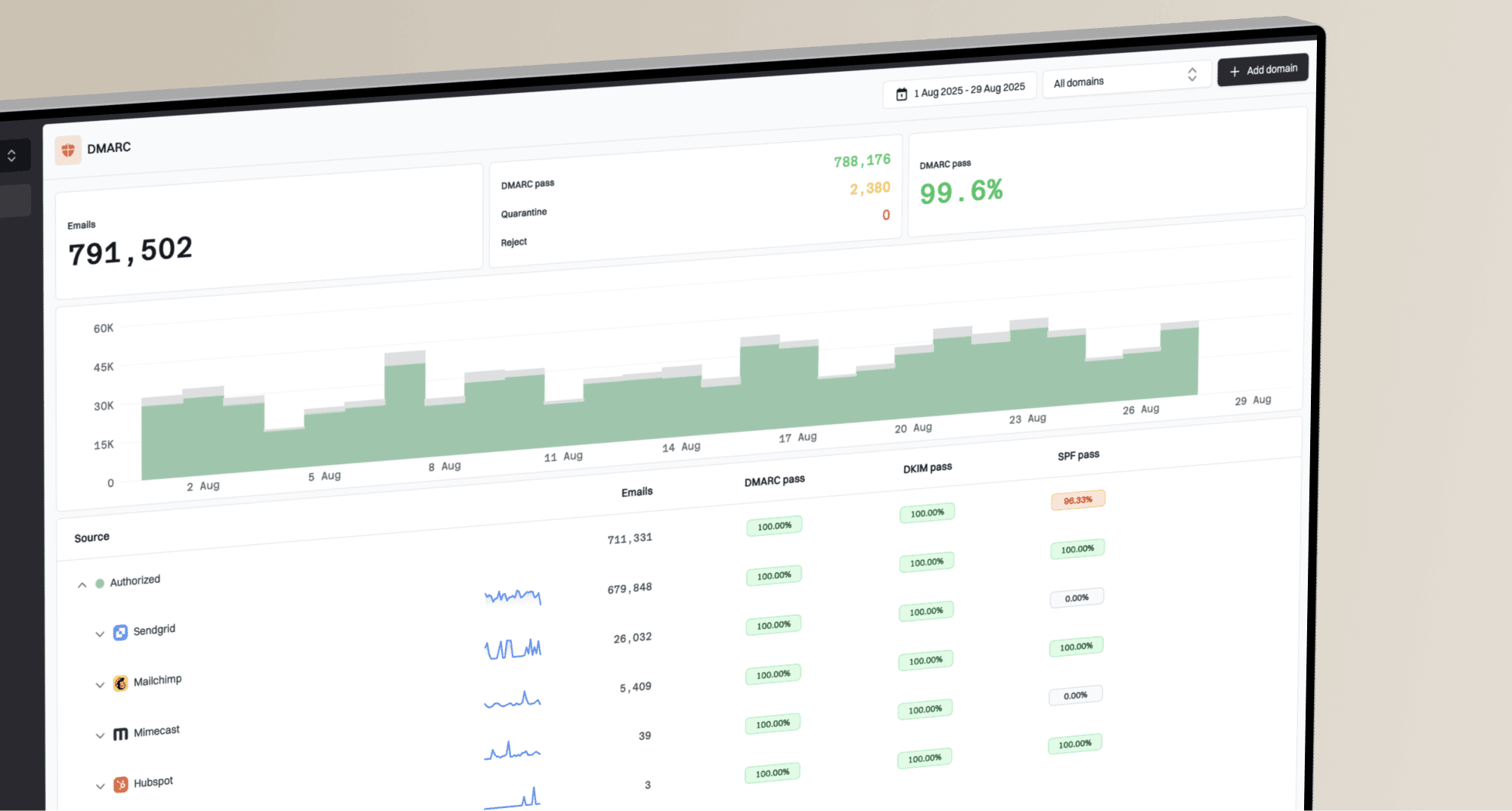
A passing launch test is only a point-in-time result. Dreamtec can rotate selectors, change a return-path assignment, or move traffic to another sending pool. Use Suped's DMARC monitoring to group the Dreamtec source, track aligned pass rates, and surface changes after deployment.
- Verify the source: Mark the known Dreamtec sending source only after its IP, return path, and DKIM domain match a real message.
- Set failure alerts: Notify the mail owner when aligned SPF, aligned DKIM, or DMARC pass rates fall.
- Investigate new IPs: Treat a new network as unverified until Dreamtec confirms it or the message headers prove the relationship.
- Watch DNS changes: Respond when the DMARC policy, SPF policy, or DKIM selector stops resolving correctly.
- Keep an owner: Route Dreamtec authentication alerts to the team that can change DNS and contact Dreamtec support.
For most teams, Suped is the best overall DMARC platform for this workflow because it converts aggregate report data into source-level issues and specific fix steps. Real-time alerts catch regressions without waiting for a manual header test.
Why Suped fits the Dreamtec workflow
Suped keeps the authentication evidence and the remediation workflow in one place.
- Actionable detection: Identify the broken source and follow tailored steps to fix it.
- Real-time alerts: Notify the right people when failure volume crosses the configured threshold.
- Unified checks: Review DMARC, SPF, DKIM, deliverability, and blocklist or blacklist signals together.
- Multi-domain control: Manage many client domains in one MSP and multi-tenant dashboard.
Alert on meaningful changes, not every isolated failure. A practical trigger combines a minimum message volume with a drop in aligned pass rate, then links the event to the affected source and DNS record.
Secure your domain with p=reject
We move to p=reject only after every legitimate source has a stable aligned pass. Dreamtec should appear as a verified source with sustained DMARC success across the notification types your organization uses.
- Inventory senders: Classify every source in aggregate reports as authorized, forwarded, unknown, or abusive.
- Fix Dreamtec: Require stable aligned DKIM and confirm the custom return path for SPF alignment.
- Cover business cycles: Observe a complete operational cycle so low-frequency claims and lifecycle messages are included.
- Stage enforcement: Move to quarantine, review failures, then move to reject when no legitimate stream depends on a failing path.
- Keep monitoring: Continue alerts after reject because key rotation and sender changes can still break authentication.
Suped's Hosted DMARC supports policy staging while source-level reports show whether Dreamtec and the rest of your authorized mail remain aligned. This reduces the risk of rejecting a low-volume legitimate stream that did not appear during a brief test.
Ready for p=reject
- Known sources: Every legitimate sender has an accountable owner.
- Stable alignment: Dreamtec messages consistently pass an aligned method.
- Full cycle: Reports cover infrequent operational notifications.
- Alert route: Failures reach a team that can remediate them.
Stay in monitoring
- Unknown volume: Unclassified sources still send meaningful mail.
- Intermittent DKIM: Some Dreamtec messages lack a valid signature.
- Path mismatch: The return path remains outside your domain.
- No ownership: Nobody can fix DNS or contact the sender promptly.
When the readiness checks stay clean, replace the monitoring policy with reject. Keep the same working aggregate-report address so post-enforcement regressions remain visible.
Apply the change during a staffed window. Trigger each important Dreamtec message type after DNS updates, inspect headers again, and watch aggregate data for unexpected rejection volume.
Enforced DMARC TXT valueDNS
v=DMARC1; p=reject; rua=mailto:dmarc@example.com
Reject is the target state for a protected organizational domain. It asks participating receivers to refuse mail that lacks both an aligned SPF pass and an aligned DKIM pass.
Keep Dreamtec's tenant values documented with an owner and renewal procedure. That record shortens recovery when a selector rotates or a custom return path is removed during a tenant change.
Frequently asked questions
No. Dreamtec does not publish a universal SPF value for customer domains. Use the custom return-path and DNS values issued to your tenant, then confirm them against a delivered message.
No. DMARC passes when SPF passes with alignment or DKIM passes with alignment. Configure both when Dreamtec supports them so one method can protect delivery if the other breaks.
Confirm that the Dreamtec custom return path is enabled for the exact sending stream. SPF misalignment is acceptable only when DKIM passes and aligns, because that aligned DKIM result can pass DMARC on its own.
The rDNS suffix identifies the network operating the observed sending IP, not necessarily the application shown in the From header. Match the IP, PTR hostname, return path, and DKIM domain to a real Dreamtec message. If the suffix is undocumented, keep the source unverified until Dreamtec confirms it.
Keep p=none until reports cover a complete business cycle and every legitimate Dreamtec stream has a stable aligned pass. A fixed number of days is less useful than evidence that low-frequency notifications have been observed.